How to Turn Off Restricted Mode on YouTube on Any Device
You open YouTube to search for something, but instead of what you wanted to watch, you see a message saying, “Some results are hidden because Restricted Mode is turned on.” So how do you turn it off?
In this article, we’ll cover everything you need to know about YouTube Restricted Mode, including step-by-step guides for turning it off (or on) on all your devices, plus tips on what to do if it won’t turn off.
Table of Contents
At a Glance: Turn Off Restricted Mode on YouTubeHow to Turn Off YouTube Restricted Mode on a Computer
Why Can’t I Turn Off Restricted Mode on YouTube?
Why Does Restricted Mode Keep Turning Back On?
How to Turn On YouTube Restricted Mode
What Is YouTube Restricted Mode?
How Does YouTube Restricted Mode Work?
FAQ
At a Glance: Turn Off Restricted Mode on YouTube
Turning Restricted Mode off is usually easy:
- Open YouTube and sign in.
- Select your profile picture.
- Go to Restricted Mode under your account settings.
- Toggle Restricted Mode off.
How to Turn Off YouTube Restricted Mode on a Computer
The steps below use Chrome as an example, but they work the same way in other browsers:
- Sign in to YouTube, click your profile picture in the top-right corner, and then scroll to Restricted Mode.
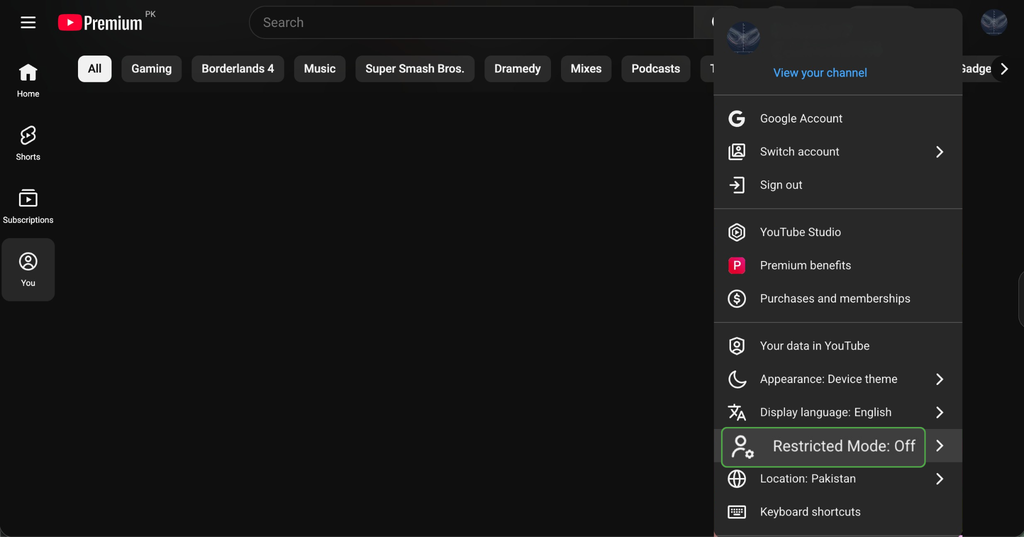
- Toggle Restricted Mode off. YouTube may briefly reload or update to reflect the change.
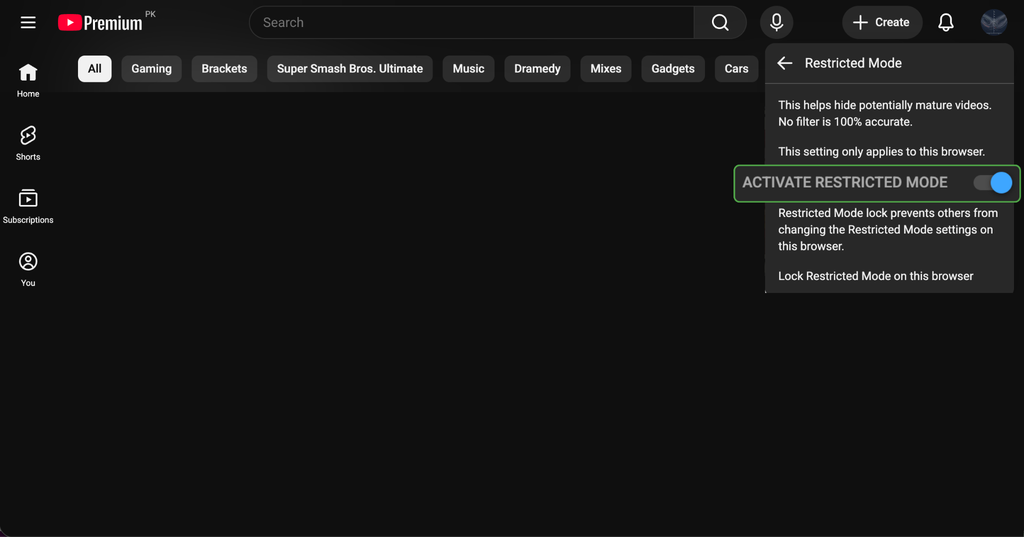
Tech tip: If the toggle is grayed out and you can’t turn Restricted Mode off, it may be locked in the browser you’re currently using. In that case, you’ll see Unlock Restricted Mode on this browser under your Restricted Mode settings. Clicking it unlocks the setting, but YouTube will ask you to confirm your account with your password first.
How to Disable Restricted Mode On iOS and Android
Turning off Restricted Mode on the YouTube mobile app is easy:
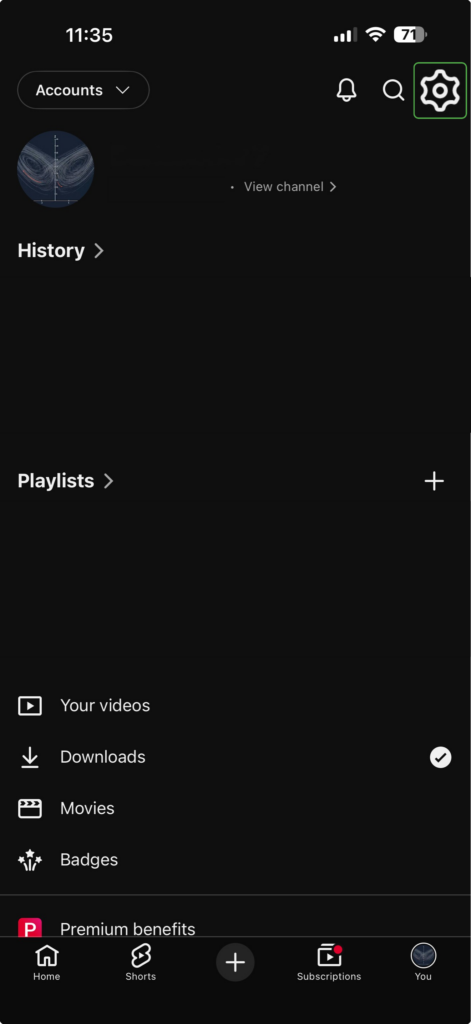
- Open the YouTube app and tap your profile icon on the bottom right.
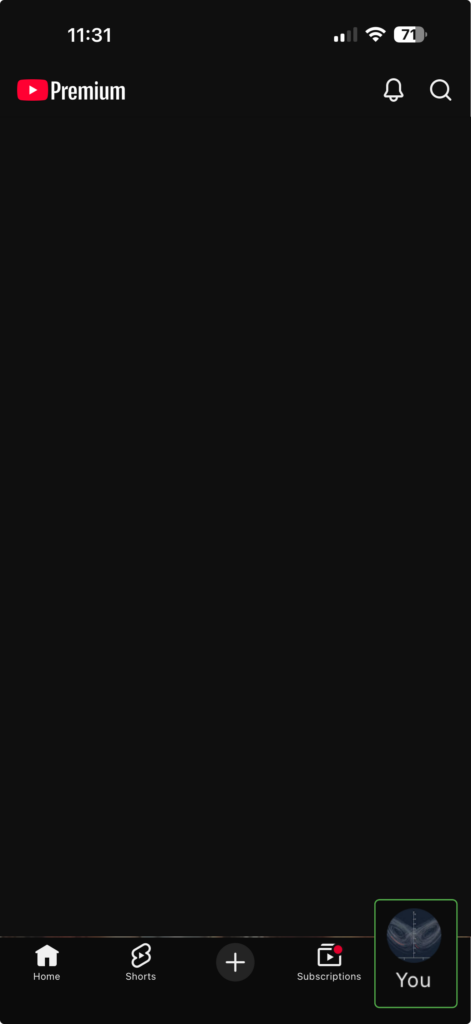
- Tap the cogwheel icon on the top right.
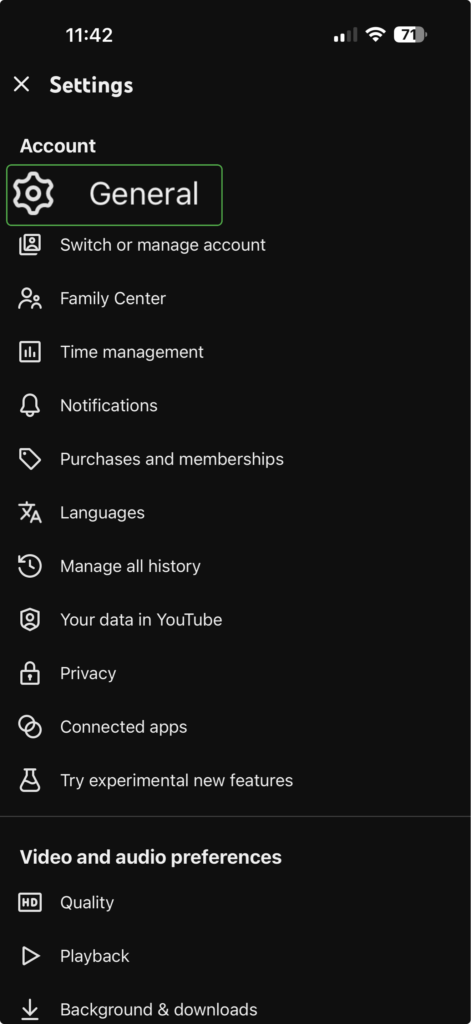
- In the Settings menu, tap General.
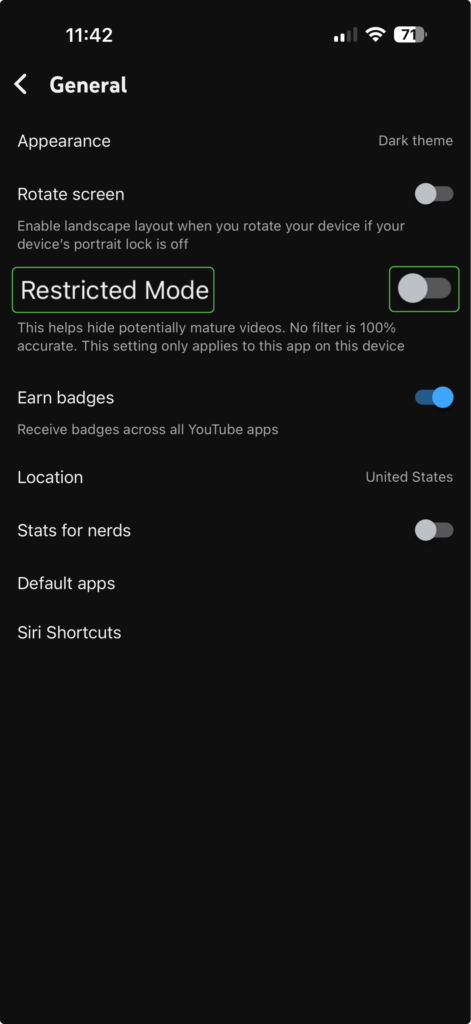
- Find the Restricted Mode setting and toggle it off.
How to Disable YouTube Restricted Mode On a Smart TV
Follow these steps to turn off Restricted Mode on the YouTube smart TV app:
- Open the YouTube app on your TV.
- Navigate to Settings > Restricted Mode.
- Choose Off.
Why Can’t I Turn Off Restricted Mode on YouTube?
If the Restricted Mode switch is unavailable or stays on after you change it, something outside the YouTube app or browser may be controlling it. Check what’s enforcing it before clearing data or reinstalling anything.
Check YouTube’s Content Restrictions Page
Open YouTube’s content restrictions page to see where the restriction is coming from. You’ll see two main sections:
- Restrictions on your personal account: Shows whether Restricted Mode is turned on for your own YouTube or Google account.
- Restrictions on your organization network: Shows whether a school, workplace, or network is forcing Restricted Mode.
The organization section checks for two network controls. One is Domain Name System (DNS) restrictions, where the network routes YouTube through a filtered version of its service, which may appear as moderate or strict filtering.
The other is Hypertext Transfer Protocol (HTTP) header restrictions, where the network adds an instruction to YouTube traffic telling it to apply filtering. Schools and workplaces commonly use this method.
If both checks are off, YouTube isn’t detecting either form of network enforcement. If you still can’t turn off Restricted Mode, the cause is more likely your account, Family Link, a managed device, or a local browser or app setting.
Check Which Google Account You’re Using
On a shared device, you might be signed in to a child’s account or an account managed by your school or workplace. Click your profile picture and check the email address shown. Make sure it’s the account you actually want to use.
On a personal device, try switching to a different account you own, or sign out and use YouTube without logging in. If Restricted Mode disappears, the original account is likely supervised or managed. If the toggle is still grayed out, the device or network is probably the cause.
Check Family Link or Account Supervision
If a parent enables Restricted Mode through Family Link, the child can’t turn it off while signed in with the supervised Google Account. The parent must change the setting through Family Link. On the parent’s device:
- Open the Family Link app.
- Select the child’s account.
- Tap Controls.
- Tap Content restrictions, then select YouTube.
- Turn Restricted Mode off.
Check for School or Work Restrictions
A school or employer can restrict YouTube through a managed Google Account, device policy, or organization network. The Restricted Mode switch may be unavailable even in a personal browser if the device or network enforces the policy.
Open the content restrictions page while on the organization’s device or network. If it identifies an administrator, you’ll need to ask that administrator to change the policy.
Check Your Network Provider
Restricted Mode may be enforced by the network you’re using rather than by YouTube itself. This can happen when your internet provider applies a content filter or when your router uses a DNS filtering service.
To test this, switch from Wi-Fi to mobile data (or vice versa). If you can turn Restricted Mode off on the other connection, the original network is likely applying the restriction. In that case, check its parental-control or DNS settings, or contact whoever manages the connection.
Fix a YouTube App or Browser Problem
If YouTube’s restrictions page shows no account or network controls, the problem may be limited to your browser or app. Start by reloading YouTube, then close and reopen the browser or app. Install any available updates before testing the setting again.
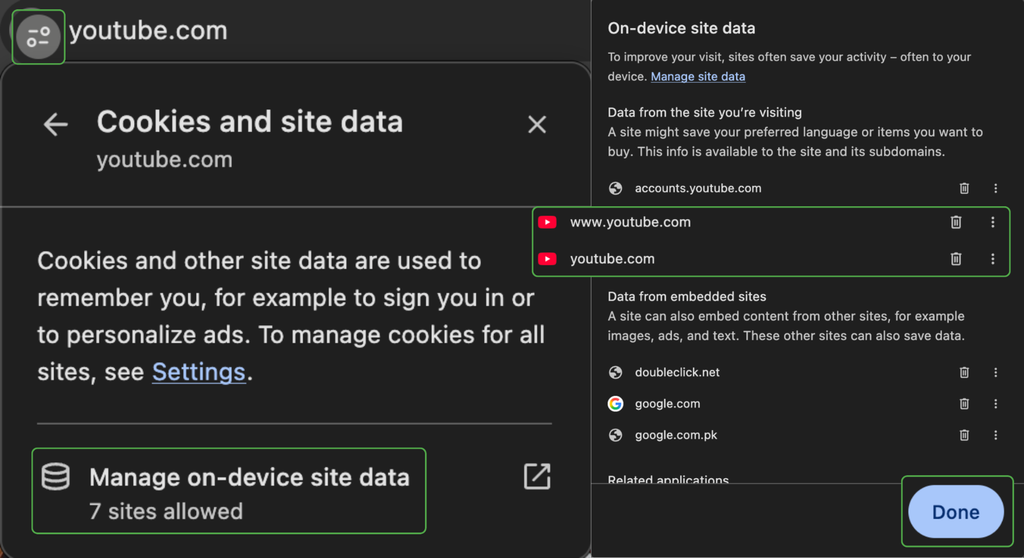
On a computer, open YouTube in a private or incognito window. If Restricted Mode is off there but remains on in your regular browser, a browser extension, cookie, or saved site setting may be affecting YouTube. Disable content-filtering extensions one at a time, reloading YouTube after each change.
Then, while YouTube is open, click the site information icon beside the web address. Select Cookies and site data > Manage on-device site data, then remove any entries for YouTube and click Done. If no YouTube entry appears, skip this step.
Why Does Restricted Mode Keep Turning Back On?
Restricted Mode may seem to turn itself back on when you open YouTube somewhere else or sign in with an account that uses different settings. Common causes include:
- Different browser or profile: Turning Restricted Mode off in one browser or profile doesn’t change it in another.
- Another device: The setting on your computer doesn’t automatically apply to your phone, tablet, smart TV, or streaming device.
- Supervised or managed account: A work-managed or Daily Link account may have Restricted Mode enabled even when your personal account doesn’t.
- Filtered network: Restricted Mode may appear again when you join a network that enforces YouTube filtering.
- Organizational device policy: A school or employer policy may keep Restricted Mode on even after you try to change it.
How to Turn On YouTube Restricted Mode
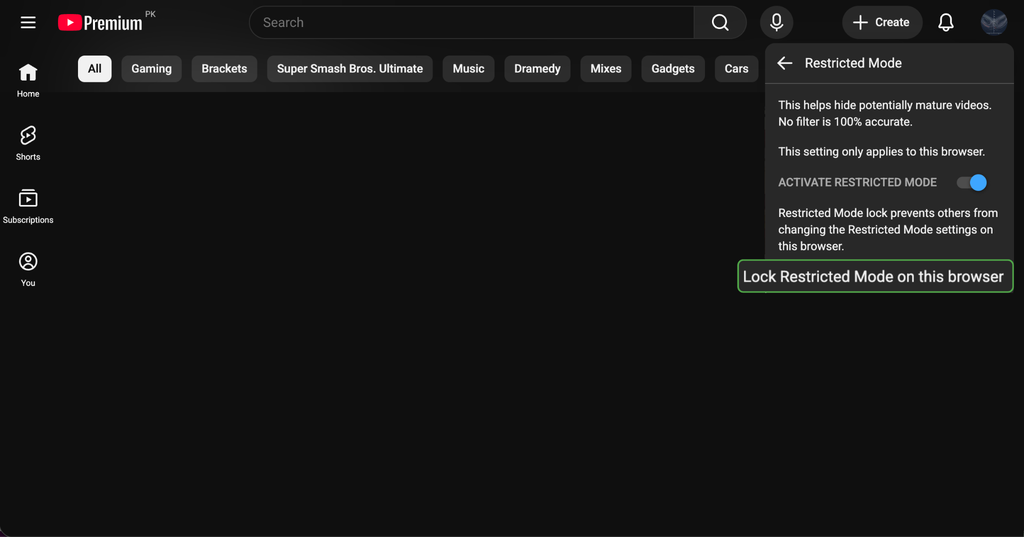
To turn Restricted Mode on for your own browser or device, follow the earlier instructions and switch the setting on instead of off. If you don’t want a child (or anyone else) to turn it off, you’ll need to lock Restricted Mode as well:
- Open YouTube, sign in with your Google credentials, and click your profile icon.
- Find Restricted Mode and toggle it on.
- Click Lock Restricted Mode on this browser.
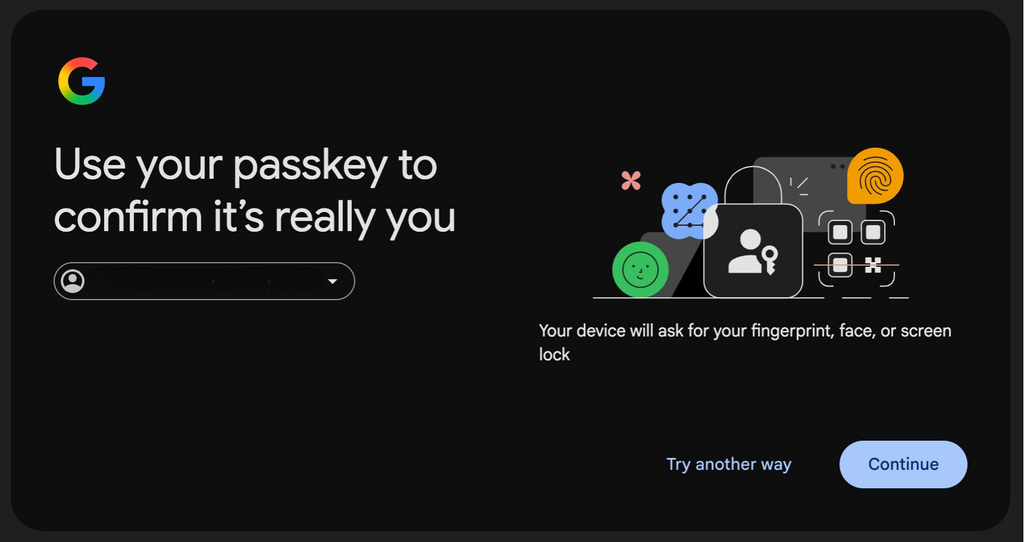
- Enter your Google account password to confirm.
Through Google Workspace
Google Workspace administrators with the required permissions can restrict which videos signed-in organization users can watch. To do this:
- Open the Google Admin console.
- Navigate to Menu > Apps > Additional Google services > YouTube.
- Select Content settings > Setup.
- Check Signed in users in your organization can only watch restricted and approved videos, then click Save.
- Open Settings for YouTube > Permissions.
- Choose the organizational unit or configuration group you want to manage.
- Select Strict Restricted YouTube access or Moderate Restricted YouTube access.
- Click Save. If the organizational unit inherits its setting from another unit, the button may say Override instead.
Strict access filters more videos, while Moderate access leaves a larger selection available. For the restriction to apply, the user must be signed in to their Google Workspace for Education account, and YouTube must be turned on for their organizational unit.
Read more: How to block websites on a phone, computer, browser, or router
What Is YouTube Restricted Mode?
Restricted Mode is a YouTube setting that filters out potentially mature or sensitive content. It hides videos that may contain inappropriate content, and it also automatically hides all comments, regardless of whether the video is flagged as inappropriate or not (in case someone posts something inappropriate in the comment section).
It’s a safety feature designed for kids, schools, workplaces, and other settings where people want more control over what appears on YouTube. You can also use it to avoid upsetting content or to stay focused while working.
How Does YouTube Restricted Mode Work?
YouTube uses automated systems to filter videos based on signals such as the title, description, metadata, spoken language, and existing age restrictions. Community Guidelines reviews can also influence whether a video appears in Restricted Mode.
The filter may hide videos involving drug or alcohol use, detailed sexual content, graphic violence, strong language, or deliberately demeaning material. It can also restrict mature coverage of war or terrorism. Results may vary by language, and the system can misread context.
What Changes When Restricted Mode Is On?
Some videos may disappear from search results or become unavailable when opened directly. YouTube also hides comments on every video.
Restricted Mode affects YouTube Music as well. Songs or albums marked Explicit may appear in search results but won’t play. The setting can still miss mature content, so it shouldn’t replace broader parental controls.
Restricted Mode vs. Age Restriction on YouTube
Restricted Mode applies a broad filter across YouTube, while an age restriction applies to one specific video.
| Restricted Mode | Age restriction |
| Filters a range of potentially mature content | Applies to one video |
| Can be enabled by a viewer or enforced by a parent, administrator, or network | Can be applied by YouTube or the uploader |
| May hide videos that aren’t age-restricted | Marks a video as unsuitable for viewers under 18 |
| Can usually be turned off when you control the setting | Remains on the video when Restricted Mode is off |
A video hidden by Restricted Mode isn’t always age-restricted. However, age-restricted videos remain unavailable while Restricted Mode is on. Turning it off doesn’t remove the age restriction.
FAQ
What is the difference between Restricted Mode and age restriction on YouTube?
Restricted Mode broadly filters potentially mature content across YouTube, while an age restriction applies to one specific video. A video hidden by Restricted Mode isn’t necessarily age-restricted, and turning Restricted Mode off doesn’t remove a video’s age requirement.
Why can’t I see comments on YouTube videos?
Restricted Mode hides comments on the videos you watch. If it’s off, comments may still be unavailable because the creator disabled them, the video is private or made for kids, or you’re using a supervised account.
Does turning off Restricted Mode apply to all my devices and browsers?
No. Restricted Mode works separately in each browser, device, and supported profile, so turning it off in one place won’t change the setting elsewhere.
How do I check whether Restricted Mode is turned on?
Open YouTube in your browser or the app, tap your profile menu, and select Restricted Mode to check the toggle. When Restricted Mode is on, you can’t view comments on any video.
Why does Restricted Mode keep switching back on by itself?
It may reappear when you switch to another browser, profile, device, account, or filtered network because each can use different restrictions. Family Link or an organization administrator may also be enforcing the setting.
Can I turn off Restricted Mode on a school or work Chromebook?
Only if the organization hasn’t enforced it. An administrator can force Moderate or Strict Restricted Mode on a managed Chromebook or browser, in which case the administrator must change the policy.
