Cache vs. Cookies: What’s the Difference?
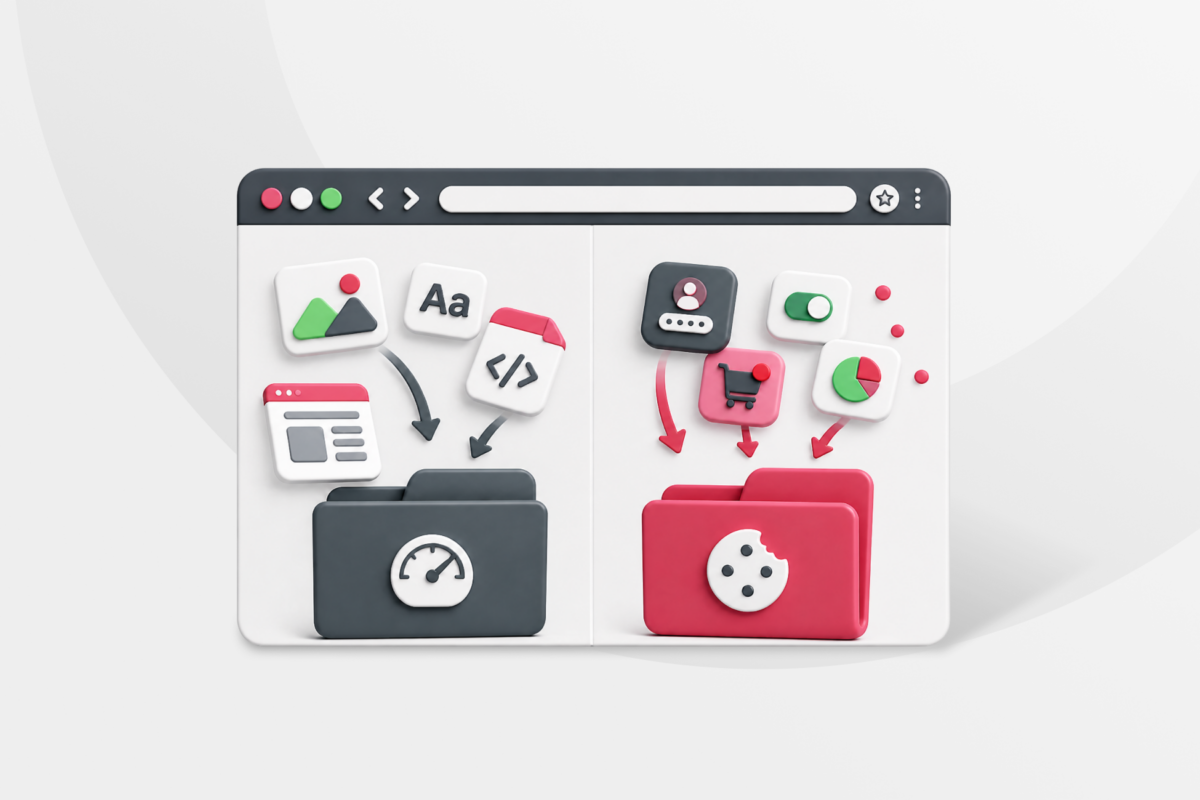
When you have a browser issue, you almost always get the same advice: “Clear your cache and cookies.” It’s the go-to solution for everything from pages that won’t load to websites that keep signing into the wrong account. But what exactly am I clearing, and why are cache and cookies always mentioned together?
Understanding the difference between cache and cookies can help you choose the right fix without deleting more data than necessary. This guide explains what each one stores, when to clear it, and what you can expect afterward.
Cache vs. Cookies at a Glance
Browser cache and cookies serve different purposes. The cache is primarily about performance, while cookies let websites remember sessions, settings, and information about you.
| Characteristics | Browser Cache | Cookies |
| Primary purpose | Helps websites load faster | Helps websites remember information |
| Common contents | Images, fonts, HTML, CSS, and JavaScript | Session IDs, preferences, and tracking identifiers |
| Typical size | Can use a significant amount of storage | Usually very small |
| Sent to a website | Cached files generally aren’t sent back | Relevant cookies are sent with website requests |
| Main benefit | Reduces repeated downloads | Maintains sessions and site preferences |
| Privacy implications | Stores traces of website content on our device | Can support personalization and tracking |
| Effect of clearing | Websites download fresh copies of files | Websites may log you out or reset your settings |
The easiest way to remember the difference is that the cache remembers the website, while cookies help the website remember you.
What Is a Browser Cache?
A browser cache is temporary storage for copies of website resources. These can include images, logos, fonts, stylesheets, scripts, and other files needed to display a page.
When you revisit a website, your browser can reuse some of these stored files instead of downloading everything again. This can reduce loading times and bandwidth use, especially on websites with large images or resources that stay the same across multiple pages.
Websites can provide instructions that tell browsers how long to keep cached resources and when to check for an updated version. Your browser can also replace or remove cached files automatically, so you don’t normally need to manage the cache yourself.
A cached file that becomes outdated or doesn’t download correctly can cause visible issues. You might see an old version of a page, a broken image, unusual formatting, or a website that works in a private window, but not in a regular one.
What Are Browser Cookies?
A browser cookie is a small piece of data associated with a particular website. A site can ask your browser to store a cookie and send it back with later requests, allowing the site to recognize the same browser across different pages or visits.
Cookies help websites keep you signed in, remember language or display preferences, and maintain shopping sessions.They can also contain identifiers used for analytics, advertising, and tracking.
Cookies come in several forms:
- Session cookies: Usually persist only for the current browsing session.
- Persistent cookies: Remain until their expiration date or until you delete them.
- First-party cookies: Set by the website shown in your address bar.
- Third-party cookies: Associated with an outside service embedded on the page, such as an advertising or analytics provider.
Cookies don’t normally contain your actual password. A login cookie typically contains a session identifier that tells the website you’ve already authenticated. Most browsers store saved passwords separately in a password manager.
Clearing Cache vs. Cookies: Which Should You Clear and When?
Whether you should clear your cache or cookies depends on the problem you’re trying to solve. Deleting both can cause unnecessary inconvenience, so start with the data most likely to be responsible.
Clear Your Cache When:
- A page displays outdated information.
- Images, videos, or page elements aren’t loading correctly.
- A website’s layout appears broken.
- You need to recover storage space.
- A site works in a private window but not in your usual browser window.
Clearing the cache forces your browser to download fresh copies of website files. The site may load a little more slowly on your first visit afterward, but you shouldn’t lose your login simply because you cleared cached images and files.
Before deleting the entire cache, try a hard refresh. On Windows, press Ctrl + F5 or Ctrl + Shift + R. On macOS, press Command + Shift + R. This tells the browser to reload the current page without relying on some cached resources.
Clear Cookies When:
- You’re stuck in a login or authentication loop.
- A website has saved incorrect preferences.
- You want to end stored sessions on a shared device.
- A site continues to recognize an outdated account.
- You want to remove some locally stored tracking identifiers.
Clearing cookies resets more of your relationship with a website. You’ll generally need to sign in again, and the site may forget settings such as your language, location, theme, or consent choices.
Clear Both Cache and Cookies When:
Clear cache and cookies together when a website remains broken and you can’t identify which type of stored data is responsible. This gives the website a fresh start by removing both its stored resources and its browser-level session data.
You may also want to clear both after using a shared or public computer. If you know ahead of time that you don’t want the browser to keep any data from your session, using a private browsing window is the better option.
What Happens When You Clear Cache and Cookies?
Browsers normally let you select which categories of data to remove. Cookies, cached files, history, autofill data, bookmarks, and saved passwords are all separate categories, so clearing one doesn’t automatically remove the others.
| If You Delete | What to Expect |
| Cached images and files | Pages may initially load more slowly as files download again |
| Cookies and site data | You may be logged out and lose saved site preferences |
| Browsing history | Previously visited pages disappear from the browser’s history list |
| Autofill data | Saved form suggestions may be removed |
| Saved passwords | Login credentials stored in the browser may be deleted |
| Bookmarks | Usually unaffected by clearing browsing data |
Read the options carefully before confirming. If you only want to fix one website, remove that site’s stored data instead of clearing cookies and cache for every site you use.
How to Clear Cache and Cookies in Your Browser
Browser menus change occasionally, but the following instructions cover the current desktop versions of the most widely used browsers.
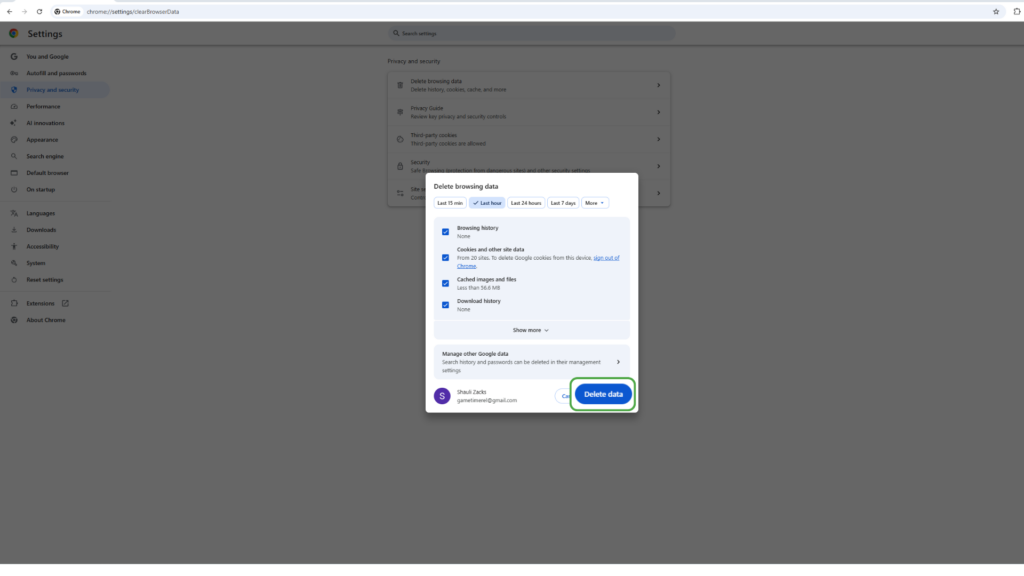
Google Chrome
- Open Chrome, click the three-dot icon to expand the menu, and select Delete browsing data.
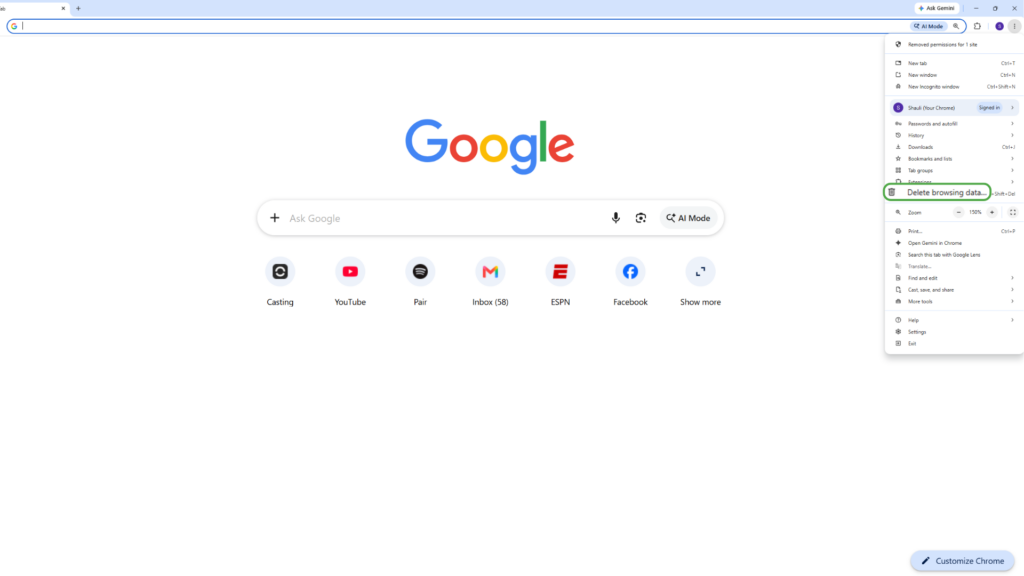
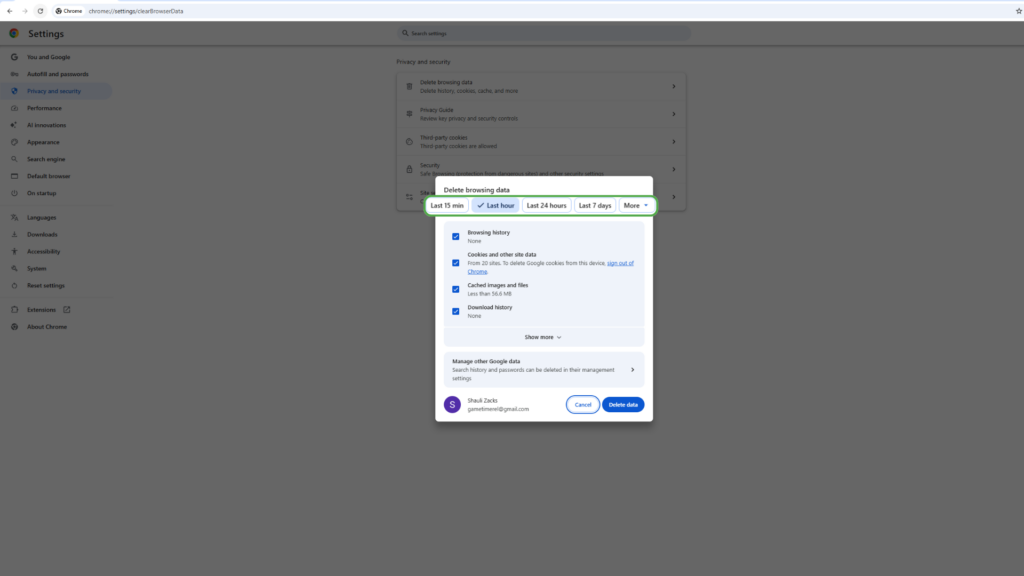
- Choose a time range.
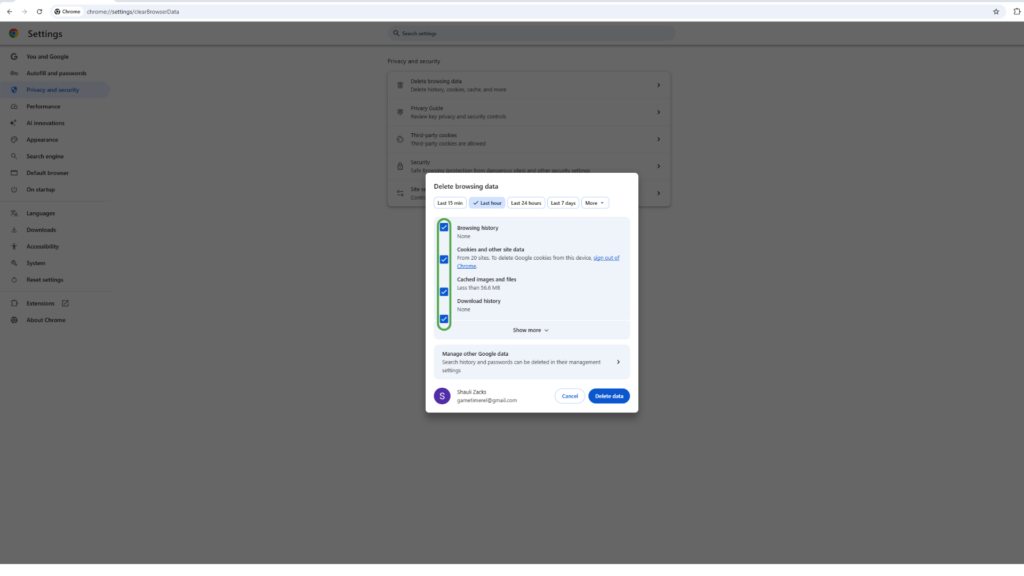
- Select Cookies and other site data, Cached images and files, and also Browsing history and Download history.
- Select Delete data.
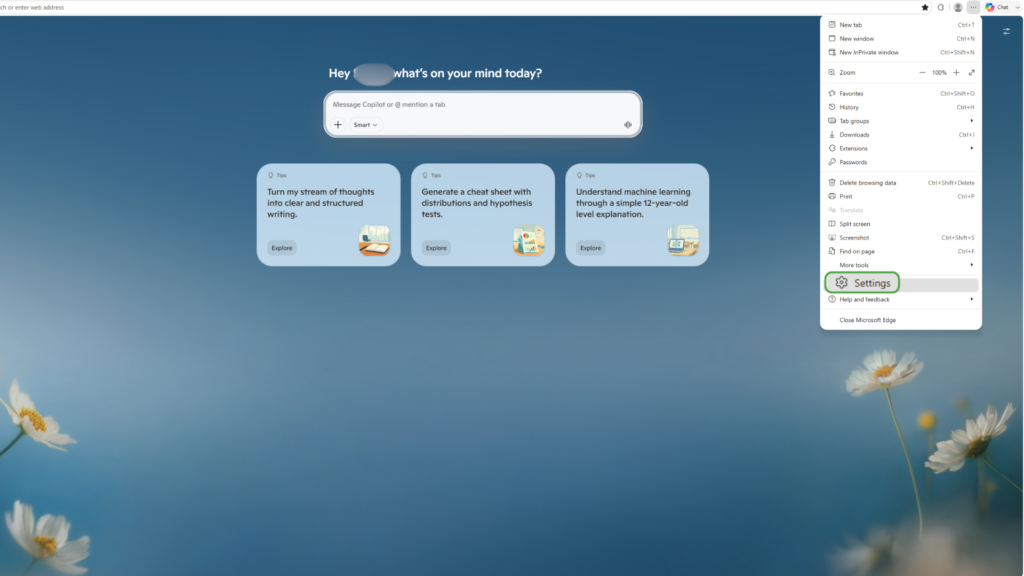
Microsoft Edge
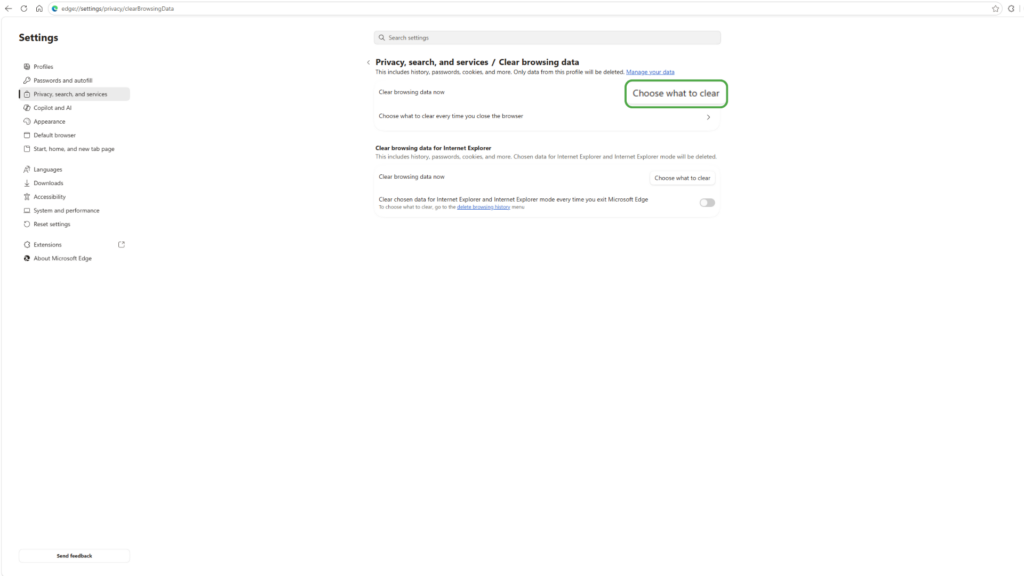
- Open Edge, click the three-dot menu icon, and click Settings.
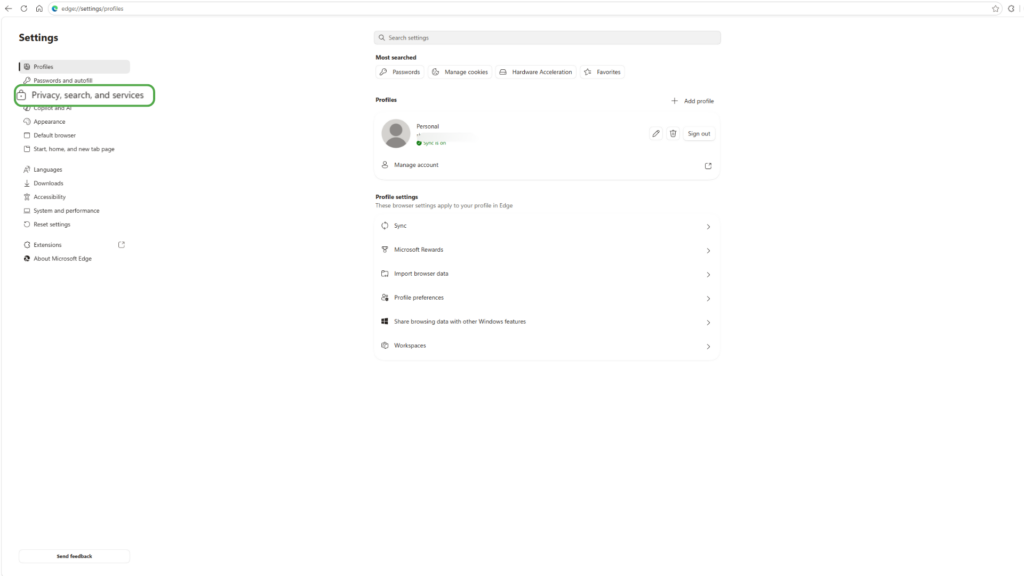
- Go to Privacy, search, and services.
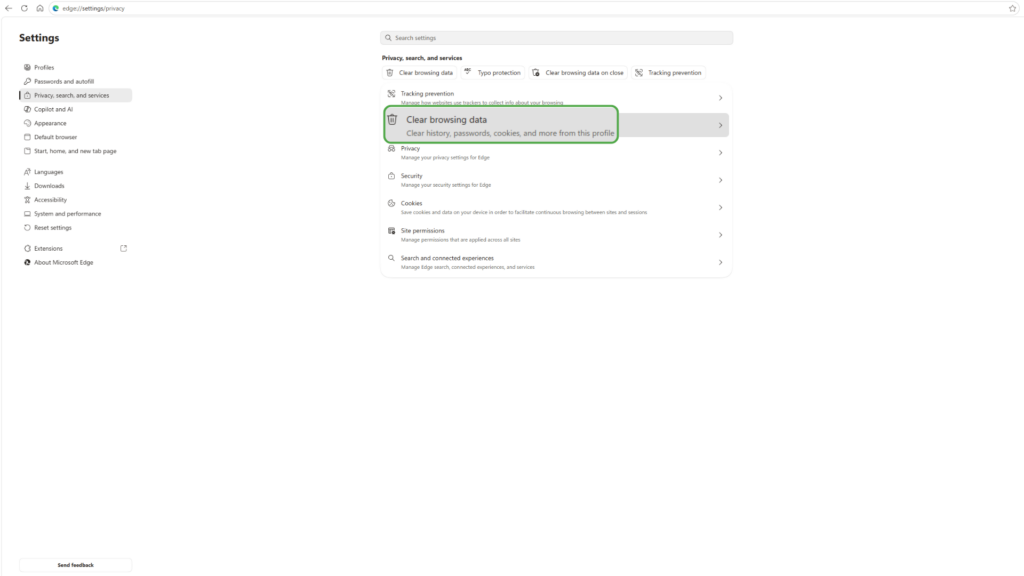
- Click Clear browsing data.
- Select the Choose what to clear button.
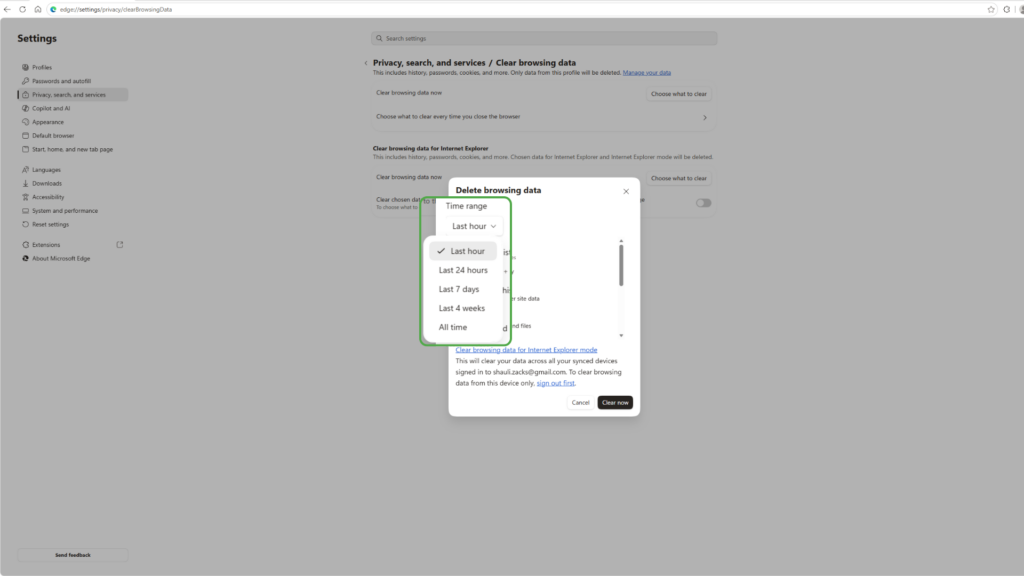
- Choose a time range for the data you wish to delete.
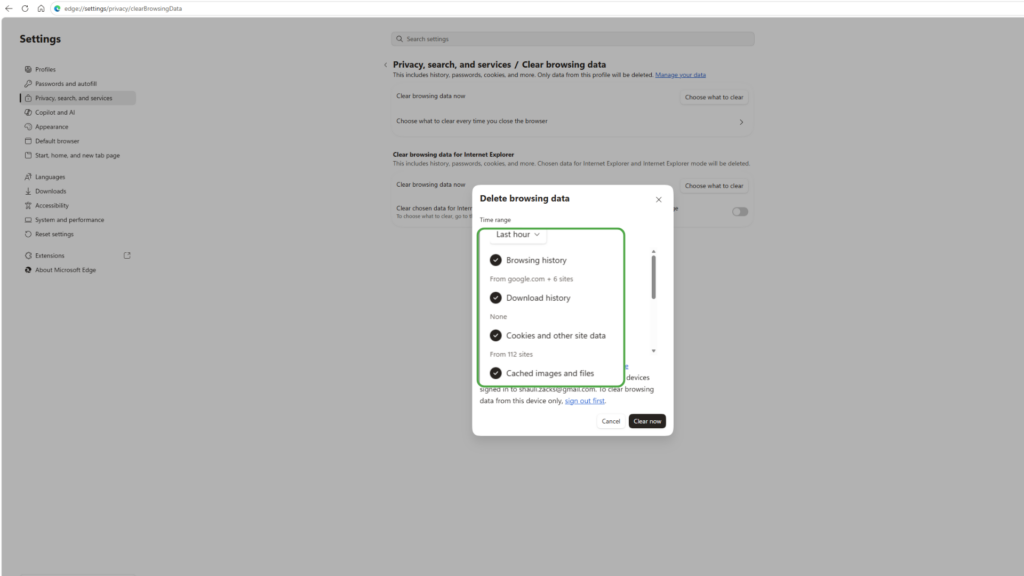
- Choose the data categories you want to delete.
- Select Clear now.
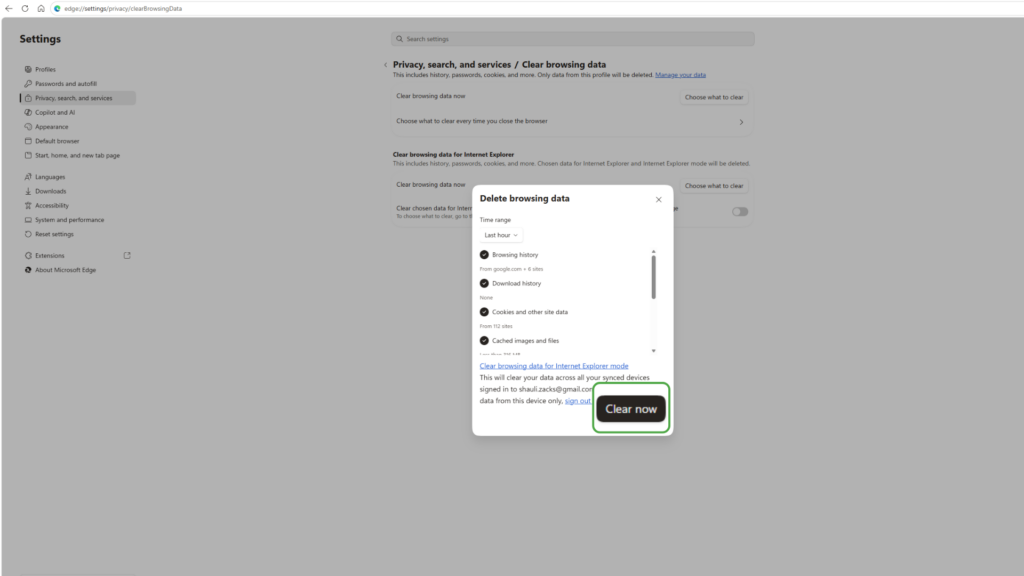
You can also press Ctrl + Shift + Delete to open the clearing menu directly.
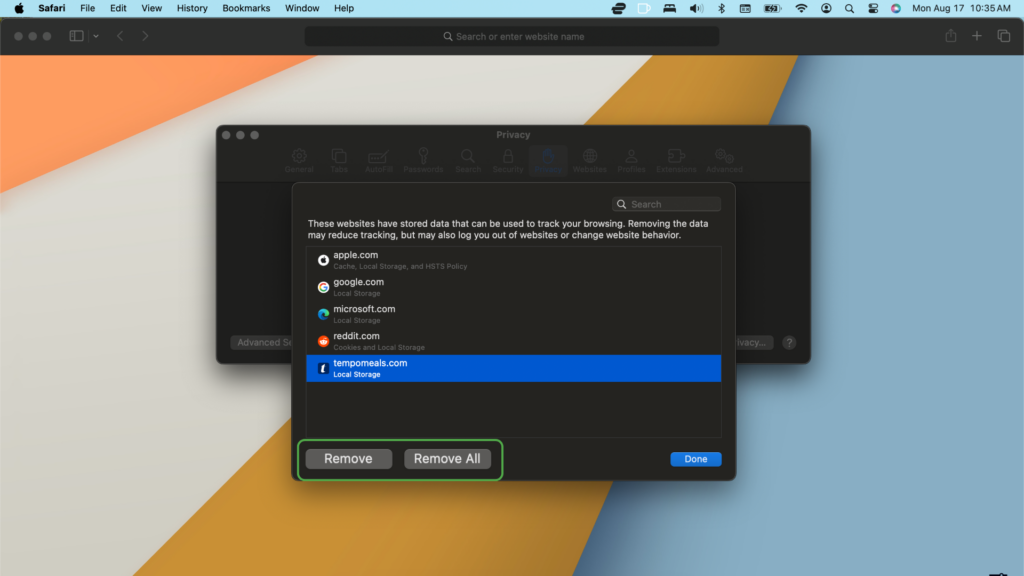
Safari on Mac
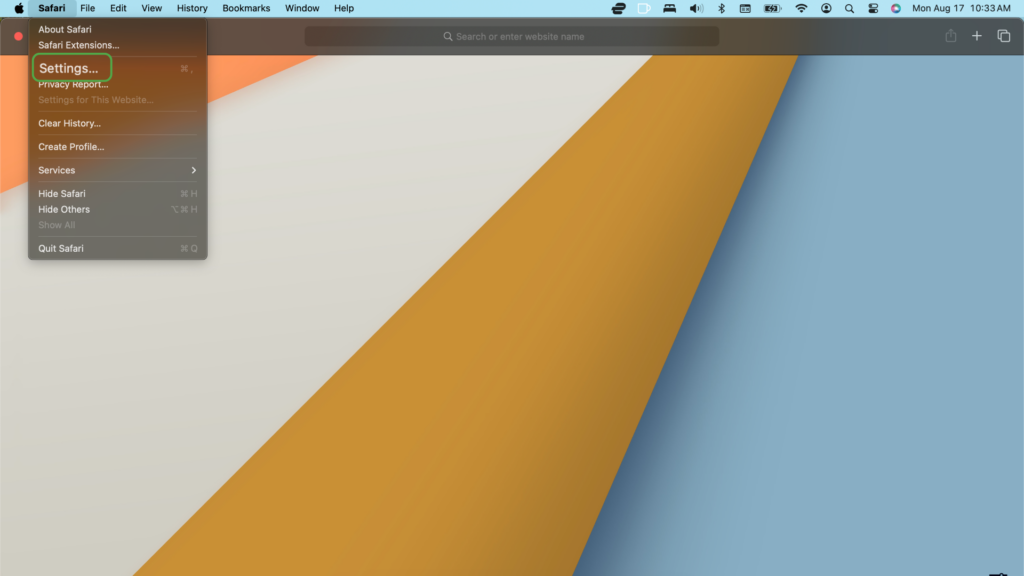
- Open Safari and select the Safari drop-down menu to find your Settings.
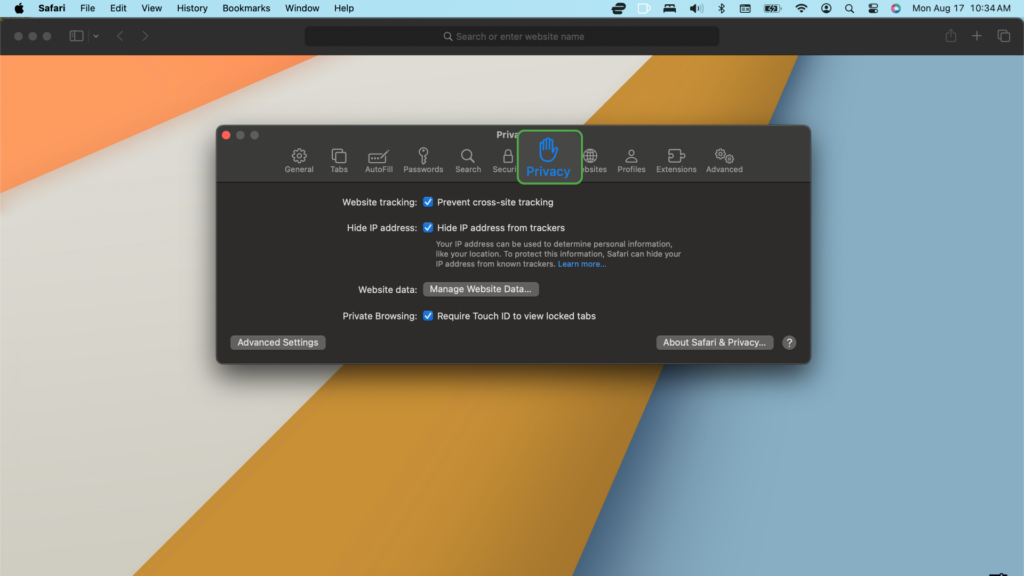
- Select Privacy.
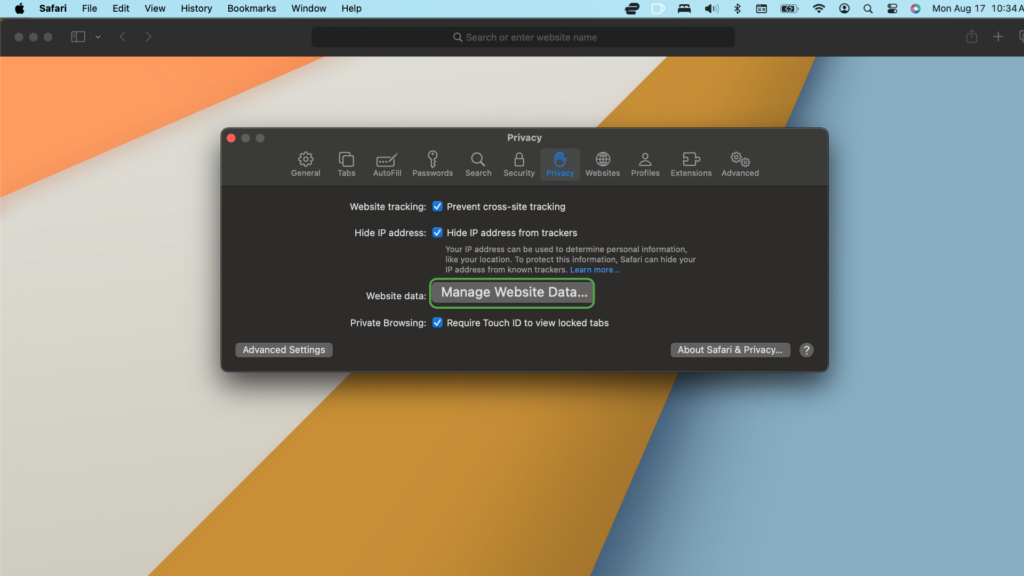
- Click Manage Website Data.
- Choose one or more websites.
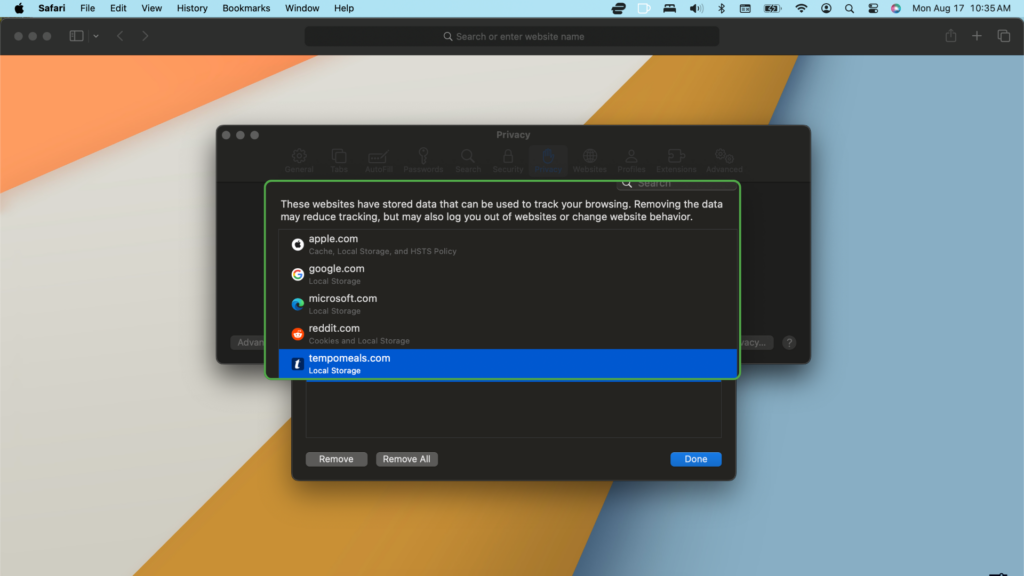
- Select Remove for specific websites or use Remove All to delete all website data.
Be aware that selecting History > Clear History removes additional browsing information, not just cache or cookies.
Can a VPN Clear or Block Cookies?
A VPN doesn’t clear cookies already stored in your browser or prevent websites from placing new ones.
PIA VPN encrypts your traffic between your device and a VPN server and replaces your visible IP address with the server’s IP address. This helps reduce what your internet provider and others on the local network can see, but websites may still recognize you through cookies, account logins, or other tracking methods.
PIA MACE can block domains associated with known ads, trackers, and some malware. Blocking a tracker’s domain may prevent related tracking requests from loading, but MACE isn’t a cookie manager and won’t remove cookies that your browser has already stored.
For more control, combine PIA VPN with your browser’s cookie settings and clear unnecessary site data when appropriate.
FAQ
Is it better to clear cache or cookies?
It depends on what you’re trying to fix. Clear your cache to fix outdated content, broken page elements, or loading problems. Clear cookies to reset website sessions, remove preferences, or reduce some forms of tracking.
What is the difference between cookie and cache?
A cookie stores small pieces of data that help a website recognize your browser and remember your session or preferences. The cache stores copies of website resources so pages don’t have to download every file again. In short, cookies provide continuity while the cache improves speed.
Is it safe to accept cookies?
Usually, yes, and sometimes you need to accept essential cookies for features such as logins and shopping carts to work properly. Optional analytics and advertising cookies can measure or track your activity. Check the consent options and accept only the categories you’re comfortable with.
Will I lose my passwords if I clear my cache?
No. Clearing your cache doesn’t affect passwords in your browser’s password manager. Just make sure you don’t also select Passwords and other sign-in data when deleting browser data.
Does clearing cookies log me out of websites?
Yes, clearing cookies will usually log you out because login sessions typically depend on cookies. It may also remove saved site settings and cookie consent preferences. Saved passwords remain available unless you separately delete password data.
How often should you clear your cache and cookies?
There’s no set schedule for when to clear your cache and cookies. Clear your cache when pages display outdated or broken content, and clear cookies when troubleshooting login problems or removing stored site data. Regularly deleting everything may create more inconvenience without providing a meaningful benefit.
