Can Your ISP See Your VPN? What It Actually Tracks and Why You Should Care

Your ISP can see when you’re connecting through a VPN, but not what you do while you’re connected. That’s because your browsing, searches, and data travel through an encrypted tunnel that’s very difficult for outsiders to access when your VPN is on.
While using a VPN improves your digital privacy and security, your ISP can still tell when you connect, for how long, and how much data you send and receive. And there may be times when you might want to keep your VPN use completely private too.
Fortunately, you do have some control over how visible your VPN is. With PIA VPN, you can adjust everything from your VPN protocol to obfuscation to alter what your ISP can see about your VPN use.
What Does Your ISP See When You Use a VPN?
Each time you type a web address in your browser, your device sends a Domain Name System (DNS) lookup to translate that name into an IP address. That lookup usually goes to your ISP’s own DNS servers by default.
When connecting to secure HTTPS sites (the ones where you see a padlock in your browser’s address bar), your device typically sends the site’s domain name unencrypted at the start of the connection. Combine that with the IP addresses you connect to, the time of each connection, and how much data you use, and your ISP knows which sites you visit and when.
What HTTPS does keep from your ISP is the full URL (e.g., the specific article you read or the product you searched for) and the contents of each page.
Without a VPN, your ISP handles every request your device sends, which lets it build a detailed picture of your online activity.
A VPN can add a layer of privacy from your ISP, but it can’t hide the fact that you’re connected to a VPN. When you connect to PIA, your device sends its traffic through an encrypted tunnel to a PIA VPN server.
Your ISP sees that connection, including other information such as the PIA server’s IP address, when you connected, for how long, how much data passes through the tunnel, and the port number you’re using. It can often identify the VPN protocol, too (WireGuard or OpenVPN).
When you connect to PIA, everything inside the VPN tunnel stays out of view, which means your ISP can’t see:
- Websites and URLs: Your ISP can’t see which sites you visit or the specific pages you open.
- Browsing history and searches: Your ISP can’t see your browsing activity to piece together a profile and it can’t see what you type into search engines.
- Data you send and receive: The VPN’s encryption makes it difficult for your ISP to read it.
- What you’re doing online: Your ISP can see how much bandwidth you use, but it can’t tell whether that’s a streaming session, a video call, or a software download.
- DNS lookups: As long as you’re using PIA’s DNS, your DNS requests travel through the tunnel, preventing your ISP from seeing them.
Privacy Risks That Can Expose Your Data to Your ISP
A VPN protects the traffic that passes through its encrypted tunnel, but your data might sometimes take a different route. In that case, your ISP and the websites you visit might see what your VPN should be hiding.
DNS Leaks
A DNS leak happens when your device sends DNS lookups outside the VPN tunnel, usually to your ISP’s DNS servers. The rest of your traffic stays encrypted, but each lookup reveals the name of a site you’re about to visit, which gives your ISP a running list of your browsing habits.
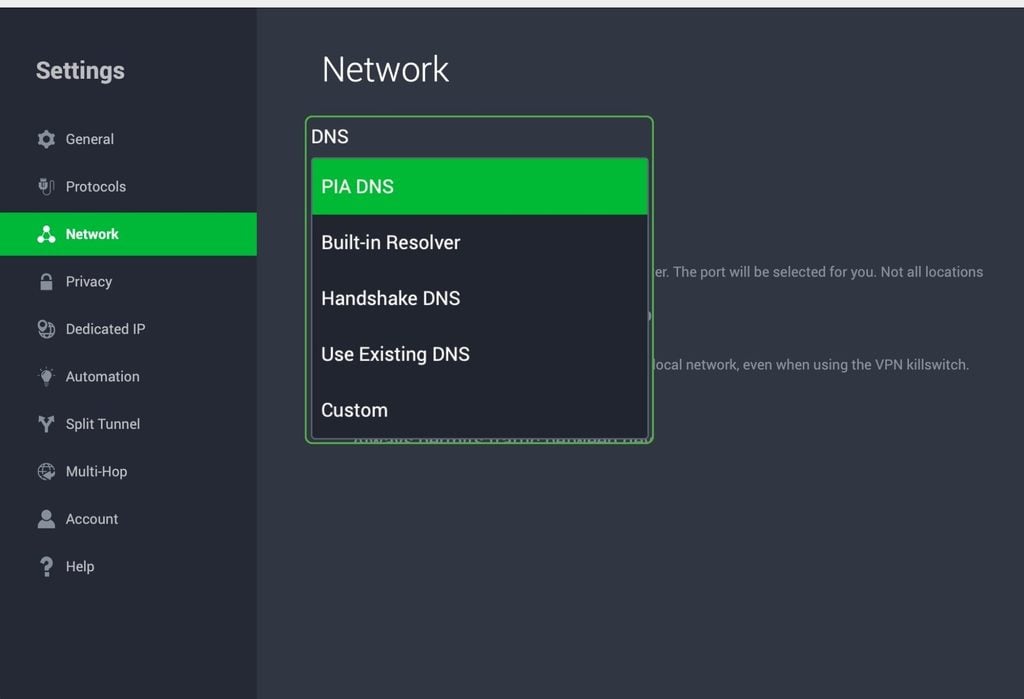
If you keep PIA DNS selected under your Network settings, it sends your lookups through the tunnel to PIA’s own DNS servers. To check your DNS setting in the PIA desktop app:
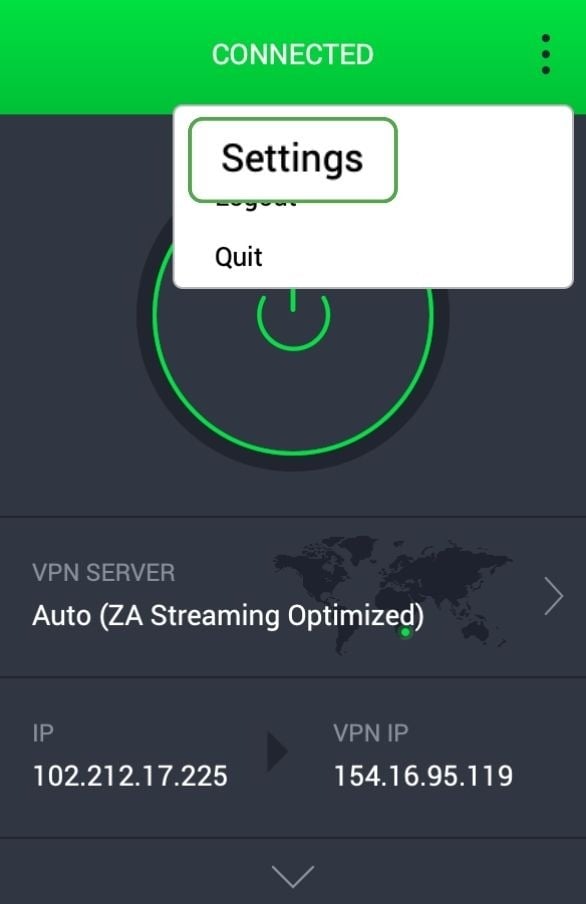
1. Open the PIA app and click the three-dot menu in the top corner and select Settings.
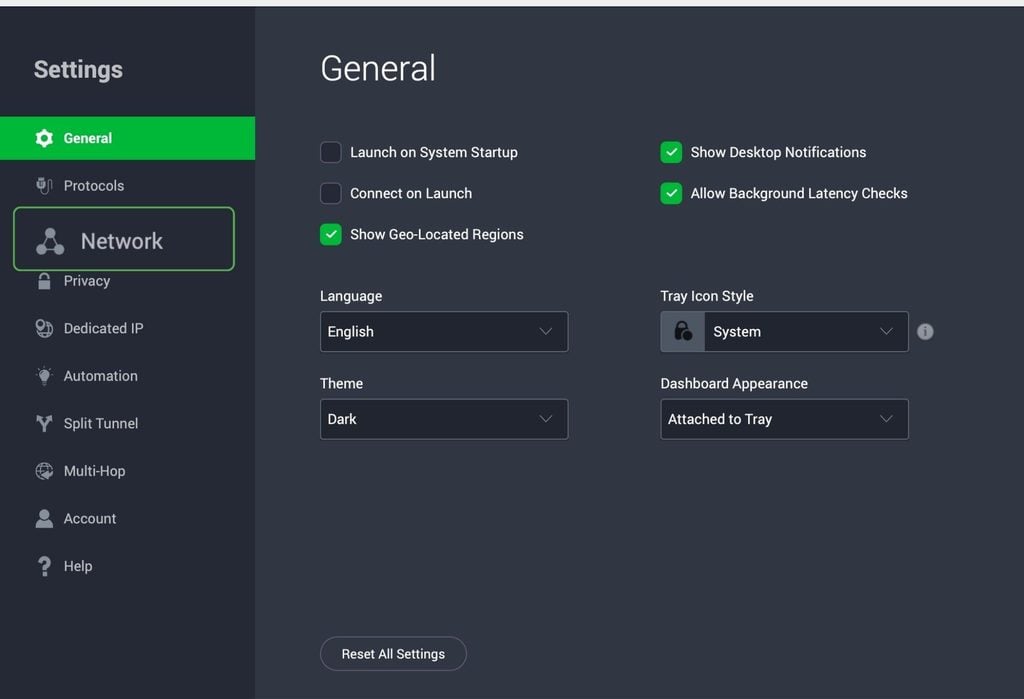
2. Navigate to the Network tab.
3. Choose PIA DNS from the DNS dropdown.
IPv6 Leaks
Your device may use two types of IP address: An older IPv4 address and a newer IPv6 address. If a VPN only routes IPv4 traffic, anything your device sends over IPv6 can travel outside the tunnel, exposing your real IPv6 address and the sites you connect to.
The PIA desktop app prevents this with IPv6 Leak Protection, which blocks IPv6 traffic while you’re connected. It’s on by default and can’t be turned off, so there’s nothing you need to set up.
WebRTC Leaks
Web Real-Time Communication (WebRTC) is a browser feature that lets video calls connect between devices. To make those connections, your browser asks an outside server for your IP address. If that request bypasses the VPN tunnel, any website running the right script can see your real IP address.
To stop or prevent a WebRTC leak, you can disconnect from PIA, disable WebRTC in your browser, then reconnect to PIA VPN. Alternatively, use one of PIA’s VPN browser extensions for Chrome and Firefox, which include WebRTC blocking features.
VPN Disconnections
Your VPN connection can drop for many reasons (e.g., switching Wi-Fi networks or waking your device from sleep). Without a kill switch, your traffic flows over your regular connection until the VPN reconnects. Meanwhile, your ISP can see your DNS lookups, the sites you connect to, and any unencrypted data.
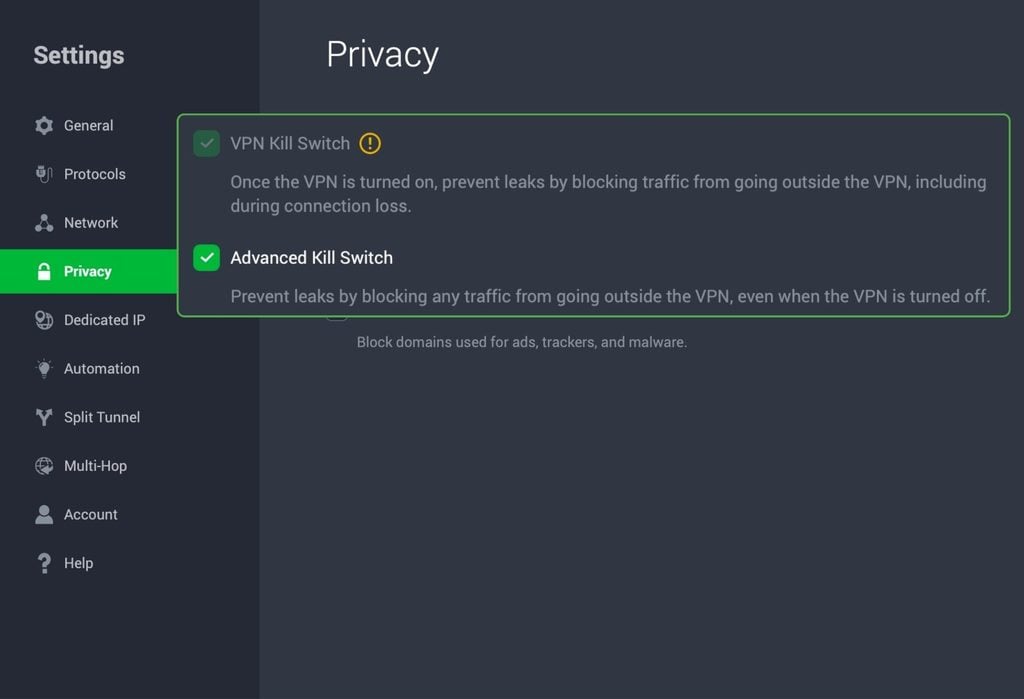
PIA’s VPN Kill Switch blocks all internet traffic if your VPN connection drops. There’s also an Advanced Kill Switch option that blocks traffic whenever the VPN is off, even if you close the PIA app. To check your kill switch settings:
1. Open the PIA app and click the three-dot menu in the top corner and select Settings.
2. Open the Privacy tab to view your Kill Switch settings. The standard Kill Switch should be on by default.
3. Check the box alongside the Advanced Kill Switch setting if you only want internet access while you’re connected to the VPN.
How Do ISPs Detect VPN Traffic?
These are the most common methods for how an ISP can detect VPN traffic:
- Port-based identification: VPN protocols often use default port numbers (e.g., 1194 for OpenVPN or 51820 for WireGuard), so traffic on those ports stands out.
- Deep Packet Inspection: DPI examines the structure of your traffic rather than its content. Each VPN protocol has recognizable patterns, such as how OpenVPN lays out its packets or how WireGuard starts a connection.
- Known VPN IP addresses: Your ISP can compare the addresses you connect to against lists of known VPN servers.
- Traffic analysis: Packet sizes and timing can reveal a VPN even when the VPN disguises its protocol. Some ISPs also send test requests to suspected VPN servers to confirm what they are, a technique called active probing.
Most ISPs likely don’t care about whether you use a VPN or not, and will usually only block VPN traffic when it’s legally or contractually required to. Some countries have laws that restrict VPN use and an ISP might be required to detect and block VPN traffic based on these regulations.
How Do I Know If My ISP Is Blocking My VPN?
An ISP rarely announces a VPN block, but it tends to leave clear signs:
- Your VPN works on other networks: If PIA connects on mobile data (like an eSIM) but not on a wired or Wi-Fi connection, your ISP is the likely cause.
- The connection never completes: The app stays stuck on connecting or times out because your ISP is dropping traffic to the VPN server.
- You connect but then lose access: Some ISPs let the connection start, then cut it once they recognize VPN traffic.
- Only some settings work: If switching to a different protocol or port fixes the problem, your ISP is probably blocking specific types of VPN traffic.
These signs can also point to everyday connection problems, so it’s worth ruling those out before you assume it involves your ISP.
Start by connecting to a different PIA server location because a busy or unavailable server can look a lot like a block. If that doesn’t help, check whether your antivirus or firewall is interfering with the VPN and turn off any other VPN or proxy browser extensions.
PIA pointer: Always make sure to update PIA to the latest supported version for your device. Older versions may rely on server or protocol details that have changed. Some networks drop data packets that grow too large once they’re encrypted. Turning on Small Packets in the app’s settings can usually fix it.
How to Hide VPN Usage from Your ISP
There isn’t a single method that will make your VPN use invisible to your ISP. The steps below only counter a different discovery technique and depend on what the laws where you live allow.
Use Obfuscated Servers
Obfuscation disguises your VPN traffic so it looks like ordinary encrypted web traffic. It removes the patterns your ISP’s DPI tools monitor, so your connection is much harder to identify as coming from a VPN.
PIA allows obfuscation through a Shadowsocks or SOCKS5 proxy and only works with OpenVPN. To turn it on in the desktop app:
1. Open the PIA app and click the three-dot menu in the top corner and select Settings.
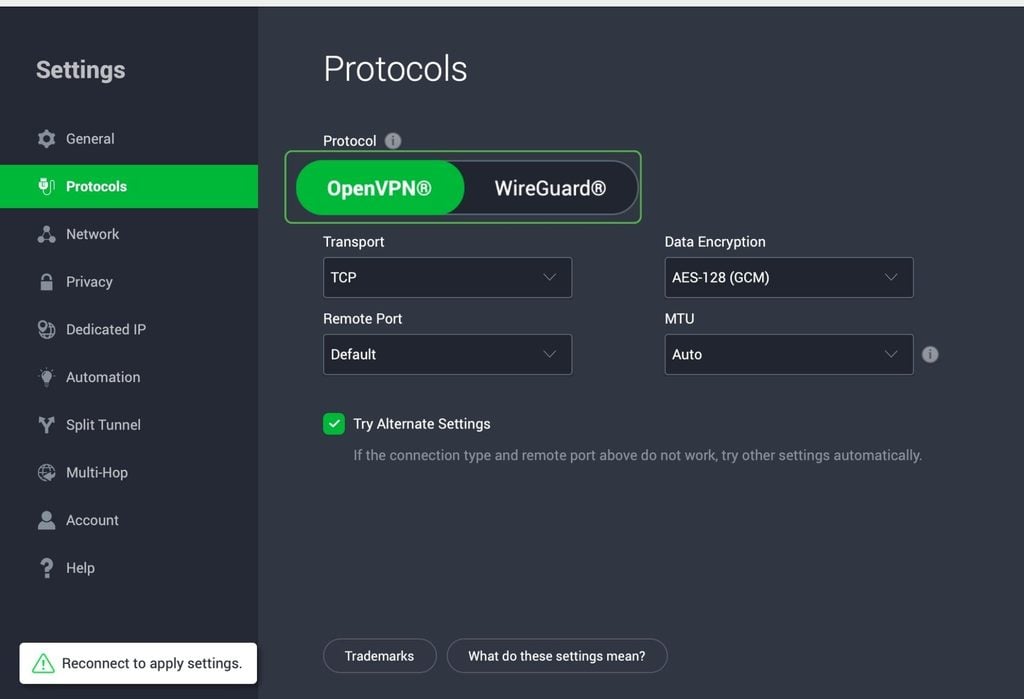
2. Open the Protocols tab and move the slider to OpenVPN.
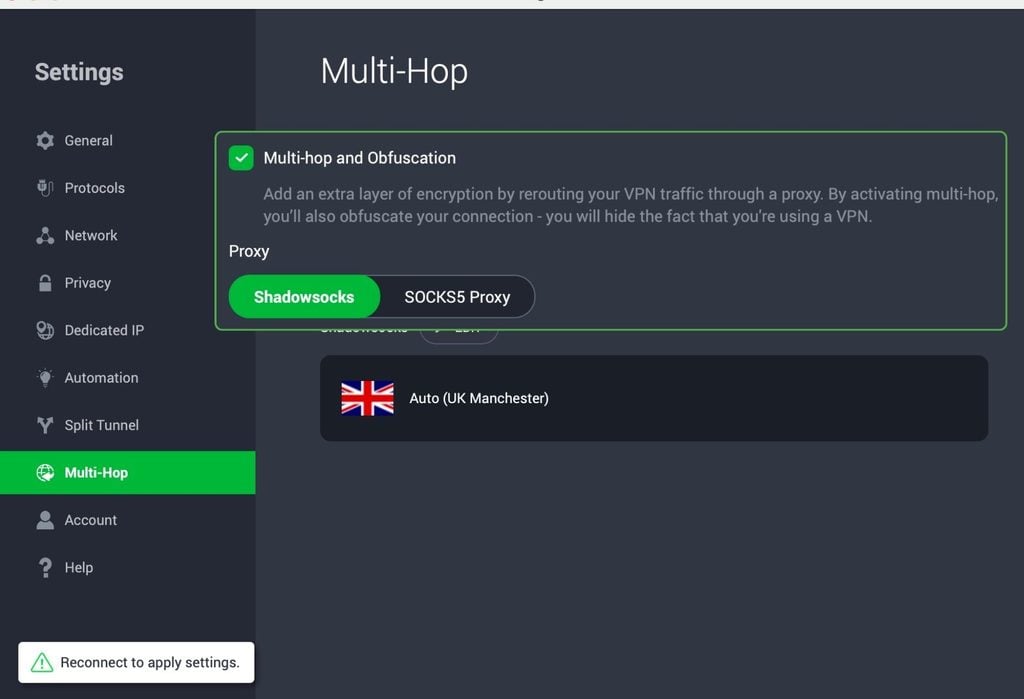
3. Navigate to the Multi-Hop tab, enable Multi-hop and Obfuscation, and choose Shadowsocks from the Proxy options.
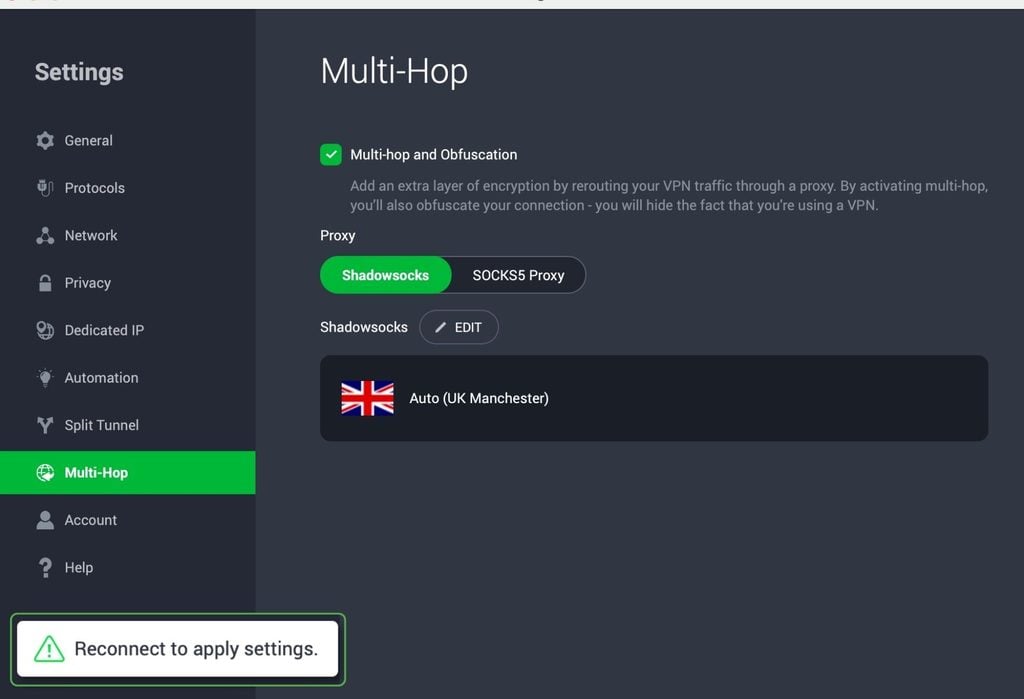
4. Click Reconnect to apply settings or return to the dashboard, choose a server, and reconnect for the settings to take effect.
Use Multi-Hop
Multi-hop, also sometimes called a double VPN, sends your traffic through two servers instead of one before it reaches the internet.
Since the final server never sees your real IP address, this adds an extra layer of privacy. On its own, it doesn’t hide your VPN use because your ISP can still see your connection to the first server.
PIA’s Multi-Hop works a bit differently compared to some other VPN services. PIA sends your traffic through a proxy server and then a PIA VPN server, and it has to be switched on with obfuscation.
When you choose Shadowsocks as the proxy, the obfuscation is what hides your VPN use from your ISP, while the extra hop adds a layer of privacy on top.
Use Port 443
People sometimes call using port 443 “HTTPS port emulation,” since most secure (HTTPS) web traffic travels over the port, but your VPN actually only borrows it. When using PIA, this only works with OpenVPN over TCP, so you’ll need to switch protocols if you use WireGuard. To set it up in the desktop app:
1. Open the PIA app and click the three-dot menu in the top corner and select Settings.
2. Open the Protocols tab, click OpenVPN and set Transport to TCP.
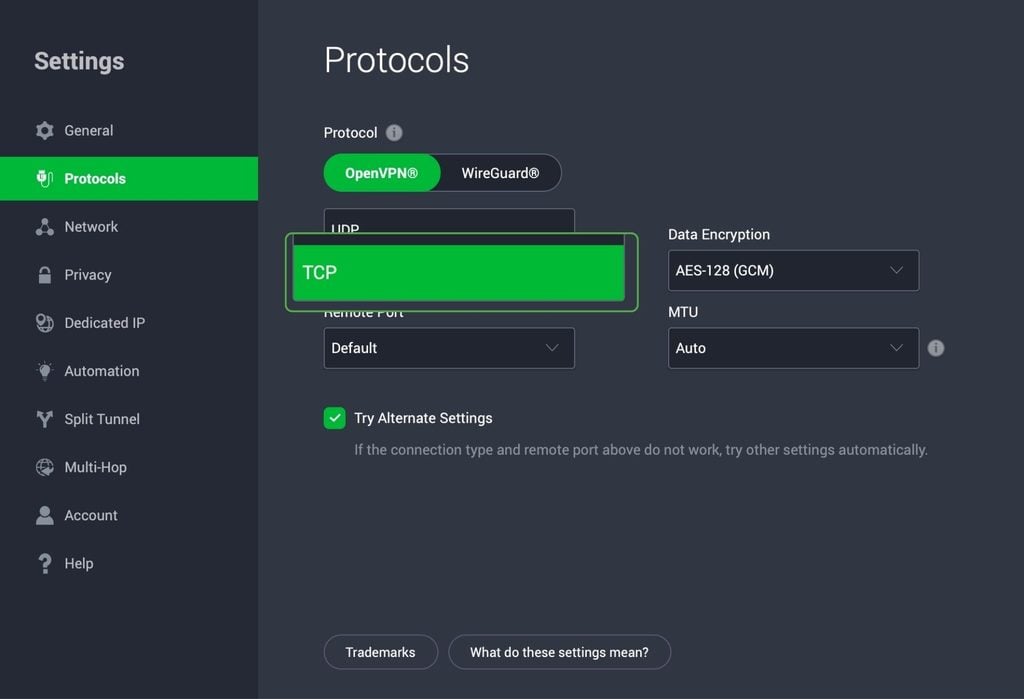
3. Choose 443 from the Remote Port dropdown.
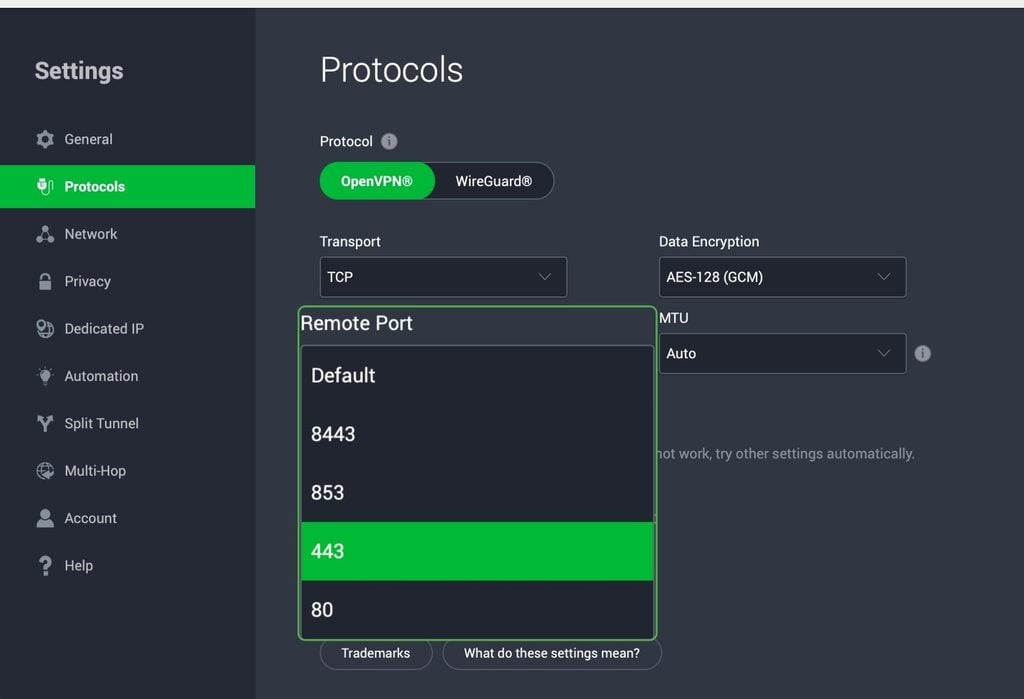
4. Click the Reconnect to apply settings pop-up in the bottom-left corner of the PIA app.
Using port 443 doesn’t obscure the OpenVPN’s traffic patterns, so your ISP’s DPI tools can recognize it. Obfuscation is the better option if you want meaningful privacy from an ISP using more advanced detection.
Deploy the Shadowsocks Protocol
Shadowsocks is an encrypted proxy protocol that developers originally designed to get around internet censorship.
Unlike standard VPN protocols, it doesn’t start with a recognizable handshake. The traffic coming from it looks like random encrypted data and there’s no obvious signature for DPI to catch. It’s also the technology behind PIA’s obfuscation.
Privacy and ISP Monitoring: Proxy vs. Tor vs. VPN
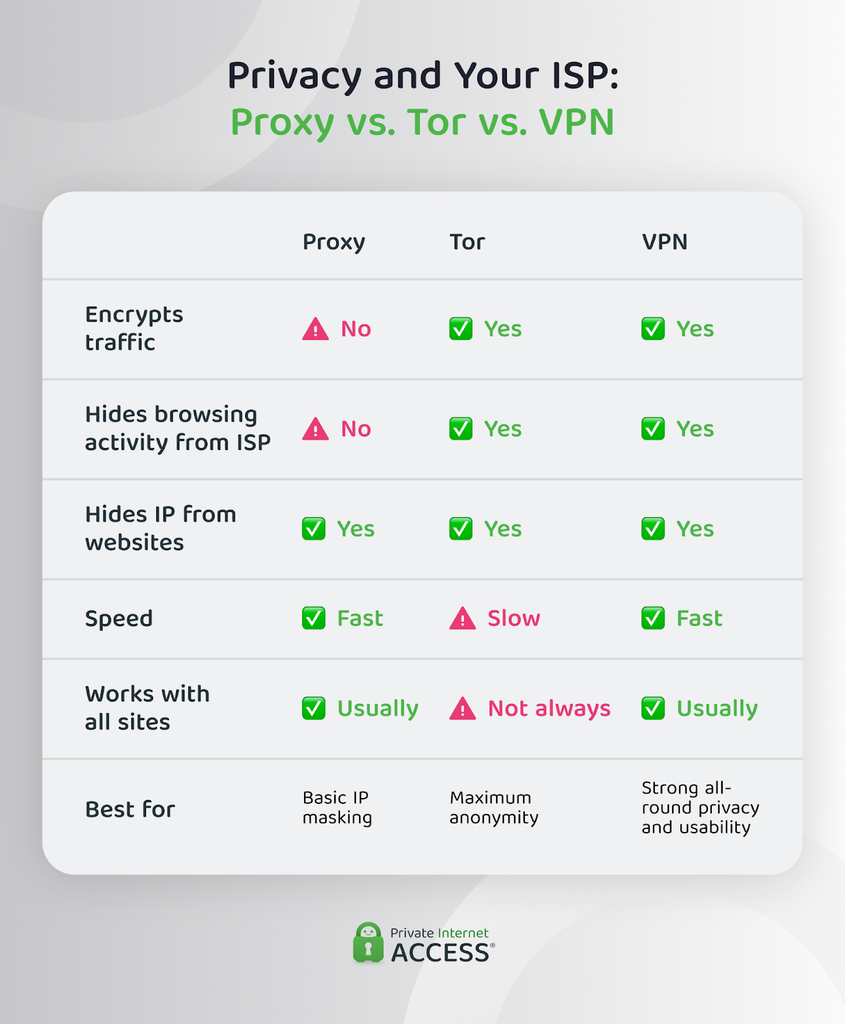
If none of the workarounds above help to get your VPN connection working, a proxy or the Tor network may be worth a try. Both come with some trade-offs, though.
A proxy server forwards your traffic through another server and websites see the proxy’s IP address instead of yours. Because some ISPs focus their checks on recognizable VPN protocols, a proxy can occasionally conceal itself more effectively than your VPN.
The catch is that most proxies don’t encrypt your traffic and your ISP can see which sites you visit. Additionally, a proxy usually only covers the app or browser you set it up in.
Tor (The Onion Router) sends your traffic through three volunteer-run relays and encrypts it in layers, so no single relay knows who you are and what you’re accessing.
Tor lists its relays, making them easy to identify. But you can take advantage of Tor’s unlisted bridges to get around this. Many use tools that disguise Tor traffic and you can enable them in Tor Browser’s connection settings.
Keep in mind that Tor only protects what you do in Tor Browser, not the rest of your device. It’s also much slower than a VPN, some websites block it, and the final relay can see any traffic that HTTPS doesn’t encrypt.
FAQ
Can my ISP See VPN traffic?
Yes, your ISP can see that you’re sending traffic to a VPN server, when you connect, and how much data you use. But it can’t see what’s inside that traffic because PIA encrypts it before it leaves your device. If you’d rather your ISP couldn’t recognize the connection as a VPN at all, turn on obfuscation in the PIA app.
Can my ISP block my VPN?
Yes, your ISP can block your VPN by blocking common VPN ports, recognizing VPN protocols through Deep Packet Inspection (DPI), or blocking the IP addresses of known VPN servers. Most ISPs only do this when local laws require it.
Can my ISP see what sites I visit with a VPN?
No, your ISP can’t see what sites you visit when you connect to a reputable VPN. With PIA connected, your ISP only sees an encrypted connection to a PIA server, which makes it difficult to see which sites you’re browsing. A DNS leak or an unprotected dropout could still reveal the sites you visit. For extra protection, keep PIA’s DNS enabled and the Kill Switch on.
How do sites know I’m using a VPN?
Websites usually check your IP address against databases of known VPN and data center addresses. Many people sharing one IP address could be another giveaway. A WebRTC leak can also expose your real IP address. A dedicated IP from PIA can make websites less likely to flag you, since you’re the only one using it.
Can my ISP see HTTPS websites that I visit?
Secure HTTPS connections hide the full URL and the content of each page, but your ISP can usually still see the site’s domain name through your DNS lookups and the start of the secure connection. With PIA connected, both travel through the encrypted tunnel, so your ISP sees neither.
Can my ISP see my deleted history?
Deleting your browser history only removes it from your device. Your ISP may still have its own records of the domains you looked up and the connections you made, depending on how long it keeps that data. A VPN can’t erase past records, but once you connect to PIA VPN, your ISP can’t log the sites you visit going forward.
