How to Delete or Deactivate Your Instagram Account: Step-by-Step Guides

Thinking about taking a break from Instagram or stepping away for good? Whether you want to unplug, cut back on screen time, or leave the app for privacy reasons, we’ll show you how to deactivate or delete your Instagram account on any device.
We’ll also explain the difference between deleting and deactivating your Instagram account, and guide you through the steps of saving a copy of your photos, videos, and other data before they’re lost forever.
Deactivating vs. Deleting Your Instagram Account
If you want a temporary break from Instagram, you deactivate your account. If you want it gone forever, you delete it.
Deactivating your Instagram account is temporary; it hides your profile, photos, and activity from others on the app, but everything still exists on Instagram’s servers. You can reactivate your account at any time by simply logging back in, and everything will be restored as it was.
Deleting your account means all of your data is permanently removed from the platform; you’ll lose your photos and videos, followers, chats, and even access to your Instagram handle.
| Action | What happens | Can you reverse it? |
| ⏸️ Deactivate | Temporarily hides your profile, photos, and activity | Yes, just log back in |
| 🗑️ Delete | Permanently removes your account and data | No, it’s gone for good |
Instagram does give you the option to change your mind in the first 30 days before it permanently removes your profile. Once that period passes, your Instagram account is gone for good. You can reuse your email address to create a new account later, but everything from your previous profile will be gone.
Privacy note: After you delete your account, Instagram may take up to 90 days to remove all your data from its servers. However, some information might still be retained in backup storage for a longer period for reasons like system recovery, legal compliance, policy enforcement, or safety.
Before You Start: Back Up Your Instagram Photos and Videos
Before you delete your Instagram, you might want to save your data before it’s gone for good, especially your photos, videos, stories, and reels.
Instagram lets you download all your data at once or pick and choose what to save. This includes:
- Photos and videos you’ve posted
- Stories and reels (including archived content)
- Messages and chat history
- Profile info, saved posts, comments, likes, and even ad preferences
If you don’t want to back up anything, skip straight to these instructions for deleting your account using mobile or desktop.
How to Back Up Instagram from the Mobile App (Android and iOS)
You can download a copy of your data directly from the Instagram app by going to your settings. Here’s how.
- Open the Instagram app on your phone.
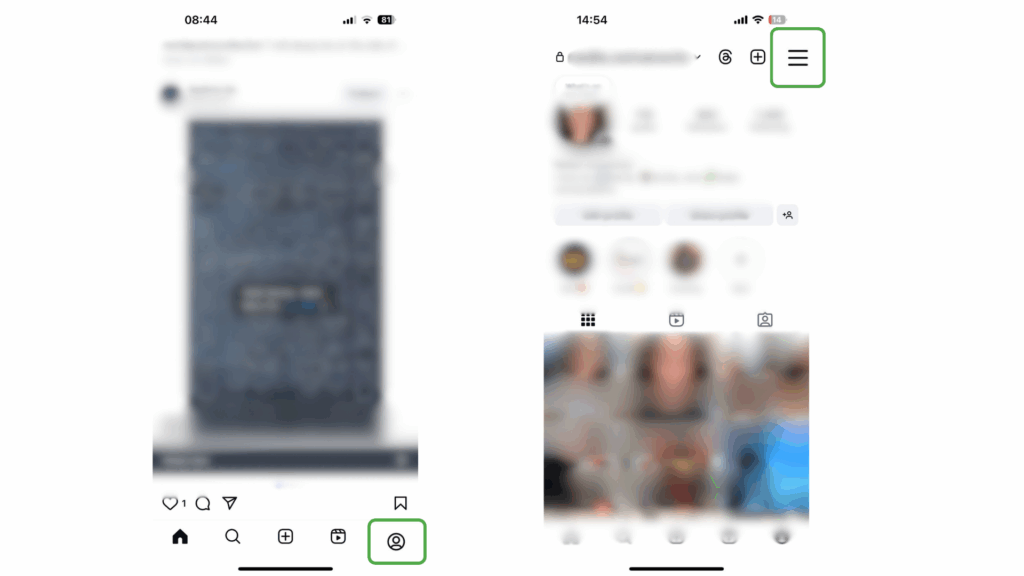
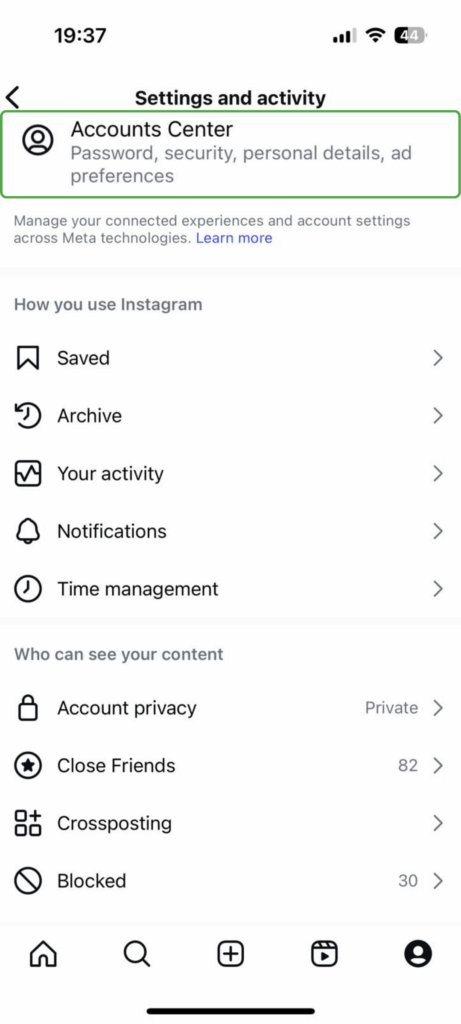
- From your profile, tap the menu icon (three lines) in the top-right corner, then go to Accounts Center.
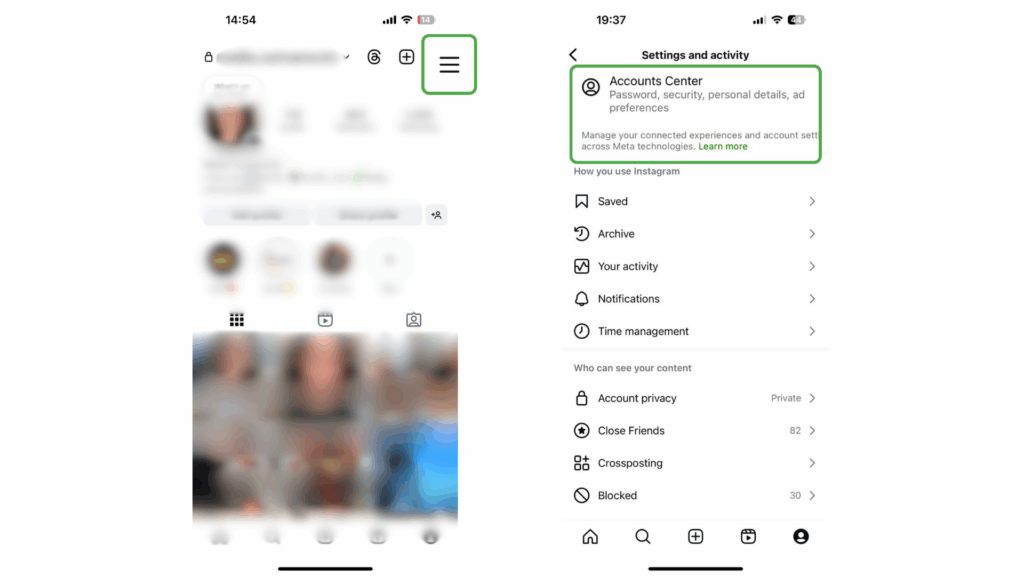
- Tap Your information and permissions, and select Download your information.
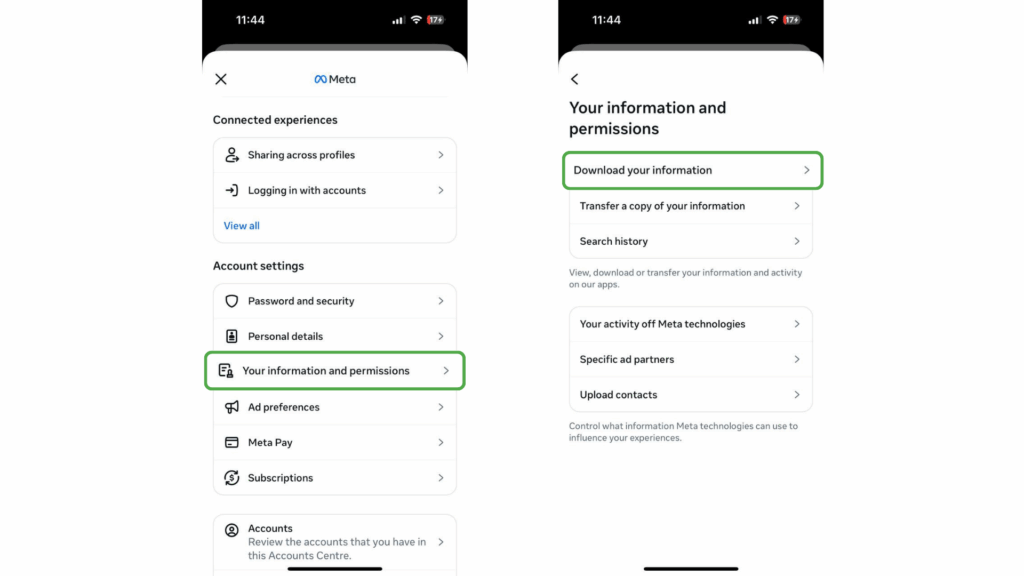
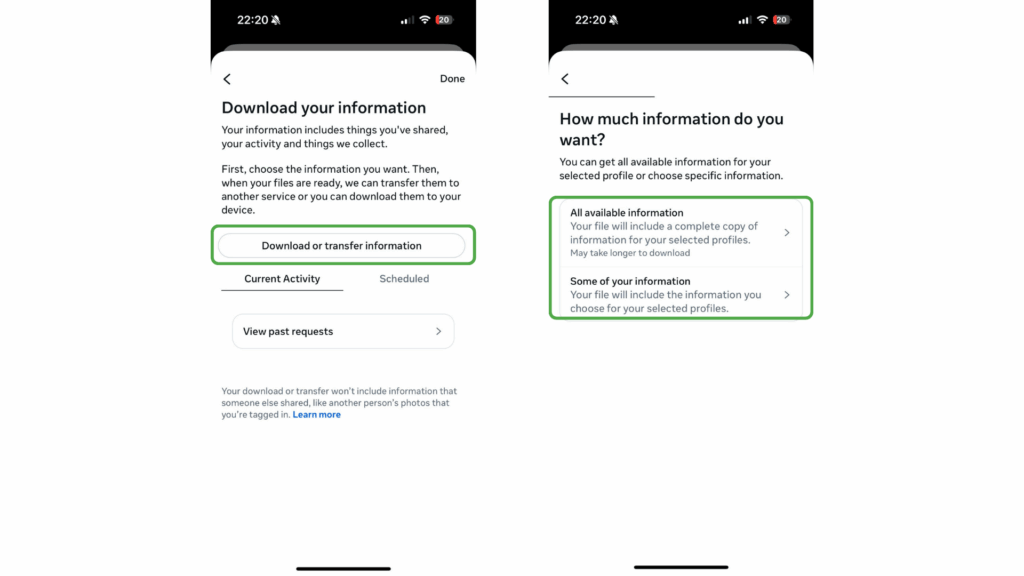
- Tap Download or transfer information and pick the Instagram profile you want to get data from. Then tap Next and choose the amount of data to include.
- Decide whether you want to download the data directly to your device or transfer it to another destination.
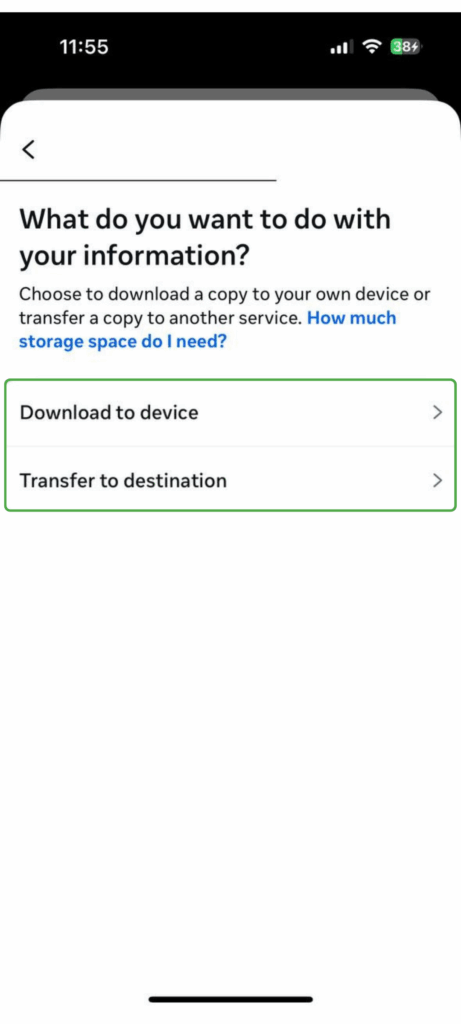
- If you choose Transfer to destination, select where you want to send the data and how often transfers should happen. You may need to log in to the destination’s app or website. After setting the destination and frequency, click Start transfer and enter your Instagram password when prompted.
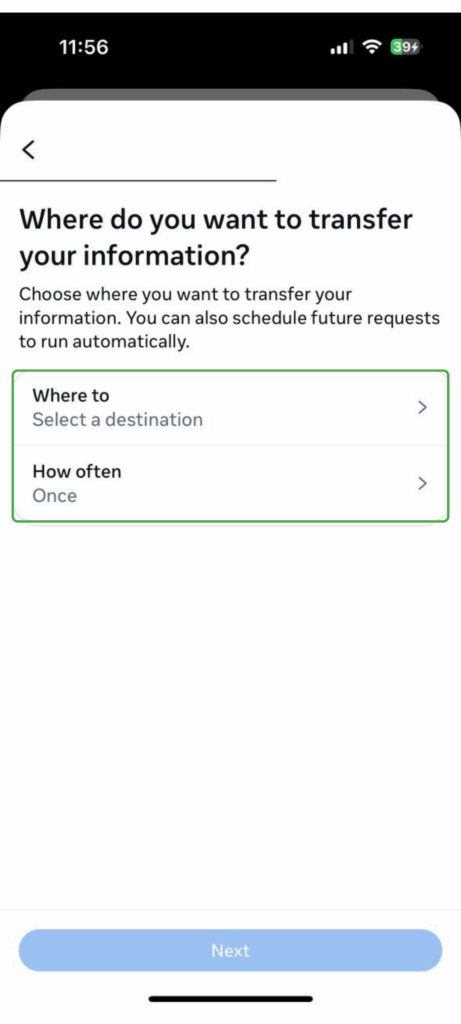
- If you prefer to download to your device, you’ll be asked to customize:
- The time range for the data
- The email for download notifications
- The file format
- The quality of any media included
Then, just tap Create files to begin the process.
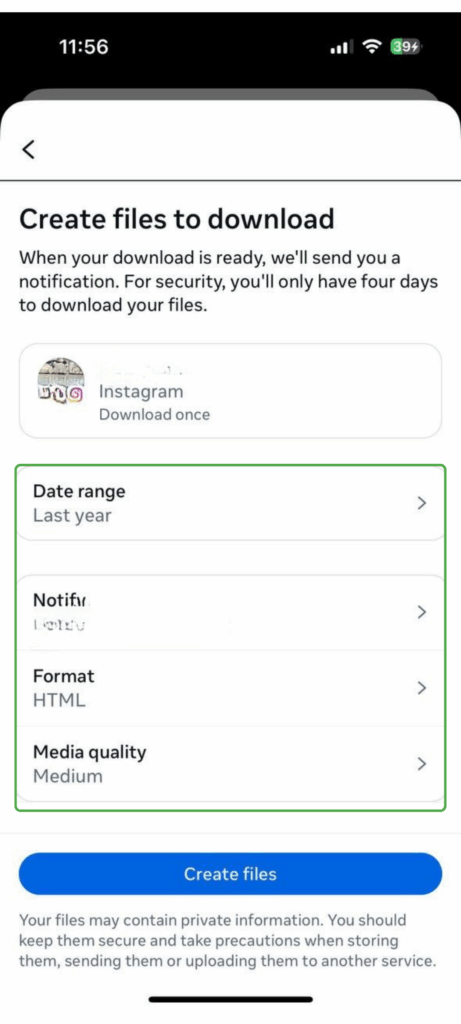
Instagram will notify you in the app and by email once your download is ready. It’s worth checking that your email address is up to date before submitting the request.
The file may take up to 30 days to arrive, depending on account size and server load. Once it’s ready, you’ll have four days to download it. The process is password-protected for security.
How to Delete Your Instagram Account from Your Phone (iPhone and Android)
The steps to permanently delete your Instagram account are the same on iOS and Android:
- Open the Instagram app and tap your profile icon in the bottom right corner. Then tap the menu icon (three lines) in the top right.
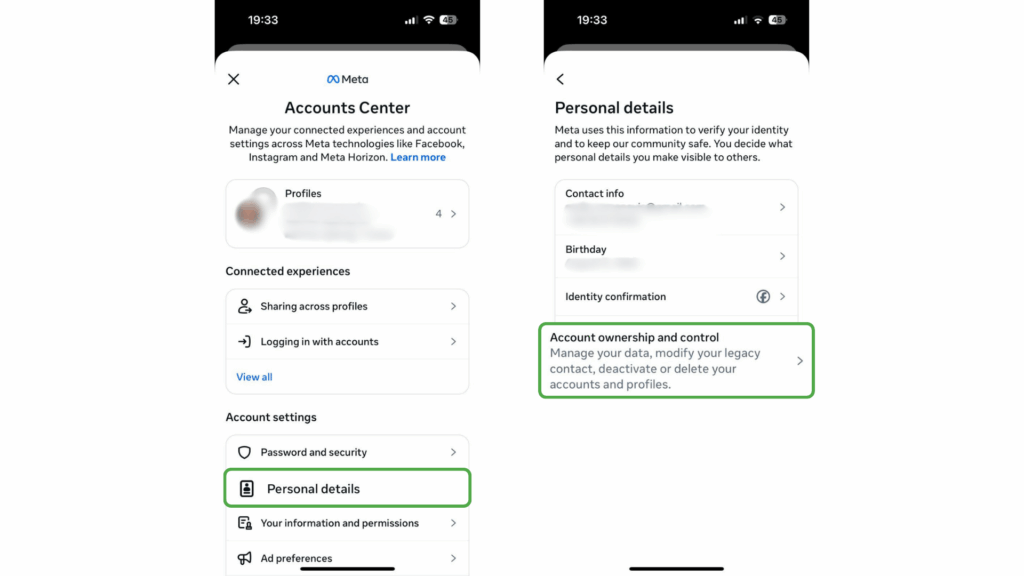
- Tap Accounts Center.
- Tap Personal details, then select Account ownership and control.
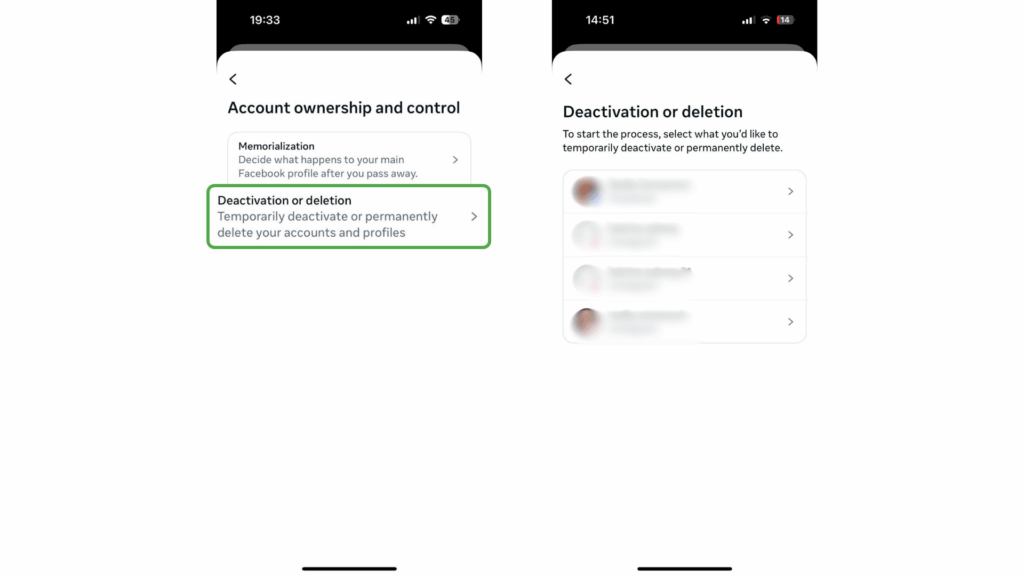
- Tap Deactivation or deletion, then choose the account you want to remove.
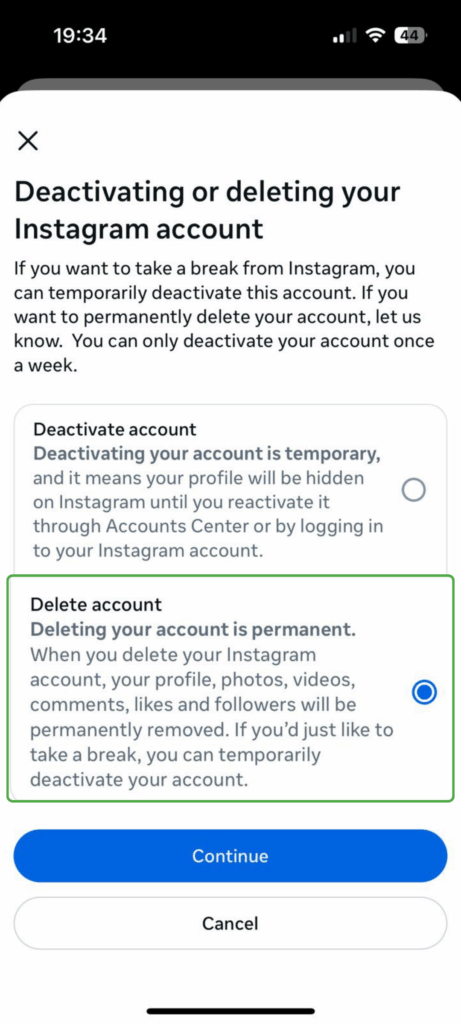
- Select Delete account and tap Continue.
- Follow the prompts to select a reason for deleting your account, and enter your password to verify the request.
- Tap Confirm to permanently delete your account.
How to Delete Your Instagram Account on Desktop
If you’re using Instagram on a desktop or laptop, deleting your account is similar to the process on the app. Follow these steps:
- Visit the Instagram website and log in to your account. Click More in the bottom left corner.
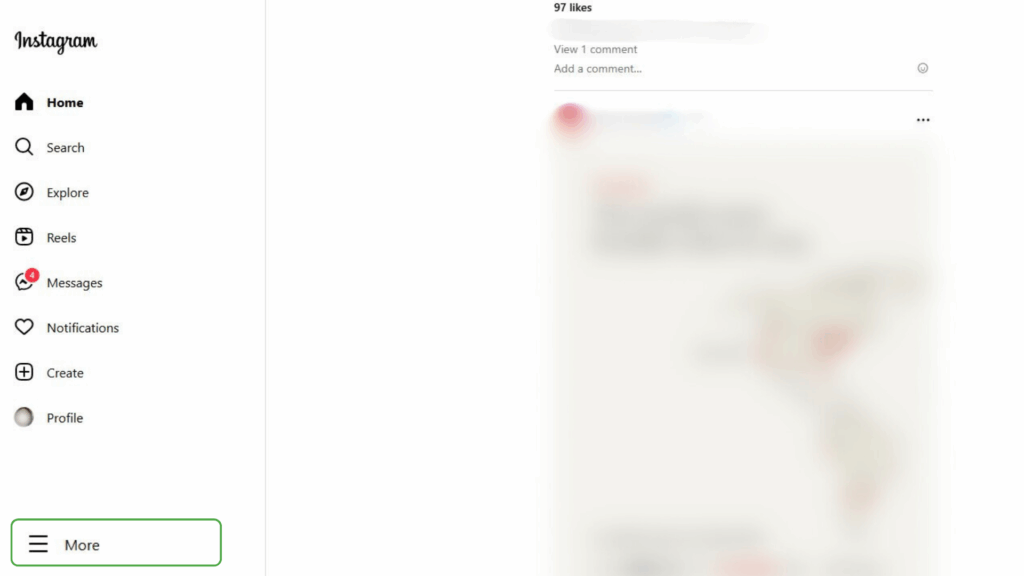
- Choose Settings.
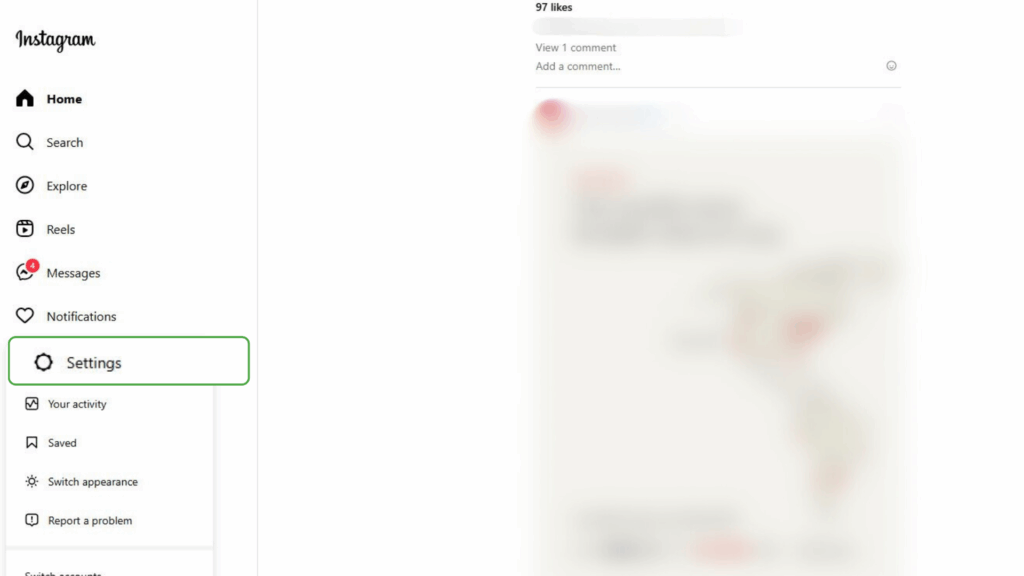
- Click Accounts Center under Settings.
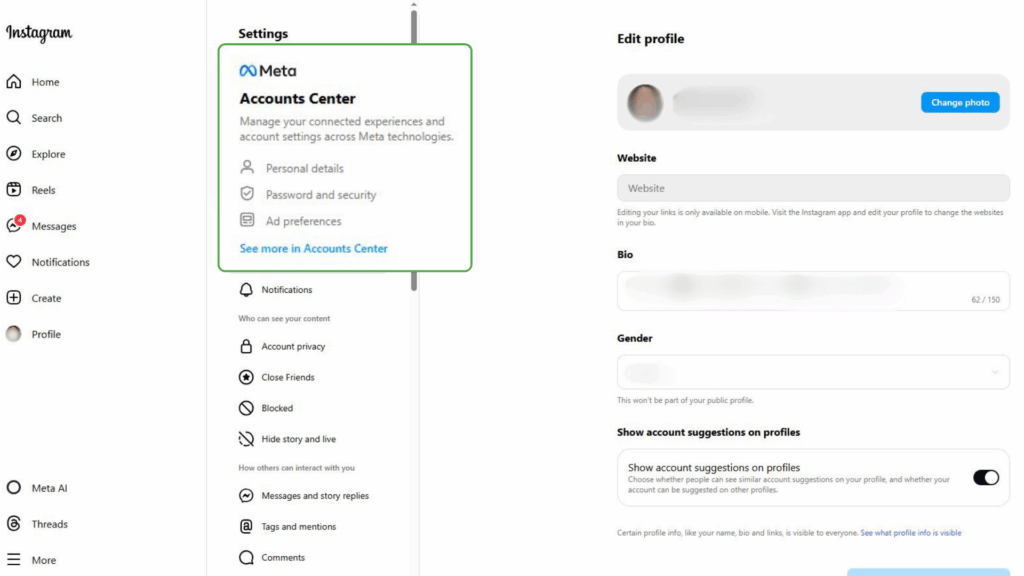
- Select Personal details and then click on Account ownership and control.
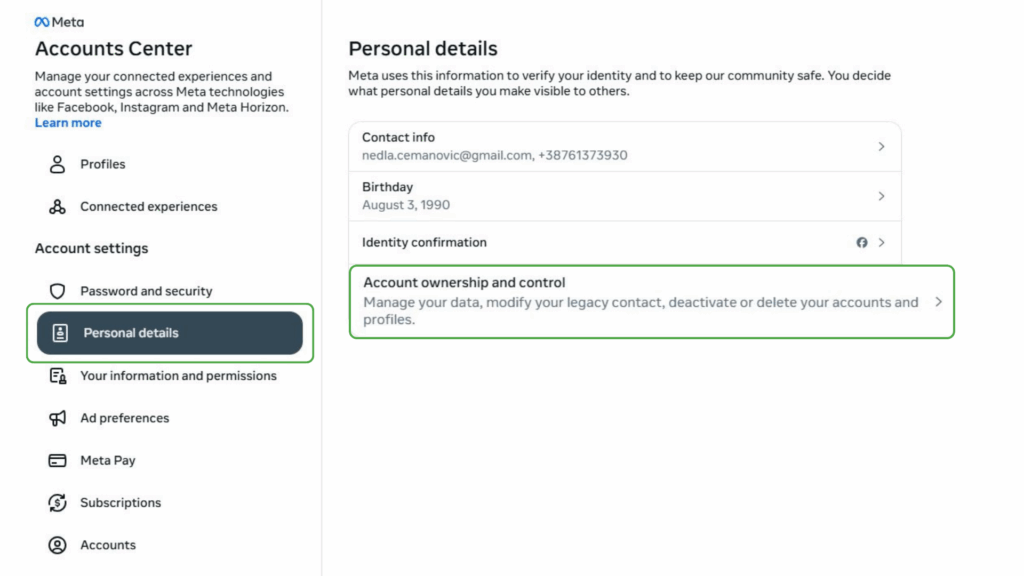
- Then select Deactivation or deletion.
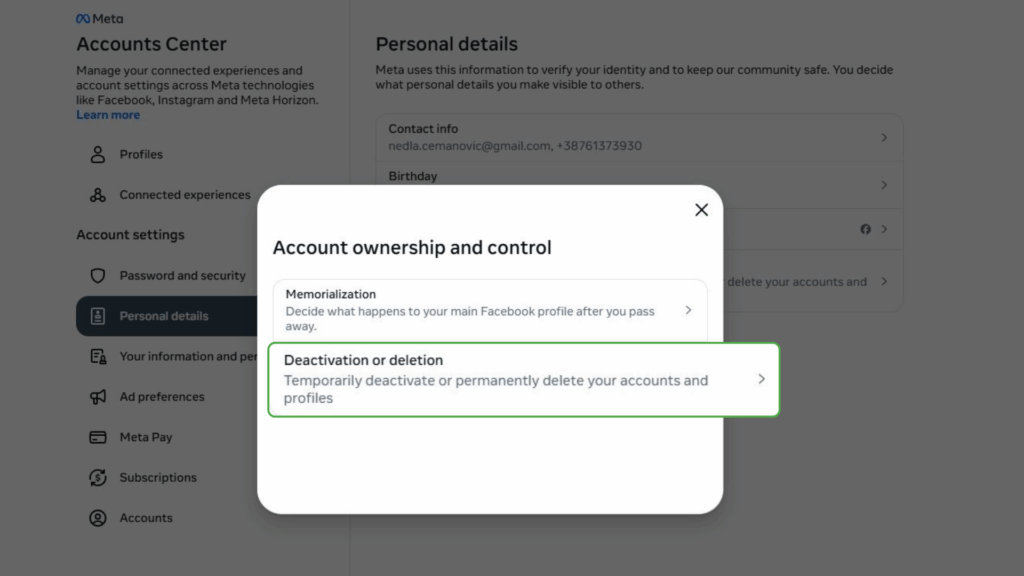
- Choose the account you wish to delete.
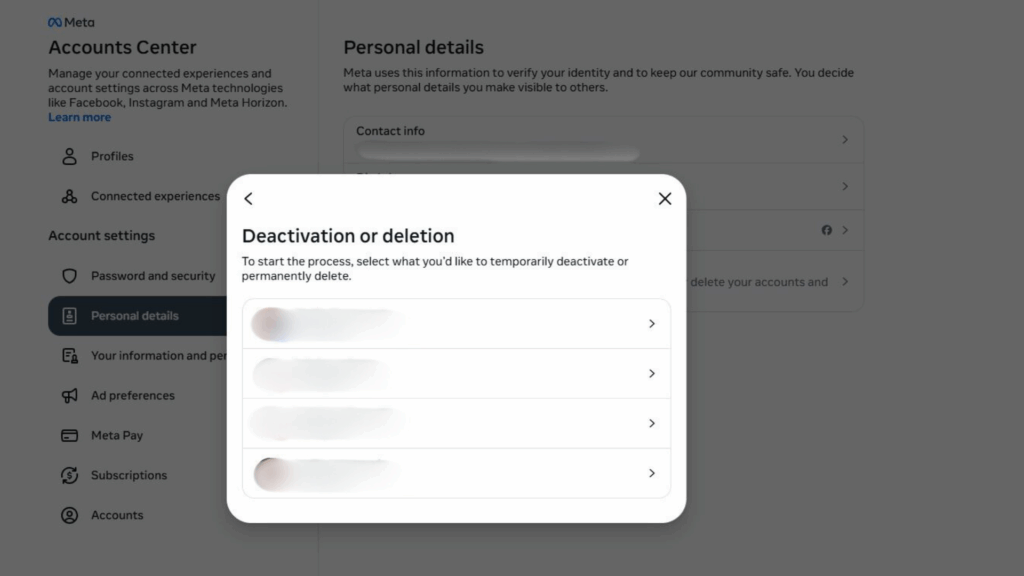
- Select Delete account and click Continue, then follow the prompts. This includes selecting a reason for deletion and entering your password.
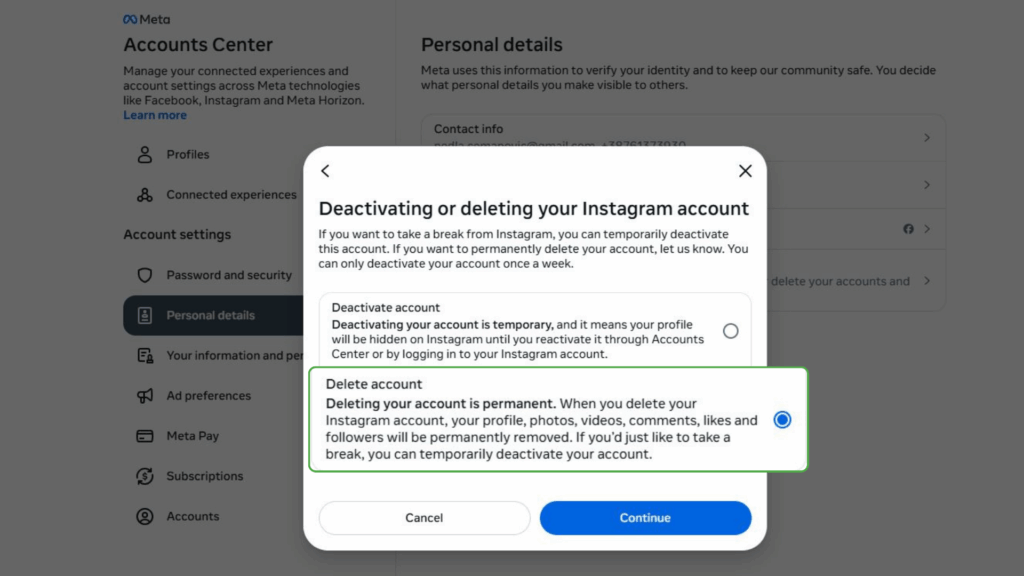
- Once you confirm deletion, your account enters the 30-day deactivation period, meaning you can still get it back in the next 30 days if you change your mind.
How to Temporarily Deactivate Your Instagram Account on Your Phone
The process of deactivating your account is almost identical to the steps for deleting your Instagram account, with just a few differences by the time you reach the final step.
- Launch Instagram and tap your profile icon, followed by the menu icon in the top right.
- Tap Accounts Center.
- Under Personal details, tap Account ownership and control.
- Select Deactivation or deletion, then select the account you’re deactivating.
- Tap Deactivate account, then Continue, then follow the prompts. You’ll be asked to choose a reason and enter your password to authenticate.
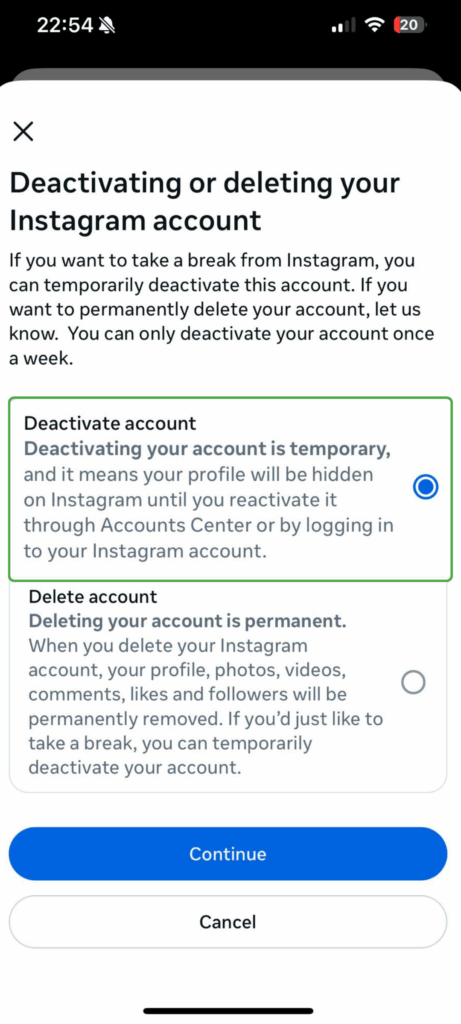
- That’s it. Your account will be temporarily deactivated. You can reactivate it at any time by logging back in on the Instagram app or website.
Troubleshooting Instagram Account Deletion Issues
Sometimes, you might run into problems while trying to delete or deactivate your Instagram account. Here are a few common issues and how to fix them:
- Deletion or deactivation option not showing: Make sure you’re using the latest version of the Instagram app, or try deleting via desktop. Sometimes older app versions don’t show all of the available options.
- Unable to enter password: If Instagram won’t accept your password, try resetting it through the “Forgot password?” link. After changing your password, it helps to log out and log back in before trying to delete your account again.
- Account stuck in “pending deletion” state: If you log back in during the 30-day grace period, Instagram cancels the deletion. You’ll have to go through the steps of deleting your Instagram account again.
- Two-factor authentication not working: Check your text messages or authentication app, and if nothing works, try using any recovery codes you saved when setting up 2FA.
- Issues with linked accounts: If your Instagram is connected to Facebook or other platforms, check those accounts’ settings, as they can sometimes affect Instagram actions.
- Still stuck? If none of the above work, reach out to Instagram via its Help Center for direct support.
How to Protect Your Privacy on Instagram
If you’ve changed your mind about leaving Instagram or plan to return someday, it helps to keep in mind some privacy practices when you’re on the platform:
- Check your privacy settings: Tweak your settings to control who can see your posts, stories, and account activity.
- Limit data sharing: In your settings, you can turn off features like Activity Status, contact syncing, and some ad personalization options.
- Review connected apps: Through your Instagram-linked Meta account, remove any third-party apps or services you no longer use.
- Use a VPN to hide your IP address: A VPN can help mask your location from Instagram and third-party trackers that rely on IP-based data (but Instagram may still access your precise location via your device if location services are enabled in your device settings).
- Consider browser-level protections: If you access Instagram through a browser, a tracker blocker can limit the data collected by advertisers and third-party services.
These steps won’t make you invisible, but they can give you more control over your digital footprint.
FAQ
How do I delete my Instagram account using the mobile app?
To delete your Instagram account on mobile, just follow these easy steps: Open your profile, tap the menu icon > Accounts Center > Personal details > Account ownership and control > Deactivation or deletion, then choose Delete account, select your account, follow the prompts, and confirm. Your account enters a 30-day deletion hold before Instagram permanently removes it.
Is there a way to deactivate Instagram from a smartphone?
Yes, and deactivating your Instagram account takes only a couple of clicks: Open your profile, tap the menu icon > Accounts Center > Personal details > Account ownership and control > Deactivation or deletion, then select Deactivate account. Confirm with the prompts, and Instagram will instantly hide your profile on the platform. To reactivate, just log back in.
What’s the difference between deactivating and deleting Instagram on mobile?
Deactivating your Instagram account is a temporary action that hides your profile and content without deleting any data, and you can reactivate it anytime by logging back in. Deleting your account is permanent and removes all your data after a 30-day grace period unless you cancel by signing in again.
Can I temporarily disable Instagram without losing my data?
Yes, if you only want to disable your Instagram account, you can simply deactivate it. Deactivating doesn’t delete any of your data from Instagram’s servers; it just hides your profile and everything on the platform, like your photos, videos, comments, likes, and messages. You can reverse it any time by logging in.
Do I need to use a browser to fully delete my Instagram account?
No, you can delete your Instagram account via the app, too. Just open the app, go to your settings, open Account Center, select Personal details > Account ownership and control > Deactivation or deletion, and then choose Delete account.
