How to Enable Third-Party Cookies on Chrome, Safari, and More
Third-party cookies can help website features work across different domains. A site may ask you to enable them before you can sign in through another service, complete a payment, view embedded content, or access a school or workplace platform. They can support analytics, advertising, and cross-site tracking.
The exact steps depend on your browser and device. In many cases, you can create an exception for the site that needs them instead of allowing third-party cookies everywhere.
We’ll explain how to enable third-party cookies in Chrome, Safari, Firefox, and Microsoft Edge. We’ll also cover what they do, how they differ from first-party cookies, and whether you should block them.
- Why You Might Need to Enable Third-Party Cookies
- Quick Guide to Enabling Third-Party Cookies
- How to Enable Third-Party Cookies on Chrome
- How to Enable Third-Party Cookies on Safari
- How to Enable Third-Party Cookies on Firefox
- How to Enable Third-Party Cookies on Edge
- What Are Third-Party Cookies?
- Should I Block Third-Party Cookies?
- Can a VPN Stop Third-Party Cookie Tracking?
- How to Use Third-Party Cookies More Privately
- FAQ
Why You Might Need to Enable Third-Party Cookies
Some websites rely on services hosted on a different domain. If you block third-party cookies, features such as single sign-on (SSO), payment forms, embedded videos, customer support tools, or school and workplace platforms may not work properly.
You may also see a message asking you to enable third-party cookies before continuing.
Quick Guide to Enabling Third-Party Cookies
Here’s where to find the relevant setting in each major browser:
| Browser | Settings path |
| Google Chrome | Settings > Privacy and security > Third-party cookies |
| Safari on Mac | Safari > Settings > Privacy |
| Safari on iPhone or iPad | Settings > Apps > Safari |
| Mozilla Firefox | Settings > Privacy and Security |
| Microsoft Edge | Settings > Privacy, search, and services > Cookies |
Refresh the site after changing the setting. You may also need to close and reopen your browser.
Browser interfaces can change between versions. You can try updating your browser if the settings look different.
How to Enable Third-Party Cookies on Chrome
Chrome lets you allow third-party cookies across the browser or create an exception for a specific site.
Enable Third-Party Cookies on Chrome Using Windows or Mac
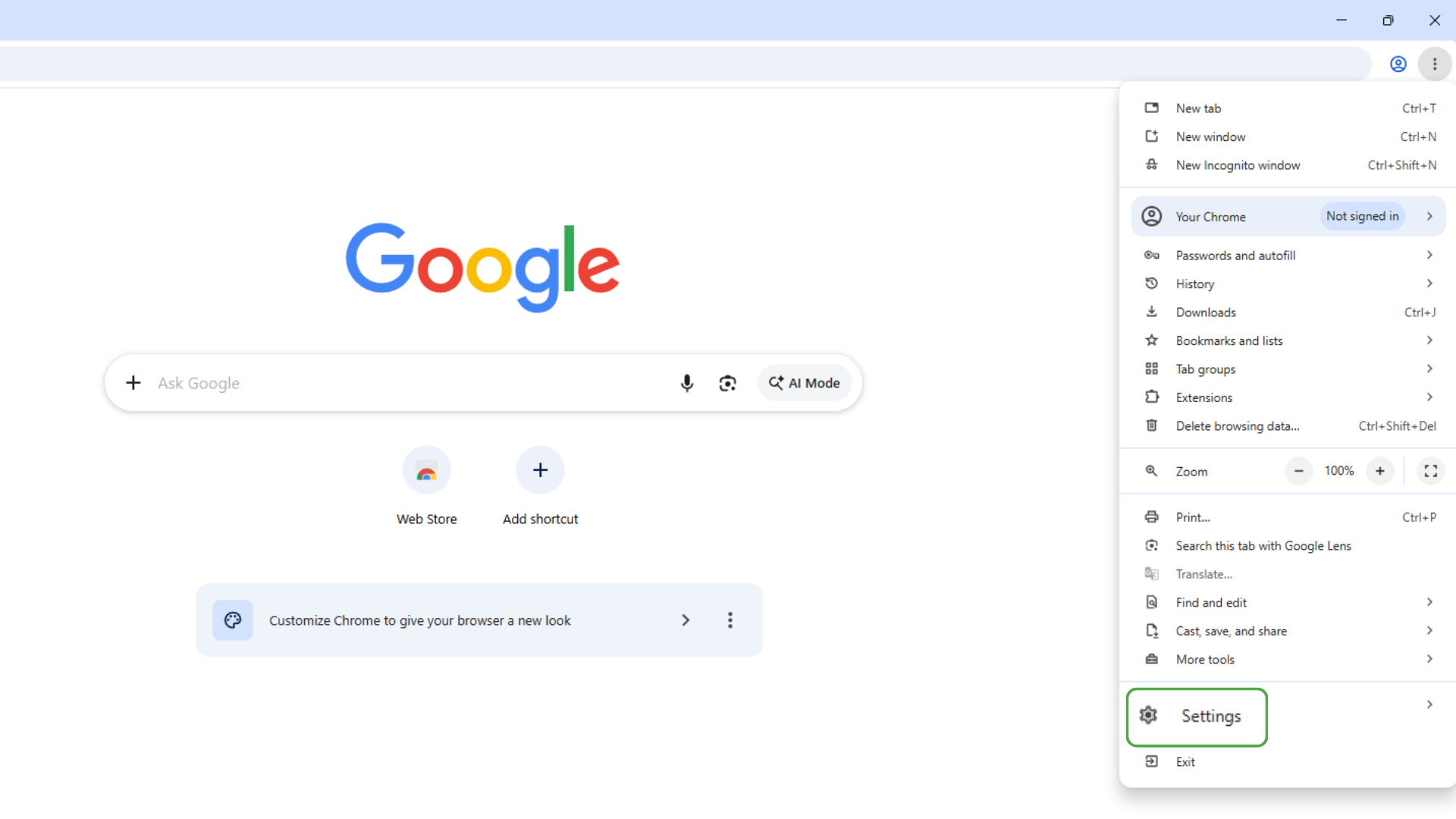
- Open Chrome, select the three-dot menu in the top right corner and select Settings.
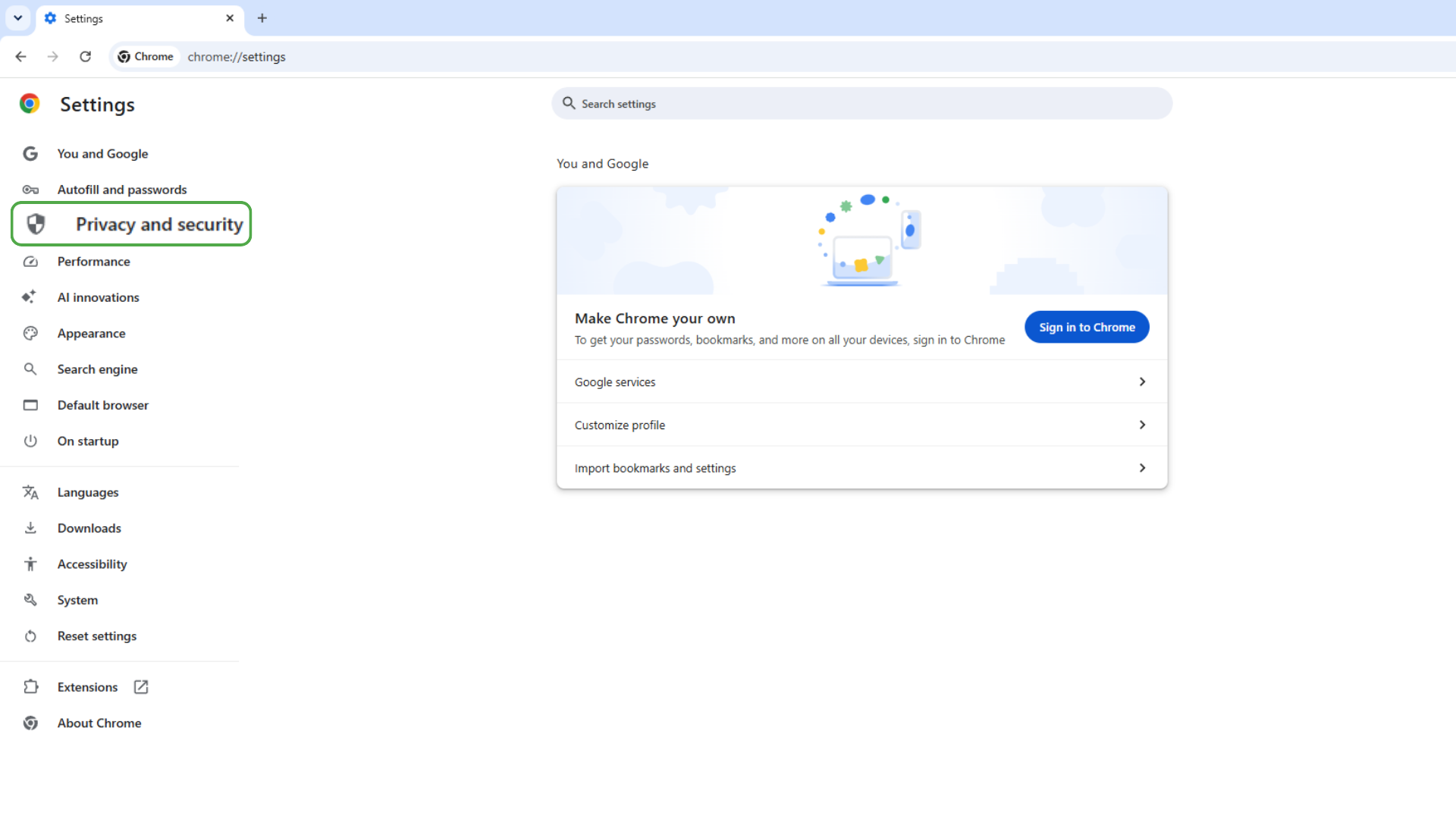
- Open Privacy and security.
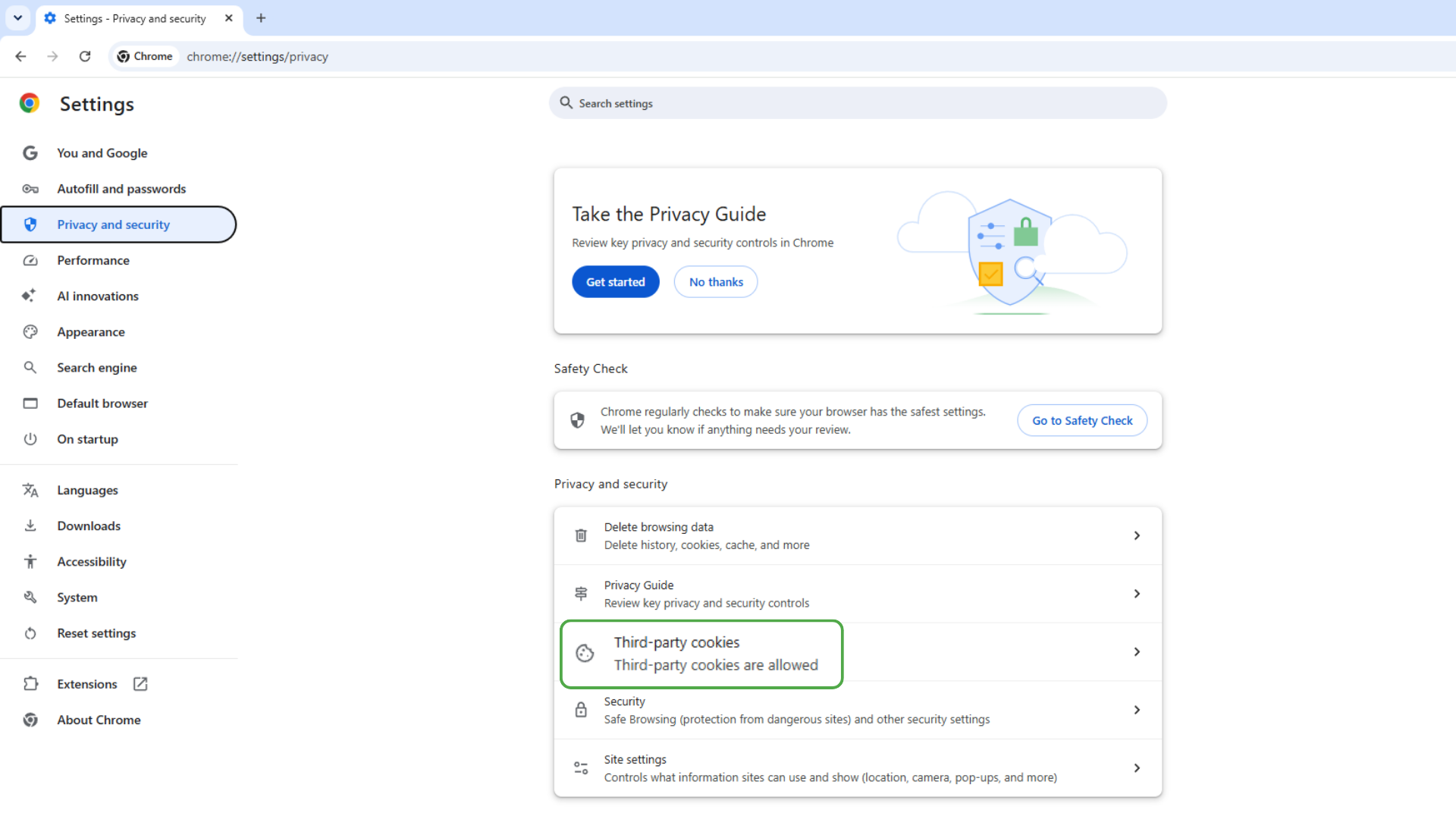
- Select Third-party cookies. If you only want to give access to third-party cookies on a specific website, skip to step 7.
- Choose Allow third-party cookies.
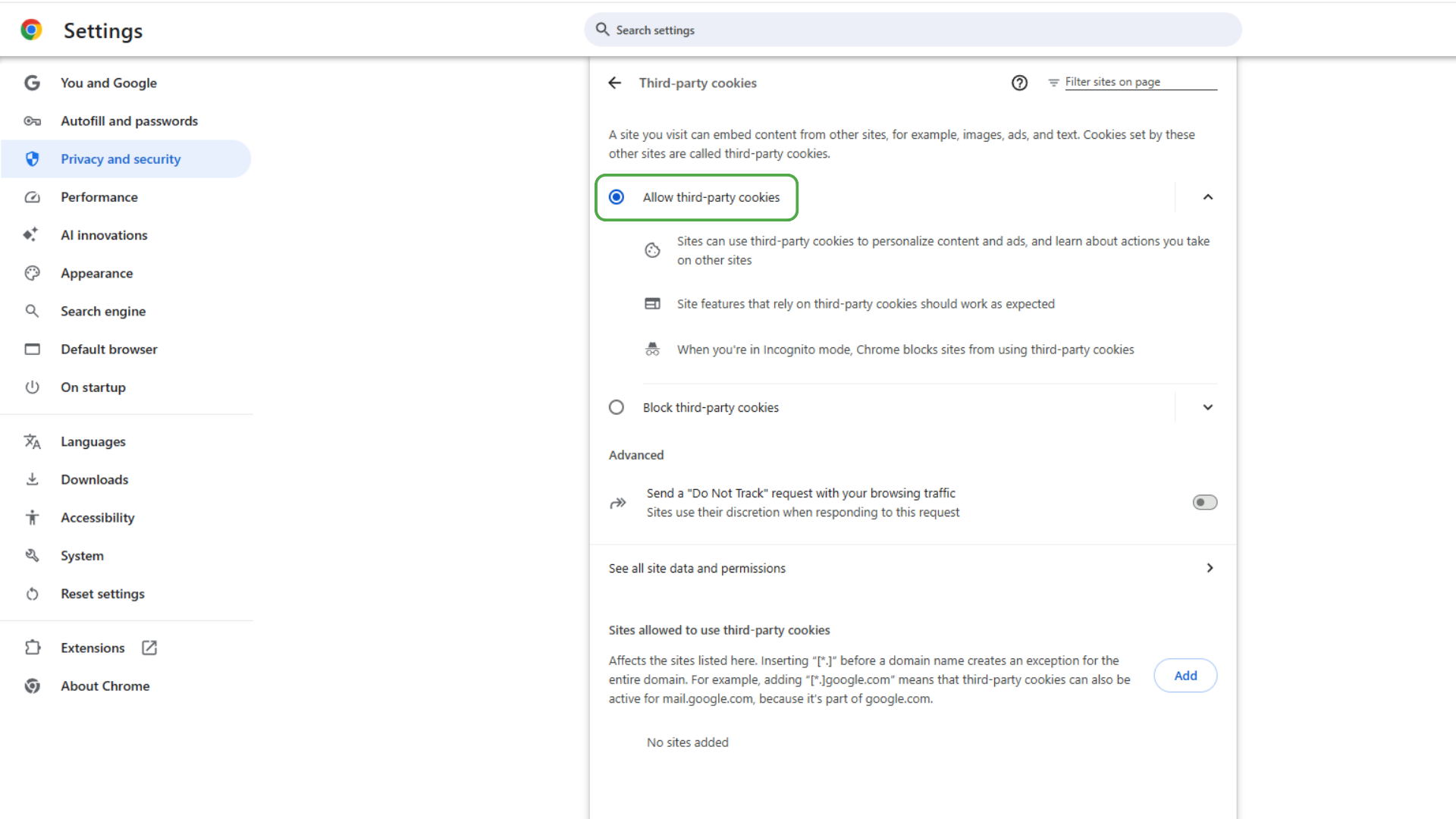
- To allow third-party cookies on a specific website only, leave Allow third-party cookies off, scroll down to Sites allowed to use third-party cookies and click Add.
- Enter the website address in the pop-up box.
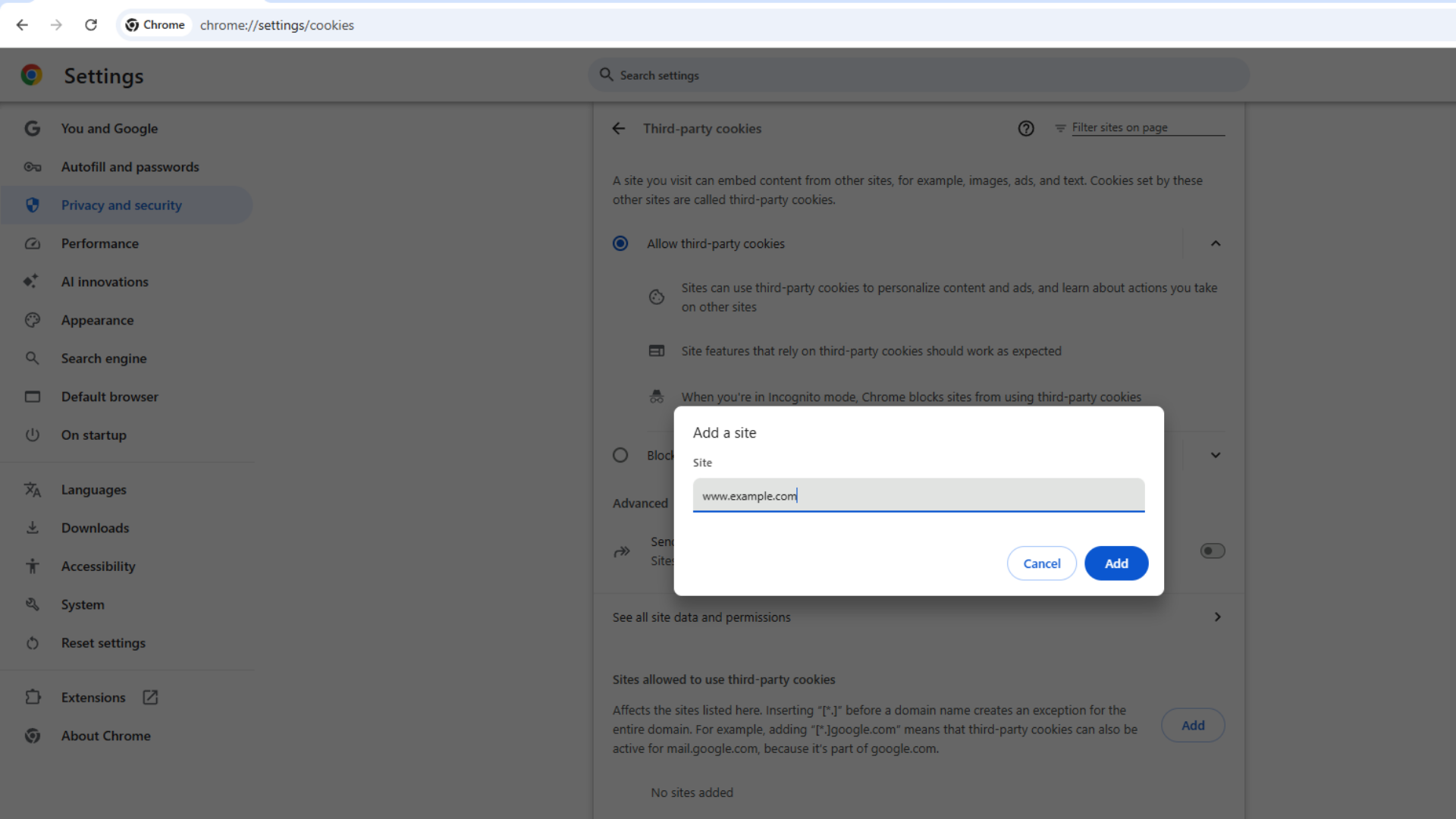
- Save the exception and reload the page.
To cover an entire domain, place [*.] before the domain name. For example, [*.] example.com covers the main site and its subdomains.
Enable Third-Party Cookies on Chrome Using Android
- Open Chrome on your Android phone or tablet, tap the three-dot menu, and select Settings.
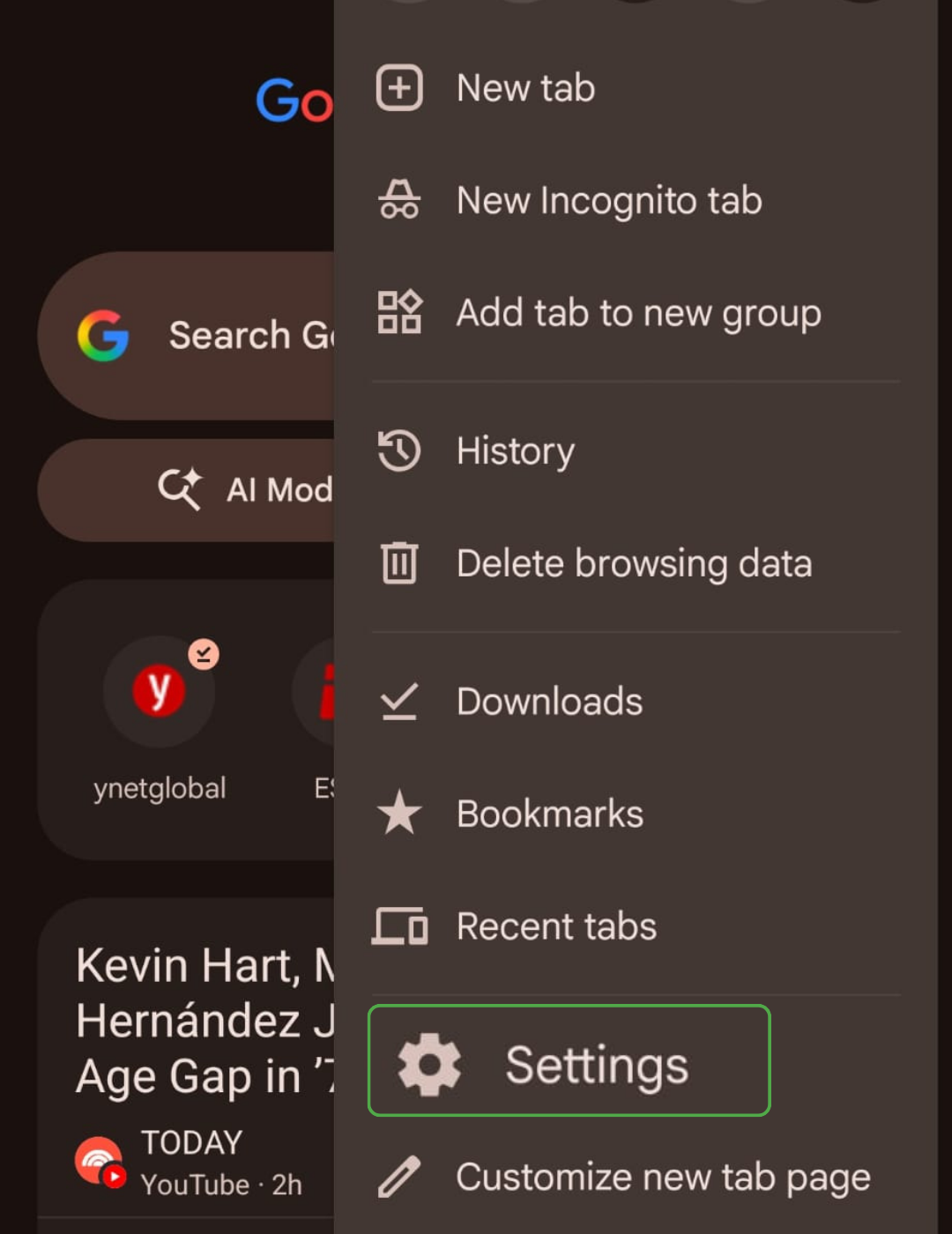
- Open Site settings.
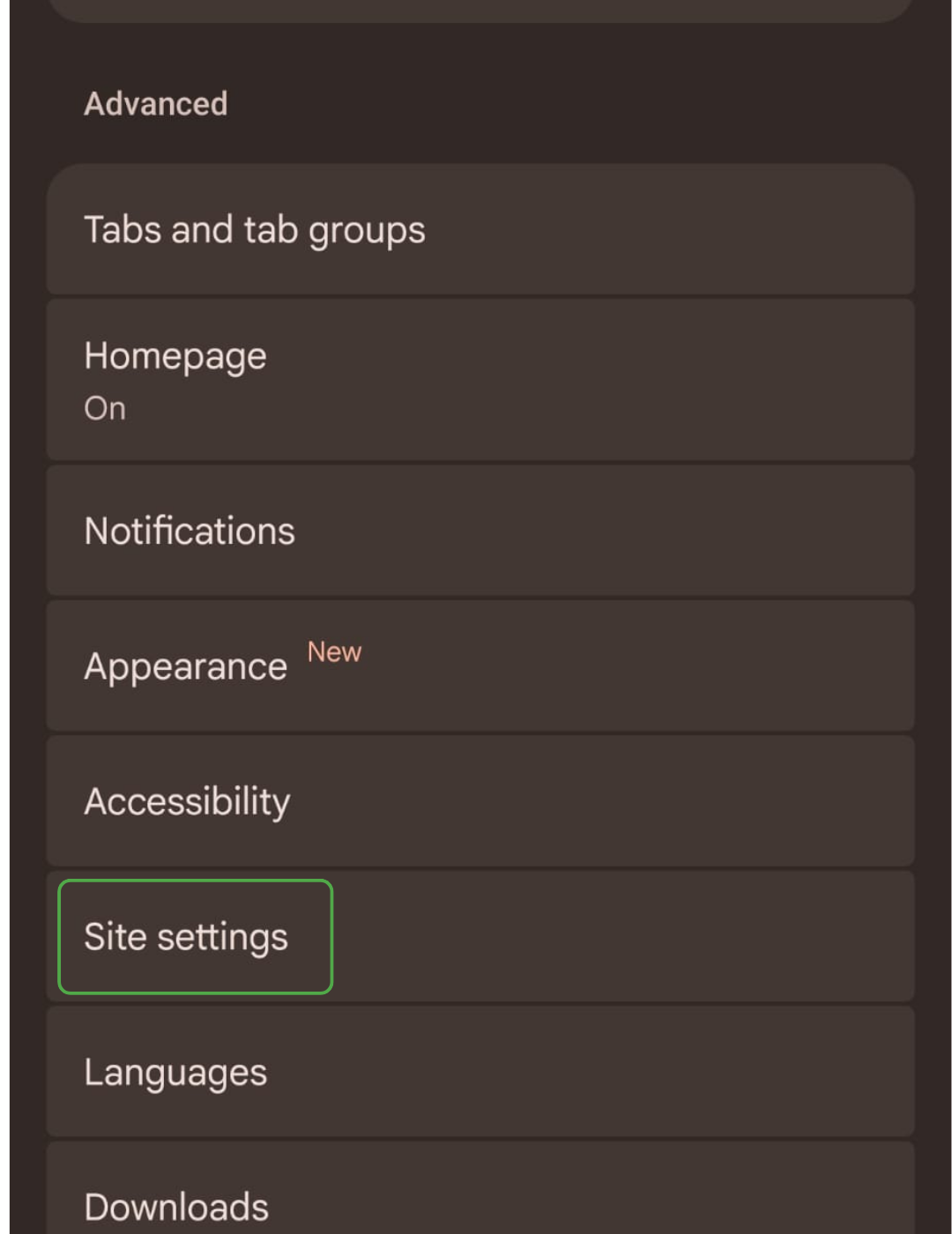
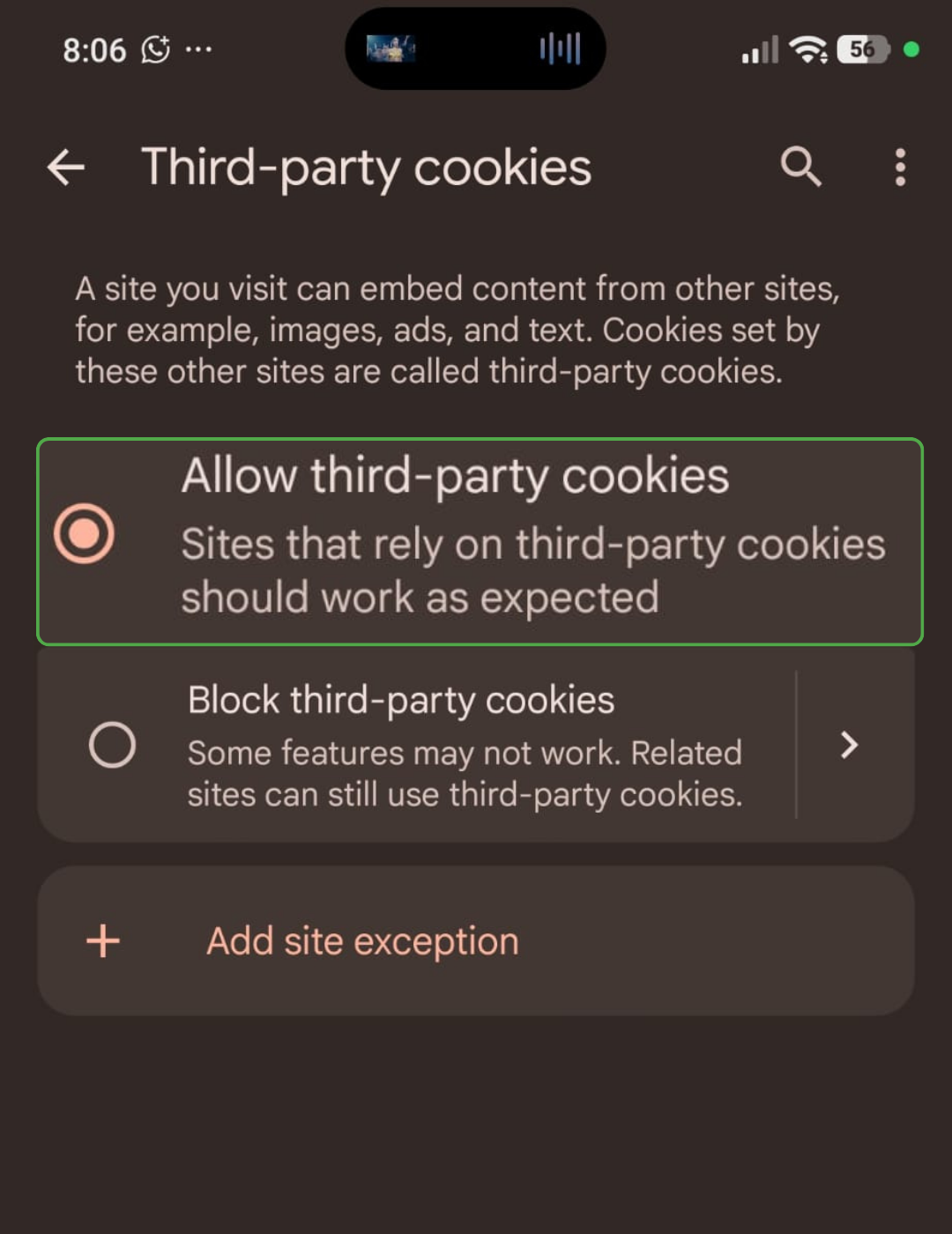
- Select Third-party cookies.
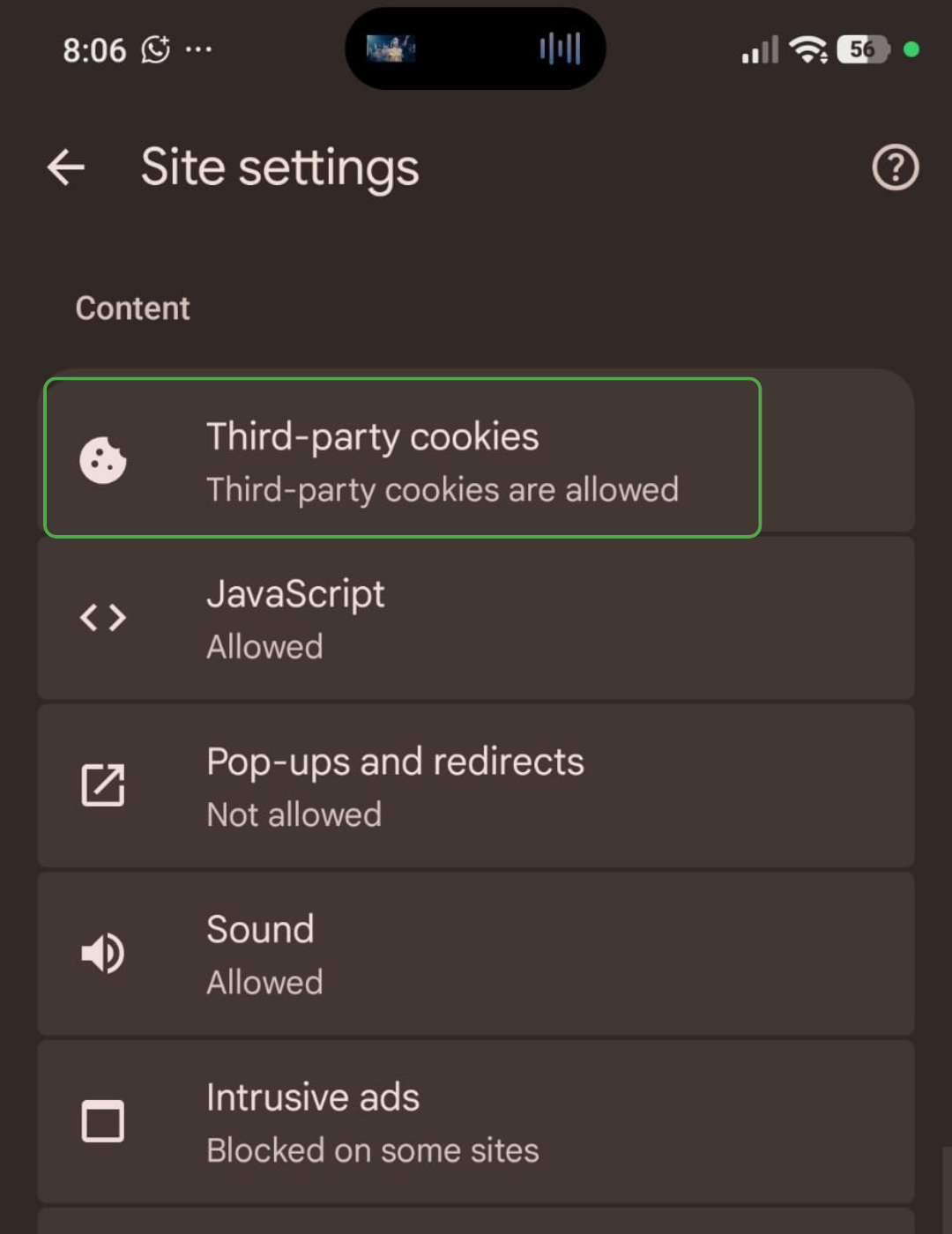
- Choose Allow third-party cookies.
How to Enable Third-Party Cookies on Safari
Safari limits third-party cookies and cross-site tracking by default. It doesn’t provide a dedicated setting labeled Allow third-party cookies. Instead, you may need to turn off Prevent cross-site tracking.
Enable Third-Party Cookies on Safari Using Mac
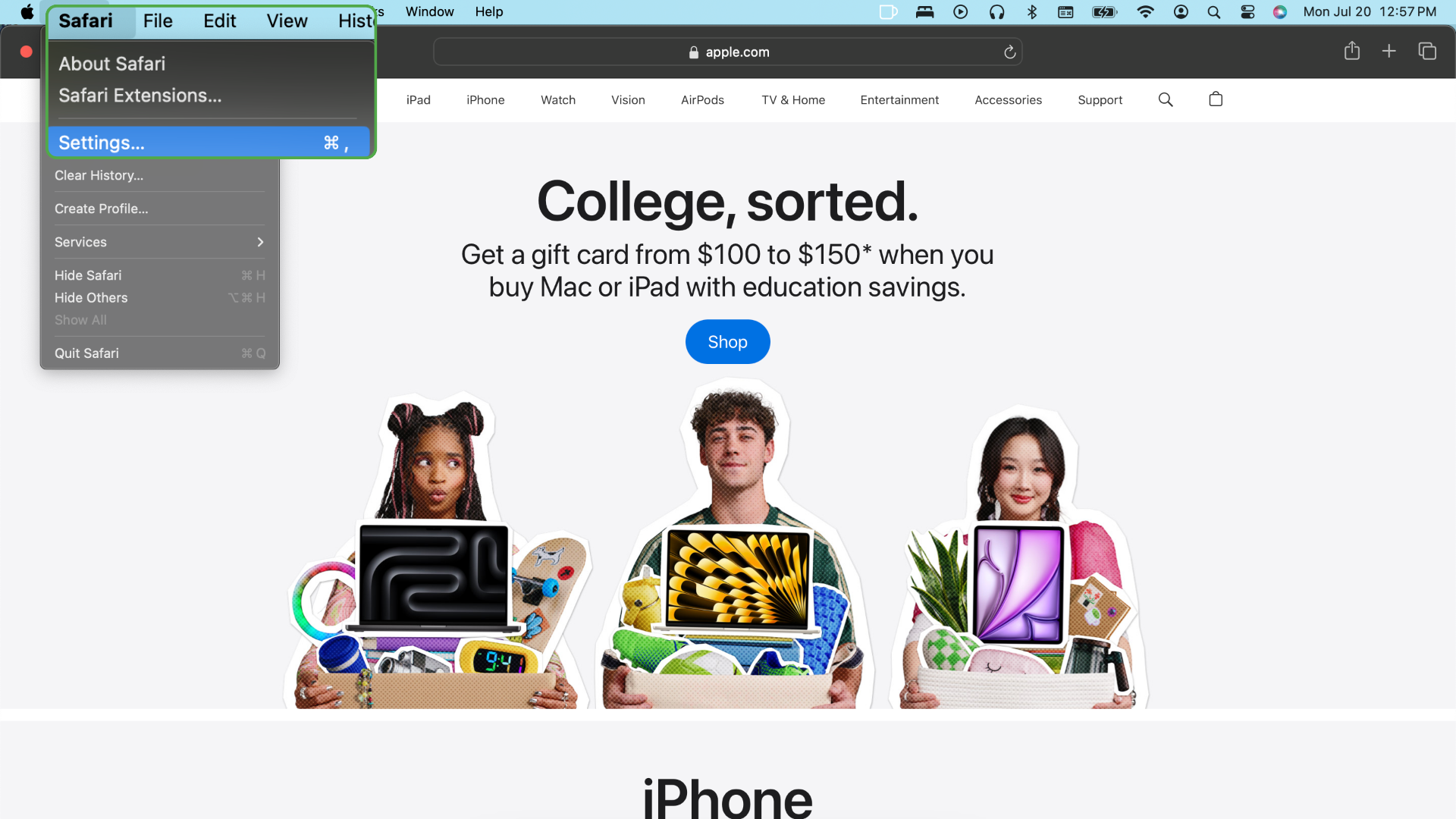
- Open Safari. From the menu bar, select Safari and click Settings.
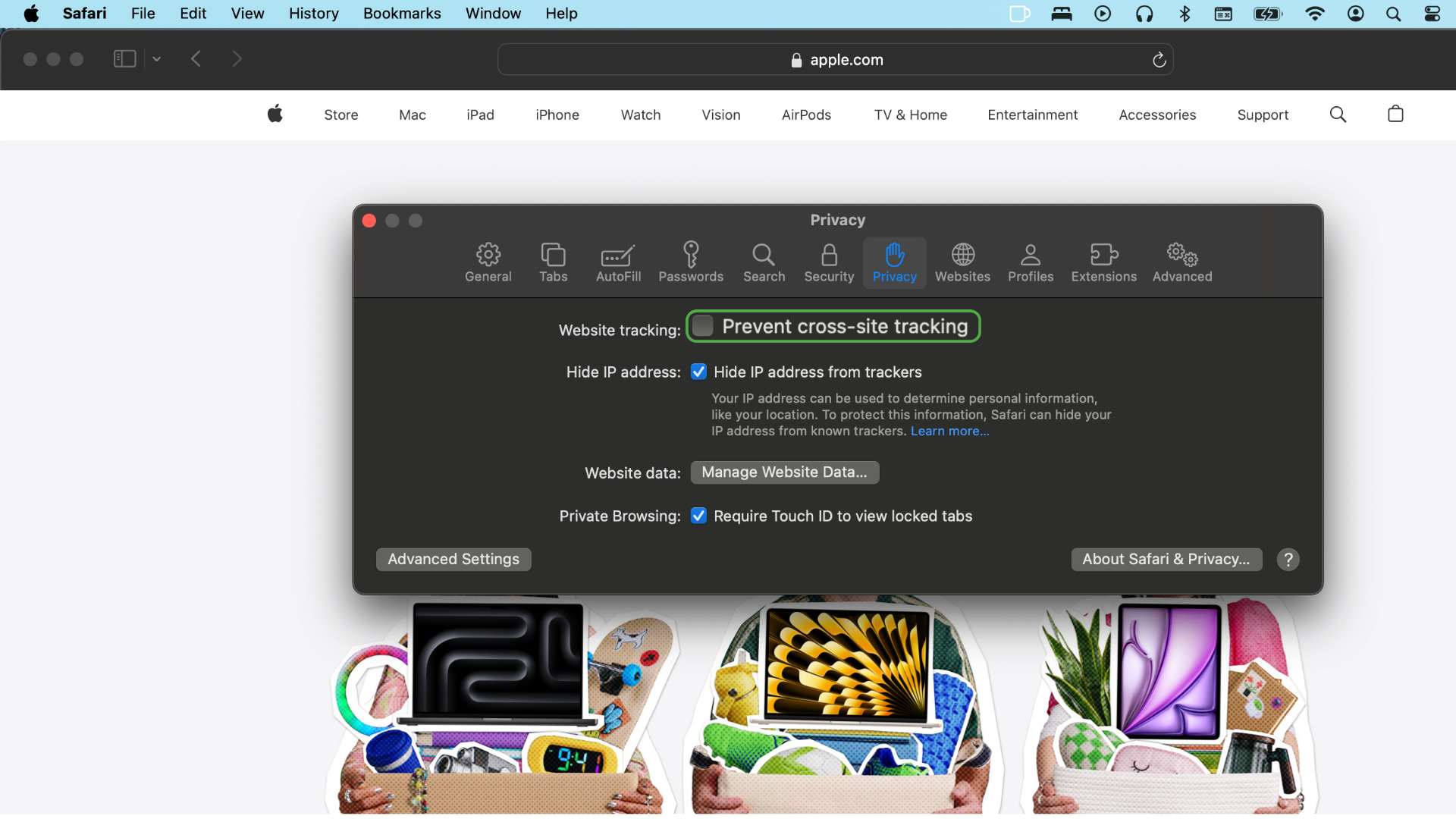
- Open the Privacy tab.
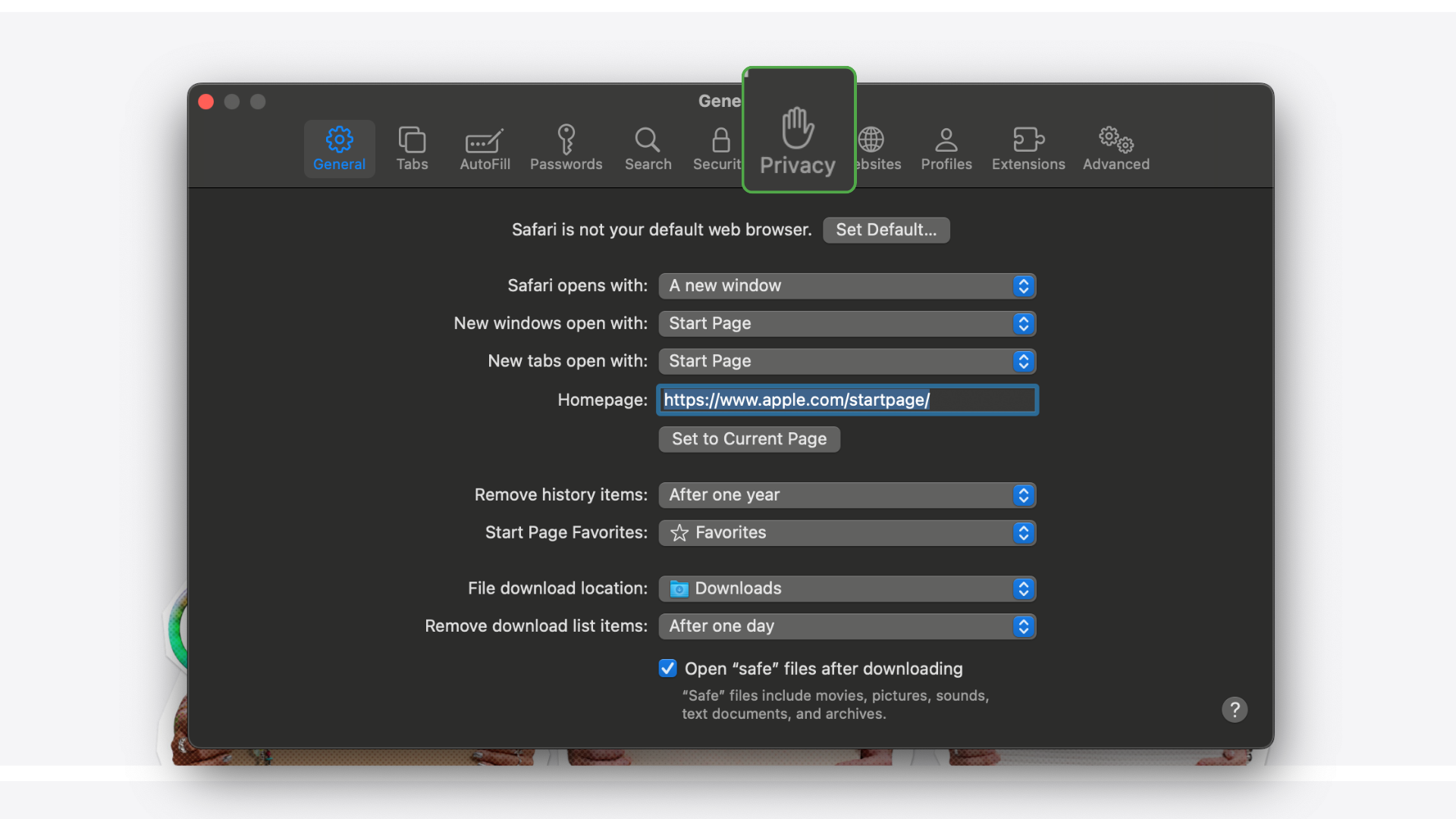
- Turn off Prevent cross-site tracking.
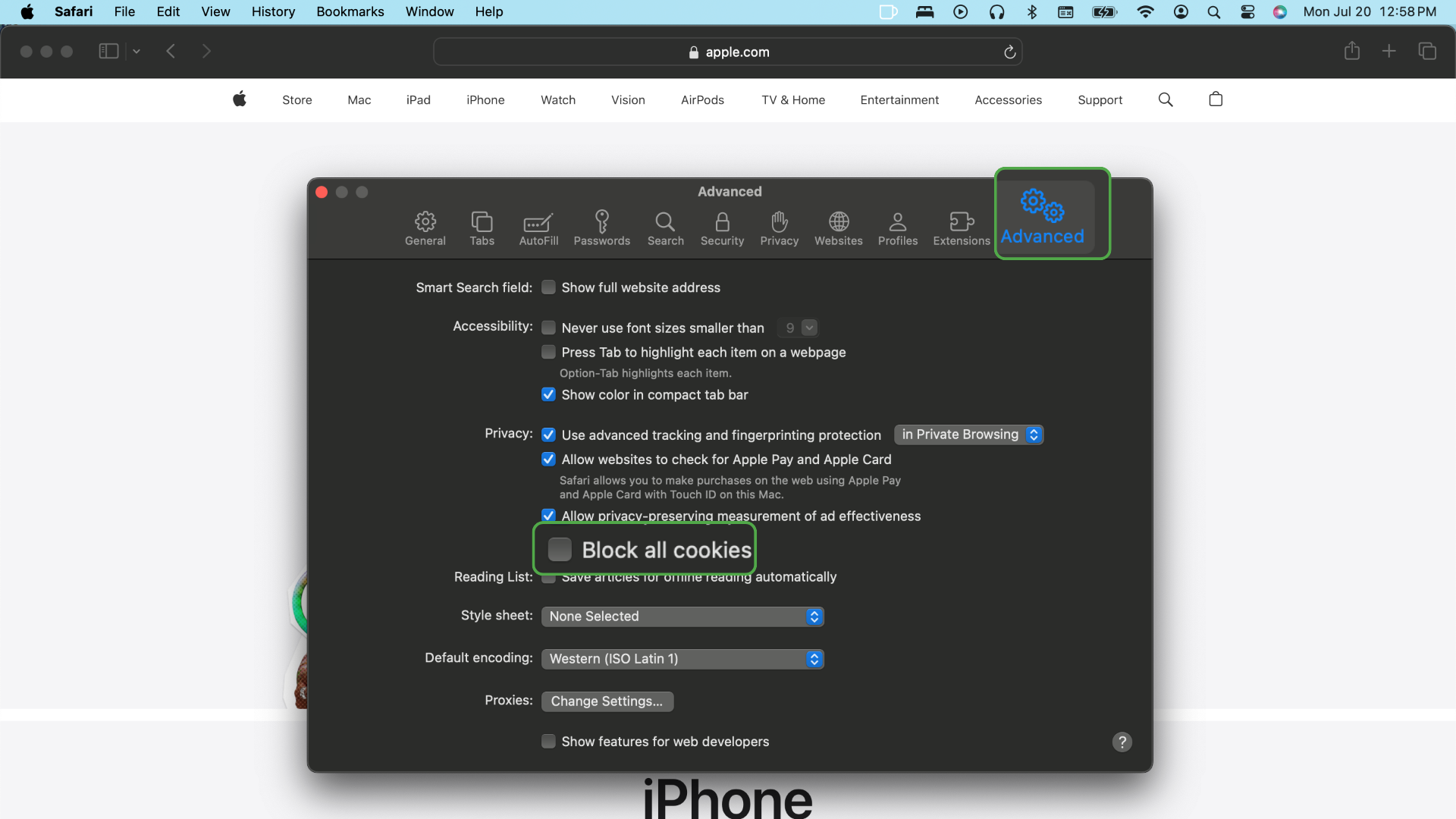
- Open the Advanced tab and make sure to disable the Block all cookies option.
Enable Third-Party Cookies on Safari Using an iPhone or iPad
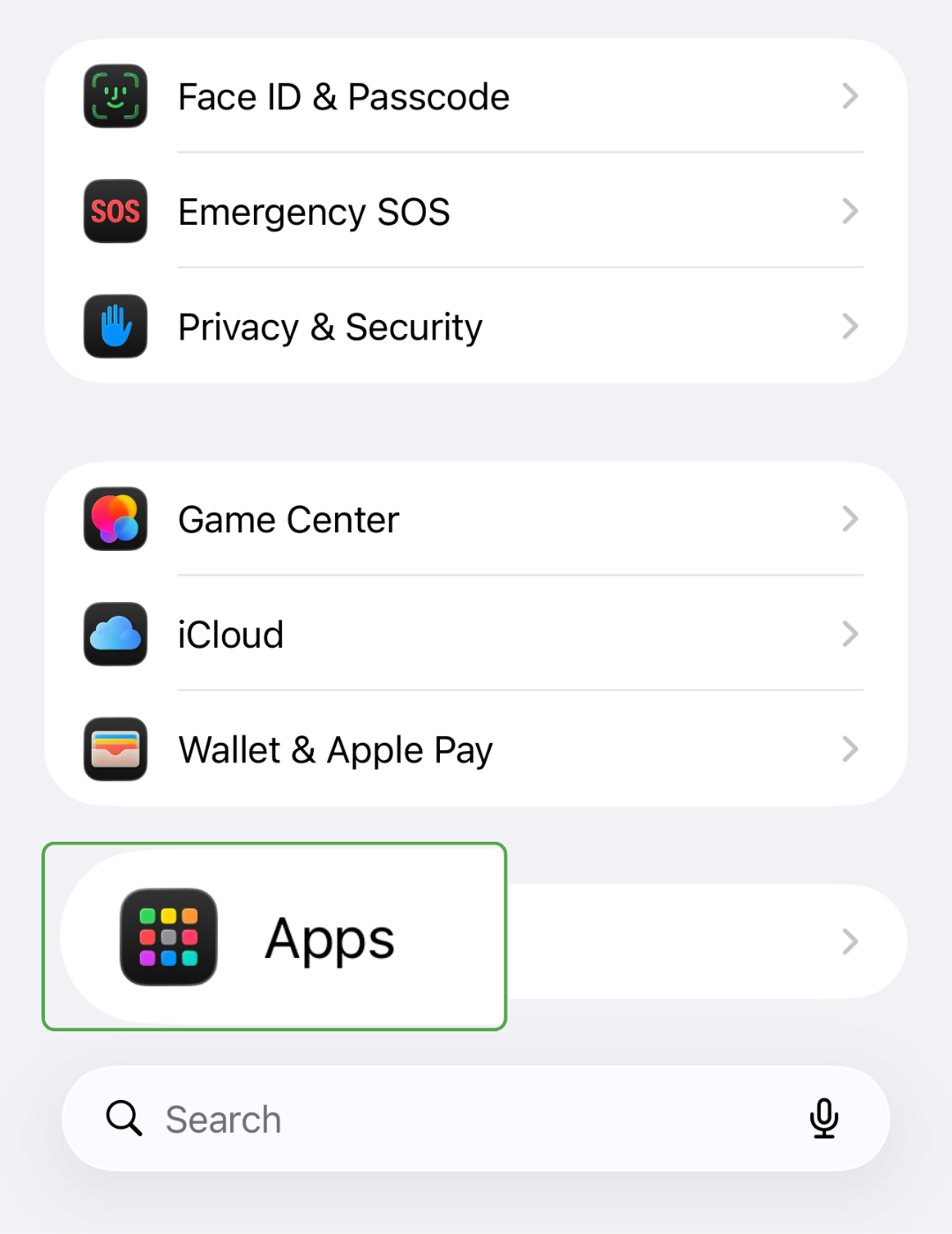
- Go to Settings and select Apps.
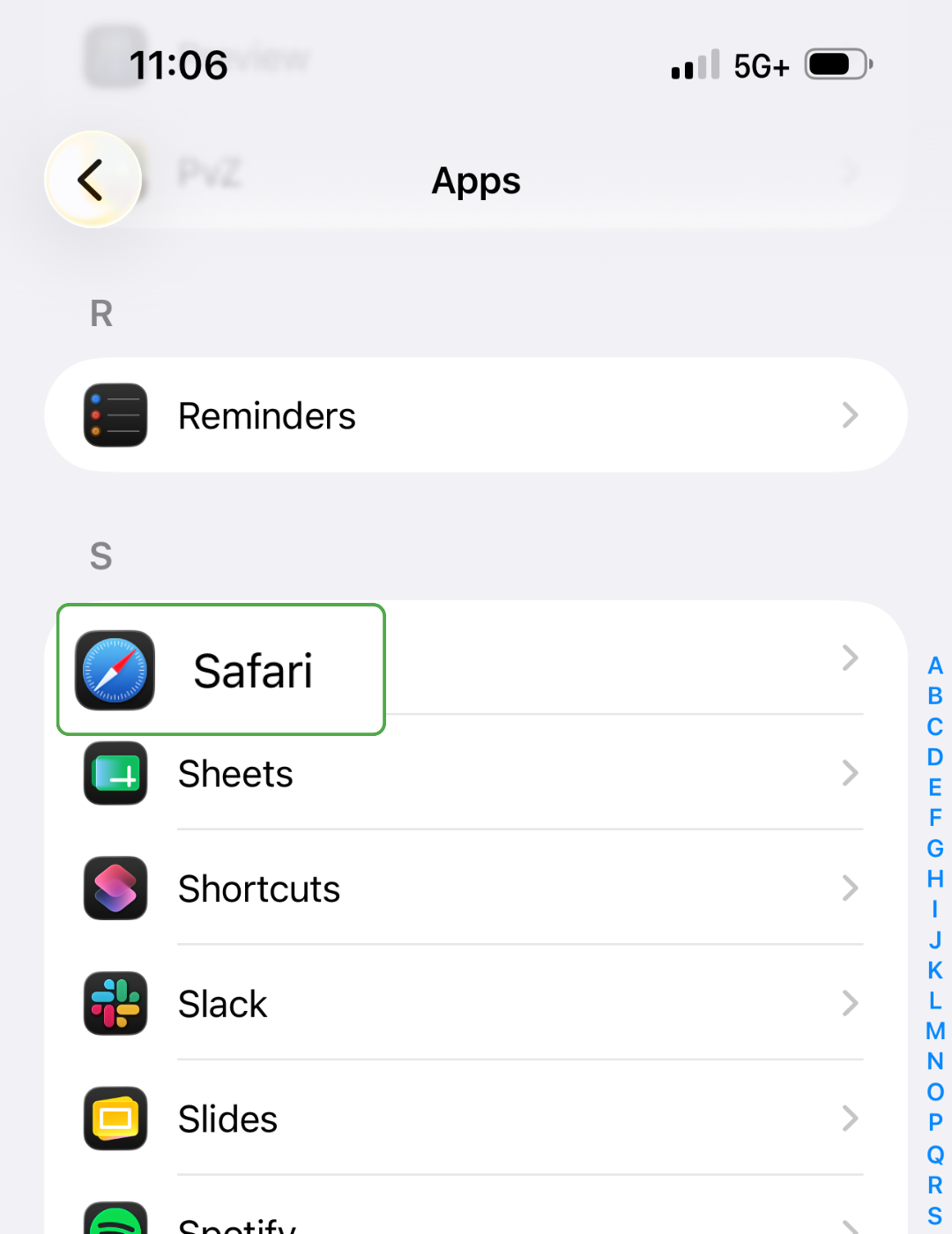
- Scroll down to Safari.
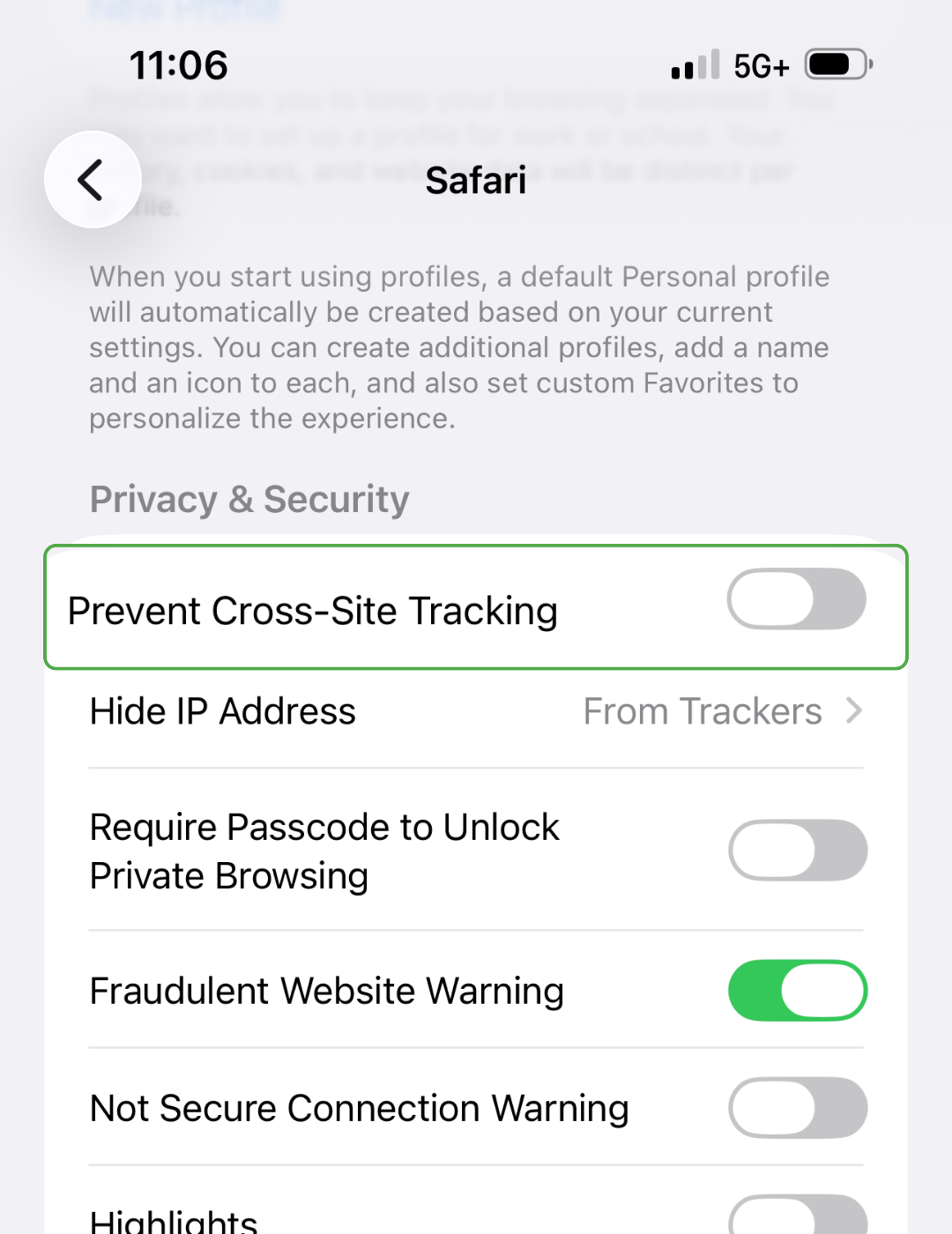
- Select Privacy and Security and disable Prevent Cross-Site Tracking.
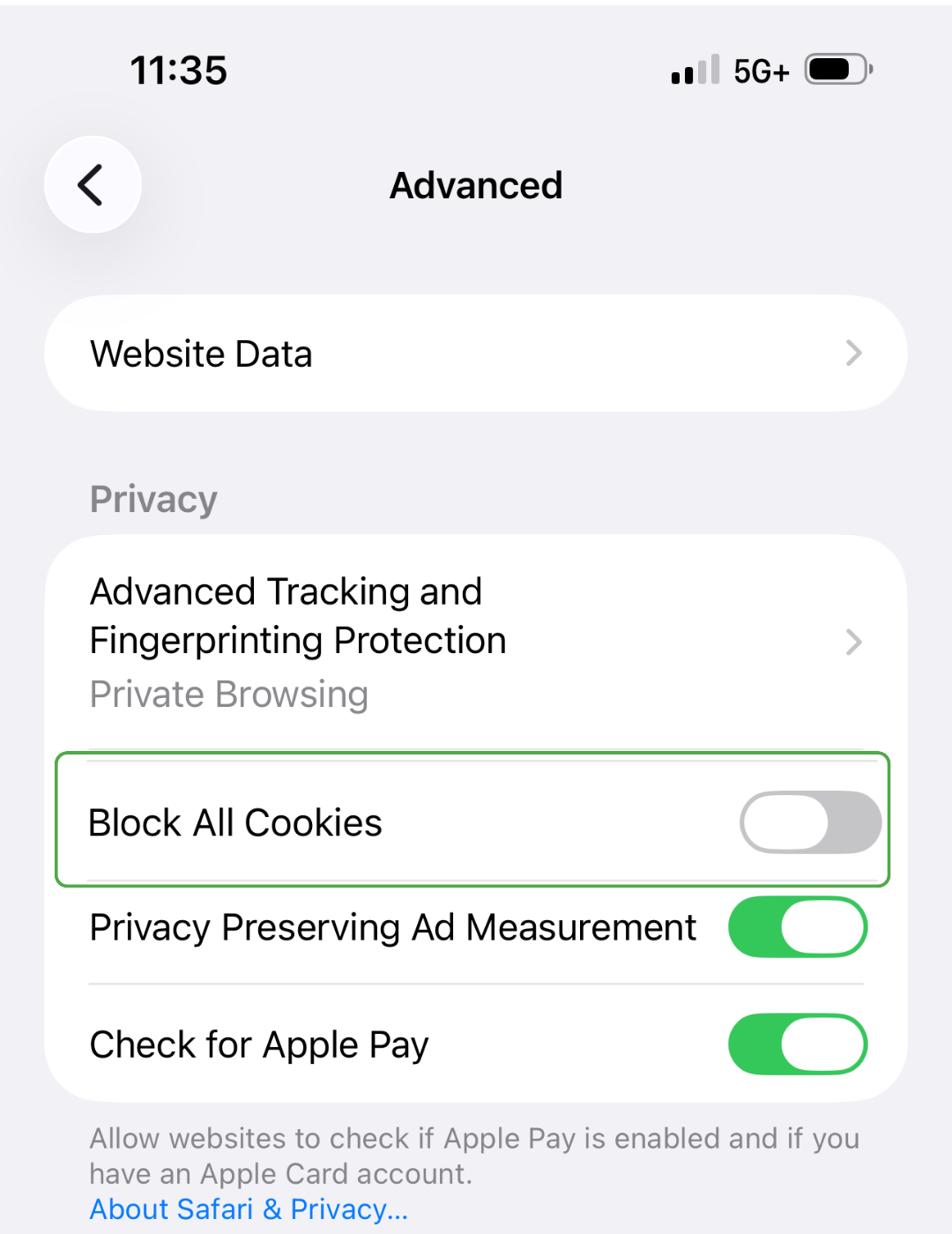
- In the Advanced settings, make sure you turn off the Block All Cookies option.
- Return to Safari and reload the site.
Safari applies this setting to all sites, so you can’t create site-specific exceptions like you can in Chrome.
How to Enable Third-Party Cookies on Firefox
Firefox handles third-party cookies through enhanced tracking protection and total cookie protection. These features restrict or isolate cross-site cookies to help limit tracking between websites.
If a site stops working, you can turn off enhanced tracking protection for that site without affecting Firefox’s settings for other websites.
Change Firefox’s Cookie Settings
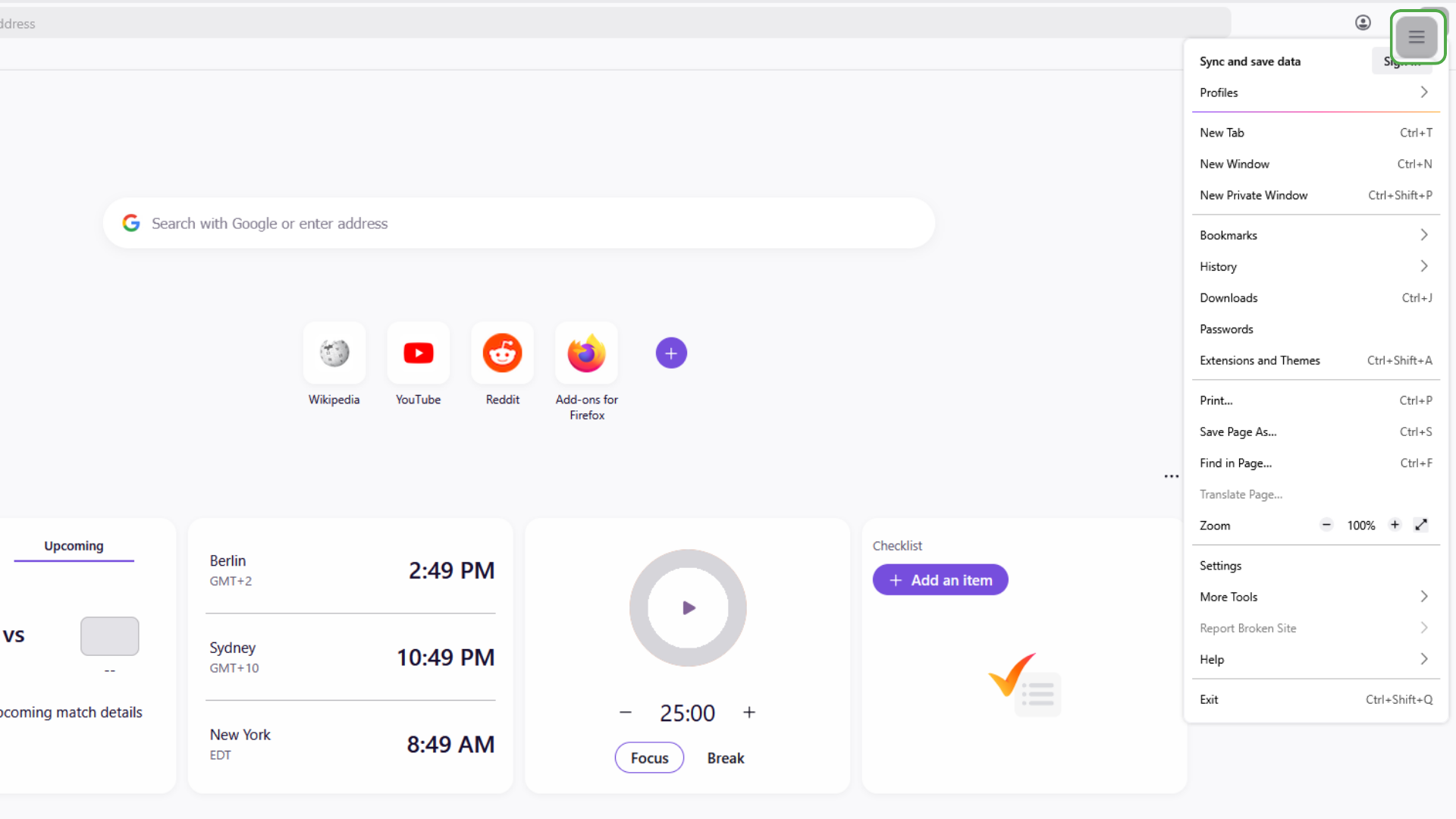
- Open Firefox, click the hamburger menu (three horizontal lines) in the top right corner, and select Settings.
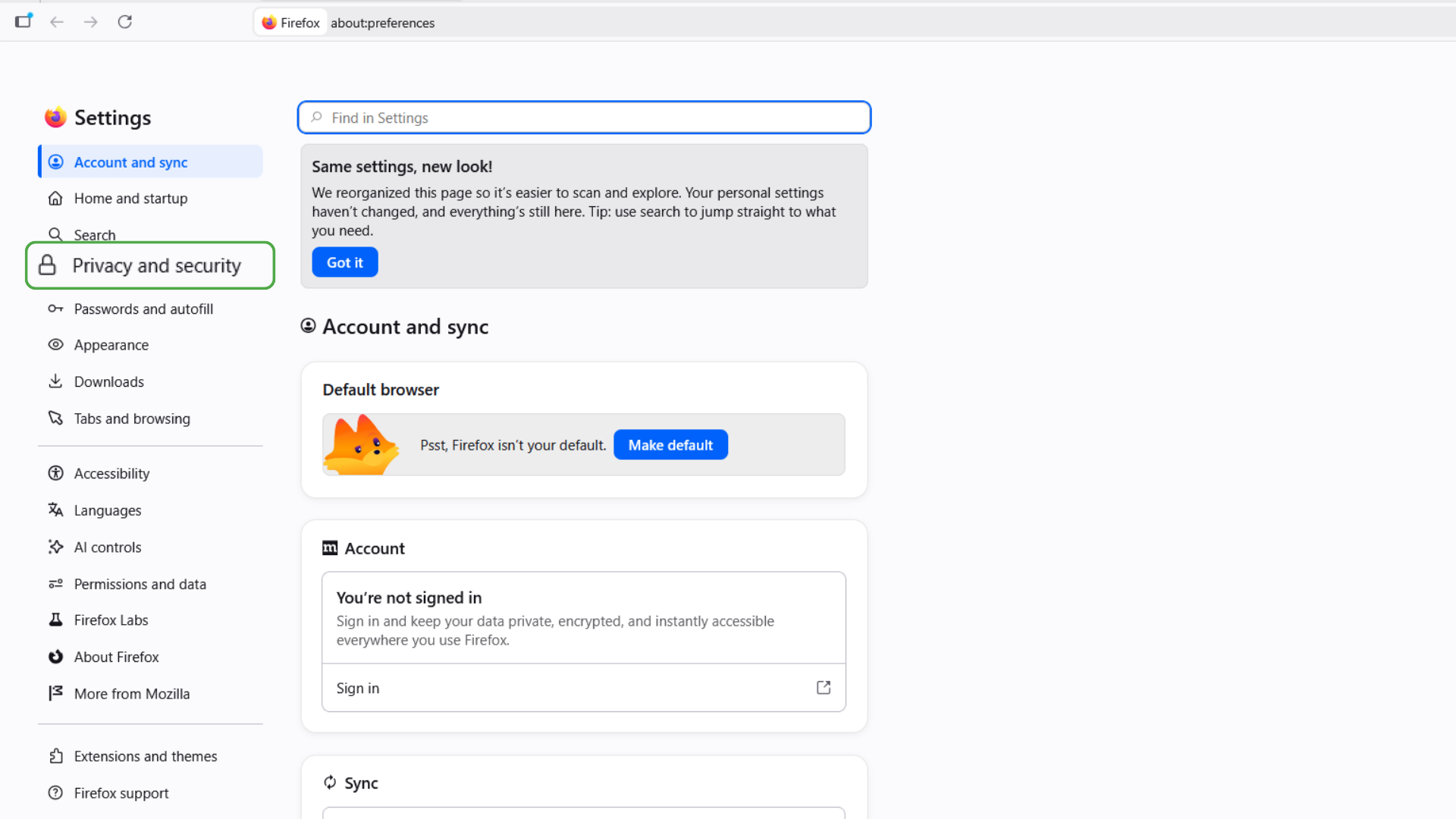
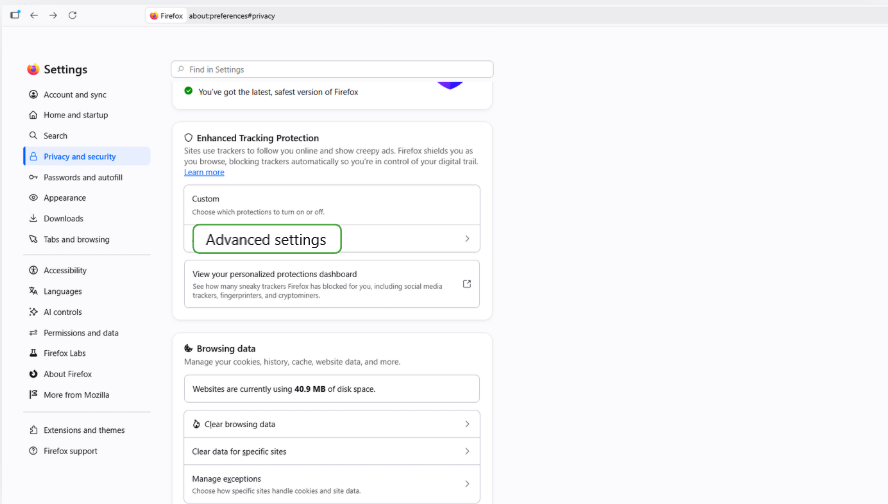
- Open Privacy and Security.
- In the Enhanced Tracking Protection section, click Advanced Settings.
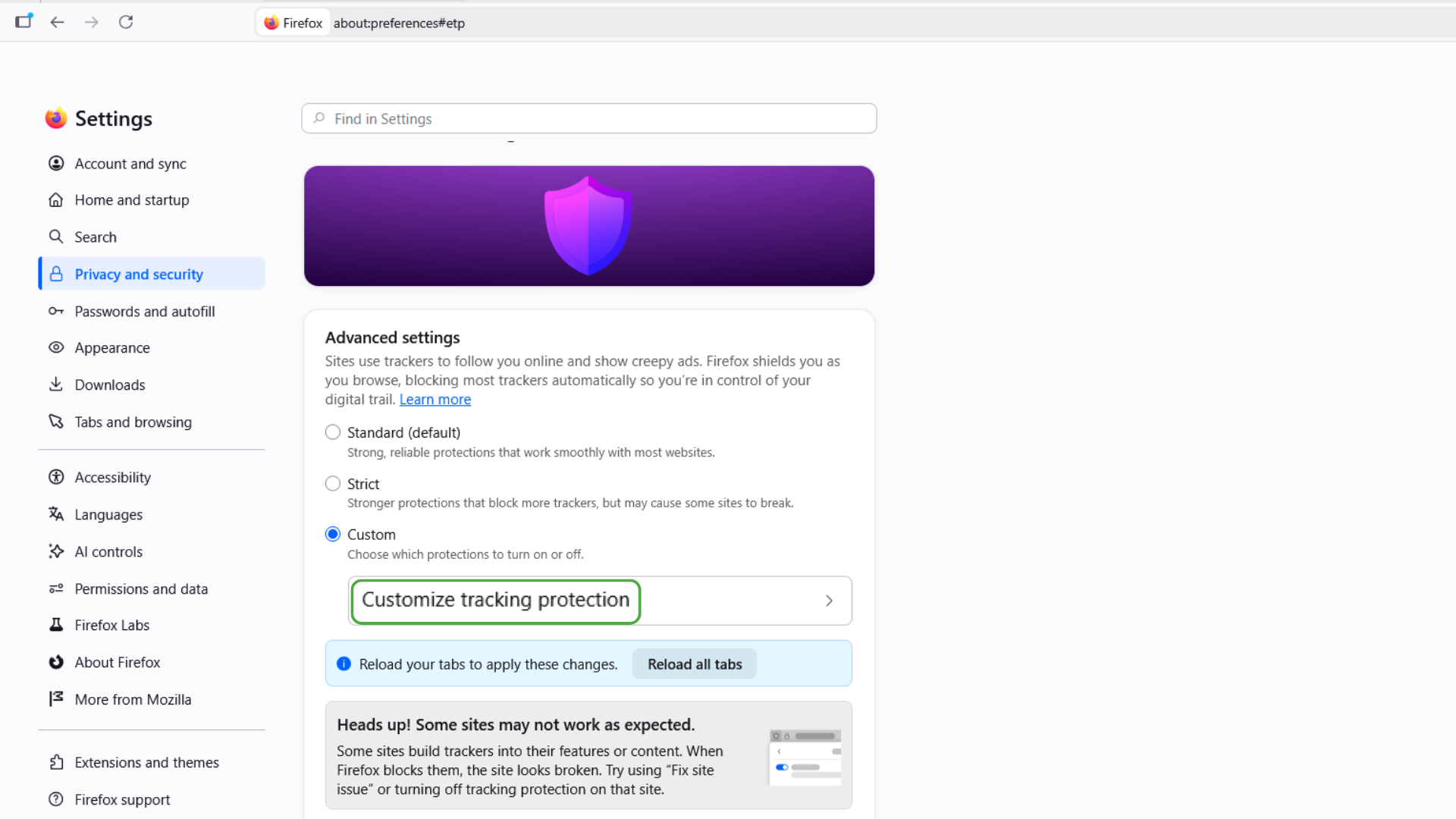
- Select Customize tracking protection.
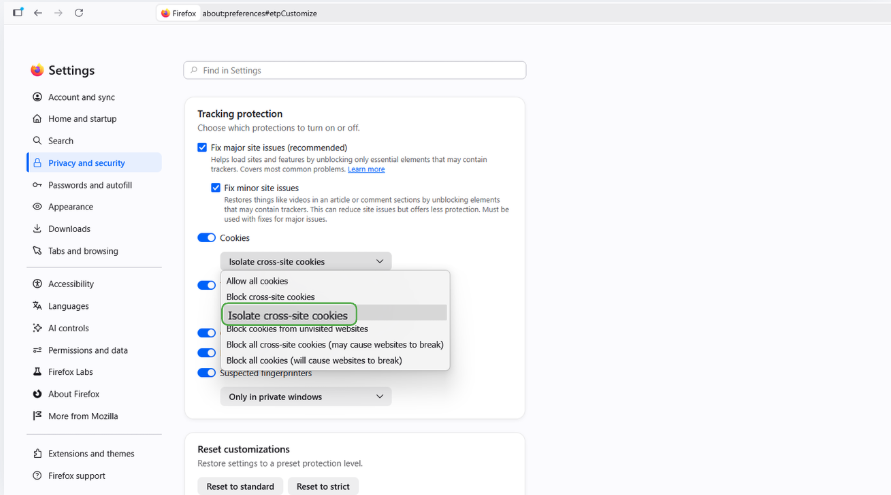
- Under Cookies, open the drop-down menu and choose Isolate cross-site cookies.
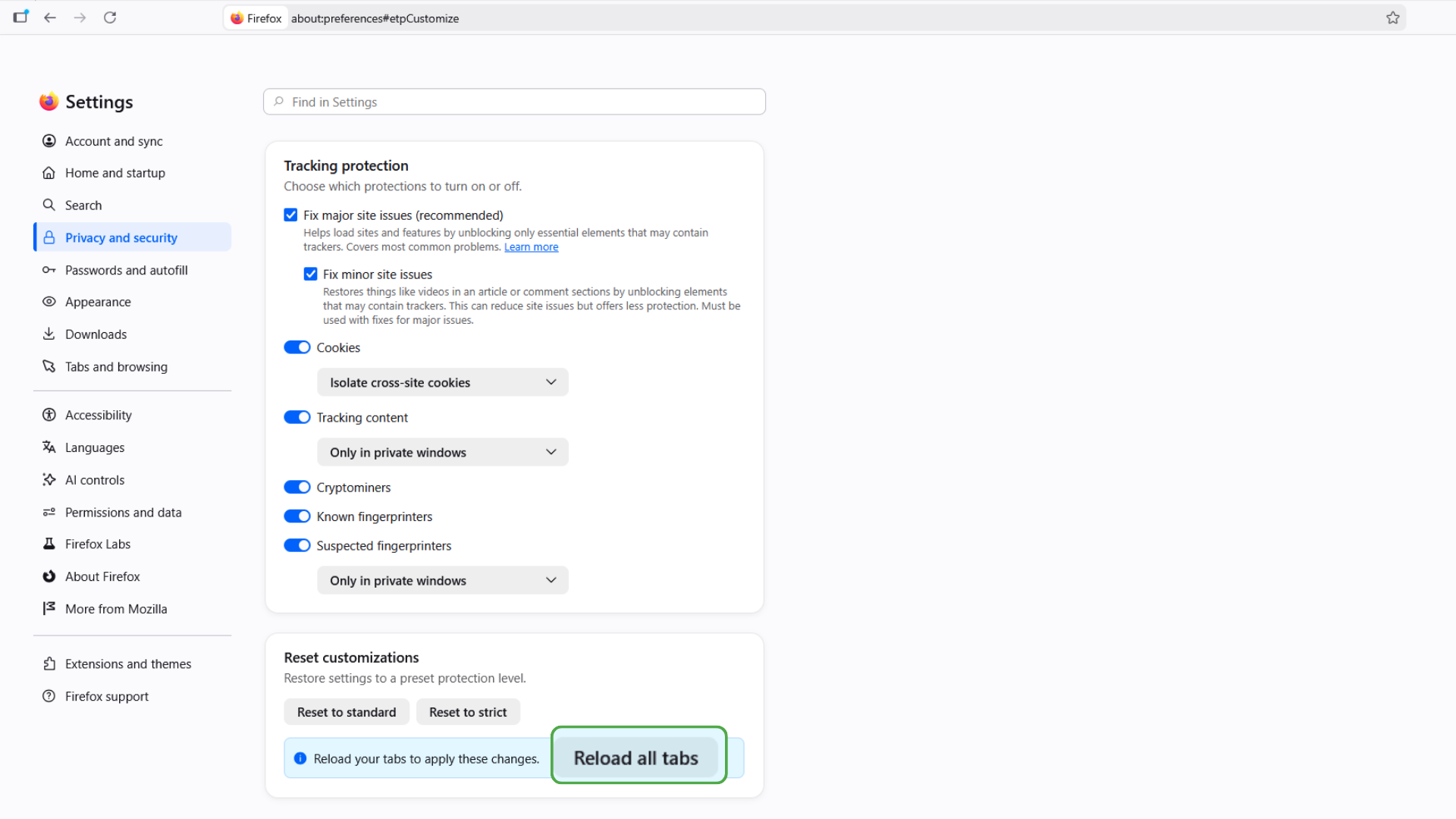
- Scroll to the bottom of the page and click Reload all tabs.
How to Enable Third-Party Cookies on Edge
Edge lets you block third-party cookies while still allowing the cookies a site needs to function.
Allow Third-Party Cookies on Edge
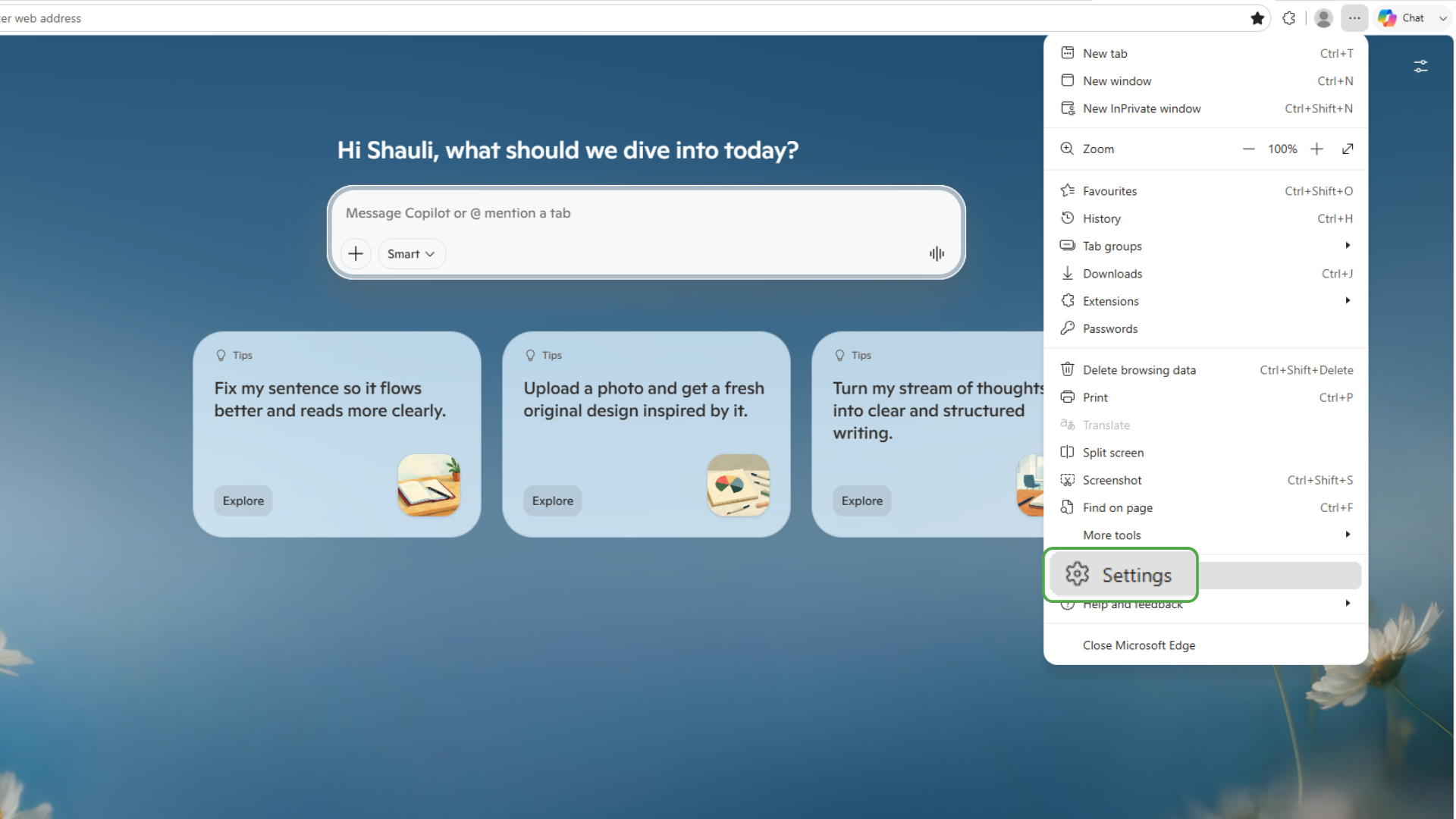
- Open Edge, navigate to the three-dot menu at the top right corner, and choose Settings.
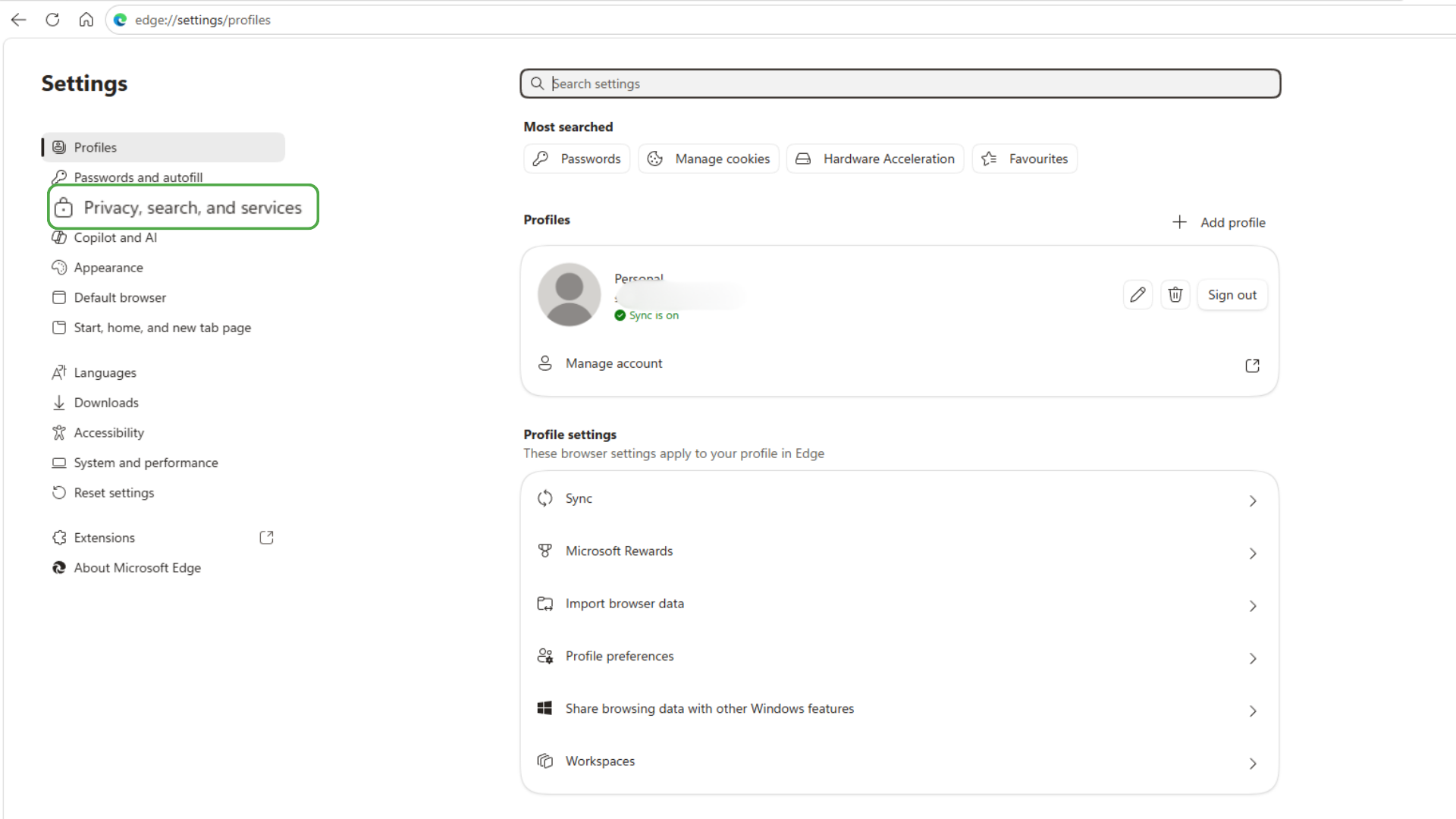
- Select Privacy, search, and services.
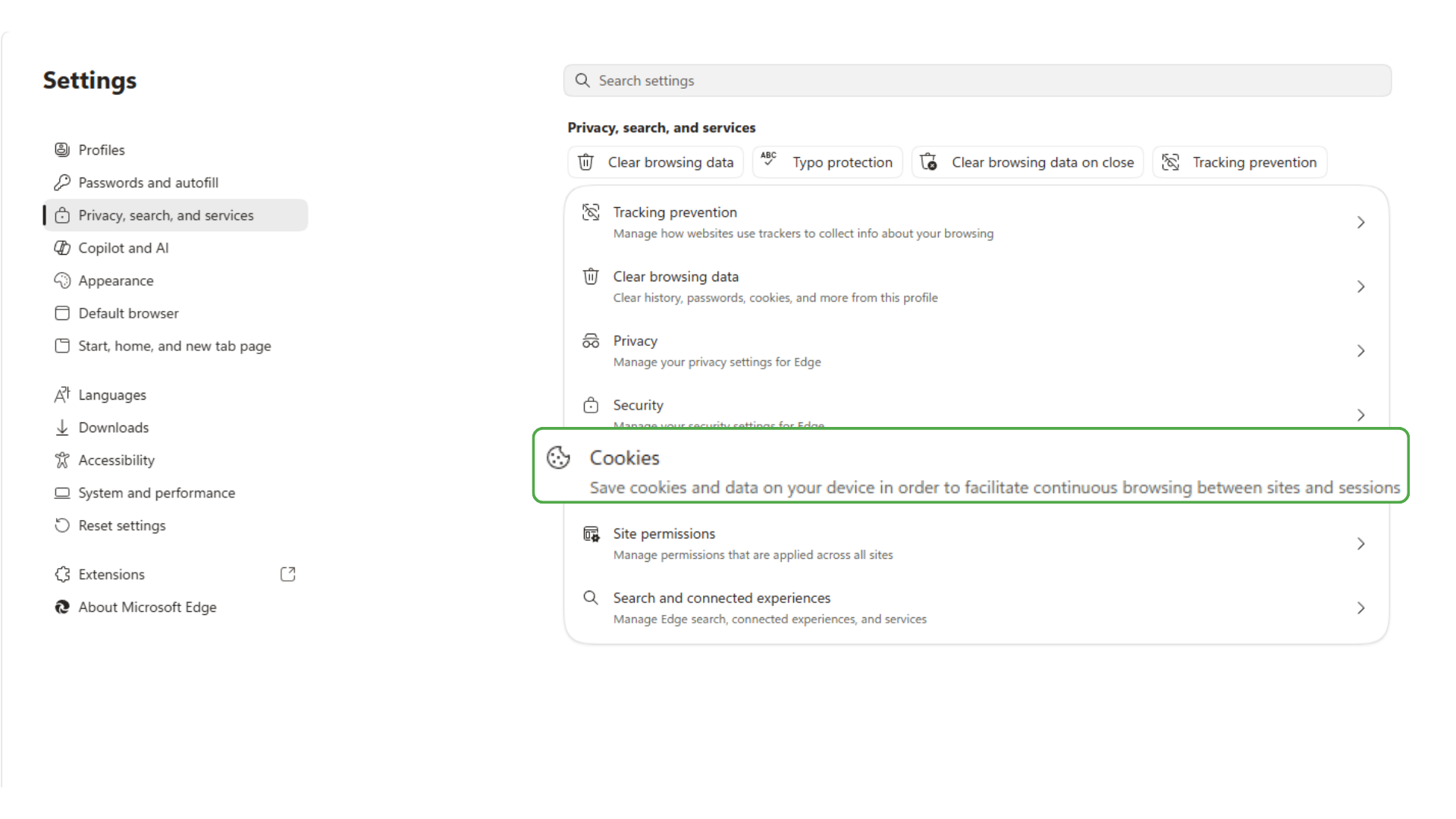
- Click Cookies.
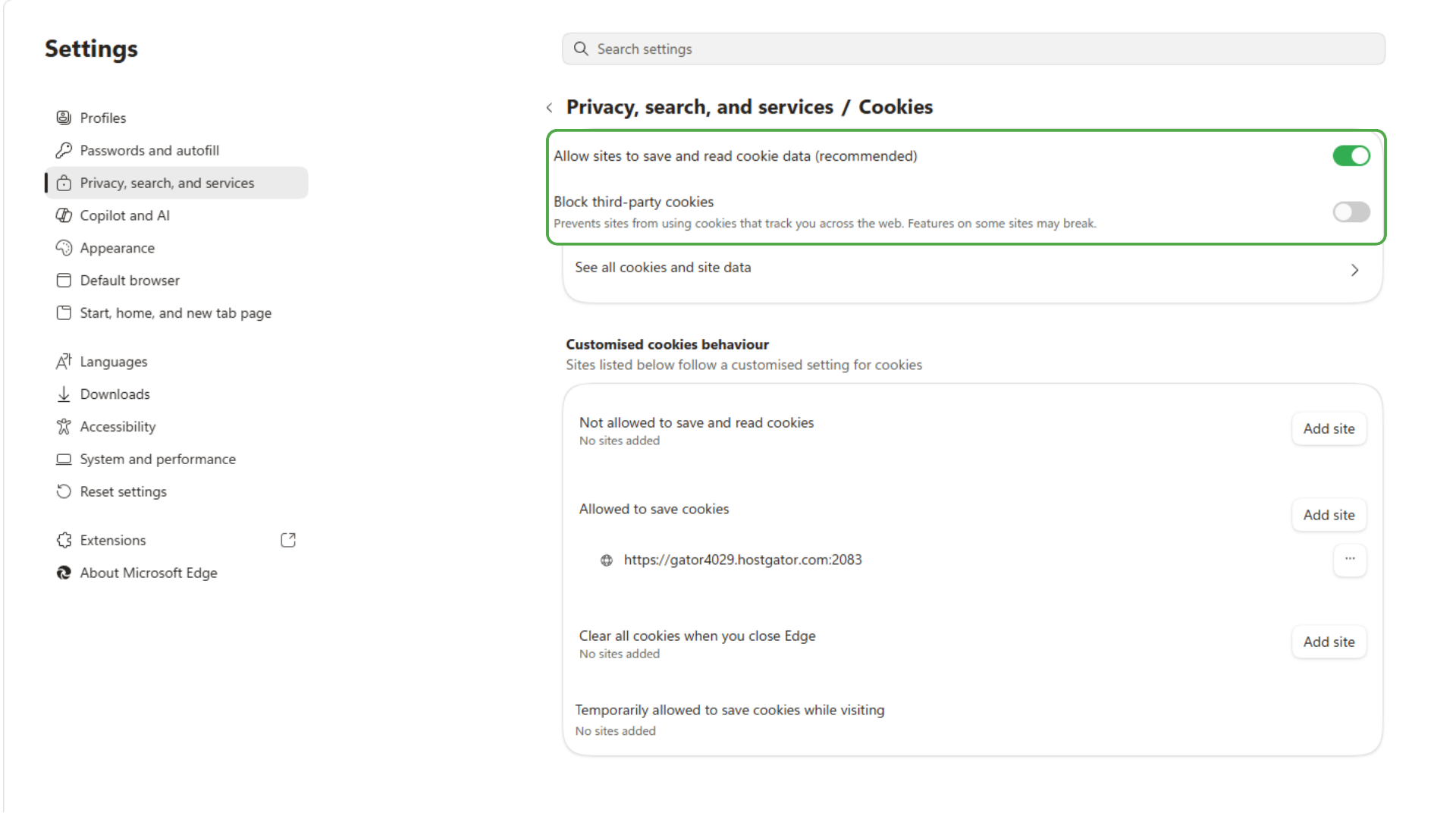
- Toggle on Allow sites to save and read cookie data and toggle off Block third-party cookies.
- Reload the site.
Allow Cookies Temporarily on Edge
When Edge blocks content that a site needs, it may show a prompt or icon in the address bar. Select it to review the blocked content and temporarily allow the required cookies or site data.
Temporary permission can restore the feature without changing your long-term browser settings.
Once the site is working, review any exceptions or temporary permissions you added and remove those you no longer need.
What Are Third-Party Cookies?
A cookie is a small piece of data that a website asks your browser to store. Websites use cookies to remember information between page loads or browsing sessions, such as whether you’re signed in, what you added to a cart, or which language you selected.
A first-party cookie belongs to the website you’re visiting. A third-party cookie belongs to another domain that the page loads.
For example:
- You visit
example.com. - The page loads a tool from
service.com. service.comcreates or reads its own cookie.- From your perspective, the cookie from
service.comis a third-party cookie.
If the same outside service appears on several websites, it can recognize your browser across those sites. This is why third-party cookies often enable cross-site tracking.
However, not every third-party cookie serves advertising or tracking. Some support features that depend on outside services.
Why Are Internet Cookies Called Cookies?
Internet cookies get their name from the older computing term “magic cookie.”
Lou Montulli developed the original browser-cookie system at Netscape. He borrowed the term from “magic cookie,” which refers to a piece of data passed between programs. The send, store, and return process was similar to how his browser system worked, so he used the word “cookie.”
The name isn’t based on websites leaving a trail of crumbs behind you. People widely repeat that explanation, but it isn’t how Montulli originated the term.
What Are Third-Party Cookies Used For?
Third-party cookies can support several types of website functionality:
- Account sign-ins: Lets you sign in through another provider.
- Payments: Supports checkout, verification, or fraud-prevention tools.
- Embedded content: Loads videos, maps, forms, or support widgets.
- Analytics: Helps site owners measure traffic and visitor behavior.
- Affiliate attribution: Identifies which website referred a customer.
- Advertising: Measures campaigns or personalizing promotions.
- Cross-site tracking: Connects activity from different websites to the same browser.
The same technology can support useful features or broader tracking. How a website uses the cookie matters more than the fact that it comes from a third party.
First-Party vs. Third-Party Cookies
First-party cookies can keep you signed in or remember your settings for the site. Third-party cookies usually come from an outside service that operates across several sites. The main difference is which domain the cookie belongs to relative to the page you’re visiting.
Attributes First-party cookies Third-party cookies Associated with The website you’re visiting Another domain loaded by the page Common uses Logins, carts, language, and site preferences Embedded services, analytics, advertising, and cross-site tools Shared across unrelated websites Usually no In some cases Effect of blocking May break essential site features May break certain embedded or cross-site features Tracking potential Usually limited to one website May link activity across websites Should I Block Third-Party Cookies?
Blocking third-party cookies can reduce one typical form of cross-site tracking. Many websites will continue to work normally when you block them.
However, some features that rely on outside domains may stop working, including sign-ins, payments, embedded tools, and workplace platforms.
A balanced approach is to block third-party cookies by default and make exceptions when a trusted site needs them. Start with a site-specific or temporary permission, then enable them across the browser only when a narrower option doesn’t solve the problem.
A request to change your cookie settings doesn’t prove that a site is legitimate, so check the address and confirm that you trust it first.
Can a VPN Stop Third-Party Cookie Tracking?
A VPN doesn’t block, delete, or control third-party cookies stored in your browser.
A VPN encrypts traffic between your device and the VPN server. It also replaces your visible IP address with the VPN server’s IP address, which helps prevent websites and other online services from seeing your real one and potentially tracking you this way. However, it doesn’t prevent other forms of tracking.
That means websites may still recognize or associate your activity through cookies, logged-in accounts, browser fingerprinting, tracking pixels, or other data stored in your browser while using a VPN.
A trustworthy VPN may be able to help limit tracking. PIA VPN includes PIA MACE, a built-in tool that blocks requests to domains known for ads, trackers, and malware at the DNS level. However, MACE doesn’t delete cookies already stored in your browser or replace its cookie controls. You’ll still need to manage third-party cookies through your browser settings.
No single setting or product stops every form of tracking. Different tools address different parts of online privacy:
Tool What It Helps Protect Against Browser cookie controls Unwanted or unknown cookie storage Tracker blocking Requests to known tracking scripts or domains Private browsing Locally stored browsing data retained after the session VPN Limits exposure to your IP address and the traffic between your device and the VPN server How to Use Third-Party Cookies More Privately
You don’t have to leave third-party cookies enabled everywhere because one site needs them. Check that you’re on the legitimate website, allow them only for the site or session as needed, and remove permissions you no longer need. Keep your browser updated and review extensions that can access your browsing data.
Third-party cookies can support useful features, but they can also help outside services follow activity across websites. Only enabling them where you need them helps protect your online privacy without giving up the features you rely on.
FAQ
How do I enable third-party cookies?
Open your browser’s privacy, tracking, or cookie settings and select the option that allows third-party cookies. Safari and Firefox use broader tracking-protection controls rather than a dedicated third-party cookie switch. Where possible, allow them only for the site that needs them.
How do I enable third-party cookies in Chrome?
Open Chrome and go to Settings > Privacy and security > Third-party cookies. Select Allow third-party cookies to enable them across the browser. You can also manually add a trusted website under Sites allowed to use third-party cookies.
What are third-party cookies?
Third-party cookies are tiny files saved to your browser by a domain other than the website you’re directly visiting. They may support embedded content, payments, analytics, advertising, or third-party sign-ins. Some also allow services to connect browsing activity across different websites.
Should I block third-party cookies?
Blocking third-party cookies can help reduce cross-site tracking, and many websites work as usual without them. However, some sign-ins, payments, and embedded features may stop working. A temporary or site-specific exception is usually preferable to enabling them across every site.
What’s the difference between first-party and third-party cookies?
First-party cookies come from the website displayed in your address bar. Third-party cookies come from another domain loaded through that page. First-party cookies usually support logins and site settings, while third-party cookies often support external services, analytics, advertising, and cross-site tools.
Can a VPN stop websites from tracking me with third-party cookies?
A VPN doesn’t block or remove cookies from your browser. It can mask your real IP address and encrypt traffic between your device and the VPN server, but websites may still recognize your browser through cookies and other identifiers. You’ll need to use your browser’s cookie controls to manage third-party cookies.
- Open Edge, navigate to the three-dot menu at the top right corner, and choose Settings.
