How to Turn Off AI in Gmail
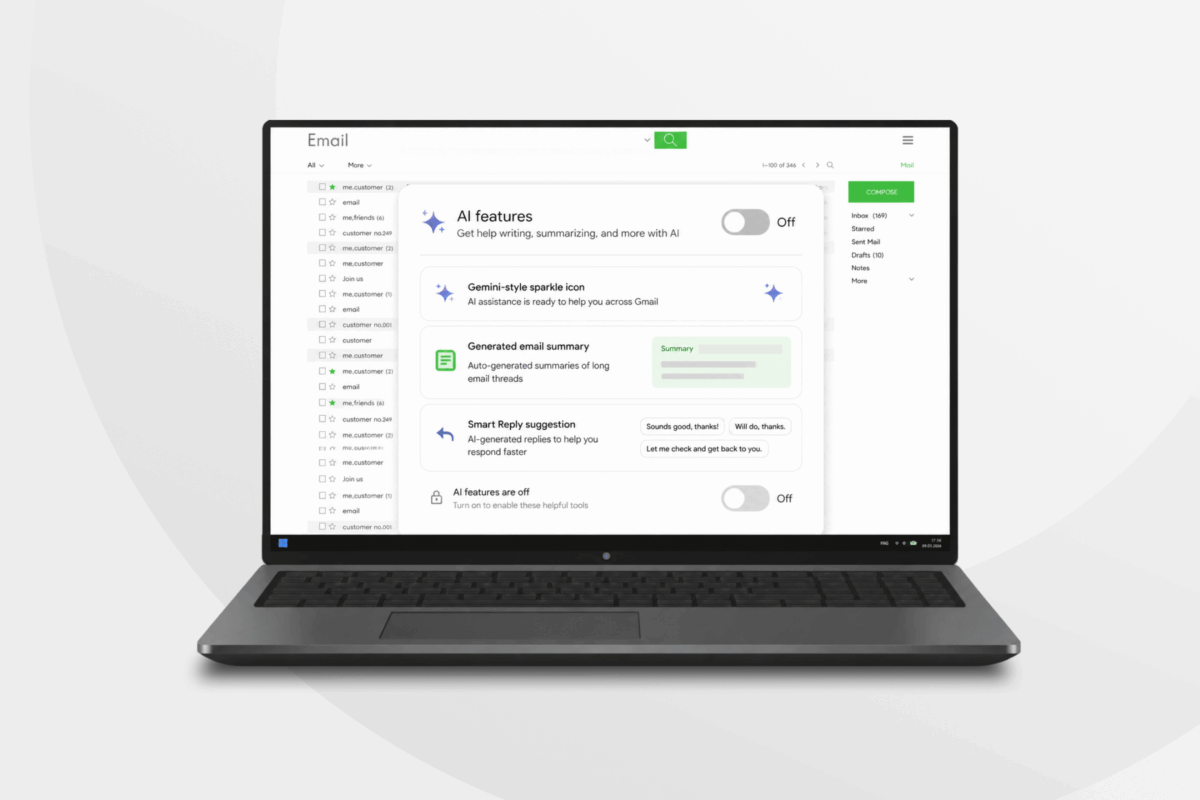
In January 2026, Google began rolling out a major expansion of Gemini features in Gmail, including AI-generated summaries, writing tools, and natural-language inbox searches. For most Gmail users, these are enabled by default (with the exception of users in the European Economic Area, United Kingdom, Switzerland, and Japan).
AI tools can save time, but that comes at the cost of extra data processing. If you’d rather limit it, this guide explains how to turn off Gmail AI and smart features through your account settings. We cover the process on desktop and mobile, which controls to change, and which features you may lose.
- Quick Guide: How to Disable AI in Gmail
- How to Turn Off Gmail AI on a Computer
- How to Turn Off Gmail AI on Android
- How to Turn Off Gmail AI on an iPhone or iPad
- How to Disable Gemini Without Turning Off Smart Compose
- What Happens When You Turn Off AI in Gmail?
- AI Features Gmail Uses
- Can You Turn Off Gmail AI Summaries?
- Does Gmail Use Your Emails to Train Gemini?
- Why Turn Off AI in Gmail?
- How to Turn Off Third-Party AI Extensions and Connected Apps
- Other Ways to Improve Gmail Privacy and Security
- Can a VPN Improve Privacy When Using Gmail?
- FAQ
Quick Guide: How to Disable AI in Gmail
The steps for turning off AI in Gmail are different for different devices:
- Computers: Settings > See all settings > Uncheck Turn on smart features in Gmail, Chat, and Meet
- Android: Settings > Click on your account > Uncheck Smart features
- iOS: Settings > Data privacy > toggle off Smart features in Google Workspace and Smart features in other Google products
Jump to full step-by-step instructions for: Computers | Android | iOS
How to Turn Off Gmail AI on a Computer
If you use Gmail in a desktop browser, check both the Gmail smart-feature setting and the broader Google Workspace controls.
Turn Off Smart Features in Gmail, Chat, and Meet
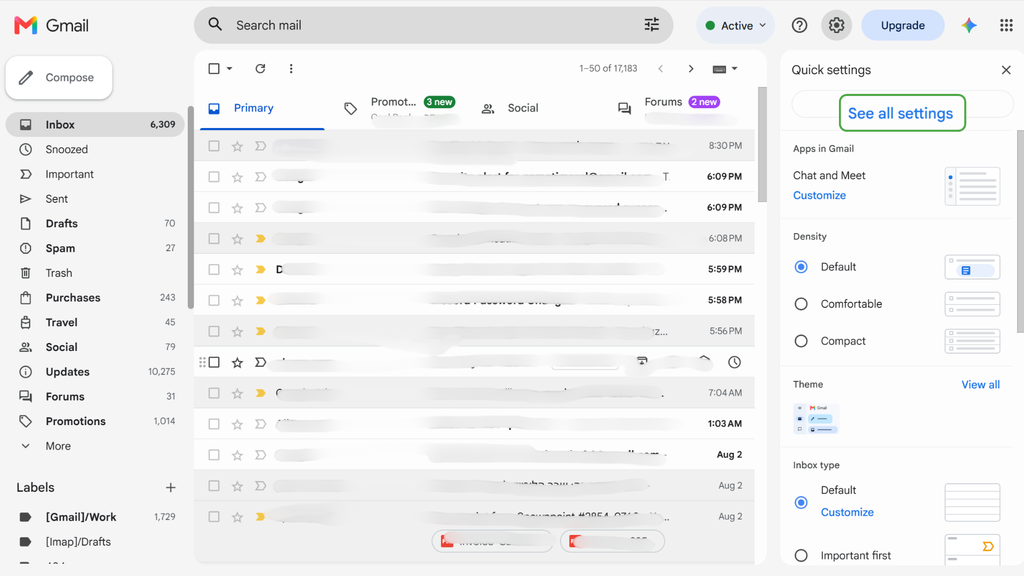
- Open Gmail, click the gear icon in the upper-right corner, and click See all settings.
- Stay on the General tab, and scroll to Smart features.
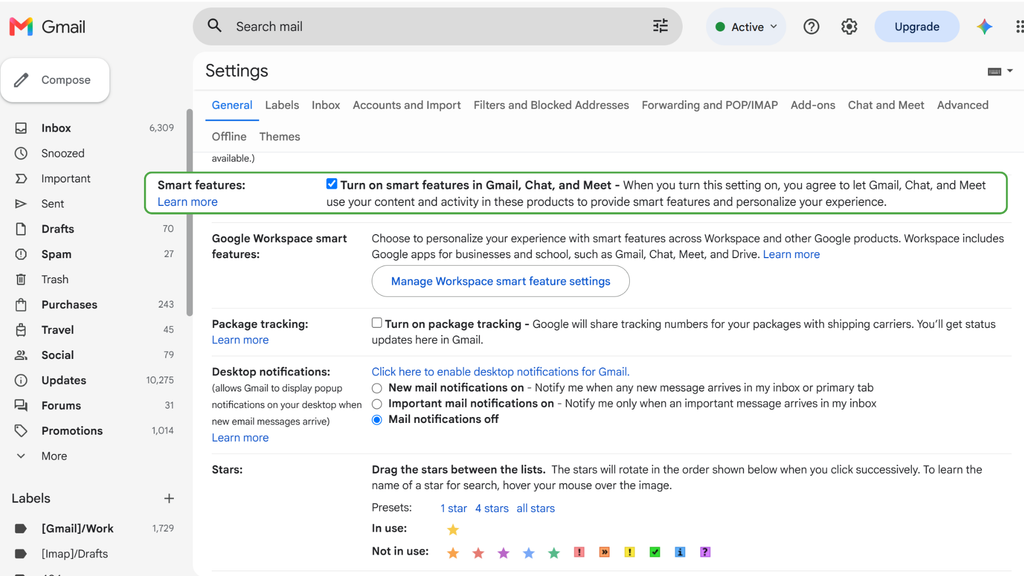
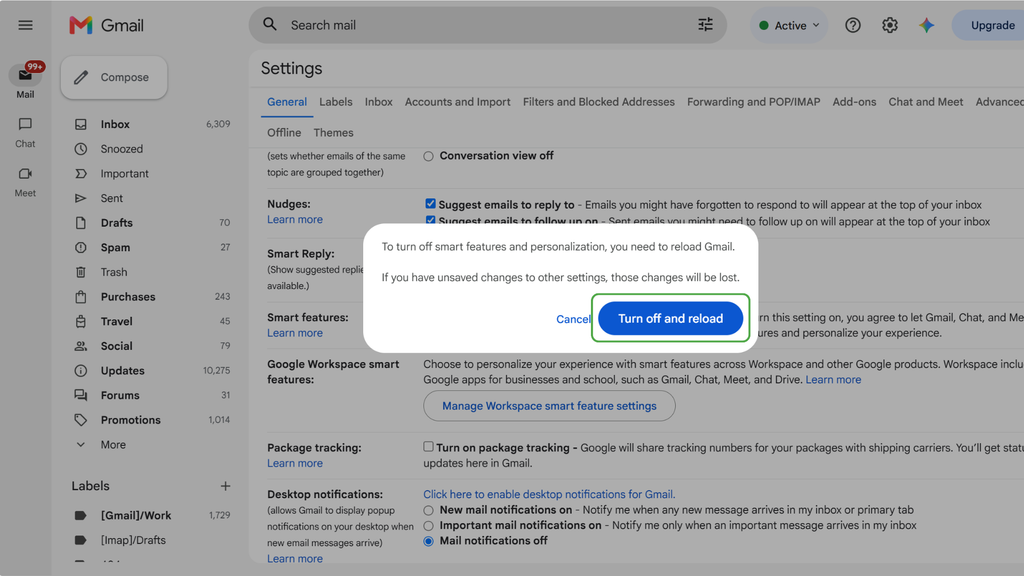
- Clear the box next to Turn on smart features in Gmail, Chat, and Meet.
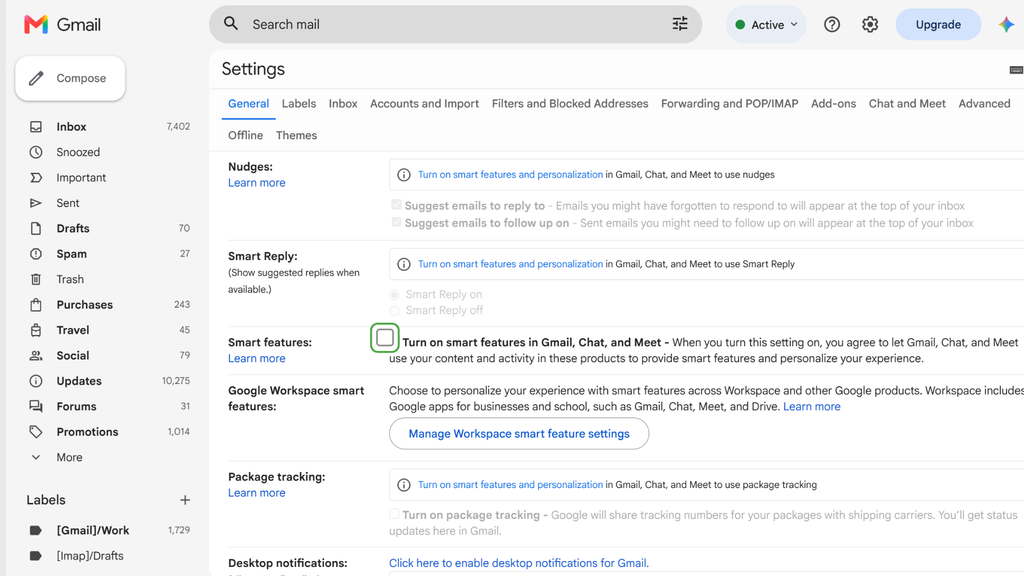
- Click Turn off and reload.
Turn Off Gemini and Smart Features Across Workspace
To disable Gemini features across Gmail, Calendar, Drive, and other Workspace products, you need to change another setting:
- Return to Gmail’s General settings, and scroll to Google Workspace smart features.
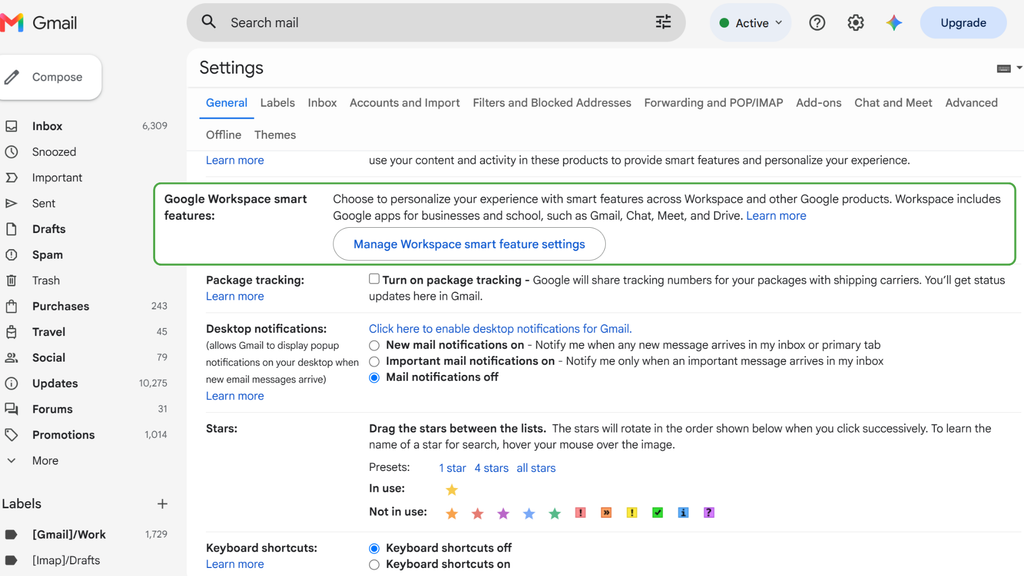
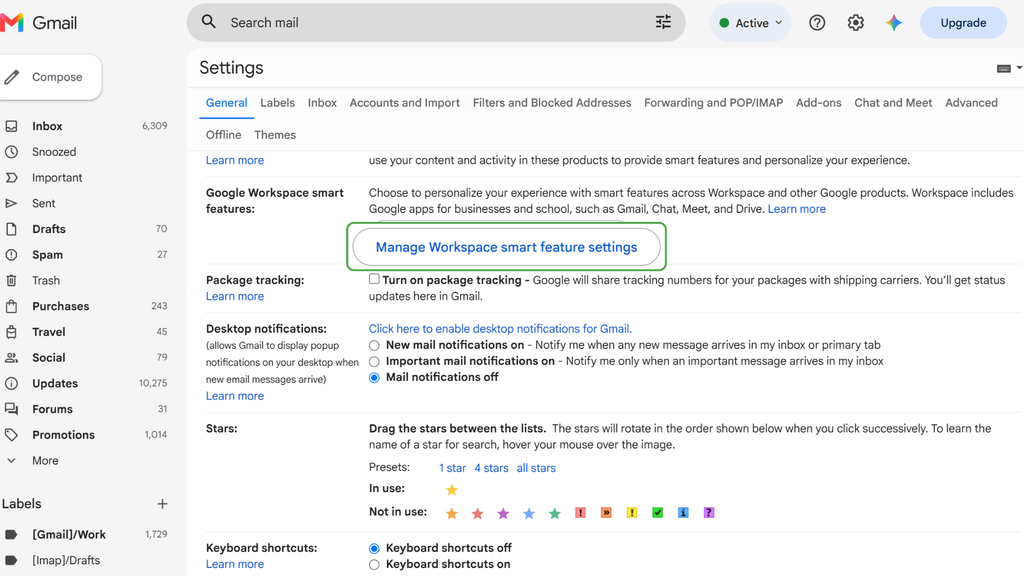
- Select Manage Workspace smart feature settings.
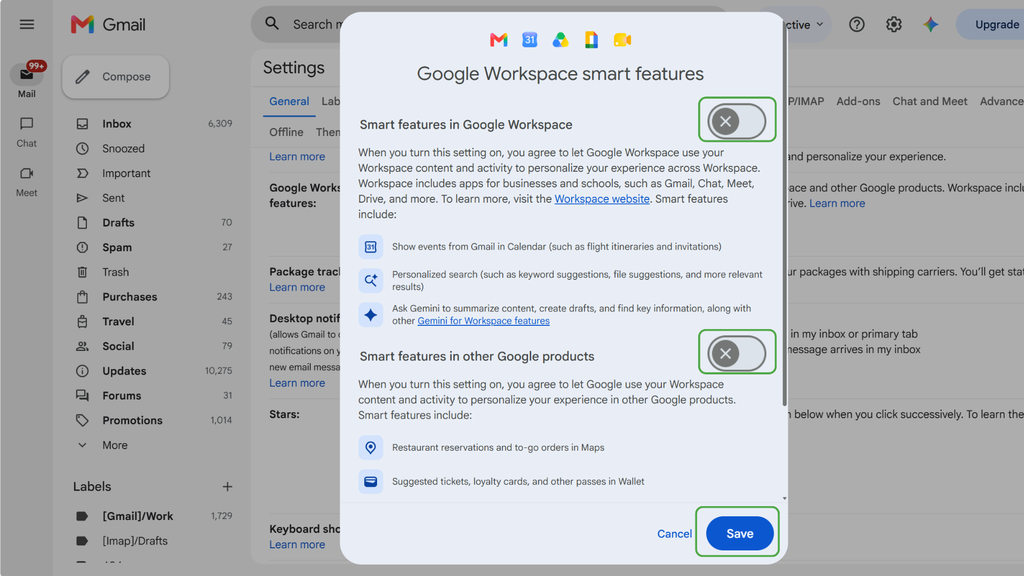
- Turn off Smart features in Google Workspace and Smart features in other Google products. Then click Save.
How to Turn Off Gmail AI on Android
You can turn off Gmail AI through the Android app:
- Open the Gmail app, and tap the menu icon in the upper-left corner.
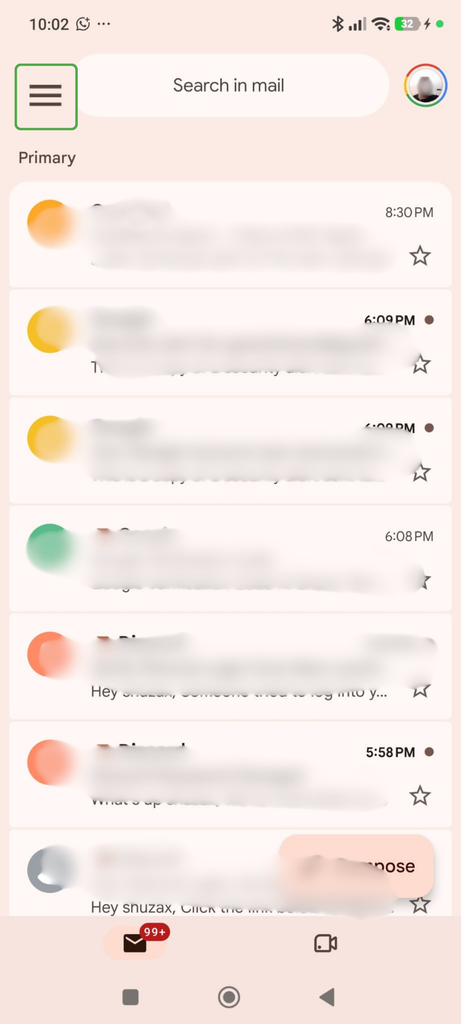
- Select Settings.
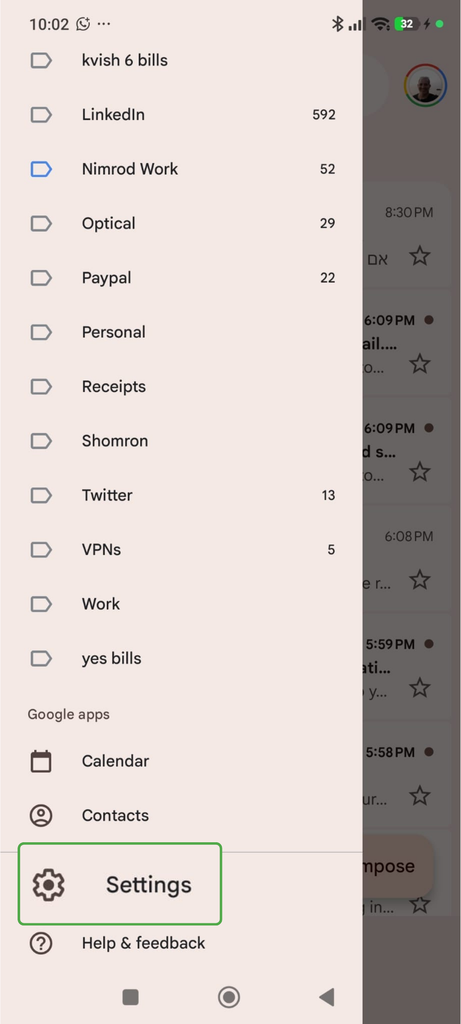
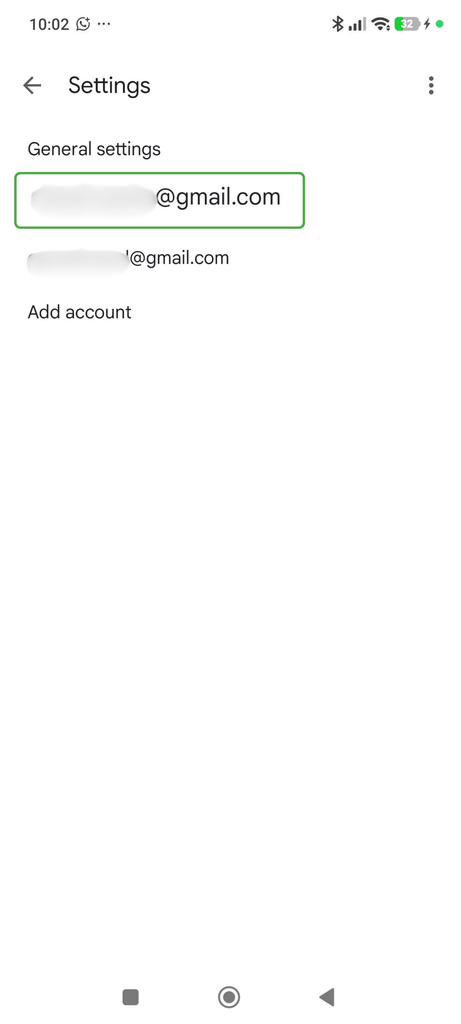
- Choose the Gmail account you want to change.
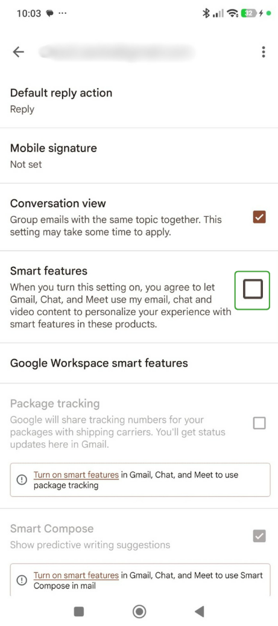
- Scroll to Smart features and remove the check. This will also disable the Google Workspace smart features.
If you use more than one Gmail account, check the controls for each one. A feature may remain visible if another signed-in account has it turned on.
The changes apply across all signed-in devices. However, the mobile app may not immediately reflect changes you made on a computer. Update Gmail if the app doesn’t reflect a change.
How to Turn Off Gmail AI on an iPhone or iPad
The process is similar in the Gmail app for iOS:
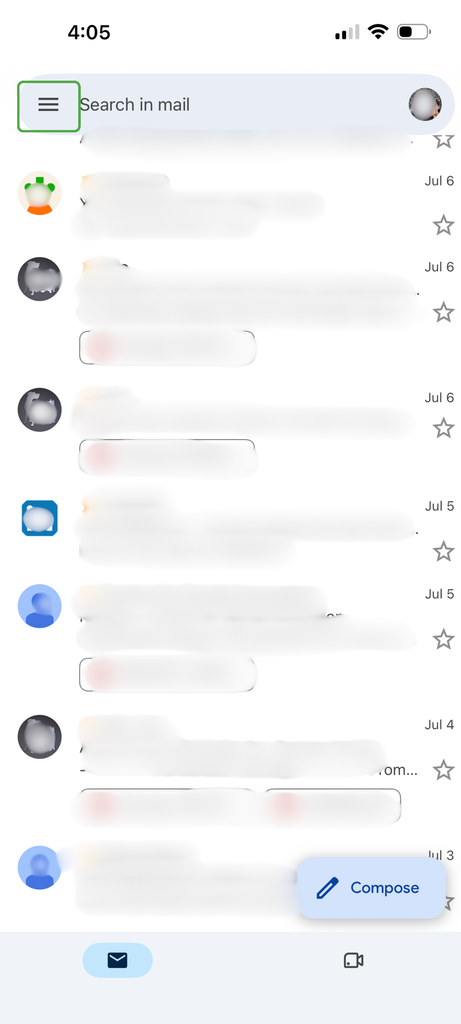
- Open Gmail on your iOS device and tap the sandwich menu icon.
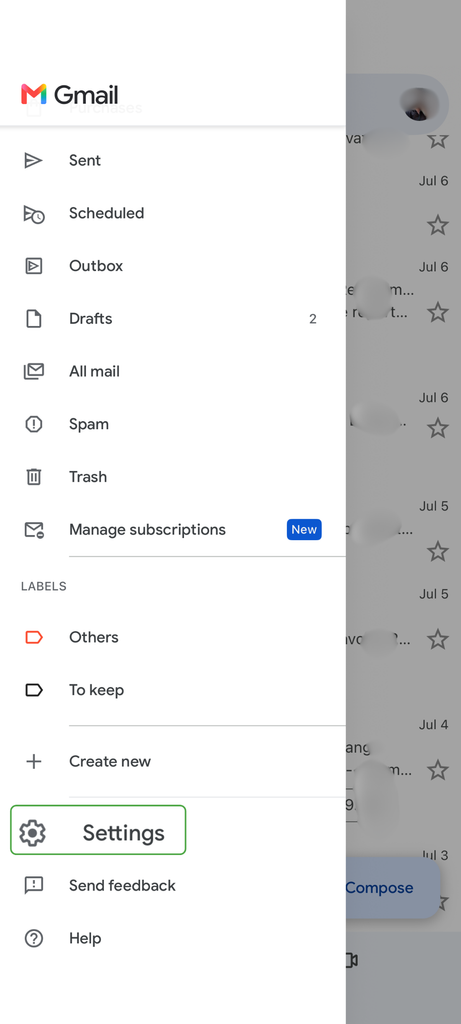
- Select Settings.
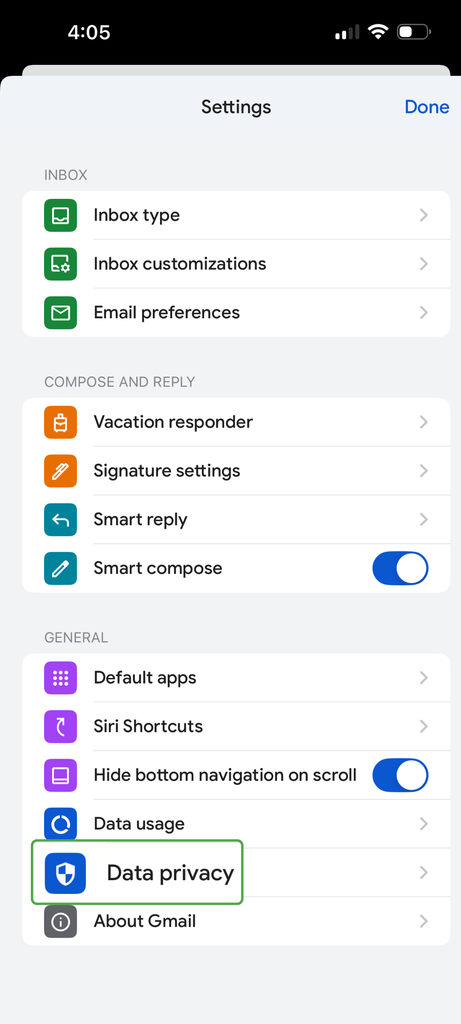
- Open Data privacy or select the account you want to manage.
- Turn off Smart features in Google Workspace and Smart features in other Google products.
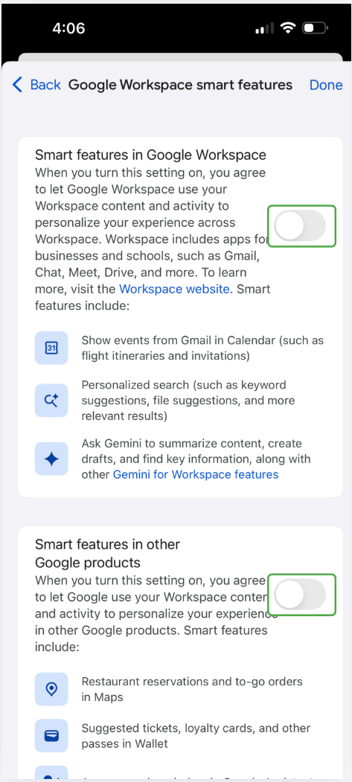
The labels and placement may vary slightly depending on your Gmail version and account type. If you can’t find a setting, update the app or manage the controls through Gmail in a desktop browser.
How to Disable Gemini Without Turning Off Smart Compose
To keep Smart Compose and Smart Reply while disabling broader Gemini features, leave Smart features in Gmail, Chat, and Meet turned on and turn off Smart features in Google Workspace instead.
What Happens When You Turn Off AI in Gmail?
Turning off AI in Gmail removes the personalization and features associated with the setting you disable.
| Setting Turned Off | Features You May Lose |
| Smart features in Gmail, Chat, and Meet | Smart Compose, Smart Reply, automatic inbox categories, and summary cards |
| Smart features in Google Workspace | Gemini in Workspace, Gmail AI Overviews, personalized Workspace search, and Gmail events in Calendar |
| Smart features in other Google products | Supported personalization in Maps, Wallet, Search, and the Gemini app |
| Smart Compose only | Predictive writing suggestions |
| Smart Reply only | Suggested short responses |
Google doesn’t list essential Gmail security functions, such as spam and malware detection, among what you lose when you turn off these personalization settings. Standard search, manual labels, filters, and core email functions should also remain available.
Turning off a smart-feature setting stops Google from using Workspace content and activity to provide the affected personalized features in the future. It doesn’t necessarily delete activity already stored under other Google Account controls.
AI Features Gmail Uses
Google’s Gmail AI features range from familiar writing suggestions to generative AI tools powered by Gemini. Although these tools may all involve automated processing, they don’t belong to one system or share a single control.
Understanding the differences can help you decide which settings to disable.
Gemini in Gmail
Gemini is Google’s generative AI assistant. Depending on your account, plan, region, device, and administrator settings, Gemini in Gmail may be able to:
- Summarize messages and email threads
- Draft or refine a message
- Find information in your inbox
- Answer questions about email content
- Reference files stored in Google Drive
- Suggest responses based on a conversation
Some Gmail accounts also display AI Overviews in search results or summaries above longer messages and threads. Google has introduced these features gradually, so you may not see the same tools as other users.
Gmail Smart Features
Gmail offered automated and machine-learning features long before Gemini appeared, including Smart Compose, Smart Reply, and automatic inbox categories.
Gmail also uses this technology for summary cards covering purchases, travel, and deliveries, and for automatically extracting dates and other useful details from your messages.
These tools aren’t all generative AI features, but Gmail groups several of them under the same smart-feature control, so turning off Gmail AI can also remove convenient features that don’t display the Gemini name.
Smart Features Across Google Products
Google can also use Workspace content and activity to personalize experiences across its other services. Depending on your settings, this may include:
- Adding flight details and invitations from Gmail to Calendar
- Providing personalized search results across Workspace
- Creating tickets and loyalty cards in Wallet
- Showing reservation information in Maps
- Letting supported Gemini features use Workspace information
- Personalizing supported Google Search features
Gmail provides separate switches for features inside Workspace and those offered through other Google products.
Can You Turn Off Gmail AI Summaries?
Google doesn’t currently offer a separate switch to hide only AI-generated summaries while keeping other Gemini features enabled.
Turning off Smart features in Google Workspace can remove Gmail AI Overviews and other Gemini features, including the Gemini side panel. As a result, you may lose more than the summaries you wanted to hide.
This is different from turning off Smart Compose or Smart Reply, which have individual controls. Before changing the broader Workspace setting, consider whether you use Gemini features elsewhere in Gmail, Drive, Calendar, or other Workspace services.
Does Gmail Use Your Emails to Train Gemini?
When you enable the relevant settings, Gmail processes email content and activity to provide certain features. For example, it must identify information in a message to suggest a reply, create a summary, categorize the email, or add an event to Calendar.
That doesn’t mean Google automatically uses private Gmail messages to train the underlying Gemini model.
Google says it doesn’t use Workspace content to train or improve the generative AI and large language models behind Gemini and other systems outside Workspace without permission. It also says that Gemini in Gmail and other Workspace apps only uses your content to respond to prompts.
The distinction becomes more complicated when you deliberately share Workspace information with separate Google services. Google warns that information you share with Gemini Apps, Search services, or screen-action features, may be used for model training or improvement according to those platforms’ terms.
This is why the settings distinguish between AI inside Workspace and personalization in other Google products. Turning off the relevant controls can limit how Google uses your Gmail content and activity to provide those features, but Google’s documentation doesn’t support claims that Gmail secretly trains Gemini on every email unless you opt out.
Why Turn Off AI in Gmail?
Disabling AI is more a personal choice than a requirement for using Gmail safely. Some people appreciate the convenience, while others prefer fewer automated features.
Have More Control Over Your Email Privacy
Turning AI features off can limit the processing required to provide some smart features, including summaries, writing suggestions, and personalized integrations, giving you more control over how your inbox data is used. It doesn’t stop the processing Google needs to deliver messages, detect spam, or secure your account.
Remove Writing Distractions
Smart Compose, Smart Reply, and Gemini writing tools can be useful, but their constant suggestions may interrupt your natural writing process. You may find yourself reviewing or dismissing recommendations instead of concentrating on the message. Disabling these features gives you a cleaner writing experience, free of predictive text and suggested responses as you type.
Reduce Cross-Product Personalization
Google can use Workspace content and activity to personalize supported features outside Gmail. Your inbox data may feed into Calendar, Maps, Wallet, Search, or the Gemini app. Turning off cross-product smart features can limit these connections without affecting Gmail’s essential email functions.
Avoid Inaccurate AI Summaries
AI-generated summaries can save time, but they may overlook details, misinterpret the tone of a conversation, or present information without enough context. This can be particularly problematic when an email includes instructions, deadlines, decisions, or several participants. Turning off summaries encourages you to read the original messages and draw your own conclusions from the complete conversation.
How to Turn Off Third-Party AI Extensions and Connected Apps
Turning off Google’s built-in AI features doesn’t revoke access previously granted to third-party services. Writing assistants, email organizers, automation tools, and browser extensions may still access Gmail information if you gave them permission.
Review Apps Connected to Your Google Account
- Open your Google Account permissions page.
- Review the connected apps and services.
- Select any service you no longer recognize, trust, or use.
- Review its access.
- Remove the connection if it is no longer needed.
Removing access stops the service from receiving more Google Account information through that connection. It may not delete information the service previously collected while access was active. Check the service’s account and privacy controls if you also want to request deletion.
Check Browser Extensions
In Chrome, open the extensions manager and review tools that can read or change website data. Pay particular attention to:
- AI writing assistants
- Email summarizers
- Grammar and editing extensions
- Productivity and automation tools
- Extensions you don’t recognize
Disable or remove extensions you don’t need. Also check whether an extension can access all websites or only specific pages.
Other Ways to Improve Gmail Privacy and Security
Turning off Google AI email features gives you more control over personalization, but it doesn’t address every risk your email account faces.
Enable Two-Step Verification (2FA) or a Passkey
A password alone may not protect an account if it’s exposed through phishing, malware, or a data breach. Two-step verification adds another authentication step, while a passkey can reduce reliance on passwords.
Check Forwarding Rules and Filters
Someone with access to your account could set up a forwarding rule to send copies of your messages elsewhere. Review Gmail’s forwarding, filter, and delegated-access settings for unexpected changes.
Review Recent Account Activity
Google provides information about recent devices, sign-ins, and security events. Investigate unfamiliar activity and secure the account if you suspect someone else signed it.
Be Careful With AI-Related Security Messages
Scammers may impersonate Google support or claim that an urgent AI security problem requires you to verify your account. Avoid signing in through unexpected email links. Open your Google Account settings directly and check the security page instead.
Limit Sensitive AI Prompts
Even when a provider commits to protecting your data within an AI feature, avoid sharing information the tool doesn’t need. Check which Google service you’re using and which terms apply before entering confidential messages, documents, or account information.
Can a VPN Improve Privacy When Using Gmail?
A VPN can improve your network privacy when you use Gmail, but it can’t control how Gmail processes messages inside your account.
PIA VPN encrypts traffic between your device and the VPN server, making it harder for an internet provider, network administrator, or someone monitoring an unsecured Wi-Fi network to see your online activity. It also replaces the IP address visible to websites and online services with the VPN server’s IP address, making it harder for them to link your activity to your actual IP address.
A VPN doesn’t:
- Disable Gmail AI
- Stop Gmail from processing messages stored in your account
- Change Google smart-feature controls
- Remove information you voluntarily share with Gemini
- Prevent phishing or malicious attachments
- Provide end-to-end encryption for Gmail messages
You’ll still need to turn off Gmail AI through your Google settings and follow good account-security practices.
FAQ
How do I turn off AI in Gmail?
The steps vary on different devices. To turn off AI in Gmail on a computer, open Gmail and go to Settings > See all settings > General. Turn off smart features in Gmail, Chat, and Meet, then open Manage Workspace smart feature settings and disable smart features in Workspace and other Google products. Available controls may vary by account type. For mobile devices, see our guides above.
Can I disable Gemini AI features in Gmail?
Yes, you can disable supported Gemini features by turning off Smart features in Google Workspace. Gmail doesn’t provide one universal setting for every form of AI or automated processing. Work and school accounts may also be subject to administrator controls.
Why is AI appearing in my Gmail account?
Google has gradually integrated Gemini and other AI-powered features into eligible Gmail accounts. What appears depends on your account, subscription, region, device, app version, previous settings, and Workspace administrator. Some features may also appear following an update or phased rollout.
Which Gmail AI features can I turn off?
You can turn off Gmail-level smart features, Gemini, and personalization across Workspace, and the use of Workspace information in other Google products. You can also disable Smart Compose and Smart Reply individually. Gmail doesn’t provide a separate control for every AI-powered feature.
Does turning off AI in Gmail affect Smart Compose or Smart Reply?
Turning off smart features in Gmail, Chat, and Meet disables Smart Compose and Smart Reply. Turning off only Smart features in Google Workspace may let you restrict Gemini while keeping those Gmail-level tools enabled. You can also switch off Smart Compose and Smart Reply separately.
Can a VPN improve your privacy in Gmail?
Yes, a VPN can add network privacy by encrypting your connection and masking your IP address. It can’t stop Gmail from processing messages stored in your account or change your AI settings. You need to manage those features directly through Gmail and your Google Account.
