How To Uninstall Chromium and Deal With Hidden Viruses
Ever opened your browser and noticed Chromium installed, even though you don’t remember downloading it? You’re not alone. It often shows up out of nowhere, catches people off guard, and makes them wonder how it got there in the first place.
In this guide, we’ll explain what Chromium is and why it can pose a problem. We’ll also show you how to uninstall it from your device and how to prevent it from reinstalling in the future.
Not sure if Chrome and Chromium are the same browser?
Chromium is an open-source web browser project created by Google. It’s the foundation that Google Chrome is built on.
The key difference is that Chrome is the polished version built for everyday users, while Chromium is the raw build. It’s mainly used by developers and advanced users.
Quick Guide: How To Uninstall Chromium in 3 Steps
1. Open your apps or programs list. Go to your system’s installed apps or applications folder.
2. Locate and remove Chromium. Select Chromium and choose Uninstall or Move to Trash.
3. Delete leftover files. Check system folders or browser data and remove any Chromium files left behind.
Is Chromium a Virus?
Before anything else, it’s important to clear up the biggest misconception: Chromium itself isn’t a virus.
Chromium is an open-source web browser project developed by Google. It serves as the foundation for Google Chrome and many other browsers, including Microsoft Edge and Opera. Because the code is public, anyone can download it, modify it, and redistribute their own version.
And that’s where things can start to go wrong.
Cybercriminals take the Chromium code and repackage it to include adware, browser hijackers, or tracking tools. These builds may look like a normal browser, but they behave very differently in the background.
Chromium malware usually reaches your device through software bundles, fake downloads, third-party installers, or shady websites. It’s often packaged with free tools like music downloaders, video converters, or other freeware, making it easy to install without noticing.
Legitimate vs. Malicious Versions
Many people aren’t sure whether the Chromium installed on their device is the legitimate project or a malicious copy. A legitimate version of Chromium is safe, and you can usually tell because you installed it yourself or it came from an official source like chromium.org.
If you don’t remember installing it, that’s the first red flag. Here are some others:
- The browser feels slower than usual and uses more of your computer’s power (you notice overheating, and the fans are too loud).
- Your homepage or search engine has changed without your permission.
- Ads or pop-ups keep appearing.
- New extensions and strange apps show up that you didn’t add.
- Search results show random or unrelated websites.
- Chromium keeps running in Task Manager even when the browser is closed.
- It opens automatically at startup.
- It’s hard to remove and comes back after you uninstall it.
If you notice more than one of these signs, there’s a strong chance you’re dealing with a Chromium virus rather than the legitimate version.
How To Uninstall Chromium Malware
Chromium malware is designed to be tricky to uninstall. First of all, it often doesn’t appear in your Programs list, so you have to dig through system folders to find and remove Chromium manually. And then, when you think you’ve finally gotten rid of it, it reinstalls itself through hidden malicious files. Here’s how to remove it for good:
How to Uninstall Chromium on Windows 11
- Open Settings and find Apps.
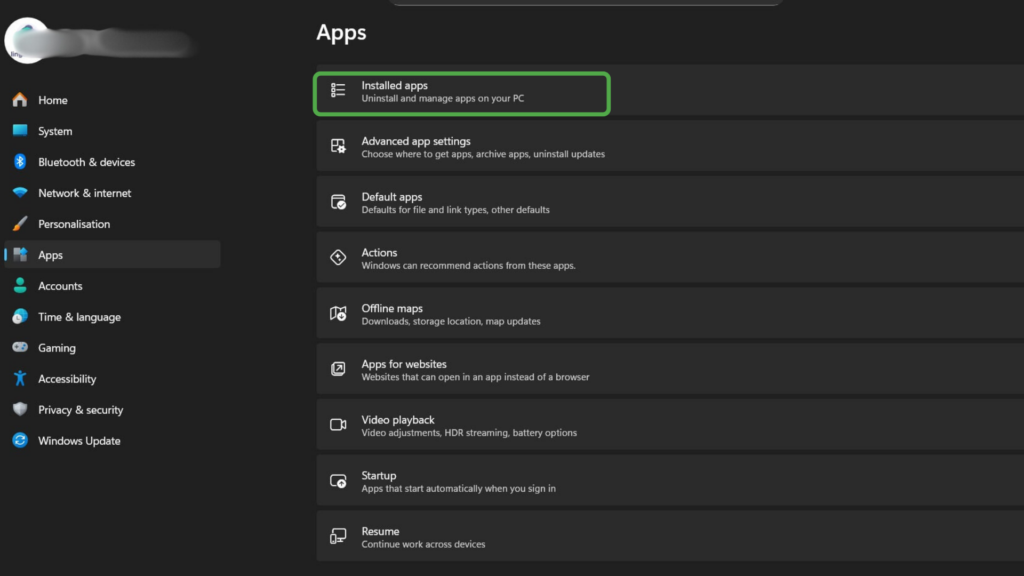
- Now, go to Installed apps.
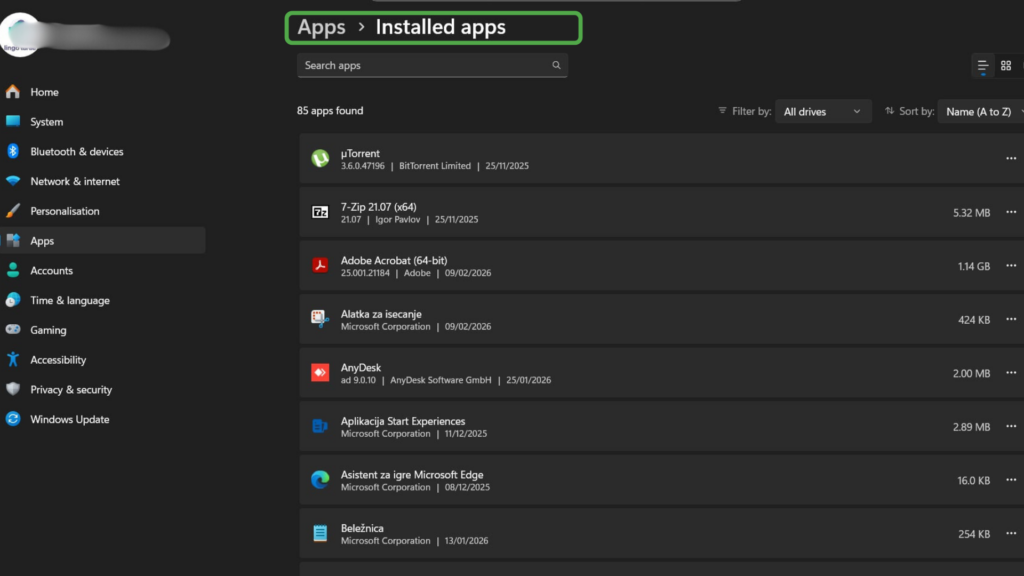
- Search for Chromium in the list (keep an eye out for any other recently installed suspicious apps).
- Click the three dots next to it and hit Uninstall.
- Follow the removal prompts.
If Chromium isn’t listed, it likely didn’t install properly. In that case, you’ll need to remove it manually:
- Press Win + R, type
%localappdata%, and press Enter.
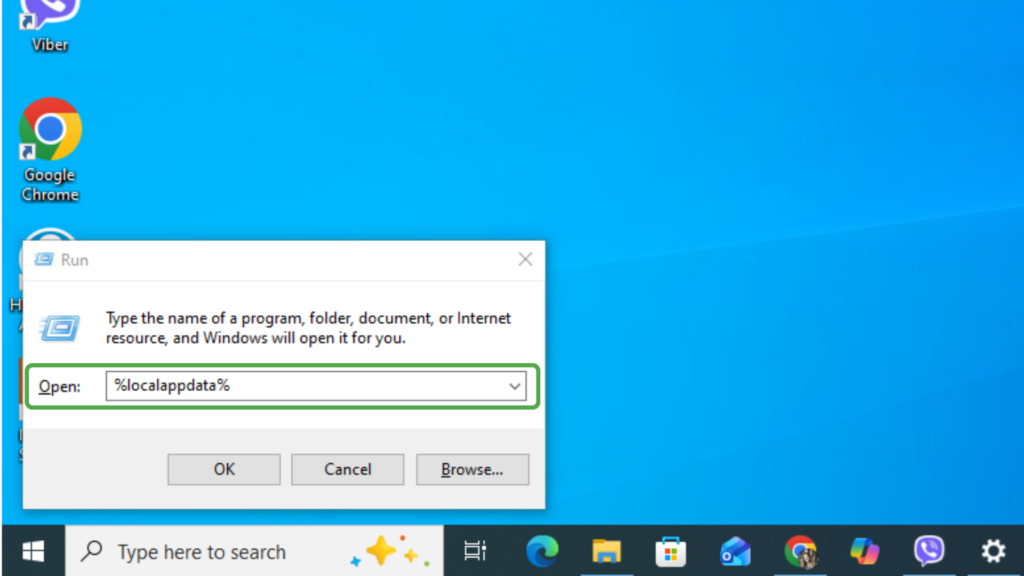
- Find the Chromium folder.
- Delete the folder completely.
Remove leftover files:
- Go to C:\Users\[YourUsername]\AppData\Local.
- Delete any remaining Chromium folders.
Check Task Manager:
- Press Ctrl + Shift + Esc.
- End any running Chromium processes before deletion (click the task and then hit End Task).
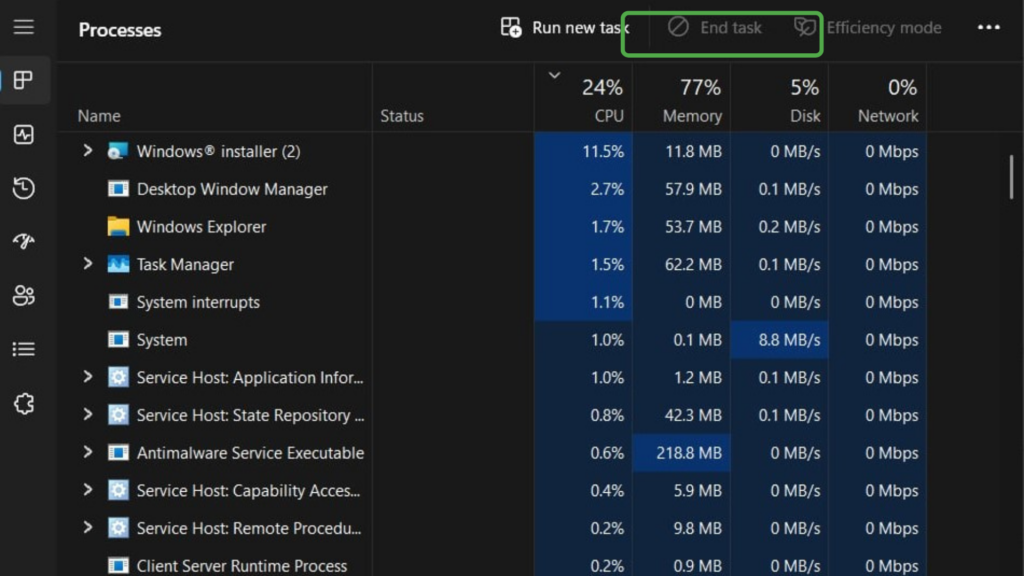
- Empty the Recycle Bin to complete the removal.
- Run a malware scan if possible.
How To Remove Chromium From Mac
- Open Finder > Applications.
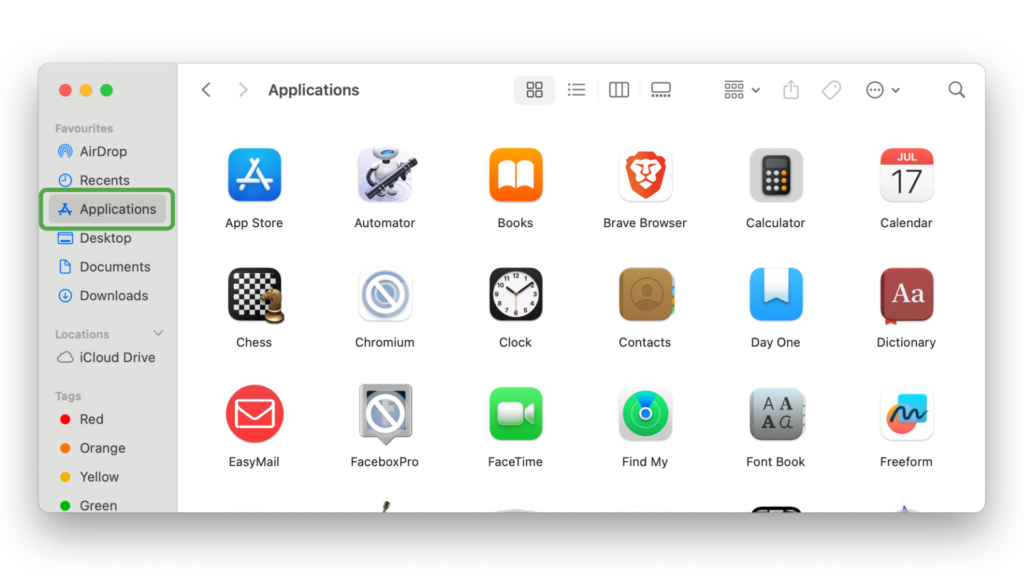
- Locate Chromium.
- Right-click it and hit Move to Trash (or drag to Trash).
- Empty the Trash.
Remove leftover files:
Malicious versions often store support files in hidden system folders:
- In Finder, click Go > Go to Folder.
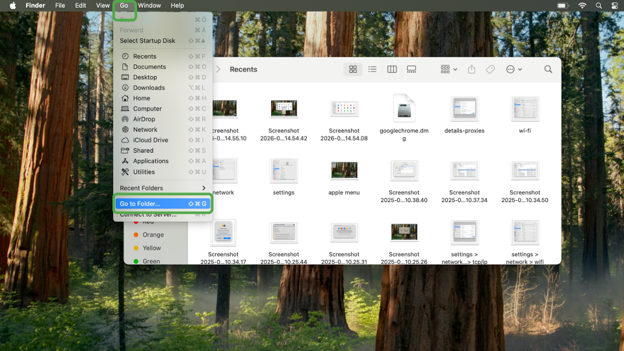
- Enter
~/Library/Application Support/ - Delete any Chromium folders.
Repeat the process in:
~/Library/LaunchAgents//Library/LaunchDaemons
Remove any files linked to Chromium, or any suspicious files that have been added recently.
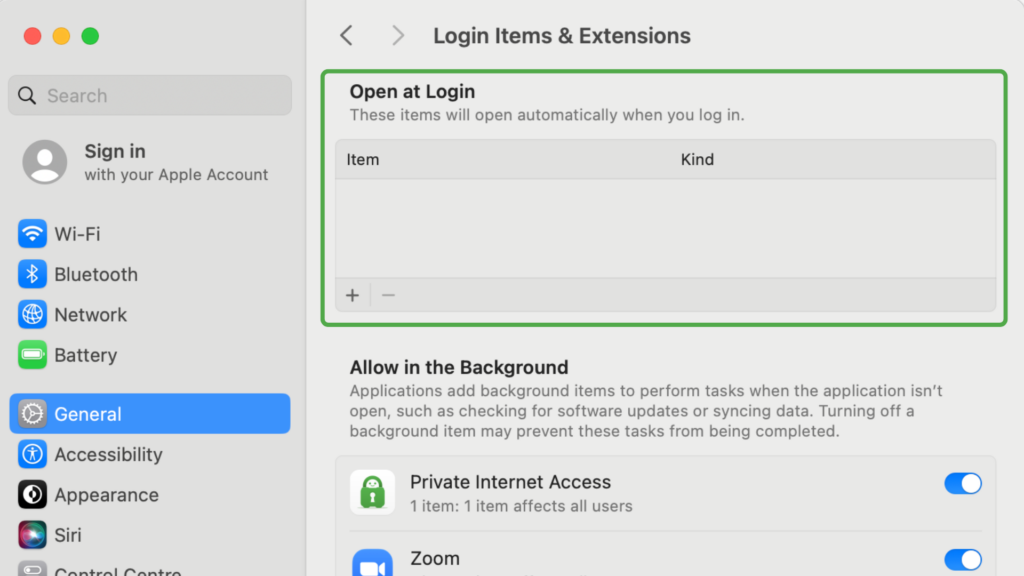
Check Login Items:
Chromium virus can sneak into your Login Items to start on its own. Remove it so it won’t relaunch.
- Go to System Settings > General > Login Items & Extensions.
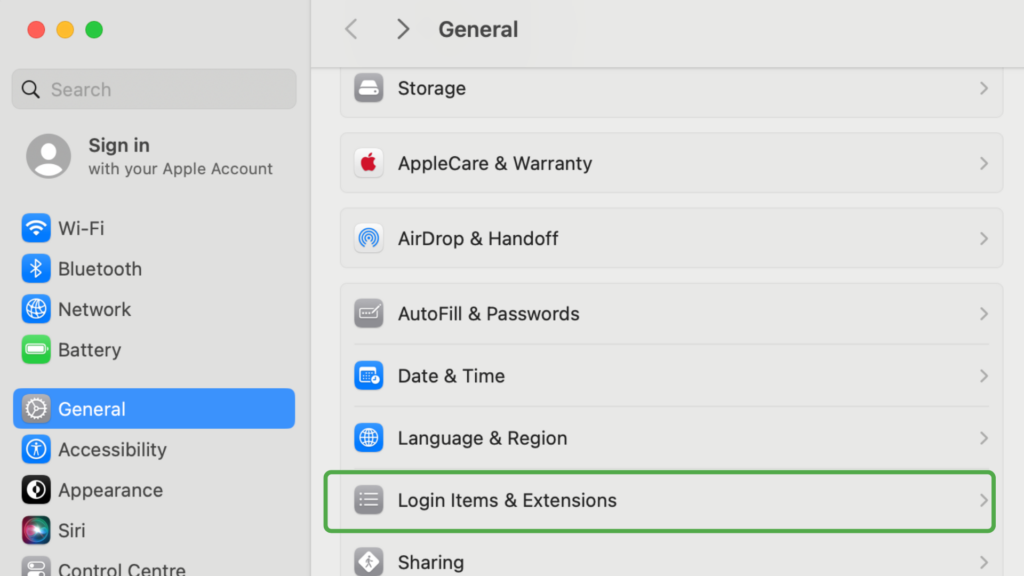
- Remove Chromium or unknown apps from the list by clicking the “-” button.
How To Uninstall Chromium From Linux
Depending on your distribution, removal steps differ slightly. Below are instructions for the most common Linux setups:
Uninstall Chromium on Debian-Based Distros
On Ubuntu, Mint, and other Debian-based distros, you can remove Chromium using the terminal:
sudo apt-get remove chromium-browser
sudo apt-get purge chromium-browser
sudo apt-get autoremove
This removes the Chromium virus and most leftover configuration files.
If you installed it as a Snap package, however, they won’t uninstall via standard methods, so you’ll have to use specific Snap removal commands:
sudo snap remove chromiumIf you’re using Raspberry Pi, check for any leftover folders in /home/pi/.config/. Delete the chromium folder if it still exists after removal.
Other Linux Distributions (Arch, Fedora, Debian)
Different Linux distros use different package managers:
Arch/Manjaro:
sudo pacman -R chromiumFedora:
sudo dnf remove chromiumAfter uninstalling, check your home directory for .config/chromium or .cache/chromium and delete them if needed.
Chromium Browser Virus Removal Guide
If you’re dealing with a Chromium browser virus, uninstalling the main app isn’t always enough. Malicious extensions can stay behind, so you’ll need to check all your browsers for suspicious add-ons and delete them.
Here’s how to clean them out:
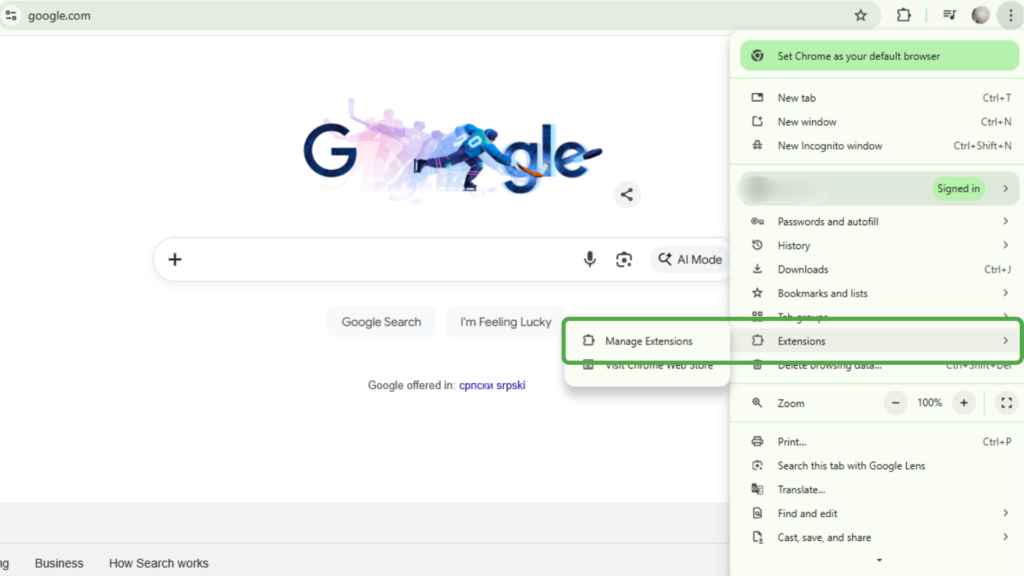
Remove Extensions in Chromium / Chrome
- Open the browser.
- Click the three dots (top-right corner).
- Go to Extensions > Manage Extensions.
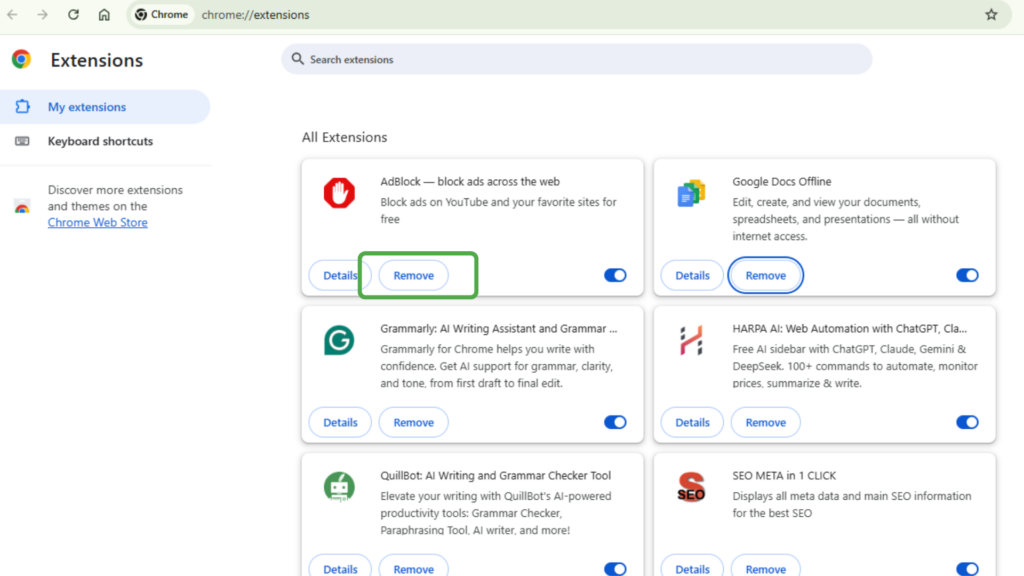
- Look for unknown, recently added, or suspicious extensions.
- Click Remove on anything you don’t recognize.
- Restart the browser.
Remove Extensions in Microsoft Edge
- Open Edge.
- Click the three dots > Extensions.
- Select Manage Extensions.
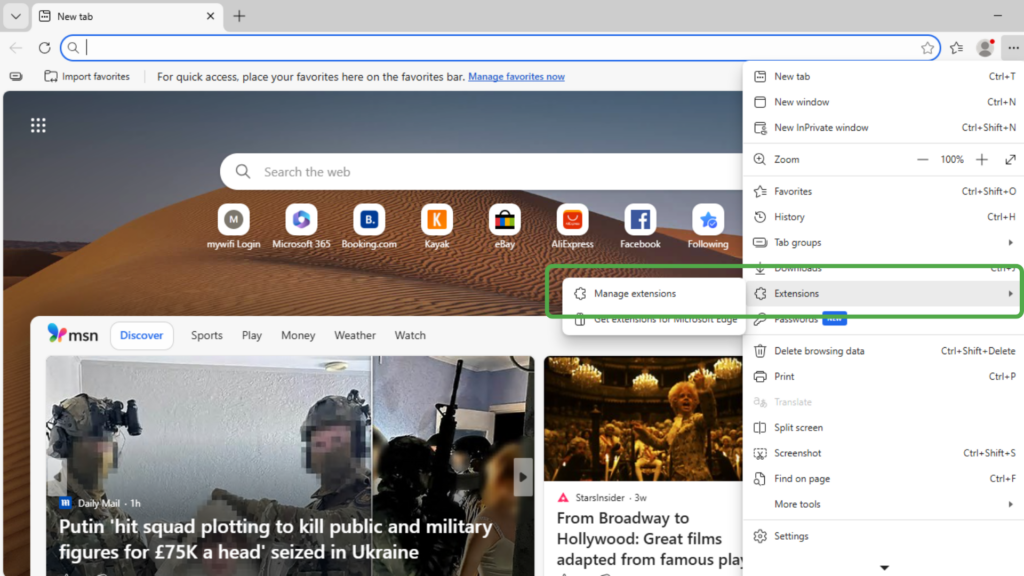
- Remove any unfamiliar or suspicious add-ons.
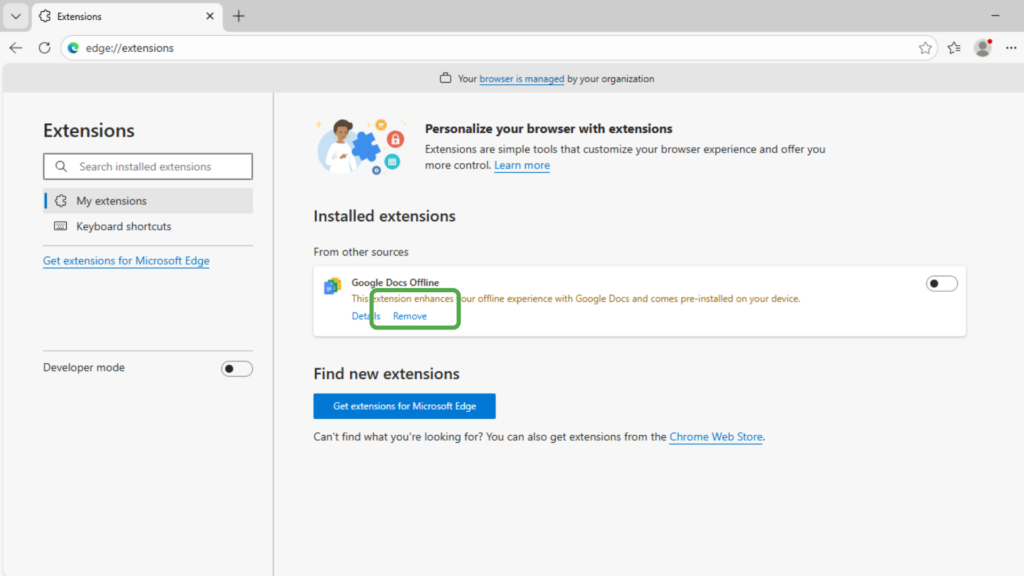
- Restart Edge.
Remove Extensions in Firefox
- Open Firefox.
- Click the three dots > Extensions and Themes.
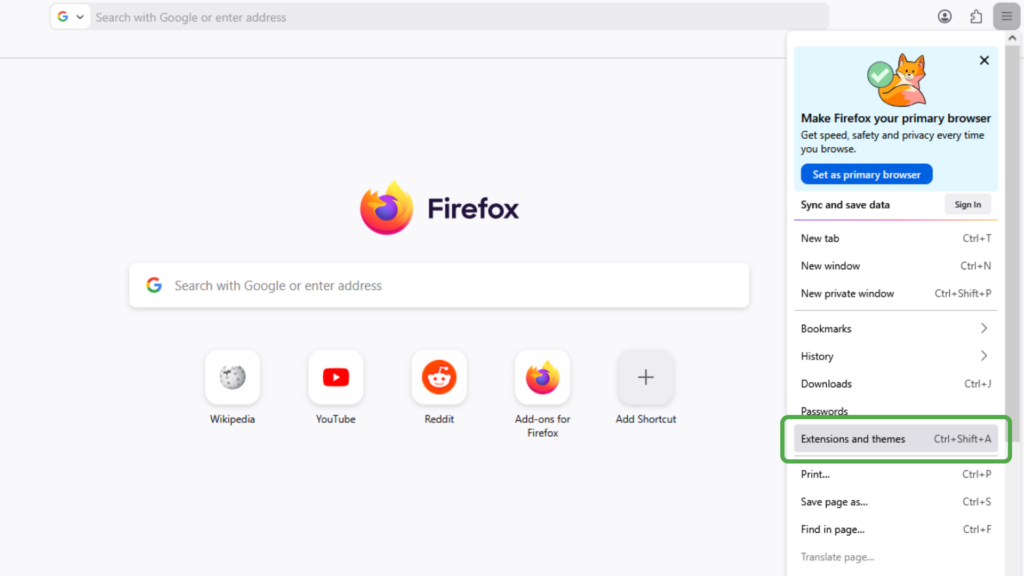
- Go to Extensions.
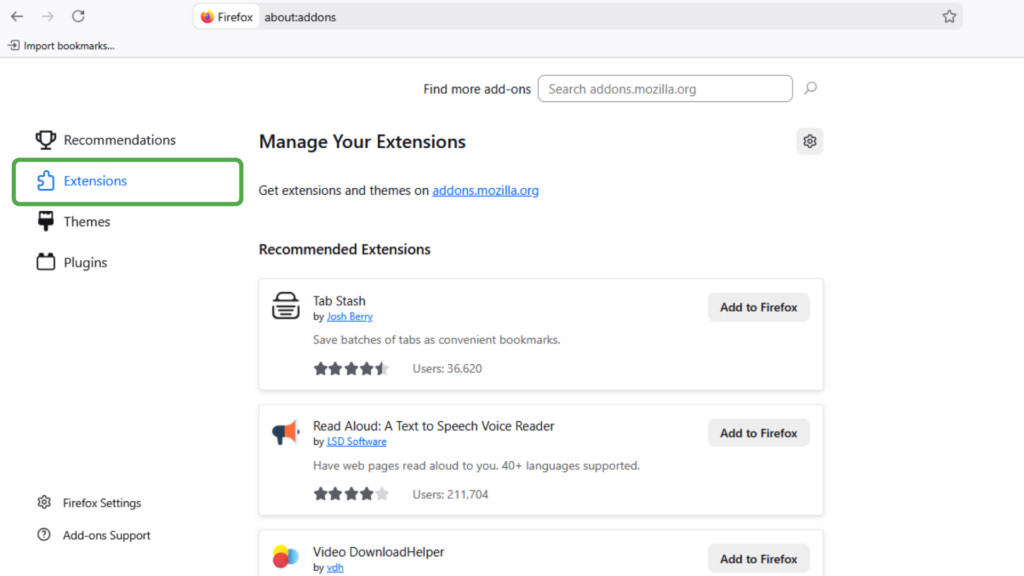
- Remove anything you didn’t install yourself.
- Restart the browser.
Extra Step for Chromium Browser Virus Removal
After removing extensions:
- Reset your browser settings to the default.
- Check your homepage and search engine settings.
- Clear browser cache and cookies.
Malicious extensions are often what make a Chromium virus feel impossible to remove. Once they’re gone, the browser should stop redirecting, injecting ads, or changing settings on its own.
How to Prevent a Chromium Virus
Removing Chromium malware is one thing – keeping it from coming back is another. The best defense is being proactive. Here’s a list of a few smart security practices that can dramatically lower your risk:
- Avoid bundled downloads: Freeware sites often package extra programs inside installers. Always choose Custom or Advanced installation and deselect everything except the app you want.
- Download software only from official sources: Stick to official developer websites or trusted app stores. Third-party download portals are one of the most common sources of Chromium malware.
- Use reputable anti-malware protection: Install a trusted security tool and run regular scans at least once a week. If you notice suspicious behavior such as pop-ups or unknown apps, run a scan immediately.
- Keep your operating system and software up to date: Updates fix weak spots in your system that malware can sneak through. That’s why you should keep automatic updates turned on.
- Never open suspicious links or email attachments: Phishing emails and fake download buttons are common ways for cybercriminals to deliver malware. If something looks off, don’t click it.
Private Internet Access (PIA) can help lower your chances of running into a Chromium browser virus in the first place. Its MACE ad and tracker blocker filters out known malicious domains, which means many fake download pages and shady pop-ups never even get the chance to load. That reduces the risk of accidentally installing bundled Chromium malware.
FAQ
Is Chromium a virus?
No. Chromium itself isn’t a virus. It’s a legitimate open-source browser project created by Google. It functions as a foundation for Google Chrome and many other browsers, and is mainly used by developers and people who prefer open-source alternatives. Only fake or modified versions distributed through shady websites or bundled software are malicious.
What is the Chromium virus, and how does it get installed?
The Chromium virus is a fake or malicious version of Chromium. It typically installs through bundled freeware, fake software updates, or downloads from shady websites, often without clear user consent. Once installed, it may change your search settings, flood your browser with ads, redirect searches to suspicious sites, collect browsing data, and slow down your system.
Why does Chromium keep reinstalling itself?
That happens because hidden files, startup entries, or background processes are still active on your system. These components automatically relaunch or redownload the browser after you delete it. That’s why uninstalling the Chromium app isn’t enough in most cases, and you need to take extra steps to completely remove it from your system.
How do I remove Chromium if it keeps coming back?
That’s a common issue with malicious Chromium versions. First, uninstall Chromium, and then stop all running Chromium processes. On Windows, open Task Manager (Ctrl + Shift + Esc), find any Chromium processes, select them, and click End Task. Then delete its folders (often found in AppData or Library), remove startup/login items, and run a malware scan to clear hidden components.
How do I remove Chromium malware from my computer?
Removing Chromium requires a couple of steps. Start by opening your system’s apps or programs list and look for Chromium. Select it and choose Uninstall (or Move to Trash on Mac). After that, check system folders and browser data for leftover Chromium files and delete them. Finally, open your browsers, remove suspicious extensions, and reset settings to clear any changes the malware made.
Can a VPN help protect me from Chromium malware and similar browser hijackers?
A VPN can add an extra layer of protection to your connection, but it can’t stop you from downloading malware or detect malware on your system. The right VPN can reduce the risk of landing on harmful sites in the first place, though. PIA VPN includes an ad, tracker, and malware blocker that prevents connections to domains known for suspicious activity, helping you avoid fake download pages that spread infected Chromium installers.
