What Is a Loopback Address? When and How to Use It

Whether you’re troubleshooting a network issue or setting up a local development environment, you’ve probably come across the term “loopback address.” While it might look like just another IP address, it serves a unique role in computer networking.
In this guide, we’ll explain what exactly a loopback address is, how it works, and when to use it. We’ll also share how to test one in practice.
What Is a Loopback Address?
A loopback address is a special IP address that a device uses to send data to itself. Instead of going out to a physical network, the data stays inside the same device. The most common loopback address is 127.0.0.1, which is typically referred to as “localhost,” a hostname that operating systems and networking software use to identify the local machine.
This allows programs on the same machine to communicate with each other using network protocols, as if they were talking over a network, but without actually leaving the computer.
When a program sends data to a loopback address, the operating system routes the data through the system’s network stack. This includes assigning ports, applying protocols like TCP or UDP, and managing sockets just as it would for external traffic, without involving any external hardware or internet connection.
| Loopback Address Characteristic | Description |
| Always stays up | Loopback interfaces remain active even when the device isn’t connected to a network. |
| Local only | Loopback traffic never leaves the device; it doesn’t reach the internet or other machines. |
| Bypasses network hardware | Traffic doesn’t pass through Wi-Fi, Ethernet, or any physical network device. |
| Reserved by the system | Operating systems reserve loopback addresses for internal use, not for general network traffic. |
| Isolated and secure | Services bound to loopback addresses are inaccessible from outside the host. |
What Is a Loopback Interface?
The loopback interface is a virtual network interface built into every operating system. It allows the device to send and receive network traffic internally, without using any physical hardware. This is what handles traffic to and from loopback addresses.
IPv4 and IPv6 Loopback Addresses: What They Look Like
Loopback addresses come from specific IP ranges that are reserved, meaning internet standards set them aside specifically to send traffic back to the same device. You can’t use a loopback address to reach other machines since routers automatically ignore them.
There are two versions of the Internet Protocol, IPv4 and IPv6, and each one has its own loopback format.
IPv4 Loopback Address Ranges
IPv4 reserves the entire 127.0.0.0/8 block for loopback use: anything from 127.0.0.0 to 127.255.255.255 is a loopback address.
The most commonly used address in this range is 127.0.0.1, which is the default loopback address and is typically associated with the localhost (current device).
While technically the entire range is reserved for loopback, most systems use only 127.0.0.1 by default. The other addresses in the range are rarely used and may not be supported by all operating systems or applications. Developers running multiple local apps can assign different loopback addresses (like 127.0.0.2) to allow each app to use the same port without conflict.
Important: The first address in the range, 127.0.0.0, identifies the entire loopback network. The last one, 127.255.255.255, handles broadcasts within that range. Programs don’t use these directly, so stick to addresses like 127.0.0.1 or anything in between.
IPv6 Loopback Address Ranges
IPv6 has just one loopback address – ::1. This is a shorthand version of the full address: 0000:0000:0000:0000:0000:0000:0000:0001.
Having just one reserved IP loopback address keeps it simple. You don’t need to manage alternate addresses or worry about IP conflicts.
Expert Tip: Most modern systems support dual-stack networking, meaning they can use both IPv4 and IPv6. If you’re testing software, make sure it works with both 127.0.0.1 and ::1.
How Does a Loopback Address Work Exactly?

Here are the steps your system takes to process the traffic when a program sends data to a loopback address:
- A program sends data to a loopback address (for example, 127.0.0.1 for IPv4 or ::1 for IPv6).
- Your OS recognizes the loopback IP immediately and understands that all traffic needs to stay local. It won’t send anything through the network card, Wi-Fi, or Ethernet.
- The OS adds basic network details to prepare it for delivery, just like it would if this was normal network traffic. It assigns a source port and applies the appropriate protocol (like TCP or UDP).
- The system places the data in temporary storage in system memory. This gives the system a place to keep the information until passing it along.
- The OS checks which application is listening on the correct port and passes the data directly to it.
- Once the target program inside the machine receives the message, the system removes it from memory so it doesn’t take up operational space or cause duplicates.
When Do You Need to Use a Loopback Address?
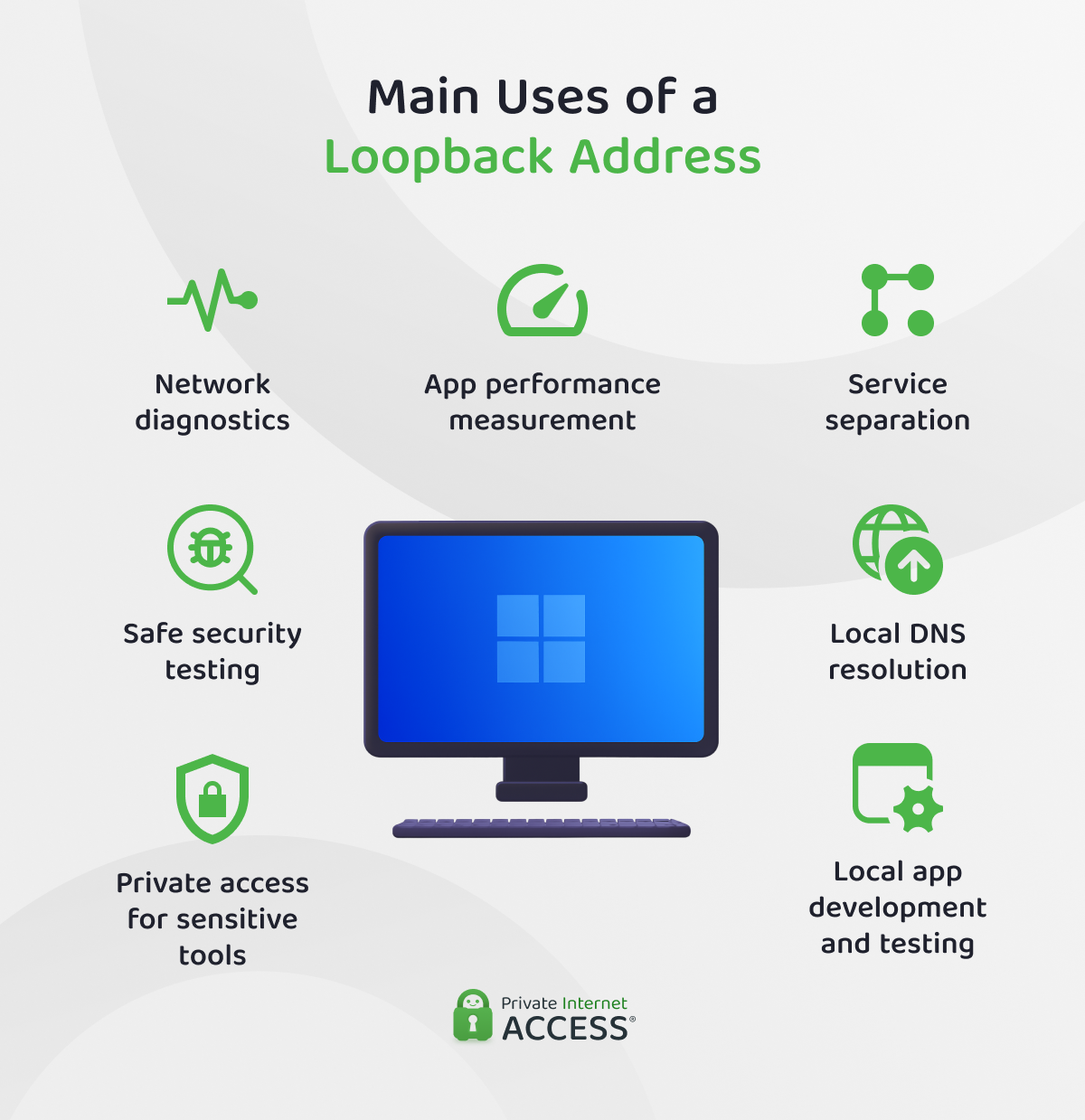
Loopback IPs are useful for several tasks that require you to avoid external devices or networks:
- Private access for sensitive tools: Some tools and services, like admin panels, local applications, or test databases, should only be accessed from the same computer. Binding them to a loopback address ensures no one else on your network can reach them.
- Local app development and testing: You use a loopback address to test web apps, APIs, and databases. It lets you run them safely on your own device without exposing them online.
- Safe security testing: You can safely test vulnerable or unpatched software locally by directing traffic to a loopback address, keeping all communication within your device and isolated from external networks.
- Network diagnostics: You can check whether your device’s internal networking is functioning properly. If your app works on localhost but not across your network, you know the problem is with the networking.
- App performance measurement: Since loopback traffic stays local, you can measure how quickly your app responds to requests, without network-related delays affecting the results.
- Service separation: In containerized setups (like Docker), each container uses its own loopback address to keep services isolated while still letting them talk to each other inside that container.
- Local DNS resolution: Tools like dnsmasq use the loopback address to direct test domain names to your own device instead of the internet.
💡 Expert tip: While loopback keeps traffic entirely on the local device, a VPN (virtual private network) is useful when you need to securely access internal tools from outside your network. For example, accessing local dev environments remotely without exposing them publicly.
How to Use Loopback Addresses for Local Testing
You can test the loopback interface using ping for both IPv4 and IPv6 on most operating systems. This helps confirm that your system’s internal networking stack is functioning properly.
A response time shows the amount of time needed for a loopback and the percentage of lost data. Results under 1 millisecond (ms) with 0% packet loss mean the loopback interface is working as expected.
Windows
- Open Command Prompt (Windows key + R), type “cmd” and press Enter.

- Type “ping 127.0.0.1” (default address) and press Enter to test IPv4 connectivity. If your system defaults to IPv6 and you specifically want to test IPv4, you can force IPv4 with “ping -4 localhost.”

- To test IPv6 connectivity, type in “ping ::1” and press Enter.

A result of under 1 ms with 0% packet loss means the loopback interface is working as expected – for both IPv4 and IPv6.
Expert Tip: If testing a specific local service, use curl localhost:PORT (replace PORT with the service’s port number, like curl localhost:8000). It’s not a loopback, but a way to test local services using the loopback interface.
Mac
- Go to Applications and click Utilities, or search for it in the Spotlight Search (Cmd + Space bar) to launch Terminal.

- Type “ping -c 4 127.0.0.1” and press Enter to test IPv4.

- Type “ping6 ::1” and press Enter to test IPv6.

- You can check active local services with netstat -an | grep LISTEN. It will list all services currently listening for connections, including the loopback.

Linux
- Open your Linux distribution’s terminal (Ctrl + Alt + T in most distributions).

- Type “ping -c 4 127.0.0.1” for IPv4.

- Type “ping6 ::1” or “ping -6 ::1” for IPv6.

- You can also check active running services using ss -nltp.

Loopback vs. Link-Local vs. Private IPs
When working with networks, it helps to know the difference between types of IP addresses that aren’t meant to be public. Loopback, link-local, and private IPs all have different jobs in both IPv4 and IPv6. Here’s a simple way to understand how they compare to loopback addresses:
- Loopback IPs: These are used when a device talks to itself. The traffic never leaves the device.
- Link-local IPs: These let devices communicate directly with other devices nearby on the same local network (like your Wi-Fi or Ethernet), but only within a limited range called a subnet. Subnet masks help define that range and keep communication local.
- Private IPs: These are used inside larger networks, allowing devices to talk across different parts of the network (through routers). Subnet masks here help divide the network into smaller sections, but these IPs still aren’t accessible from the public internet. If you’re using a private IP and want to change it manually, see our guide on how to change your IP address.
| Loopback (Localhost) | Link‑Local | Private IP (ULA) | |
| Routable? | No | Only within the same subnet | Yes (within private networks) |
| Uses a physical interface? | No | Yes | Yes |
| Purpose | Internal communication | Peer‑to‑peer auto discovery | Internal network access |
| Visibility | Local system only | Visible to nearby devices | Visible on LAN |
| Use cases | Testing local services | Plug‑and‑play device communication | General networking |
| Example for IPv4 | 127.0.0.1 | 169.254.x.x | 192.168.x.x, 10.x.x.x |
| Example for IPv6 | ::1 | fe80::/10 | fc00::/7 |
| Configuration | Assigned by OS | Automatic | Static or via DHCP |
For help assigning static IPs in your local setup, check out our guide to setting up a static IP address.
Best Practices for Assigning Loopback Addresses on Routers
Some router loopbacks aren’t set up by default, meaning you need to create them manually and assign an IP address. Here are some tips to follow when doing that:
- Use private IP ranges (RFC 1918): Assign IP addresses from internal-use-only ranges like 10.0.0.0 to 10.255.255.255, 172.16.0.0 to 172.31.255.255, or 192.168.0.0 to 192.168.255.255. These addresses are reachable inside your network and work well for routing and management without interfering with the public internet.
- Plan to scale: Reserve a group of IP addresses in advance, as it makes it easier to add more routers later without changing everything you’ve already set up.
- Stick to a consistent format: Use a clear and predictable pattern for all your loopback addresses to make it easier to manage. For example, you could end every router’s loopback IP with .1 or .254.
- Group similar routers together: If you have routers in the same office or location, give them loopback addresses that start with the same numbers for easier management.
- Keep a record of your assignments: Write down every loopback address you assign so you don’t accidentally reuse it.
- Use structured IPv6 assignments: For IPv6 networks in a corporate environment, give each office or site its own prefix (commonly a /48 block if available). From that pool, assign each router a unique /128 address. This ensures every router has its own IP and prevents overlap or conflicts between different locations.
FAQ
Why does the loopback address exist?
The loopback address allows you to test how programs on your device communicate without network adapters or interfaces. These addresses are essential for testing, debugging, and isolating sensitive services. The common loopback IP addresses include 127.0.0.1 for IPv4 and ::1 for IPv6 protocols.
How do I test if loopback is working?
Testing the loopback address involves pinging it from your device. You need to ping 127.0.0.1 for IPv4 or ::1 for IPv6, using Command Prompt on Windows, Terminal on Mac, and the terminal on Linux. You should see responses with very low latency (under 1 ms) if your system’s internal networking is working correctly.
What is 127.0.0.1 used for?
127.0.0.1 is the IPv4 loopback address used for local testing. Along with the ::1 address for IPv6, developers use it to diagnose networks, isolate sensitive services, test microservices, and more.
Can I use other loopback addresses besides 127.0.0.1?
Technically, IPv4 reserves the entire 127.0.0.0 to 127.255.255.255 range for loopback addresses, so you can use any address within that block. However, not all systems or applications fully support using addresses beyond 127.0.0.1. Many older or simpler tools only recognize 127.0.0.1 as the loopback address. For IPv6, ::1 is the only loopback address available.
How is loopback different from link-local or private IPs?
Loopback addresses only work within your device and don’t interact with network adapters, in contrast to link-local and private IP addresses. Link-local addresses use your device’s network interface to communicate with devices on the same subnet. Private IPs also use your network adapter and work across your entire network via routers.
Is loopback on a computer the same as loopback on a router?
No. On a computer, the loopback address is a virtual address used only inside that device. A loopback interface on a router is also virtual, but it usually has an IP address that can be reached by other devices if the router shares it on the network. This helps with managing the router and running routing protocols like OSPF. Even though the address is reachable, the loopback interface itself doesn’t rely on any physical network port.
