Netcat: What It Is and Why You Need It
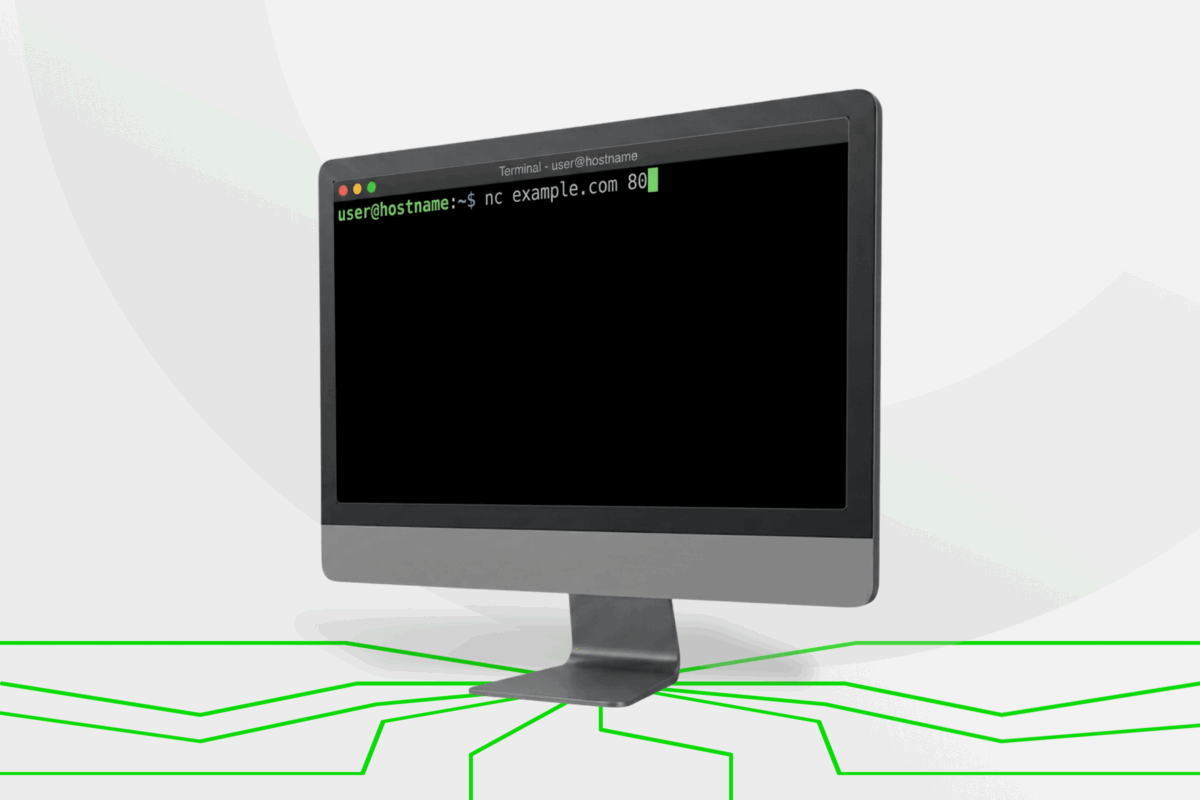
Most of the time, you don’t think about what’s happening between your computer and the sites or apps you use. You expect things to work and when they don’t, it’s frustrating. That’s where Netcat comes in.
Netcat is a command-line network utility that you can use to see if a connection is open, if a port is responding, or if data can move from point A to point B. There are no confusing or messy dashboards or endless menus.
The advantages are obvious once you try it. Netcat is lightweight, it runs everywhere, and it doesn’t rely on configuration files. Most importantly, you can pipe its input and output to other commands, which makes it play nicely with the rest of your toolbox.
That said, it doesn’t hold your hand. It won’t stop you from making mistakes. It’s a versatile tool that assumes you know what you want to do, and that’s exactly why it’s so useful.
What Is Netcat?
Netcat is a fundamental networking utility that reads and writes data across network connections using Transmission Control Protocol (TCP) and User Datagram Protocol (UDP).
The command-line tool is a popular program in network administration and security testing because it takes a direct, no-nonsense approach to network operations. At its core, Netcat creates a reliable pipeline between two systems. It can check for open ports, transfer files, set up a simple chat, or even establish a remote command shell.
Network administrators rely on Netcat for a few key reasons:
- It has a tiny footprint, so it works even on systems with limited resources
- It integrates seamlessly with other Unix tools through input and output redirection
- It is available on most Unix-like systems, which makes your skills transferable anywhere
In practice, Netcat has two major strengths:
- Diagnostics: It can test connectivity, verify that services are running, and capture banner information.
- Data transfer: It creates simple but effective pathways for moving files between systems without requiring complex protocols. Security professionals also use it to probe defenses, scan for open ports, and build testing environments.
What makes Netcat particularly valuable is its minimal design. Instead of locking you into predefined protocols, it provides raw data transfer that you can shape to fit your needs. This flexibility explains why Netcat remains a standard tool decades after its creation, even with newer alternatives available.
Why People Use Netcat
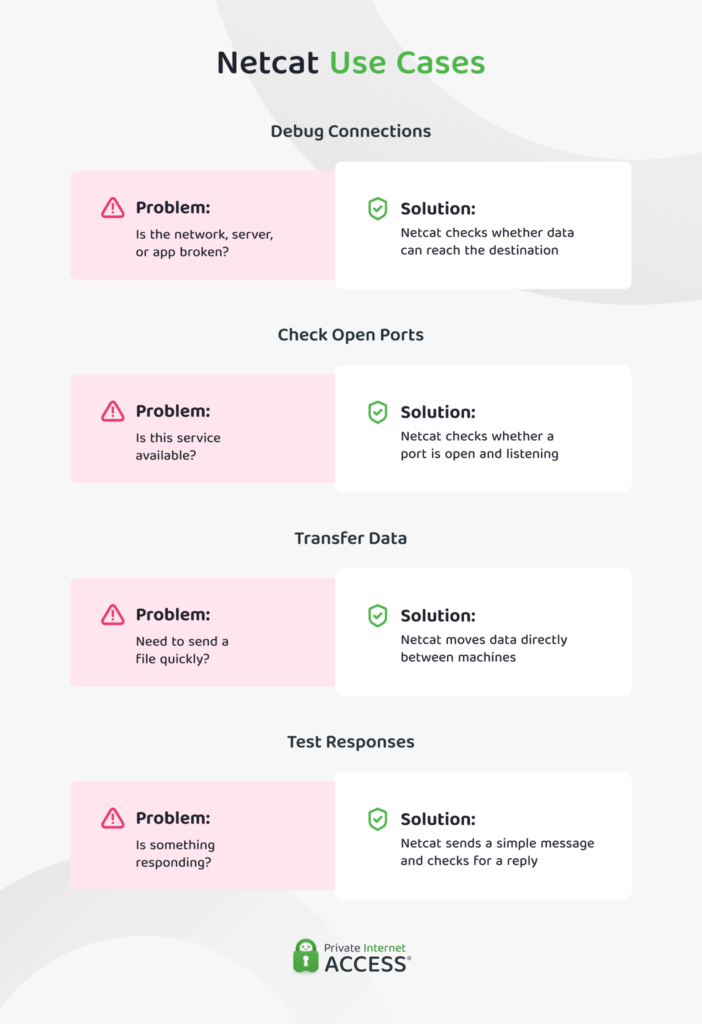
Netcat is one of those tools that you don’t think about until you need it. The moment a connection fails or a service stops responding, it becomes your go-to tester. Here are a few ways and examples of how people use it in everyday situations. We’ll explain the Netcat command in greater detail below, but here is a quick look at how they work in practice.
Debugging and Troubleshooting
When something isn’t working, you don’t have to try and figure out if the issue is with your network, the server, or the app itself. Use Netcat to test connections and see if data is flowing.
This checks if you can connect to port 80 on example.com, which is often used for web traffic:
nc example.com 80
Checking Open Ports
A lot of services rely on specific ports to work. If they encounter blocked or close ports, the service will not connect. Netcat makes it easy to check whether a port is open and listening.
Here you’re checking if port 22, the default port for SSH, is open:
nc -zv example.com 22
Sending Data Between Systems
Need to move a file or message between two machines on the same network? Netcat can handle that with a few simple commands.
One computer listens on port 1234 and saves the file:
nc -l -p 1234 -q 1 > received_file.txt
And the other computer connects to port 1234 and sends the file:
cat file_to_send.txt | nc destination_server_ipordomain 1234
Simple Everyday Testing
Sometimes you only need to know if something is reachable and responding. Netcat gives you a straightforward way to run that test, without digging through layers of menus or launching a complicated program.
This sends a quick message to port 3000 to see if a service is listening and responding:
echo -n "Hello" | nc example.com 3000
The Netcat Command Explained
The Netcat command is the entry point to everything the tool can do. It always starts with nc, followed by the target you want to reach and the port number you want to test. Think of it like calling a business: the number goes to the front desk and the port is the extension that connects to a specific department or person.
nc example.com 80
This connects to example.com on port 80, the standard port for web traffic. If the connection succeeds, you know the path between your computer and that server is open. If it fails, the issue is either the network, the server, or the port itself.
nc -v example.com 80
You can add simple flags to make Netcat even clearer. The -v option means “verbose,” and it gives you more detail about what is happening during the connection. That extra feedback can make it easier to spot where the problem lies.
The beauty of the Netcat command is how little effort it takes. Instead of setting up a whole diagnostic tool, you run a single line in the terminal and immediately see whether a connection is alive or dead.
Basic Netcat Commands
Once you get comfortable with the basics, there are a few Netcat commands you will see over and over. These cover the most common ways people use the tool.
nc -help
Shows a list of all available options. Useful when you are scripting or need a quick reminder.
man nc
Shows the full Netcat manual.
nc -zv site.com 80
nc -zv site.com 80-84
Runs a simple single or ranged port scan of the specified server. You will see which ports are open and closed.
nc -l 1234
Your computer is in listening mode and awaits incoming connections on port 1234.
nc site.com 1234 < file.txt
Transfers a file to a server on port 1234. The receiving system saves it using a matching listen command.
printf "HTTP/1.1 200 OK\n\nHello World" | nc -l 8080
Acts as a very simple web server, serving a plain text response on port 8080.
Netcat Command Syntax
Here is a quick reference table with the most common options:
| Flag | Purpose | Example |
-u | Use UDP instead of TCP | nc -u example.com 53 |
-v | Verbose output | nc -v example.com 80 |
-z | Port scan without sending data | nc -z example.com 22 |
-p | Specify a port number | nc -p 5000 example.com |
-l | Listen for incoming connections | nc -l 1234 |
-w | Set a timeout in seconds | nc -w 5 example.com 443 |
-D | Enable full debugging mode | nc -D example.com 80 |
Once you know these flags, you can mix and match them to suit whatever task you’re working on. That’s what makes Netcat so flexible. It gives you building blocks you can combine as needed.
Checking Open Ports With Netcat
Checking for open ports is a lot like knocking on a door to see if someone’s home. You’re not barging in, you’re just checking if the door opens. That quick check can save you time by confirming whether the problem is with the server itself or with the connection.
As you saw in the basic Netcat commands, you can use the -z and -v flags as a quick way to test out a service. This combination lets you scan a port without sending data and gives you a detailed response.
nc -zv example.com 22
This command tests port 22, the standard port for SSH, on example.com. The -z option tells Netcat to scan without sending data, and -v asks for a more detailed response. If the connection works, you’ll know the SSH service is up and ready.
Using Netcat for File Transfers
Another command from the basic list shows how Netcat can move files between systems. Instead of setting up a complicated file sharing service, you can use a single command on each machine to get the job done. Here’s a simple example:
On the computer that will receive the file, run:
nc -l 1234 > received_file.txt
This tells Netcat to listen on port 1234 and save anything it receives into a file called received_file.txt.
On the computer sending the file, run:
nc host.com 1234 < file.txt
This connects the computer to host.com on port 1234 and sends the file.
Setting a Timeout in Netcat
Sometimes a connection hangs and leaves you waiting. Netcat has a simple way to handle that with the Netcat timeout option. By setting a time limit, you can tell Netcat to give up if nothing happens after a few seconds.
nc -vw 5 example.com 443
This command tries to connect to example.com on port 443, the standard port for secure web traffic. The -vw 5 option means “wait five seconds.” If the server doesn’t respond by that time, Netcat will stop trying. By adding the -v flag, Netcat will display a timeout-related message.
Why Netcat Still Matters
There are plenty of advanced programs that promise deep network analysis with dashboards, charts, and endless options. Those tools can be great, but sometimes they feel like overkill when all you want is a simple answer.
Netcat gives you that answer in seconds. You don’t need to wade through layers of settings or install bulky software to see if a port is open or if two computers can talk to each other. One short command tells you what you need to know.
Why Use a VPN With Netcat
Netcat’s simplicity does come with a catch: Netcat does not secure the traffic it sends. If you’re testing ports or transferring files, your online activity may be visible to anyone monitoring your network. This is where pairing it with a VPN makes sense. A VPN can help secure your online sessions by encrypting the network path between devices.
FAQ
What is Netcat?
Netcat is a command-line networking tool that lets you create and test connections between computers. It can check if a server is responding, confirm whether a port is open, transfer files, or even set up simple chat sessions between machines. Because it’s lightweight and flexible, Netcat is often described as an essential utility for anyone who needs to understand how data moves across a network.
What is the Netcat command used for?
The Netcat command sends and receives data through TCP or UDP connections. In practice, people run commands like nc example.com 80 to test whether a connection to a web server works. It’s also used for debugging, troubleshooting, checking services that rely on specific ports, and sharing files between systems. The value of the Netcat command is that it gives you quick, clear answers without the need for complex software.
Do you need a VPN with Netcat?
Yes, it’s recommended. Netcat doesn’t encrypt traffic, leaving any data sent over the network unsecured. If you’re checking ports, transferring files, or testing connections, the VPN wraps the data you send in an encrypted tunnel. This makes it harder for anyone else on your network to snoop on your activity. Pairing Netcat with a VPN adds a layer of privacy that the tool doesn’t provide on its own.
What is an example of using Netcat?
One of the most common Netcat examples is checking whether a port is open. For instance, the command nc -zv example.com 22 tests port 22, which is the default port for SSH. If the command shows a successful connection, you know the service is available.
How do I set a timeout in Netcat?
Netcat includes an option to set a timeout, which prevents you from waiting indefinitely for a connection that’s not responding. You can apply both -w and -q flags when writing the command to include a time limit that instructs Netcat to give up instead of trying for too long. The timeout feature is especially useful when you want quick results and don’t want to get stuck with a stalled connection.
How do I use Netcat to check open ports?
Checking open ports is one of the most common uses of Netcat. The command includes the website and port name, so you can get a quick answer. Running a Netcat port check is like knocking on a door to see if someone answers, which makes it an easy way to confirm if a service is running.
