Nslookup Explained: What It Does and How to Use It (With Examples)
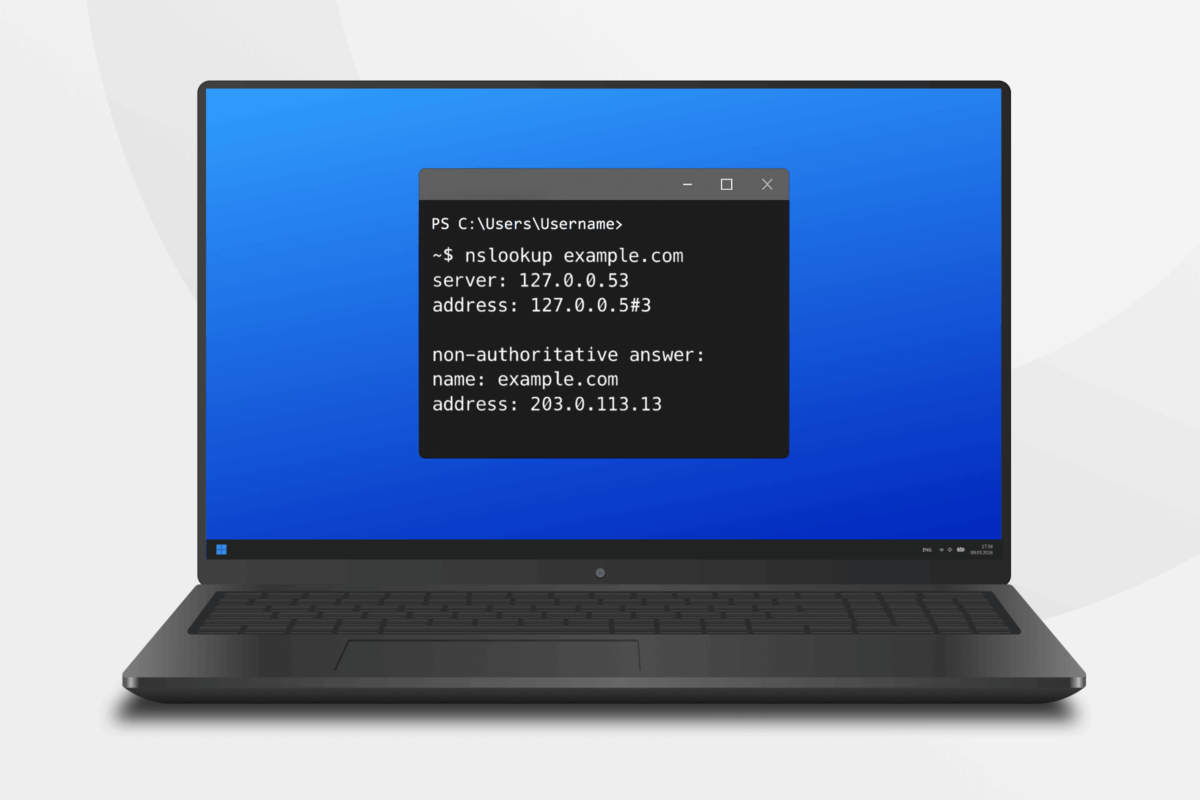
The name server lookup (nslookup) is a command-line tool built into Windows, Linux, and macOS that lets you query DNS servers directly to retrieve information about domains, IP addresses, and DNS records.
For network administrators and developers, it’s an essential part of the troubleshooting toolkit, giving direct visibility into how DNS is resolving, and where it might be going wrong.
That said, you don’t need to be a network engineer to find it useful. If you manage a website, run your own email, or just want to understand what’s happening with your internet connection, nslookup can help you diagnose DNS issues.
In this guide, you’ll learn what nslookup does, how to use it across different operating systems, how to read the output, and how to diagnose the most common DNS issues you’re likely to encounter.
Nslookup Cheat Sheet
Whether you’re diagnosing a DNS issue or just need a quick reminder of the right syntax, the table below covers the nslookup commands you’re most likely to need.
| Command | What it does |
| nslookup example.com | Basic lookup – returns the IP address for a domain |
| nslookup 203.0.113.13 | Reverse lookup – returns the hostname for an IP address |
| nslookup example.com 8.8.8.8 | Queries a specific DNS server instead of your default resolver |
| nslookup -type=mx example.com | Returns the mail servers for a domain |
| nslookup -type=ns example.com | Returns the authoritative nameservers for a domain |
| nslookup -type=txt example.com | Returns TXT records, including SPF and domain verification records |
| nslookup -type=aaaa example.com | Returns the IPv6 address for a domain |
What Is Nslookup?
Nslookup is a command-line tool used to query Domain Name System (DNS) information and troubleshoot DNS-related problems on Windows, Linux, and macOS.
To understand what nslookup actually does, it helps to know a little about how DNS works. It translates the domain names you see in your browser to computer-readable IP addresses.
When you visit a website, your device sends a query to a DNS resolver that tracks down the answer on your behalf. If it doesn’t have the information cached, it works its way through the DNS hierarchy until it reaches the domain’s authoritative nameserver to retrieve the record for that domain’s DNS information.
Nslookup lets you interact with this process directly. By querying DNS servers from the command line or Terminal, you can retrieve DNS records, check whether a domain is resolving correctly, and pinpoint where in the chain something might be going wrong.
What Does Nslookup Do?
Nslookup is used to troubleshoot DNS-related problems. It’s useful when you need to verify that DNS is behaving as it should and is usually applied to:
- Troubleshoot website issues: Diagnose DNS misconfigurations or domains that aren’t resolving as expected.
- Diagnose email problems: Check mail server (MX) records to identify routing issues.
- Verify DNS changes: Confirm that updated DNS records have propagated correctly.
- Verify hosting infrastructure: Confirm that name servers are pointing where they should be.
- Identify suspicious domains: Investigate unfamiliar domains or IP addresses for potential security threats.
Nslookup vs Dig
Nslookup was planned to be deprecated during the development of BIND 9 in favor of the domain information groper (dig), but that decision was reversed in 2004 with the release of BIND 9.3.
Dig is another DNS lookup tool available on Linux and macOS that relies on the operating system’s local DNS resolver library to perform its queries. Its results reflect how your operating system (OS) resolves DNS, which is useful in most situations but can produce results that reflect the OS issue rather than the domain itself.
Nslookup works on Windows, Linux, and macOS, and bypasses your OS’s local DNS resolver library entirely. This makes it a more reliable diagnostic tool in situations where OS-level DNS configuration may be part of the problem.
Nslookup vs Ping
When a website doesn’t load properly, you might turn to either ping or nslookup. Although these are both command-line network diagnostic tools that can work together, they test different things.
Ping tests network connectivity by sending a signal to a target address and measuring whether it responds to confirm that the server is online and reachable. Nslookup tests DNS resolution only. It tells you whether a domain name is correctly mapped to an IP address, but says nothing about whether that server is actually reachable.
In practice, a domain can resolve correctly in nslookup and still be unreachable. Used together, though, ping and nslookup can help you quickly narrow down whether you’re dealing with a DNS problem or a connectivity problem.
Understanding Nslookup Outputs
When you run an nslookup query, you’ll typically see the following in your output:
- Server: The DNS server that handled your query, usually your ISP’s resolver by default.
- Address: The IP address of that DNS server, followed by the port number DNS servers use to accept queries (#53).
- Non-authoritative answer: A note meaning that the DNS server that answered your query isn’t directly responsible for the domain, but that it previously resolved that name and served the result from its cache. This is fine for most lookups, but it may not reflect the latest records if you’ve recently made DNS changes.
- Authoritative answer: A response that comes directly from the domain’s own nameserver, making it the definitive source of truth for that domain’s DNS records. This is particularly useful when troubleshooting propagation issues, as it shows the current state of your DNS records rather than a cached version.
- Record type: The type of DNS record returned, including A (IPv4 address), AAAA (IPv6 address), MX (mail server), NS (nameserver), TXT (text records), or CNAME (an alias pointing to another domain name).
Nslookup Examples
Nslookup can query many different types of DNS records for different diagnostic purposes. The examples below walk you through the most useful commands, including what to run, why you’d run it, and what the output tells you.
For each example, replace example.com with the domain you want to query.
| Lookup type | Command | What it’s used for | What the output shows |
| Basic lookup | nslookup example.com | Finding the IP address associated with a domain name This is the most common starting point for DNS troubleshooting | The DNS server that answered the query, its IP address, and the IPv4 address(es) mapped to the domain |
| Reverse lookup | nslookup 203.0.113.13 | Finding the domain name associated with a known IP addressUseful when investigating server logs or unfamiliar IP addresses | The hostname associated with that IP address, returned as a PTR record |
| Query a specific DNS server | nslookup example.com 8.8.8.8 | Querying a specific DNS server (in this case Google’s public DNS) rather than your default resolverUseful for comparing results and isolating whether a problem is with your local DNS or the domain itself | Results from the specified server, showing whether it resolves the domain differently from your default |
| MX records | nslookup -type=mx example.com | Finding the mail servers responsible for a domainUsed when troubleshooting email delivery problems | A list of mail servers for the domain, each with a priority number (lower numbers = higher priority) |
| NS records | nslookup -type=ns example.com | Finding the authoritative nameservers for a domainUseful for verifying that nameservers are correctly configured after a hosting migration | A list of nameservers responsible for the domain |
| TXT records | nslookup -type=txt example.com | Retrieving text records for a domainCommonly used to verify Sender Policy Framework (SPF), DomainKeys Identified Mail (DKIM), and domain ownership records | One or more text strings associated with the domain, which may include SPF rules, DKIM keys, or verification tokens |
Nslookup Interactive and Non-Interactive Modes
Nslookup has two modes: interactive and non-interactive. The difference comes down to how many queries you need to run in a single session.
Non-interactive mode is the default for quick, one-off lookups. You enter the full command, including the domain and any options, in a single line and get an immediate result. This is the mode used in all the examples in the table above.
Interactive mode is better suited to more in-depth troubleshooting sessions where you need to run multiple queries, switch between record types, or change DNS servers without retyping the full command each time. The output looks the same in both modes – the difference is purely in how you work.
To enter interactive mode, type nslookup at the command prompt and press Enter. The prompt will change to >, indicating you’re in an active session. From here you can type domain names, IP addresses, or commands like set type=MX on separate lines.
To exit, type exit and press Enter. If you need help with available commands while in interactive mode, type help or ?.
Troubleshooting Common DNS Issues with Nslookup
DNS issues can be frustratingly difficult to pin down. The same symptom can have several different root causes. Nslookup helps you work through them systematically, giving you direct visibility into what DNS is actually returning rather than what you expect it to return.
This section outlines the most common issues you’re likely to run into, and how to use nslookup to diagnose them.
DNS Propagation Delays
When you update DNS records, the changes don’t take effect everywhere at once. Different DNS resolvers around the world cache records for varying lengths of time based on each record’s time to live (TTL) value. During this window, you might see old records while searchers see the new ones.
Nslookup is useful here because you can query multiple DNS servers directly to compare their responses. For example, querying Google’s public DNS (8.8.8.8) and Cloudflare’s (1.1.1.1) alongside your default resolver will show you which servers have picked up the new records and which are still serving cached data.
TTL Values
Time to live determines how long a DNS record is cached before a resolver checks for a fresher copy.
A high TTL (e.g. 86,400 seconds) means that after a DNS change, resolvers around the world may continue serving the old record for up to 24 hours. A very low TTL reduces this window, but can cause performance issues by forcing resolvers to look up the record more frequently.
If you’re troubleshooting propagation delays, it’s worth checking the TTL value in your nslookup output. If it’s high, that’s likely why the change hasn’t taken effect across all resolvers.
‘Server Failed’ or ‘Non-Existent Domain’ Errors
These errors indicate that the DNS server couldn’t return a result for your query. A non-existent domain error typically means the domain doesn’t exist, has expired, or the DNS records are missing or misconfigured. A server failed error suggests the DNS server itself encountered a problem processing the request.
A useful first step is to run the same query against a different DNS server to the one you’re inspecting. You can do this with Google’s standard 8.8.8.8. If the query succeeds there but fails on your default resolver, the problem is likely with your local DNS configuration rather than the domain itself.
Mismatched or Missing Reverse DNS (PTR Records)
Reverse DNS is particularly important for email deliverability. When an email lands on a receiving mail server, that server will often perform a reverse lookup on the sending IP address. This is done to verify that the IP maps back to a legitimate hostname, and that the hostname matches the forward DNS record.
If the PTR record is missing entirely, or if it exists but points to the wrong hostname, the receiving server may flag the email as suspicious or reject it outright.
You can check whether a PTR record is correctly configured by running a reverse lookup in nslookup. If nothing is returned, or the result doesn’t match the expected hostname, that mismatch is likely contributing to your email delivery problems.
Validating SPF and TXT Records
Sender Policy Framework (SPF) and other email authentication standards like DomainKeys Identified Mail (DKIM) are stored as TXT records in DNS. If your emails are being rejected or flagged as spam, querying TXT records with nslookup is a good first step — it lets you confirm whether the records exist, and whether they contain the correct values. Even a small syntax error in an SPF record can cause legitimate emails to fail authentication.
NXDomain Hijacking
When you query a domain that doesn’t exist, DNS is supposed to return an NXDOMAIN error. This is a standard response that means the domain does not exist.
That said, some ISPs intercept these failed lookups and redirect them to their own search or advertising pages instead of returning the proper error. Nslookup can help you spot this. If you query a domain that clearly shouldn’t exist and get an IP address back rather than an error, your ISP is likely hijacking the response.
This is a privacy concern as well as a diagnostic one, since it means your ISP is monitoring your failed DNS queries and redirecting them for their own purposes. Using a VPN that routes your DNS queries through its own private servers can help prevent this.
Nslookup FAQs
What is nslookup used for?
Nslookup is primarily used to troubleshoot DNS-related problems. It lets you query DNS servers directly to retrieve records for a domain, verify that DNS changes have propagated correctly, diagnose email delivery issues, investigate suspicious domains, and confirm that your hosting infrastructure is pointing where it should be.
Can nslookup detect DNS problems?
Yes. Nslookup can identify a range of DNS issues, including misconfigured records, propagation delays, missing PTR records, and failed DNS resolution. By querying different DNS servers and comparing their responses, you can isolate whether a problem lies with your local DNS configuration, a specific resolver, or the domain itself.
How do I use nslookup on Windows?
Open Command Prompt by pressing Windows + R, typing cmd, and pressing Enter. Type nslookup followed by the domain you want to query and press Enter. For more advanced queries (e.g. looking up MX or TXT records), type “nslookup” alone to enter interactive mode, then use set type= to specify the record type.
How do I use nslookup on Linux?
Open your Terminal (usually with Ctrl + Alt + T) and type “nslookup”, followed by the domain you want to query. Nslookup comes pre-installed on most Linux distributions. If it isn’t available on yours, it can be installed via the dnsutils package on Debian-based systems, or bind-utils on Red Hat-based systems.
How do I use nslookup on Mac?
Open Terminal on Mac by searching for it in Spotlight (Cmd + Space, then type “Terminal”). Type “nslookup”, followed by the domain you want to query and press Enter. If you need to run multiple queries, type nslookup alone to enter interactive mode.
Can I use nslookup to check DNS issues when using a VPN?
Yes, but there are a few things to be aware of. When you connect to a VPN, your DNS queries are typically routed through the VPN servers rather than your ISP’s. This means nslookup results may differ from those you’d see without the VPN.
