Private DNS Server Cannot Be Accessed? Here’s How to Fix It on Android

So, you got the “Private DNS server cannot be accessed” message? Don’t worry. This issue is common on Android phones and usually comes down to one of a handful of causes, most with a quick fix.
The most common culprit is a typo in your DNS hostname, so that’s the first thing to check. If that isn’t the issue, this guide walks you through the other likely causes and fixes, then explains how Private DNS works and why these errors happen.
6 Quick Fixes for the “Private DNS Server Cannot be Accessed” Error
The right fix depends on why Android can’t connect to the DNS service you entered. Start with the most common causes first, then work through the other solutions if the error continues.
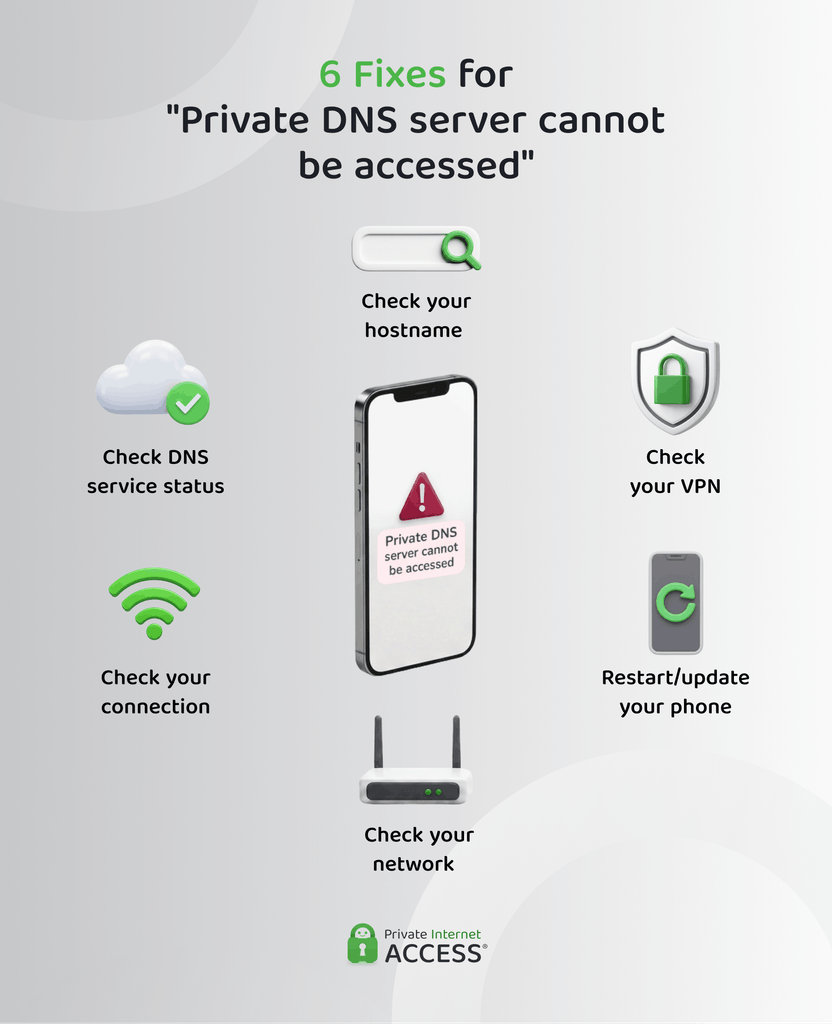
1. Check Your Private DNS Hostname (Most Common)
A mistyped hostname is the most common cause of this error. Even one incorrect character or extra space can stop Android from connecting to your DNS provider.
🔧 Fix: Open Settings > Network & internet > Private DNS and check that the hostname matches the one provided by your DNS service. Don’t enter an IP address or include “http://.” If you’re unsure, copy and paste the hostname from your provider’s documentation.
2. Check If Your DNS Provider Is Unavailable
Your DNS provider may be temporarily unavailable due to an outage or maintenance, which prevents Android from establishing a secure connection.
🔧 Fix: Check your provider’s status page for any reported issues. If there is an outage, wait until your provider restores the service or switch to another trusted DNS provider.
3. Test Your Internet Connection
Android’s Private DNS needs an active internet connection to communicate with your DNS provider. If your connection is unstable, Android may not be able to complete the secure DNS lookup.
🔧 Fix: Reconnect to Wi-Fi or move closer to your router if the signal is weak. If connecting to a different network resolves the issue, the issue is likely with your network rather than your DNS settings.
4. Check Whether Your Network is Blocking Private DNS
Some work, school, or public Wi-Fi networks block DNS-over-TLS traffic, preventing Android from connecting to your chosen DNS provider. In some cases, your ISP may also restrict these connections.
🔧 Fix: Connect to a different Wi-Fi network or switch to cellular data. If Private DNS works there, the original network is likely blocking the connection.
Tech tip: If you manage the network, check whether it permits DNS-over-TLS (port 853). Otherwise, you may need to use the network’s default DNS or a VPN with its own encrypted DNS service.
5. Check for a VPN DNS Conflict
Many VPNs route DNS requests through their own servers to help protect your privacy. If both your VPN and Android’s Private DNS try to manage DNS requests at the same time, they can conflict.
🔧 Fix: If you’re using a VPN with its own encrypted DNS, turn off Android’s Private DNS and rely on the VPN instead. If the error disappears, the VPN is routing private DNS requests correctly.
If your VPN doesn’t include encrypted DNS, leave Private DNS enabled and check the VPN’s settings for any DNS-related conflicts.
Tech tip: Private Internet Access routes DNS requests through a private and encrypted DNS service with DNS leak protection. This helps prevent your ISP or network provider from monitoring your activity, and you don’t need to enable Android’s Private DNS at the same time.
6. Restart or Update Android
Temporary software glitches or outdated system software can sometimes prevent Private DNS from working as expected.
🔧 Fix: Restart your device, then check for any available Android or manufacturer software updates. A restart can clear temporary issues, and updates may resolve known bugs affecting network connections.
These fixes address the most common causes of Private DNS connection errors. To understand why they happen, it helps to know how Android’s Private DNS feature works.
What Does “Private DNS Server Cannot be Accessed” Mean?
This error message appears when Android can’t connect to the Private DNS hostname you’ve set. When that secure connection fails, Android warns you rather than quietly switching to an unencrypted lookup.
It can make the internet seem to stop working, but that’s Android protecting your privacy, not a faulty or broken connection.
What Is Android Private DNS and How Does It Work?
Private DNS is an Android setting that enables encrypted DNS for your phone, creating a secure connection between your device and your domain name system (DNS) provider. DNS is a technology that translates website names into the IP addresses devices use to locate and connect to websites.
Android’s Private DNS doesn’t set up a DNS system on your device. Rather, it connects to your DNS provider. It’s available on Android 9 and later, which introduced support for encrypted DNS in 2018.¹
Standard DNS vs. Android Private DNS
Here’s how Android Private DNS compares with the standard DNS connection your network may use by default:
| Standard DNS | Android Private DNS |
| DNS queries may be sent unencrypted | DNS-over-TLS encrypts DNS queries |
| Usually uses your network or ISP’s DNS server | Lets you use a compatible encrypted DNS provider |
| Others on the same network may be able to see your DNS requests | Helps protect your DNS requests from others on the same network |
Private DNS helps keep your browsing more private on shared networks. While the “Private DNS server cannot be accessed” error is inconvenient, it’s the feature doing its job. When you fix the underlying cause, you’ll get that protection back.
FAQ
What does Private DNS mean on Android?
Private DNS is Android’s name for encrypted DNS. It uses DNS-over-TLS to help protect your DNS queries from third parties that could read or change them while they travel between your device and DNS provider.
What is a private DNS server?
A private DNS server is a DNS server that supports encrypted DNS connections, so your device can send DNS queries more securely rather than in plain text. The key difference from a standard DNS server is privacy as standard DNS queries may travel unencrypted and be visible to others on your network.
Which hostname should I enter for Private DNS?
You should enter the hostname provided by your DNS service exactly as it appears in the provider’s documentation. Don’t enter an IP address or include “https://,” as Android expects a hostname.
Why does Private DNS work on mobile data but not on Wi-Fi?
If Private DNS works on mobile data but not on Wi-Fi, the Wi-Fi network is likely blocking encrypted DNS connections. This is common on some work, school, and public networks.
Is Private DNS the same as a VPN?
No. Private DNS encrypts only your DNS queries, while a VPN encrypts all internet traffic between your device and the VPN server. Some VPNs also include their own encrypted DNS service, which is why Android’s Private DNS feature can sometimes conflict with VPNs.
Should I turn Private DNS off if the error keeps coming back?
You can temporarily turn Private DNS off, but it’s better to identify the underlying cause first. In many cases, the problem is an incorrect hostname, a VPN conflict, or a network blocking encrypted DNS.
References:
