Why You Should Remove (and Replace) Safari: A Step-by-Step Guide

Apple’s Safari has gained a loyal following of users over the years as one of the most popular web browsers in the world. However, due to recent security concerns, it is advisable to consider replacing it with a different browser for various reasons.
RedTeam Techblog reported a vulnerability in the Safari Web Share API, which enabled attackers to steal local files from a user’s device. A security researcher uncovered the flaw, which revealed how the API permitted any website to share files with other devices on the same network, including sensitive documents like passwords and financial records.
Although Apple has addressed the vulnerability, this occurrence emphasizes the need to use a browser with robust security features and regularly update software to safeguard sensitive data from possible attacks.
In addition to security concerns, Safari has limited customization options and lacks support for certain plugins and extensions. This makes it less suitable for users who prefer a browser with greater flexibility and control.
In this article, we’ll explore these issues in more detail and provide insights into whether you should consider removing or replacing Safari as your default browser.
Table of Contents
What’s the Problem with Safari?Can You Uninstall Safari?
How Do I Uninstall Safari Extensions?
How To Delete Safari From Your Mac Using a Third-Party App?
How to Delete Safari on Mac using Terminal
How to Delete Safari on iPhone/iPad
Privacy-Friendly Browser Alternatives and Extensions
How to Delete Cookies, Cache, and History on Safari
Safari Is OK, But There’s Better
FAQ
What’s the Problem with Safari?
In 2012, Google got caught bypassing Safari’s privacy settings to track users in a scandal called the Safari Workaround. Safari has a history of privacy controversies.
Another recent controversy concerns Apple’s NeuralHash Technology, which has raised questions among privacy advocates over the company’s intention to scan users’ devices for child abuse material with some warning of a potentially dangerous precedent being set.
Like all web browsers, Safari can collect user data as you browse the web. However, the problem with Safari lies in how much it collects and uses this data and how much control users have over their privacy.
| Top Safari Concerns | |
|---|---|
| ⚠️Tracking prevention | Safari designed the Intelligent Tracking Prevention (ITP) feature to protect users’ privacy by limiting third-party cookie tracking. However, some critics argue ITP is ineffective, and websites can bypass it by using other tracking methods. |
| ⚠️Browser fingerprinting |
Fingerprinting is a technique websites use to track users based on their browser configuration and settings. While Safari has taken steps to prevent fingerprinting, some experts argue it needs to go further, and users are still vulnerable to this type of tracking. |
| ⚠️Extensions |
Safari has limited browser extensions and plugin support, making it more difficult for users to customize their browsing experience or add additional privacy and security features. |
| ⚠️Security flaws |
As mentioned in the intro, many have criticized Safari for having noteworthy security flaws, which can put your sensitive information at risk |
| ⚠️Cookies |
One of the primary concerns with Safari’s data collection practices is its use of cookies. Cookies are small pieces of data stored on your computer, allowing websites to remember preferences, login information, and other details. However, they can also track your behavior across the web, creating a detailed profile of your interests, habits, and demographics. Safari does offer some features to limit cookie tracking, such as ITP and cross-site tracking blocking, but these are not foolproof and may only partially protect your privacy. |
| ⚠️Apple’s business model |
Another concern is Safari’s relationship with Apple. As a web browser developed by Apple, Safari is ultimately accountable to Apple’s larger business priorities and practices. This could include a focus on collecting user data for advertising purposes or other business goals rather than prioritizing user privacy. Additionally, as a hardware manufacturer and web browser developer, Apple may have conflicts of interest, which could impact Safari’s approach to privacy. |
While Safari offers some privacy features, critics have faulted it for not adequately safeguarding user data. In particular, they view Safari’s data collection practices as invasive and overly comprehensive, especially compared to other web browsers which prioritize user privacy.
The privacy problems associated with Safari arise from its reliance on intrusive techniques for gathering and monitoring data. If privacy is of high value to you, you may feel concerned about requiring greater transparency and control. While Safari does provide certain privacy functionalities, it may not offer comprehensive protection for user information.
Can You Uninstall Safari?
When you try to move Safari to Trash, macOS will display a message stating you cannot delete or alter the Safari app as it is necessary for the proper functioning of the operating system.

As per the Apple System Integrity Protection (SIP), modifying pre-installed applications and certain system folders on Macs is impossible. The designers implemented this restriction to protect inexperienced users from compromising the system’s stability.
While it’s essential because restoring some applications, like Safari, can be challenging, it’s possible to remove Safari on Mac through the Terminal command line by disabling the System Integrity Protection.
How Do I Uninstall Safari Extensions?
If you’re experiencing slow browsing with Safari and considering uninstalling the browser, it’s worth checking if any extensions are causing the issue before taking drastic measures. You can follow these steps to uninstall Safari extensions on your Mac:
- Open the Safari browser.
- Click on the Safari menu in the Menu bar and select Preferences.
- Switch to the Extensions tab to see a list of all your installed extensions.
- To uninstall an extension, click on the Uninstall button next to it.

By removing any unnecessary or problematic extensions, you can improve the performance of Safari without having to uninstall the browser entirely.
If you’re determined to uninstall Safari from your Mac, please proceed cautiously if. Removing any pre-installed apps on Macs is at your own risk, since there’s a chance something might break
How To Delete Safari From Your Mac Using a Third-Party App?
Safari is the default browser on Mac computers, but some users may prefer to use another browser. However, removing Safari from a Mac requires a bit of technical expertise, as it can be a complex process.
You can use a third-party app to uninstall Safari from your Mac to make it easier. The following steps will guide you through the process of deleting Safari using a third-party app:
- Download CleanMyMac X from macpaw.com.
- To start installing the CleanMyMac X application, locate the folder where you saved the .dmg file, and then double-click on the CleanMyMacX.dmg file.

- Move the CleanMyMac X icon to the Applications folder to complete the installation process.


- Once you have opened CleanMyMac X, go back to your applications folder and move the Safari icon into the CleanMyMac X window.
- Click on Uninstaller on the left side of the window.
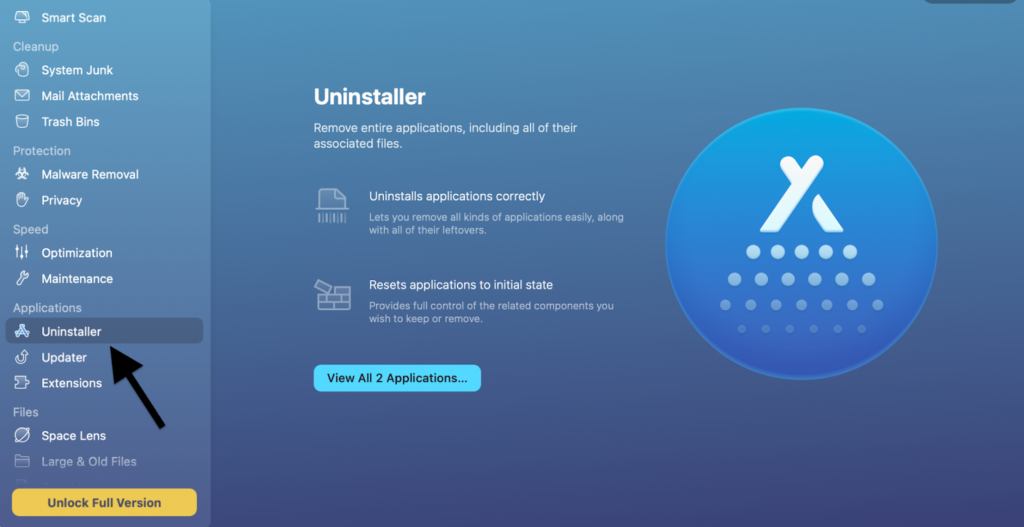
- Scroll through the list of applications until you find Safari Browser.
- Click on the Application Reset option next to Safari.
- Finally, click on the Remove button to permanently delete Safari from your Mac.
After these steps, Safari and any other pre-installed system apps will be permanently deleted from your Mac.
How to Delete Safari on Mac using Terminal
If you’re not well-versed with macOS, we strongly urge you to refrain from deleting Safari; forget about it and just use a different browser. Removing the browser will only save you about 150 MB of space, so only a small amount for modern day standards.
Before removing Safari, you have to disable System Integrity Protection. SIP is a security feature introduced by Apple to prevent malicious software from modifying critical system files and directories on macOS.
SIP restricts the root user and other administrative users from making changes to the protected system files, even if they’ve gained high level access to the system. Temporarily disabling SIP can enable you to modify the protected files, but it’s generally not recommended unless necessary.
Part 1: Disabling System Integrity Protection
To disable System Integrity Protection on your Mac, follow these steps:
- Restart your Mac and hold down the Command+R keyboard shortcut during the reboot process to enter recovery mode.
- Once you see you’re in recovery mode, click on the Utilities option in the Menu bar and select Terminal.
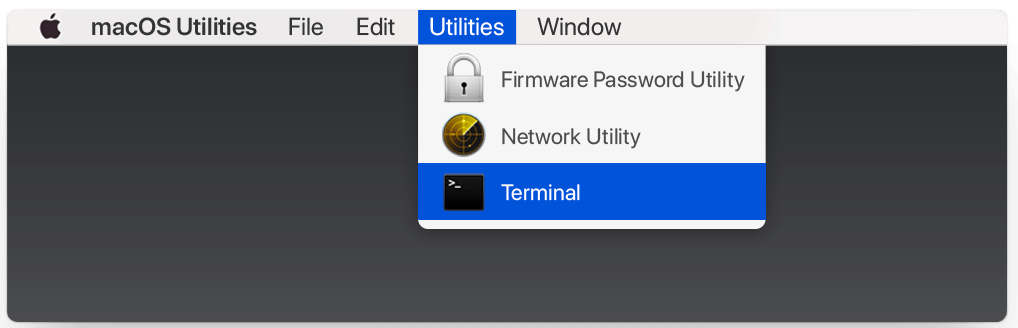
- In the Terminal window, paste the following command: csrutil disable.
- Press the Return (Enter) key to execute the command and disable your SIP.
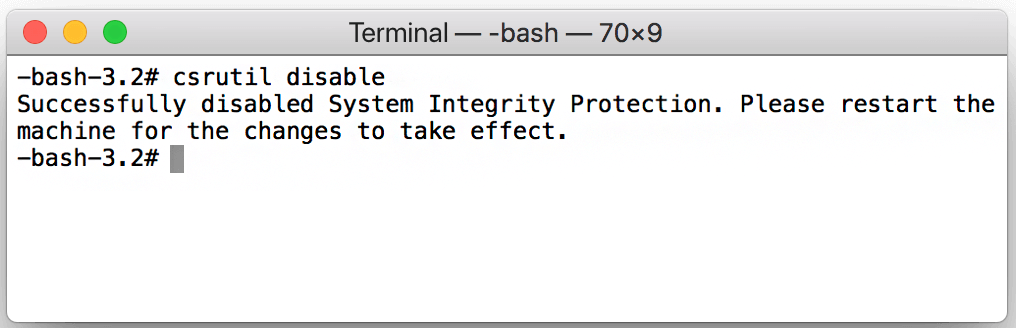
- Restart your Mac to complete the process.
- After restarting, log in to your Mac using an admin account.
Done! You have successfully disabled System Integrity Protection on your Mac, and you can now remove the Safari browser app. Note you’ll need administrator rights to perform the following steps.
Part 2: Uninstalling Safari from Your Mac Using Terminal
- Open the Terminal program from Launchpad.
- Once opened, use the command sudo mount -uw /System/Applications and enter your password when prompted to give the /System/Applications folder Read & Write permission.
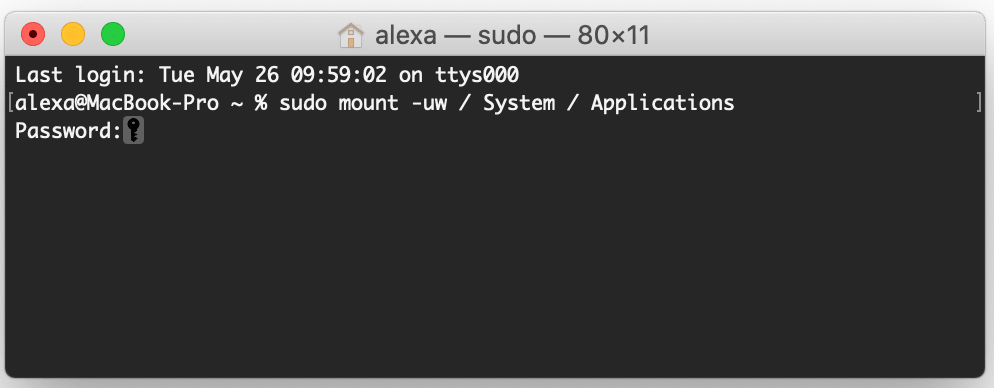
- Next, enter the command cd /Applications/ to view the applications’ directory.

- Then, enter one of the following commands to remove Safari based on your macOS version:
- macOS 10.14: sudo rm -rf Safari.app/
- macOS 10.15: sudo rm -rf ~/mount/Applications/Safari.app
- Be cautious when removing items via Terminal, as the system will not ask for confirmation.
Note: If you are using macOS Ventura, the directory /System/Volumes/Preboot/Cryptexes/App/System/Applications/Safari.app contains Safari. You can’t remove this, as it is the protected disk area, and disabling SIP won’t change that.
After removing Safari, remember to re-enable SIP by restarting your Mac in recovery mode (press Command+R during reboot) and entering the command csrutil enable in Terminal.
If you remove Safari from your Mac:
- You may experience compatibility issues with other Apple applications relying on Safari’s WebKit engine. For example, some third-party apps may only be able to display web content properly with Safari.
- You will also lose some of the built-in functionality relying on the browser. For example, you’ll no longer be able to use the Reading List or Shared Links features.
- If you uninstall Safari, the system can restore it upon updating or upgrading your macOS, or you can enable SIP on some systems to restore it.
Uninstalling default applications like Safari can potentially harm your system. So, you should only do it if you understand the macOS file system and can ensure it won’t have adverse effects.
How to Delete Safari on iPhone/iPad
It’s impossible to completely remove Safari from the iPhone/iPad, as it’s a built-in app and part of the operating system. However, you can hide the Safari app from your home screen if you don’t want to use it. Here’s how:
- Go to Settings on your iOS device.
- Tap Screen Time.
- Tap Content & Privacy Restrictions.
- If Content & Privacy Restrictions is not already turned on, toggle the switch to turn it on.
- Tap Allowed Apps.
- Deactivate the Safari switch by toggling it to the off position.

Please note disabling Safari may affect the functionality of other apps using the Safari engine to display web content. Additionally, disabling
Please note disabling Safari may affect the functionality of other apps using the Safari engine to display web content. Additionally, disabling Safari may cause some links and content to display incorrectly in other apps.
If you change your mind and want to use Safari again, go back to Settings > Screen Time > Content & Privacy Restrictions > Allowed Apps and toggle the switch next to Safari back on.
Privacy-Friendly Browser Alternatives and Extensions
For those who prefer not to use Safari on their iOS or iPadOS device, using a different browser and setting it as the default is a good option. Here are some privacy-friendly browser alternatives to consider:
- Firefox: This is a popular open-source browser emphasizing privacy and security. It offers privacy-focused features, such as enhanced tracking protection, which blocks third-party trackers.
- Brave: This Chromium-based open-source project provides ad-blocking and tracker-blocking features, along with a private browsing mode.
- DuckDuckGo Privacy Browser: This mobile browser prioritizes user privacy and security. It includes built-in tracker blocking and encryption protection.
- Tor Browser: This browser uses the Tor network to help protect your privacy and anonymity online. It routes your web traffic through several servers, making it difficult (but not impossible) for anyone to trace your online activity.
While using a privacy-friendly browser is a good start, it’s important to remember browser extensions only protect your online activity within the specific browser. For ultimate security, use PIA VPN.
PIA is a great option for enhancing your online privacy and security. In addition to offering a browser extension for Firefox, Chrome, and Opera, it also provides a built-in VPN encrypting your internet traffic and masking your IP address. This means prying eyes can’t see your online activity, and even your ISP won’t be able to know what you’re doing.
PIA’s browser extension comes with an ad-blocking feature that prevents third-party trackers from monitoring your online behavior and displaying targeted ads. PIA allows you to browse the web with more privacy and security, both within your browser and beyond.
How to Delete Cookies, Cache, and History on Safari
To delete cookies, cache, and history on Safari, follow these steps:

To delete cookies, cache, and history from Safari on Mac, follow these steps:
- Open Safari on your Mac.
- Select Safari from the menu bar located at the top of the screen.
- Select Preferences from the drop-down menu.
- Click on the Privacy tab.
- Click on the Manage Website Data button.
- In the next window, either delete all website data by clicking Remove All or you can select specific websites and delete their data by selecting them and clicking Remove.
- To clear your browsing history, click on the History tab in the top menu bar.
- Select Clear History and choose the desired time frame to clear.
- Click Clear History again to confirm.
To clear the cache, follow these steps:
- Open Safari on your Mac.
- Click on Safari in the top menu bar.
- Select Preferences from the drop-down menu.
- Click on the Advanced tab.
- Tick the checkbox adjacent to the Show Develop menu in the menu bar.
- Click on Develop in the top menu bar.
- Select Empty Caches from the drop-down menu.
Your cookies, cache, and history are now cleared from Safari on your Mac.
Safari Is OK, But There’s Better
In conclusion, while Safari is a popular web browser for Apple users, some may have better options. Removing and replacing Safari with a different browser can provide various benefits, such as improved performance, better privacy and security features, and enhanced customization options.
Following the step-by-step guide outlined in this article, you can easily uninstall Safari from your Apple device and install a new browser. Remember to choose a browser aligning with your personal preferences and online needs. Whether you prefer Chrome, Firefox, or something else, you have your pick of Safari alternatives.
If you value online privacy and security, get PIA VPN to enhance your browsing experience. By encrypting your internet traffic and masking your IP address, PIA can help protect your sensitive information from prying eyes and limit unwanted tracking. So, if you’re looking for an extra layer of security and privacy while browsing the web, take us for a spin.
FAQ
Why is Safari bad?
Safari isn’t inherently bad, but if you value privacy or want more customization options you might want to consider some alternatives. Also, Safari can be slower and less compatible with certain websites or plugins than other browsers.
Can you permanently delete Safari?
You can’t permanently delete Safari from an Apple device as it’s a built-in application. However, you can disable it through the device’s settings or parental controls. To improve your online privacy and security, try PIA VPN, which encrypts and redirects internet traffic through a secure server.
How do I delete Safari from my iPhone?
You can’t delete Safari from your iPhone as it’s a built-in app, but you can remove its icon from the home screen and restrict its access through settings or parental controls. Alternatively, you can download and use a different web browser app from the App Store and just forget about Safari.
What happens if I delete Safari?
You can’t delete Safari completely from an Apple device, even with an extension. If you remove its icon or restrict its access, you won’t be able to use it, which may affect some third-party apps relying on it. It’s best to troubleshoot any issues with Safari instead of deleting them.
What is the best alternative to Safari?
Several alternatives to Safari exist, each offering distinctive features and advantages. Some popular options include Google Chrome, Mozilla Firefox, and Brave. If privacy is a priority for you, Firefox, DuckDuckGo Privacy Browser or Tor are good alternatives to Safari.
