What Is OneLaunch.exe? Privacy Risks and How to Remove It
OneLaunch is legitimate software that creates a custom dock and dashboard on your Windows computer. You may have installed it, or it may have been bundled with another program. Some people report annoying quirks and performance issues with the app, or even worry it might be malware.
In this guide, we’ll explain what OneLaunch does, what risks it carries, and how to fully remove it from Windows 10 and 11.
What Is OneLaunch.exe?
OneLaunch.exe is a background system process that powers a desktop application called OneLaunch.
This program typically registers itself to run automatically when you start your computer. It keeps the launcher active, which may use system resources and, in some cases, impact performance on lower-end devices. If you see onelaunch.exe running in Task Manager, the application is active on your system.
What Is the OneLaunch Browser?
The OneLaunch browser is a companion application that may install itself alongside the main desktop launcher. Some users report that it can change browser-related settings1, such as the default search engine or homepage. This browser may route searches through its own search platform, which can include unwanted sponsored results or advertising content.
Is OneLaunch Malware?
OneLaunch is generally not classified as traditional malware, such as a virus or ransomware. There are no reports of it stealing passwords, corrupting users’ hard drives, or locking personal files.
However, some security tools classify it as a potentially unwanted program (PUP). A PUP is software that gains access to your system through bundled installations or misleading prompts. This is probably why the software is no longer available for download.
Why Security Tools Flag OneLaunch
Some security tools flag this software due to behaviors that may be considered intrusive or unexpected.
- Bundled installation: It may be included with other free software installers.
- System changes: It may modify browser settings such as your default homepage or search engine.
- Data usage: It may collect usage or browsing-related data to support advertising features.
- Persistence mechanisms: It may create startup entries or scheduled tasks to remain active.
Privacy and Security Risks of OneLaunch
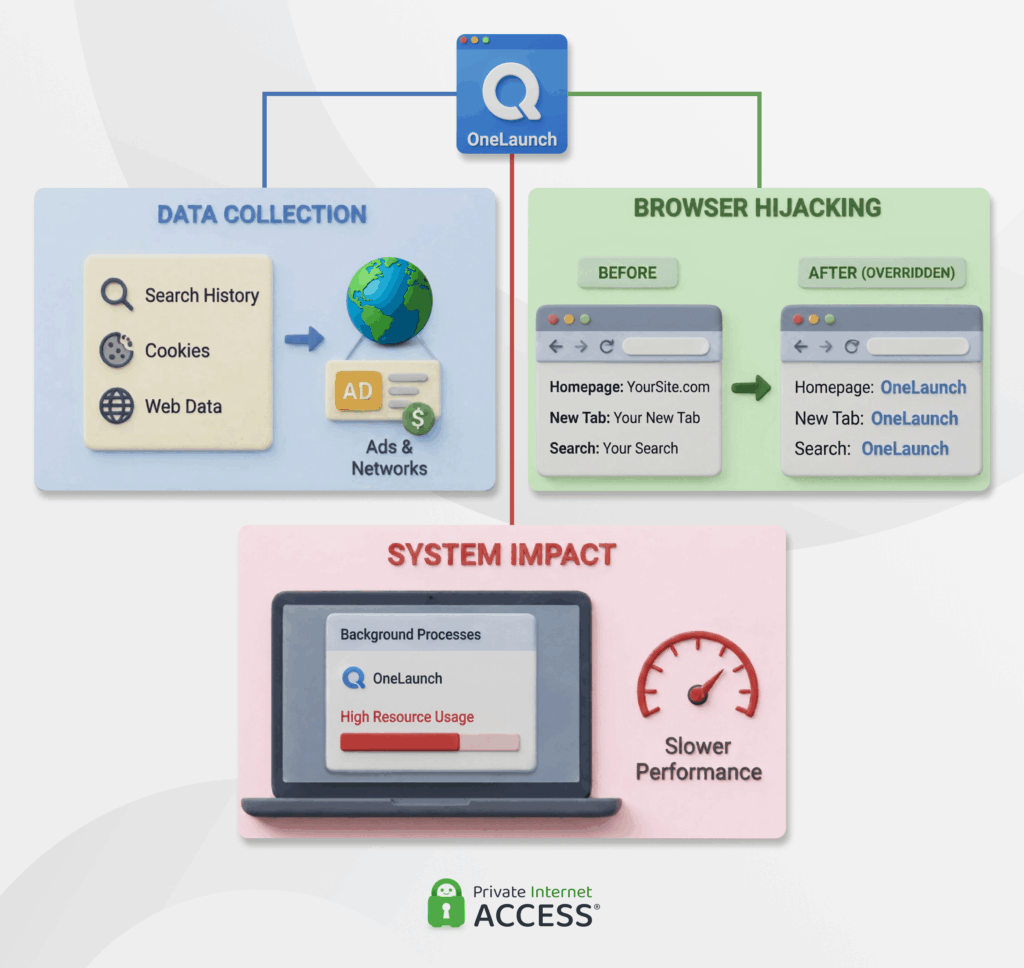
OneLaunch may affect your browsing experience and system settings depending on how it’s installed and used.
Unwanted Data Collection
OneLaunch may monitor your browsing behavior, search history, and daily usage patterns. Its privacy policy allows the developers to share your data with third-party advertising networks. The software and its partners can then use this information to serve you targeted ads and sponsored search results.
Browser Hijacking Behavior
Some users complain that the software frequently changes their default web browser, homepage, and new tab page to its own branded versions.
According to some reports, your preferred settings might revert to OneLaunch defaults even after you change them back.
Negative System Impact
The application runs continuously from the moment your computer starts. On some systems, this could lead to slower startup times or reduced responsiveness. This performance drop is especially noticeable on older devices.
Should You Remove OneLaunch?
If you didn’t intentionally install OneLaunch or don’t use its features, removing it may help restore your preferred system and browser settings.
While it’s not typically considered high-risk malware, some users choose to uninstall it due to its behavior, startup activity, or changes to browser settings.
How to Remove OneLaunch From Your System
Removing OneLaunch can help restore your system’s performance. Work through these steps in order for the cleanest removal:
- End the running process: Stop the application from running in the background to free up its files for deletion. Press Ctrl + Shift + Esc to open the Task Manager app. Find onelaunch.exe or OneLaunch Browser under the Processes tab, right-click the entry, and select End Task.
- Uninstall the application: Remove the software from your Windows system settings. In Windows, go to Start > Settings > Apps > Installed apps, search for OneLaunch, click the three-dot menu, and select Uninstall.
- Delete leftover folders: Standard uninstalls may leave hidden tracking files behind. Press Win + R, type
%LOCALAPPDATA%and press Enter. Locate the OneLaunch folder and delete it entirely, then repeat this exact process for%APPDATA%\OneLaunch. - Remove startup entries and scheduled tasks: Disable the automated triggers the software uses to keep itself active. Open your Task Manager’s Startup tab, right-click any OneLaunch entry, and select Disable. Next, press Win + R, type
taskschd.msc, and press Enter to find and delete any related tasks in the Task Scheduler Library. - Remove the browser extension: Check every web browser installed on your computer, as lingering extensions will force the software to reinstall. Navigate to the extensions or add-ons menu to locate and remove the OneLaunch extension.
- Reset your browser settings: Restore your original browser preferences to clear out the unwanted homepage and search engine changes. Open your browser’s main settings menu, use the option to restore original defaults, and manually verify your preferred search engine is active.
- Run a full security scan: Open Windows Security or your trusted anti-malware program and run a full system scan. This final check ensures no hidden files or bundled PUPs remain active on your hard drive.
- Use Safe Mode for stubborn files: If the software reappears, restart your computer in Safe Mode to delete files that remain locked during normal operation. Go to Settings > System > Recovery. Under Advanced startup click Restart Now. Once the recovery screen loads, select Troubleshoot > Advanced options. On the Startup Settings screen, click Restart. Note that these steps may be slightly different on Windows 10.
Why OneLaunch May Keep Coming Back
It’s frustrating when OneLaunch reappears after a full removal. Here are the most common reasons it comes back and how you can fix them:
- Accidental reinstallations: Running the original free software installer again will quietly reinstall the unwanted program. Always download software from official sources and use custom installation settings to avoid unwanted extras.
- Active browser extensions: A leftover extension can trigger a fresh installation the next time you open your web browser. You must check every installed browser on your device to ensure complete removal.
- Lingering scheduled tasks: The software registers system tasks to keep itself alive in the background. Open your system’s Task Scheduler and delete any remaining OneLaunch entries.
- Hidden companion programs: Bundled installers sometimes drop secondary downloaders that automatically reinstall the main application. Check your system settings for unfamiliar programs added around the same time.
Prevention: Stopping Unwanted Software Before It Installs
Changing how you download and install software helps prevent PUPs from reaching your system in the first place. Follow these habits to protect your device:
- Download from official sources: Getting software straight from the developer or official app stores helps you avoid bundled third-party installers.
- Read installation screens carefully: Choose the custom or advanced installation option when setting up new software. This lets you uncheck hidden boxes and decline vague promotional offers.
- Keep your system and browsers updated: Software updates patch security vulnerabilities that unwanted programs exploit to gain access.
- Enable built-in protections: Modern web browsers offer tracking and download protections to catch unwanted software. Turn on your browser’s enhanced security mode and your operating system security controls.
- Perform regular system checks: Running a quick anti-malware scan and reviewing your active browser extensions regularly catches anything that slips through.
FAQ
What is OneLaunch.exe?
It’s the main file that runs the OneLaunch desktop application. This program runs continuously in the background and adds a custom search bar to your screen. The process starts automatically when you turn on your device, which may slow down your boot time and impact performance.
What is the OneLaunch browser?
The OneLaunch browser is a custom web browser that may be installed together with the OneLaunch desktop application. The software may route your web searches through its own sponsored search engine to show you targeted ads.
Is OneLaunch malware or a potentially unwanted program?
Some security scanners classify OneLaunch as a potentially unwanted program (PUP). It isn’t a traditional virus or malware, meaning it’s not likely to destroy your system files or steal your passwords. However, it’s been reported to track users’ online activity and change their system preferences without clear consent.
Should I remove OneLaunch from my computer?
If you don’t use it regularly, deleting OneLaunch is usually a good choice. Removing the software restores your preferred web settings and frees up your computer’s memory, which can help improve your overall system speed.
Why does OneLaunch keep installing or coming back?
The software reappears if you don’t remove all of its hidden files and browser extensions. A single leftover extension or scheduled system task can automatically trigger a fresh installation in the background. You must clear these hidden components completely to stop the program from returning.
Can a VPN help protect against malware and unwanted browser installers?
A traditional VPN doesn’t replace antivirus software, but it can help protect your connection from malicious networks and tracking. In addition to the standard VPN features, PIA VPN offers a built-in malware blocker, MACE. It blocks known malware, tracker, and ad domains at the DNS level, helping stop them from ever reaching your device.
References:
