WPA-Enterprise Explained: How It Works and When to Use It
Most Wi‑Fi networks use a single shared password to control access. This is a simple solution, but it isn’t ideal if you need to manage access for a large team or protect sensitive data.
WPA‑Enterprise offers a more secure alternative. By enabling you to authenticate each user individually, it gives you greater control, easier access revocation, and better insight into who’s connecting to your network.
In this guide, we’ll walk you through what WPA‑Enterprise is, how it compares to WPA‑Personal, and how it works under the hood. We’ll also show when it makes sense to use this protocol, what’s involved in setting it up, and what options are better suited for home or personal use.
What Is WPA-Enterprise?
WPA‑Enterprise (short for Wi‑Fi Protected Access Enterprise) is a security mode for wireless networks. It uses a centralized authentication method to manage access and provide stronger, more reliable encryption than is typically found on personal networks.
When accessing a network, each user is validated individually through a central server rather than using a shared Wi-Fi key. This setup makes it much more difficult for unauthorized users to join the network or intercept traffic.
There are three versions of WPA-Enterprise: WPA, WPA2, and WPA3. They all use the same underlying security model (individual authentication plus encryption), but the numbered versions support stronger ciphers and handshake protocols.
WPA-Enterprise vs. -Personal
WPA‑Personal – also called WPA‑PSK or Pre‑Shared Key – is the default option on most home routers.
Everyone who wants to access the network connects using the same shared Wi‑Fi password. While this makes WPA-Personal super-easy to set up, it can make your connection vulnerable to attacks. If someone figures out your password, they get full access to your network and you’ll have to change it and update it on all of your devices.
WPA-Enterprise is a lot more secure. As every user accesses the network using unique credentials, it’s much easier to prevent unauthorized entry.
Here’s a quick comparison of WPA-Enterprise vs -Personal:
| WPA-Personal | WPA-Enterprise | |
| Authentication method | Single shared password | Unique credentials per user |
| Best suited for | Homes, small offices | Large institutions |
| Unauthorized access risk | High | Low |
| Setup complexity | Simple | Complex |
How Does WPA-Enterprise Work?
There are a few key building blocks that fit together to ensure that the WPA‑Enterprise security protocol can effectively authenticate users and protect network traffic. It helps to look at the individual components to understand how it all comes together to keep large networks both accessible and secure.
Users and Access Points Are Authenticated
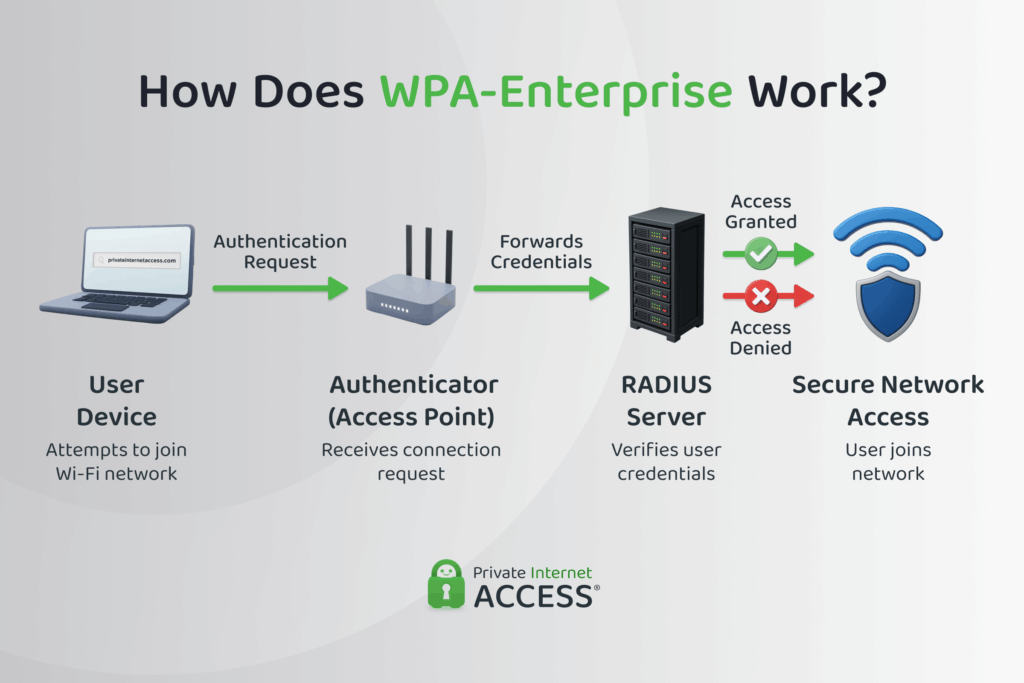
The 802.1X standard is the access control framework behind WPA‑Enterprise. It acts as a security guard, checking credentials of each user and access point before allowing them onto the network.
When a device tries to connect, it first communicates with a network access point (called the authenticator). The login request is then passed to a Remote Authentication Dial-In User Service (RADIUS) server, a central authentication server that stores and verifies user credentials.
If the credentials check out, the server tells the access point to grant access. If not, the connection is blocked.
However, authenticating users alone is not enough. Attackers can easily create rogue wireless access points that impersonate legitimate ones, tricking users into connecting and revealing their credentials. Those credentials can then be used to gain access to the real network.
To prevent this, WPA-Enterprise must also authenticate access points. User devices should be configured to trust the certificates of legitimate access points, allowing them to verify the network’s identity before sending credentials. Without mutual authentication, WPA-Enterprise remains vulnerable to rogue access point attacks.
As each user is validated individually and devices can verify the identity of the network before sending credentials, 802.1X makes it much harder for unauthorized users or access point impostors to gain entry to the network. And since everything is managed centrally, administrators can easily monitor login attempts, enforce user-specific policies, and even revoke access.
Exchanges Are Secured
The Extensible Authentication Protocol (EAP) operates within the 802.1X framework to verify users’ identities before they can be granted access to a network.
Where 802.1X manages the overall access process, EAP methods handle the specifics of how credentials are exchanged and verified. Some of the most common EAP types used in WPA‑Enterprise networks include:
- EAP‑TLS: EAP Transport Layer Security uses digital certificates on both client and server for mutual authentication. This is often viewed as one of the most secure options.
- EAP‑TTLS: EAP Tunneled Transport Layer Security establishes a TLS tunnel using a server certificate, then authenticates the client inside that tunnel.
- PEAP: Protected EAP is similar to TTLS. It wraps the client authentication in a TLS tunnel (server‑side certificate), commonly using MSCHAPv2 inside.
- EAP‑FAST: Developed by Cisco, EAP‑FAST uses a Protected Access Credential (PAC) to build a secure tunnel and reduce reliance on server certificates.
Once a user is authenticated, WPA-Enterprise encryption kicks in to protect the data in transit. Most WPA2 and WPA3 networks use CCMP (Counter Mode with Cipher Block Chaining Message Authentication Code Protocol), which is based on Advanced Encryption Standard (AES) encryption.
When applied, CCMP ensures that all Wi‑Fi traffic is securely encrypted and can’t be read or modified by unauthorized users.
The Benefits of WPA-Enterprise
WPA-Enterprise is built for scale, security, and better control. By requiring users to authenticate individually, it gives organizations tighter control over who can connect – and who can’t.
That makes WPA-Enterprise especially useful in environments where there are lots of users who need different levels of access. If someone leaves an organization or loses a device, their access can be revoked instantly without changing the password for everyone else.
It also makes users more accountable. Because each user has unique credentials, network activity can be traced back to the source. This makes it easier to detect unusual behaviour, enforce internal policies, and investigate incidents if something goes wrong.
Plus, WPA‑Enterprise enables stronger encryption standards, like AES-based CCMP, which protect sensitive data as it travels across the network. This is especially important for organizations that handle confidential files, information, and other records.
How to Set Up WPA-Enterprise on Your Network
Setting up WPA‑Enterprise takes more planning than a simple shared-password network, but the added control and security are worth it, especially for organizations managing sensitive data or multiple users.
While the exact process will vary depending on your router, wireless controller, and authentication tools, most WPA‑Enterprise setups follow the same basic structure. Below is a step-by-step overview to help you understand what’s involved.
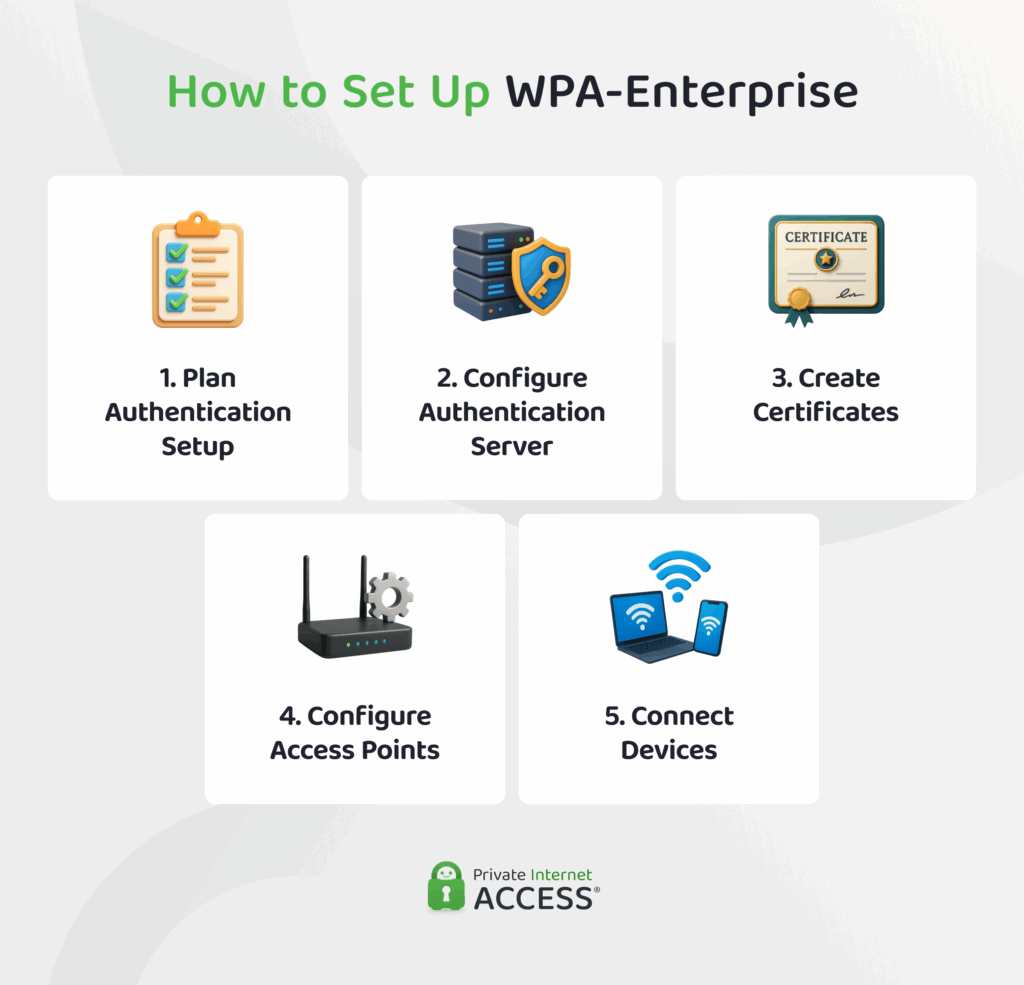
1. Plan Your Authentication Setup
Start by choosing how you want people to log in to your network. You can do this with username and password combinations or digital certificates.
You’ll also want to plan how your network should treat different users based on the roles that they’re assigned within your network. You can assign roles manually or use VLANs (Virtual Local Area Networks).
It’s important to ensure that the clocks on all the devices that will connect to the network are synchronized. If their time settings don’t match, certificate-based authentication can fail.
2. Configure a Central Authentication Server
WPA‑Enterprise relies on a central authentication server (usually a RADIUS server) to verify each login. Install and configure your RADIUS server, integrate it with your user database, and register your access points or switches as clients.
Each access point must be assigned a shared secret, which it uses to securely communicate with the server.
3. Create Server Certificates
For EAP methods like EAP‑TLS, you’ll need to install a server certificate issued by a trusted Certificate Authority (CA). In some cases, client devices will also need individual certificates.
Be sure to install the necessary root and intermediate CA certificates on client devices, and configure them to validate the server certificate during authentication.
4. Configure Your Access Points or Controllers
In your router or wireless controller settings:
- Set the security mode to WPA‑Enterprise or 802.1X
- Enter your RADIUS server’s IP, port, and shared secret
- Choose the EAP method(s) your network will support (e.g. EAP‑TLS, PEAP)
- Select AES‑based encryption for WPA2 and WPA3 setups
Avoid older encryption methods like TKIP, which are still supported in WPA for legacy reasons but are considered insecure.
5. Set Up Devices and Connect
Devices need to be configured to connect using the correct settings. At a minimum, users will need the network name (SSID), the correct EAP method (e.g. PEAP or EAP‑TLS), and any necessary certificates for certificate-based authentication.
On managed networks, it’s best to use Mobile Device Management (MDM) tools or configuration profiles to push these settings out to users automatically. That way, users don’t have to set anything up themselves.
Things to Consider Before Implementing WPA-Enterprise
While WPA‑Enterprise offers stronger security and greater control than shared-password networks, it’s not always the right fit for every environment. Here are a few things to think about before moving ahead:
- Setup complexity: You’ll need to configure a RADIUS server, access points, and possibly user certificates, which may be overkill for small or informal networks.
- Ongoing maintenance: Managing credentials, certificates, and device provisioning takes time and may require dedicated IT support.
- Device compatibility: Not all older devices support WPA‑Enterprise or the required EAP methods.
- User experience: Without a mobile device management solution, setting up individual devices can be confusing for non-technical users.
- Cost: Depending on your tools and level of experience, there may be added licensing, salary, or infrastructure costs.
For large networks, these trade-offs are worth it. But for home users or small teams, simpler alternatives might make more sense.
WPA-Enterprise Alternatives for Home Networks
Home users will usually find WPA-Personal a much better fit than WPA-Enterprise. It’s easier to set up, widely supported on domestic routers, and works well in environments where all users are trusted with equal access rights.
Rather than validating users through a central server, WPA-Personal uses a pre-shared key (PSK) to enable users to connect. You’ll typically be able to choose between one of two WPA-Personal setups: WPA2-PSK and WPA3-SAE.
WPA2‑PSK is the most common Wi‑Fi security method that’s applied in home environments today. It uses AES encryption and a four-way “handshake” that ensures each device connecting to the network receives a unique session key. This helps to prevent eavesdropping and keeps data encrypted as it moves between devices and the router.
As long as your Wi‑Fi password is strong and kept private, WPA2‑PSK offers solid protection for most home users.
WPA3‑SAE is the latest version of the WPA-Personal security protocol. It replaces the handshake system with Simultaneous Authentication of Equals (SAE) and introduces forward secrecy. This makes it much more difficult to guess a WPA3 Wi-Fi password and means past traffic remains protected even if the password is compromised later.
It’s good to note that while WPA3-SAE does plug some security gaps left open by WPA2-PSK, some older devices don’t support it.
These protocols are great for securing your home network, but you might want to consider adding a VPN to secure the traffic that leaves that network.
A VPN creates an encrypted tunnel between your device and the internet, which helps prevent third parties on the same network from seeing what you’re doing online. It’s best to opt for one that uses AES VPN encryption (the same standard used in personal WPA2 and WPA3 setups) for a more reliable degree of privacy.
FAQ
How does WPA-Enterprise differ from WPA-Personal?
WPA-Enterprise uses individual credit credentials (e.g. usernames and passwords or certificates) and a central server to validate each device that requests to connect to a network. WPA‑Personal requires only a password to allow users to connect. That makes WPA‑Enterprise much more secure than WPA-Personal.
WPA-Personal vs. -Enterprise: which should I use?
Whether you choose WPA-Enterprise or WPA-Personal will depend on the type of network you’re trying to secure. WPA‑Personal is better for home and other small networks because it’s simpler to set up. WPA‑Enterprise is better suited to larger or security-sensitive environments where you need per-user control, revocation, logging, and stronger access management.
What is WPA/WPA2-Enterprise?
WPA2‑Enterprise is a version of WPA that adds 802.1X authentication and EAP protocols to validate users via a server instead of a shared key. It combines individualized access control with encryption for secure wireless networks.
How does WPA-Enterprise encryption work?
WPA-Enterprise works with both authentication and encryption. First, a user is authenticated via 802.1X/EAP. Then the network uses strong ciphers (like AES under CCMP) to encrypt data between device and access point. Each session gets its own keys, helping to prevent outsiders from reading or tampering with your traffic.
Is WPA-Enterprise more secure than WPA-Personal?
As it doesn’t rely on a shared password, WPA‑Enterprise helps administrators to avoid the threat of one password leak compromising the security of the entire network. It allows per-user access control and better logging, making it harder for an attacker to gain or persist access. This added security is one of multiple WPA-Enterprise benefits.
Can a VPN provide additional security on a WPA-Enterprise network?
Absolutely. While WPA‑Enterprise secures your local network traffic, a VPN protects data once it leaves your network (e.g. as it travels to websites or internet services). It adds a layer of VPN encryption to secure your data from cybercriminals, snoops, and other third parties.
Does WPA-Enterprise remove the need for a VPN?
Not entirely. A well‑configured WPA‑Enterprise network secures local wireless traffic, but it doesn’t anonymize or fully protect your internet traffic. For more online privacy, it’s still super valuable to use a VPN.
