Can Chromebooks Get Viruses? How to Protect Your Device
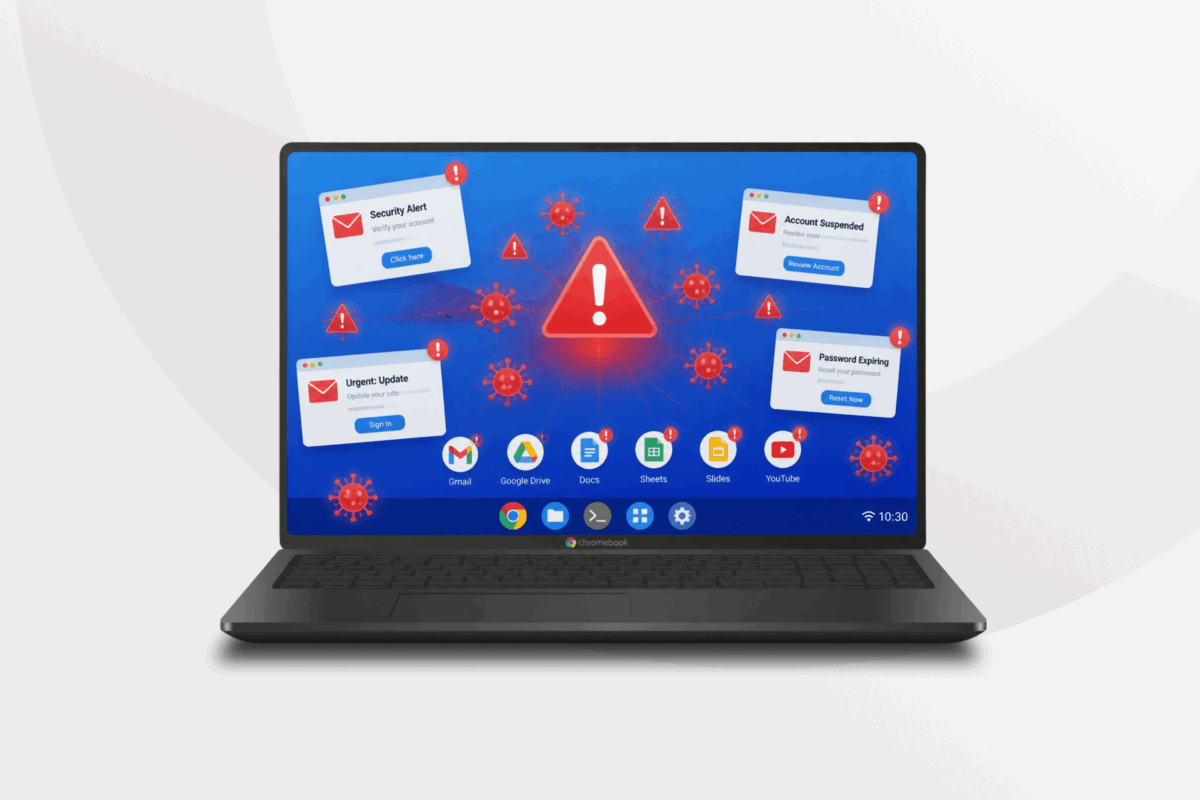
Chromebooks have a reputation for being almost virus-proof. Many people treat them like the low-drama laptops of the tech world: open the lid, sign in, and things work as expected.
That well-earned reputation comes from ChromeOS, a Linux-based operating system built by Google, which includes advanced built-in protections. These features make it difficult for harmful programs to install or spread malicious code, so infections are far less common than on many other operating systems.
That said, Chromebooks aren’t immune to threats. While traditional self-replicating viruses are extremely rare, Chromebooks can still encounter malware.
Malware is a broad term for harmful software, such as fake extensions, malicious apps, or phishing pages that try to steal data. A virus is one type of malware that spreads by copying itself between files or systems, which ChromeOS largely prevents.
Table of Contents
How Chromebook Security WorksReal Threats That Can Infect Your Chromebook
How to Spot if Your Chromebook Has Malware
How to Remove Malware from Your Chromebook
How to Protect Your Chromebook from Malware
FAQ
How Chromebook Security Works
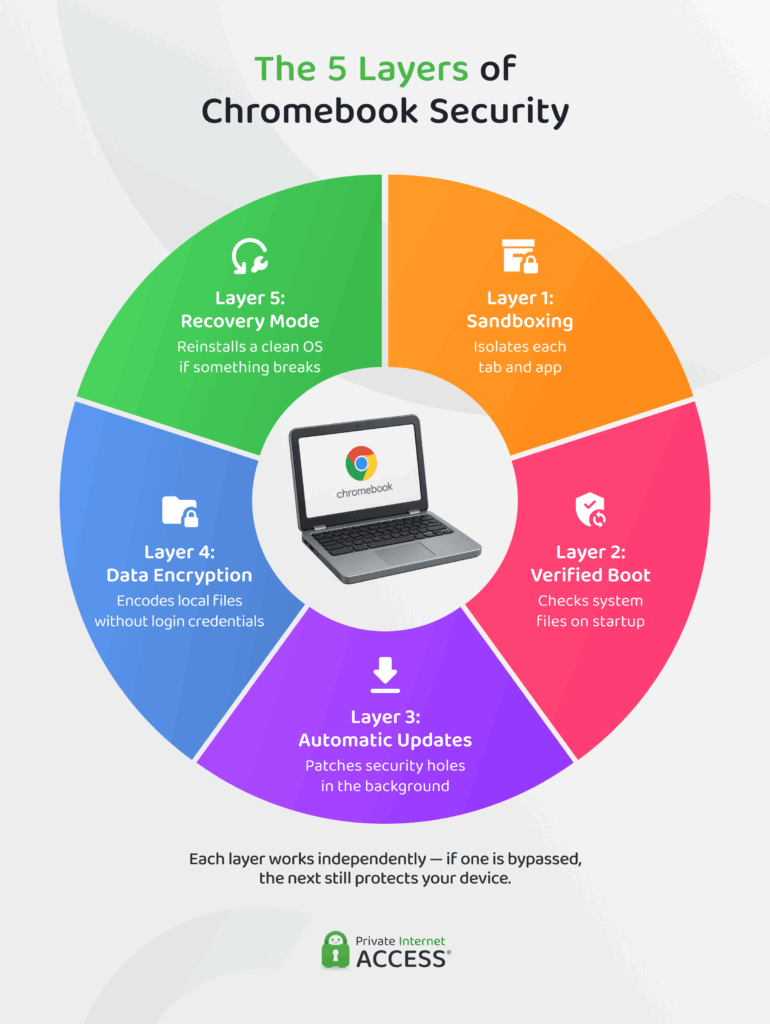
Chromebooks rely on several built-in layers of protection that work together to block viruses, Trojans, worms, adware, and bloatware:
Sandboxing Keeps Threats Contained
ChromeOS runs apps and browser tabs inside sandboxes, walled off from the rest of the computer. Think of each sandbox as a sealed room. A program can run inside that room, but it can’t readily reach the rest of the system. If a malicious website or extension tries to cause harm, it’s usually stuck inside that limited space. This design stops many threats from spreading across the device.
Verified Boot Auto-Repairs Corruption
Every time a Chromebook starts, Verified Boot checks the system files for unauthorized changes or damages. If it detects a problem, ChromeOS replaces the altered files with a clean version. It’s like a built-in system check that runs at startup and fixes issues before the device loads.
Automatic Updates Patch Vulnerabilities
ChromeOS installs automatic updates in the background. These updates patch security holes and improve system defenses without requiring much action on your part. It’s similar to having a mechanic tune your car while you sleep, so it’s ready to run safely the next day.
Even so, rare zero-day vulnerabilities can appear before a fix is available. For example, a high-severity Chrome bug called CVE-2026-24411 was exploited before Google released a patch. Automatic updates help fix issues like this quickly once the update rolls out.
Data Encryption Protects Local Files
Chromebooks store most user data in the cloud, but it also encrypts any data stored on the device for protection. Encryption converts the data into an unreadable string so no one can read it without the proper login credentials. If someone steals the device, the files remain locked and unreadable without the correct account access.
Recovery Mode Restores a Clean System
Chromebooks include Recovery Mode, which lets you reinstall a fresh version of ChromeOS if something goes wrong. It works like a reset button for the operating system and you can activate it with a simple keyboard combo (though this may vary by Chromebook version). If the system becomes unstable, Recovery Mode wipes the device and restores a clean, working system.
Real Threats That Can Infect Your Chromebook
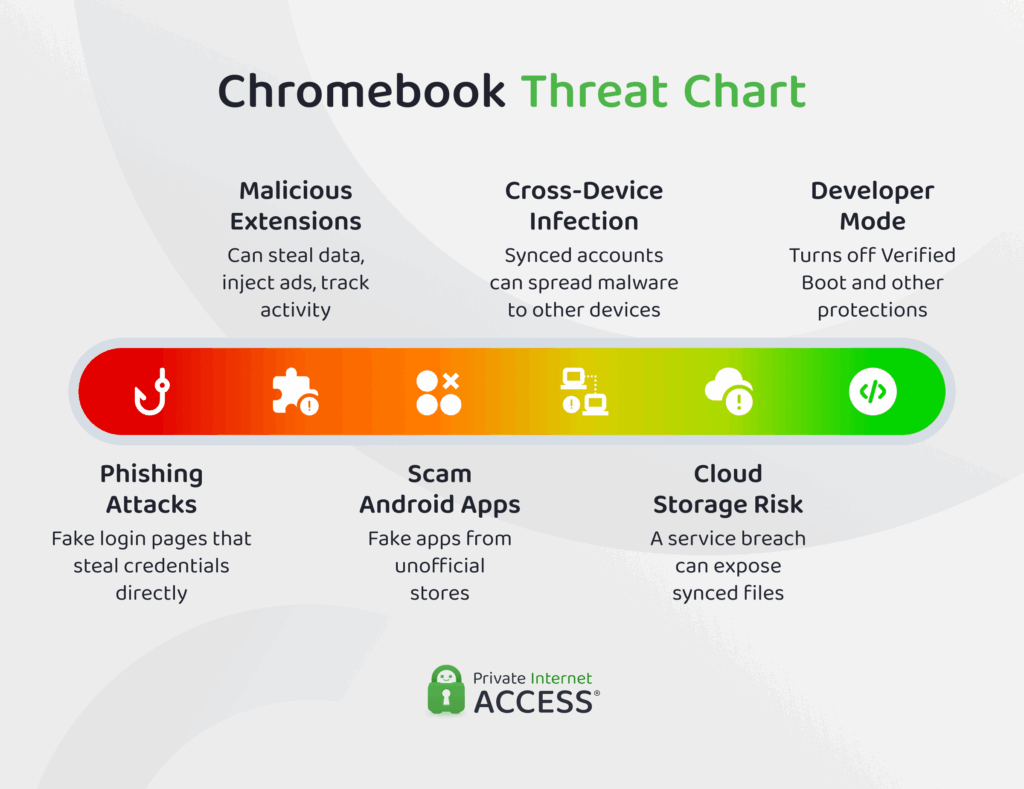
Even though Chromebooks are generally secure, they can still face real threats that target users and their accounts. Here’s an overview of the most common ones:
Malicious Chrome Extensions
Even though Chromebooks enable Google Safe Browsing by default, it can’t catch every bad extension. Between 2025-2026, Q Continuum flagged over 287 extensions with 37 million downloads for leaking the user’s browsing history.2 These can steal data, inject ads, or track your activity.
As another example, the notorious Phantom Shuttle posed as a proxy service but secretly stole data from anyone who installed it.3
Tech Tip
Because these malicious extensions run inside Chrome, you need to be careful what you install and stick to trusted sources.
Scam Android Apps from Third-Party Stores
Chromebooks can run Android apps, but third-party apps from unofficial stores can pose a danger. Fake, unofficial ChatGPT apps and subscription scams continue to slip through and steal data or trick users into paying for services that don’t exist. Only installing apps from the official Google Play Store helps reduce this risk.
Phishing Attacks
Phishing attacks remain the biggest threat to Chromebook users, especially those that employ sophisticated social engineering techniques. These threats usually involve fraudulent websites, malicious browser extensions, or fake “virus” alerts designed to steal personal data.
ChromeOS can’t stop phishing because users willingly give away their login info on fake sites. Security measures can’t do anything when that happens, so staying alert is the best defense.
Using Developer Mode
Developer Mode lets you tinker with ChromeOS and run your own code or apps outside the usual restrictions. But turning it on disables Verified Boot and some other core security features and weakens verification checks. When you’re in Developer Mode, your device is more vulnerable to malware or harmful software. That’s why you should think twice before enabling it.
Cloud Storage Risks
Chromebooks rely heavily on cloud services to store files and settings. That makes them convenient, but it also means a breach in a cloud service could expose your data. To stay safe, use strong, unique passwords, enable two-factor authentication (2FA), and be cautious about sharing links or granting access to third-party apps.
How to Spot if Your Chromebook Has Malware
Keeping your Chromebook safe means knowing how to spot threats and take action before they turn into bigger problems.
Watch for Warning Signs
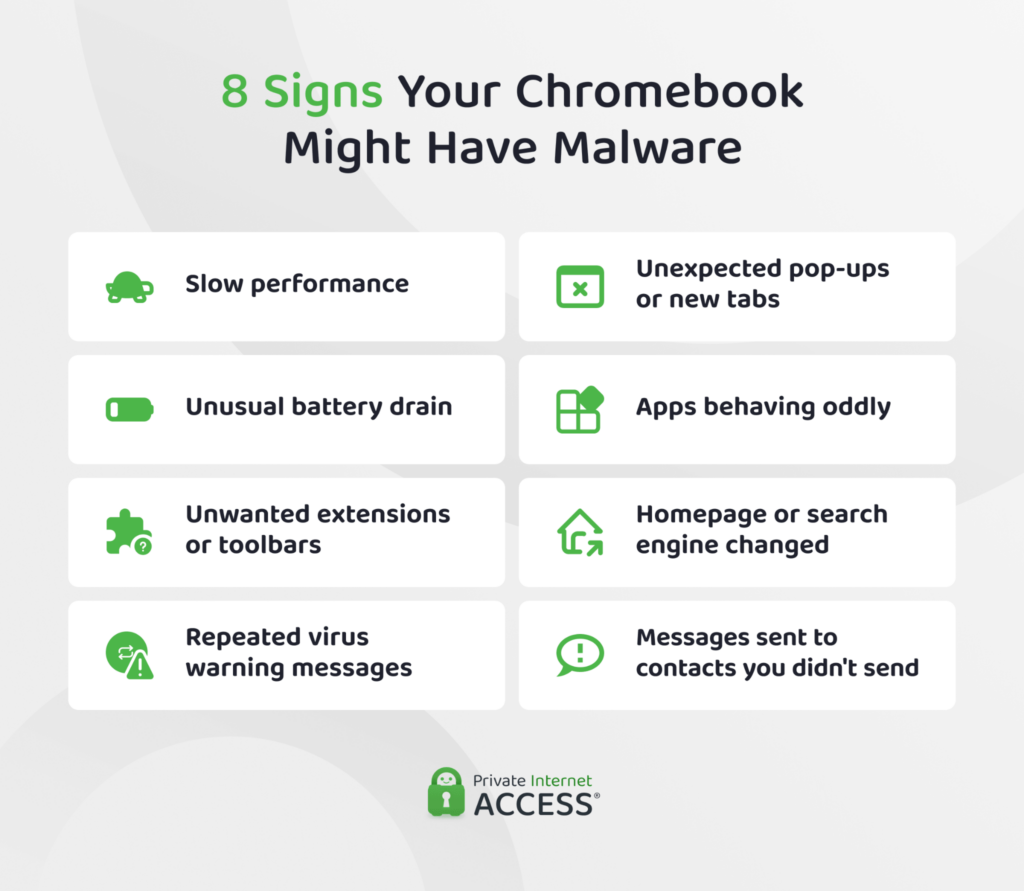
Chromebook malware can show up in subtle ways. Watch for:
- Slow performance
- Unexpected pop-ups and new tabs
- Unusual battery drain
- Apps behaving oddly
- Unwanted Chrome extensions or toolbars
- Chrome homepage or search engine changes without permission
- Repeated messages about a virus
- Messages or emails sent from you to your contacts that you didn’t send
Run Chrome Safety Check
Chrome has a built-in Safety Check feature that scans for harmful extensions, outdated software, passwords, and security issues. Make sure to run it often to help spot potential problems before they cause trouble.
To Run Chrome Safety Check:
- Open the Chrome browser.
- Click the three-dot menu in the top right corner and choose Settings.
- Select Privacy and security from the left-hand menu.
- Under Safety Check, click Go to Safety Check.
- Follow the on-screen instructions to resolve the issues (if any).
How to Remove Malware from Your Chromebook
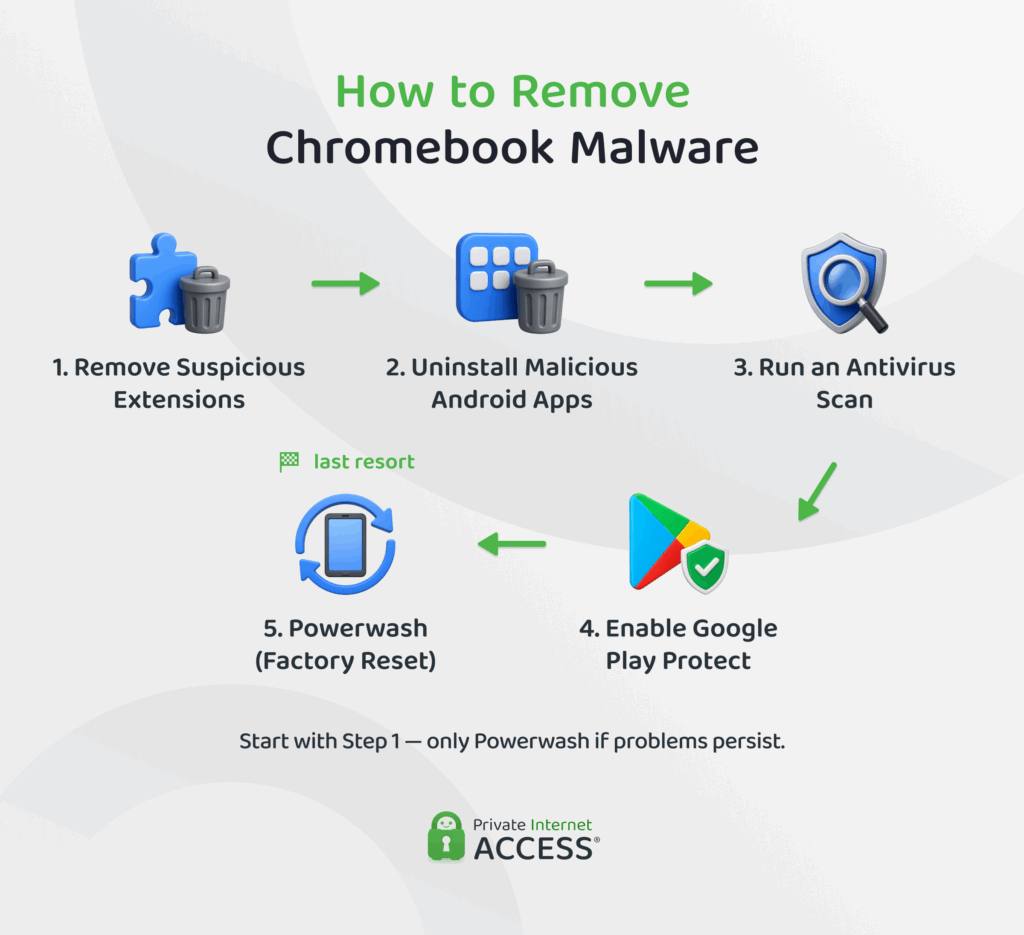
If you suspect Chromebook malware, a few simple steps can help you remove the threat and secure your device.
Remove Suspicious Extensions
First, go through your Chrome extensions and remove anything suspicious or unnecessary. Even one malicious extension can steal data, track your browsing activity, inject ads, or redirect you to harmful sites.
To Remove Suspicious Extensions
- Go to Settings.
- Click on Extensions.
- Select Manage Extensions and keep only those extensions from trusted sources.
Uninstall Malicious Android Apps
Check the Android apps installed on your Chromebook and remove any that look suspicious. Apps from unofficial sources pose the highest risk, so stick to trusted apps from the Google Play Store.
To Uninstall Malicious Apps
- Find and select the Launcher in the corner of your screen.
- Right-click the app you want to remove.
- Select Uninstall or Remove from Chrome.
Run an Antivirus Scan
While ChromeOS has strong built-in security, reliable antivirus apps can add another layer of protection. When you run a full-system scan, it can help you detect harmful apps or files that slipped through and guide you to remove them.
Enable Google Play Protect
Turn on Google Play Protect to scan Android apps for harmful behavior. It checks apps from the Play Store and warns you if it detects something unsafe before you even download it. If you do, however, it will remove or disable dangerous software.
Note that Google Play Protect doesn’t scan all the files you download to your device, so some hidden malware can still slip through.
To Enable Google Play Protect
- Open the Google Play Store app.
- Click on your profile icon at the top right.
- Tap Play Protect > Settings.
- Toggle on Scan apps with Play Protect.
Perform a Powerwash (Factory Reset)
A Powerwash resets your Chromebook to factory settings and removes all apps, extensions, and local data.
To Perform a Powerwash
- Sign out of your Chromebook.
- Press and hold Ctrl + Alt + Shift + r on the keyboard.
- Select Restart.
- In the box that pops up, go to Powerwash and then hit Continue.
- Follow the on-screen steps to reset the device and install a clean version of ChromeOS.
Tech Tip
Please note that Powerwash should be the last resort, as it will wipe all data from your Chromebook along with malware. You should first back up all important files to Google Drive before considering this option.
How to Protect Your Chromebook from Malware
Strong Chromebook security starts with a few simple habits that reduce the risk of malware and online threats.
Avoid Using Developer Mode
Developer Mode disables Verified Boot and other core security protections in ChromeOS. This makes it easier for malware or harmful code to run on the device. Only turn it on if you need it and understand the risks.
Check Android App Permissions
If you use Android apps on your Chromebook, review their permissions in your settings. Make sure apps don’t have access to more data than they need, and uninstall any app that seems suspicious or you don’t recognize.
Use Two-Factor Authentication (2FA)
Enable 2FA for your Google account. Even if someone steals your password, they still need the second verification step to access your account. This way, you can better protect your files, emails, and synced data.
Verify Website URLs Before Logging In
Many phishing attacks use fake websites that look almost identical to real ones. Before you enter your login or payment details, check the domain name in the address bar. If the domain looks unusual or includes extra words or letters, don’t enter your information.
Use a VPN on Public Wi-Fi
Even with ChromeOS security, public Wi-Fi networks can expose your Chromebook and synced devices to network attacks, phishing attempts, and other risks.
A reliable VPN (virtual private network) encrypts your connection and helps protect your data when you use open networks at cafés, airports, or other shared spaces. It also hides your IP address and online activities from snoopers. And in case the VPN connection drops, most include an automatic kill switch which stops all internet traffic to help protect your data.
Private Internet Access (PIA) goes a step further with MACE, a DNS-based ad and tracker block feature that helps limit known malicious content from reaching your device. A single account lets you protect your Chromebook and all your other personal tech, including Windows and Mac computers and phones.
FAQ
Can Chromebooks get viruses?
Yes, Chromebooks can encounter threats, but traditional self-replicating viruses are extremely rare. ChromeOS security features like sandboxing and Verified Boot make classic virus infections unlikely. However, users can still run into Chromebook malware, such as malicious extensions, harmful Android apps, or phishing pages.
How secure are Chromebooks compared to other laptops?
Chromebooks are generally more secure than traditional laptops because Chromebook security relies on sandboxing, Verified Boot, and automatic updates. These features limit how software runs and help block many common attacks. However, threats like phishing, malicious extensions, or unsafe apps can still affect users.
Do Chromebooks need virus protection or antivirus software?
Chromebooks don’t usually need traditional virus protection because ChromeOS already includes strong built-in security. However, if you do suspect Chromebook malware, you can install a reliable antivirus software from the Google Play Store and run a full system scan to detect and remove harmful apps or files.
What are the signs of malware on a Chromebook?
Signs of Chromebook malware can include slow performance, frequent pop-ups, unusual battery drain, changes to the Chrome homepage, messages about viruses, or apps and extensions not behaving as usual. Checking for suspicious-looking extensions and apps can help identify the problem.
How do I remove malware from a Chromebook?
To remove Chromebook malware, start by deleting suspicious extensions and uninstalling shady Android apps. If problems continue, run an antivirus scan or perform a Powerwash to reset the device and reinstall a clean version of ChromeOS. Keep in mind that a reset will wipe all data from your Chromebook, so it’s a good idea to back up your data before doing a Powerwash.
Can using a VPN improve Chromebook security on public Wi-Fi?
Yes, a reliable VPN can improve Chromebook security on public Wi-Fi. It encrypts your connection so hackers on the same network can’t easily read your data. It also masks your IP address, so your online activity gets more protection. Private Internet Access, for example, also blocks known malicious ads and trackers that could lead to Chromebook malware.
References:
1. Google Patches First Actively Exploited Chrome Zero-Day of 2026 – SecurityWeek
2. Over 300 Malicious Chrome Extensions Caught Leaking or Stealing User Data – SecurityWeek
3. Malicious Chrome extensions disguise themselves as proxy services – Techzine
