How to Change DNS Settings on PS5 and PS4: A Complete Guide
If you’ve never changed the DNS settings on your PS5, the console is likely using your ISP’s default servers. Even when your internet connection is stable, default DNS can cause matches to drop for no reason, game updates to time out, and “Can’t connect to the server” errors to appear.
Changing your DNS settings can help when your PlayStation has trouble connecting to online services.
We’ll take a look at how DNS works, how to change your DNS settings on PS4 and PS5, and what to do if you’re experiencing connection errors. We’ll also explore what changing your DNS can and can’t do for your privacy.
How Does DNS Work on PS5?
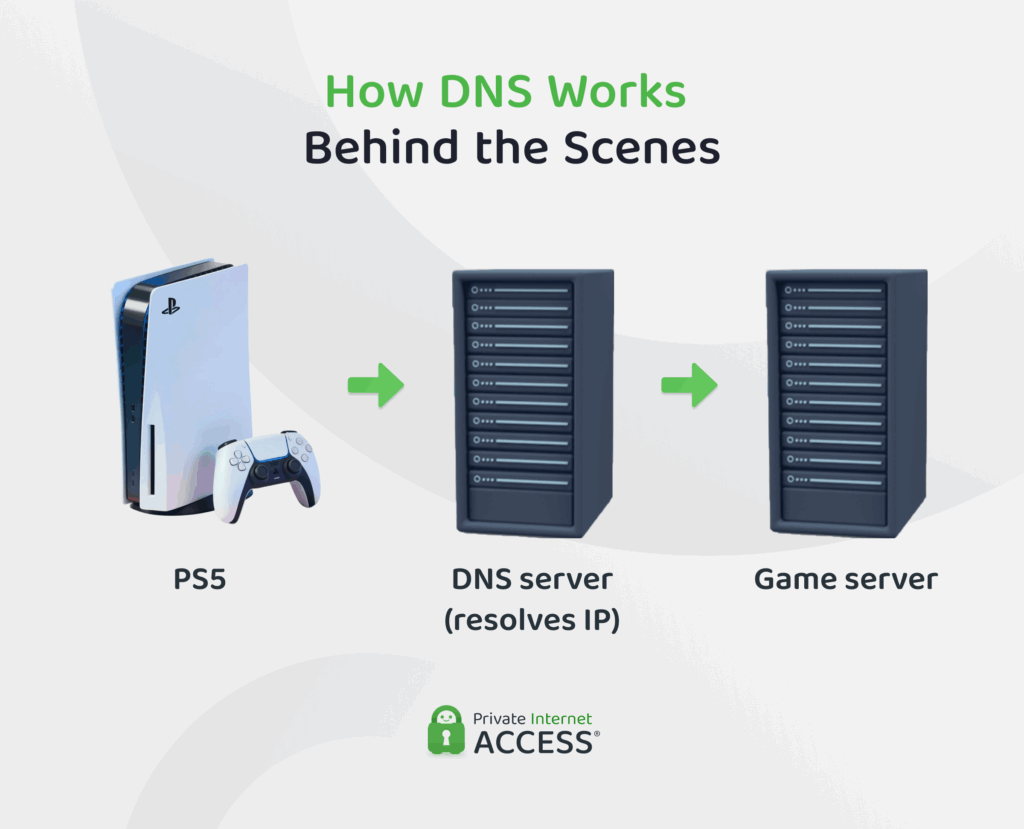
When your PS4 or PS5 connects to an online game (or anything else you’re trying to access online via your console, such as a website or an app), it needs to find the server it communicates with. This is where the Domain Name System (DNS) comes in.
For example, when you start an online game such as Call of Duty, your console needs to find the IP address of the game server it wants to connect to. Your console sends a DNS request to its DNS resolver, which looks up the relevant IP address and returns it to the console. The console can then use that address to establish the connection.
Public DNS resolvers such as Cloudflare are available for anyone to use, whereas private DNS resolvers are usually for specific networks, such as those operated by a business or school.
Related: DNS Record Types Explained: A Practical Guide
Why Change DNS Settings on PS5 and PS4?
By default, your console uses a DNS server provided by your internet provider. You may want to change this for several reasons, including to:
- Troubleshoot DNS issues: Switching can help determine whether your current DNS server is contributing to connection problems.
- Improve performance: DNS response times can vary depending on your location, network, and the service you use. Using another one may work better on your network.
- Boost privacy and reduce online footprint: The resolver you use receives the domains your console requests, but different services vary in what they retain and for how long.
Does Changing DNS Improve Gaming Performance?
A DNS resolver that responds quickly may reduce the time it takes your PS5 to complete a DNS lookup when connecting to an online service. For example, it may reduce the initial delay when signing in to PlayStation Network or joining an online game.
However, once your device establishes the connection, DNS doesn’t determine the latency of the ongoing connection. Changing DNS won’t increase your internet speed or reduce lag during gameplay.
How to Check Your Current DNS Settings
If you’re unsure which DNS server your PS4 or PS5 is currently using, go to Settings > Network and look for the Primary DNS and Secondary DNS values in your connection details.
Popular DNS Servers for PlayStation
While there are many free public DNS services available, below are some of the most widely used DNS servers for gaming:
| DNS Provider | Primary IP | Secondary IP | Data Logging |
| Cloudflare | 1.1.1.1 | 1.0.0.1 | Cloudflare doesn’t store source IP addresses in persistent storage and it deletes limited resolver logs within 25 hours1 |
| Google Public DNS | 8.8.8.8 | 8.8.4.4 | Google temporarily logs client IP addresses and erases them within 48 hours, while it retains some anonymized network and location data for a longer period of time2 |
| Cisco OpenDNS | 208.67.222.222 | 208.67.220.220 | Personal data may be collected and stored but Cisco doesn’t specify its retention period3 |
Each service provides a primary and a secondary DNS address. You enter both when configuring DNS on your console to provide an alternative address to use if the primary one isn’t available.
How to Change DNS Settings on PS5 and PS4
The process is largely the same on both consoles, with a few differences in menu names and settings. First, check your current DNS settings.
Note that the images below show the PS5 process, with the PS4 differences noted in the steps:
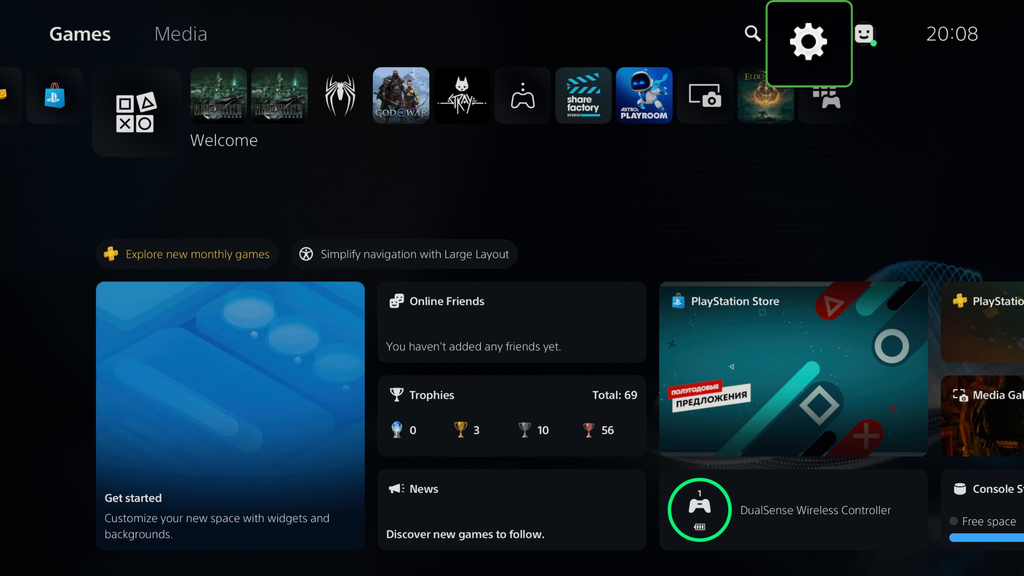
- From the home screen, select the gear icon in the top right corner to open Settings.
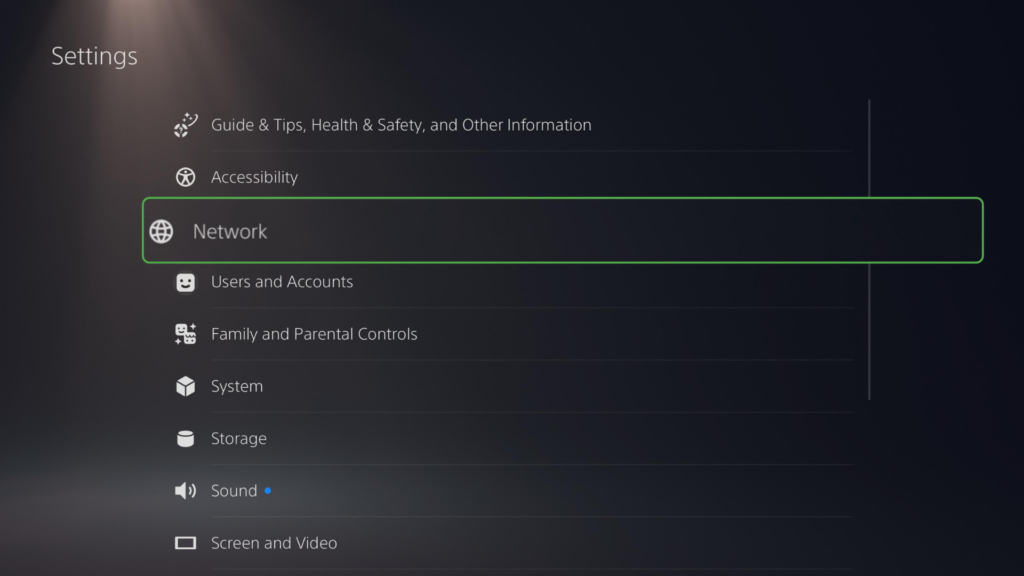
- Choose Network from the list of options.
- Next, select Set Up Internet Connection.
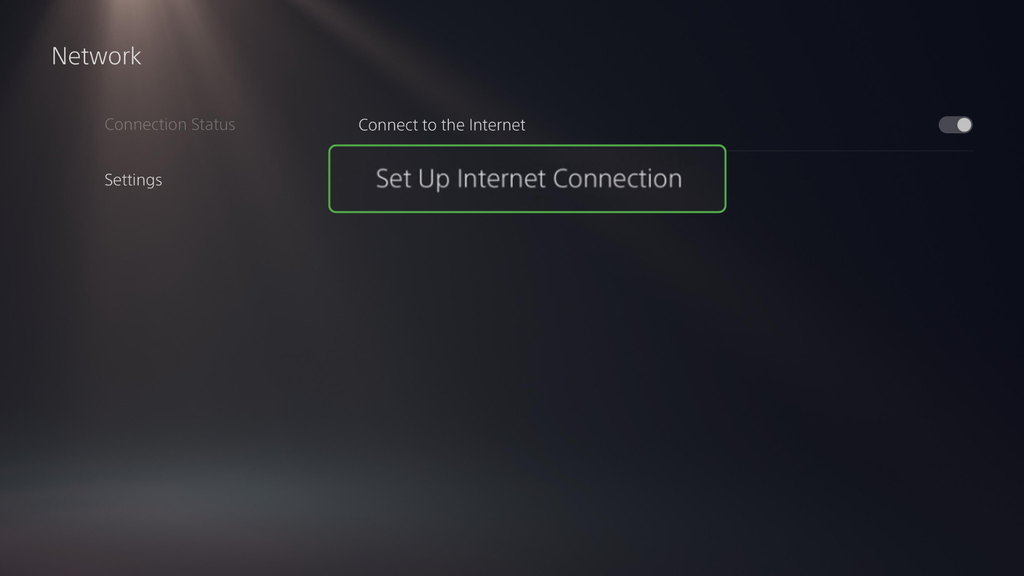
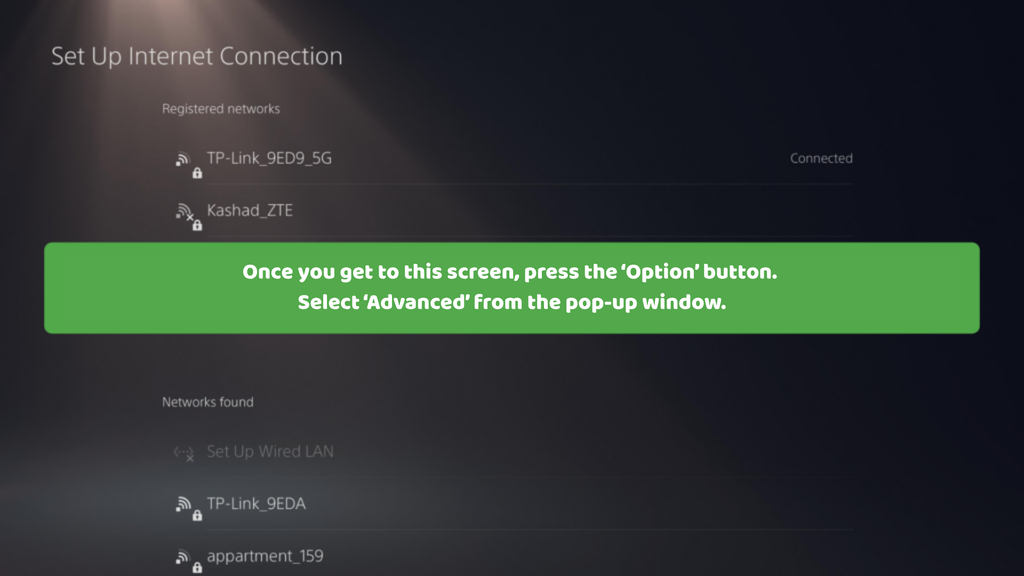
- On PS5: Click on the Options button on your controller and a pop-up window will appear. Select Advanced.
On PS4: Select Wi-Fi or LAN Cable, then Custom.
- PS4 only: Set your IP Address Settings to Automatic, DHCP Host Name to Do Not Specify, and MTU settings to Automatic.
- Find your DNS Settings option and change this from Automatic to Manual.
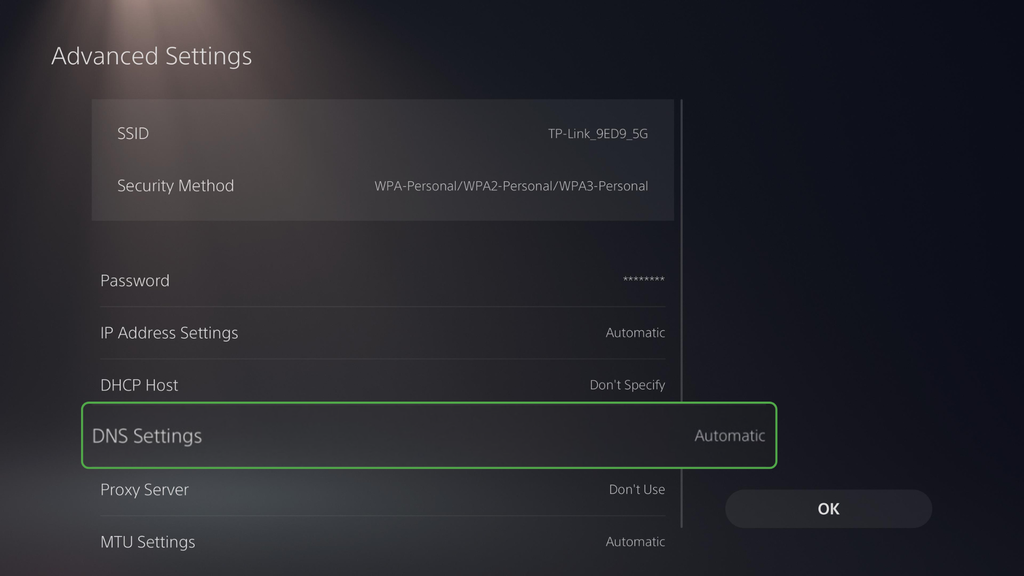
7. Enter your preferred Primary DNS and Secondary DNS addresses and click OK to save your changes.
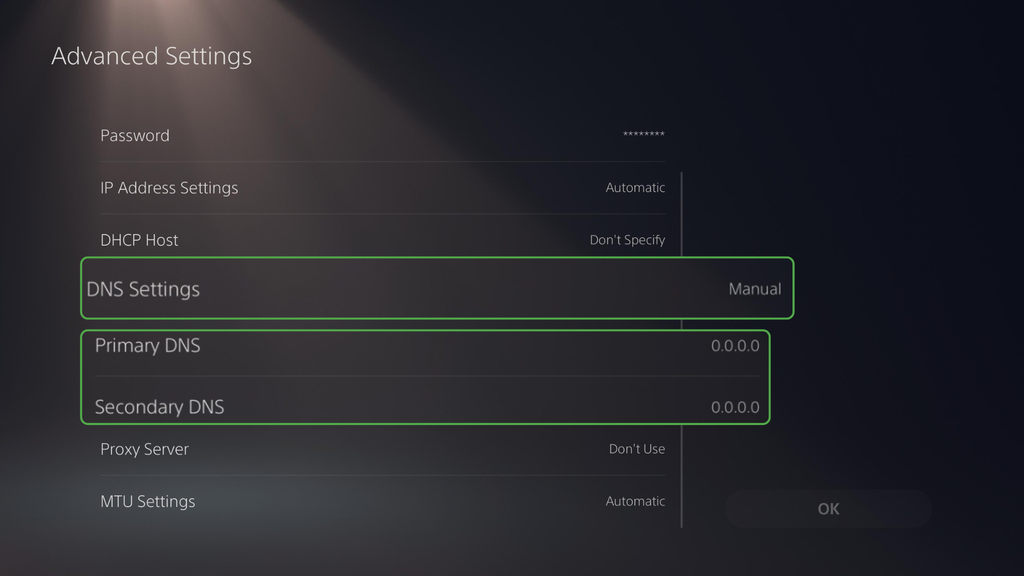
8. PS4 only: When prompted for a Proxy Server, select Do Not Use.
Tech tip: If you’re looking to revert to your previous DNS settings, return to your DNS Settings and change the option from Manual to Automatic.
How to Verify Your New DNS Settings on PS5 and PS4
After changing your DNS settings, here’s how you can check that your console is using the new addresses and ensure it can still connect to the internet.
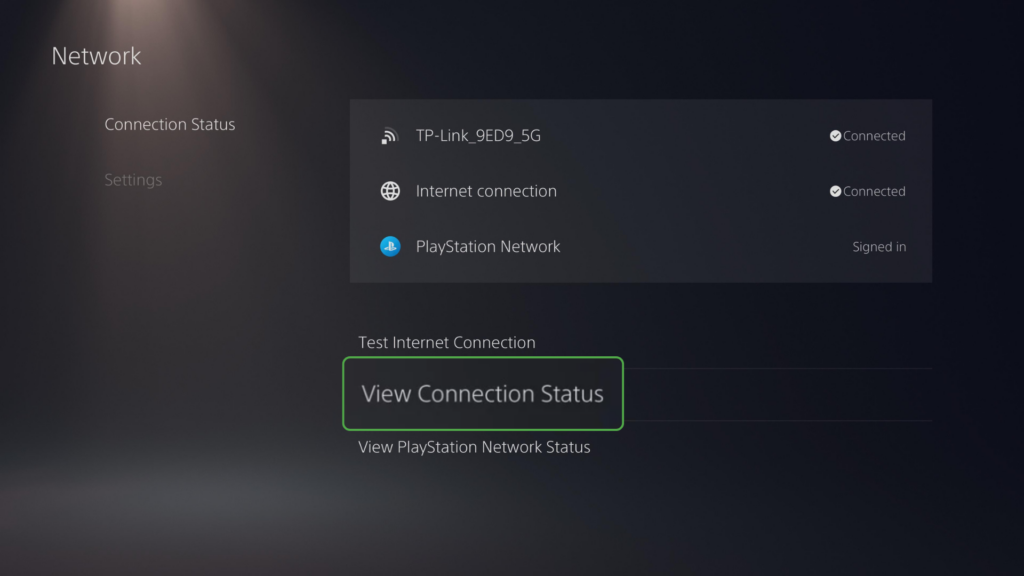
1. Go to Settings and select Network.
2. Scroll to (and select) View Connection Status.
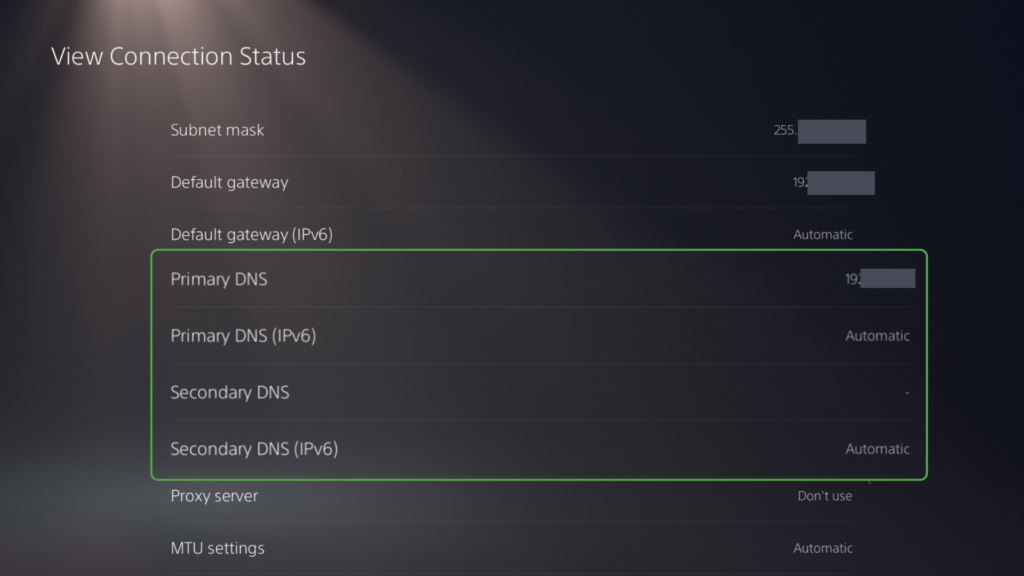
3. Check that the Primary DNS and Secondary DNS addresses match what you entered earlier.
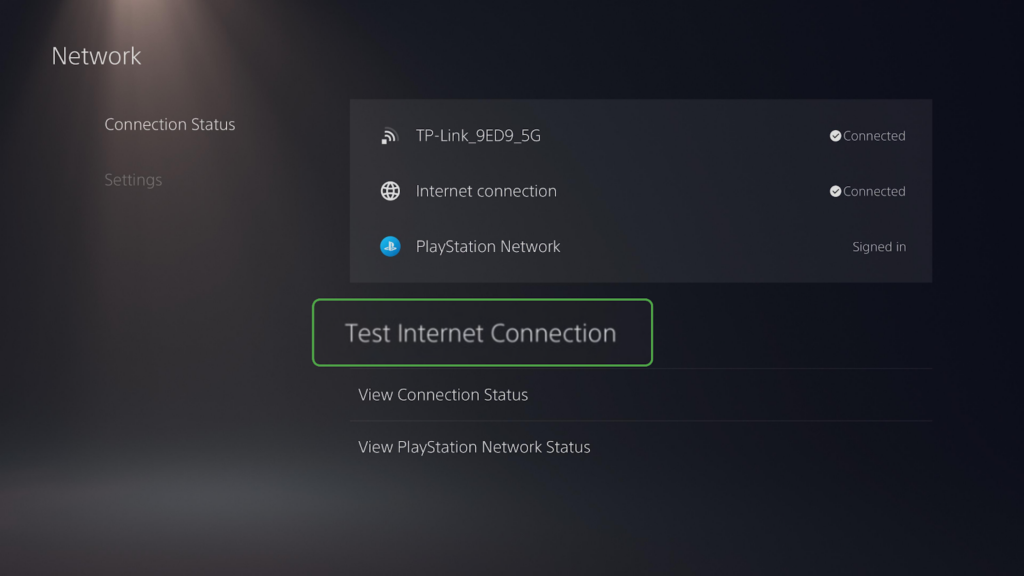
4. Return to the Network menu and choose Test Internet Connection.
5. If the test completes successfully, your console is connected using the new network settings.
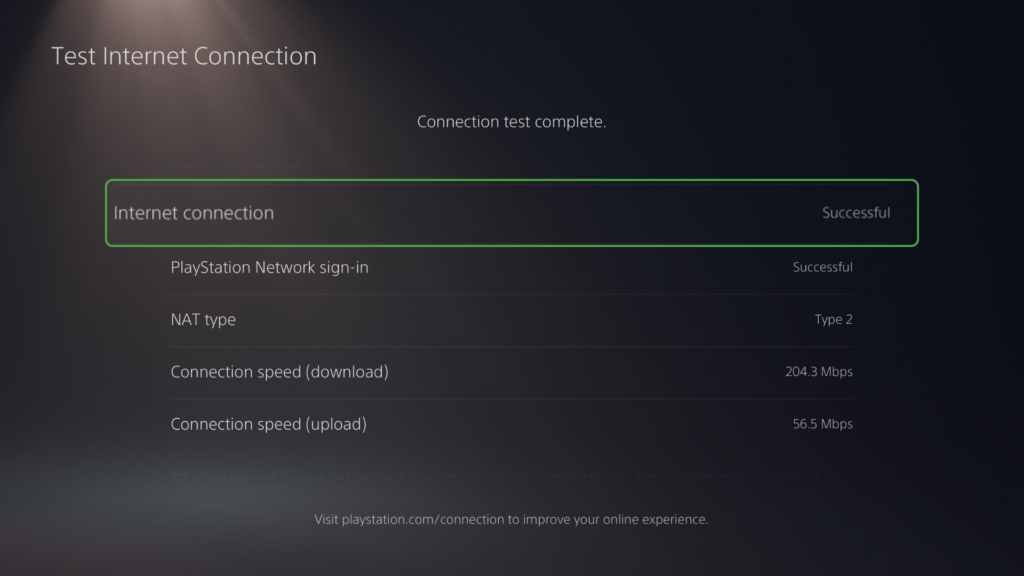
Tech tip: The connection test also shows your PlayStation’s NAT Type, which can help identify other network-related problems that changing DNS won’t resolve.
Troubleshooting PlayStation DNS and Connection Errors
If you’re experiencing a connection or DNS problem, it’s worth starting with basic troubleshooting. Restart your console and router, then run Test Internet Connection to see whether it’s resolved the problem.
If the issue persists, use the table below to identify the problem and the next steps to try.
| Issue | Likely Cause | Try This |
| DNS errors or delays when connecting to online services | DNS server is unavailable or slow to respond | Check that your DNS addresses are correct, try another DNS server, or switch back to Automatic |
| Can’t sign in to PSN or access online games, but other devices have internet | PlayStation Network issue or a problem with the console’s network configuration | Check the PSN status page for outages and if PSN is working, review your console’s network settings |
| The connection keeps dropping, or games disconnect during play | Temporary console, router, or network issue | If you’re using Wi-Fi, move the console closer to the router or switch to a wired connection |
Related: How to Fix the ‘DNS Server Not Responding’ Error
Related: No Network Connection? Quick Fixes That Actually Work
PS5 DNS Privacy Considerations
Changing your DNS provider can affect who handles your DNS requests and what happens to information about those requests. However, switching providers doesn’t encrypt your DNS traffic, which means the domain names in those requests can be read by parties on the network path, including your ISP.
Some providers do support encrypted DNS protocols such as DNS-over-HTTPS (DoH) or DNS-over-TLS (DoT), which makes it harder for anyone to read this data. However, while PlayStation lets you choose a DNS server, it doesn’t let you configure encrypted DNS protocols.
Using a VPN for Encrypted DNS
Using a VPN with your PlayStation adds privacy by encrypting your DNS requests along with your console’s internet traffic. Together, these features make it harder for your ISP or others on the network to see what you’re doing online, including what games you’re playing.
While PlayStation consoles don’t support VPN apps, you can configure PIA on a compatible router. Your PlayStation and other devices connected to the router can use the encrypted VPN connection.
PIA uses its own private DNS servers by default when you’re connected to the VPN, so your DNS requests can be handled by PIA rather than a separate DNS service. PIA also has a strict No-Logs policy that covers DNS requests and other information about your browsing activity.
Related: DNS vs. VPN vs. Smart DNS: Which One Do You Need?
FAQ
What does a DNS error on the PS5 mean?
A DNS error means your PS5 couldn’t resolve a domain name into an IP address or couldn’t reach its configured DNS server. The problem may be a result of your DNS settings, DNS provider, router, or wider network connection.
How do I fix “A DNS server cannot be used” on PS5?
Check that the DNS addresses you entered are correct, then restart your PS5 and router. If the error continues, you can try a different DNS provider or switch DNS back to Automatic to check whether the manual settings are causing the problem.
Why does my PS5 show a DNS error when other devices connect fine?
The problem could be specific to the PS5’s network settings rather than your wider connection. A mistyped DNS address or a temporary network issue can prevent the PS5 from reaching its DNS server while other devices continue to work. Try restarting the PS5, then check its DNS settings and connection status.
Do I need to enter a secondary DNS on PS5?
No, but entering a secondary DNS gives your PS5 an alternative if the primary DNS server is unavailable. For the simplest setup, use the primary and secondary addresses from the same provider.
Should I switch DNS back to Automatic if the connection test keeps failing?
Yes, especially if the connection worked before you changed the DNS settings. If Automatic DNS works but your manual settings don’t, the DNS server may be unreachable from your network or the address may be incorrect.
Can I use a Smart DNS on PS5?
Yes, Smart DNS can be used on PlayStation consoles. Smart DNS only changes how a connection handles certain DNS requests. Keep in mind it’s not a privacy tool and doesn’t encrypt your traffic or change your IP address.
References:
