Is Google Listening to Me? Understanding Google’s Voice Features
Is Google spying on me? If you use Google Assistant or Gemini, your device may listen for a wake word, such as “Hey Google,” to respond to voice commands.
This guide explains how Google’s voice features work, what data they collect, how to manage your voice and privacy settings, and the steps you can take to better protect your personal data.
While managing your Google settings helps you control what data it collects, you can add a VPN to your arsenal for added protection. PIA encrypts your internet traffic and masks your IP address whenever you connect to our server. This makes it harder for your ISP or third parties to monitor your online activity, especially on public and shared networks.
Table of Contents
Why Does Your Phone Listen To You?The Risks of Being Overheard
Is Google Listening to Me All the Time?
Is It Legal for Google to Listen to You?
Where to Find Your Google Recordings
How to Stop Your Phone from Listening to You
How to Stop Your iPhone from Listening to You
Privacy Tips to Protect Your Data on Smartphones
FAQ
Why Does Your Phone Listen To You?
Many smartphones listen for voice commands so voice assistants can respond when you say a wake word or activate them manually.
This includes Google Assistant and Gemini on Android devices, Siri on iPhones, and other apps that you’ve given microphone permission to use.
Whether Google records or stores anything depends on which voice features you’ve enabled, your privacy settings, and the permissions you’ve granted to individual apps.
The Risks of Being Overheard
Voice recordings can contain sensitive personal information, so it’s important to think about how they’re stored and protected. If they’re exposed in a data breach or someone gains unauthorized access to your account, someone could misuse these for fraud, identity theft, or other forms of impersonation.
AI voice cloning has also introduced new risks. Criminals may be able to use these recordings to create convincing impersonations for scams or to bypass voice-based verification systems.
Governments and law enforcement agencies may also require companies to disclose user data, depending on local laws. In some countries, privacy advocates have raised concerns that broad access to stored personal data, including voice recordings, could affect personal privacy.
Related: What Is Data Harvesting? Definition, Risks, and Protection
Is Google Listening to Me All the Time?
Not exactly. Google Assistant and Gemini remain in a standby mode until they’re activated. Official Google documentation says the device processes short snippets of audio to detect activation and that these snippets aren’t sent to its servers – this only happens if the assistant is activated.¹
However, unintended activations can still happen. For example, background noise or speech that resembles a wake word may activate the assistant.
Whether Google saves audio from those interactions depends on the Google service and your settings. For example, Google Assistant’s Voice & Audio Activity setting controls whether Google saves recordings to your account. It’s off by default, so they’re not saved unless you choose to enable it.
Google may also use audio from some voice interactions to improve its speech recognition technology and voice services, depending on the service and settings.²
Does Google Use Your Conversations for Advertising?
Google denies using voice recordings for ad personalization, but many people remain skeptical, and concerns about its voice features have continued to prompt legal challenges and regulatory scrutiny.
According to Google, it can base ad personalization on other information associated with your Google account, such as your search activity.3 This depends on your settings, which you can review through Google Activity Controls and My Ad Center.
Is It Legal for Google to Listen to You?
Whether Google’s voice features are legal depends on how they’re used and the laws in your country or region. In many jurisdictions, companies can collect and process voice data if users give consent, such as accepting terms of service or enabling voice features.
Google has faced legal challenges over allegations that Google Assistant unintentionally recorded private conversations and disclosed some recordings to third-party reviewers. In 2026, Google and its parent company, Alphabet, agreed to pay $68 million to settle a lawsuit over those allegations.4 Google denied wrongdoing and settled the case without admitting liability.
The settlement doesn’t mean Google admits its voice features are illegal. Instead, the settlement resolved the claims without a court ruling on whether Google had violated the law.
Where to Find Your Google Recordings
Google lets you review, listen to, and delete voice recordings saved to your account. Where you find them depends on the Google service used and the activity settings enabled on your account.
Google can save Assistant recordings under Web & App Activity, while you might find Gemini recordings under Gemini Apps Activity. Google is also rolling out Search Services History for Search and Maps, so some accounts may now find voice search recordings there instead.5
Access Web & App Activity
The steps below explain how to find and manage recordings saved through Web & App Activity.
On a Browser
- Navigate to your Google Account and sign in (or visit
myactivity.google.com). Select Web & App Activity.
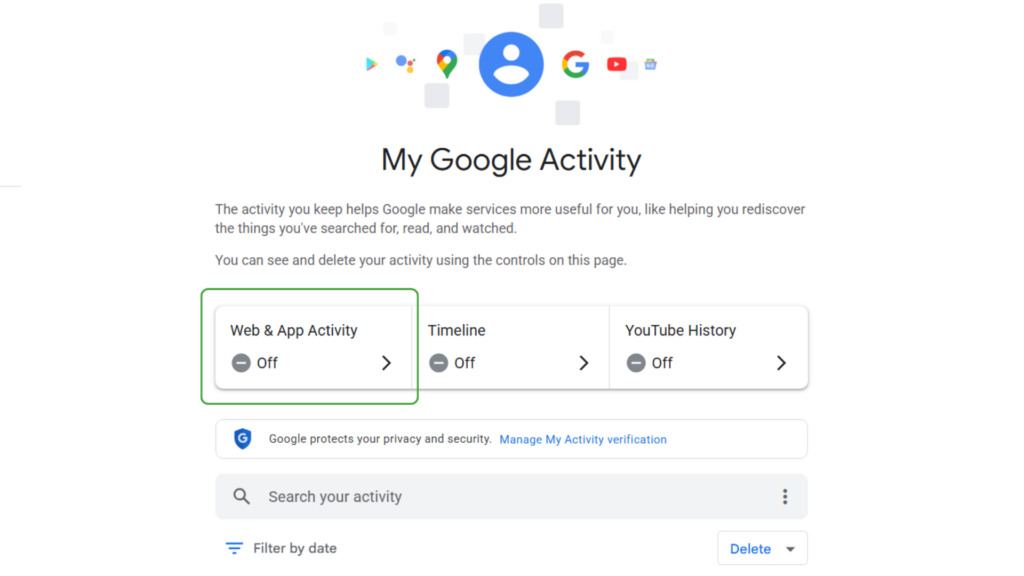
- Select Manage All Web & App Activity.
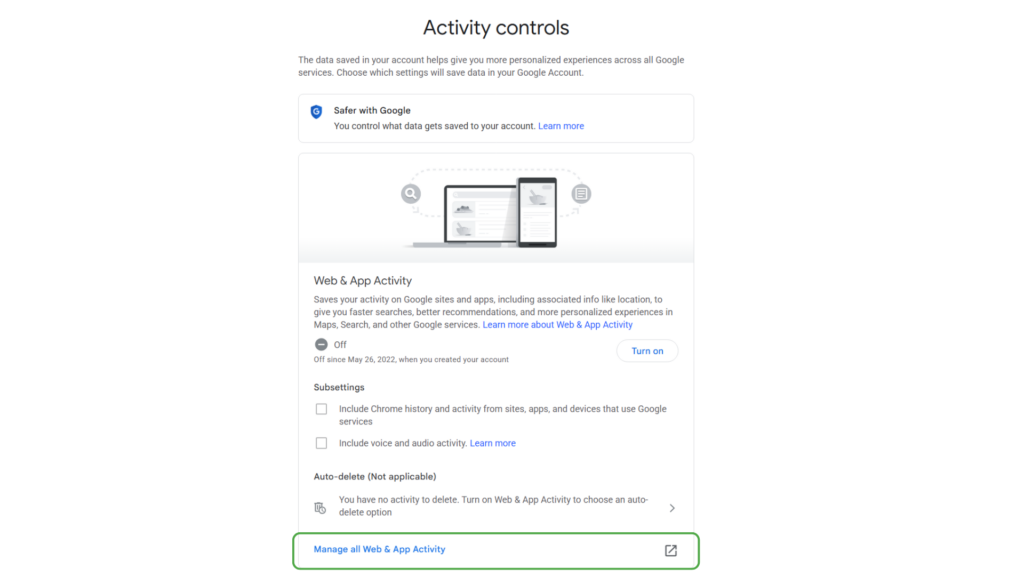
On Android
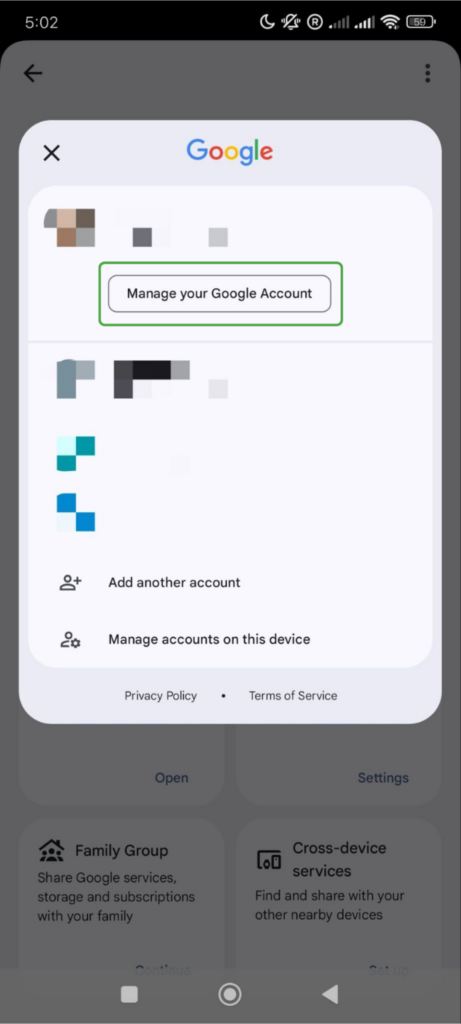
- Navigate to Settings > Google. Click on your profile picture and select Manage your Google Account.
- Click Data & privacy.
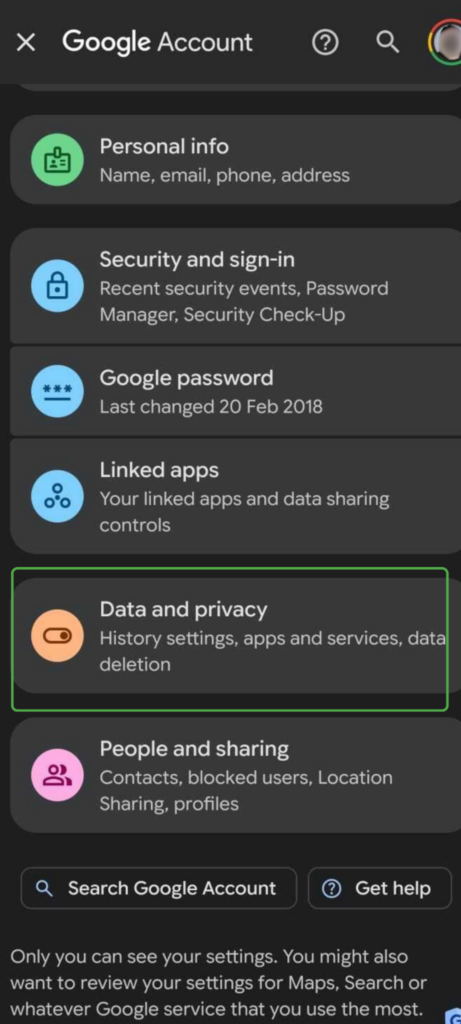
- Open Web & App Activity.
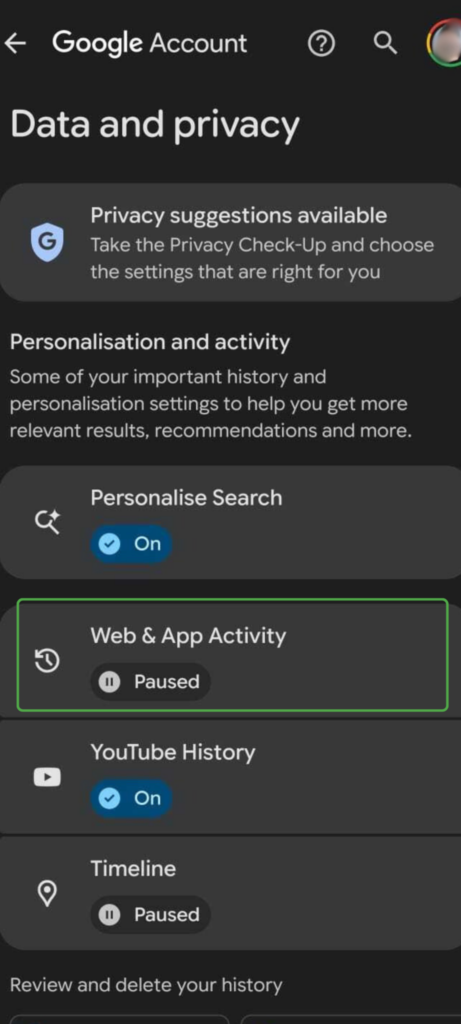
Note: Deleting activity from Web & App Activity only removes data stored in this section. It doesn’t delete recordings that Google may save elsewhere in your Google account.
Manage Recordings in Web & App Activity
Google doesn’t currently provide a separate view for saved audio recordings. In Web & App Activity, recordings appear alongside other activity.
You can delete individual recordings, but Google’s bulk deletion and auto-delete options also remove other web and app activity within the selected period. There’s also no dedicated filter for showing only recordings.
To find these, you’ll need to look through your entire Web & App Activity section. The process is the same on both desktop and mobile:
- Browse the activity list for recordings marked with an audio icon.
- Click Details to see when Google recorded an interaction or View recording to listen to it.
- To remove a recording, select the delete icon next to the entry.
- Return to Web & App Activity and turn off Include voice and audio activity if you don’t want Google to save future recordings.
Related: How To Remove Your Voice Search History
Manage Gemini Activity
Here’s how to see your activity on Gemini via browser or app.
On a Browser
- Navigate to
gemini.google.comin any browser. - Select Settings & help > Activity (or go to Gemini Apps Activity). Here you can review or delete your Gemini activity or turn off Keep Activity.
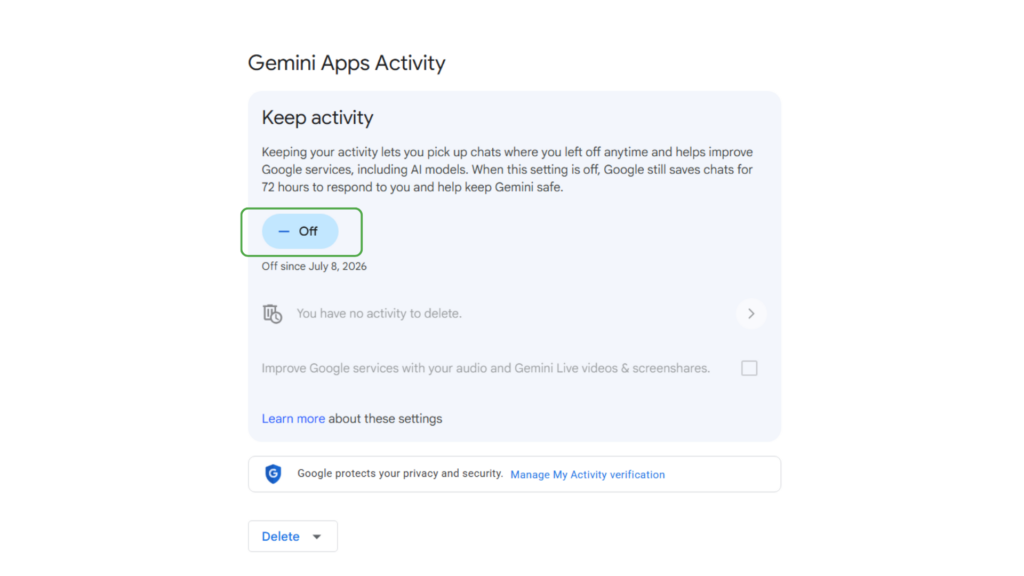
In the Gemini App
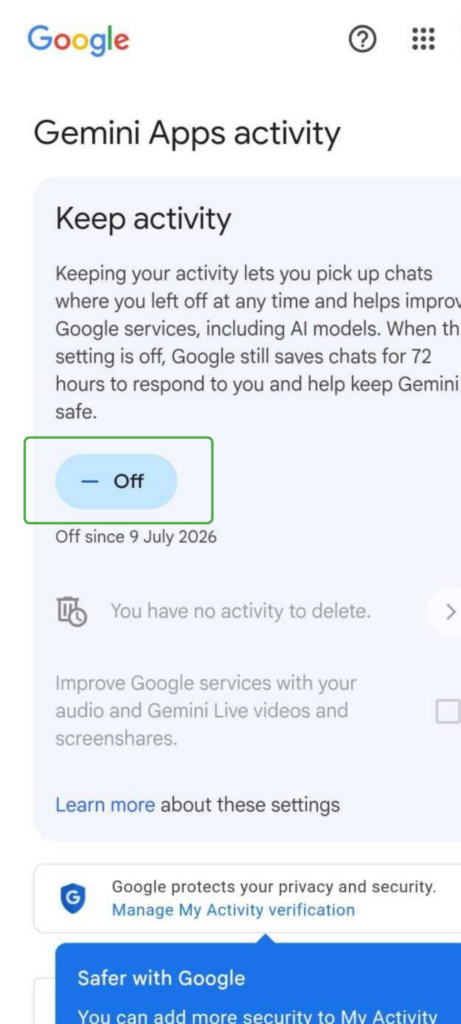
- Open the Gemini app, tap your profile picture, and select Gemini Apps Activity.
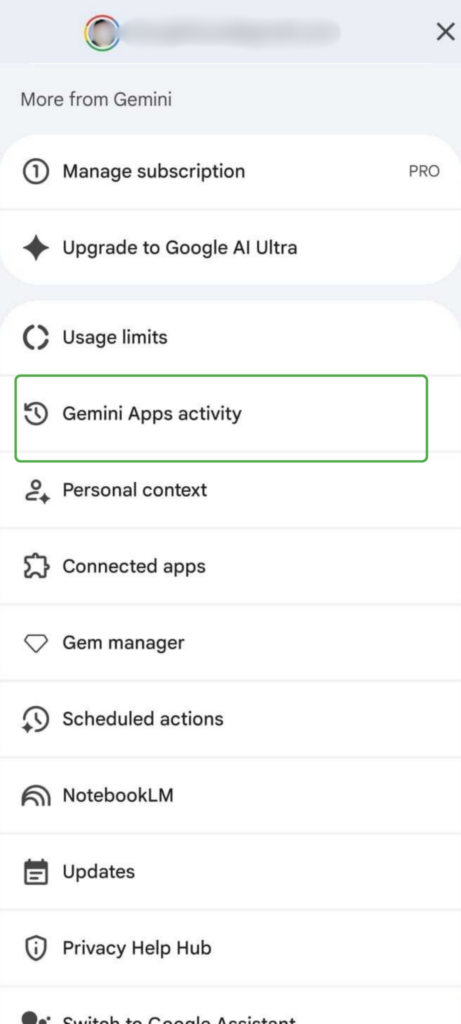
- Review or delete your Gemini activity. You can also turn off Keep Activity.
How to Stop Your Phone from Listening to You
You can reduce how often your phone listens for voice commands and control which apps have access to your microphone. Here’s how:
Turn Off Google Assistant on Gemini on Android
You can either turn off the assistant completely or keep it enabled while disabling wake word activation. Note that the exact options may vary between devices.
Turn Your Default Assistant off Completely
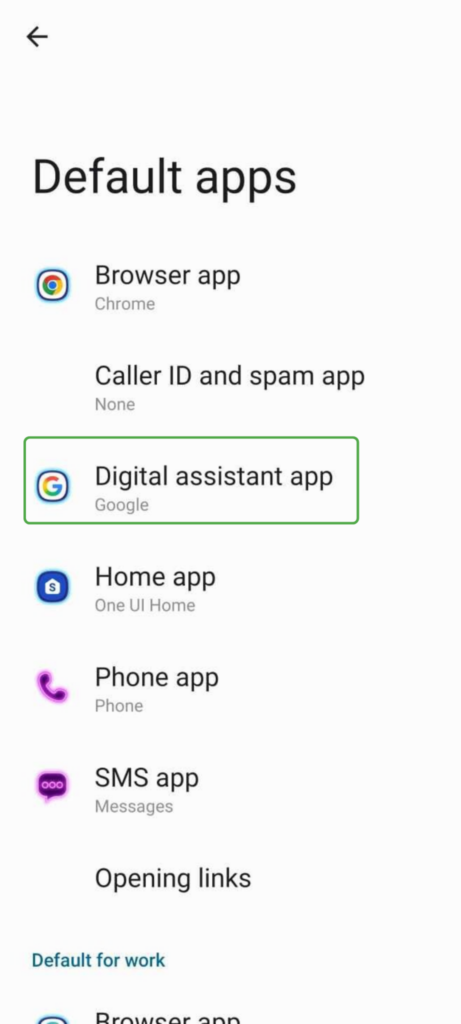
- Open Settings and go to Apps > Default apps.
- Select Digital assistant app, Default assistant, or Assistant app.
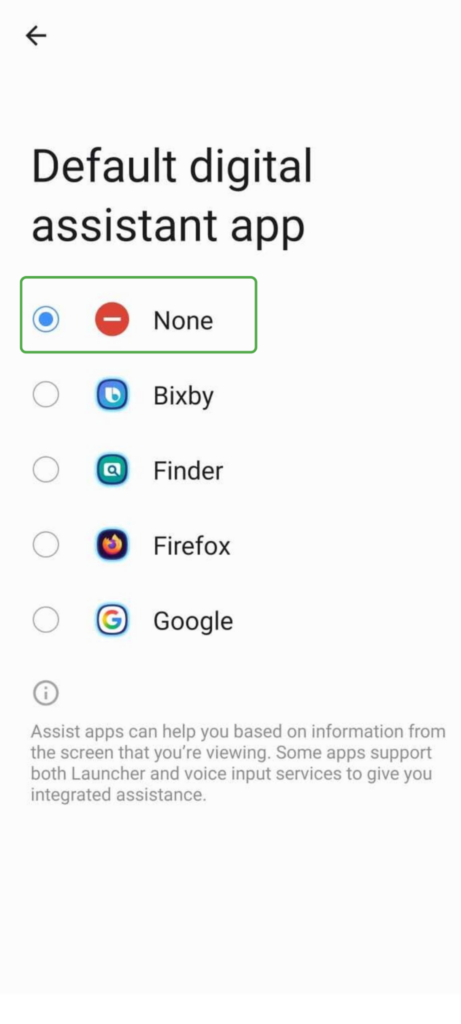
- From the options, choose None.
To keep using Gemini without voice activation:
- Open the Gemini app. Tap your profile picture, then Settings.
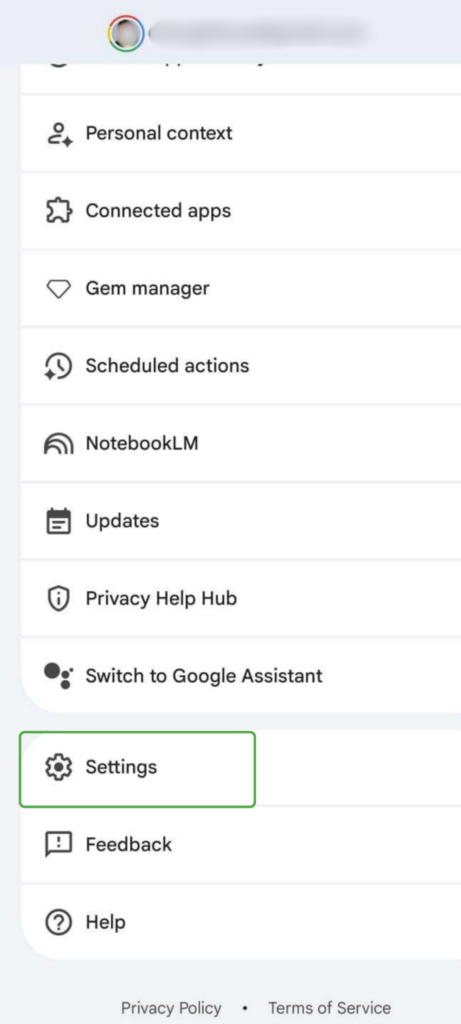
- Open Talk to Gemini hands-free.
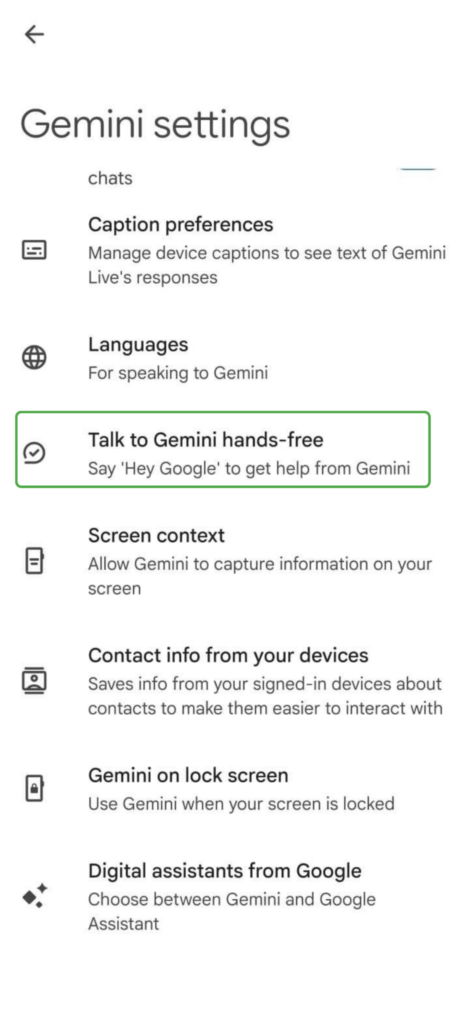
- Turn off Hey Google.
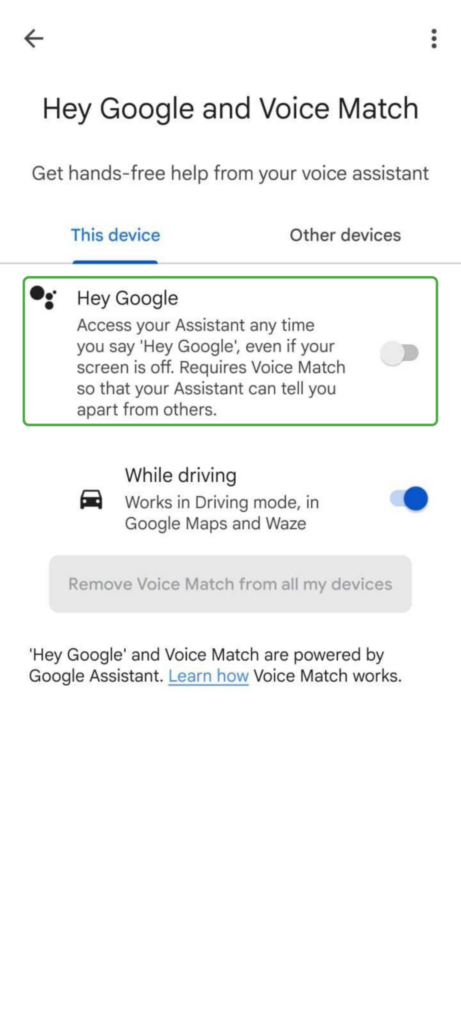
Note: On many Android devices, you can also stop the Assistant from launching when you press and hold the power button. Go to Settings and search for Gestures > Launch digital assistant. Toggle off Press & hold power button. Exact options vary by device but instructions are similar.
Remove Microphone Permissions
If an app doesn’t need microphone access to work, you can remove or limit the permissions. Follow these steps and repeat them for any other apps that don’t require microphone access:
- Go to Settings > Apps.
- Select the app you want to review and choose Permissions or App Permissions.
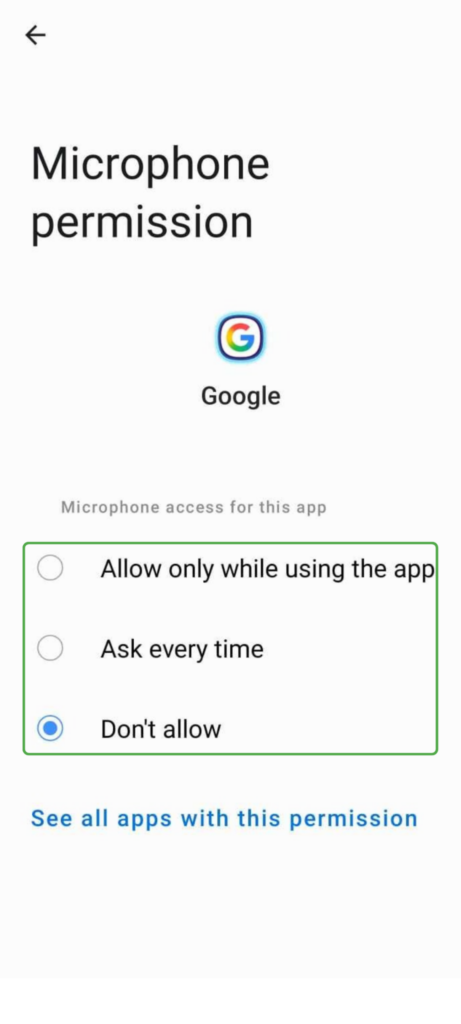
- Tap the microphone option.

4. Depending on how much access you want to give the app, choose Allow only while using the app, Ask every time, or Don’t Allow.
How to Stop Your iPhone from Listening to You
Google may not have the same kind of access to your data on iOS devices. However, iOS devices use Siri, a personal assistant that wakes via voice command. Here’s how to limit what Siri and Google can track on your iPhone.
Disable Siri
- Open Settings and tap Apple Intelligence & Siri (or Siri on other iOS versions).
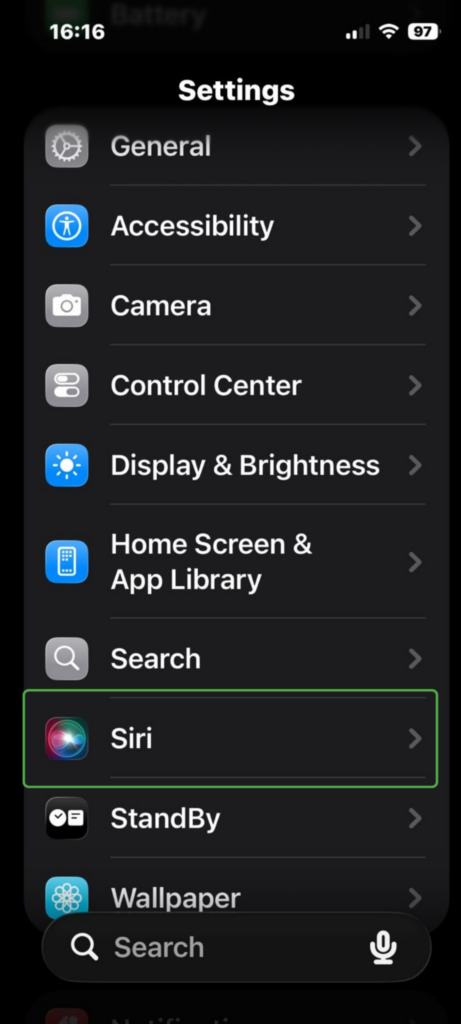
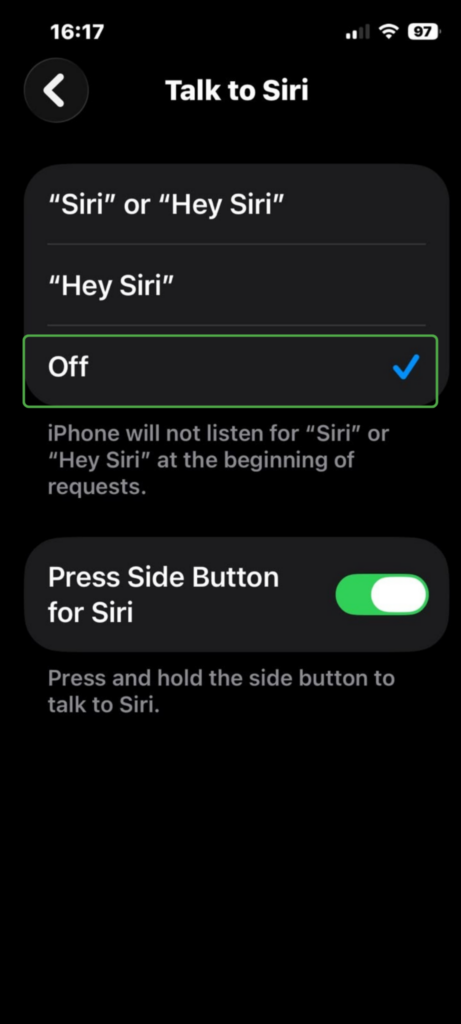
- Tap Talk to Siri (or Talk & Type to Siri, depending on your iOS).
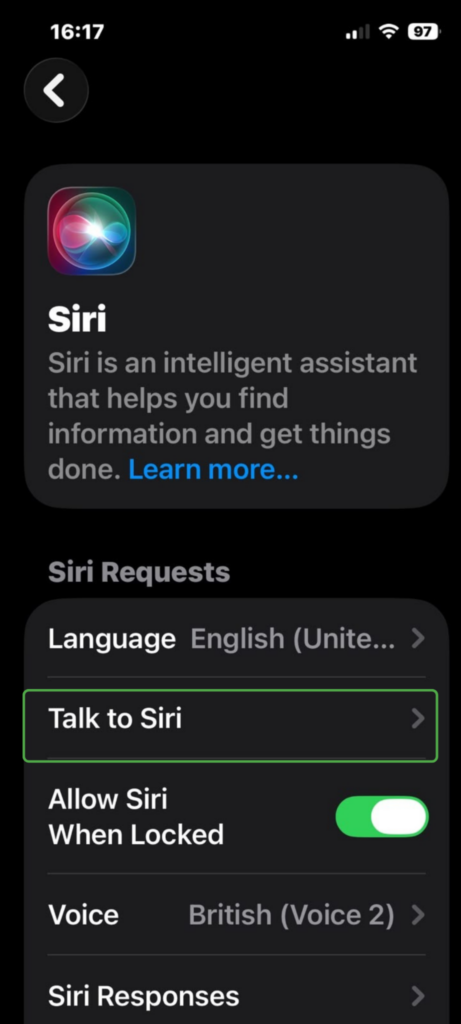
- Select Off.
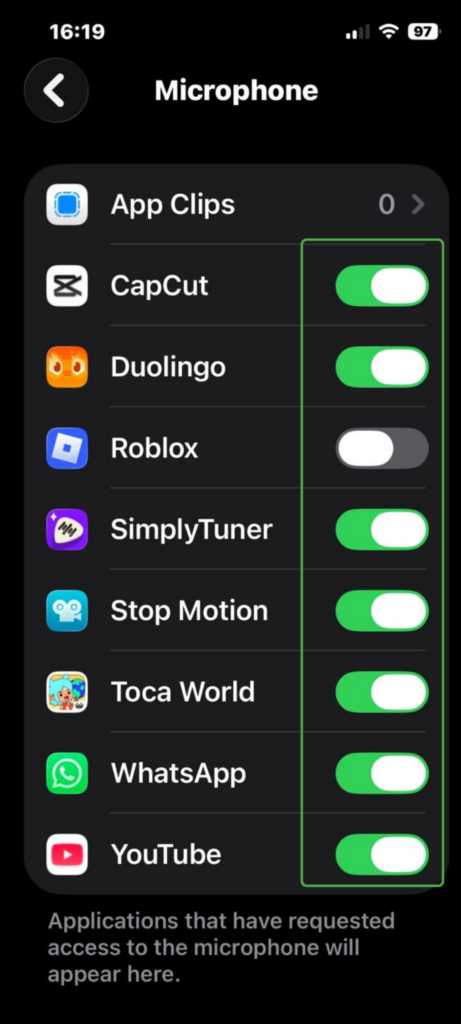
Review Microphone Permissions
As with Android, Apple requires apps to request your permission before they can use the microphone, and you can change that access at any time. Here’s how:
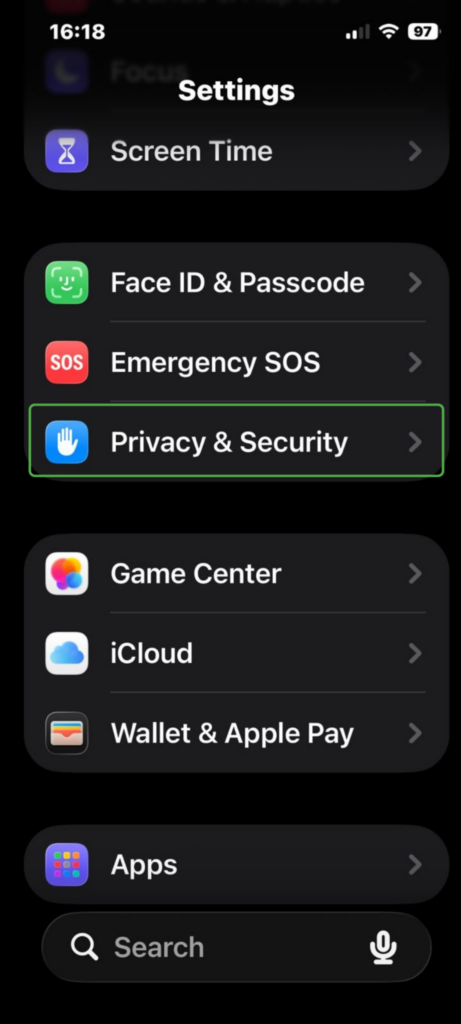
- Got to Settings > Privacy & Security.
- Select Microphone.
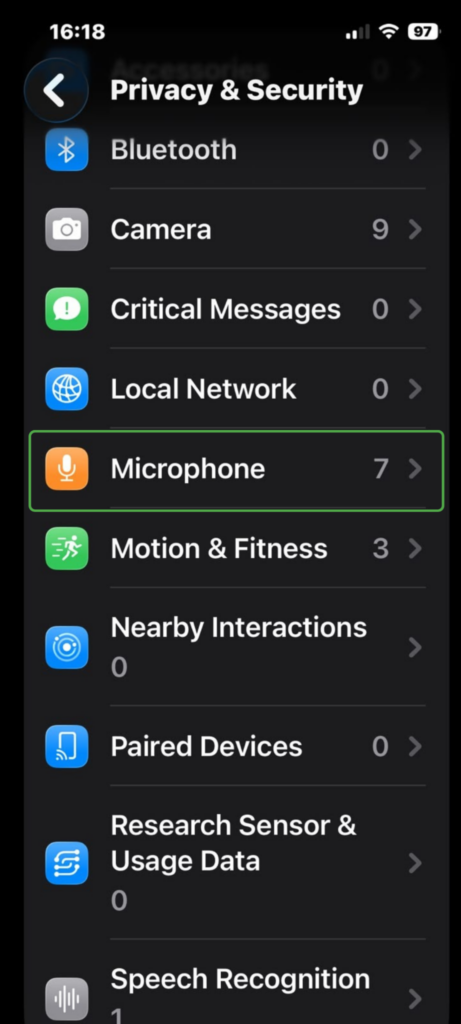
- Review the list of apps that have access and disable any that don’t need it.
Privacy Tips to Protect Your Data on Smartphones
Managing your voice settings and app permissions are only one part of protecting your privacy. These additional practices can help reduce the amount of data you share and improve your overall security:
- Download apps from trusted sources: Use official app stores, such as the Google Play Store or Apple App Store, to reduce the risk of downloading malicious or fake apps.
- Keep your phone up to date: Install software updates to receive the latest security patches and address new discovered vulnerabilities.
- Delete apps you don’t use: Remove unused apps to reduce unnecessary data collection and potential security risks.
- Review your Google privacy settings: Manage your Google Activity Controls and My Ad Center settings to control how your Google stores your activity for personalization.
- Use a VPN: Add another layer of privacy when you’re online with a reputable VPN with strong privacy controls. PIA VPN includes MACE, a built-in tool that blocks known ads, trackers, and malicious domains at the DNS level.
FAQ
How do I delete my Google voice recordings?
You can delete Google’s voice recordings through your Google Account. For Assistant recordings, access these through Web & App Activity or Gemini Apps Activity for Gemini. Google is also rolling out Search Services History for Search and Maps, so you might find some recordings there instead.
Is Google listening when my phone is locked?
If you’ve enabled Google Assistant or Gemini, your phone can listen for a wake word while it’s locked so it can respond to voice commands.
How does Google use my voice data?
Google says it uses voice data to respond to voice commands and doesn’t use this data for ad personalization. If you’ve chosen to save voice recordings, Google may also use your voice data to improve speech recognition and Google’s voice features.
Can Google listening be a security risk?
Saved voice recordings can present a security risk if they’re exposed through unauthorized account access or a data breach. Criminals may use stolen recordings in impersonation scams or AI voice-cloning attacks.
Is Google violating my privacy by listening?
Whether Google is violating privacy depends on the circumstances and the laws that apply. Google has faced lawsuits over its voice features but denies wrongdoing. The cases have raised broader questions about transparency, consent, and how Google handles voice data.
Does Google listen for targeted advertising?
According to Google, no. While lawsuits have alleged otherwise, Google has denied those claims and there hasn’t been a court ruling that found it used ambient conversations for targeted advertising.
Can I disable “Hey Google” or “OK Google” detection?
Yes. You can turn off “Hey Google” or “OK Google” detection without disabling your digital assistant completely. Follow these instructions to update your voice activation settings.
How accurate is Google’s speech recognition?
Google’s speech recognition is generally accurate, but its performance depends on factors such as audio quality, background noise, the language spoken, and how clearly someone speaks. Like other speech recognition systems, it can also make mistakes with some accents, dialects, or uncommon words.
References:
- How Google Assistant is designed for your privacy – Google
- Manage audio recordings in your Web & App Activity – Google
- Manage Personalized Recommendations in Search services – Google
- Google settles Google Assistant privacy lawsuit for $68 million – Reuters
- Manage your saved media in Search Services History – Google

Comments are closed.
Google is evil. This is the least of what they are doing. Google car? Loaded with cameras to take photos of every other car on the road, including license plate, with date, time and GPS stamp. They then route into DMV records and find out who the driver is (or is most likely to be) and then sell that info! It goes on and on. Only when there is a massive class action lawsuit against them, and a worldwide boycott will this end.
Not sure if serious or just a very good example of Poe’s law
OK Google has been around for 3 years. À bit late with this Rick.
In times of cloud computing processing happens in the cloud.Just like the processing of your money happens on servers in the banks since a few years now. Or maybe you didn’t realize that either ?
Sounds scary, but there’s a few layers that make this slightly less sinister: as reported by more than a few users, wireshark only detects voice-activated outgoing traffic AFTER :
a. a new chrome tab, or google search box is open
and
b. a voice says “ok google”.
This means that BEFORE you say the phrase, only that phrase is being listened for by a local codec on your machine, which doesn’t listen for any phrase whatsoever when you don’t have a new chrome tab or google search box open.
HOWEVER, this does leave dubious room for exploit (say, if the local codec also -always- listens for “I am building a sandwich that goes boom”, and sends that directly to an NSA computer, which then starts recording every sound in that room, live, forever.
You can look at this 3 ways: the good, the bad, and the BFD.
The good is that many find trigger word searches very useful, and once wearable computing takes off, voice control WILL supersede typing within 3-5 years. Unless you are the rotary phone type, you will be using this in some way.
The bad is that based on past corporate cooperation with NSA web/email/phone data collection, every connected mic and camera we own -could- be recording us all at every single moment.
The reality is, while I prefer not to have big brother potentially watching/listening, they can’t possibly listen and watch every feed of every person all the time. It’s impossible. Unless I regularly scream ISIS into my camera, it’s very doubtful my naughty bits are ever on NSA screens via my tablet. So, while we should all keep on eye on this tech in the future, for now, I say Big Fucking Deal.
Then what if they don’t listen to every feed all the time, but actually lets every person’s computer record and text-convert their voice and THEN send it to the NSA? Then the amount of data storage and analyzing power needed there goes from huge to practically pocket-sized. They are crazy and evil, not stupid.
(Yes, I just called the NSA evil. No other word properly describes an organization that eavesdrops on as many they can. It can’t be adequately explained by stupidity.)
There is no reason to listen to everyone, but being able to listen to anyone is enough of a problem. Let’s say a rogue element at NSA or Google itself is interested in digging dirt on an opposition politician, or finding out the sources of a journalist. Or Google gets interested in the technical secrets of an innovative new start-up that is planning to file a patent.
With such modules downloaded silently when the browser starts, Google can essentially send any user any piece of software that will be executed by the browser. It is basically a back door that is technically no different from a one implemented by a Trojan horse. With such functionality, Chromium is essentially acting as a node in a botnet controlled by Google.
it’s a bot not a human it can listen to everyone
“[…] they can’t possibly listen and watch every feed of every person all the time”; suppose they move to the next step and buy computers?
:)
How exactly is Google responsible for an open-source spin-off project that was wrongly built for a platform which they have no control over?
Who is collecting/storing and using the data without you knowing? Google.
You can’t uninstall this crap, it’s native. Does anyone know what was the last Chromium version that does not have this Wiretapping… UNREAL