Google CAPTCHA VPN Issues: Why They Happen and How to Reduce Them
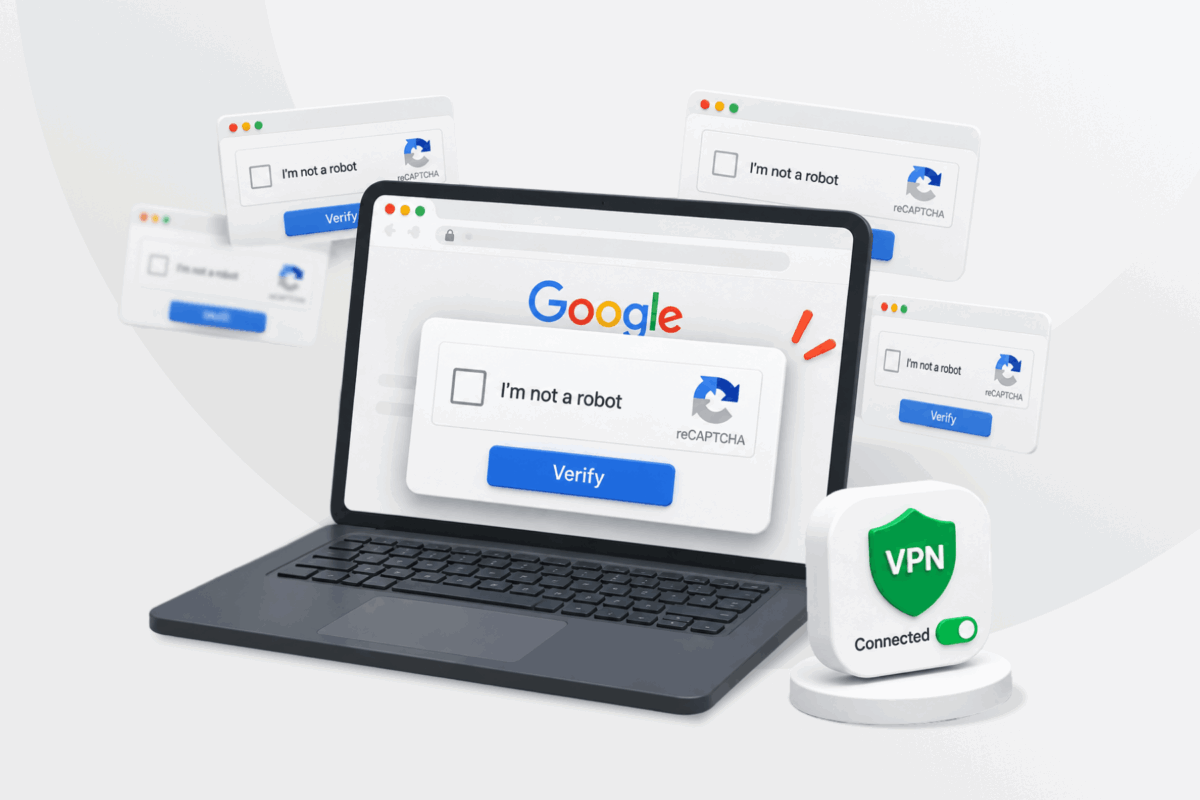
Do annoying CAPTCHA prompts interrupt your browsing experience whenever you search Google or visit certain websites while using a VPN? You’re not alone. When all you want is a little privacy, the compromise turns into repeatedly identifying traffic lights and crosswalks.
Fortunately, you don’t have to stop using your VPN. This guide explains what triggers VPN CAPTCHAs and walks you through the most effective ways to reduce how often they appear.
What Makes CAPTCHAs More Likely When Using a VPN?
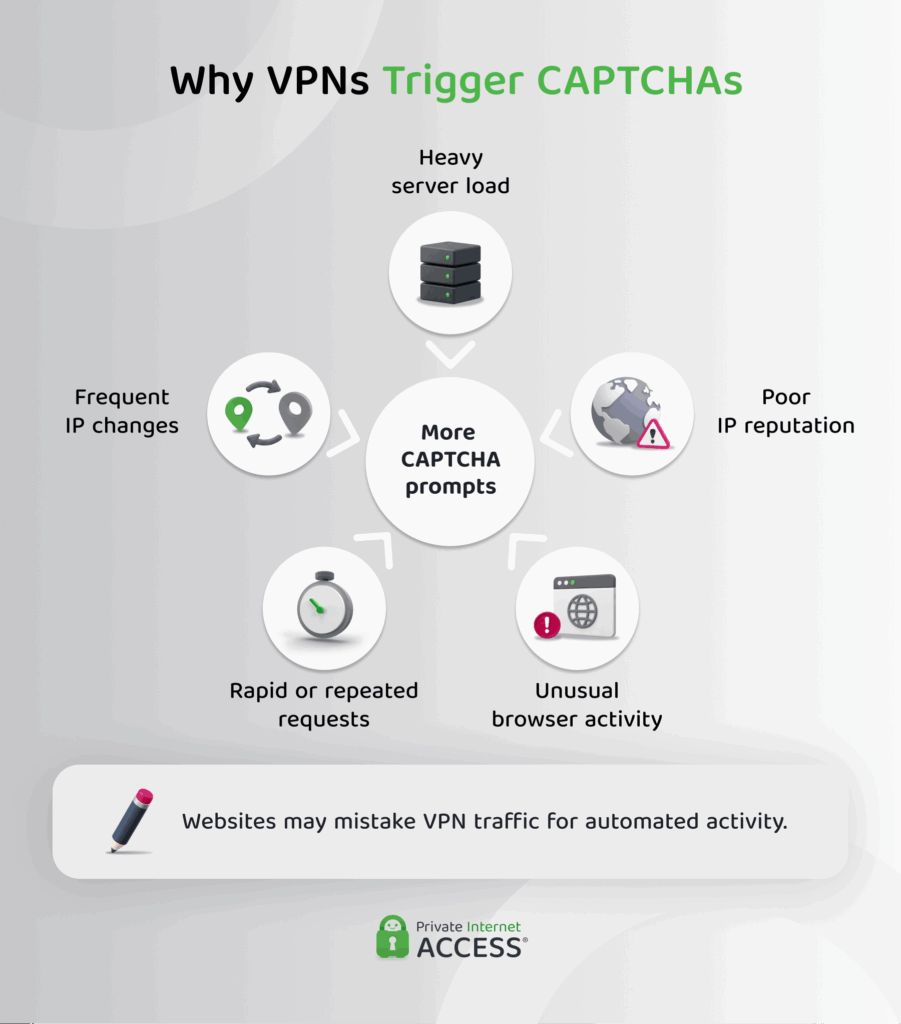
Several factors can make CAPTCHA prompts more common when you use a VPN. The core reason is that hundreds or even thousands of users may connect through the same VPN IP address.
Google can’t necessarily distinguish your request from everyone else using that address. A CAPTCHA gives it a way to allow legitimate users through without automatically trusting or blocking the entire IP.
The IP Address Has a Poor Reputation
Websites and security services maintain reputational information about IP addresses. An address associated with spam, scraping, automated searches, or abusive activity may encounter more verification checks.
You don’t need to have performed the suspicious activity yourself. Another person who previously used the shared IP could have affected its reputation.
Your IP Address or Location Keeps Changing
Switching VPN servers gives you a different IP address and may change your apparent location. Several changes in a short period can appear to be account takeover attempts or automated activity.
You’re Sending Requests Too Quickly
Rapid Google searches, repeated form submissions, and frequent page refreshes can resemble bot behavior. This can trigger a CAPTCHA even when the VPN IP address hadn’t caused problems in the past.
Browser extensions, SEO tools, price-comparison services, and other applications may also send background requests without you realizing it, contributing to this issue.
Your Browser or Device Looks Unusual
CAPTCHA systems consider more than your IP address. Disabled JavaScript, unsupported or outdated browsers, blocked scripts, suspicious extensions, and malware can all interfere with verification or make activity look automated or suspicious.
How to Reduce VPN CAPTCHA Prompts
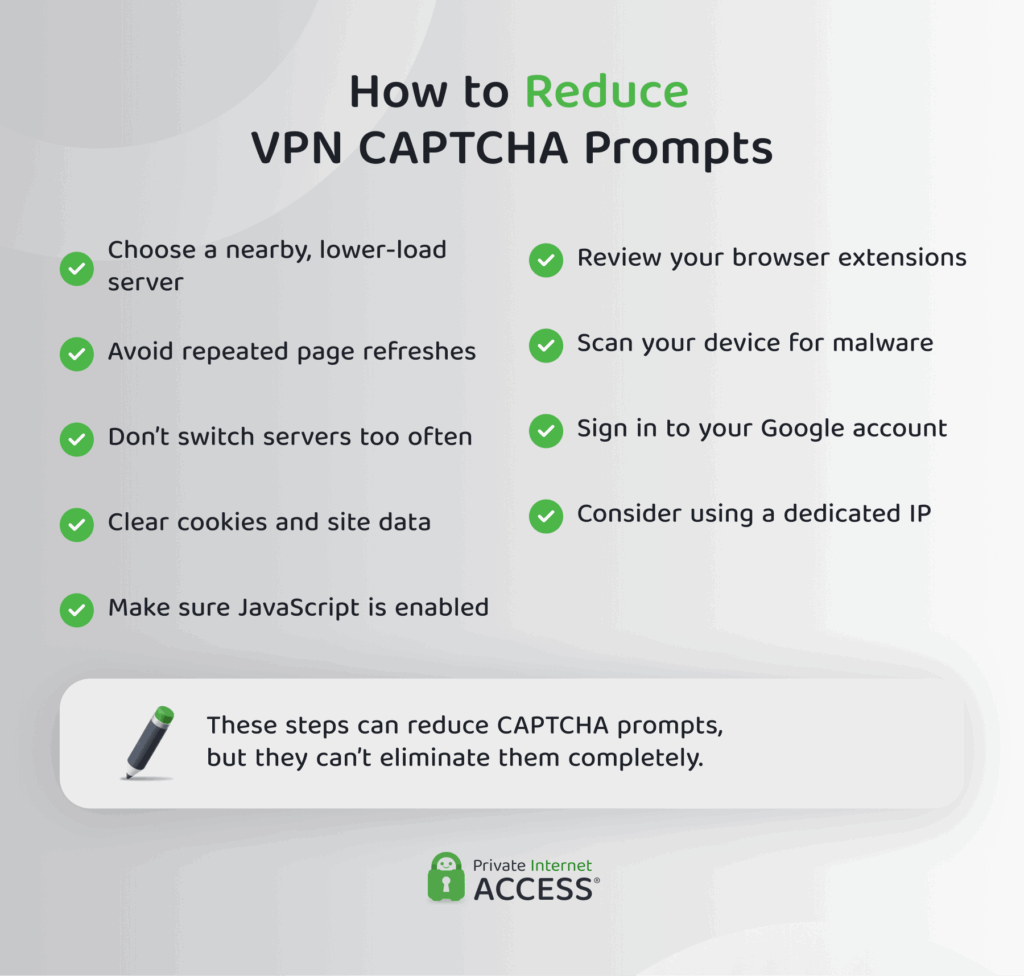
You can’t guarantee that CAPTCHA prompts will disappear completely, but a few changes can reduce how often they interrupt your browsing. Start with the simplest fixes below and see whether the problem improves before moving to the more involved options.
Connect to a Nearby, Lower-Load Server
Try another VPN server if CAPTCHA prompts appear after you connect. A nearby server usually gives you a location more consistent with your normal activity, while a lower-load server may have fewer users generating traffic through its IP addresses.
Once you find a server that works, stay connected to it instead of continuing to switch.
Avoid Frequent Page Refreshes
Refreshing a page several times in quick succession sends repeated requests from the same IP address. On a shared VPN server, your requests combine with everyone else’s activity on that IP.
Wait a moment before trying again if a page or Google search doesn’t load. This is especially important after you’ve already received an unusual-traffic warning.
Don’t Switch VPN Servers Too Often
Changing VPN servers can solve a problem caused by a high-traffic or flagged IP address. However, frequent server changes also make your IP address and apparent location change repeatedly, which can look like suspicious or malicious traffic.
Switch once, reconnect to the website, and give the new connection time to remain stable.
Clear Cookies and Site Data
Corrupted or outdated cookies can sometimes cause a CAPTCHA loop. Clear the cookies and site data for the affected website, close the tab, and try again.
That said, don’t make a habit of wiping all your browser data every time you connect to a VPN. Cookies also help websites recognize your browser as one they’ve seen before. If you clear them constantly, you may end up facing more verification prompts, not fewer.
Make Sure JavaScript Is Enabled
reCAPTCHA depends on JavaScript. If you disabled or blocked JavaScript, the challenge may fail to appear, reload continuously, or display an error.
Check your browser settings and allow scripts for the affected website. Only do this if you trust the site.
Review Your Browser Extensions
Disable extensions that modify webpages, automate searches, block scripts, or send background requests. Reload the page after disabling them to see whether the CAPTCHA works.
If the problem stops, enable the extensions one at a time to identify which one is interfering.
Check Your Device for Malware
Malware and unwanted applications can generate automated traffic in the background. This may cause Google to detect unusual activity even when your own browsing appears normal.
Run a malware scan if CAPTCHAs occur across multiple browsers, continue after you disconnect from the VPN, or appear alongside redirects, pop-ups, or unfamiliar applications.
Sign In to Your Google Account
Using Google Search while signed in may help Google recognize that your searches come from a legitimate account. This won’t eliminate every Google CAPTCHA prompt, particularly if the shared IP is generating a large amount of suspicious traffic.
Signing in also allows Google to associate searches with your account, so consider the privacy trade-off before using this option.
Use a Dedicated IP Address
A dedicated IP belongs only to you, not to other VPN users. This means no other user’s traffic affects the address, since you’re the only one using it.
A dedicated IP can reduce CAPTCHAs caused by shared-IP traffic and reputation, but it can’t guarantee that you’ll never see one. Rapid requests, browser problems, malware, and website-specific security policies can still trigger additional verification.
Privacy tip: PIA VPN offers Dedicated IP addresses as an optional add-on. You can still connect to PIA VPN’s regular shared servers whenever you want to use a different server location.
Why Am I Still Getting CAPTCHAs?
Where the CAPTCHA appears can help identify the most likely cause:
| What You’re Experiencing | Likely Cause | Solution |
| Only Google shows CAPTCHAs | Google has flagged unusual traffic from the shared IP | Change to a nearby server, then avoid rapid searches and refreshes |
| Many websites show CAPTCHAs | The VPN IP may have a poor reputation or unusually high traffic | Choose a lower-load server or consider a dedicated IP |
| One website repeatedly shows a CAPTCHA | The site’s security rules, cookies, or blocked scripts may be responsible | Clear that site’s data in your browser, enable JavaScript, and check extensions |
| The CAPTCHA won’t load | JavaScript or a browser extension may be blocking it | Allow JavaScript and temporarily disable content blockers |
| CAPTCHAs continue without the VPN | Your network, browser, extensions, or device may be generating suspicious traffic | Restart your router, test another browser, and scan for malware |
| CAPTCHAs started after several server changes | Rapid IP or location changes may have triggered verification | Stop switching and keep one connection active |
CAPTCHA vs. reCAPTCHA: What’s the Difference?
CAPTCHA is the general name for tests designed to distinguish people from automated programs. Classic CAPTCHAs commonly ask you to type distorted letters or identify objects in a group of images.
reCAPTCHA is Google’s CAPTCHA system. Depending on how a website implements it, reCAPTCHA might ask you to check a box, complete an image challenge, or verify you in the background by evaluating signals associated with your visit.
The “unusual traffic from your computer network” message in Google Search normally uses reCAPTCHA. Other websites may use Google reCAPTCHA or a different CAPTCHA provider, so the exact prompt and factors behind it can vary.
FAQ
Does a VPN cause CAPTCHAs?
A VPN can make CAPTCHAs more frequent because multiple users may send traffic through the same IP address. Websites can mistake this combined activity for automated traffic. The VPN itself doesn’t create the CAPTCHA.
Can a VPN bypass CAPTCHA checks?
No. A VPN doesn’t bypass CAPTCHA or reCAPTCHA checks, but there are things you can do to limit how often you see them. Changing to an IP address with less traffic or using a dedicated IP may reduce how often the checks appear, but the website makes the final decision.
How do I stop CAPTCHA when using a VPN?
You can’t stop CAPTCHA prompts while using a VPN and using one may sometimes increase how often you see them. However, addressing the common causes above, like server load, IP reputation, and rapid requests, can reduce how often they appear.
Why does Google keep asking if I’m a robot when I use a VPN?
Google may detect a large number of searches or automated-looking requests from the VPN’s shared IP address. That activity could come from other people using the same server rather than from your device. Google uses reCAPTCHA to confirm that your request comes from a person.
