How to Change Location on Facebook Marketplace: Full Guide
Picture this: You’re looking for a coffee table for your living room in your new home, and you find the perfect one on Facebook Marketplace. It’s the right size, the right style, and the right price. But it’s located 100 miles away from where you actually are.
Facebook uses a few different signals to determine your location, what listings you see, and where your items for sale are offered. Changing your Marketplace location can help you find more relevant listings or make sure buyers see your item in the right place.
In this guide, we’ll show you how to change your Facebook Marketplace location on mobile and desktop. We’ll also explain why Marketplace may show you items in the wrong area and what to try if your location is incorrect.
Table of Contents
How Facebook Marketplace Listings Show Up in Your FeedChanging Facebook Marketplace Location on the App
Changing Facebook Marketplace Location Using a Browser
How to Change a Listing Location on Facebook Marketplace
Using a VPN to Change Your Facebook Marketplace Location
Why Facebook Marketplace Shows the Wrong Location and How to Fix It
FAQ
How Facebook Marketplace Listings Show Up in Your Feed
Facebook Marketplace uses your browsing location to determine what listings you see and where the listings you create show up.
The location comes from a mix of signals:
- GPS data from your device
- Your IP address
- Connected Wi-Fi networks
- Manual locations you’ve set in Marketplace
When these sources disagree, Facebook tends to favor GPS or IP data over a manually chosen location, which is why your Marketplace location might sometimes be different from your actual location.
There’s also a radius filter to consider. It sets how far from your actual or preferred location listings can come from. A narrower radius surfaces fewer, closer listings; a wider one pulls in more results but from further away.
Together, location and radius shape which listings appear in your feed and search results before any other filter (price, category, condition) is applied.
Changing Facebook Marketplace Location on the App
Many people browse and manage Marketplace listings on their phone. If you’re one of them, this is how to update your browsing location via the Facebook app:
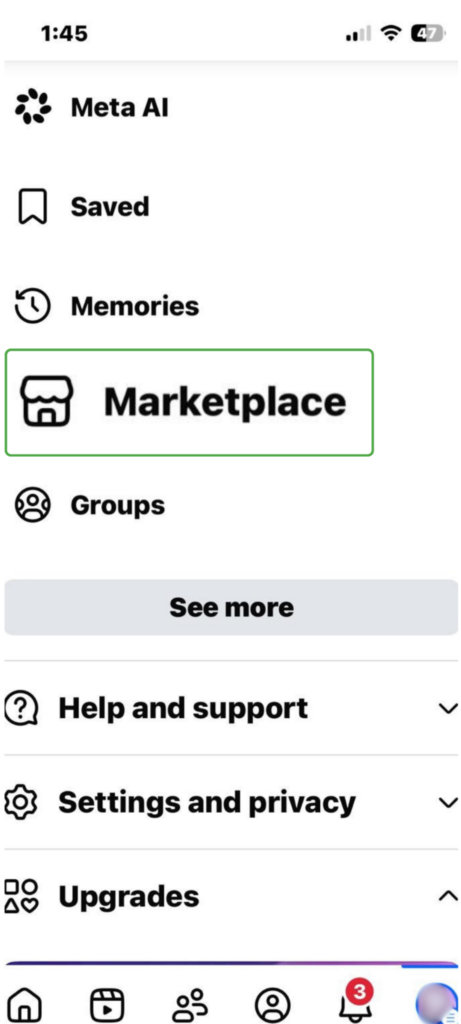
- Open your Facebook app and navigate to the Marketplace tab.
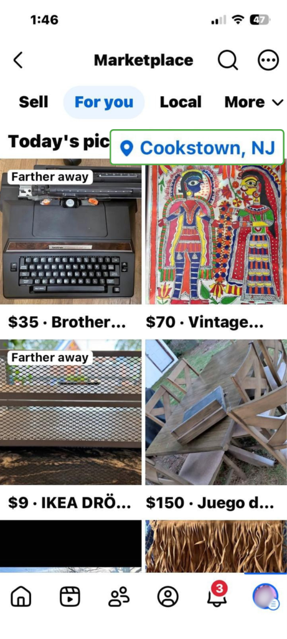
- Tap the location pin in the top right corner above the listed items in your area.
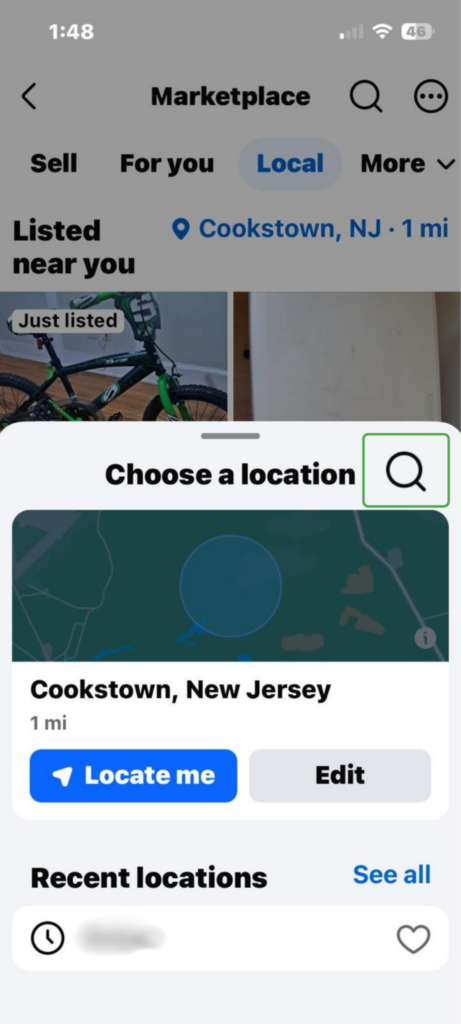
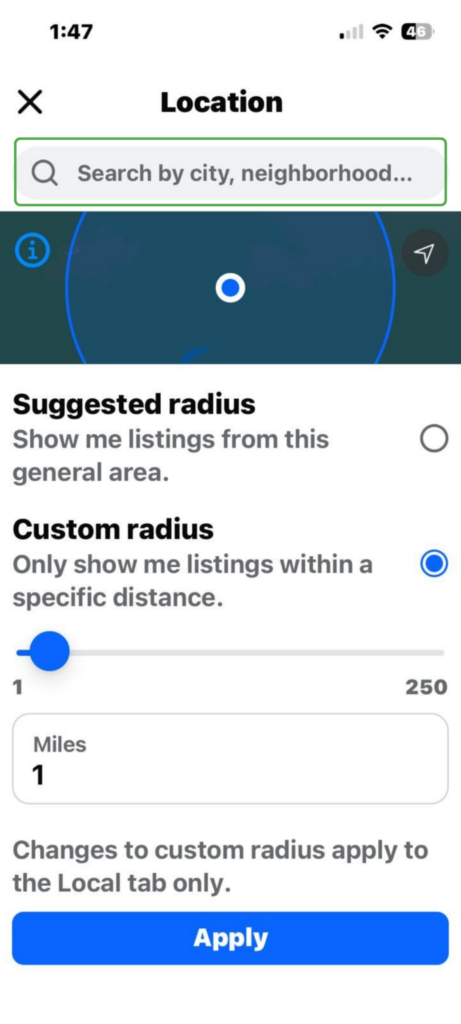
- Select Locate me to use your phone’s location settings, or choose the magnifying glass icon to manually adjust your location settings.
- Type in the name of your preferred city or neighborhood. You can also use the ZIP code or move the pin to your preferred position. Then adjust the custom radius, if necessary. Tap Apply to save your changes and Marketplace will refresh to show listings from that location.
Changing Facebook Marketplace Location Using a Browser
If your Facebook Marketplace location is wrong, you’re having other location problems, or you just want to find listings in a different area, here’s the process for changing your location via browser.
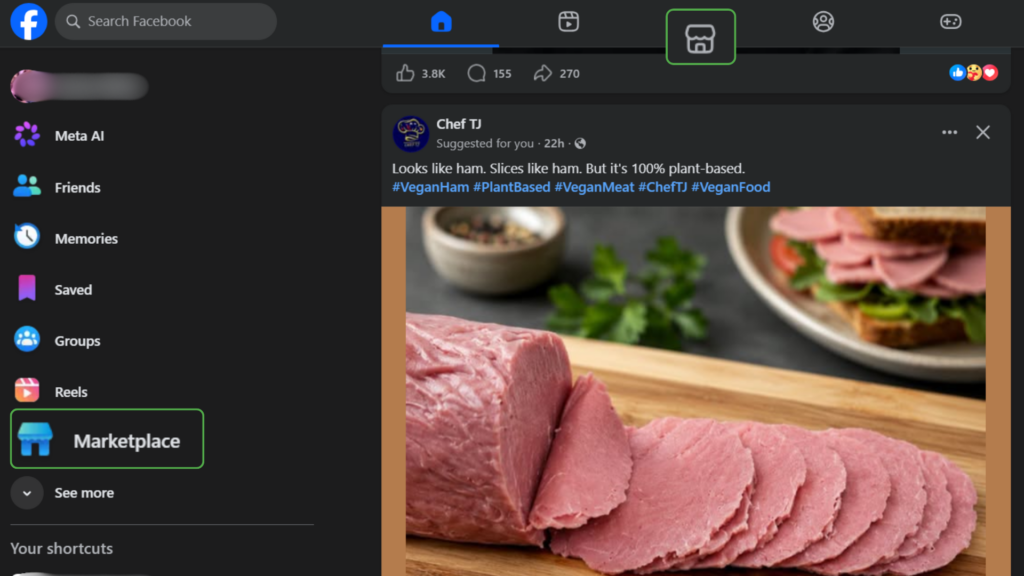
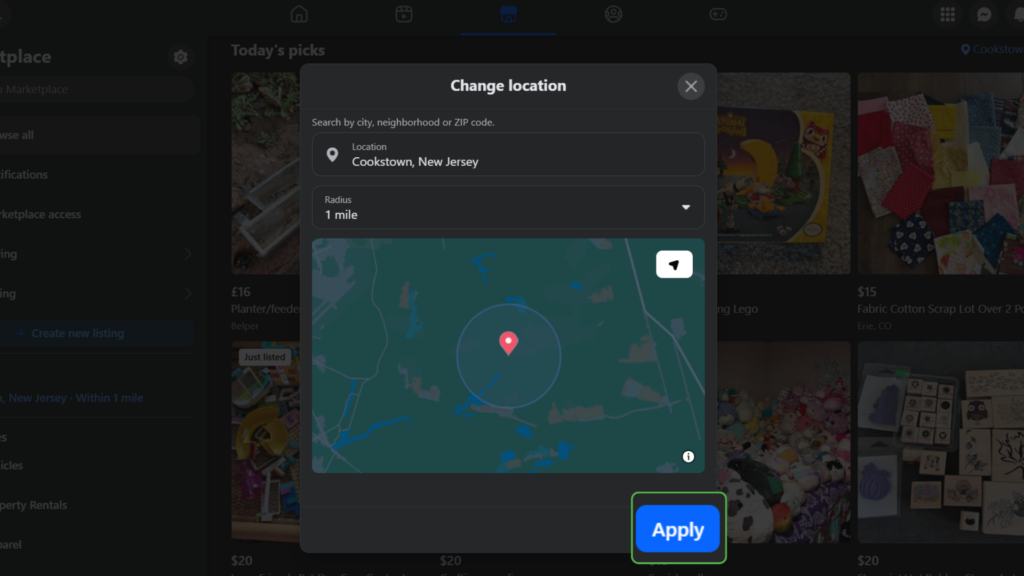
- Click on Marketplace in the left-hand menu or the Marketplace icon on the top navigation bar.
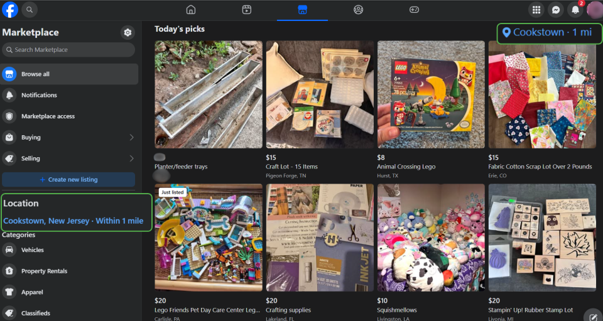
- Navigate to the location pin in the top right corner of the screen or select Location in the left-hand menu.
- Click on the name of your current location to choose a new location. You can search by city, neighborhood, or ZIP code. Then choose a radius from the dropdown box.
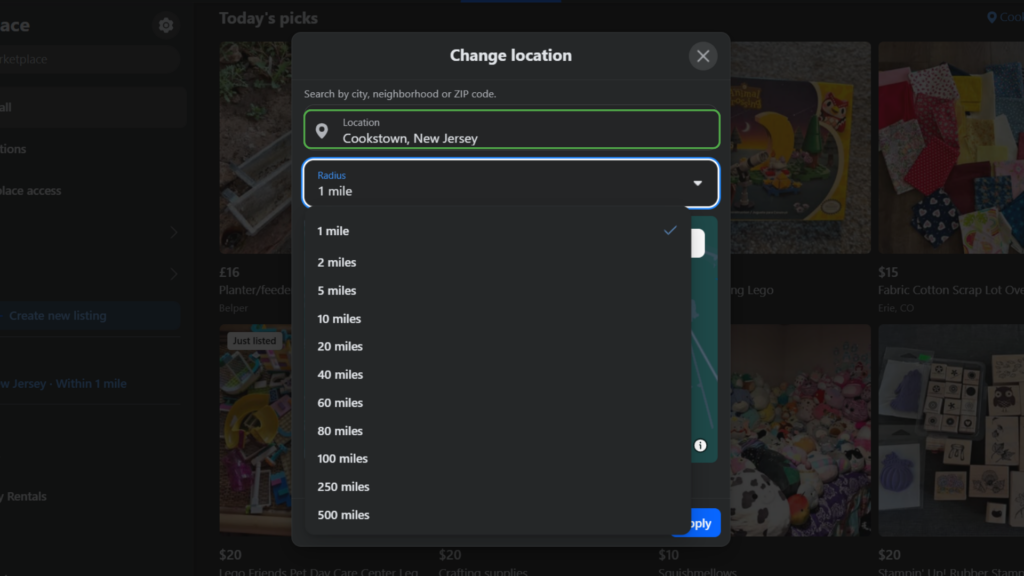
- Click Apply to save your location and Marketplace will refresh to show listings from your new location.
How to Change a Listing Location on Facebook Marketplace
Changing the sale location of an item works a little differently to changing your browsing location because sellers are expected to list items where they’re actually available for collection.
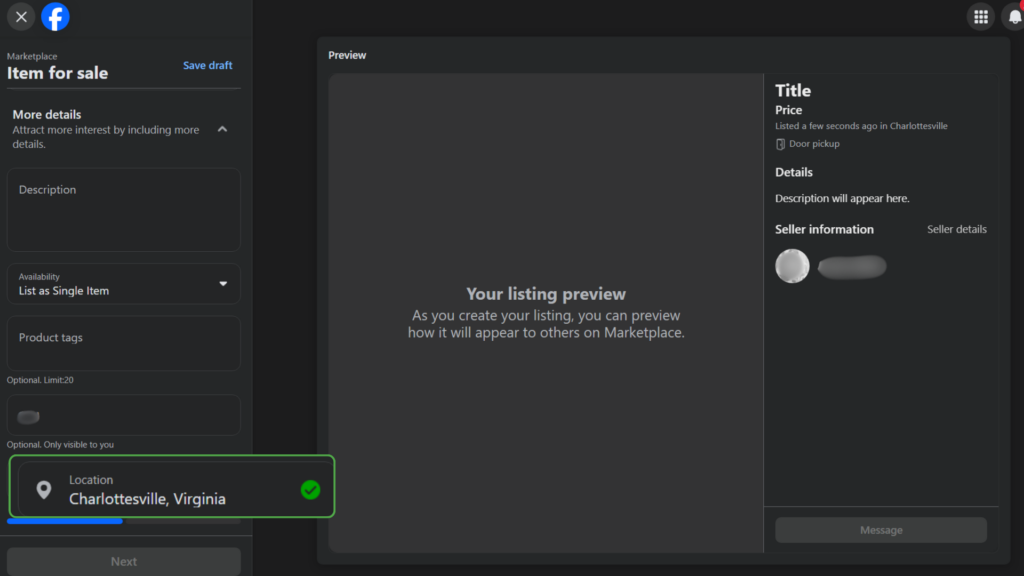
The best place to change the listing location of a Marketplace item is via a desktop browser. The Facebook app uses your device’s location services to determine the listing location when you create a listing on mobile.
- When creating a listing, open the More details section and look for the location field. Enter the city or area where you want the item to appear, then save your changes.
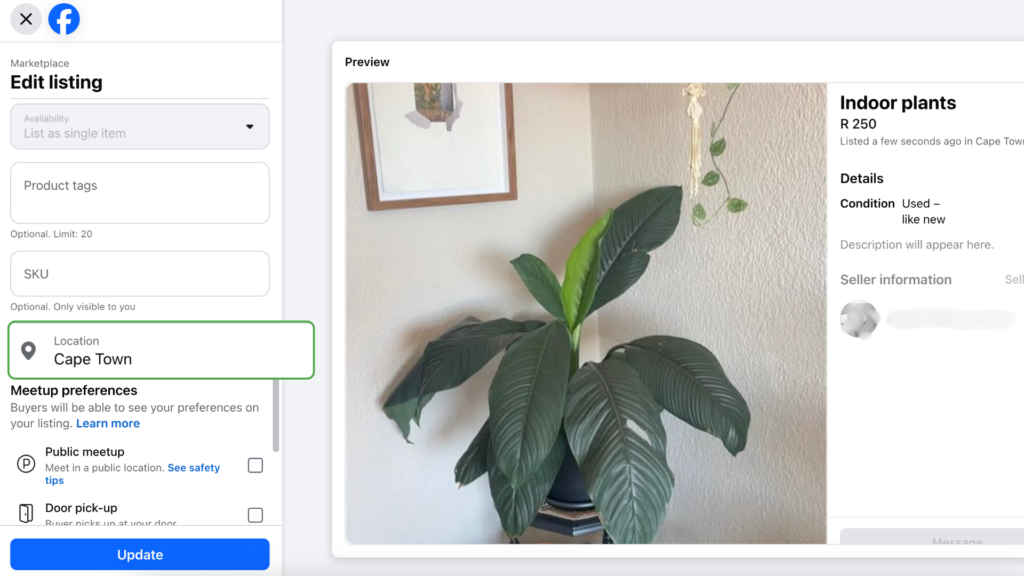
2. To edit an existing listing, go to Selling > Your listings.
3. Find the listing that you would like to adjust the location for, click on the three-dot menu, and select Edit listing. In the left-hand menu, scroll down until you see the location box and type in the new city, neighborhood, or ZIP code for your listing.
Using a VPN to Change Your Facebook Marketplace Location
While you can use a VPN to change your IP address, it can’t change your location on Facebook Marketplace.
Marketplace relies on a few location signals, like your Marketplace settings and your device’s location services, to determine where your items should be listed for sale and which listings should appear in your feed. To change this, you’ll need to follow the steps outlined above to adjust the location settings via Marketplace itself.
That doesn’t mean a VPN has no value for Marketplace interactions, though. Buying and selling often involves sharing your general location, messaging people you don’t know, and sometimes browsing or arranging meetups over public Wi-Fi. A VPN encrypts your internet traffic and masks your IP address to help reduce the amount of information that’s exposed when you’re online.
Why Facebook Marketplace Shows the Wrong Location and How to Fix It
Facebook Marketplace uses several different location signals to figure out where you are and serve you relevant listings. These may include your Marketplace search location, your device’s GPS, your IP address, and other account information. If the metrics don’t match, you might see results in strange or unexpected areas.
| ⚠️ Problem | ❓ Why it happens | 🔧 How to fix it |
| Marketplace shows listings from the wrong area | Your browsing location is set to a different city or region, or your search radius is too wide | Change your Marketplace location and adjust the search radius to cover the area you want |
| You’ve moved, but Marketplace still shows your old location | You’ve saved your old location manually or you haven’t cleared cached app data | Manually update your Marketplace location or give Facebook permission to access your phone’s location services, then restart the app |
| Your Marketplace listing uses your current location instead of where the item is | Facebook Marketplace may apply your device location to the listing when you create it | Edit the listing in a desktop browser, where you can set the location manually |
| You can’t access Marketplace or set a location at all | Your account may be too new (access is often limited for roughly the first 30 days), or Marketplace might be restricted in your region | Wait until your account becomes eligible for Marketplace; if you still can’t access the platform, it may not be available in the region where you are |
FAQ
How do I change my location on Facebook Marketplace?
To change your Marketplace location on mobile, tap the location at the top of your listings, enter a new city or ZIP code, set your search radius, and tap Apply. The process is similar in a desktop browser – navigate to Marketplace, click Location in the left-hand menu, type your preferred city, neighborhood, or ZIP code, set your radius, and click Apply.
Why can’t I change my location on Facebook Marketplace?
The main reason for difficulty changing your Marketplace location usually has to do with the device you’re working on. On mobile, Facebook often defaults to your device’s location services instead of letting you choose a different listing location.
How do I change the location of a Facebook Marketplace listing?
To change the location of a Marketplace listing, navigate to Marketplace in a browser. Click Selling in the left-hand menu, followed by Your listings. Find the item whose sale location you want to change, click the three dots and Edit listing. Scroll down to find the location and adjust it as necessary.
Why is Facebook Marketplace showing the wrong location?
Facebook Marketplace uses several different location signals, including your Marketplace settings, device location services, app permissions, and IP address to figure out where you are and serve you relevant listings. If those don’t match, you may see listings from the wrong area.
How do I fix Facebook Marketplace location problems?
To fix Facebook Marketplace location problems, check that Facebook has location access in your phone’s settings, update to the latest app version and clear the cache. Alternatively, set your Marketplace location manually to the area you want using a browser.
Why does Facebook Marketplace only show local listings near me?
Facebook Marketplace is built for convenient buying and selling. It defaults to items near you that are practical to collect in person, which is why it shows local listings in nearby places. To see listings further afield, you need to widen the radius in the location filter or search a specific city you’re interested in.
