How to Reset PRAM on Mac (Intel and Apple Silicon Guide)
Parameter random-access memory (PRAM) and non-volatile random-access memory (NVRAM) store system settings your Mac uses at startup. If those settings become corrupted or incorrect, you may notice issues with startup behavior and system preferences, such as display or sound settings.
Resetting PRAM or NVRAM can sometimes resolve these problems by restoring the affected settings to their defaults. This guide explains how to reset PRAM on a Mac, when a reset is worth trying, and the common reasons resets may fail.
Note: Modern Macs use NVRAM, while PRAM refers to similar functionality on older Mac models. As such, these terms are often used interchangeably.
Table of Contents
Quick Guide: How to Reset PRAM/NVRAM on MacWhat a PRAM/NVRAM Reset Does on a Mac
Before You Reset PRAM or NVRAM
How to Reset PRAM/NVRAM on a Mac
How to Know If the Reset Helped
PRAM/NVRAM vs. SMC vs. RAM
How to Reset the SMC on a Mac
How to Clear RAM on Mac
FAQs
Quick Guide: How to Reset PRAM/NVRAM on Mac
Modern Macs use either an Intel processor or Apple silicon, and the process differs depending on the type of Mac. Before proceeding, make sure to check whether you have an Intel Mac or an Apple silicon Mac.
Intel Macs
- Shut down your Mac and turn it back on.
- Immediately press and hold Option + Command + P + R for about 20 seconds.
- Release the keys and allow your Mac to reboot.
Apple Silicon Macs
- Shut down your Mac and wait for it to power off completely.
- Press the power button to turn it back on.
For detailed instructions, see How to Reset PRAM/NVRAM on a Mac. For troubleshooting, see How to Know If the Reset Helped.
What a PRAM/NVRAM Reset Does on a Mac
A PRAM/NVRAM reset only affects specific system settings and doesn’t remove files, applications, photos, or account data.
Depending on your Mac and connected hardware, it may reset settings related to:
- Speaker volume
- Display preferences
- Startup disk selection
- Time zone settings
- Mouse and trackpad preferences
When Resetting PRAM/NVRAM Makes Sense
A PRAM/NVRAM reset is worth trying when your Mac behaves unexpectedly, even though there may be no obvious signs of a hardware problem.
Common situations include:
- The Mac starts from the wrong disk or forgets the preferred startup disk.
- Display, sound, or other system preferences repeatedly revert to previous settings.
- Unpredictable behavior begins after replacing, upgrading, or cloning hardware or drives.
This is because your Mac may still be relying on settings from a previous configuration. Resetting PRAM/NVRAM clears those settings and allows your Mac to recreate them using the current hardware and system configuration.
What a PRAM/NVRAM Reset Won’t Fix
Because a PRAM/NVRAM reset only affects certain system settings, it won’t fix:
- App problems: Apps that crash, freeze, won’t open, or behave unexpectedly.
- Storage issues: Low disk space or limited storage capacity.
- RAM-related slowdowns: Performance issues caused by high memory usage.
- Hardware failures: A failing drive, faulty memory module, damaged display, or worn battery.
- Power and overheating issues: Charging problems, overheating, or excessive fan activity.
- Network connectivity problems: Wi-Fi, router, internet service, or VPN issues.
- Security and account issues: Malware, compromised accounts, or account access problems.
- macOS corruption: Damaged system files that may require reinstalling macOS.
Before You Reset PRAM or NVRAM
Intel Macs support a keyboard shortcut to reset PRAM or NVRAM during startup, while Apple silicon Macs don’t use the same reset method. The first step is to identify which type of Mac you have.
Check Whether You Have an Intel Mac or an Apple Silicon Mac
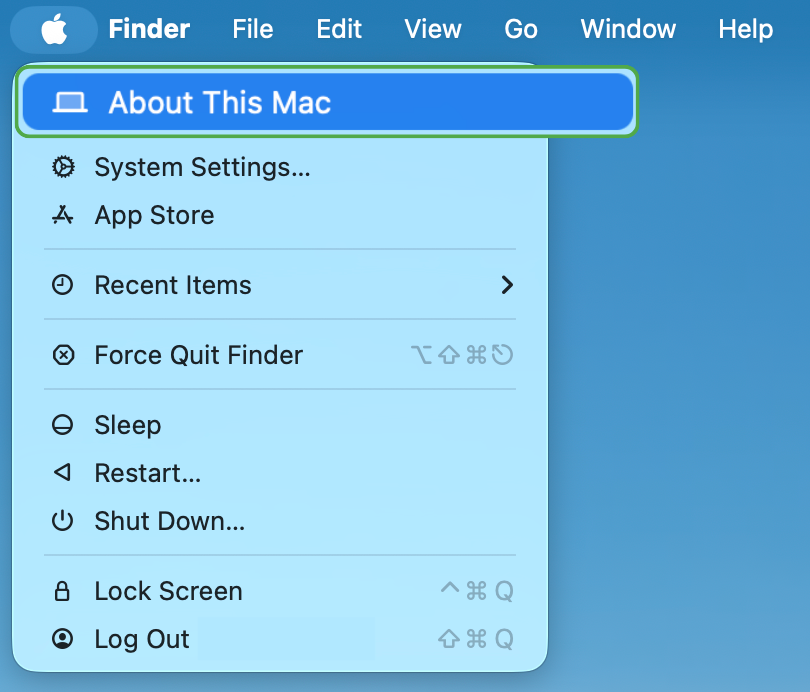
You can identify your Mac type from the Apple menu:
- Click the Apple menu in the top-left corner of your screen.
- Select About This Mac.
- Look for either Chip or Processor in the window that appears.
- If you see Chip followed by an M-series chip name, you have a Mac with Apple silicon.
- If you see Processor followed by an Intel processor name, you have an Intel Mac.
How to Reset PRAM/NVRAM on a Mac
Follow the steps relevant to your Mac.
Steps for Intel Macs
Intel Macs can reset PRAM or NVRAM using a keyboard shortcut during startup. You’ll need to press the keys immediately after turning the Mac on. Here are the steps:
- Shut down your Mac.
- Press the power button to turn it back on.
- Immediately press and hold Option + Command + P + R.
- Continue holding the keys for about 20 seconds.
- Release the keys and allow your Mac to finish starting up.
While you’re holding the keys, your Mac may appear to restart. On some older Intel Macs, you may hear the startup chime more than once. On newer Intel Macs, the Apple logo may appear and disappear several times before the Mac finishes starting up.
Steps for Apple Silicon Macs
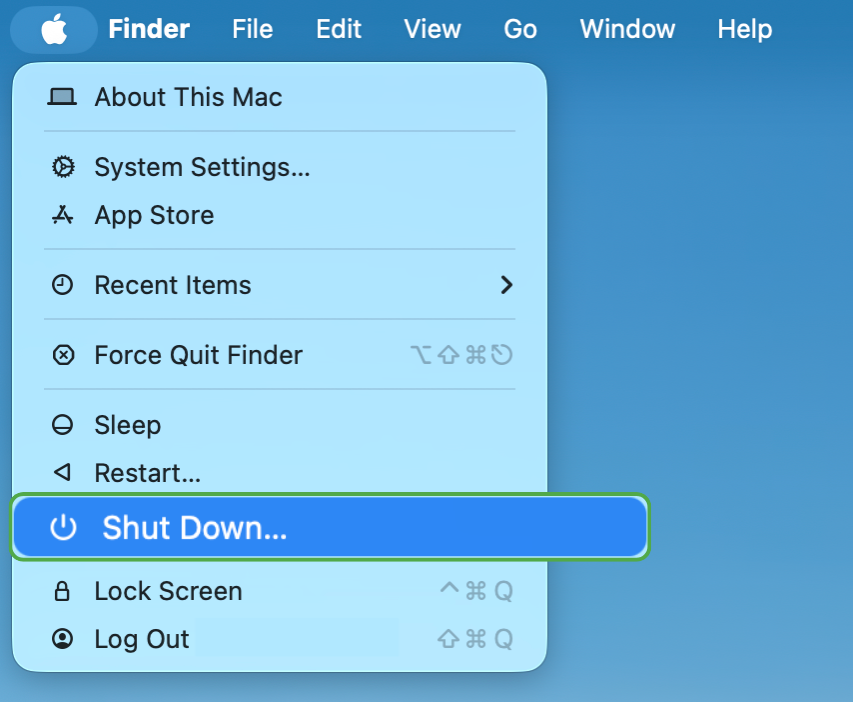
If you have a Mac with Apple silicon, start by shutting down the Mac completely and then turning it back on:
- Click the Apple menu and select Shut Down.
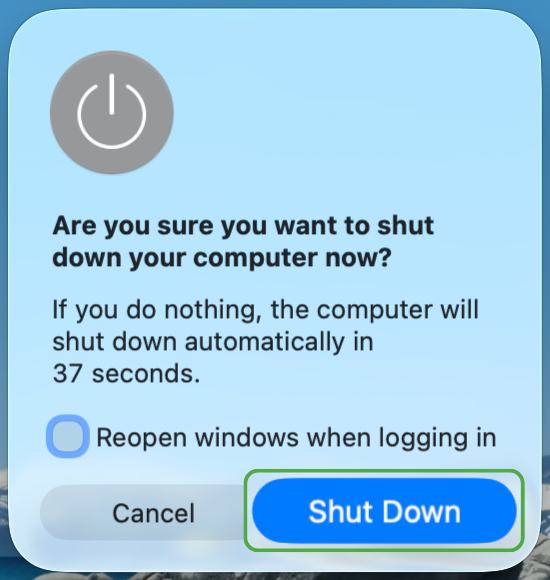
- Click Shut Down again to confirm.
- Wait for the Mac to power off completely.
- Press the power button to turn the Mac back on.
How to Know If the Reset Helped
A PRAM or NVRAM reset doesn’t display a confirmation prompt. For both Intel Macs and Macs with Apple silicon, the most reliable way to determine whether the procedure helped is to check if the reset resolved the original issue.
You may also notice that some settings have returned to their default values, including:
- Date, time, or time zone settings.
- Speaker volume.
- Display resolution or display preferences.
- Startup disk selection.
If you’ve resolved your initial issue and one or more of these settings have changed, the reset or restart process was likely successful.
Common Reasons PRAM/NVRAM Resets Fail
If the reset doesn’t work the first time, one of the following issues may be preventing it from working:
- The key combination wasn’t pressed early enough.
- The keys weren’t held down long enough.
- The reset was attempted after restarting the Mac instead of following the shutdown procedure.
Beyond these, if your Mac uses a firmware password, you’ll need to turn it off before attempting the reset, as it prevents startup key combinations.
PRAM/NVRAM vs. SMC vs. RAM
PRAM, NVRAM, System Management Controller (SMC), and random-access memory (RAM) are often confused because they all affect how a Mac operates.
Understanding the difference can help you choose the right troubleshooting step. Here’s how they differ:
| Component | What It Does | When It Matters | Best Next Step |
| PRAM/NVRAM | Stores startup and system settings | Settings repeatedly revert, or the Mac starts from the wrong disk | Reset PRAM/NVRAM |
| SMC | Controls power, charging, thermal, and hardware functions on Intel Macs | Charging, fan, sleep, wake, or power issues | Reset the SMC |
| RAM | Stores active app and process data | Performance slows when available memory is low | Close apps or reduce memory usage |
How to Reset the SMC on a Mac
An SMC reset is separate from a PRAM/NVRAM reset and only applies to Intel Macs. It may help when a problem appears to relate to power, charging, thermal management, or other hardware-controlled functions rather than stored system settings.
Apple Silicon Macs
Apple silicon Macs don’t use a manual SMC reset process. If you have this type of Mac, restart or shut down the device and turn it back on.
Intel Macs
The SMC reset process varies between Intel Mac models, including models with and without the Apple T2 Security Chip. Follow the steps that apply to your Mac.
Intel MacBook Pro and MacBook Air (T2 Models)
If your Intel MacBook includes the Apple T2 Security Chip, follow these steps:
- Click the Apple menu and select Shut Down.
- Press and hold the Control and Option keys on the left side of the keyboard and the Shift key on the right side.
- Hold the keys for 7 seconds, then press and hold the power button.
- Continue holding all four keys for another 7 seconds, then release them.
- Wait a few seconds, then press the power button to start your Mac.
Intel iMac, Mac mini, and Mac Pro
For Intel desktop Macs, the process is simpler:
- Shut down your Mac.
- Unplug the power cord.
- Wait 15 seconds.
- Plug the power cord back in.
- Wait 5 seconds.
- Press the power button to turn on your Mac.
How to Clear RAM on Mac
RAM is the short-term memory your Mac uses while apps and background processes are running. Clearing RAM won’t reset startup settings or fix a preference that keeps reverting. It’s more useful when your Mac slows down during active use, especially when several apps are open simultaneously.
If you’re unsure whether RAM is contributing to the problem, you can check memory usage:
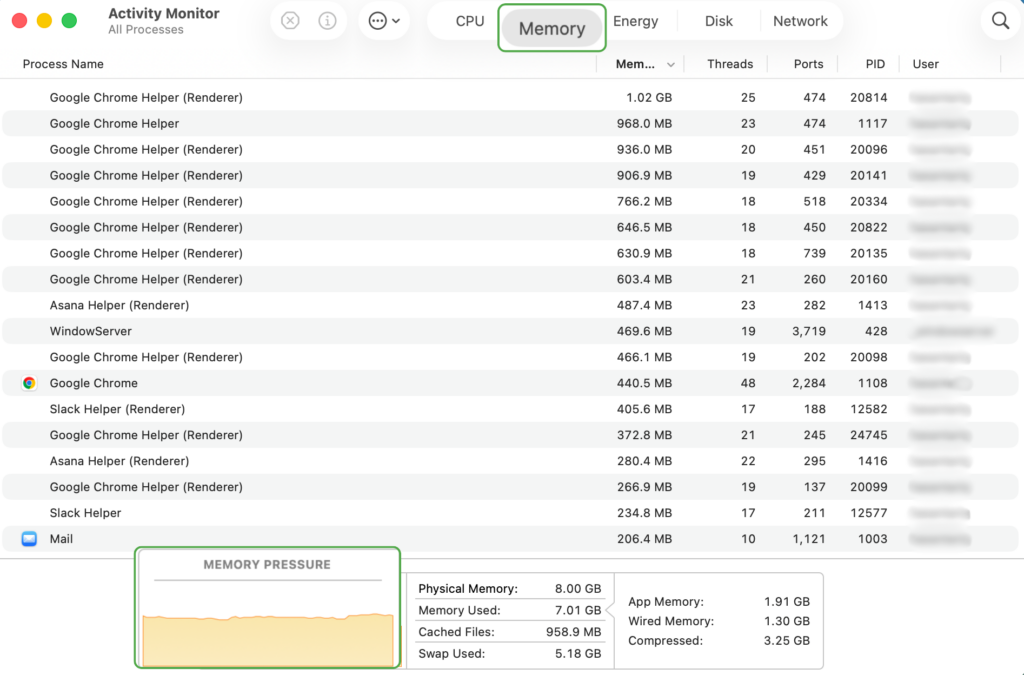
- Press Command + spacebar, search for Activity Monitor, and open it.
- Click the Memory tab.
- Review the Memory Pressure graph at the bottom of the window.
- Green: Memory is being used efficiently.
- Yellow: Your Mac is starting to experience memory pressure, which may affect performance.
- Red: Your Mac is running low on available memory and may become less responsive.
- Click the Memory column to sort apps by memory usage.
- Select the app you no longer need and click the X button.
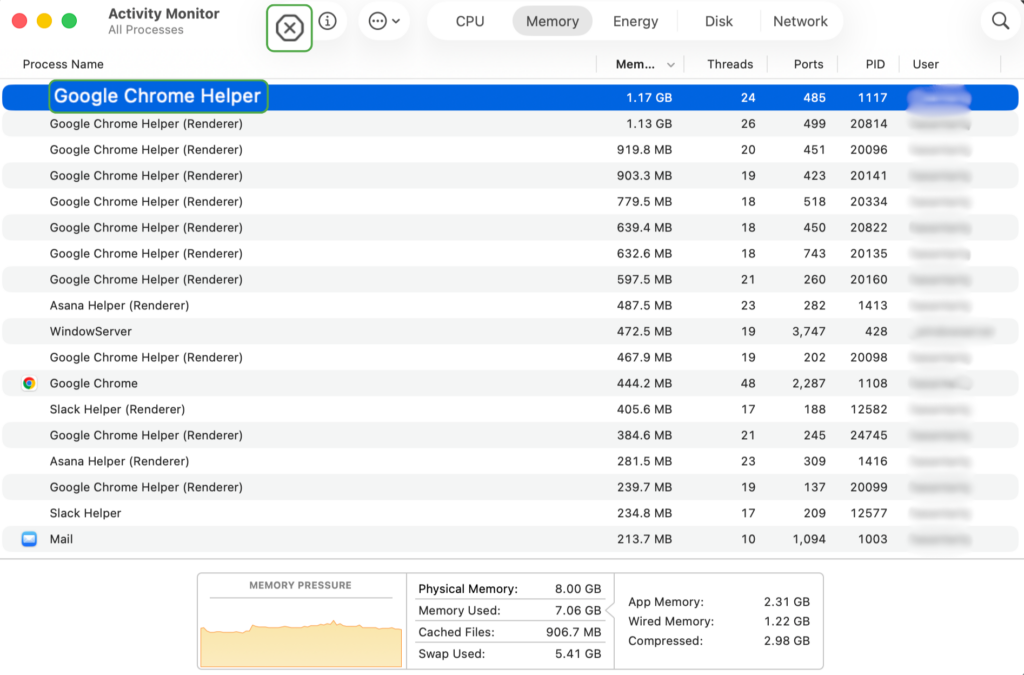
- Click Quit to close the app. Use Force Quit only if an app is unresponsive.
If memory pressure remains high, a few additional steps may help:
- Restart your Mac: This clears active memory and closes background processes.
- Quit unused apps: Closing a window doesn’t always quit the app. Use Command + Q or choose Quit from the app menu.
- Check login items: Apps that launch automatically can consume memory in the background. Review them under System Settings > General > Login Items & Extensions.
- Close memory-intensive tabs: Web apps, streaming sites, and large numbers of open tabs can consume significant memory.
Read more: Best Browsers for Mac for Privacy and Performance
FAQ
How do I reset PRAM on a Mac?
To reset PRAM or NVRAM on an Intel Mac, shut down the computer, press the power button, then immediately hold Option + Command + P + R for about 20 seconds.
How do I reset PRAM on a MacBook Pro?
The process depends on whether your MacBook Pro has an Intel processor or Apple silicon. On Intel models, shut down the Mac, then turn it on while holding Option + Command + P + R for about 20 seconds. Apple silicon models don’t use a manual PRAM/NVRAM reset process, so restart or shut down the Mac and turn it back on instead.
What does resetting PRAM do on a Mac?
Resetting PRAM or NVRAM restores certain stored system settings to their default values. These settings can include sound volume, display resolution, startup disk selection, and time zone preferences.
When should I reset PRAM on my Mac?
A PRAM or NVRAM reset may be worth trying when startup or system settings don’t work as expected. Common examples include issues with startup behavior, display preferences, sound settings, or time zone settings.
How do I know if the PRAM reset worked?
If the reset was successful, your Intel Mac may restart, play the startup sound more than once, or display the Apple logo multiple times during startup. Once your Mac starts up, check whether the reset resolved the issue.
What’s the difference between resetting PRAM, resetting NVRAM, and resetting SMC?
PRAM, NVRAM, and SMC serve different purposes on a Mac. PRAM and NVRAM store certain system settings, while the SMC manages power, charging, thermal, and other hardware-related behavior on Intel Macs. Resetting one doesn’t affect the others.
