Why Is My VPN Not Connecting? Common Causes and Fixes
There are moments when your VPN not connecting can be frustrating (think not being able to access your organization’s tools while working remotely) and even worrying (like when you need to log in to your banking app on public Wi-Fi).
It’s easy to assume the worst, but a VPN that won’t connect rarely points to anything serious. Most connection failures can be traced back to a handful of common causes. And nearly all have simple fixes.
3 Quick Fixes for When Your VPN’s Not Connecting
Before tackling the more advanced troubleshooting steps when your VPN isn’t connecting, run through these three checks. They can solve some VPN connection failures in well under a minute:
- Confirm your internet is working: Disconnect the VPN and try loading a website. If the page won’t load, the problem is likely that you don’t have a network connection.
- Check your VPN subscription status: You need an active plan to use your VPN. Log into your account to confirm your subscription is active.
- Update the VPN and restart your device: Update your VPN app, close it completely, restart your device, then reopen the app.
Jump to full step-by-step instructions for reconnecting your VPN.
Why Won’t My VPN Connect?
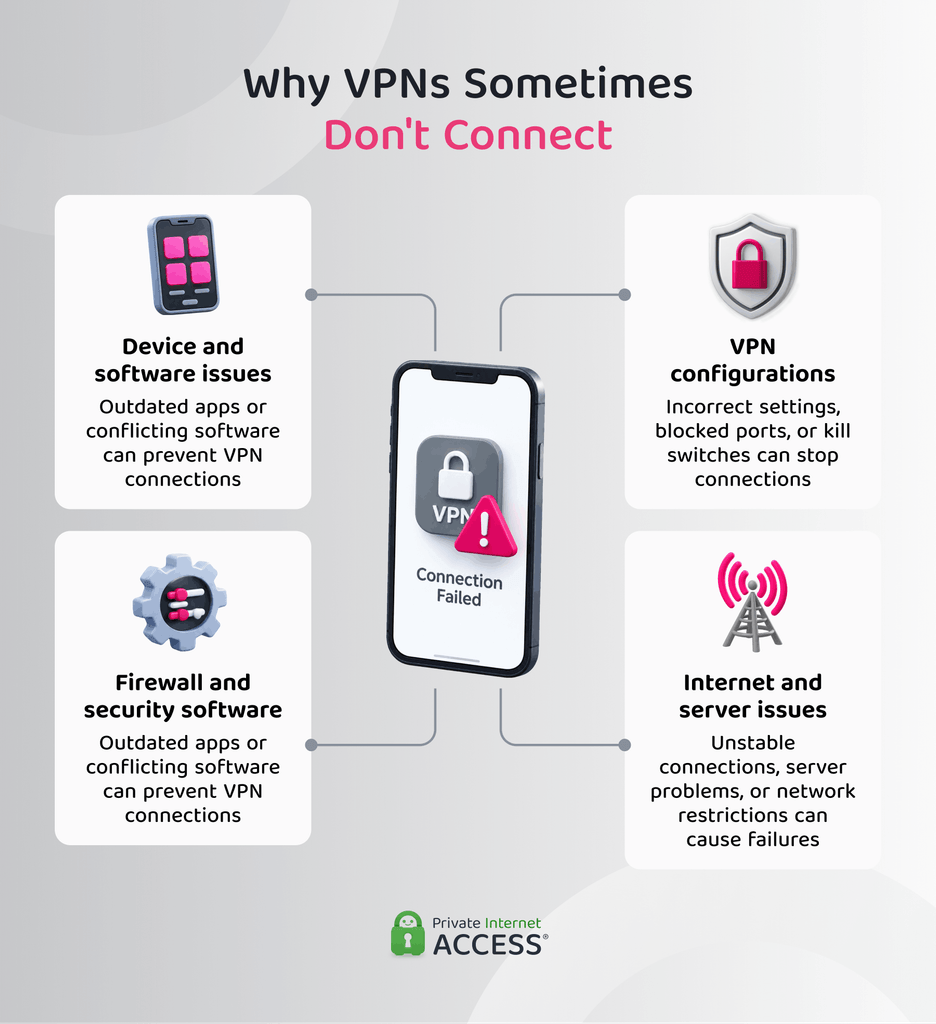
The reasons why your VPN might not be connecting generally fall into four categories: your internet connection and VPN server, your device and its software, your security software, and your VPN configuration.
Internet and Server Issues
| Possible Cause | What’s Happening |
| Unstable internet connection | Your VPN needs a working internet connection to establish a tunnel |
| Overloaded or congested server | Too many users on a server can cause slow connections or timeouts |
| Server downtime | A server may be temporarily unavailable during maintenance or an outage |
| Country- or network-level restrictions | Some countries, regions, and networks block or restrict VPN traffic |
Device and Software Issues
| Possible Cause | What’s Happening |
| Outdated app version | An older VPN app may have compatibility issues with current servers or protocols |
| Corrupted network adapter or DNS cache | Network configuration problems can prevent the VPN from establishing a connection |
| Another VPN or network optimization tool | Competing VPNs or network tools can interfere with the VPN tunnel |
Firewall and Security Software
| Possible Cause | What’s Happening |
| Firewall settings | Your firewall may mistake encrypted VPN traffic for suspicious activity and block it |
| Antivirus software | Some antivirus programs can interfere with VPN connections until you allow access |
| Router-level protections | Router security settings may restrict VPN traffic or specific VPN protocols |
VPN Settings and Configuration
| Possible Cause | What’s Happening |
| VPN protocol | Some networks may not be compatible with certain VPN protocols |
| Blocked ports | Your network or ISP may block ports used by the VPN |
| Misconfigured kill switch | A kill switch can block internet access when it detects that the connection drops |
How to Fix a VPN That Won’t Connect in 6 Steps
We’ve arranged the six steps below from the simplest and most common checks to more advanced troubleshooting, so you can work through them without changing several settings at once.
1. Switch to a Different Server Location
Server issues such as overloading and downtime happen most often with popular server locations during peak hours, when too many connections compete for the same bandwidth.
Some ISPs may also throttle or block a server’s address if it thinks it’s associated with malicious activity. Some VPN providers rotate IP addresses to avoid this, but frequently changing IPs can lead to further blocks.
Switching to a different server, ideally one that’s geographically close to you, often resolves these issues immediately. A closer server usually means lower latency and a more stable connection too, since your data has less distance to travel.
2. Check Your Kill Switch Settings
When a kill switch detects an interruption to your VPN connection, it cuts your internet connection. This is an important security feature that prevents exposure of your data over your network, but it can seem like your VPN is failing to connect.
In instances where your internet stops working right after your VPN disconnects, check your kill switch settings to see if it could be responsible.
PIA gives you two separate kill switch options, which can be accessed and adjusted under Settings > Privacy in the app.
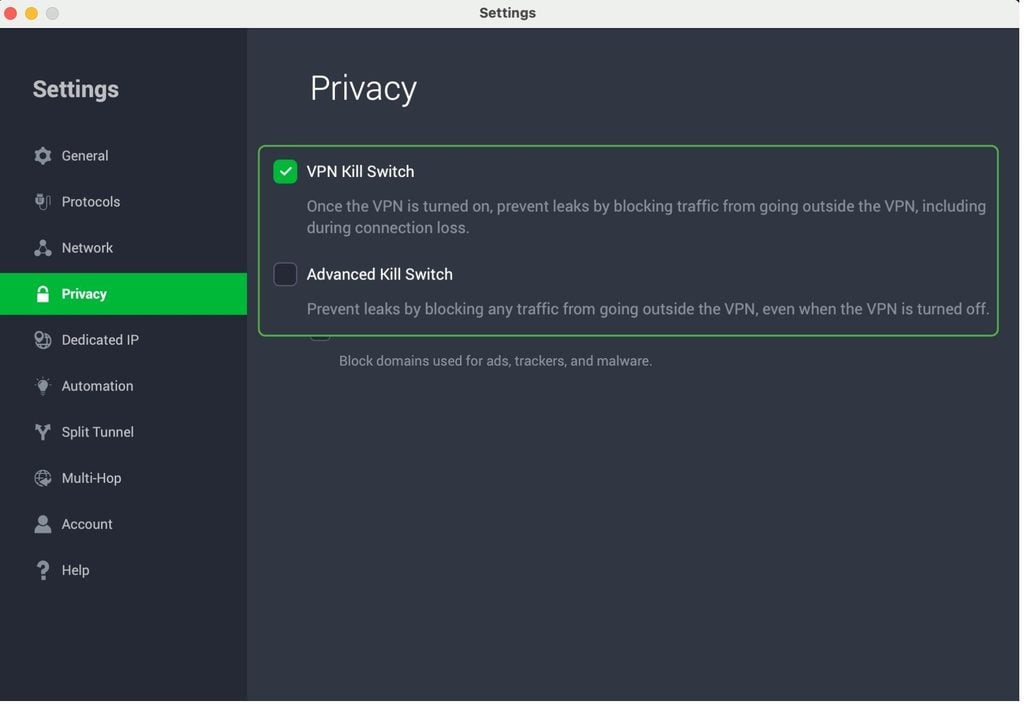
PIA enables a standard VPN Kill Switch by default and blocks your internet if your connection drops unexpectedly, preventing your real IP address from leaking. The Advanced Kill Switch is a bit stricter. It blocks internet access entirely unless you’re connected to a VPN server, even before the app has launched.
It may be tempting to disable the kill switch to regain internet access, but this leaves your real IP address exposed if your VPN drops again. Reconnecting to a nearby server is the better fix.
3. Change Your VPN Protocol or Port
Your VPN protocol determines how your device builds the encrypted tunnel to the server. Switching to a different one can resolve both connection failures and unusually slow speeds. In the PIA app, you can change your protocol and port under Settings > Protocol.
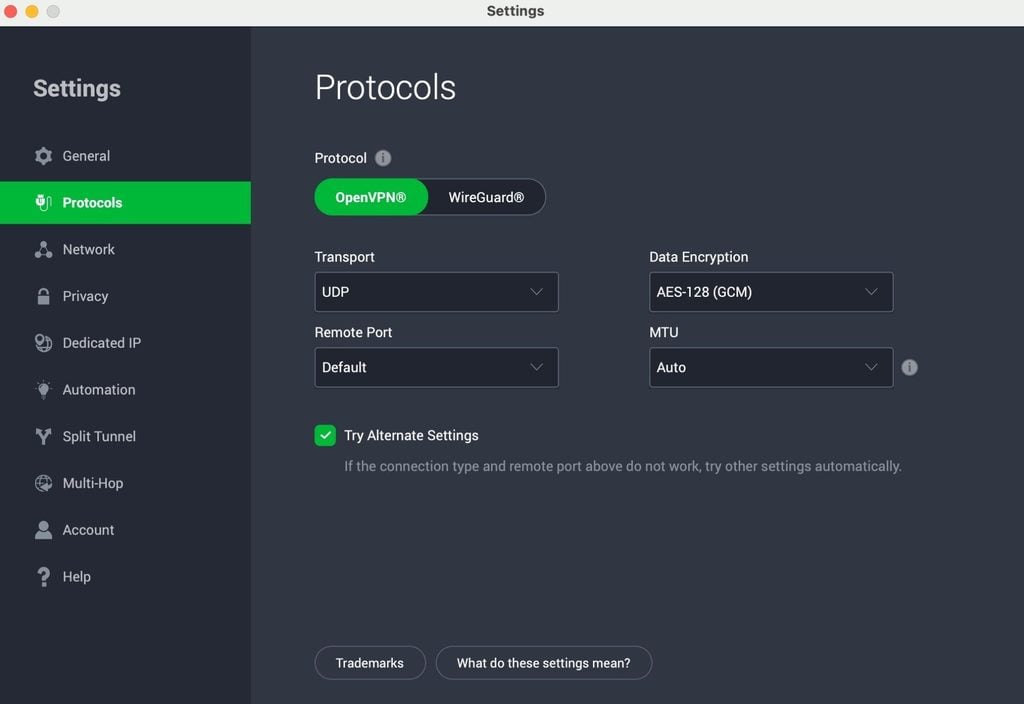
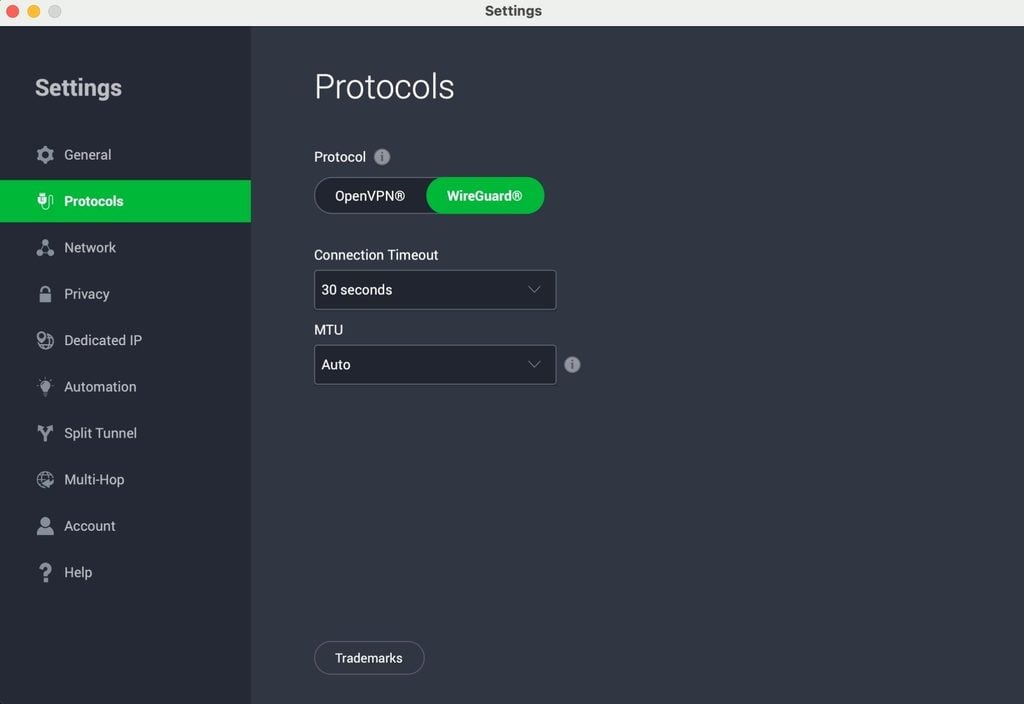
You’ll see two VPN protocol options here: WireGuard and OpenVPN. WireGuard is a lightweight protocol that makes it one of the fastest VPN protocol options and a solid default for everyday browsing, streaming, and downloading.
OpenVPN has two modes that are suited to different needs. The User Datagram Protocol (UDP) prioritizes speed and works well for most connections, while the Transmission Control Protocol (TCP) tends to be slower but more reliable on more restrictive networks.
4. Check Your Firewall and Antivirus Settings
To test whether your firewall or antivirus is mistaking your encrypted VPN traffic for a threat, briefly disable them, then try reconnecting to your VPN. If it connects, your security software is most likely causing the problem and you’ll want to add your VPN app to the program’s exception list.
Be sure to re-enable your security software afterward.
On Windows
- Open Windows Security and go to Virus & Threat Protection.
- Select Manage Settings, then Add or Remove Exclusions.
- Choose Add an Exclusion, select File, and add your VPN app.
On macOS
- Open System Settings and choose Network or Security & Privacy in the left-hand menu.
- Select Firewall.
- Click Options and then + to start adding exceptions.
- Find your VPN app in the list and select Open to add it to the list of allowed apps.
Router-level firewalls can cause the same issue. If your router has a built-in firewall or VPN passthrough setting, access its configuration page to confirm it isn’t blocking VPN traffic at the network level. You can usually do this by typing 192.168.1.1 or 192.168.0.1 into the address bar of your browser and logging in with the username and password for your router (you can usually find this on a sticker on the back of your router).
5. Disable Other VPNs and Network Optimization Tools
Running two VPN apps at once, or a VPN alongside a network optimization tool like a gaming network booster (e.g., Killer Network Service), often causes connection conflicts. This can be easy to miss since both tools usually run in the background.
Follow these steps:
- Disconnect and terminate any other VPN apps completely.
- Check your system tray or menu bar for background VPN processes too, since some apps keep running even after you think you’ve quit them.
- Disable any network optimization tools.
- Reconnect to your VPN.
6. Obfuscate Your VPN Traffic
In situations where networks are using traffic inspection or restrictive security settings that interfere with your VPN connection, try enabling obfuscation.
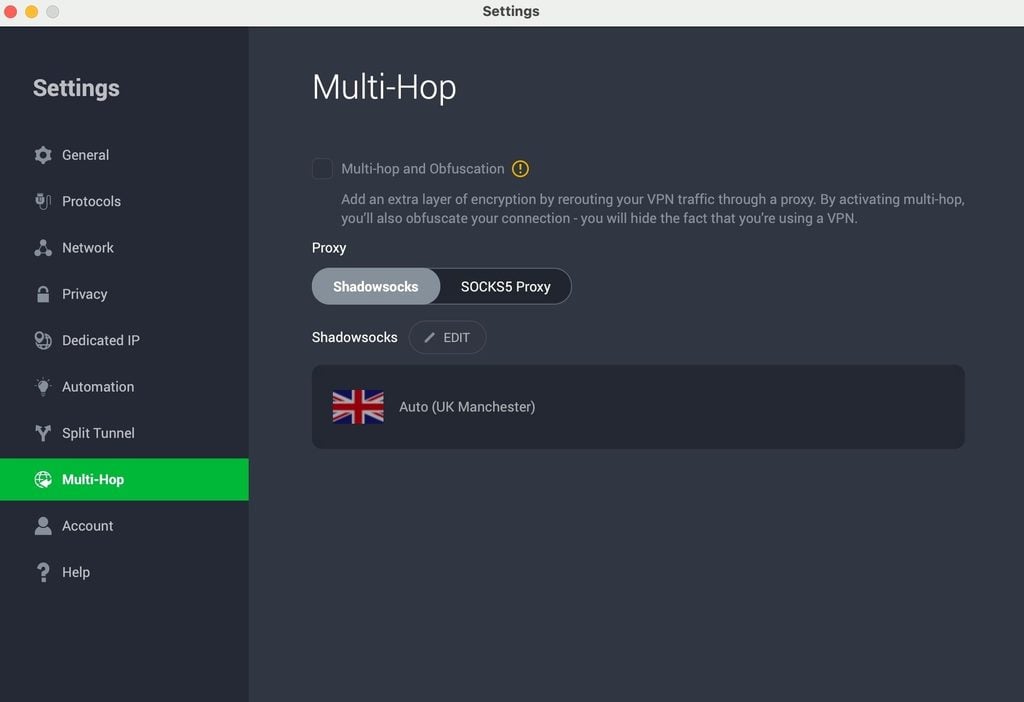
Obfuscation changes how your VPN traffic appears to the network while maintaining the VPN connection. In the PIA app, you can enable this through the Multi-Hop setting, which also routes your connection through a second server for an additional layer of protection.
If you’re using a managed network, such as a workplace, school, or public Wi-Fi network, make sure they permit VPN use before enabling obfuscation or changing other VPN settings.
Troubleshooting by Device
Some VPN issues are specific to the device you’re using rather than the VPN itself.
How to Fix VPN Connection Issues on Windows 10 & 11
If your VPN won’t connect on Windows 10 or 11, it’s often down to adapter issues, conflicting software, or manual setup errors. Work through these steps in order:
- Update or reinstall your network adapter: Open Device Manager, right-click your network adapter, and select Update Driver. If that doesn’t help, disable and re-enable the adapter, or uninstall it and restart your PC to trigger a clean reinstall.
- Flush your DNS cache: Open Command Prompt as an administrator and run
ipconfig /flushdns, followed bynetsh winsock reset. Restart your PC afterward for the changes to take effect. - Check for conflicting software: Other VPNs, firewalls, or antivirus programs can block your connection. Disable them to test, then add your VPN to their exception lists if that solves it.
- Run the VPN app as an administrator: Right-click the app icon and select Run as Administrator to rule out permission issues.
Common macOS VPN Connection Issues and How to Fix Them
With macOS, VPN issues usually come down to permissions, profile conflicts, or a stale DNS cache.
- Check system permissions: Go to System Settings > Privacy & Security and confirm your VPN app has the necessary network permissions enabled.
- Remove conflicting configuration profiles: Go to System Settings > VPN (or Network on older macOS versions) and delete any outdated or duplicate VPN profiles that might be interfering with your connection.
- Flush your DNS cache: Open Terminal and run
sudo dscacheutil -flushcache; sudo killall -HUP mDNSResponderand restart your Mac. - Check firewall settings: Go to System Settings > Network > Firewall and make sure you allow your VPN through the firewall.
Fixes for VPN Connection Issues on Mobile
Battery optimization is usually the reason why your VPN isn’t working on your phone. Android and iOS both restrict background app activity to save power, which can close your VPN connection without warning.
On Android
- Go to Settings > Apps.
- Select your VPN app, tap Battery Usage, and make sure it’s not set to Restricted.
- Go to Settings > Battery > Battery Saver to confirm power-saving restrictions aren’t affecting your VPN app.
On iPhone
- Go to Settings > Battery.
- Find and tap Power Mode.
- Toggle the switch next to Low Power Mode to the “off” position.
How to Confirm Your VPN Is Actually Connected
Even if your VPN says it’s connected, it’s worth double-checking that it’s actually protecting you rather than assuming the fixes you tried worked.
The easiest way to do this is by checking your IP address. First, disconnect your VPN, then navigate to PIA’s IP checking tool and note the address. Then, connect the VPN and repeat the steps. The IP address should match the VPN location you’re connected to and be different from the IP address you saw first.
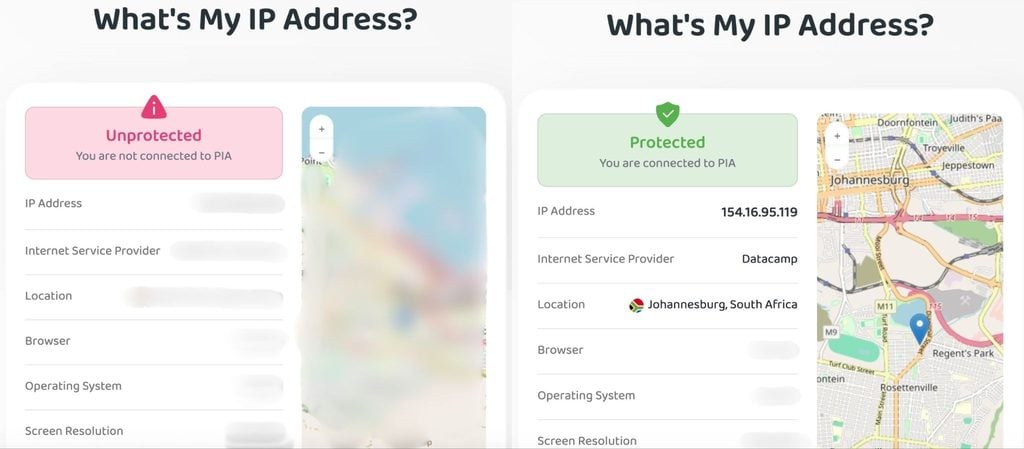
If your IP address changes, your connection is active. If it doesn’t, you might need to revisit some of the troubleshooting steps above.
FAQ
Why isn’t my VPN working?
If your VPN isn’t connecting, it might be because your actual internet connection isn’t working or because your VPN subscription has expired. Beyond that, common causes include firewall interference, an incompatible protocol, or a misconfigured kill switch.
How do I force a VPN to connect?
There aren’t ways to “force” a VPN to connect. The closest equivalent is manually disconnecting and reconnecting or closing and reopening the app, which resets the connection attempt.
Why is my VPN not connecting when I’m on Wi-Fi?
Some Wi-Fi networks are incompatible with certain VPN protocols. Try switching to another protocol and reconnecting. Your network may also use certain traffic filtering processes that don’t work well with VPNs. In these cases, you can try enabling VPN obfuscation. Wi-Fi networks in schools and workplaces may block VPN traffic, so your best bet is to switch to a cellular connection if you have one available.
Why is my VPN blocking my connection?
A misconfigured kill switch is the most common cause. It blocks your internet to prevent your real IP address from leaking if the VPN connection drops, and reconnecting usually resolves it immediately. Broad split tunneling rules or a built-in ad and tracker blocker can block specific traffic too. Check those settings if reconnecting doesn’t help.
Why is my VPN browser extension not working?
Browser extensions can fail to connect if they’re outdated or conflicting with other extensions. Make sure both your browser and the extension are on their latest versions, restart your browser, and disable other extensions in the interim to rule out conflicts. For a more stable connection, use the PIA VPN app for your operating system.
Why isn’t my VPN working with email?
If your emails aren’t sending while you’re connected to your VPN, your email provider may be blocking traffic from VPN IP addresses to prevent spam. Alternatively, your VPN may be blocking the port your email service uses. Try switching servers or confirm your email client is using a secure port like 587 or 465.
