No Network Connection: Why Is My Internet Not Working?

You’re ready to settle in with a Netflix show, but the “No network connection” message shows up right when you need the internet. This can happen for a few different reasons, and each one points you in a different direction when you’re trying to fix it.
In this article, we’ll cover what the “No network connection” error means, what’s causing it, and what you can do to get back online again quickly.
- What Does No Network Connection Mean?
- No Network? Common Causes Explained
- Diagnosing The Problem (Step-by-Step)
- Fixing No Network Connection on Phones
- Fixing No Internet Connection on Computers
- Fixing Network Connection Issues on Smart TVs
- Fixing Network Connection Issues on Gaming Consoles
- Fixing Connection Issues on Linux
- When VPNs Cause And Solve Connection Problems
- How to Prevent Future Connection Issues
- FAQ
What Does No Network Connection Mean?
The “No network connection” message pops up when your device can’t get online – either it isn’t communicating with the router, or the router itself can’t reach the internet.
No Network? Common Causes Explained
There are a few common reasons your device might not be able to get online. Knowing what’s going on can help you figure out the cause before you start fixing it.
- You can’t access the network: Maybe the router’s off, the cable is unplugged, or you’re just too far from the Wi-Fi signal. In this situation, your device has nothing to connect to, so going online isn’t possible.
- Connected to Wi-Fi but have no internet access: Your device is connected to the router, but the router itself can’t reach the internet. That can happen if your internet provider is down, the modem isn’t working right, or the network isn’t configured properly.
- Cellular network unavailability: Your phone can’t reach your carrier’s towers, so cellular data won’t work. Weak coverage, a SIM card issue, or a wider network outage can all trigger this message.
Quick Fixes: Try These First
- Restart your router to refresh the connection.
- Reboot your device to clear temporary glitches.
- Check if any networking cables are plugged in firmly.
- Toggle Airplane Mode off and on to reset the wireless signal.
- If you’re using a VPN, temporarily turn off the kill switch.
Diagnosing The Problem (Step-by-Step)
When a “No network connection” alert pops up, begin with the basics, and then rule out issues one by one:
Check if It’s an ISP Outage
First, see if your internet provider is having issues. You can switch to cellular data to check websites or use your ISP’s service status page. Sites like Downdetector show outages reported by other users. You can also find the latest updates on your provider’s social networks.
Check Router and Modem Lights
Look at the lights on your router and modem:
- Steady green or white lights usually mean the local network is working.
- Blinking lights mean your modem is booting or connecting.
- Red lights can point to a problem connecting to the internet.
Is It Just One Device or All Devices?
Identify if the problem affects only one device or all devices in your home. If it’s just one, the issue is likely on that device – usually driver problems or network settings. If every device is offline, your router or your ISP is likely creating problems. In that case, try restarting your router and, if that doesn’t work, contact your ISP to check for outages or account issues.
This way, you’ll narrow down the cause before you start with fixes. Now, let’s dive deeper into device-specific solutions:
Jump to solutions for: iPhone | Android | Windows | Mac | Smart TV | Gaming Consoles | Linux
Fixing No Network Connection on Phones
If you’ve already tried our quick fixes and are still left wondering why your phone says “No network connection,” here are some useful tips you can try before you lose your temper.
iPhone Connection Issues
- Wi-Fi connection issues: If your iPhone can’t connect to the Wi-Fi network, there might be an issue with your router, Wi-Fi settings, or your network. Here’s what you can do:
- Check your Wi-Fi router: Confirm the router is compatible with your device and is running the latest firmware. Also, make sure the router is powered on and within range.
- Reset your network: Another option you should try is the network settings reset. Simply go to your iOS device’s Settings and navigate to General.
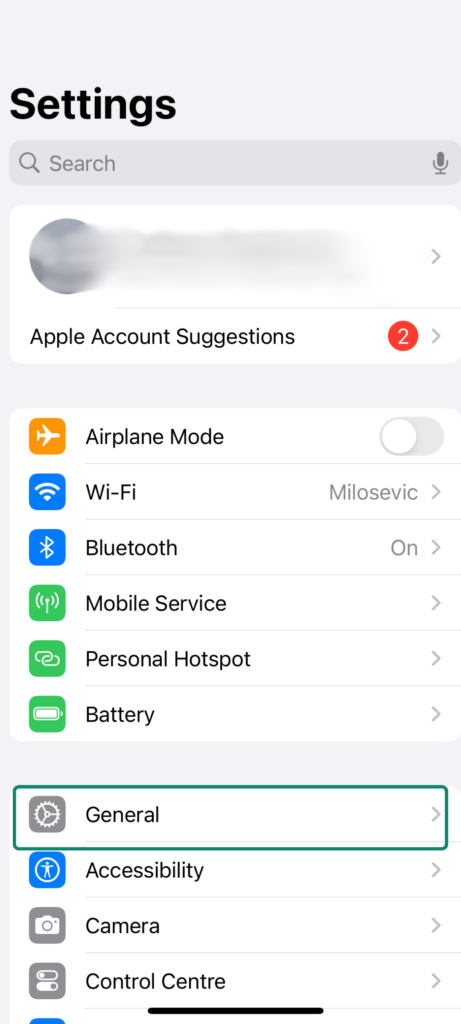
Scroll down and tap Transfer or Reset.
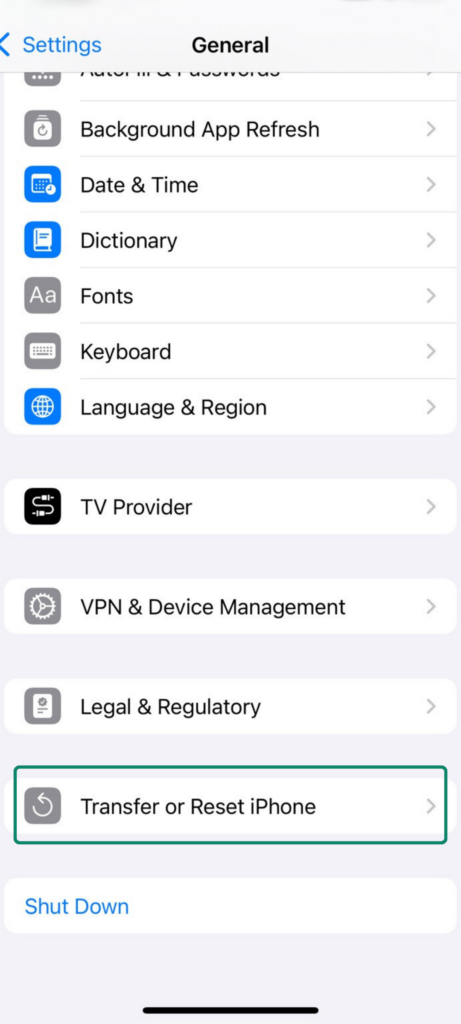
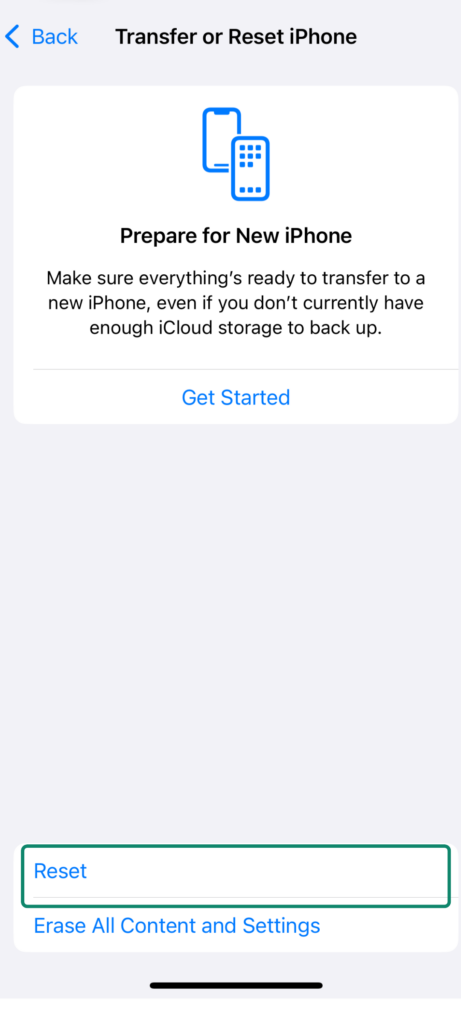
Then tap Reset. This clears all cellular settings, Wi-Fi networks and passwords, and VPN configurations. Your apps, photos, and personal data won’t be affected.
- Uninstall VPNs or security software: A VPN can interfere with your connection by changing your DNS settings, using a kill switch that blocks all traffic, or misconfiguring split tunneling so some apps can’t get online. Security apps like firewalls or antivirus tools can cause similar issues by blocking network access. If you uninstall them, restart your device and try connecting again.
-
- Problems with the SIM card: If you get the “No SIM” or “Invalid SIM” error, your iPhone isn’t recognizing your SIM. That can happen if you didn’t install it properly, or if it’s physically damaged.
- Reinsert the SIM: Use a SIM-eject tool or a paperclip to access the SIM tray, then remove the card, clean it with a soft cloth, and put it back in.
- Check SIM activation: If it doesn’t work, check with your provider if the SIM card is active or needs a replacement.
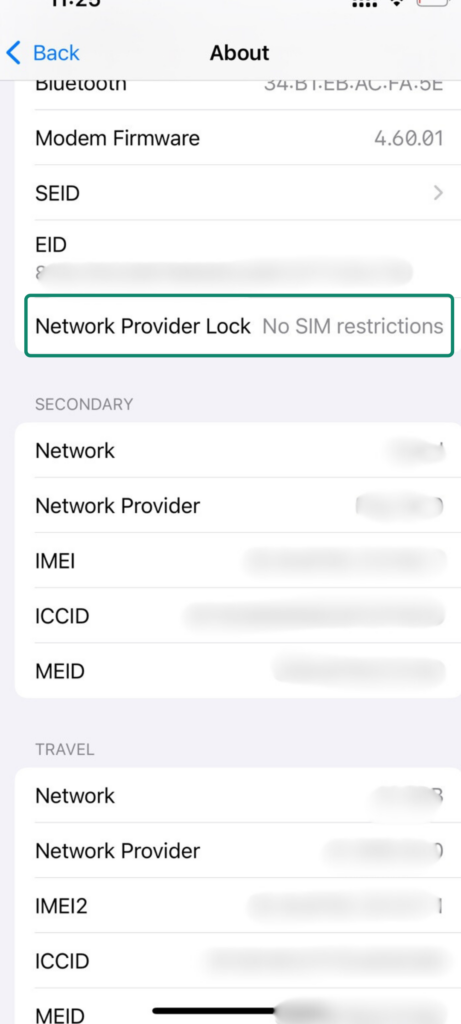
- Check the carrier lock: Lots of iPhones are carrier-locked, and this might be the case with your device. You can easily check by going to your phone’s settings, then tapping on General > About. You’ll see the Carrier Lock field with a carrier name if it’s locked, or No SIM restrictions if not.
-
- Could not activate cellular data network message: If turning cellular data off and on doesn’t help, and you have tried to reset your network, the next step is to check for available updates and manually update your carrier settings.
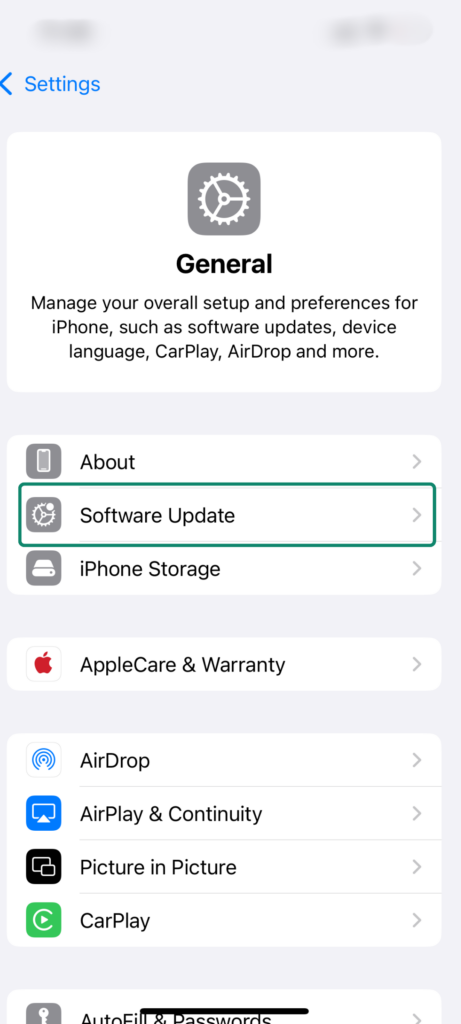
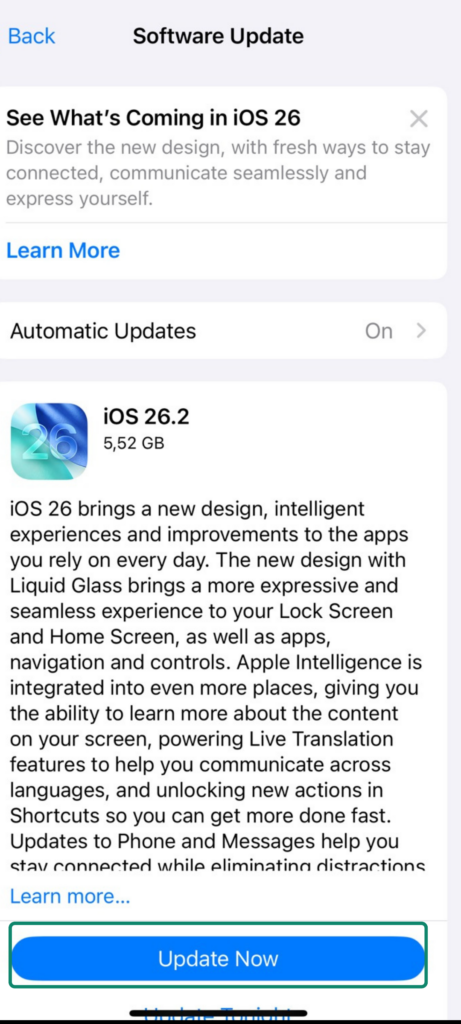
- Update your OS: Go to Settings > General > Software Update.
If there’s an available update, tap Update now, or schedule an automatic update, enter your passcode if prompted, and follow the instructions.
- Update your carrier settings: You should simply tap Settings > General > About. If an update is available, a pop-up will appear automatically.
-
- Data plan problems: If nothing else works, check whether your cellular data is disabled by your plan or if you’ve reached your data limit. Some carriers automatically block or slow data once you hit the monthly cap. You can log into your carrier’s app or website to confirm your data usage and make sure your plan is still active.
Android Connection Issues
Even though similar to iOS problems, Android phones can run into some device-specific errors. If switching between cellular and Wi-Fi data and reinserting the SIM card doesn’t help, try these fixes:
-
- Cellular/Mobile network not available message: This message means that your phone can’t reach your carrier’s network, indicating a problem with your cellular settings, which has nothing to do with your Wi-Fi.
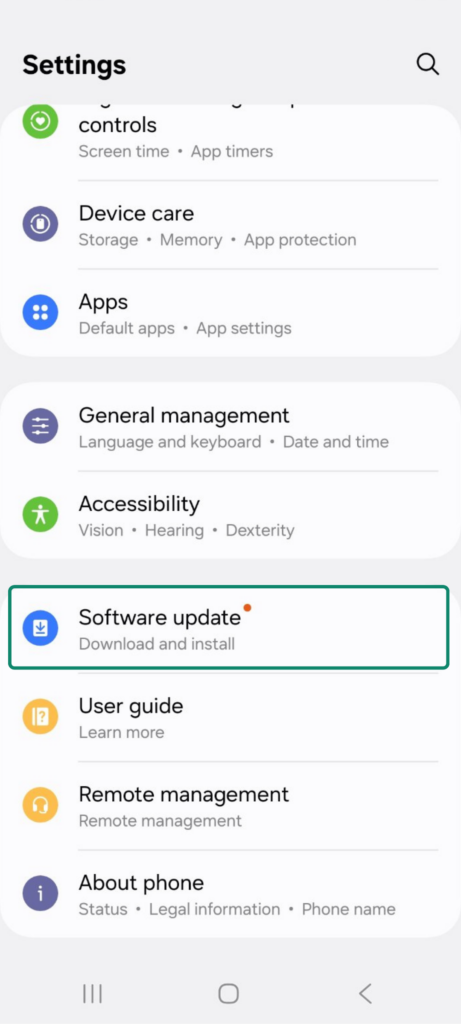
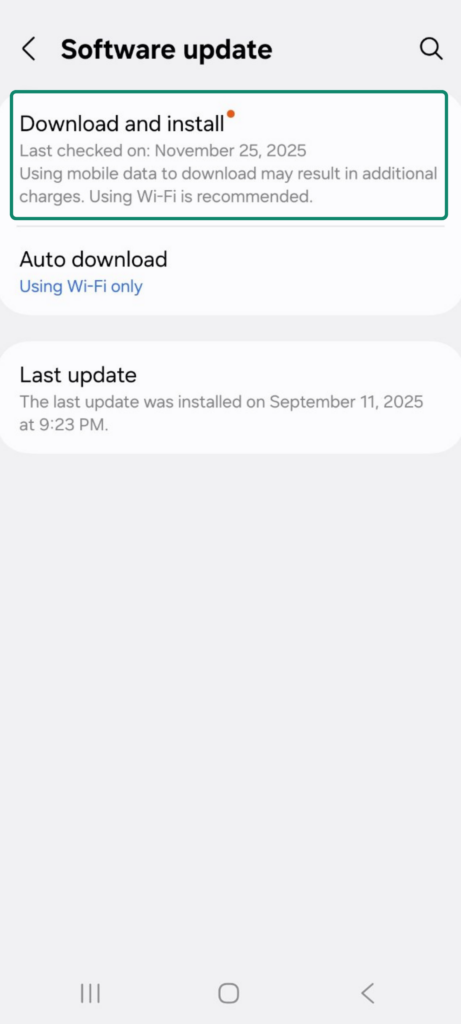
- Update your software: Go to Settings and navigate to Software update. If there’s a red dot next to it, that means your phone is running on outdated software.
Click Download and Install, or schedule an Auto download, and you’re good to go.
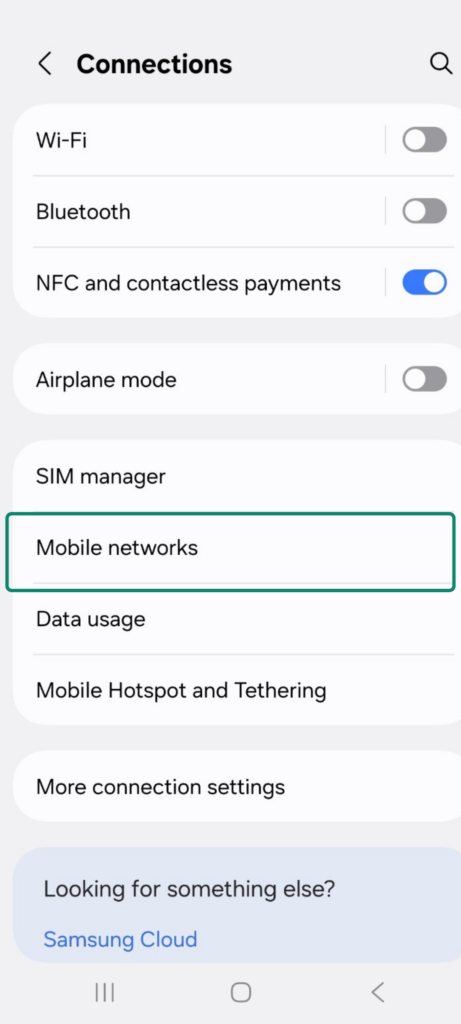
- Reset APN to Default: This step resets your APN (Access Point Name) to your carrier’s default settings so your phone can connect properly to the network.
Go to Settings and then tap on Connections (Samsung) or Network & Internet. Then, find Cellular/Mobile networks.
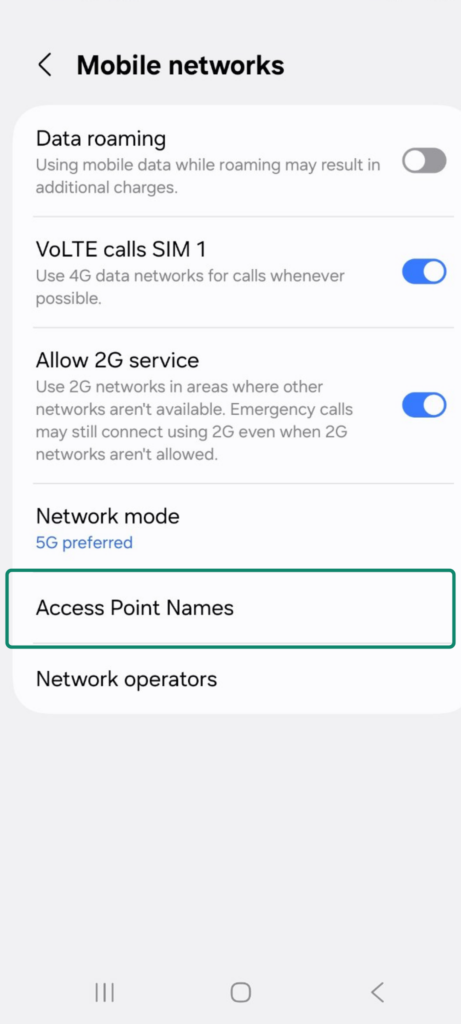
From there, go to Access Point Names.
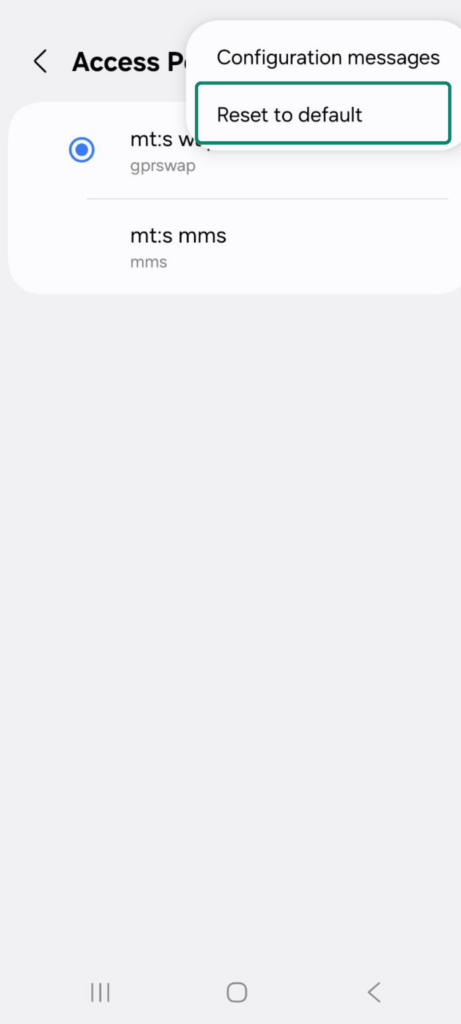
Choose Reset to default by tapping on a 3-dot menu in the top right corner.
-
- Wi-Fi authentication errors: You’ll see this when your phone can’t log in to the Wi-Fi network.
- Reconnect to the network: Go to Settings > Connections > Wi-Fi.
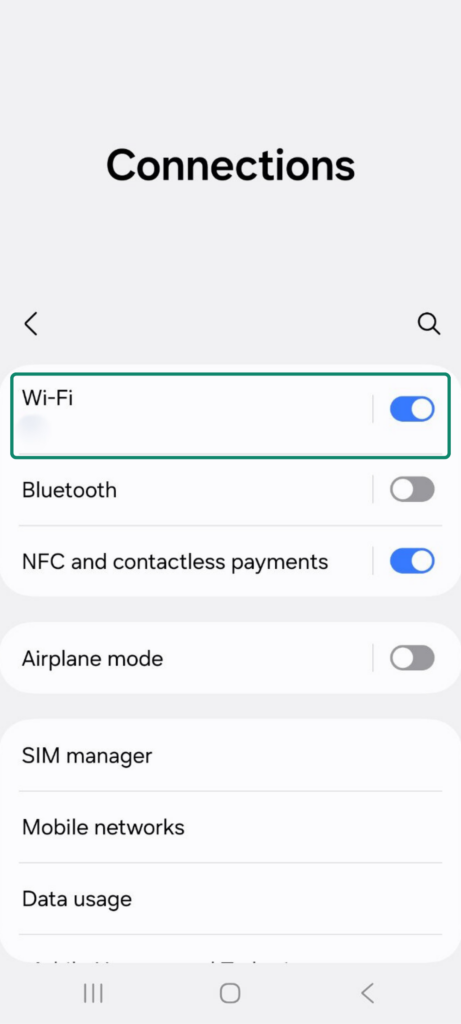
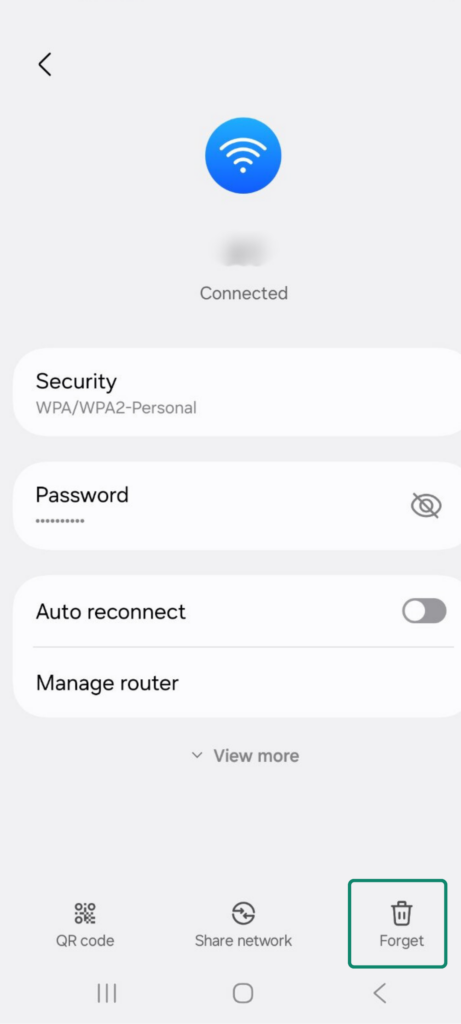
Then, choose your Wi-Fi, and click on the gear icon next to it.
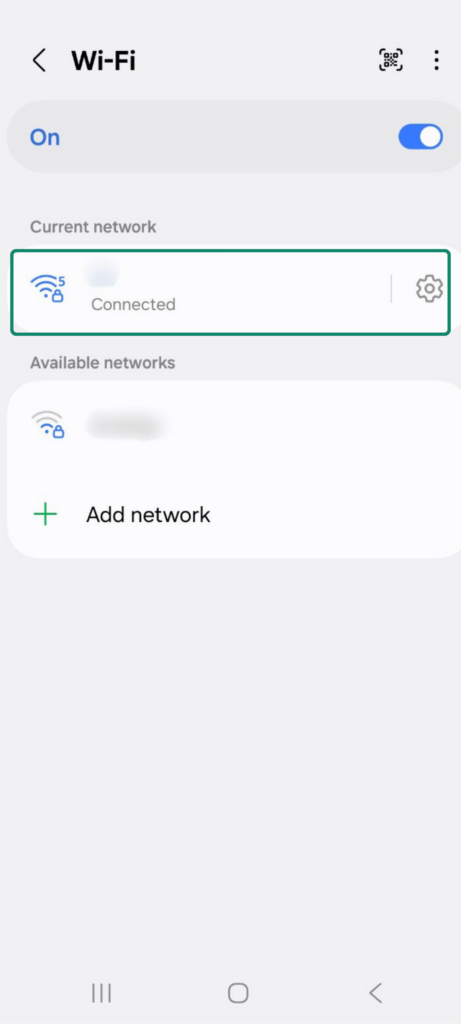
Next, find Forget at the bottom of the screen. Now, restart the router and rejoin the network. You’ll need to enter your password again.
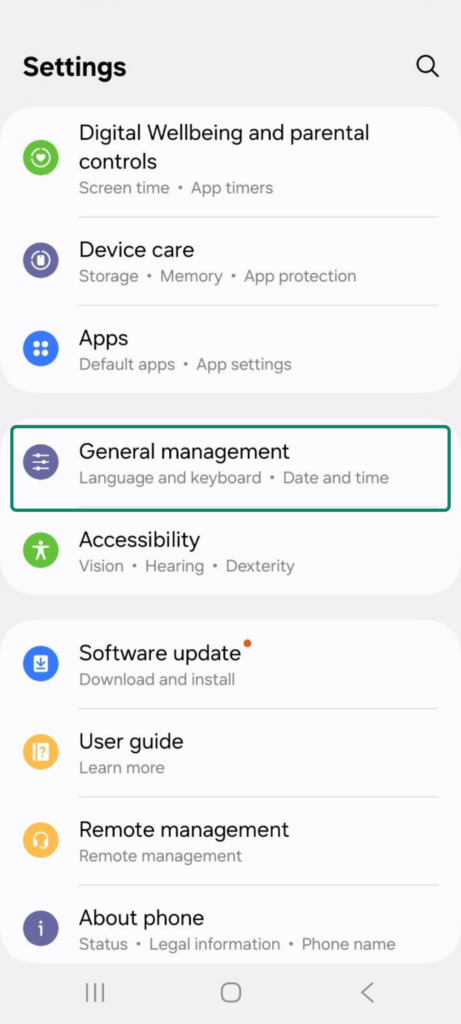
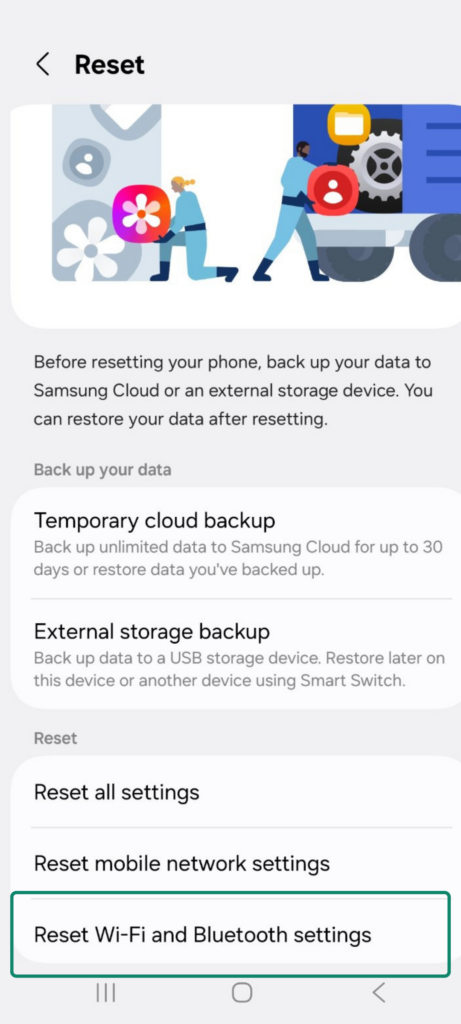
- Reset your network settings: Keep in mind that this will delete all your saved Wi-Fi networks, so make sure you have all the passwords. Find the System tab in Settings, or General Management if you’re using Samsung.
Then, go to Reset options.
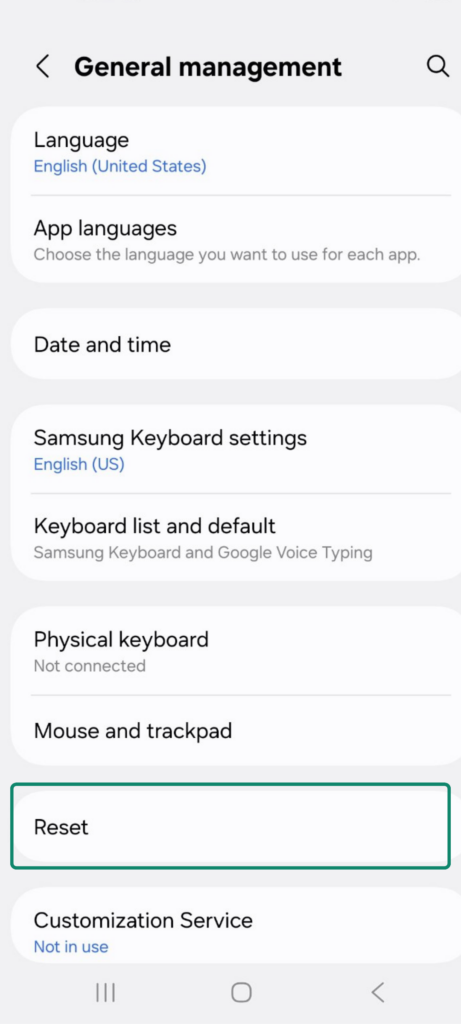
Finally, choose to reset your Wi-Fi settings:
- Failed IP address: When you get the “Failed to Obtain IP Address” message, your phone can’t get an IP address from the router and won’t connect to Wi-Fi. Try reconnecting to the network and resetting your network settings. If that doesn’t work, here’s what to do:
- Assign a static IP address: If your phone keeps failing to get an IP address automatically, try setting a static IP address. Go to your Wi-Fi settings (in the Connections tab), and select your network.
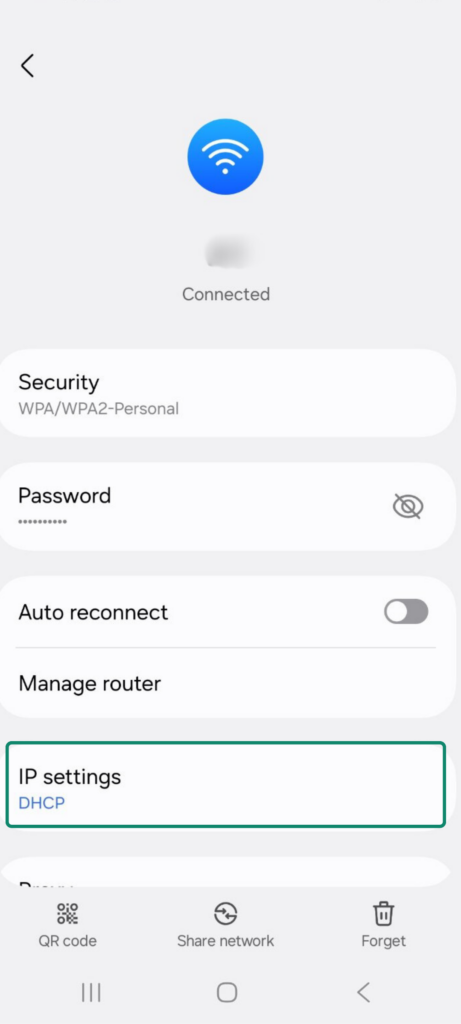
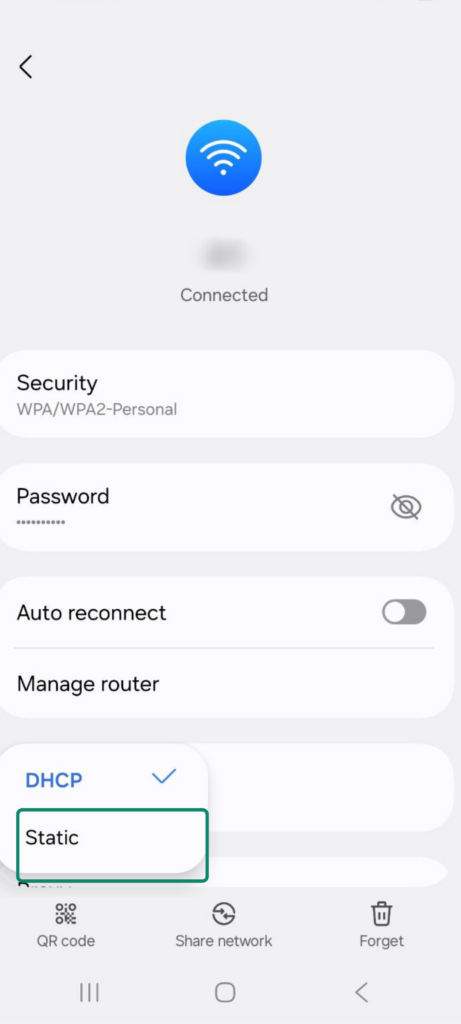
Then, click on IP settings and pick Static.
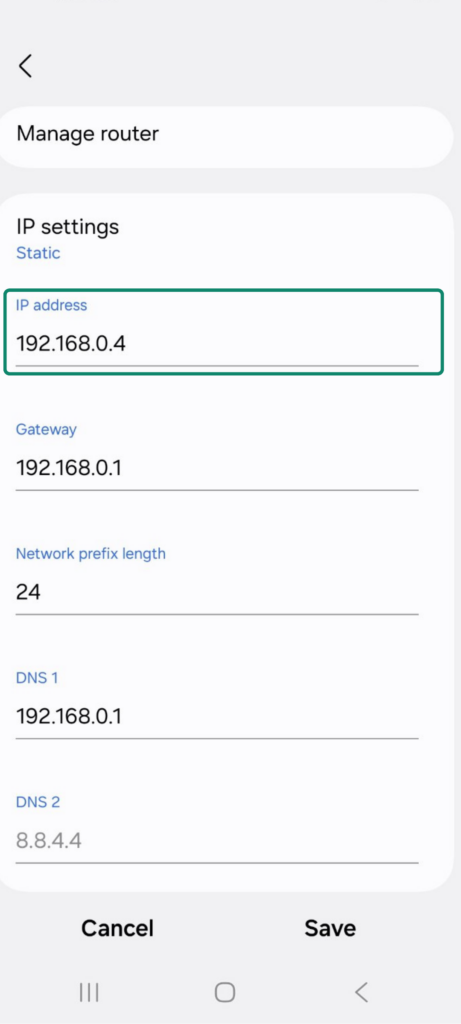
Next, change the last digit of your IP address – any number between 1 and 225 usually works – and save the settings. Try reconnecting afterward to see if the issue clears up.
- Turn off MAC address randomization: Some routers don’t play well with randomized MAC addresses. On your phone, go to Wi-Fi settings and find your network. Then, tap the gear icon or network name, and find Privacy or MAC address type (on Samsung).
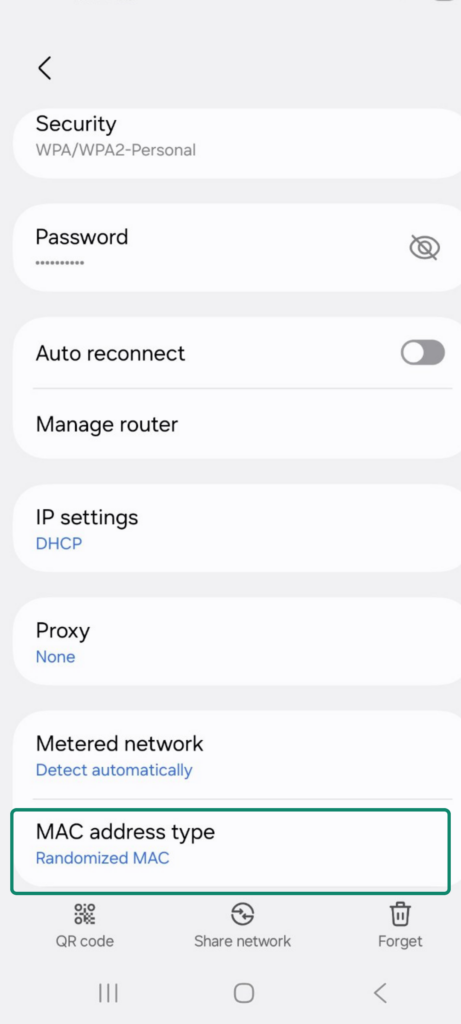
Change the MAC address from Randomized MAC to Use device MAC or Phone MAC (on Samsung). This disables randomization and makes it easier for the router to recognize your phone and give it a proper IP address.

- Samsung-specific solutions: Samsung’s UI can look slightly different than other Android phones, so menu paths may vary a bit. Also, Samsung’s software includes several features that can interfere with network connectivity:
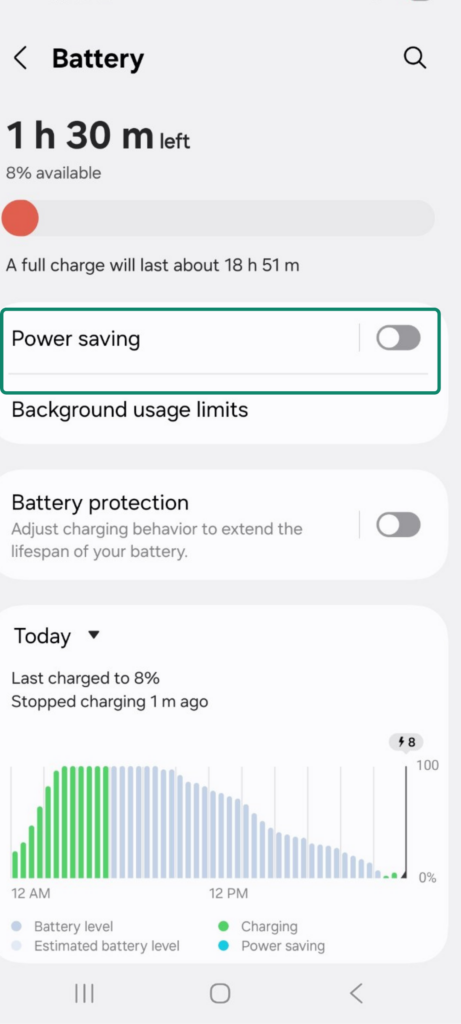
1. Check Samsung power saving options: Samsung’s power-saving modes can disable 5G, restrict background data, or slow down network reconnections.
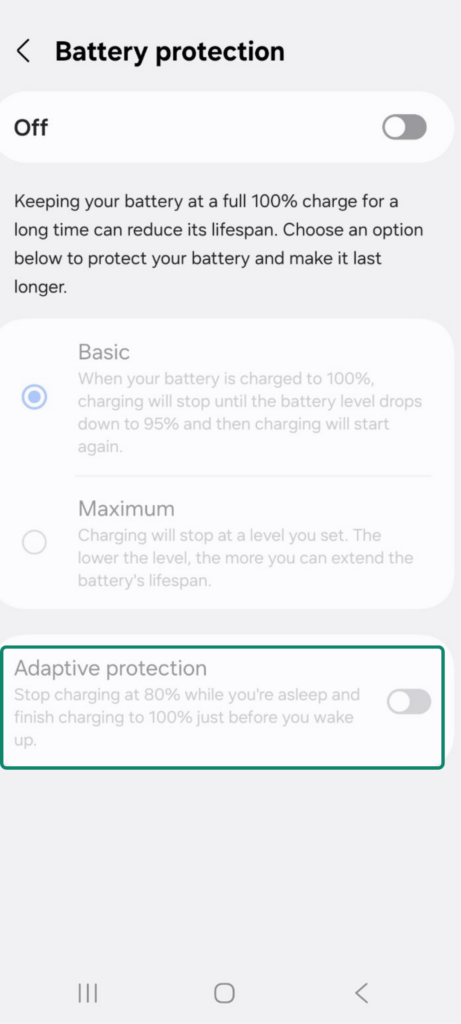
Under Settings, tap Battery, and turn off:
- Power saving.
- Adaptive protection (under Battery Protection).
2. Review background usage limits (Samsung-only feature): Samsung aggressively closes apps to save battery power, which can cause the “No network connection” error or delayed data issues in certain apps.
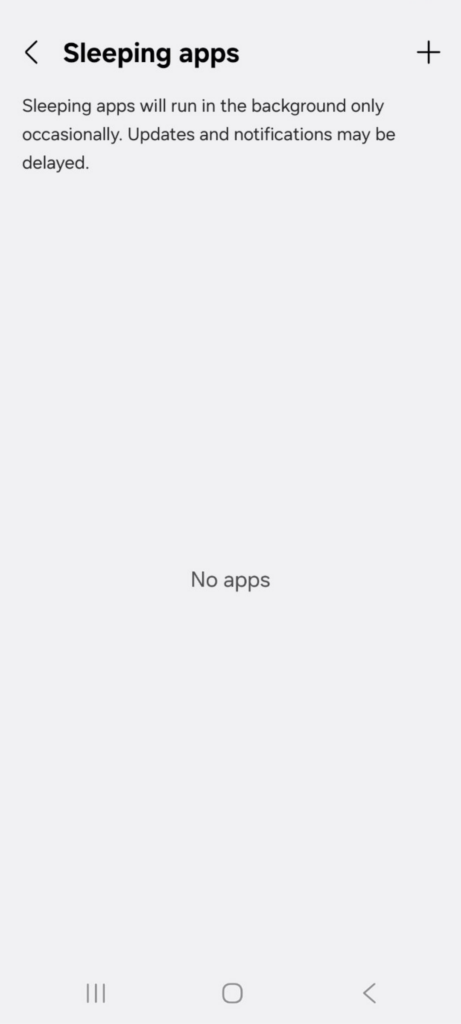
Go to your Settings > Battery > Background usage limits, and then turn off Put unused apps to sleep.
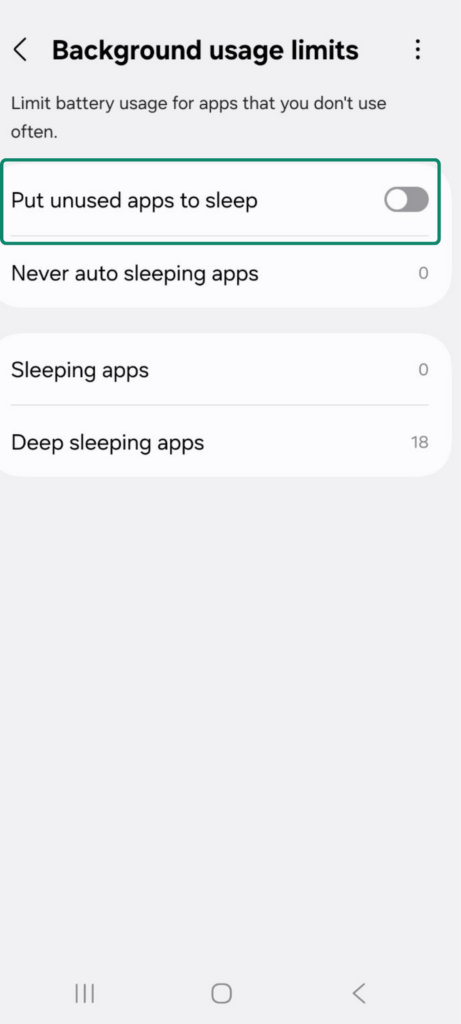
Under Sleeping apps, remove apps that rely on constant data.
Fixing No Internet Connection on Computers
If you’ve already tried rebooting your computer and restarting your router, here are some device-specific fixes that might help:
Windows 10 and 11 Solutions
Windows devices can run into several common network errors. Most of them are easy to fix once you know where to look. Here’s how to localize the problem first.
Run the Network Troubleshooter.
Windows has a built-in tool that can automatically detect and fix common connection issues. It can reset your adapter, detect DHCP or gateway problems, and often restore your connection in seconds.
Go to Settings > Update & Security > Troubleshoot.
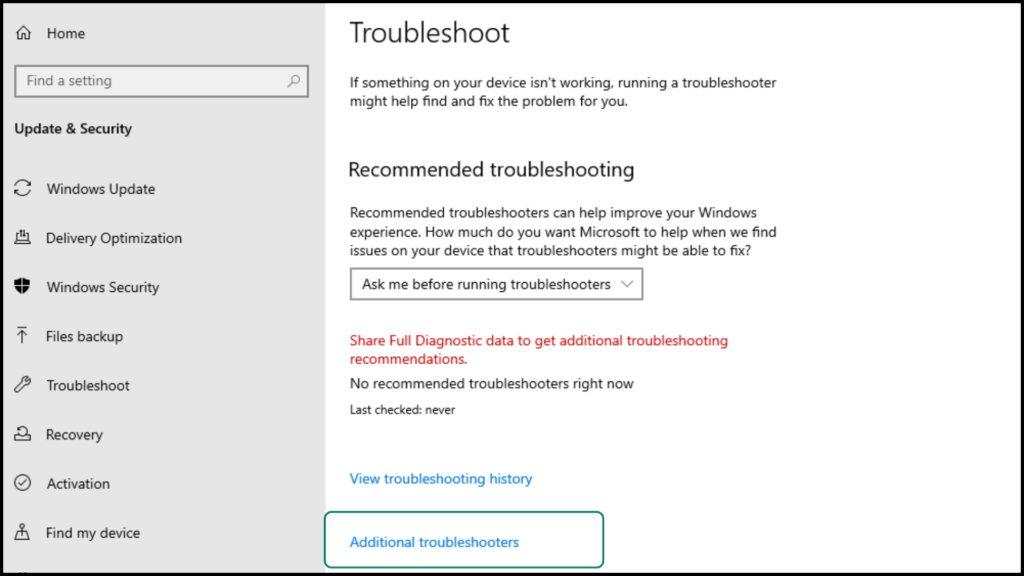
Then, click on Additional troubleshooters and run Internet Connections.
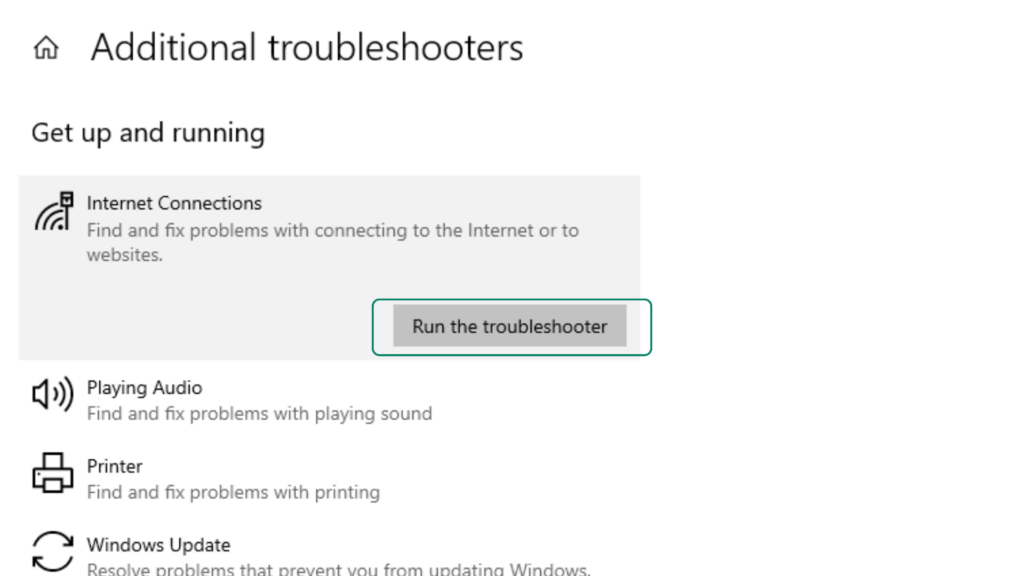
If it doesn’t solve the issue, use the next steps for deeper fixes.
To localize the problem, switch between Wi-Fi and Ethernet. If your device supports both, try switching from Wi-Fi to Ethernet or the other way around. This helps you figure out where the problem is.
- Wi-Fi-only problems: If Ethernet works but Wi-Fi doesn’t, the issue is likely with your router’s wireless settings, signal strength, or Wi-Fi driver. Try restarting the router, updating Wi-Fi drivers, or reconnecting to the network.
- Issues with Ethernet: If Wi-Fi works but Ethernet doesn’t, then your LAN cable, Ethernet port, or router’s LAN settings might be faulty. Try a different cable or a different port on your router.
- Device or ISP problems: If neither works, the issue is probably with your device’s network settings or your internet provider. You can try flushing your DNS cache (step 3 below) or resetting TCP/IP (step 4), but if the problem is with your ISP, you’ll need to contact your provider for help.
Now that we know where the problem is, you can go with any (or all) of these fixes (don’t forget to do the quick fixes first).
1. Wi-Fi-only problems: The most common error messages in this scenario are “Connected to local network only” and “Connected but no internet,” which basically means your device can reach your router but not the internet. Try this:
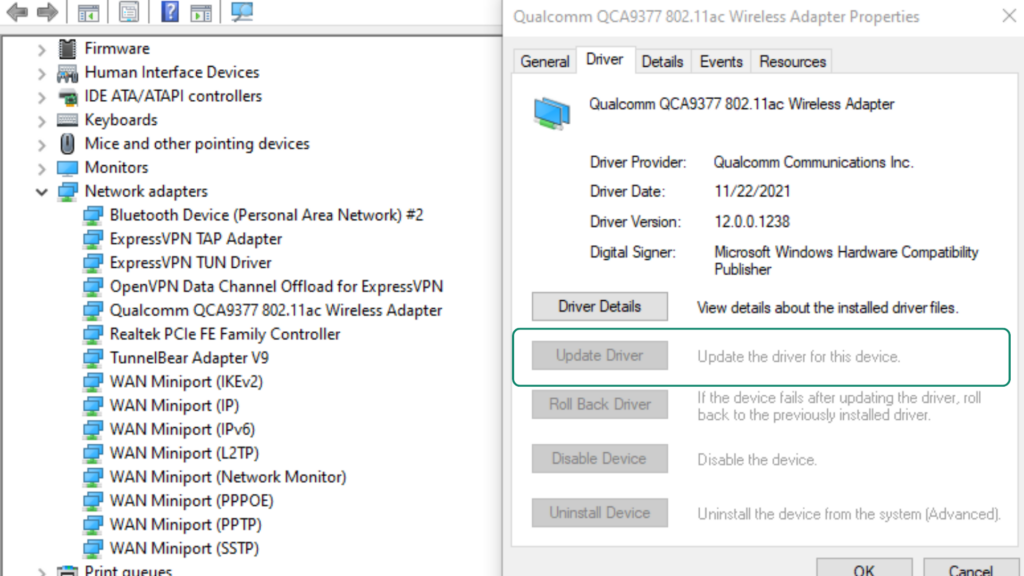
- Update your network drivers: Right-click Start > Device Manager > Network adapters.
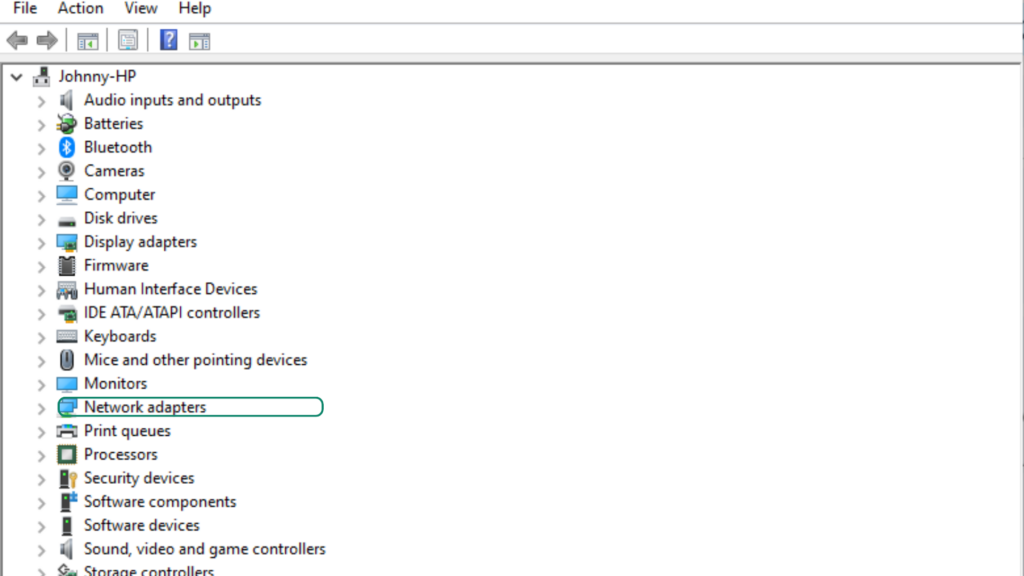
Double-click your Wi-Fi adapter and choose Update driver. If Windows finds a new version, install it and restart your PC.
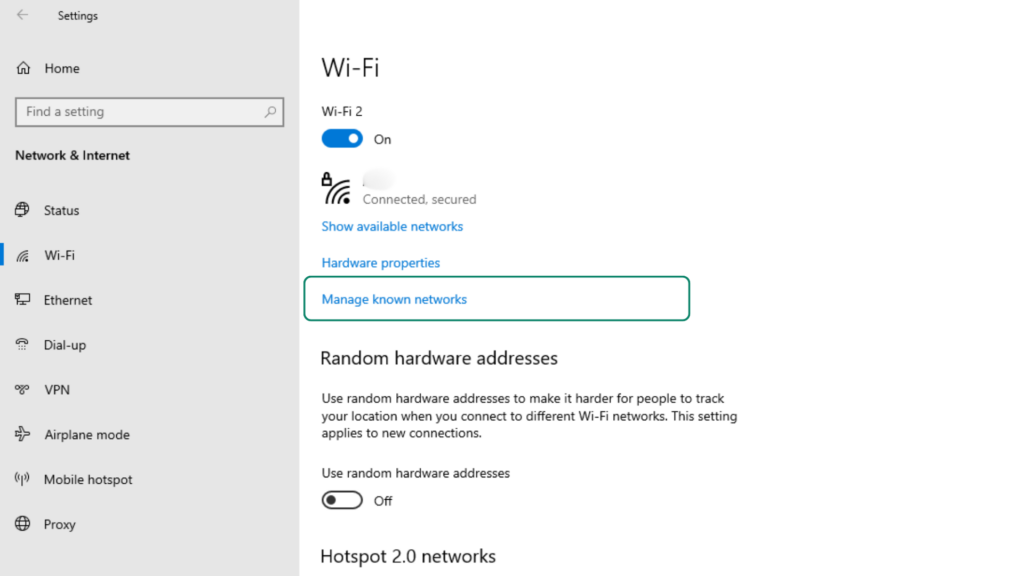
- Reconnect to the network: Go to Settings > Network & Internet > Wi-Fi > Manage known networks.
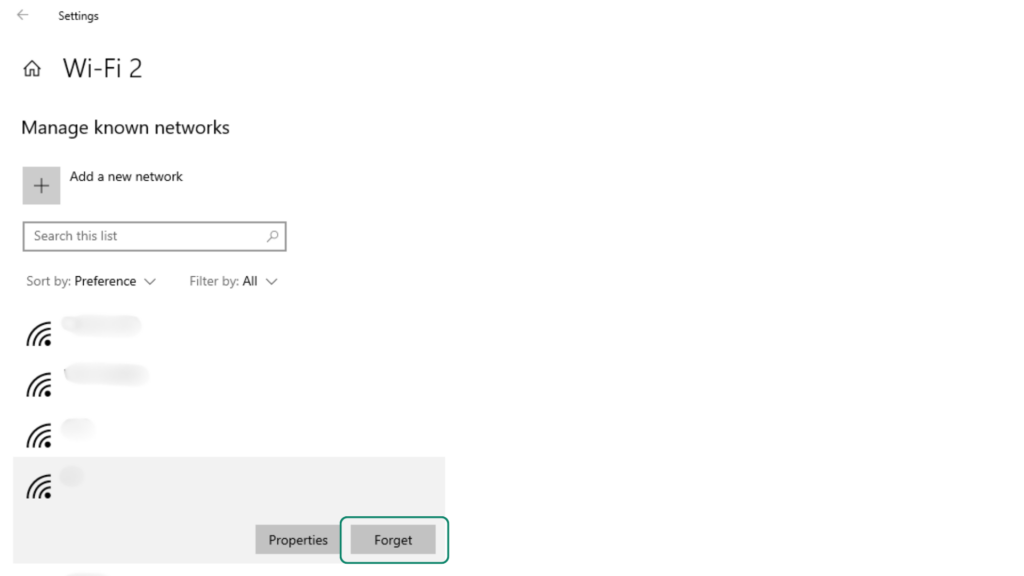
Select your network and choose Forget. Connect again and re-enter the password.
2. Ethernet-only problems: If Wi-Fi works but Ethernet doesn’t, your cable, port, or router’s LAN settings may be at fault. A common error message you’ll encounter is “Ethernet doesn’t have a valid IP configuration,” which shows up when your PC can’t get a proper IP through the Ethernet cable. Before replacing hardware, try these device-side fixes:
If your Wi-Fi works but Ethernet doesn’t, the issue might be a faulty cable or a problem with the router’s LAN port. Try these steps:
- Use a different Ethernet cable to rule out a damaged or worn-out wire.
- Plug the cable into a different LAN port on your router, as some ports may malfunction.
- Make sure the Ethernet adapter on your PC is enabled in Network Connections.
- If possible, test the connection with a USB Ethernet adapter. If it works, the issue is likely with your computer’s built-in Ethernet port.
These quick checks can help you determine if the problem is hardware-related before moving on to deeper device-side fixes.
3. Device or ISP problems: If the physical checks don’t fix the issue, the problem may lie with your device’s network settings or your internet provider’s DNS servers. In this case, continue with deeper troubleshooting:
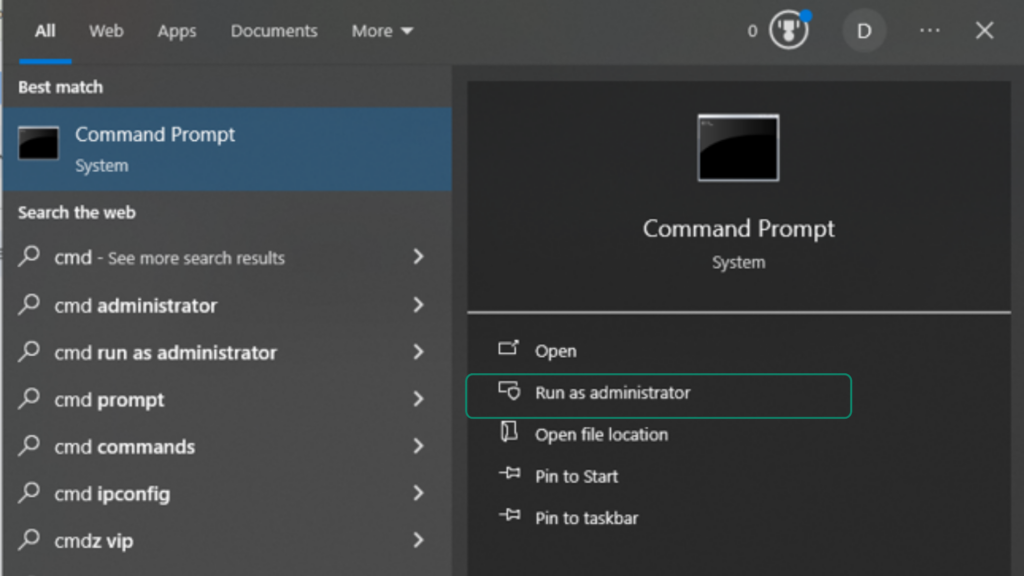
- Flush DNS and renew IP address: Open Command Prompt as administrator: press the Windows key, type cmd, right-click Command Prompt, and select Run as administrator. Click Yes if prompted.
Run:
ipconfig /flushdns
ipconfig /release
ipconfig /renew
This clears outdated DNS entries and requests a fresh IP from your router.
- Reset TCP/IP (deep fix): If you still can’t get online, your TCP/IP stack might be corrupted. Resetting it usually solves stubborn issues after updates or VPN installations. Again, open Command Prompt (Admin) and run:
Again, open Command Prompt (Admin) and run:
netsh winsock reset
netsh int ip reset
Restart your PC afterward.
- Check firewall or antivirus settings: Open your security software and make sure it isn’t restricting your Wi-Fi or Ethernet connection. You can temporarily disable it to test the connection, but remember to turn it back on afterward for protection.
- Switch to a public DNS server: Sometimes your ISP’s DNS is slow or unreliable, which can stop websites from loading. A good way to fix this is to use a public DNS instead:
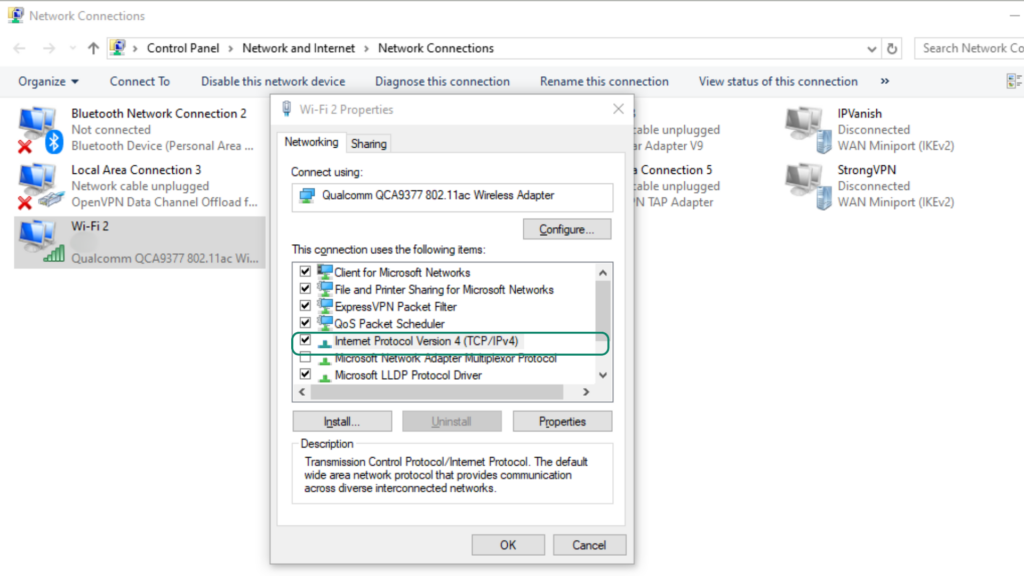
You’ll need to press Windows key + R, type ncpa.cpl, and press Enter to open Network Connections.
Right-click your Wi-Fi or Ethernet connection and select Properties.
Select Internet Protocol Version 4 (TCP/IPv4) and click Properties.
Select Use the following DNS server addresses, then enter the details for a public DNS service of your choice. For example:
- Google DNS: Preferred 8.8.8.8, Alternate 8.8.4.4
- Cloudflare DNS: Preferred 1.1.1.1, Alternate 1.0.0.1
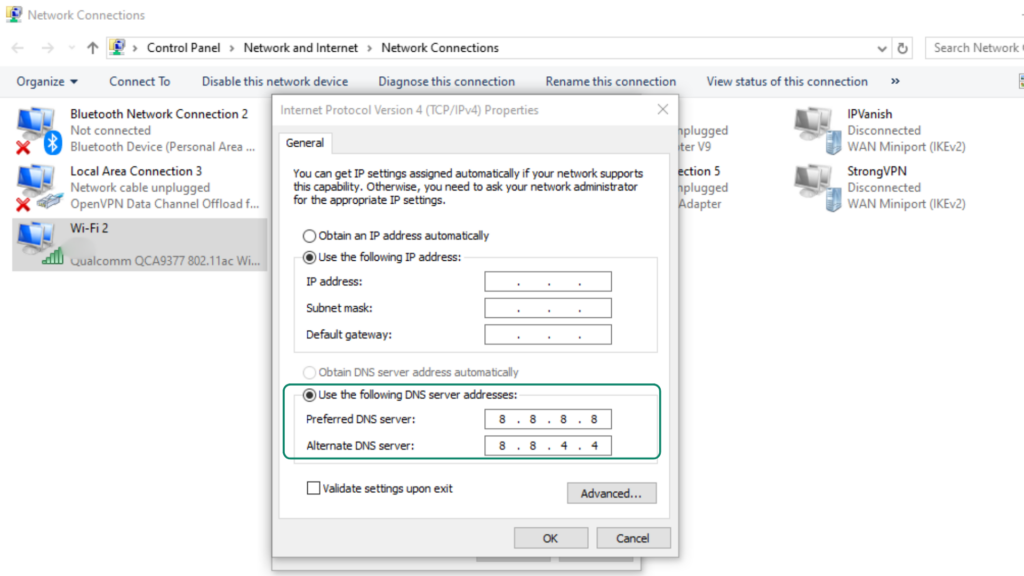
Click OK to save changes, then restart your connection.
Mac Connection Problems
With macOS, common error messages include “Wi-Fi: No hardware installed” and “Self-assigned IP address.” These usually happen when your Mac can’t get a proper IP address from the router, or there’s a temporary software glitch.
-
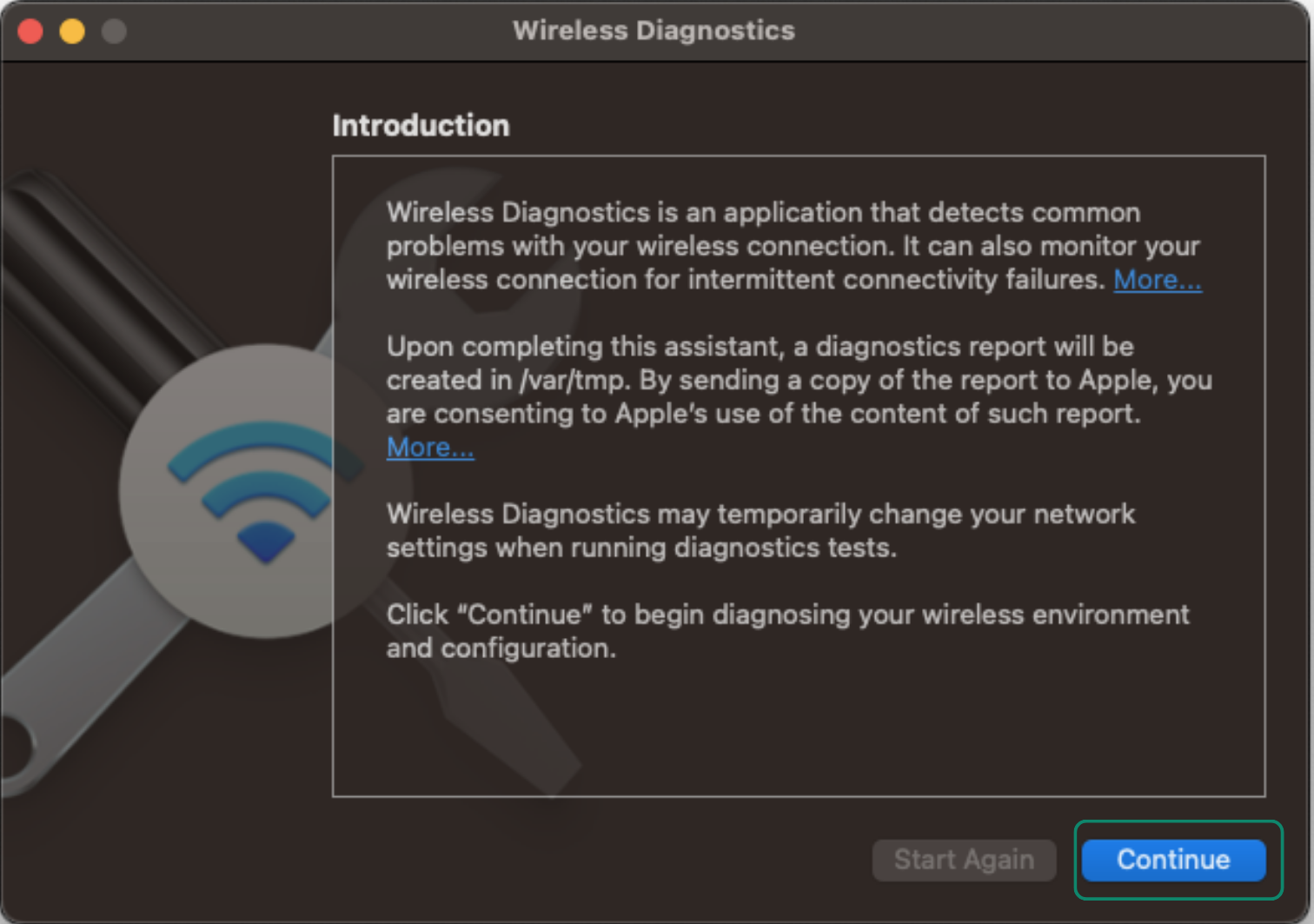
- Run wireless diagnostics: MacOS has a handy built-in troubleshooting tool that can detect an issue with your Wi-Fi and offer some recommendations.
- Press Command + Space, type “Wireless Diagnostics”, and open the app.
- Click Continue to run the test and follow instructions.
-
- Check the date and time: Before you proceed with more advanced fixes, make sure your time zone is correct and set to update automatically. This way, you’ll make sure your Mac can connect properly to networks, websites, and security services that rely on accurate system time.
- Go to System Settings > General > Date & Time.
- Make sure Set time and date automatically is turned on.
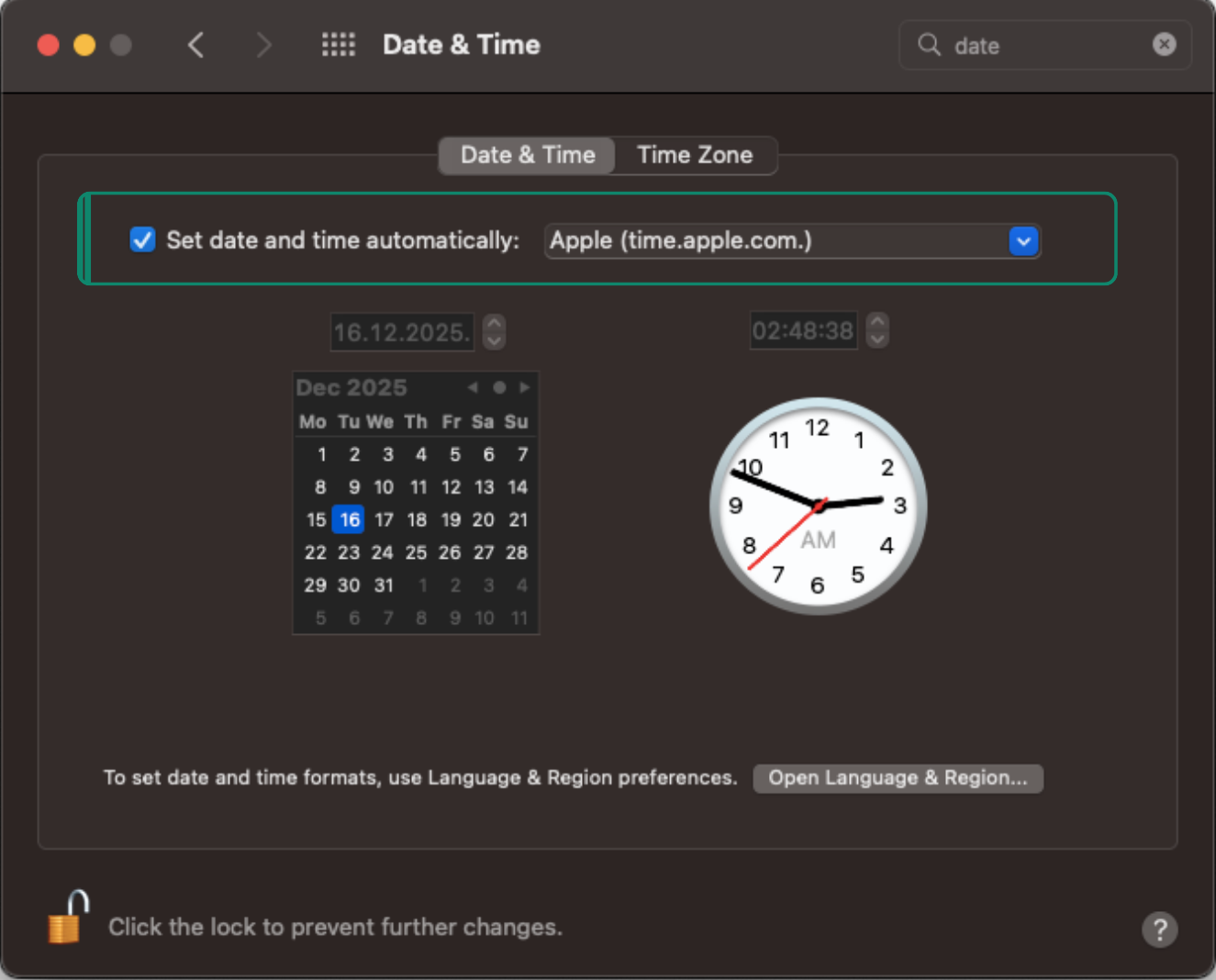
- Confirm the Time Zone matches your current location.
- If it’s incorrect, select the correct time zone from the map or dropdown.
- Close settings and try reconnecting to Wi-Fi or Ethernet.
-
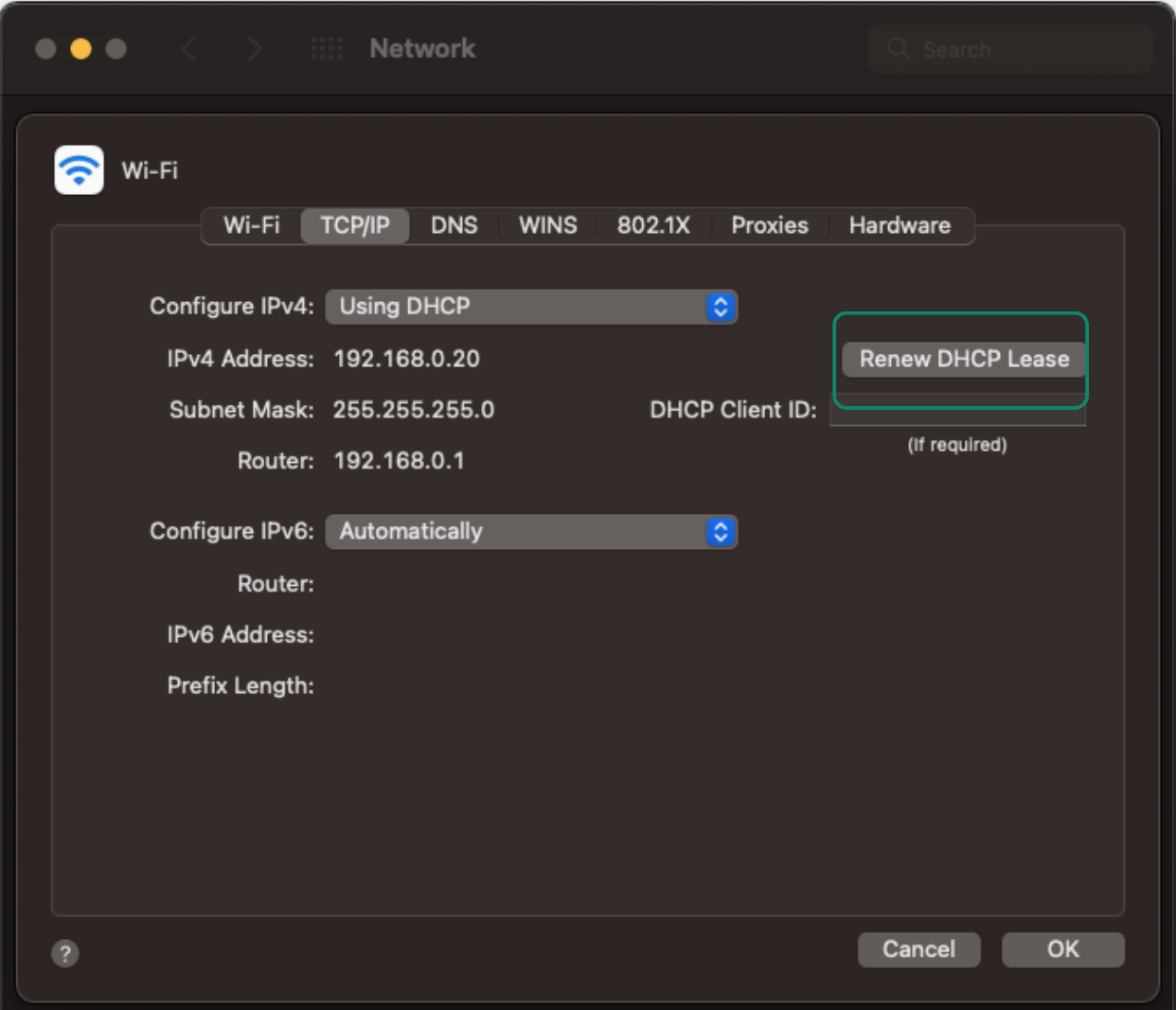
- Renew your IP address: This requests a new IP address from your router and can fix self-assigned IP issues.
- Go to System Settings > Network.
- Select your active connection and click Details (or Advanced if you’re using an older version of macOS) .
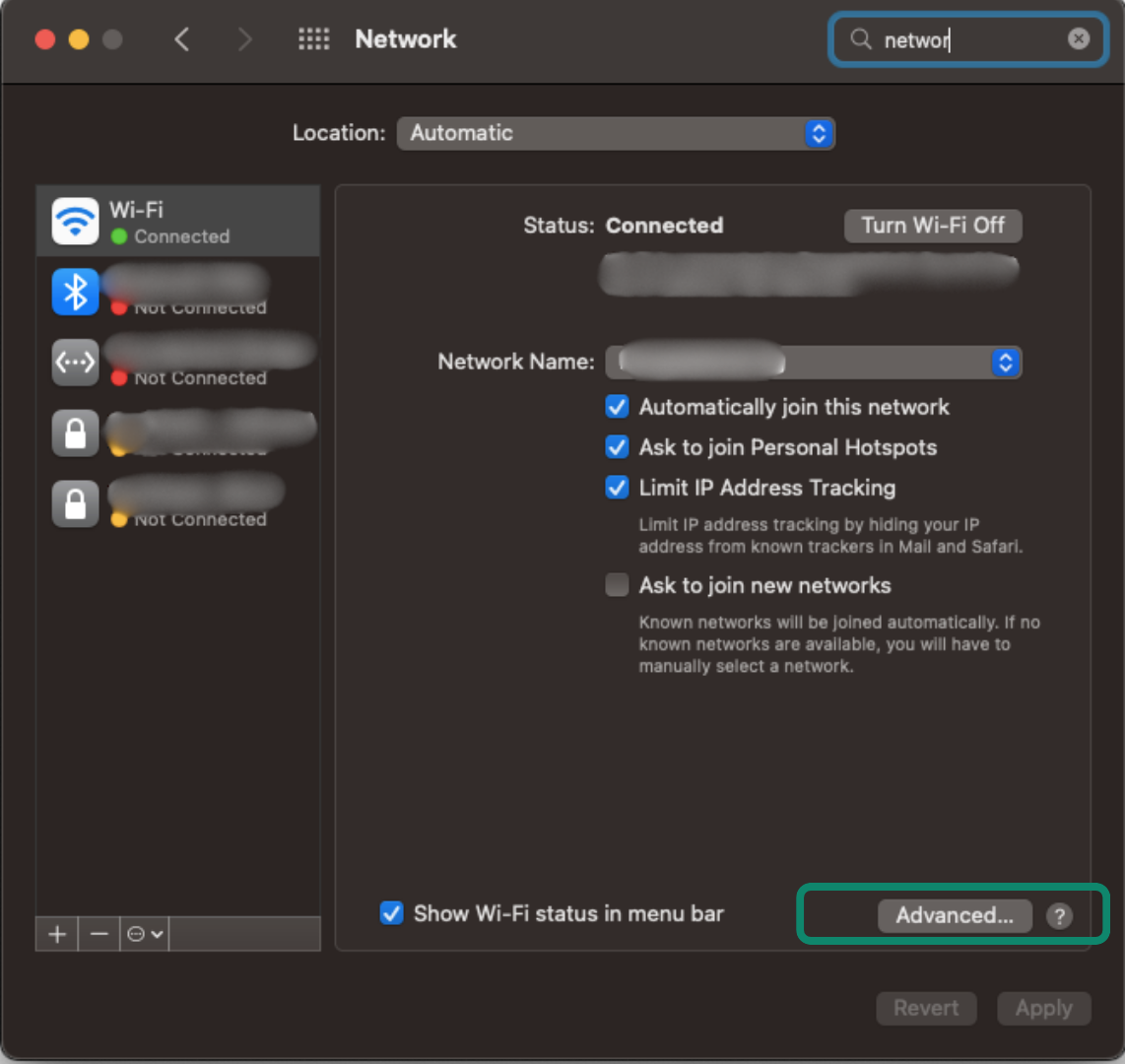
- Open TCP/IP, click Renew DHCP Lease, and confirm.
-
- Flush DNS cache: When you flush your DNS cache, it’s like updating your contact list – it clears outdated or corrupted address records that can stop websites from loading correctly. This forces your Mac to fetch fresh, up-to-date network information the next time you visit a site.
- Open Terminal (easy way: click Command + Spacebar, then type Terminal).
- Type sudo dscacheutil -flushcache; sudo killall -HUP mDNSResponder and press Enter.
- Enter your password when prompted.
-
- Reset network settings: If your Mac keeps connecting to Wi-Fi but won’t get a proper IP address, reset the network to get a fresh connection.
- Go to System Settings > Network.
- Select Wi-Fi, click the – button to remove the network.
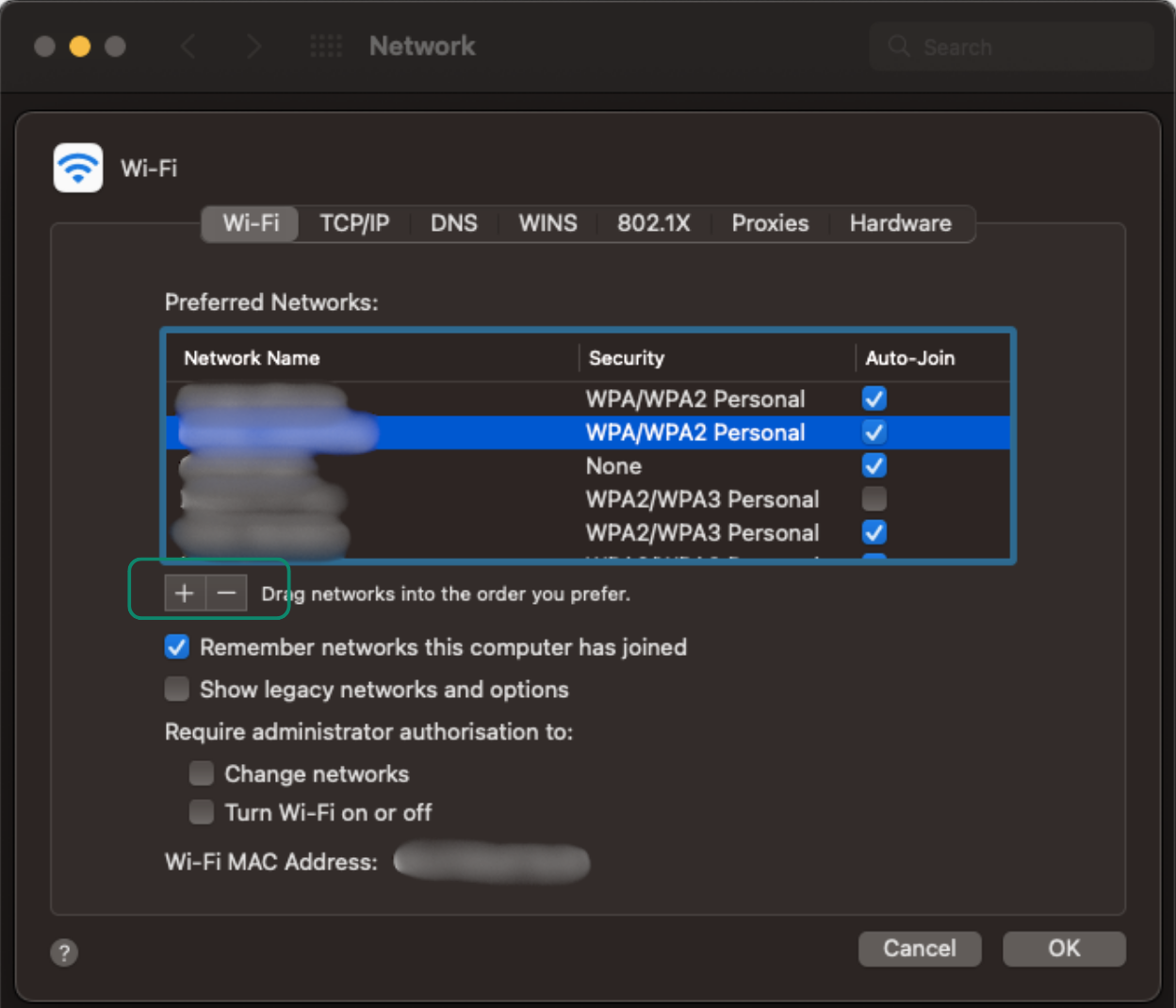
- Reconnect and enter your password.
Fixing Network Connection Issues on Smart TVs
Smart TVs often run into problems like missing Wi-Fi networks, network interference errors, or DNS issues. The fixes are usually simple once you know where to look.
-
- Restart your TV and router: Unplug both for about 30 seconds. This clears temporary glitches that stop the TV from picking up your network.
- Check your Wi-Fi network settings: Go to your TV’s network menu and make sure you’re connected to the right network. If your TV sees the network but can’t join it, try re-entering the Wi-Fi password.
- Toggle DHCP or set it correctly: Most smart TVs let you turn DHCP on or off in the network settings, though some older models and Apple TV don’t offer this option (with Apple TV, DHCP is always automatic). If it’s on, try turning it off and reconnecting. If it was off, turn it on so the TV can pull a fresh IP address from your router.
- Update your TV’s software: Outdated firmware can break Wi-Fi features or cause random disconnects. Check your TV’s settings and try looking for something like Support or About, where you’ll often find the software update menu.
- Move the router or reduce interference: Thick walls, microwaves, Bluetooth devices, or even nearby TVs can weaken the signal. If the TV says network interference, try moving the router a bit.
Fixing Network Connection Issues on Gaming Consoles
Connection problems on your Xbox or PlayStation usually come down to a few simple things: a weak Wi-Fi signal, wrong network settings, or the router blocking something.
-
- Start with the basics. Restart the console and the router. You’d be surprised how often that’s all it takes.
- Get the console closer to the router or connect with an Ethernet cable for a more stable connection.
- Check the console’s online service status. Both Xbox and PlayStation report outages and maintenance on their official status pages. If their servers are down, you’ll just need to wait until the service comes back online.
- Reset your network settings. Most consoles have a built-in option to restore default network settings. You should go to your console’s settings and then find your network settings. Find your Wi-Fi and forget it, so that you can get a fresh connection to work with.
Fixing Connection Issues on Linux
Linux connection issues usually come down to a few simple things, like a stuck IP address, bad DNS settings, or Wi-Fi getting blocked by the system. The good news is that most fixes are quick and don’t need much tech knowledge. Start with the steps below:
1. Restart NetworkManager: This is the quickest way to fix Wi-Fi drops, no-internet errors, or connection problems that show up after your computer wakes from sleep.
- Terminal (To open Terminal, simply click on the Terminal icon on the desktop or press Ctrl + Alt + T): sudo systemctl restart NetworkManager
2. Renew your IP address: If you’re connected to Wi-Fi but nothing loads, your IP lease may be stuck. You should drop your old IP address and request a new one to get a fresh network configuration. Run these commands in your Terminal:
- sudo dhclient -r <interface_name>
- sudo dhclient <interface_name>
3. Change your DNS server: A faulty DNS server can block your connection even if Wi-Fi works. Here’s how to change it:
- Go to Settings > Network and find your network.
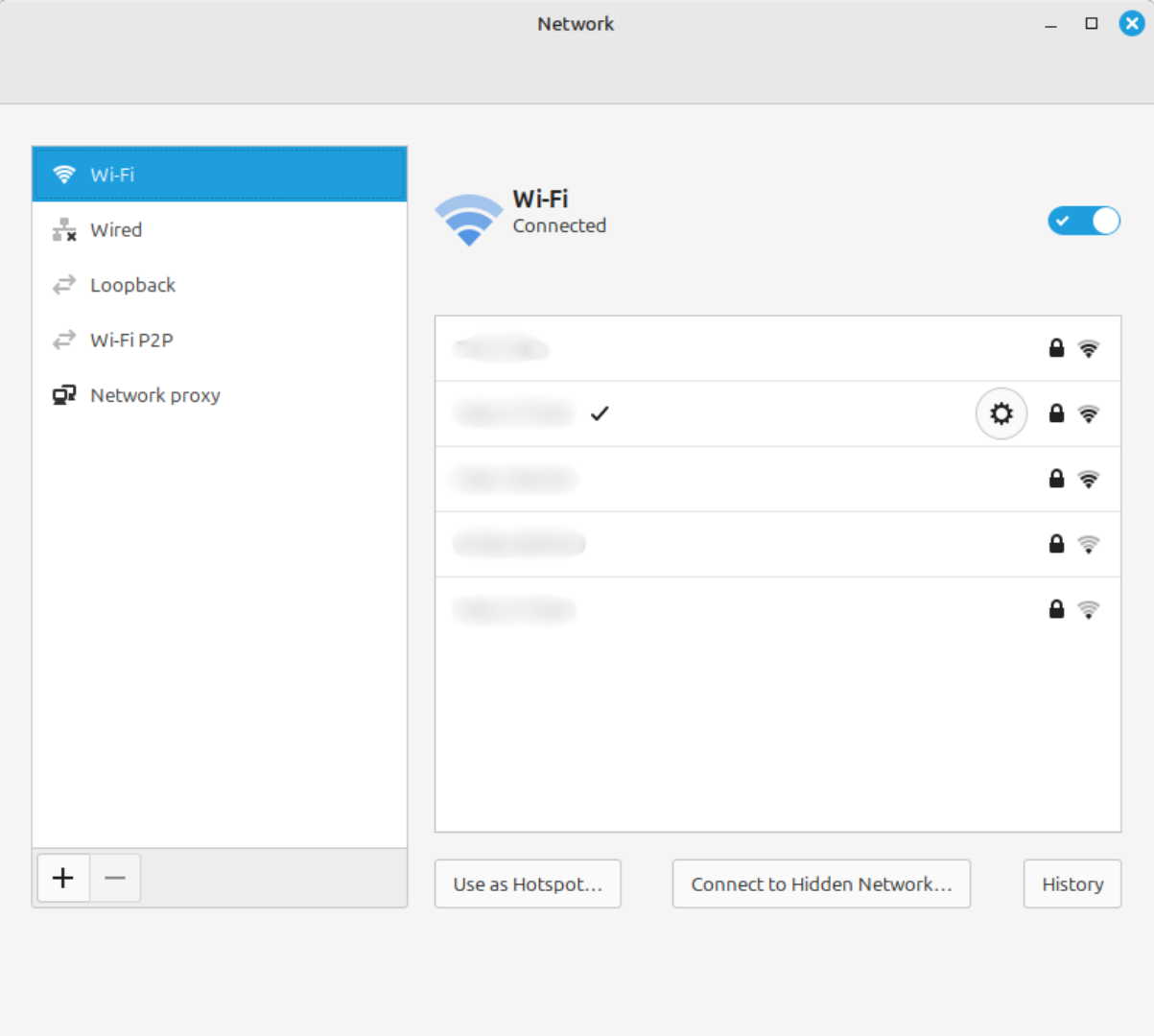
- Now, find the IPv4 tab and choose DNS.
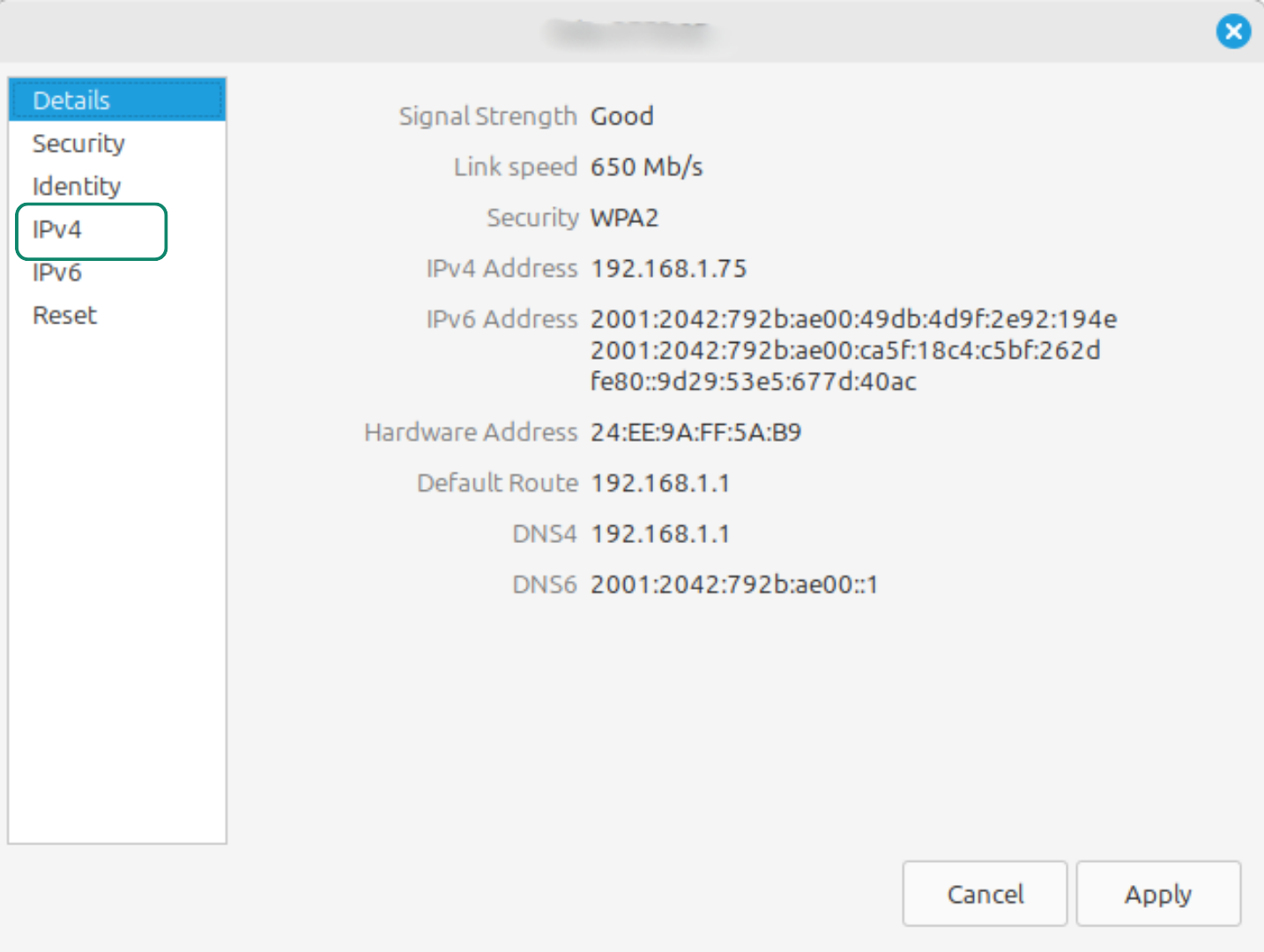
- Click on the IPv4 tab and update your DNS settings to use a reliable public DNS service.
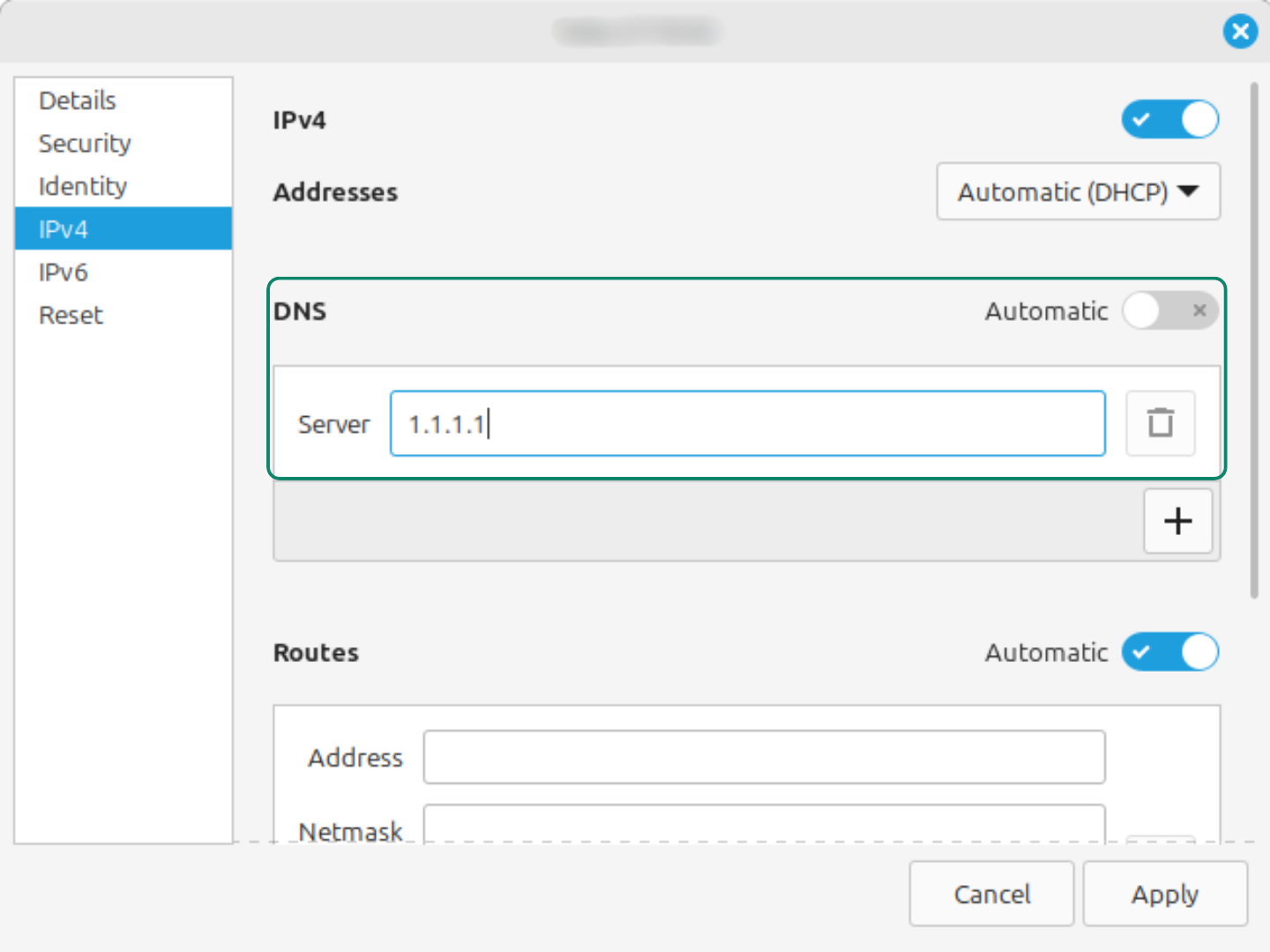
4. Check if Wi-Fi is blocked: Linux sometimes soft-blocks Wi-Fi after sleep or updates. Here’s how to unblock it:
- Terminal: rfkill list
- If it reports a block on your Wi-Fi interface, unblock with: sudo rfkill unblock wifi
When VPNs Cause And Solve Connection Problems
A VPN changes your DNS settings, reroutes your traffic, and can block apps from going online if the kill switch is active. Because of that, a VPN can sometimes look like a network issue even when your internet is fine. Here’s what to check:
- Kill switch settings: Go to your VPN’s settings and turn off the kill switch, then test your connection. If you use PIA VPN, this is especially important because it has an advanced kill switch that can block all traffic at the device level – even when the VPN isn’t turned on.
- DNS conflicts: VPNs can override your DNS settings. If sites won’t load or load slowly, try switching to your VPN’s recommended DNS, or your device’s automatic DNS, and that should fix the problem.
- Split tunneling mistakes: If split tunneling is on, make sure the affected app isn’t set to VPN only or bypass VPN by accident, as either option can block its connection.
A VPN can also solve some connection issues.
- Throttling: Some ISPs might throttle your bandwidth or slow your traffic when they detect streaming or gaming traffic. Using a premium VPN hides that activity so you can prevent slowdowns and maintain good speeds.
- Server overload: Sometimes, web pages load slowly (or don’t load at all) because the server you’re connected to is overloaded. If your VPN has a large enough network, you can connect to another server nearby and avoid crowds. For example, PIA offers 180 server locations in 113 countries.
How to Prevent Future Connection Issues
- Keep your router in an open, clear spot and avoid placing anything around it to prevent obstructions.
-
- Check for firmware updates regularly, because running outdated software can cause bugs and slow down your device’s performance.
-
- Take care of your cables to prevent any bends.
-
- If you notice any damaged hardware, replace it before it starts causing problems with your network connection.
FAQ
What does No network connection mean?
It means your device can’t access the internet. It could be because of problems with Wi-Fi or Ethernet, issues with your router, or with your device’s network settings, or an outage at your ISP. Basically, your device can’t send or get data over the internet.
Why does my phone say No network connection?
“No network connection” on the phone usually means it can’t connect to the internet or your carrier’s network. Sometimes, all you need to do is reseat the SIM card to fix the problem. A weak signal, wrong network settings, or a temporary outage from your provider could also be to blame. But it will usually need more advanced fixes.
Why does my Wi-Fi show Connected but no internet?
“Connected but no internet” shows up when your device can reach the router, but the router can’t access the internet, making it a typical Wi-Fi-only issue. This is commonly caused by DNS problems, a misconfigured gateway, or ISP issues. Restarting your router or modem or adjusting network settings usually resolves it.
What causes No network connection on different devices?
It can be due to hardware problems, incorrect settings, signal interference, or an ISP outage. Each device may have unique issues, like wrong APN settings on your phone or self-assigned IPs on Macs. Troubleshooting depends on the device and the type of connection.
Can using a VPN help resolve or prevent network connection issues?
Yes, in some situations. For example, a VPN can help fix DNS issues. If your ISP’s DNS servers are slow or unreliable, websites may load slowly, or not at all. Many VPNs come with their own DNS servers, which bypass these issues and make pages load faster. However, a VPN can also block internet access if the kill switch is active. You can turn it off temporarily to determine if it’s causing the issue.
