Chrome Proxy Settings: How to Set Up, Check, and Change a Proxy
If Chrome won’t connect because of a proxy error, your organization requires a proxy, or you want websites to see a different IP address, you’ll need to change the proxy that Chrome uses.
This guide explains how to find and change Chrome proxy settings, check that your proxy is working, and fix common connection problems.
The Quick Truth About Chrome Proxies
Chrome doesn’t provide its own proxy server or separate proxy controls on Windows and macOS. Instead, it normally uses your computer’s system proxy. When you open the Chrome proxy settings menu, the browser directs you to the relevant Windows or macOS controls.
You can also connect Chrome through a proxy extension. This is a quicker way to route supported browser traffic without changing your computer’s system proxy.
How to Change Chrome Proxy Settings
Before getting started, ask your proxy provider or network administrator for the proxy server address and port number. You may also need a username, password, or automatic setup address.
You can reach your system proxy settings through Chrome:
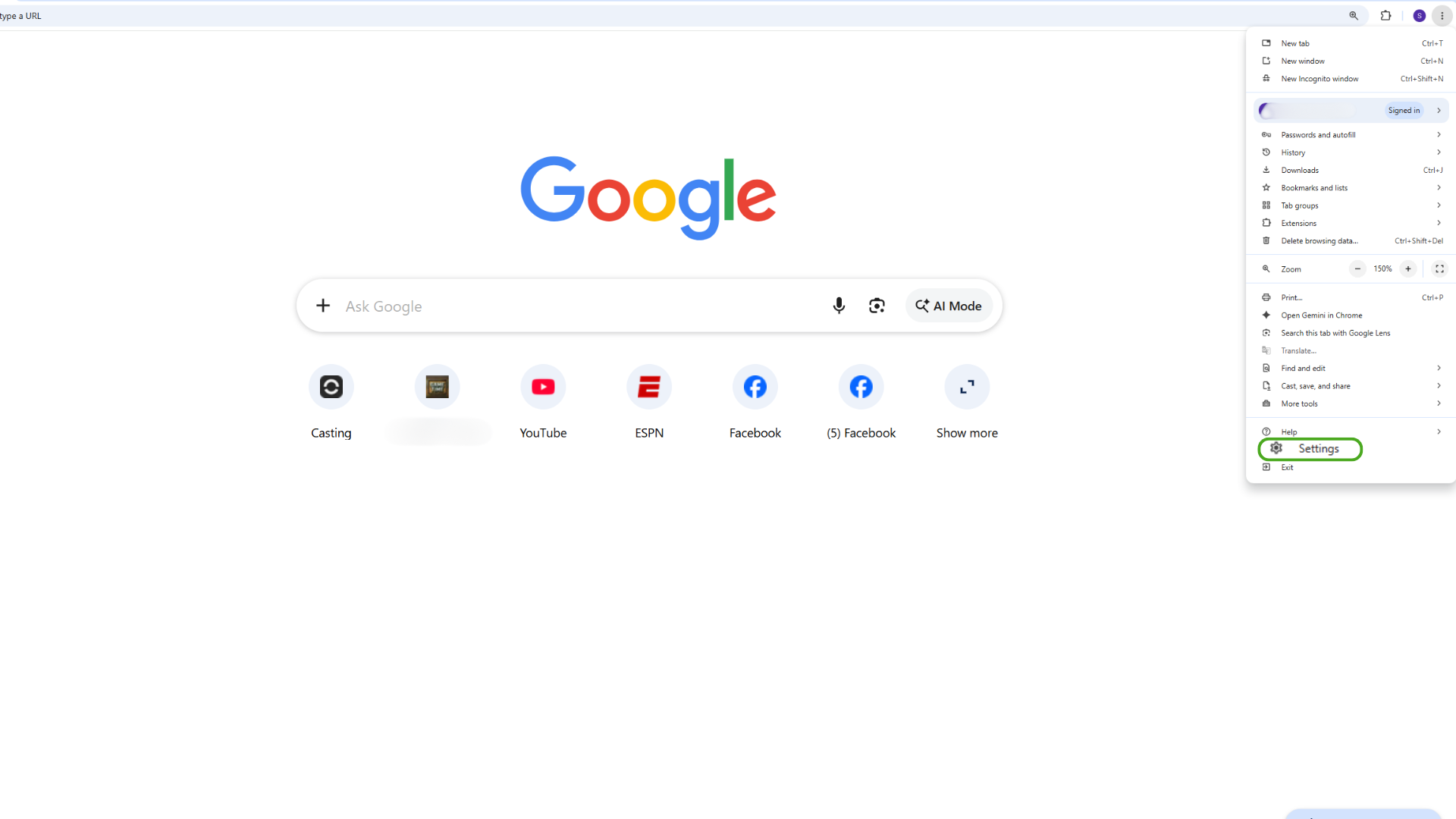
- Open Chrome and click the three-dot icon in the upper-right corner.
- Select Settings.
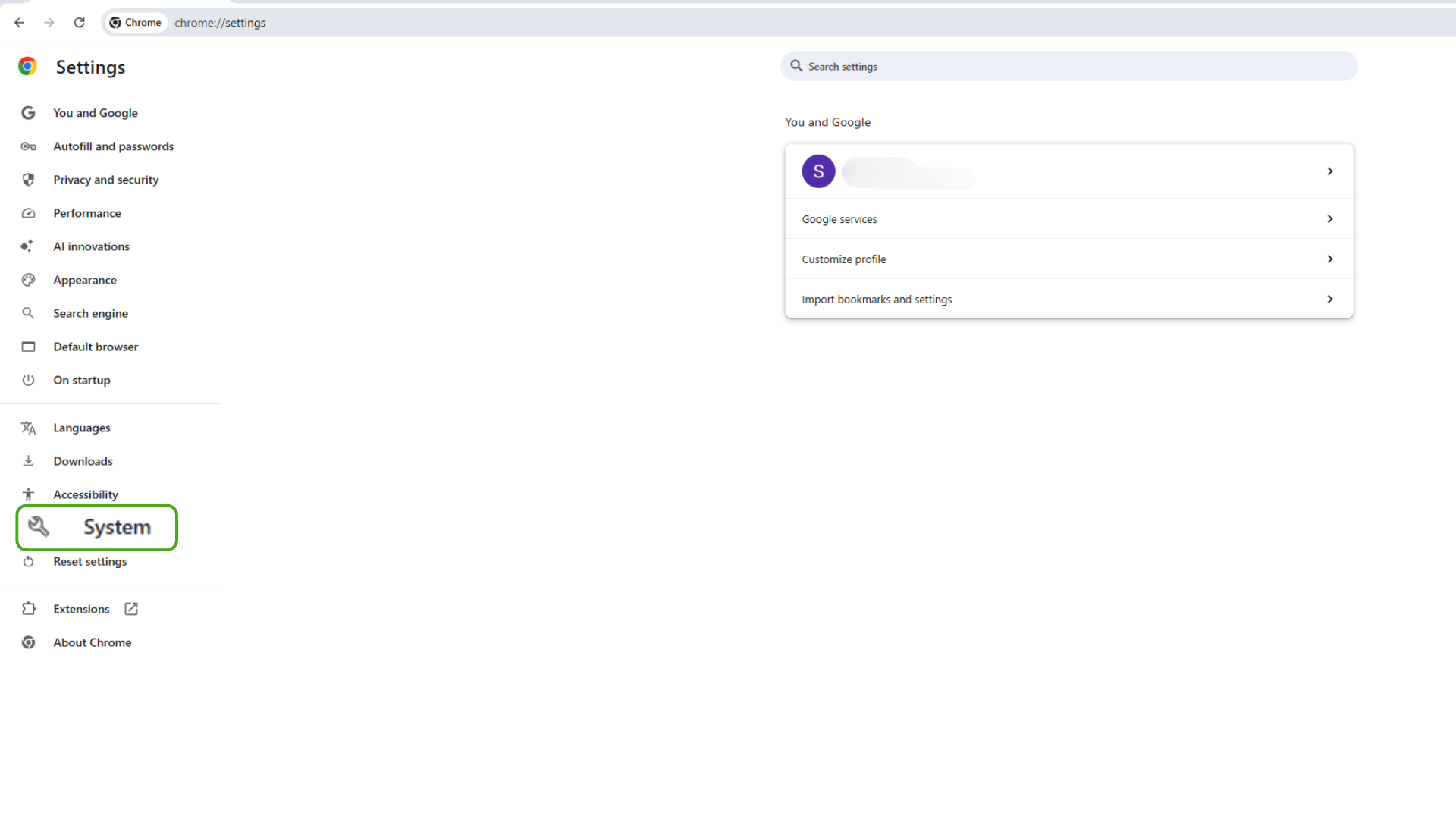
- Choose System.
- Select Open your computer’s proxy settings.
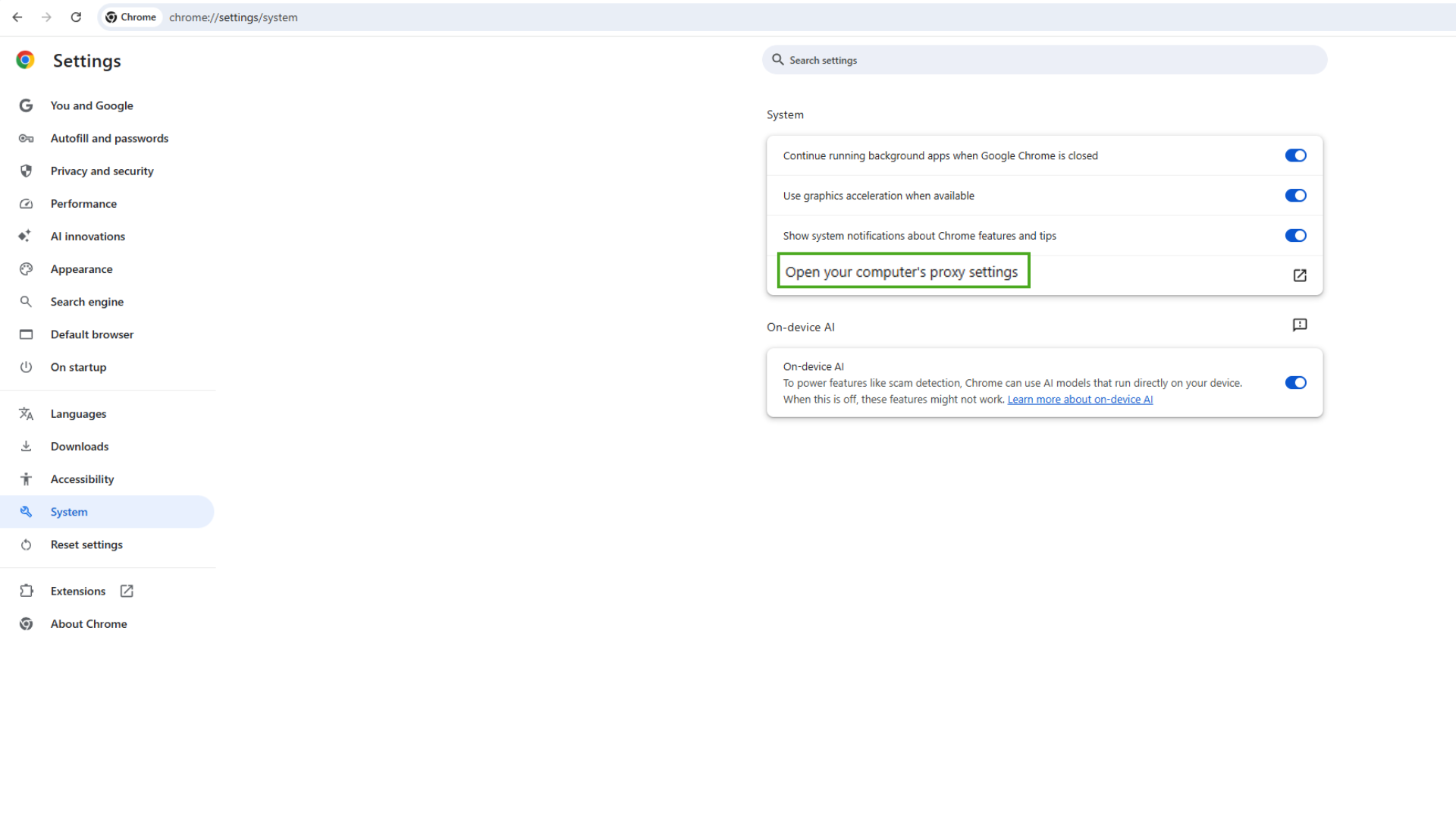
From here, the instructions depend on your operating system.
How to Change Chrome Proxy Settings on Windows
Tech tip: Chrome normally follows the Windows system proxy, so these changes may also affect other applications.
- Click Set up next to Manual proxy setup.
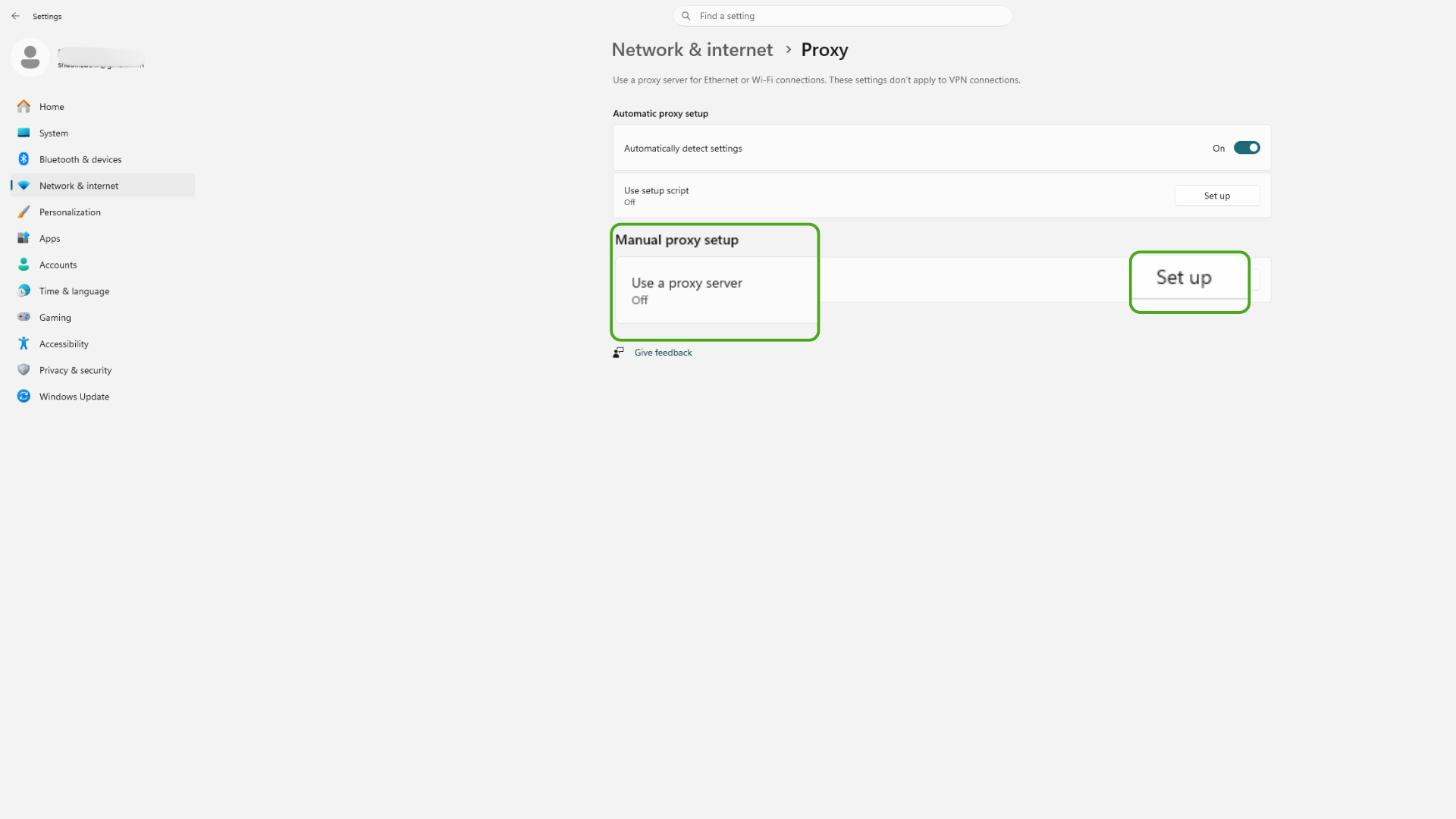
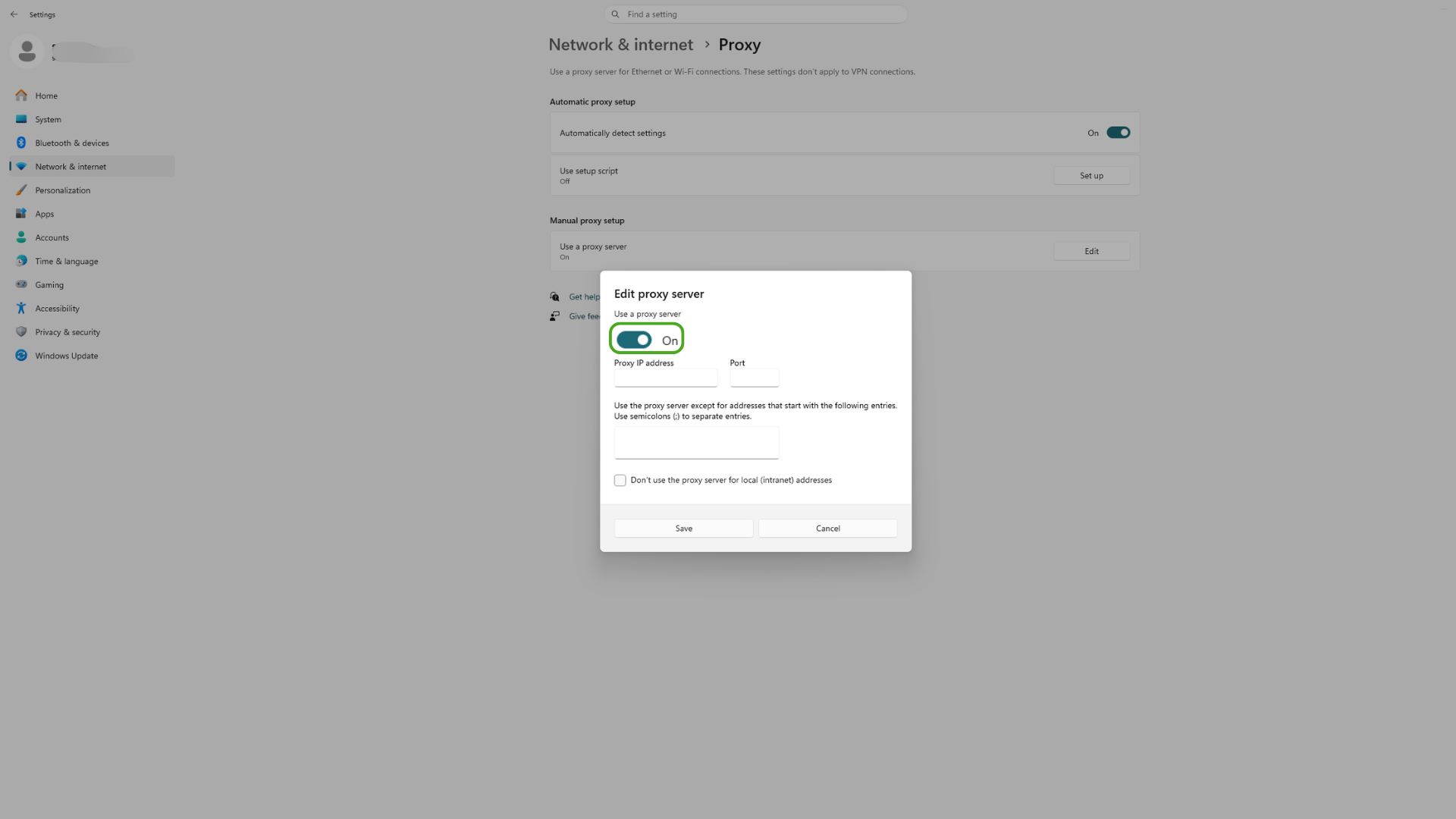
- Turn on Use a proxy server.
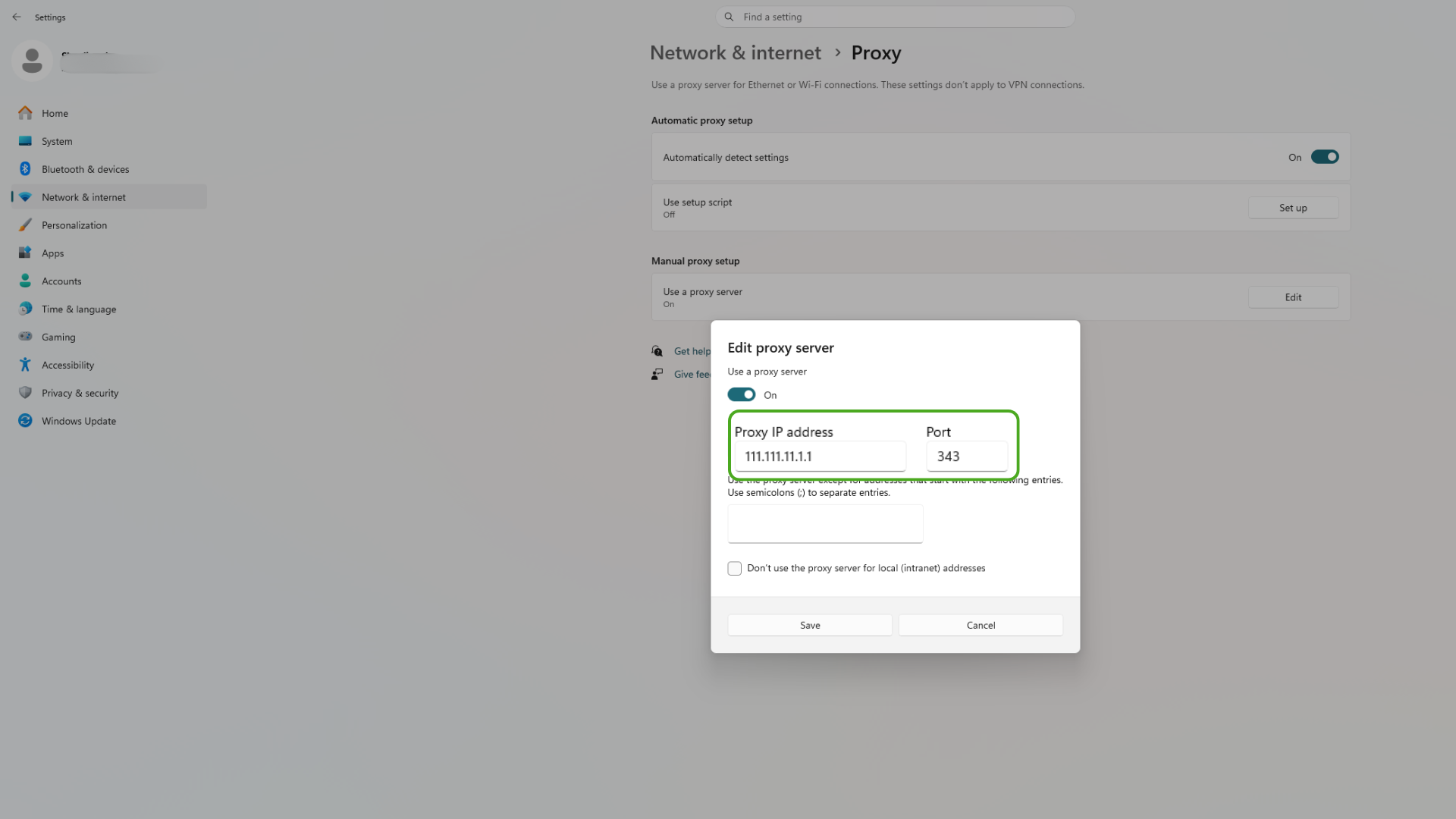
- Enter the proxy address and port.
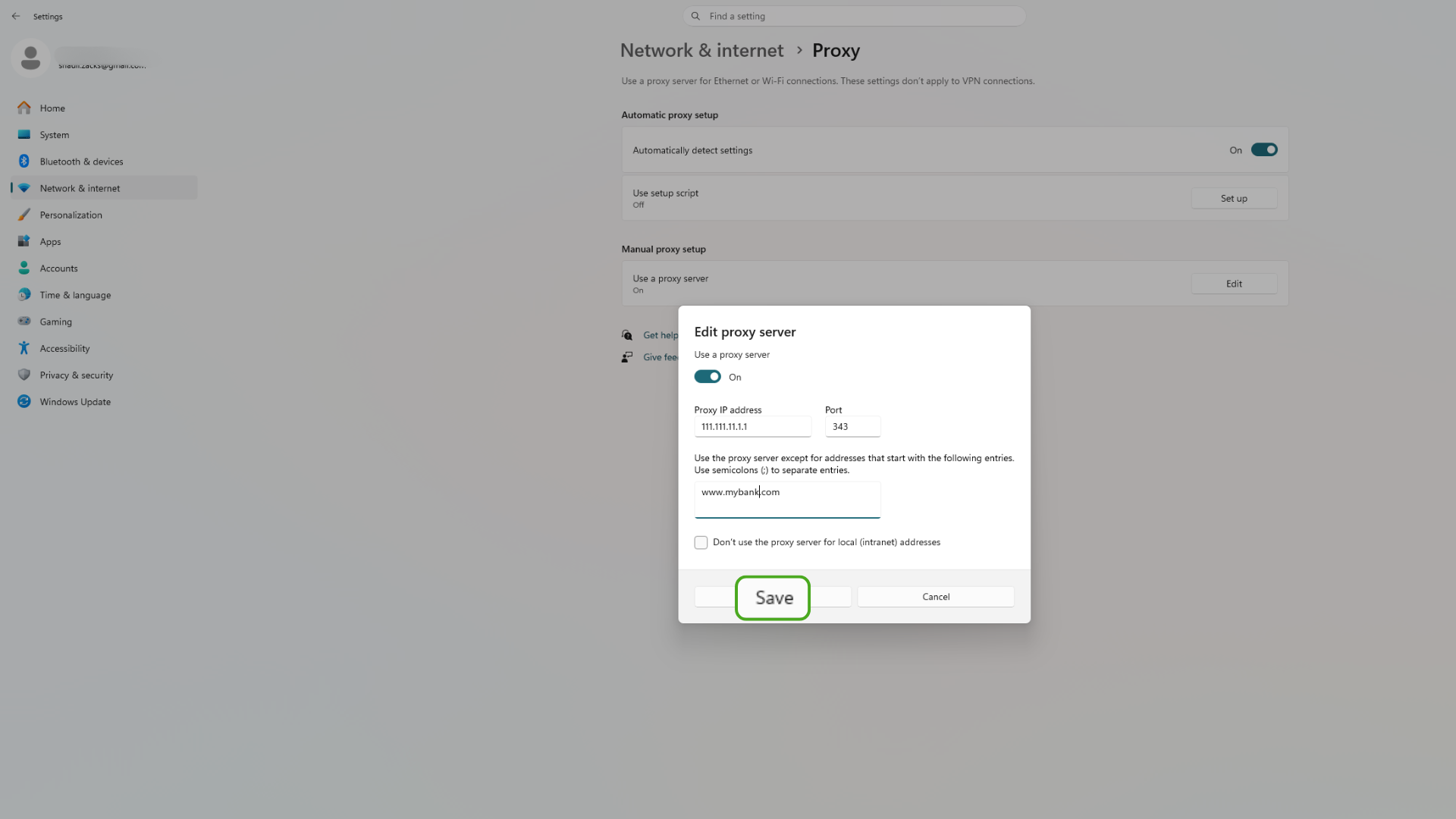
- To let a specific website bypass the proxy, add its URL. Then, click Save.
- Return to Chrome and reload the page.
Windows also supports automatic configuration. If your organization provides a setup script address instead of a server and port, enter it in the Use setup script field.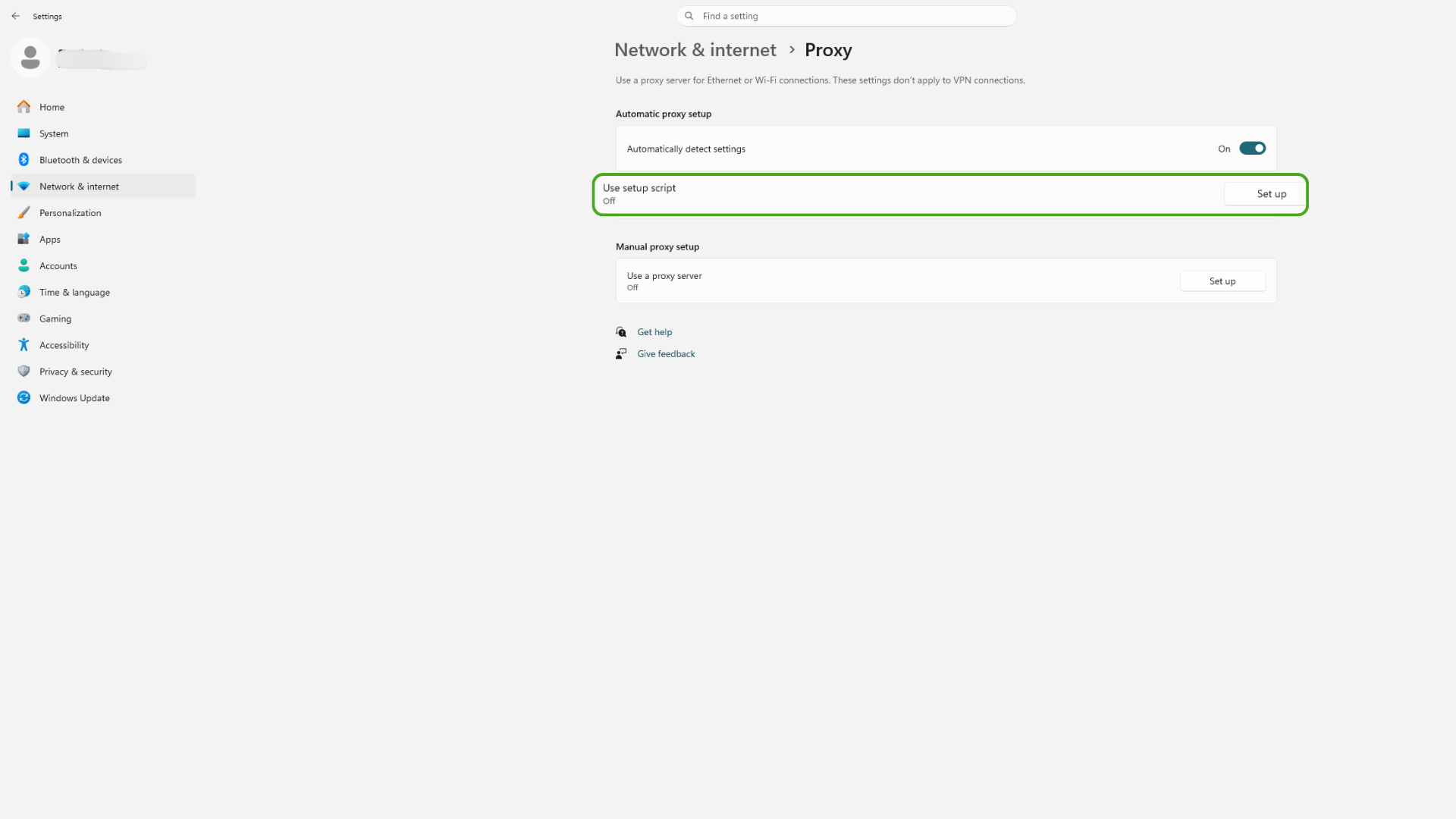
Don’t enable both manual and automatic configuration unless your provider or administrator instructs you to. Conflicting settings can stop Chrome from connecting correctly.
How to Change Chrome Proxy Settings on Mac
Tech tip: Chrome normally follows the Mac system proxy, so these changes may also affect other applications.
- Turn on the proxy type your provider specifies and press OK. macOS provides several choices, including web proxy, secure web proxy, SOCKS proxy, and automatic configuration. Use the option your provider recommends rather than enabling every available setting.
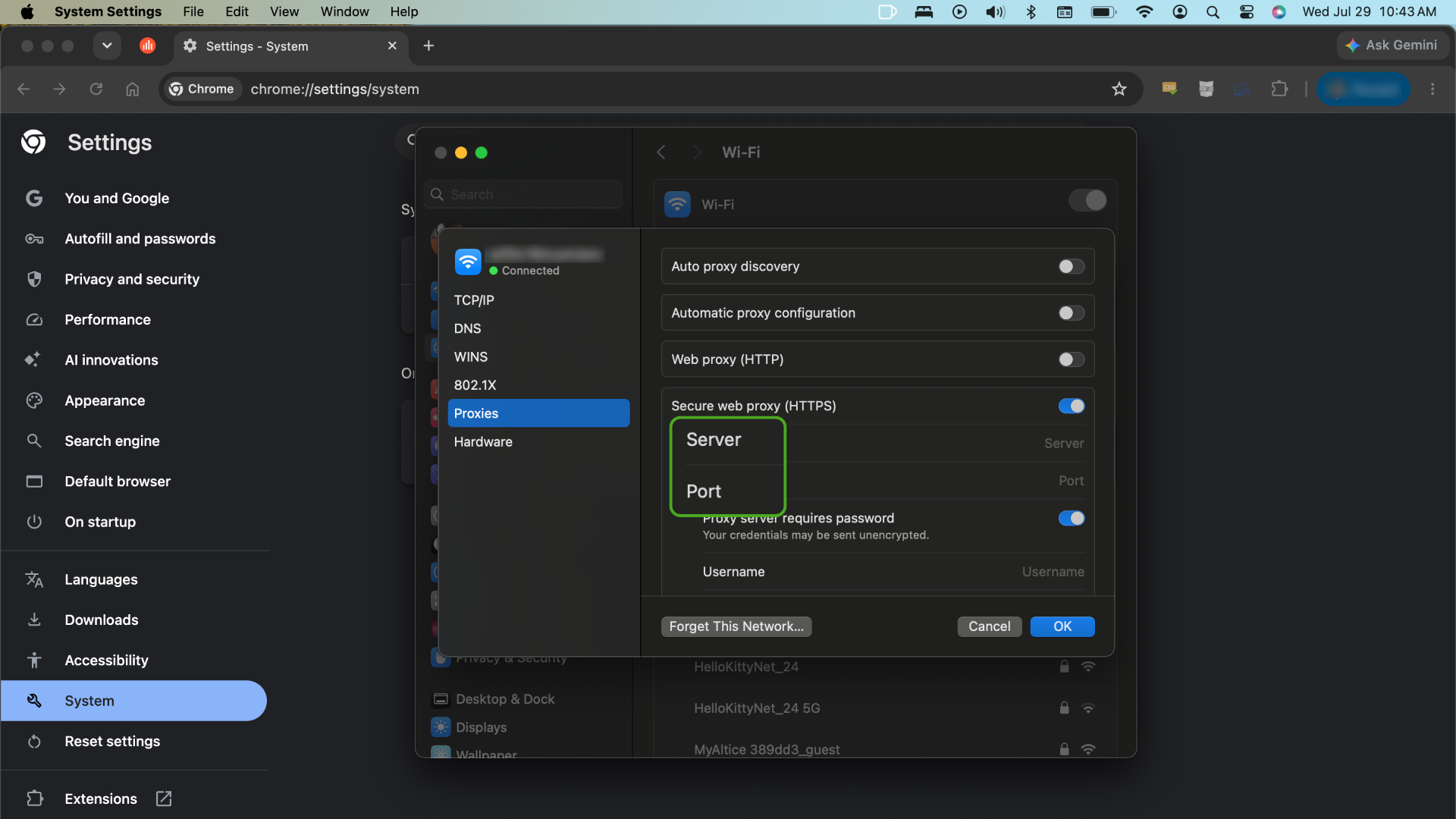
- Enter the server address and port.
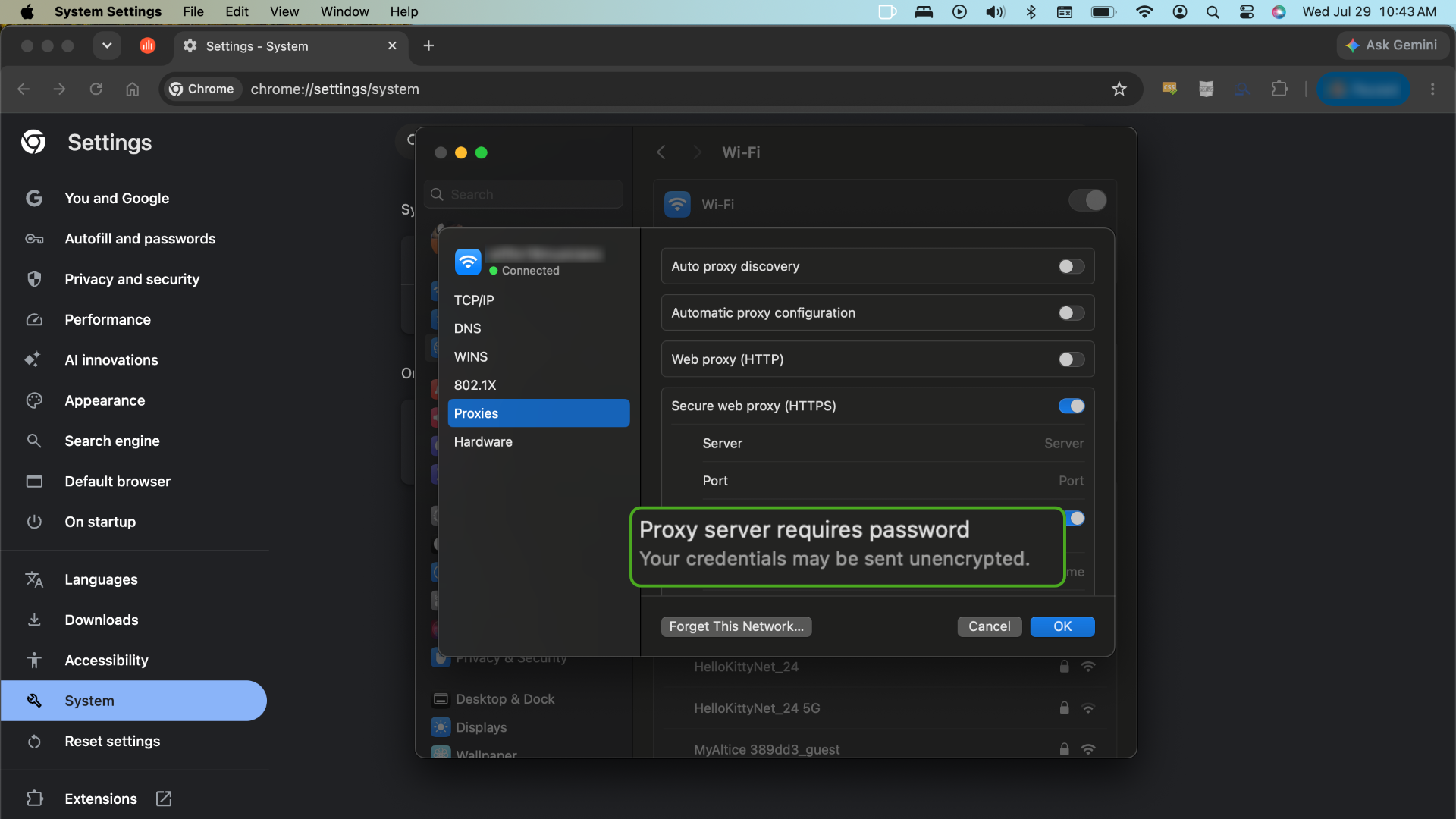
- Enter your username and password if your provider requires them.
- Select OK.
- Return to Chrome and test the connection.
How to Use a Proxy Extension in Chrome
A proxy extension routes supported Chrome traffic without requiring you to edit your operating system’s settings, so other applications stay unaffected.
To use one:
- Choose an extension from a provider you trust.
- Confirm that the listed developer is legitimate.
- Review the permissions the extension requests.
- Install it from the Chrome Web Store.
- Sign in or enter your proxy information.
- Choose a server and connect.
- Check whether your visible IP address has changed.
The PIA Chrome extension routes supported browser traffic through an HTTPS proxy, securing the connection with Transport Layer Security (TLS) protocol 1.3. This lets you switch server locations without changing your system proxy manually.
⚠️ Tech tip: Chrome normally disables extensions in Incognito mode unless you specifically allow them. Check the extension settings before assuming the proxy is active in an incognito window.
How to Fix Common Chrome Proxy Errors
Most Chrome proxy errors occur because the browser can’t reach the server, you entered incorrect connection details, or another program controls the proxy settings.
How to Fix ERR_PROXY_CONNECTION_FAILED
This error means Chrome couldn’t connect through the configured proxy.
Try these three steps:
- Check your connection: Disconnect the proxy and confirm that your Wi-Fi or wired internet connection works.
- Check the proxy: Re-enter the server address, port, and login details. If you use an extension, disconnect and reconnect it.
- Remove an inactive proxy: If the server is no longer available, turn off the proxy or choose another server from your provider.
- Renew your IP address and reset your DNS cache: Reset your network settings via the command line.
Windows: Open the Start menu, type cmd, right-click Command Prompt and select Run as administrator. Enter each command one by one, pressing Enter after each:
ipconfig
release, ipconfig
flushdns, ipconfig
renew, netsh winsock reset
Restart your computer after the last command.
Mac: Open the Terminal app and run sudo killall -HUP mDNSResponder. You’ll need to enter your password.
Clearing Chrome’s cache may help if a page still loads incorrectly after you restore the connection. However, a cache clear won’t repair an unavailable proxy server, so check the network and proxy details first.
How to Fix ERR_TUNNEL_CONNECTION_FAILED
This error occurs when Chrome fails to establish a tunnel through the proxy server to the target website, typically using an HTTP CONNECT request.
Try these three steps:
- Check for firewall and antivirus blocks: Security software or corporate firewalls often block non-standard proxy ports or intercept HTTPS tunnels. Temporarily disable them to see if the connection passes through.
- Clear stale Domain Name System (DNS) and socket pools: Open Chrome, go to
chrome://net-internals/#dnsand select Clear host cache. Then copy and pastechrome://net-internals/#socketsin your browser and click Flush socket pools. - Switch to automatic proxy detection: Open your system proxy settings and toggle on Automatically detect settings while turning off manual configurations to resolve routing conflicts.
How to Fix HTTP Error 407 (Proxy Authentication Required)
This error means the proxy server requires valid login credentials before forwarding your requests.
Try these three steps:
- Re-enter your proxy credentials: Check the username and password your proxy service provided. If you use a Chrome extension, open its settings menu and re-save your login details.
- Clear cached authentication data: Stale cookies or cached network sessions can cause Chrome to resend old credentials. Clear your browsing data by pressing Ctrl + Shift + Delete (or Cmd + Shift + Delete on Mac).
- Check IP allowlisting: If your proxy provider relies on IP authentication instead of a password, log into your provider’s dashboard and update your current public IP address on their allowed list.
How Network Filters and Routing Affect Chrome Proxy Connections
When setting up a proxy in Chrome, you may face connection drops, slow page loading, or persistent connection errors. Understanding how your internet traffic moves between Chrome, your local network, and the proxy server helps you keep your browsing session stable.
- Unresponsive proxy ports: Proxy servers communicate over specific ports. If the proxy provider closes that port or your local router restricts unassigned port traffic, Chrome cannot complete the connection handshake. This immediately triggers an ERR_PROXY_CONNECTION_FAILED warning.
- Network traffic Inspection and rate limiting: Local network administrators and internet service providers (ISPs) often monitor outgoing traffic patterns. If your network detects high-volume proxy traffic or unrecognized SOCKS5 protocols, it may throttle your bandwidth or silently drop incoming Transmission Control Protocol (TCP) packets, causing pages to stall indefinitely in Chrome.
- HTTPS certificate conflicts (SSL inspection): If a proxy server attempts to decrypt and re-encrypt HTTPS traffic to filter content or insert advertisements, Chrome’s built-in security features will flag the connection. Because Chrome enforces strict SSL/TLS validation, it will block access and show a security warning (“NET::ERR_CERT_AUTHORITY_INVALID”) to protect you from potential man-in-the-middle risks.
Proxy vs. VPN: Which One Do You Need?
A proxy and a VPN both route your connection through an intermediary server, replacing your IP address with the server’s IP. The main differences are how much traffic they cover and how they protect it.
A Chrome proxy typically routes supported browser traffic. The level of encryption varies by proxy type, so a proxy may not protect your traffic the same way a VPN does. A VPN creates an encrypted connection between your device and the VPN server, covering all compatible traffic.
Your choice depends on whether you only want to change how Chrome connects or need broader protection for your internet connection.
When a Proxy Is Enough
A proxy may be sufficient when you want to:
- Change the IP address websites see in Chrome
- View localized websites or search results
- Test how a website appears from another location
- Connect to internal organizational resources
- Route browser traffic without affecting other applications
A browser extension also makes it easy to change or disconnect your proxy without repeatedly opening your operating system’s network settings.
A proxy isn’t automatically faster than a VPN. Speed depends on the provider, server load, server location, and connection quality. However, a browser proxy may feel lighter when you only need to route Chrome traffic rather than all device traffic.
When You Need a VPN
A VPN is the better choice when you want protection that extends beyond your browser.
Broader Encryption
A basic proxy forwards traffic but doesn’t create an encrypted tunnel across your device. HTTPS websites still encrypt the connection between your browser and the website, but your internet provider or Wi-Fi administrator may still see connection metadata, such as the domains or services you contact.
A VPN encrypts compatible internet traffic between your device and the VPN server. This makes it harder for your internet provider, public Wi-Fi operator, or other users on the local network to inspect that traffic.
Apps Outside Chrome
A Chrome proxy won’t normally cover connections from applications like the following:
- Games
- Messaging and voice-chat apps
- File-sharing software
- Standalone streaming apps
- Email clients
- Other browsers
A VPN routes all device traffic through its encrypted connection, so you don’t have to configure every application separately.
Better Leak Protection
A proxy may replace your IP address for normal browser requests but leave other connections outside the proxy route.
For example, DNS requests help your device find websites, while Web Real-Time Communication (WebRTC) enables real-time browser communication. Depending on your proxy and browser configuration, these connections may bypass the proxy and expose your original IP address.
A reputable VPN typically includes DNS and leak protection designed to keep compatible traffic inside the VPN connection. Testing your connection is still worthwhile rather than assuming that every request is covered.
FAQ
What is a proxy in Chrome?
A proxy in Chrome is an intermediary server that forwards supported browser requests to websites. Those websites see the proxy’s IP address instead of yours. Chrome normally uses a system proxy or a proxy extension.
How do I change proxy settings in Chrome?
To change the proxy settings in Chrome, go to the Chrome menu, select Settings, then System, and open your computer’s proxy settings. Enable manual proxy setup and enter the server address and port from your provider or network administrator. This setting may also affect other applications that use your system proxy.
Where are the proxy settings in Google Chrome?
Copy and paste chrome://settings/system in the Chrome address bar. On Windows and macOS, Chrome links to your operating system’s proxy controls instead of providing its own proxy menu.
How do I check which proxy Chrome is using?
Check the system proxy through chrome://settings/system and review extensions at chrome://extensions. You can also compare your public IP address before and after connecting. If an organization manages Chrome, open chrome://policy to check for applied proxy settings.
How do I configure a proxy server in Chrome?
Get the server address, port, and login information from your proxy provider or organization’s IT team. Open Chrome’s System settings and follow the link to your computer’s proxy menu. You can also use a trusted proxy extension to route supported browser traffic.
How do proxy and firewall settings affect Chrome connections?
A proxy routes applicable requests, while a firewall controls which connections pass through. Chrome may fail to connect if the firewall blocks the proxy server or port. An incorrect address, unavailable server, or rejected password can cause similar errors.
