iCloud Private Relay vs. VPN: Which Should You Use?
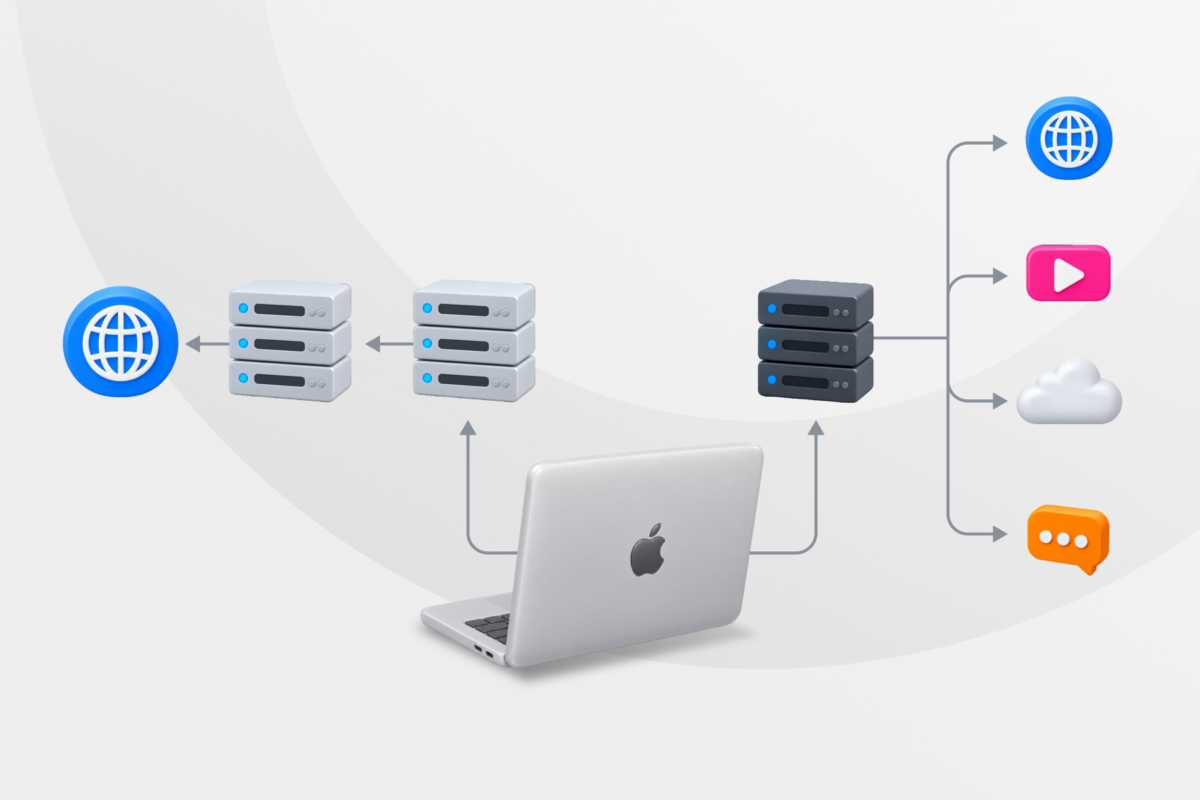
If you already pay for iCloud+, you may wonder if you still need a VPN. iCloud Private Relay can hide the IP address websites see and add privacy to some of your internet traffic, so the two tools overlap.
The main difference is scope. Private Relay provides a narrower type of online privacy, while a VPN can help protect all your internet activity and give you more control over your connection.
The key question is whether Private Relay covers what you need or whether you’d be better off with a full VPN.
iCloud Private Relay vs. VPN: At a Glance
Deciding between Private Relay and a VPN comes down to a few key considerations:
| Privacy | iCloud Private Relay | VPN |
| Traffic coverage | Safari browsing, DNS queries, and unencrypted HTTP app traffic | Traffic routed through the VPN from supported apps and browsers |
| IP address | Masks your IP address for supported traffic | Masks your IP address for traffic using the VPN |
| Location control | Keeps your IP address within your country and time zone | Lets you choose a server location in multiple countries |
| Architecture | Uses two separate relay operators | Routes traffic through one VPN provider |
| Connection controls | Limited customization | Kill switch, protocol selection, and DNS settings |
| Compatibility | Supported Apple devices (requires iCloud+ subscription) | Usually multiple desktop and mobile devices |
- Choose Private Relay if you use Safari on supported Apple devices and want straightforward privacy protection.
- Choose a VPN if you need broader app coverage, more device compatibility or control over your virtual IP location.
Privacy tip: Private Internet Access (PIA) VPN offers server locations in {countries_no} countries, unlimited simultaneous connections per subscription, and apps for macOS, iOS, Windows, Linux, and Android so you can use it on your Apple devices and other devices you own.
What Is iCloud Private Relay?
iCloud Private Relay is a privacy feature included with iCloud+. When you browse in Safari with Private Relay active, websites see a replacement IP address and your internet service provider (ISP) can’t see the website names in those browsing requests.
How Does iCloud Private Relay Work?
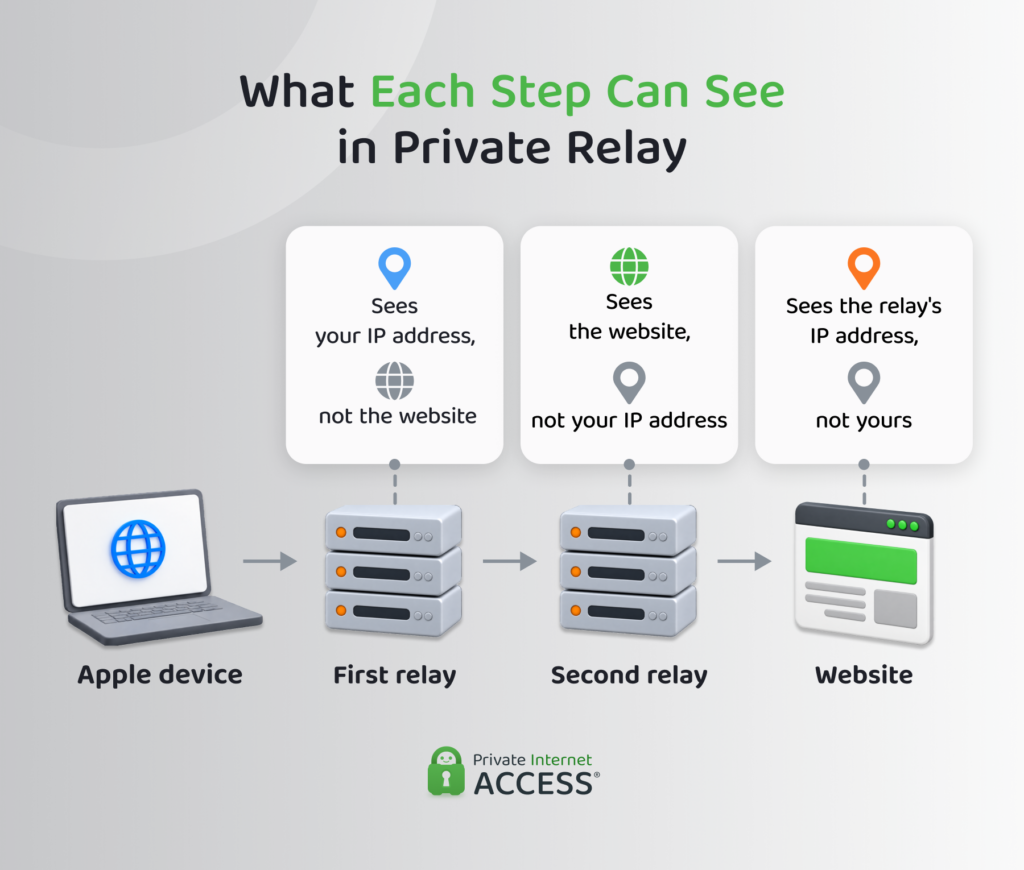
iCloud Private Relay sends supported internet traffic through two separate servers called relays before it reaches a website. Each relay sees only part of the connection, so neither sees both your original IP address and the website you’re visiting. Here’s how it works:
- Your device connects to the first relay: Operated by Apple, this relay can see your real IP address and roughly knows where the connection originates. However, it can’t see which website you want to visit.
- Your request moves to the second relay: A separate provider runs this relay and can see which website you want to reach, but it can’t see your real IP address. It gives your connection a different IP address to use instead.
- The second relay connects to the website: The website sees this relay’s IP address rather than your usual one. This makes it harder for the site to use your IP address to work out your location or link your browsing to your home or mobile network.
iCloud Private Relay vs. VPN: Key Differences
Private Relay and a VPN can both improve your privacy online, but in different ways. The differences come down to what they protect, who handles your connection, and how much control you get.
Traffic Coverage and Encryption
Private Relay mainly covers the websites you visit in Safari, plus Domain Name System (DNS) requests, which your device uses to find a website after you type its name.
It also covers unencrypted app connections that use Hypertext Transfer Protocol (HTTP), a protocol for apps and sites to exchange data without encrypting it. Other services may encrypt traffic outside Private Relay, though. An app may already use Hypertext Transfer Protocol Secure (HTTPS), which encrypts the data exchanged between your device and its server.
A VPN, on the other hand, works more broadly. Traffic that your apps and browsers route through the VPN travels through an encrypted connection to the VPN server. From there, it continues to the website or online service you’re using.
This encrypted connection is a VPN tunnel. It helps stop people on the same network from reading your traffic as it travels between your device and the VPN server.
App, Browser, and Device Compatibility
Apple incorporates Private Relay into its ecosystem and works on supported Apple devices running the software versions below.¹
| Device | Minimum OS Version |
| iPhone | iOS 15 |
| iPad | iPadOS 15 |
| Mac | macOS 12.0.1 |
| Apple Vision Pro | visionOS 1 |
Note: iCloud Private Relay isn’t available in every country or region.2
When it comes to web browsing, Private Relay works for Safari. Other browsers, such as Chrome, don’t benefit from its protection.
A VPN service, in contrast, works across all the browsers and other apps on your device, regardless of brand.
Privacy Architecture and Provider Trust
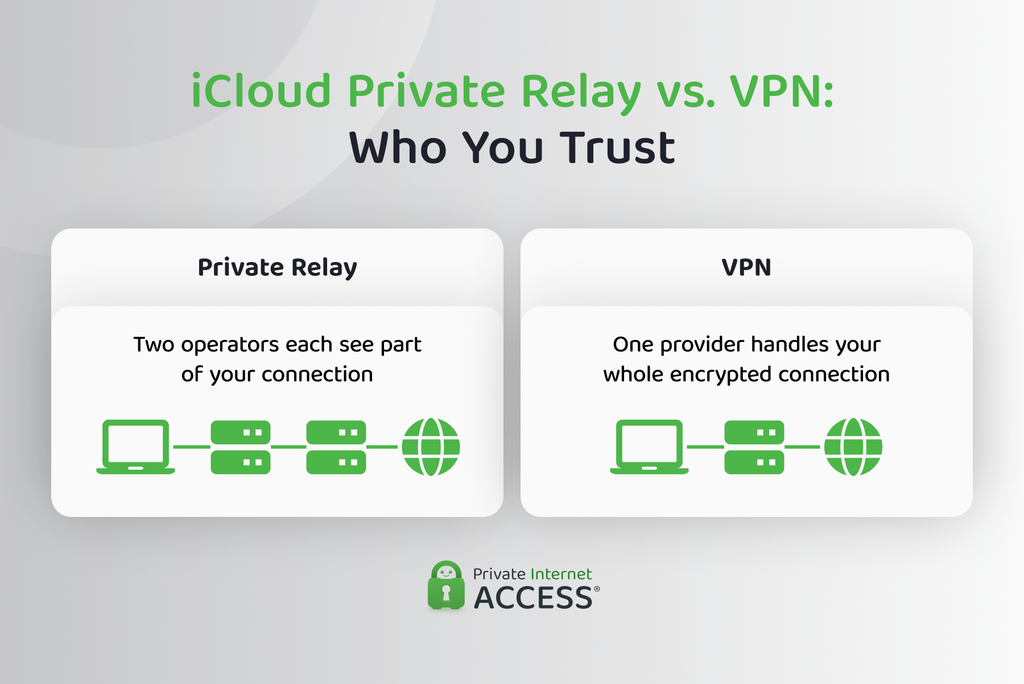
Private Relay divides trust between two operators. A conventional VPN places more trust in one provider, which runs the server your encrypted connection goes through. That makes its privacy policy and logging practices especially important.
When picking a VPN, you should pay particular attention to a clear privacy policy that explains what browsing activity it logs, if any. Independent audits can add another level of proof by checking whether the provider’s systems match its public claims. PIA VPN, for example, regularly receives independent audits by Deloitte.
IP Address and Location Control
Private Relay gives you only two options for matching your real and virtual locations:
- Maintain general location: Matches your replacement IP address closely to your approximate physical location for things like local search results.
- Use country and time zone: Makes your location less precise, while keeping the IP address within your country and time zone.
You can’t choose a specific Private Relay server or select another country for its IP address. This is where a VPN gives you more control.
With a VPN like PIA, you can choose a new virtual location from any supported location in the app. Once you connect, websites see an IP address linked to that location instead of your usual one. Here’s how you can connect to PIA’s servers:
- Open PIA and click the VPN Server section on the main screen.
- Choose your preferred location from the list or select Choose Automatically to let PIA pick the best one for you.
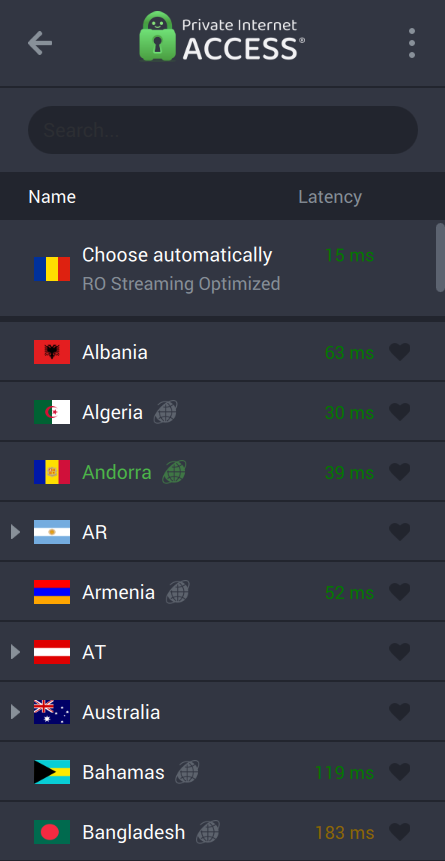
- Click the power button to connect.
Note that this only changes the location suggested by your IP address. It doesn’t change your device’s GPS location. An app with permission to use GPS, like a maps app, can still see your device’s location.
Privacy Controls
Private Relay gives you a small set of controls, while Apple handles most of the connection automatically.
You can turn Private Relay off for a specific Wi-Fi or cellular network if it causes a problem. If one website needs to see your real IP address, Safari can show it to that site without turning Private Relay off everywhere. You can also pause Private Relay until the next day or switch it off.
What you can’t do is control the relay connection itself, including adjusting the connection protocol (the set of rules your encrypted connection follows).
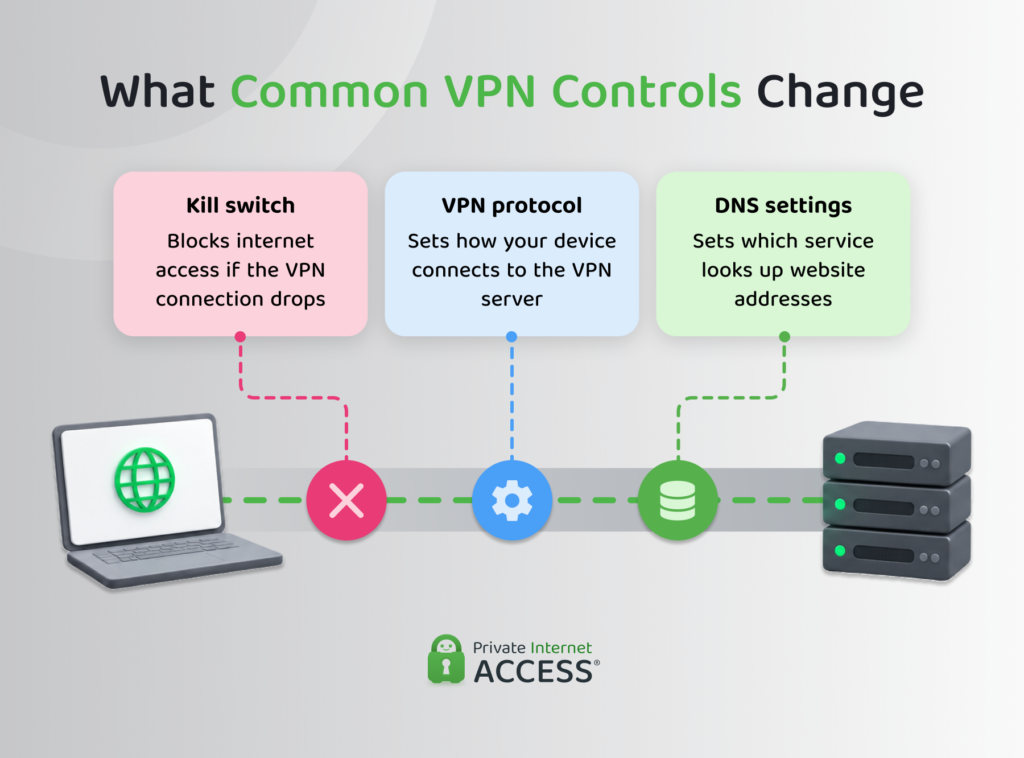
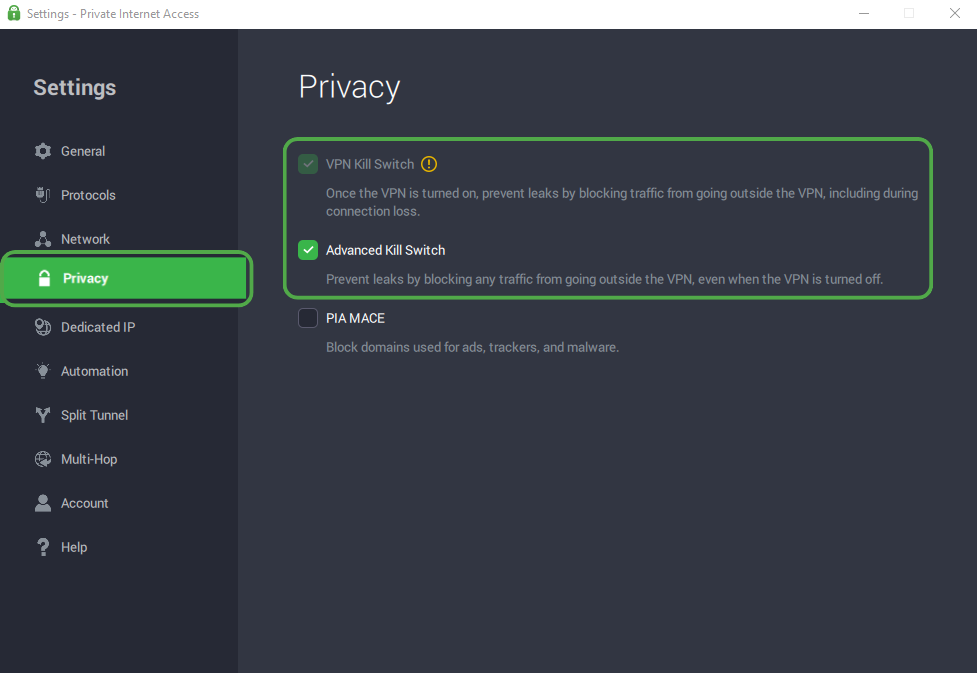
Meanwhile, a VPN gives you more control over those parts of the connection. For instance, PIA includes a Kill Switch that blocks internet traffic from falling back to your regular connection if the VPN drops unexpectedly. This helps prevent accidental IP address exposure.
PIA also offers an Advanced Kill Switch, which blocks internet access even when you deliberately disconnect the VPN. To check these settings:
- Open PIA, click the three-dot menu, and select Settings.
- Open the Privacy tab.
- Make sure you enable the VPN Kill Switch. You can choose the Advanced Kill Switch if you want internet access to require a VPN connection.
Connection Controls
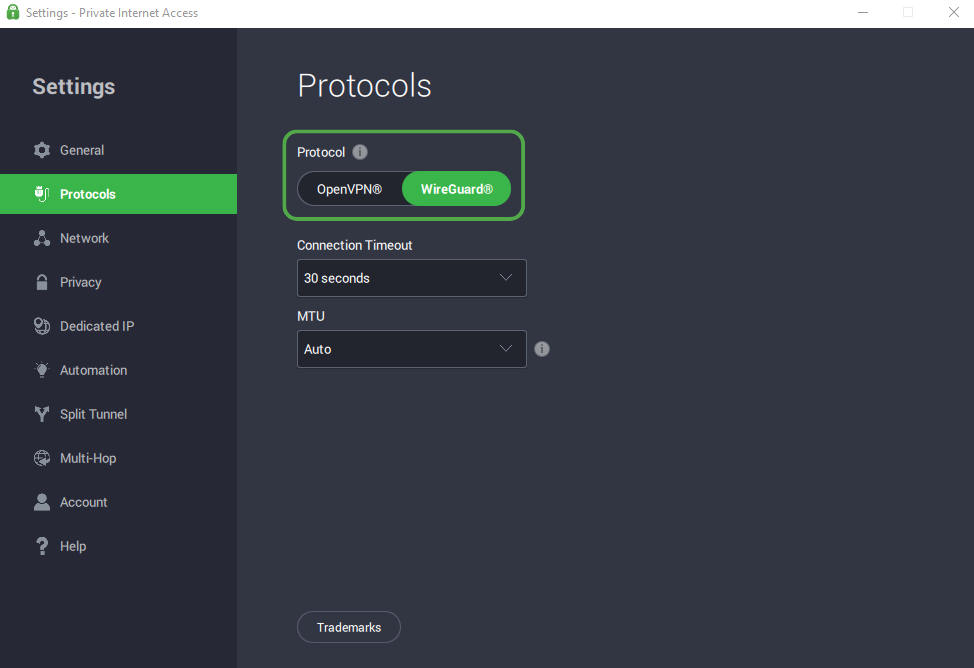
Private Relay handles its connection protocols automatically, while PIA lets you choose between WireGuard and OpenVPN. WireGuard has a lightweight design that generally makes it a good choice for speed. OpenVPN offers more settings to customize how your connection works.
For example, OpenVPN lets you switch between UDP and TCP connections. UDP generally prioritizes speed, while TCP can help on networks that restrict UDP traffic. To change your VPN protocol in PIA:
- Open PIA and go to Settings > Protocols.
- Choose WireGuard or OpenVPN.
- If you select OpenVPN, you can adjust its transport protocol and other connection settings.
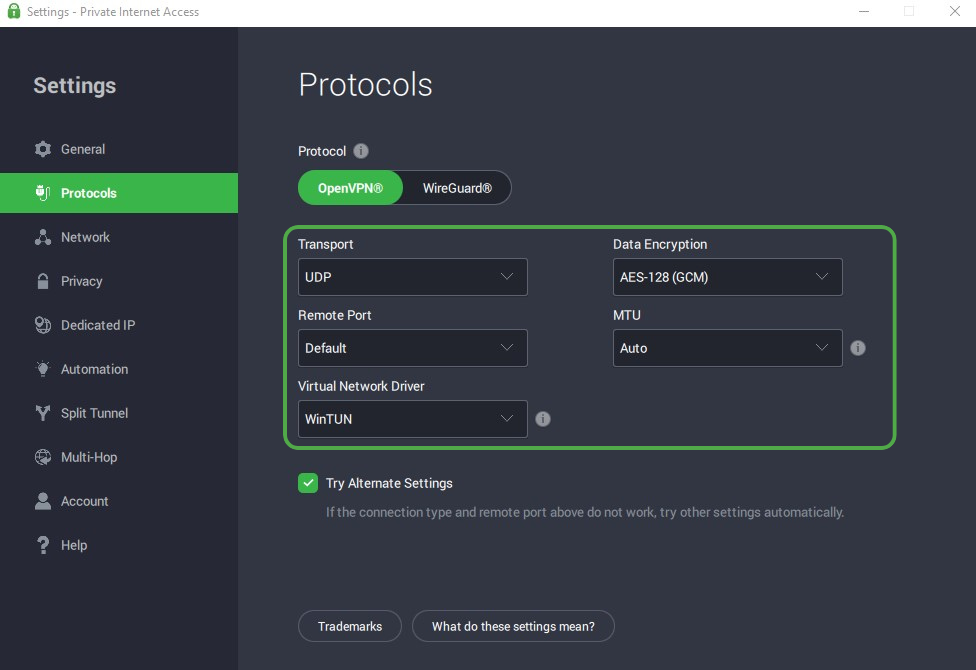
- Reconnect to the VPN to apply your changes.
Similarly, iCloud Private Relay protects supported DNS requests, but doesn’t let you choose which DNS service handles them. PIA gives you more control over DNS while connected to the VPN. By default, PIA uses its own private DNS servers, but its desktop apps offer alternatives:
- PIA DNS: Uses PIA’s own servers to look up website addresses. This is the default and recommended option for most users.
- Built-in Resolver: Lets your device look up website addresses using a built-in tool instead of relying on PIA’s DNS servers.
- Handshake DNS: Lets you access websites that use Handshake, an alternative website naming system that regular DNS services don’t typically support.
- Use Existing DNS: Keeps using your device’s current DNS service, such as the one provided by your internet provider.
- Custom DNS: Lets you choose a different DNS provider by entering its server addresses manually.
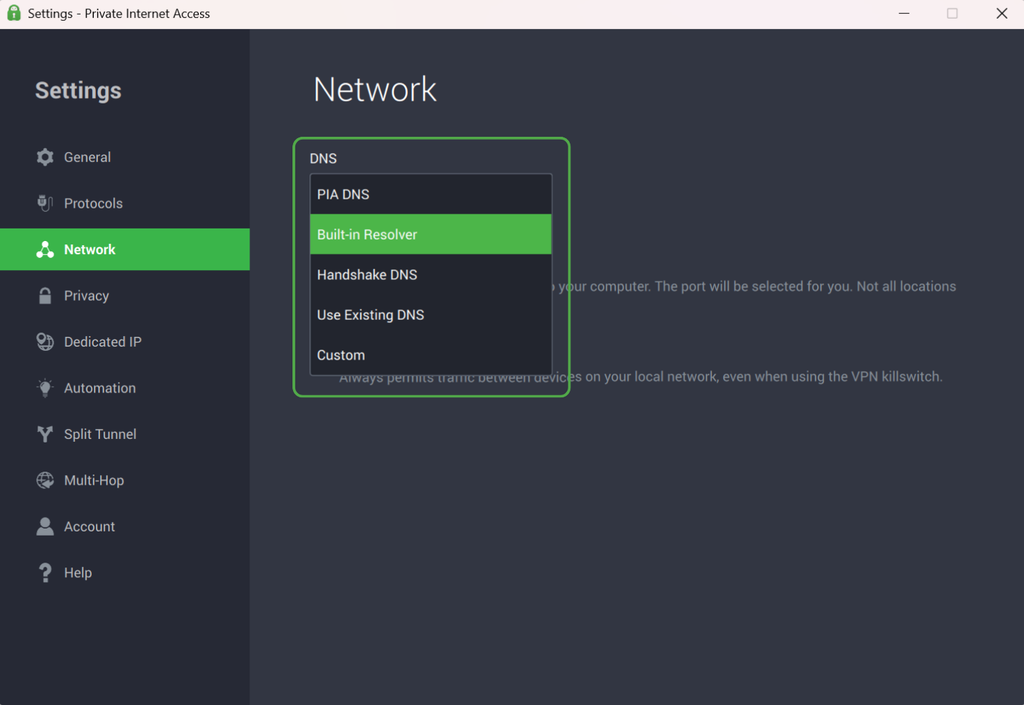
Changing DNS settings can help troubleshoot certain connection issues or let you use a preferred DNS provider. However, some alternatives may send your DNS requests outside PIA’s network, so it’s important to choose a provider you trust.
Performance and Network Compatibility
Both services route traffic through additional servers before it reaches a website, which can affect your speed. This can change based on your connection and the route the traffic takes.
It’s worth noting that speed tests can be misleading when Private Relay is on. Many speed tests open several connections at once to show the highest speed your network can reach. Private Relay works differently. The test may show a lower number even when normal web browsing still feels fast.
You may find that some websites or networks don’t work well with Private Relay. For example, a website may use your IP address to decide who can connect or to limit how many requests it accepts.
Work and school networks may need to inspect or filter traffic, which can cause similar problems. In these cases, you may need to let that website see your IP address or turn off Private Relay for that network.
VPNs can run into similar issues. Server distance and protocol choice can affect VPN speed, some websites or apps block IP addresses belonging to certain VPN servers following cases of abuse, and networks may be incompatible with certain VPN configurations. In the last two cases, switching to another VPN server or changing the VPN connection method can sometimes help.
How to Set Up iCloud Private Relay
The main advantage of iCloud Private Relay is that it’s simple to use. It works in the background once you turn it on and doesn’t ask you to choose servers or manage technical settings.
You need to turn on Private Relay on each Apple device where you want to use it. To do so, follow the steps below.
On iPhone or iPad:
- Open Settings and tap your name.
- Tap iCloud, then Private Relay.
- Turn Private Relay on.
From the same screen, you can open IP Address Location to change how precise your location appears.
On Mac:
- Open System Settings and click your name.
- Select iCloud, then Private Relay.
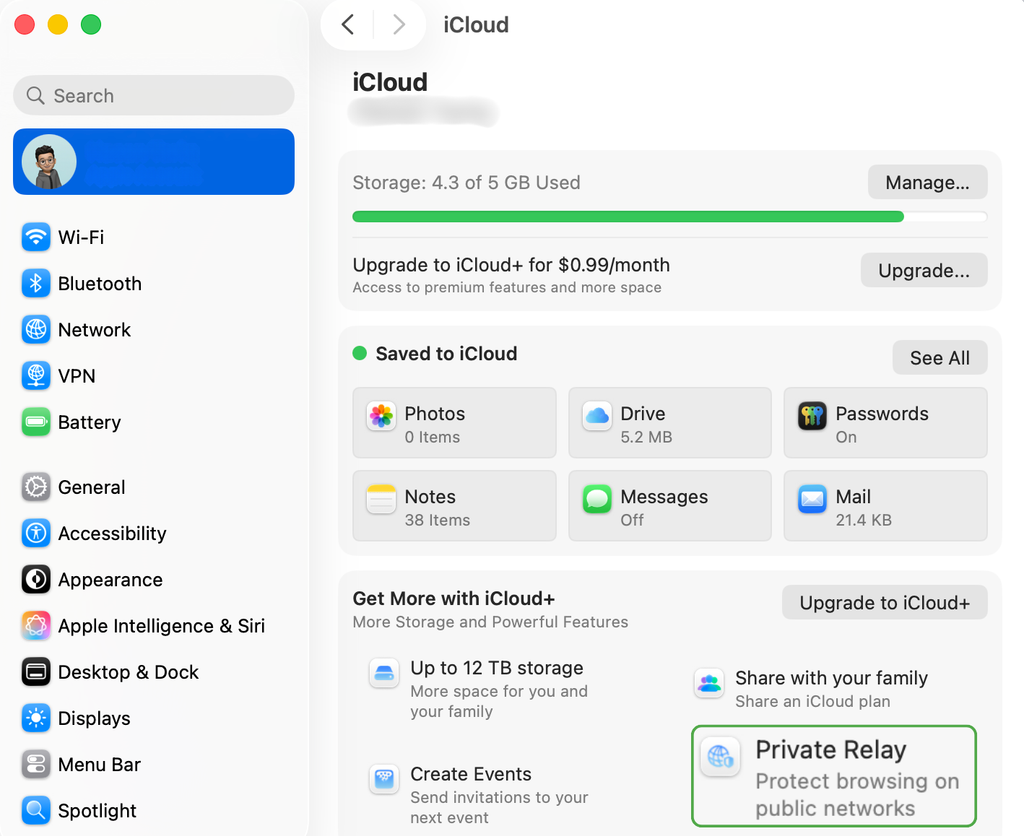
- Turn Private Relay on.
You can change IP Address Location from this screen.
To check that Private Relay is working, open Safari and visit an IP address checker. Note the displayed IP address with Private Relay on, turn Private Relay off briefly, then refresh the page. The two addresses should be different.
If Private Relay causes problems on one Wi-Fi or cellular network, you don’t need to switch it off everywhere. Open that network’s settings and turn off Limit IP Address Tracking for that connection.
Can iCloud Private Relay Work With a VPN?
You can have iCloud Private Relay turned on while you have a VPN installed or active. But that doesn’t mean the same traffic goes through both services.
When a VPN app on your device handles a connection, that traffic generally uses the VPN instead of Private Relay.3 Having both enabled doesn’t give you double protection.
You may also run into compatibility problems on a Mac. Some VPNs and other security apps install networking components that change how your Mac handles internet traffic. These components can sometimes stop Private Relay from working. If you want to use Private Relay instead, disconnect or disable the VPN or filtering app and check again.
FAQ
Does iCloud Private Relay hide my IP address?
Yes, iCloud Private Relay hides your IP address, but only for the traffic it protects. Websites see a temporary relay IP address instead of your usual one, which makes it harder to link your browsing to your home or mobile network.
Is iCloud Private Relay the same as a VPN?
No, Private Relay isn’t the same as a VPN. Private Relay protects Safari browsing, along with DNS requests and some unencrypted HTTP traffic. A VPN can protect a much wider range of app and browser traffic and usually gives you more control over the connection.
Can I use iCloud Private Relay with a VPN?
Yes, you can use Private Relay with a VPN, but the same connection doesn’t go through both. When a VPN handles a connection, that traffic uses the VPN instead of Private Relay. Some VPN or filtering apps can also use network settings that make Private Relay unavailable.
What are the downsides of using iCloud Private Relay?
Private Relay has limited coverage and fewer controls than a VPN. It only works on supported Apple devices with iCloud+ and you can’t choose to route your connection through a specific server or country. Some websites or networks may require you to show your IP address or turn Private Relay off.
Does iCloud Private Relay work with Chrome?
No, iCloud Private Relay doesn’t work with Chrome in the same way it works with Safari. Private Relay doesn’t give Chrome the same full web-browsing protection, although it may still protect DNS requests and some unencrypted HTTP traffic coming from your device.
Does iCloud Private Relay slow down your internet?
Yes, Private Relay can affect speed, but there’s no set amount of slowdown. Apple also notes that some speed tests may show lower results with Private Relay on, even when normal browsing still feels fast.
References:
