Does a VPN Slow Down the Internet? Why It Happens and How to Fix It
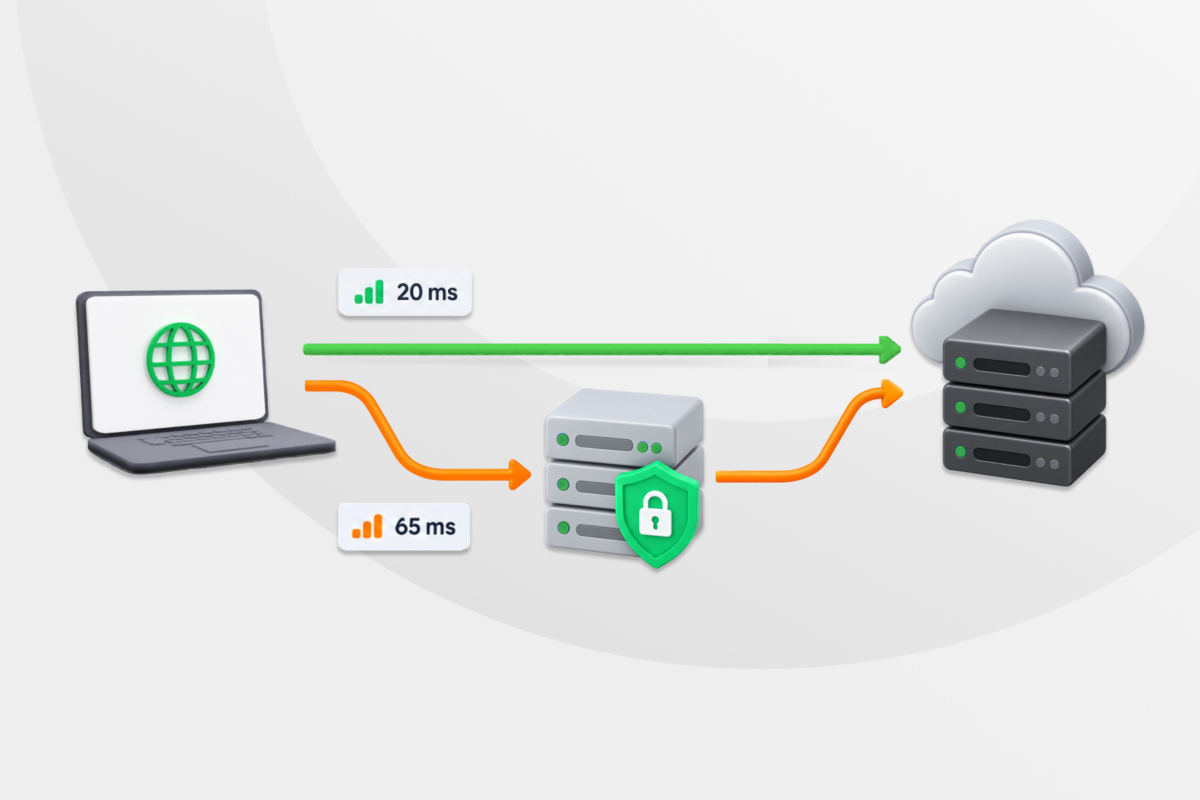
Turn on your VPN and suddenly everything feels slower? Some speed loss is normal when using a VPN because your traffic travels through an encrypted VPN tunnel to the VPN server before reaching its destination. If you’re experiencing bigger drops, the source is likely a fixable issue like server distance or the wrong protocol.
In this guide, you’ll learn how to run a quick speed test to determine whether your VPN or your internet connection is the problem, plus fixes for the most common causes of VPN slowdowns.
How Much Can a VPN Slow Your Connection?
There’s no standard amount of speed you’ll lose when using a VPN. A 2025 comparison of ten VPN products found that performance varied both across services and between local and overseas connections.1
Your original speed matters as much as how much speed you lose. Suppose a VPN reduces your download speed by 20%. A connection running at 100 megabits per second (Mbps) would drop to 80 Mbps, while a 15 Mbps connection would fall to 12 Mbps. Both connections lost the same percentage of speed, but only the faster one could still stream in 4K, which requires at least 15 Mbps.2
Several measurements help explain why a connection might feel slow despite a high download speed:
| Measurement | What It Means |
| Download speed | How quickly you receive data. Lower speeds can mean slower downloads or reduced streaming quality. |
| Upload speed | How quickly you send data. This affects file uploads and video quality during calls. |
| Latency | How long data takes to reach a server and travel back. Higher ping can make online games feel less responsive. |
| Jitter and packet loss | Uneven delays, with some data never arriving. Both can disrupt calls even when download speeds look good. |
Is the Slowdown Coming from Your VPN or Your Internet Connection?
Before you tweak any settings, check whether your connection is also slow with the VPN off. This gives you a starting point for measuring the VPN’s effect.
Run a Before-and-After Speed Test
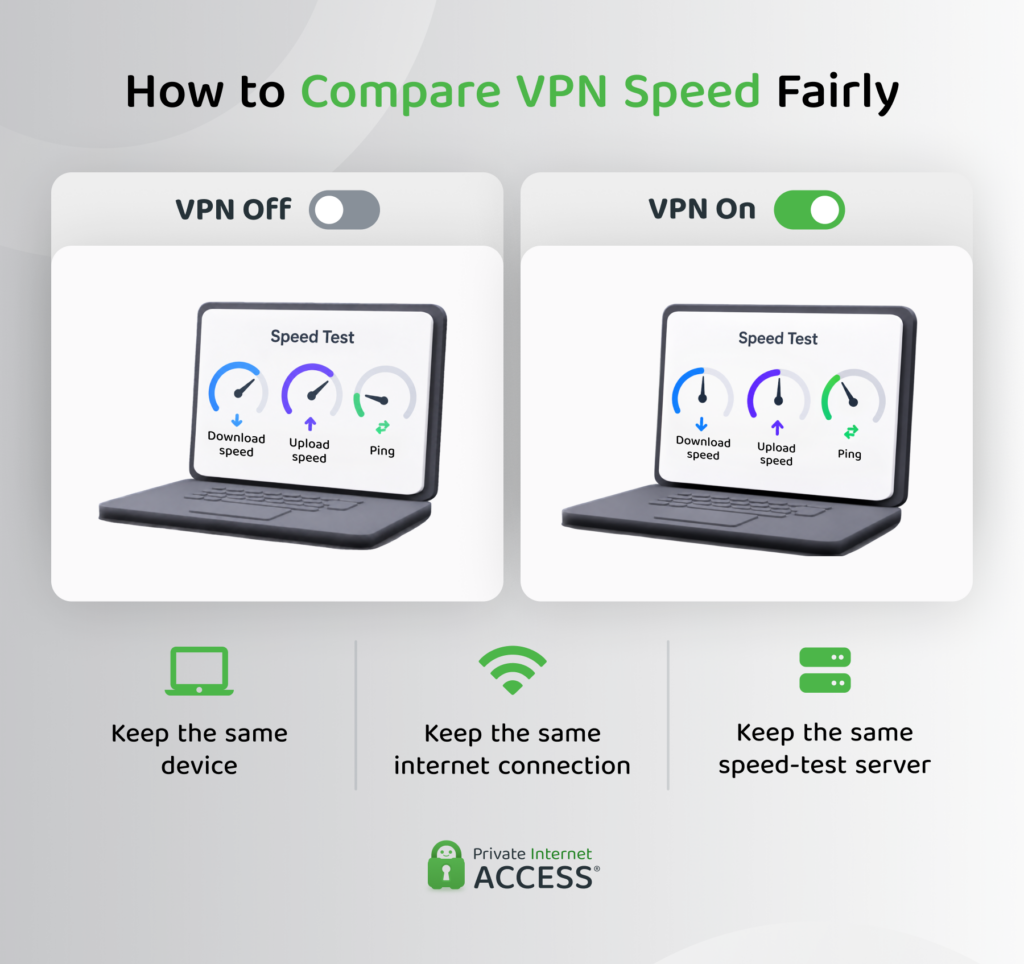
Choose a speed-test tool that lets you select a server, such as Speedtest, and use the same device and internet connection throughout.
- Pause background activity: Stop downloads and cloud backups, and close streaming tabs. Avoid heavy internet use on other devices sharing your connection during the comparison.
- Test with the VPN off: Disconnect your VPN and run a speed test. Note the test server’s name, then record your download and upload speeds, along with ping or jitter if available.
- Repeat with the VPN on: Connect to a nearby VPN server and run the test again, using the same test server as before.
- Repeat the comparison: Run the test three times with the VPN off, then three times with it on. For each metric, compare the middle result from each set. This helps prevent one unusually high or low reading from skewing your results.
Next, calculate the percentage of speed lost using this formula:
Speed loss (%) = [(speed without VPN − speed with VPN) ÷ speed without VPN] × 100
Calculate download and upload losses separately, using the same units.
Understand Your Results
If the connection is also slow with the VPN off, the VPN probably isn’t the main problem. Your Wi-Fi or regular internet connection may be slowing things down. If possible, compare Ethernet with Wi-Fi, or repeat the test later if the results keep changing.
| Observation | What to Check |
| Speeds consistently drop with the VPN on | Try another nearby VPN server or another VPN protocol. |
| Download speed looks good, but calls or games lag | Check the upload speed and compare latency. Look for jitter or packet loss if your speed test reports them. |
| Only one app or website struggles | Check whether it also struggles with the VPN off. The service in question may have performance issues of its own. |
| Only one device is slow | Check that device’s connection and VPN settings. Look for background activity that could affect its performance. |
Why Is My VPN So Slow? Causes and Fixes
If your speed tests point to the VPN, try these fixes one at a time. Repeat the same test after each change so you can see what helps.
Try a Nearby VPN Server
The farther your traffic has to travel, the more latency usually increases. Start with a VPN server close to your physical location or use your VPN app’s automatic server selection option if it has one. The VPN will choose a nearby connection based on your network conditions.
If performance is still poor, try another nearby server. A low latency reading in milliseconds (ms) usually indicates a more responsive connection, but it doesn’t show server congestion. You’ll need to compare actual speed test results before deciding which server works best.
Switch VPN Protocols
A VPN protocol is the set of rules your VPN uses to create the secure connection between your device and the VPN server. It affects how your VPN packages and sends traffic through the tunnel, which can influence speed, stability, and how well the VPN works on different networks.
Some protocols lower overhead, while others prioritize compatibility or reliability. If your VPN feels slow, switching protocols is one of the quickest ways to check whether the current one is causing it.
In PIA’s desktop app, you can do so under Settings > Protocols.
| Protocol | When to Try It |
| WireGuard | Start here if you’re using OpenVPN and want to improve speed |
| OpenVPN with UDP | As an alternative for older devices that don’t support WireGuard |
| OpenVPN with TCP | On restrictive networks that don’t work well with UDP, TCP can offer a more stable connection |
PIA also lets you adjust encryption between AES-128 and AES-256 for OpenVPN. AES-128 requires less processing in theory, but the real-world speed difference may be small on modern hardware. Server distance, network conditions, and the protocol itself often have a bigger effect on performance.
Restart and Update the VPN App
Check that both your VPN app and your device’s operating system are up to date, then restart the device before testing again.
If the connection still feels unstable, a router restart may help too. Disconnect it from power for about 30 seconds, plug it back in, and wait for your internet connection to come back before trying the VPN again.
Pause Background Downloads and Check for App Conflicts
Large downloads, cloud backups, and other background activity can leave less bandwidth for streaming, calls, or other apps. Some programs can also use a lot of your device’s processing power, which may affect VPN performance.
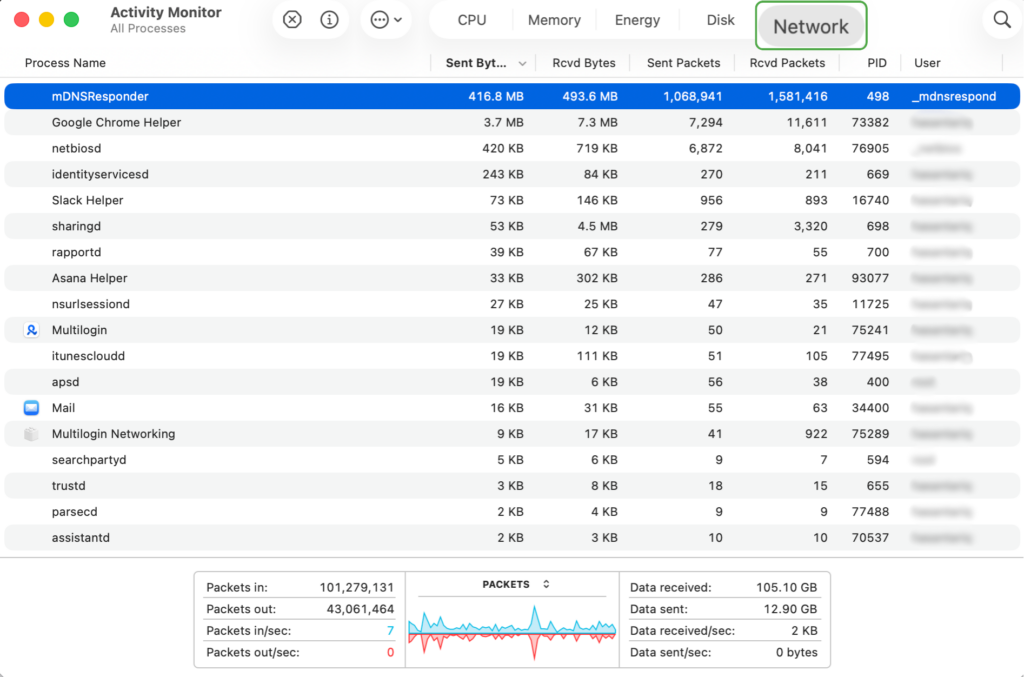
On Windows, Task Manager can show which apps are using the network or system resources. On macOS, navigate to the Network and CPU tabs in Activity Monitor, while on Linux, you can check your System Monitor app.
Another VPN, proxy app, or proxy browser extension can also interfere with your VPN connection. If antivirus software or a firewall is blocking the VPN, add an exception for your VPN app instead of turning off your protection.
Use Split Tunneling Where It Helps
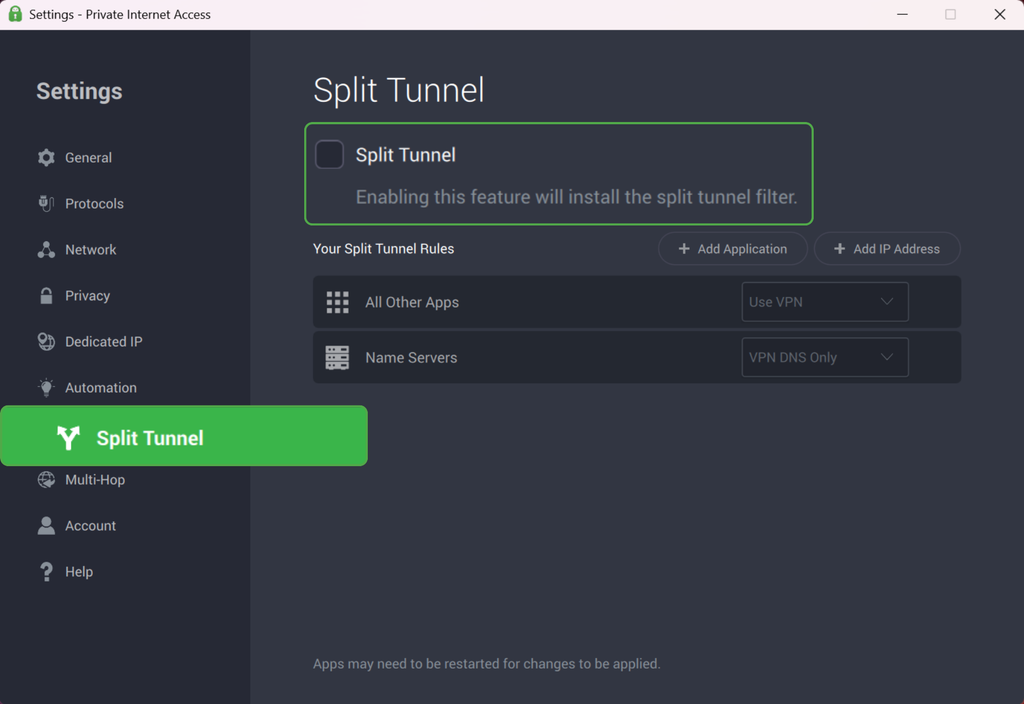
Split tunneling lets you choose which apps use the VPN and which connect through your regular internet connection. It can be useful if one app feels slow through the VPN but works without it. You can let that app bypass the VPN while keeping the rest of your traffic inside the encrypted tunnel.
This doesn’t make the VPN connection itself faster. The excluded app skips the VPN server and its extra routing. If the VPN path was causing the slowdown, this can improve that app’s performance. With PIA, you can exclude apps like this:
- On Windows, macOS, and Linux: Open Settings > Split Tunnel, enable the feature, then select Add Application. Choose the app and set its rule to Bypass VPN.
- On Android: Open Per App Settings from the app menu. Tap the green lock beside an app to turn it red and exclude it.
Note: Split tunneling isn’t available in PIA’s iOS app.
Review Multi-Hop and Obfuscation Settings
Multi-Hop adds another stop to your VPN connection. Instead of going straight from your device to the VPN server, your traffic first passes through a proxy server and then continues through the VPN. This extra route can increase latency and reduce speed, especially if either server is far away.
If you enabled this feature on PIA but don’t need it, open Settings > Multi-Hop in the desktop app and turn off Multi-Hop and Obfuscation. Reconnect and compare performance.
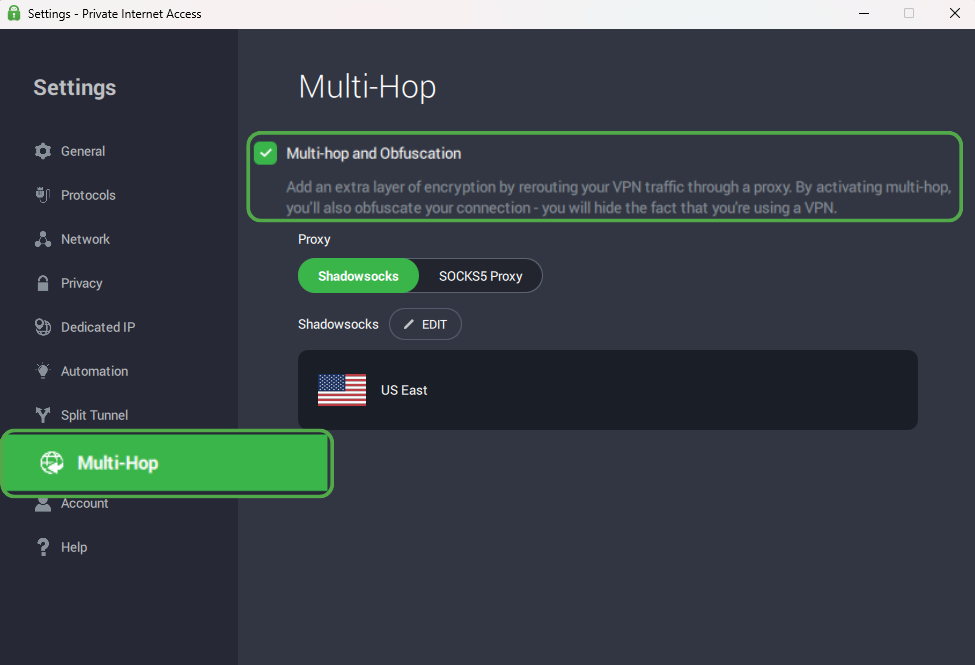
If you rely on Shadowsocks to connect through a restrictive network, don’t disable it. Try another Shadowsocks location instead, or set the location to Choose automatically.
Try Another Supported Connection Port
A network port is a numbered connection point that directs traffic to the right service or application. With OpenVPN, your VPN app connects to the server through a specific remote port. Some networks block certain ports or handle them poorly, which can cause slow, unstable, or failed VPN connections.
OpenVPN can use UDP (User Datagram Protocol) or TCP (Transmission Control Protocol). UDP has less overhead, so it’s usually faster. TCP checks that data arrives correctly and in order. This can make it more reliable on some networks, but it usually results in slower performance.
If your connection is unstable, changing the transport or remote port can help. With PIA, you can try TCP port 443. Restrictive networks often allow this port because it’s the standard port for HTTPS traffic. Other available options include UDP port 8080, 853, 123, and 53 and TCP port 8443, 853, and 80.
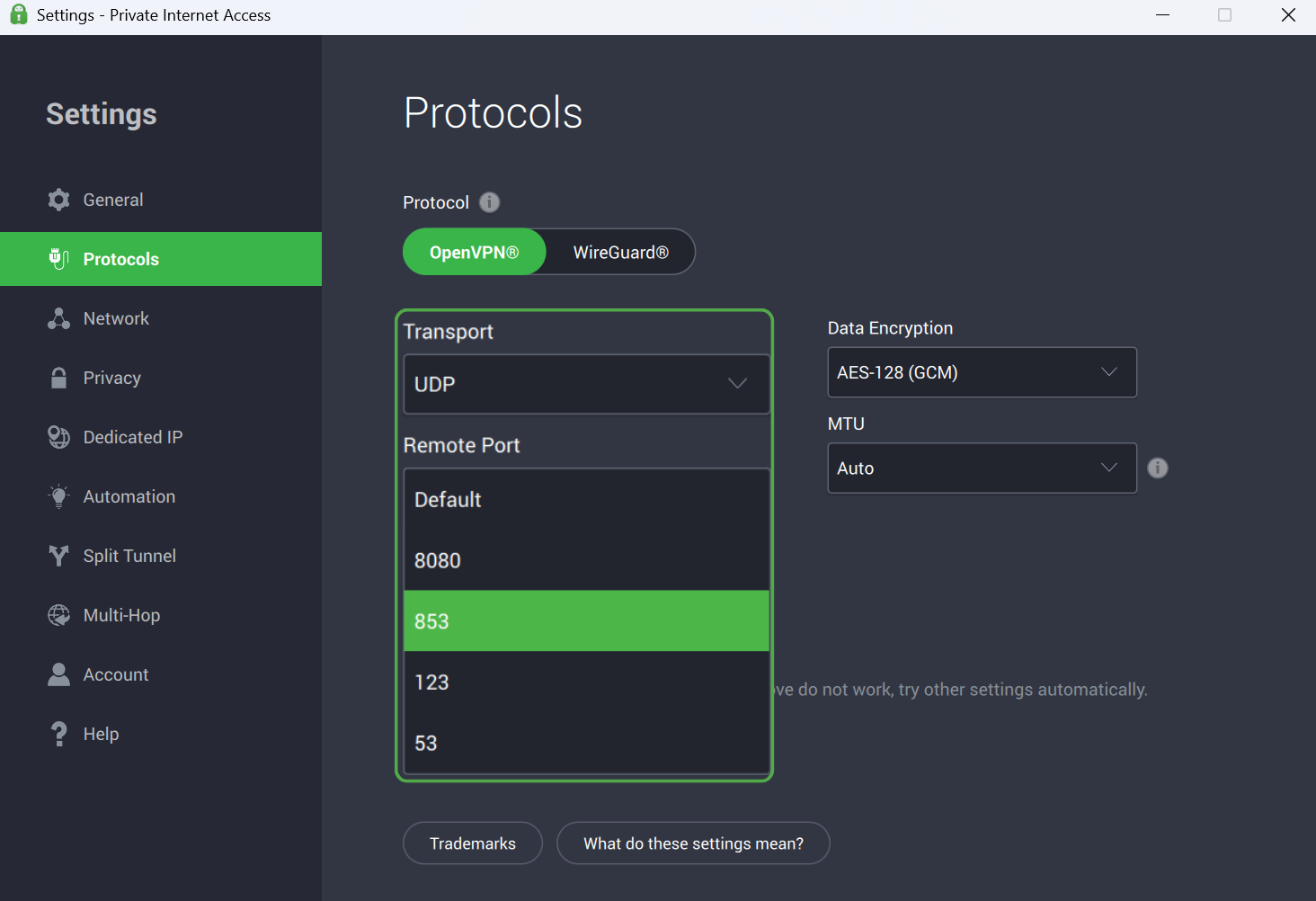
Changing ports is mainly a fix for network issues or connection problems. If your VPN already works, switching ports is unlikely to give you a noticeable speed boost.
Can a VPN Make Your Internet Faster?
Sometimes, but only in specific cases. A VPN can’t increase the maximum speed of your internet plan, but it may improve performance if the problem comes from how your ISP routes your traffic. Two situations where this can happen are:
- Your ISP slows certain types of traffic (throttling): Because a VPN encrypts your traffic, your ISP can’t easily see which service you’re using. That may help if the slowdown targets a specific activity, such as streaming.3
- The VPN gives your traffic a better route: It changes the path your data takes across the internet. If that route avoids a congested or inefficient connection between networks, downloads may be faster or games may feel more responsive.
What to Do if Your VPN Is Still Slow
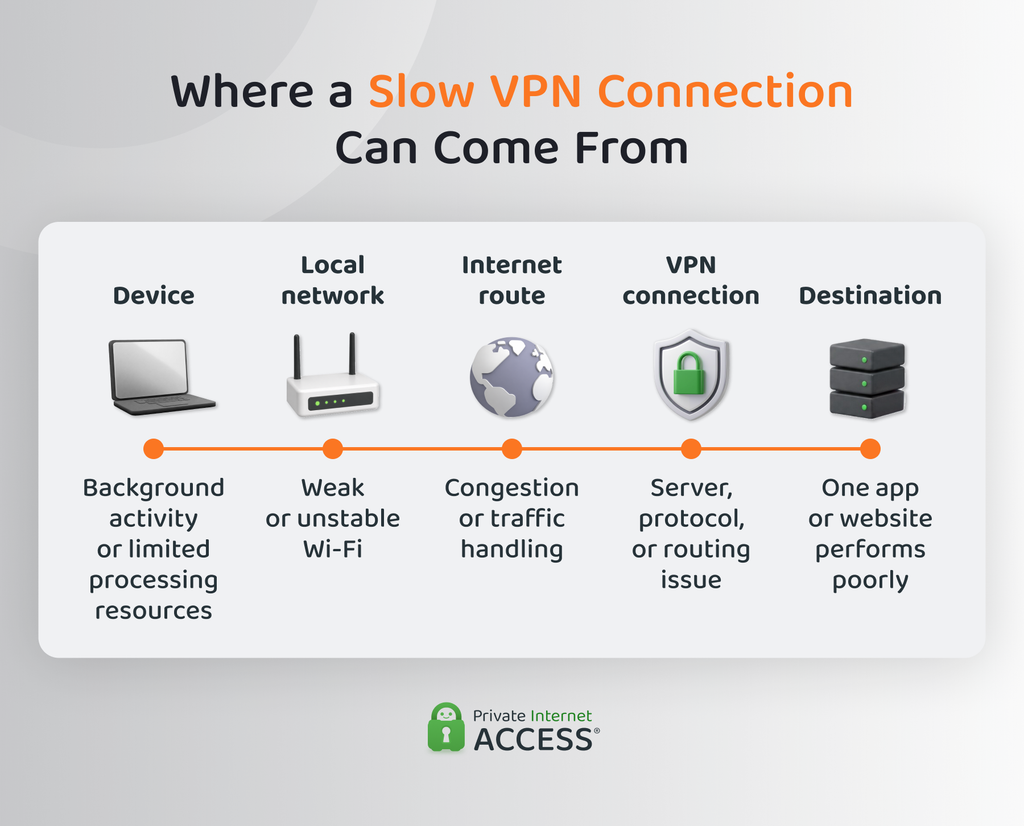
If the fixes above haven’t helped, ask your VPN provider’s support team to investigate. The following details may help them narrow down the problem:
- Speed test results: Download and upload speeds with the VPN on and off, along with ping readings.
- Server and protocol choices: Your country or state, plus the VPN locations and protocols you’ve tested.
- Device details: Your device model, operating system version, and VPN app version.
- Connection setup: Whether you use Wi-Fi, Ethernet, or cellular data, and whether the VPN runs on your device or router.
- The problem you notice: Which apps struggle and whether the slowdown happens often or at particular times.
- Security software: Any antivirus or firewall software running on your device.
Support may also ask for a debug log, which records app errors and details about your network setup. If you’re using PIA, you can find logging options under Settings > Help and share the resulting reference ID with your support agent.
When Your VPN Provider May Be the Problem
Your VPN provider becomes a more likely cause when your regular internet connection works well, but performance stays poor across several nearby VPN servers and different protocols.
Other signs include frequent instability at different times of day, or not having enough nearby servers and protocol options to find a reliable connection.
If support can’t resolve the issue, try comparing another VPN under the same conditions. Use the same device, internet connection, and apps so the comparison is fair. If another provider performs better, the original VPN may be a poor fit for your setup.
Private Internet Access VPN runs on 10 Gbps infrastructure, giving you reliably fast speeds across our global network spanning 113 countries. New subscribers can try it risk-free with a 30-day money-back guarantee.
FAQ
How much does a VPN slow down your internet?
There’s no set percentage. A nearby server on a good connection may only cause a small drop, while a distant or busy server can slow things down more. The protocol you use and the performance of your device can also make a difference.
Does a VPN slow down your internet on an iPhone?
It can. Your VPN app encrypts your traffic and sends it through a VPN server, which adds some overhead. How noticeable that is depends on the server distance, the protocol, and whether you’re using Wi-Fi or cellular data.
Does a VPN increase ping when gaming?
Usually, yes. A VPN adds another stop between you and the game server, so your data takes a little longer to get there and back. If you connect through a nearby VPN server with a good network route, the extra delay may be small. However, if your ISP uses congested or poorly configured servers, a VPN can sometimes improve your ping.
What is the fastest VPN setting?
It depends on your situation, but generally, a nearby server paired with a fast protocol like WireGuard gives the best results. You can also use split tunneling to exclude specific apps from the VPN tunnel for a more efficient connection on the apps you want to protect.
How can I speed up a slow VPN?
Simple tweaks can fix most VPN speed issues. Switching servers, changing protocols, or restarting your router are often enough to get your connection running smoothly again. If nothing works, upgrading to a fast VPN with a 10 Gbps global server network, like PIA VPN, may help.
Resources:
