What’s the Difference Between DHCP and DNS?
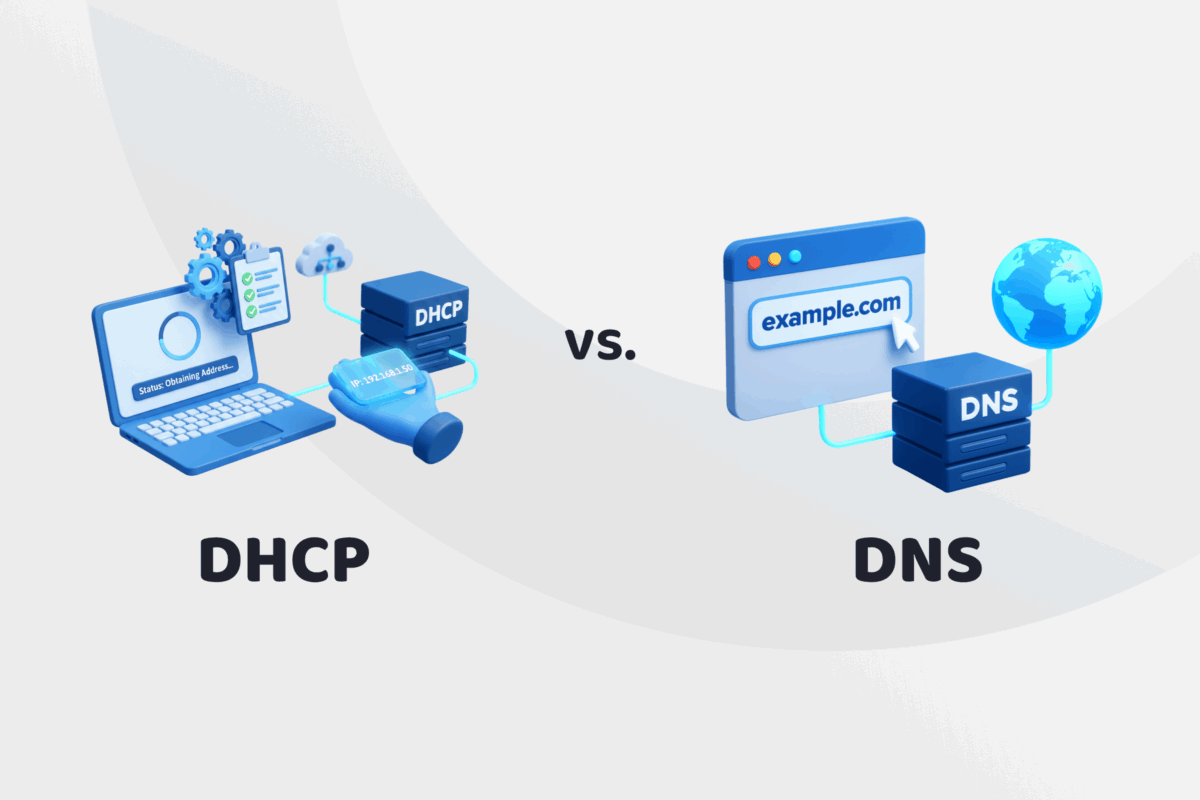
Dynamic Host Configuration Protocol (DHCP) and the Domain Name System (DNS) are two essential networking protocols that work behind the scenes to make internet connections seamless. DHCP assigns IP addresses and network settings so devices can join a network automatically. DNS translates website names into IP addresses so those devices can find and connect to online services.
DNS and DHCP aren’t alternatives for the same thing, so it doesn’t make sense to compare them directly. What’s important is understanding what each protocol does, how they’re used together, and why they’re both critical to any functioning network.
What Is DNS?
The Domain Name System (DNS) is the internet’s phonebook. When you type a website address like privateinternetaccess.com into your browser, your computer doesn’t actually understand that human-friendly name. It needs an IP address, such as 203.0.113.23, to know where to send your request.
That’s where DNS comes in. It translates domain names into IP addresses by going through multiple types of DNS server networks so you can get to your website.
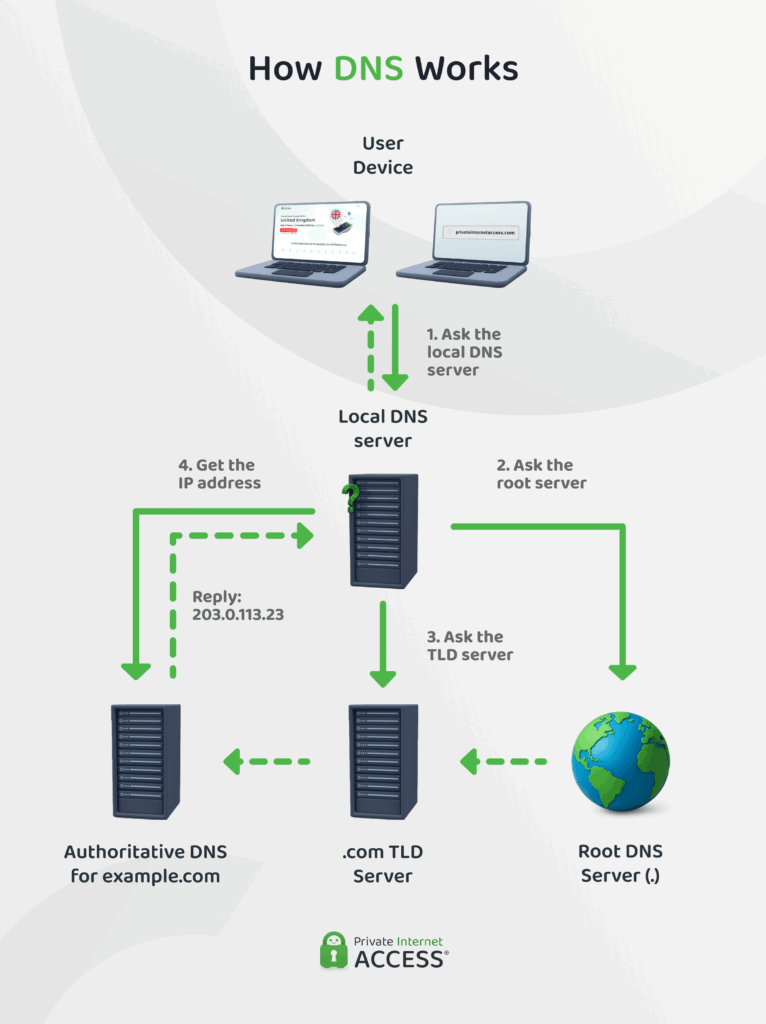
Here’s how DNS resolution typically works:
- Local DNS server query: Your device asks its local DNS resolver if it knows the IP for the domain.
- Forward to the root server: If the answer isn’t cached, the resolver contacts a root DNS server, which points it to the correct top-level domain (TLD) server (like .com).
- Forward to the TLD server: The TLD server refers the query to the authoritative server for the domain.
- Get the final IP address: The authoritative server responds with the IP address. Your DNS resolver sends it back to your device and stores the result temporarily in its cache.
While written out it sounds like a long process, in reality, the entire process happens pretty much instantaneously. Most servers and devices store the result temporarily (DNS caching), so repeat visits are faster and don’t require going through the full chain again.
When Do You Need DNS?
DNS is essential for any activity involving internet domain names, such as:
- Accessing websites using domain names
- Using email or chat apps
- Running software that connects to cloud services
- Connecting to VPNs that use domain-based gateways
- Hosting services with domain resolution
Without DNS, we’d all be typing IP addresses instead of names, which would make browsing the web far more complicated.
What Is DHCP?
Dynamic Host Configuration Protocol (DHCP) automatically assigns IP addresses and other critical local area network settings. Without it, every device would need to be manually configured to connect to its network.
When a device joins a network, it broadcasts a request for configuration. A DHCP server replies with an IP address lease and other important information, including:
- Subnet mask
- Default gateway
- DNS server info
This handshake allows the device to get online without any manual input.

As the name suggests, DHCP is dynamic, meaning that if a device disconnects, the IP address it was using can be recycled and assigned to another device. This makes it ideal for networks with many users or constantly changing devices. It also helps network admins avoid conflicts or mistakes from manual IP address assignments.
Without DHCP, network management would be tedious, especially in environments with more than a handful of devices.
Here’s a step-by-step breakdown of how DHCP works:
- Discovery: The device sends a broadcast asking if any DHCP servers are available.
- Offer: The DHCP server replies with an available IP address and network settings.
- Request: The device responds by requesting to use that IP.
- Acknowledgment: The server confirms the lease and assigns the IP to the device.
This process is called leasing an IP address, and it usually lasts for a set period before it needs to be renewed. DHCP handles everything behind the scenes, so your device can connect, communicate, and start resolving domain names through DNS.
When Do You Need DHCP?
DHCP comes into play the moment a device connects to a network.
You’ll need DHCP when:
- Managing networks with a lot of new or mobile devices
- Running guest Wi-Fi or Bring Your Own Device (BYOD) setups
- Avoiding IP conflicts from manual settings
- Scaling networks in businesses or institutions
- Setting up PXE or network boot environments
DHCP vs DNS: Key Differences
While they both operate in the same area, DNS and DHCP are quite different. Here are some of the main differences.
- Function: DHCP gets devices onto the network by automatically assigning IP addresses and other settings like the gateway and DNS server. DNS takes over once connected, resolving domain names into IPs so devices know where to send requests.
- Communication Ports: DHCP uses UDP ports 67 and 68 to handle IP assignment. DNS uses port 53 for both TCP and UDP traffic to process domain name queries and responses.
- System Design: DHCP runs from a centralized server that manages IPs across the network. DNS is distributed globally, with layers of servers (root, TLD, and authoritative) that work together to resolve domain names.
- Features and Capabilities: DHCP leases IP addresses and configures devices automatically. DNS translates names to IPs and supports internal naming, reverse lookups, and service discovery in enterprise networks.
- Security: DNS can be vulnerable to spoofing and leaks, but protocols like DNSSEC, DoH, and DoT offer protection. DHCP is secured through access controls, firewalls, and monitoring to block rogue servers and prevent misconfigurations.
How DNS and DHCP Work Together on a Network
While DNS and DHCP serve different purposes, they’re tightly connected in most networks. DHCP helps devices join the network by assigning IP addresses and configuration info. DNS takes over once the device is connected, resolving domain names into IPs so that communication can happen.
Most DHCP servers automatically provide DNS server settings to the device as part of the lease. This means the device knows which DNS server to use without any manual setup. The result is a smooth, automated process that gets devices online quickly and ready to access internet services by name.
This interaction is especially common in home routers, corporate networks, and public Wi-Fi. When everything works together, you don’t have to think about what’s happening under the hood.
When and Why to Set DNS Manually Without DHCP
There are situations where you might skip DHCP and set DNS manually. This usually happens when you need static IP addresses or want to use a custom DNS provider for privacy, speed, or control.
Manual DNS configuration is common in:
- Devices requiring static IP addresses like printers or servers
- Privacy-focused setups using encrypted DNS
- IoT devices that require fixed routing
- Networks that use alternate DHCP systems without DNS settings
For example, if you’re using a VPN or a custom firewall, you might point your device to a DNS provider like PIA’s no-log DNS or a public option like Cloudflare. This helps prevent leaks and gives you more visibility and security. Just keep in mind that manual setup takes more effort and must be kept consistent across devices.
Managing DNS and DHCP in Complex Networks
In larger corporate environments, DNS and DHCP require careful planning. Admins often use dedicated tools to manage both services, especially in situations where uptime and visibility are critical.
Some of the most common tools for advanced DHCP and DNS management are:
- ISC DHCP and Kea for scalable, open-source DHCP servers
- BIND for powerful DNS management with zone control
- Pi-hole for network-wide ad blocking and DNS filtering
- DNSMasq for lightweight DNS and DHCP on embedded devices
- Windows Server DHCP and DNS roles in Active Directory networks
Admins also use reservations to assign fixed IPs to specific MAC addresses, or split scopes to balance load between DHCP servers. DNS can be extended with subdomains, forwarders, and conditional forwarding to control traffic inside and outside the network.
The more complex the network, the more important it is to log events, monitor leases, and prevent conflicts. DNS and DHCP may be invisible to users, but they’re critical behind the scenes.
DNS and DHCP Security Risks: What You Need to Know
While DNS and DHCP make networking easier, they also come with potential risks. Attackers often target these protocols to reroute traffic, intercept data, or disrupt connectivity.
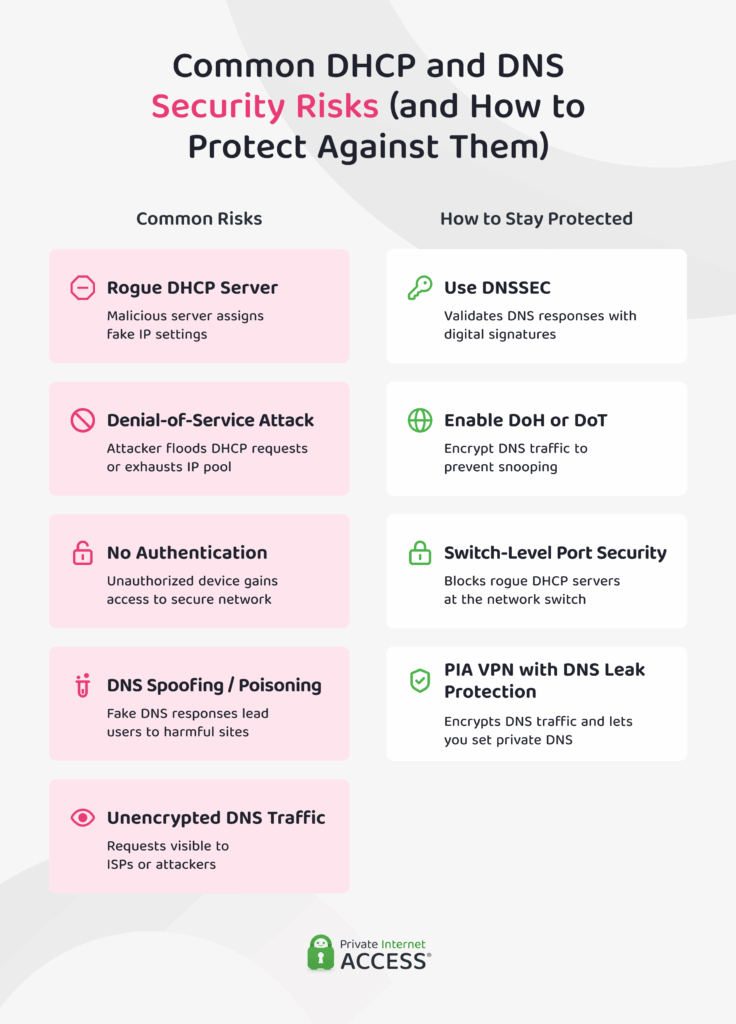
Common DNS security risks:
- DNS spoofing or poisoning: When attackers fake DNS responses and redirect users to malicious sites.
- Unencrypted DNS traffic: Can be monitored or tampered with on public or untrusted networks.
- DNS leaks: When DNS requests bypass a VPN and expose activity.
Common DHCP vulnerabilities:
- Rogue DHCP servers: Can assign incorrect settings or route traffic through malicious gateways.
- Denial-of-service attacks: When attackers exhaust the DHCP pool or flood requests.
- Lack of authentication: Can allow unauthorized devices to access sensitive networks.
To protect against these risks:
- Use DNSSEC to validate DNS responses.
- Enable DNS over HTTPS (DoH) or DNS over TLS (DoT) for encrypted lookups.
- Block rogue DHCP servers using switch-level port security.
- Download PIA VPN, which offers DNS leak protection and allows custom DNS settings for added privacy.
FAQ
What’s the main difference between DHCP and DNS?
DNS and DHCP have more differences than similarities. DHCP assigns IP addresses and network settings to devices so they can join the network. DNS translates domain names into IP addresses so devices can locate services and websites. One gets you online, the other helps you navigate once you’re connected.
How do DHCP and DNS work together in a network?
DHCP and DNS work together to provide essential internet connectivity. When a device connects, DHCP provides it with an IP address and configuration details, including which DNS server to use. Once online, the device uses DNS to resolve domain names into IP addresses, making web browsing and app connectivity possible without remembering numeric addresses.
Can a network function without either DHCP or DNS?
Yes, but it’s much harder to manage. Without DHCP, you need to assign IP addresses manually. Without DNS, you must enter IP addresses for every site or service. Most networks rely on both to automate and simplify connections.
What are the security risks associated with DHCP and DNS?
There are a few security risks and vulnerabilities associated with DHCP and DNS. DHCP can be exploited by rogue servers or denial-of-service attacks. DNS is vulnerable to spoofing, leaks, or eavesdropping if left unencrypted. Using encrypted DNS protocols, trusted DHCP configurations, and a VPN with DNS protection can help reduce these risks.
Is it possible to manually configure IP addresses without DHCP?
You can assign static IP addresses to devices and manually set network settings, including DNS. This is useful in networks with fixed infrastructure or for certain privacy-first configurations, but it requires more effort and increases the chance of IP address conflicts if not managed carefully.
