IMAP vs. POP3: What’s the Difference and Which Should You Use?
When setting up an account in an email app, you may be asked whether to use IMAP or POP3. Both have advantages and disadvantages, and it often comes down to how you organize your inbox.
If you’ve never heard these terms before, you’ve come to the right place. We’ll explain how IMAP and POP3 work, how they handle your email, and whether one suits your needs better than the other. We’ll also explore SMTP, how to identify the protocol your email app uses, and how to switch from POP3 to IMAP.
Quick Guide: How to Choose Between POP3 and IMAP
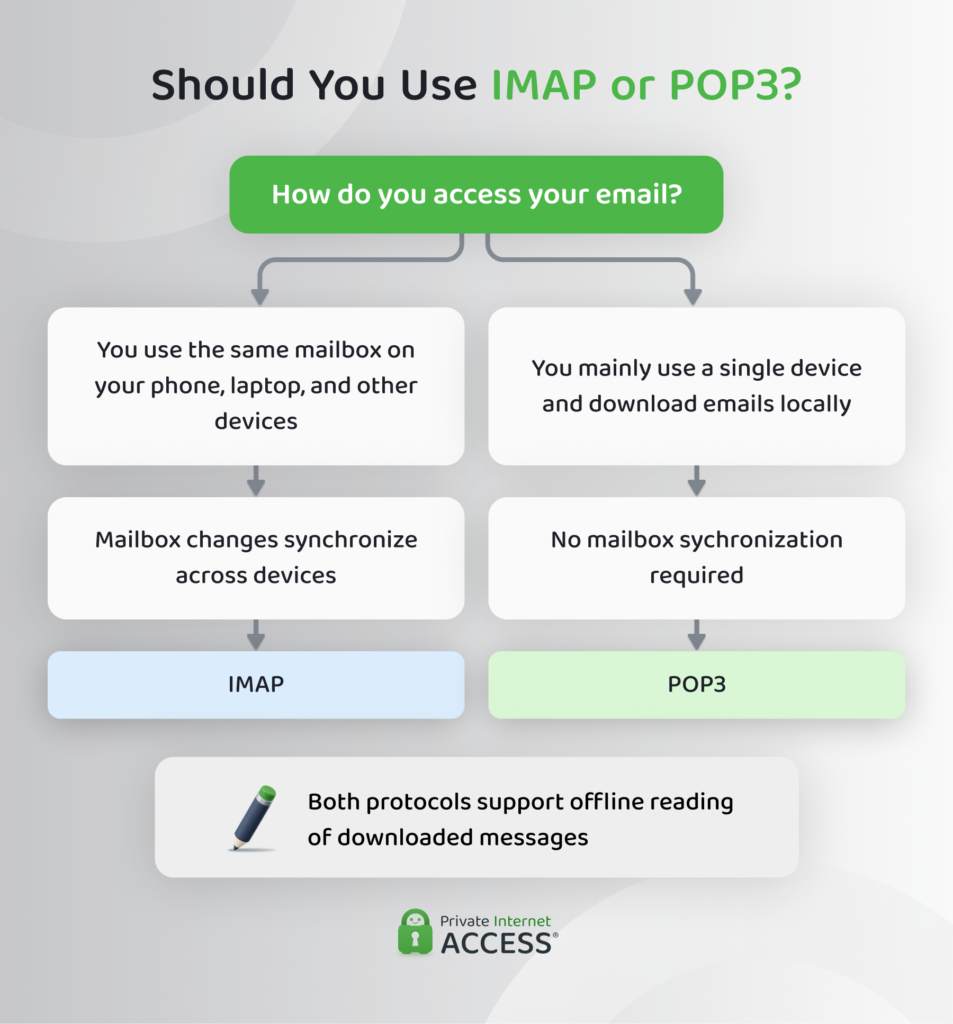
Many email providers support both protocols, but you usually don’t need to choose one as email apps often configure accounts using IMAP. You’d normally only need to choose a protocol if you set up an account manually.
If you do need to choose, the right option depends on how you use email:
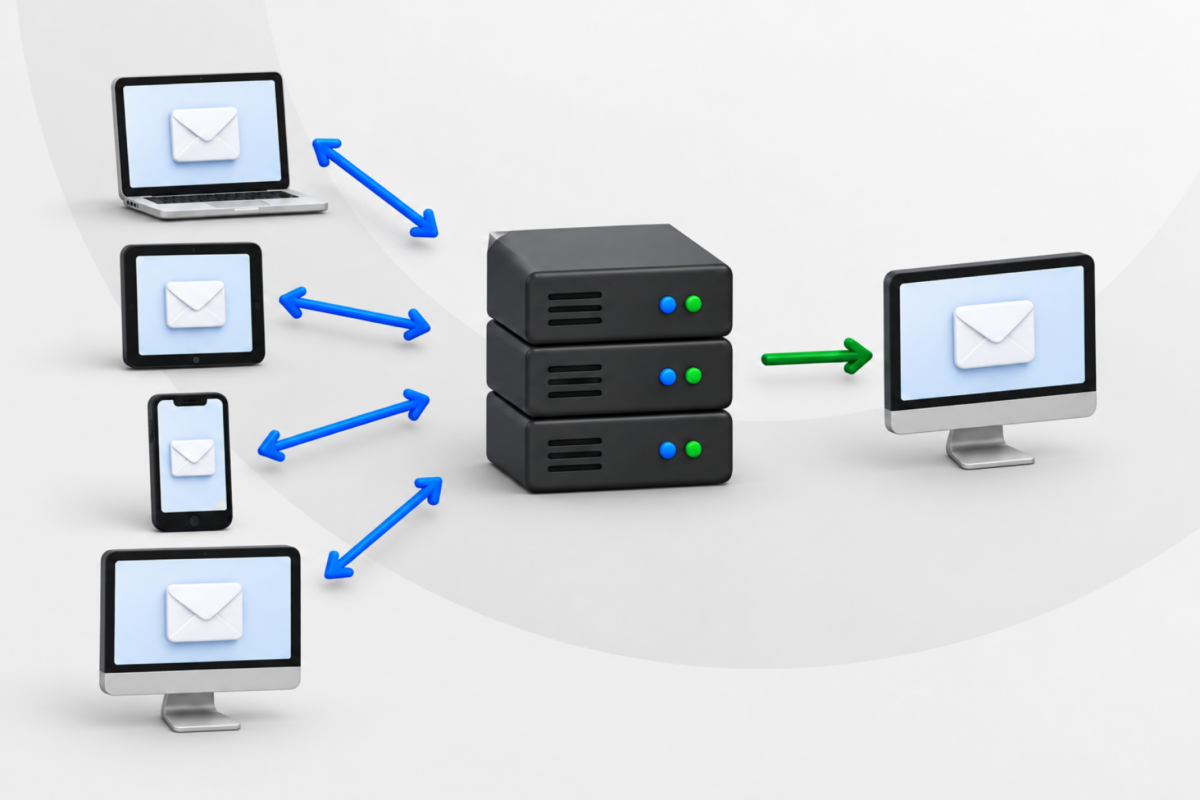
- Internet Message Access Protocol (IMAP) is useful if you access the same mailbox from multiple devices and want any changes made to your inbox on one device to reflect across all your devices.
- Post Office Protocol 3 (POP3) may suit you if you primarily use one device and prefer to download and store messages on the device.
Understanding Email Clients and Protocols
When you send or receive an email, several parts of the email system work together to deliver the message and make it available in your inbox.
Mail Servers and Email Clients
Your email provider, such as Gmail, Yahoo Mail, or Outlook.com, hosts your mailbox on a mail server and manages your email.
You can read, send, and organize emails in your mailbox through an email client, with apps such as Outlook, Apple Mail, or Mozilla Thunderbird.
Email Protocols
Email protocols are sets of rules that email clients use to communicate with mail servers. Sending and accessing email involves several protocols, but IMAP, POP3, and Simple Mail Transfer Protocol (SMTP) are the most common ones.
IMAP vs. POP3 vs. SMTP: Comparison
These email protocols all have different roles:
| Protocol | Primary Role |
| IMAP | Accesses and manages email stored on the mail server |
| POP3 | Downloads email from the mail server to your device |
| SMTP | Sends email between email systems |
SMTP handles outgoing email, while IMAP and POP3 let email clients retrieve received messages. The key difference between IMAP and POP3 is how they manage your mailbox, particularly when you access your email from multiple devices.
IMAP vs. POP3: Key Considerations
These protocols take different approaches to email storage, synchronization, and mailbox management. Here’s how they compare:
| Feature | IMAP | POP3 |
| Email storage | Keeps the main mailbox on the server, with local copies depending on the app | Downloads messages to your device; copies may also remain on the server |
| Server copies | Messages remain on the server unless deleted | Messages may be removed after downloading, depending on your settings |
| Device replacement | Messages stored on the server remain available through your account | Messages stored only on your device may be lost without a backup |
| Sent messages | Sent messages can sync across devices | Sent messages generally don’t sync |
| Folder management | Email folders can be synced across devices | Folders don’t sync |
| New messages | Can receive near-real-time updates when new emails arrive | Typically checks for new emails at set intervals |
| Offline access | Emails downloaded or saved on your device can be read offline | Downloaded emails can be read offline |
Synchronization Across Devices
IMAP synchronizes mailbox changes across devices. For example, if you mark a message as read or move it to another folder on your phone, that change reflects when you access the same mailbox on your laptop.
POP3 doesn’t provide the same synchronization. A device manages its downloaded messages separately, so actions like marking an email as read won’t update on other devices.
Storage Limits and Server Copies
Emails stored on your provider’s server count toward your account’s storage limit, regardless of whether you access them using IMAP or POP3. If you reach that limit, you may need to delete emails or purchase extra storage, depending on your provider.
With POP3, you can choose whether downloaded emails remain on the server. Removing them frees up server storage, but they may then only be available on the device that downloaded them. Keeping copies on the server means you can download them on other devices, but they continue to use your provider’s storage.
How Do You Know if Your Email Uses IMAP or POP3?
If you’re setting up an email account on a new device or having trouble accessing messages across devices, you can usually find out if you’re using IMAP or POP3 in your app’s account or incoming mail settings. The account type should be listed as IMAP or POP3. The exact location and wording may vary between email apps, so check your provider’s help pages if you can’t find it.
You may also see a port number associated with the incoming mail server. Common ports are 143 or 993 for IMAP and 110 or 995 for POP3.
How to Switch from POP3 to IMAP
If your account uses POP3 and you want to switch to IMAP, these are the general steps:
- Back up your existing messages: Messages stored only on your device won’t be uploaded to the mail server when you start using IMAP.
- Switch to POP3 or set up the email account using IMAP: Depending on the app, you may need to add the account again with IMAP settings rather than change the existing POP3 configuration.
- Transfer locally stored messages: Copy or move any emails you want to keep into the IMAP inbox and check that they’re available in your IMAP mailbox.
If you need more help, check your email app’s support documentation for specific instructions.
Troubleshooting Common IMAP and POP3 Issues
If you’re having trouble finding emails or accessing them across devices, the following checks may help you identify the cause.
Emails Are Missing from One of Your Devices
If an email appears on one device but not another, sign in to your email account through a web browser.
- If the message appears: Check whether both devices are accessing the same account. If they are, refresh the inbox on the device where the message is missing. If it still doesn’t appear, check whether the app has filters or folder settings that may be hiding it.
- If the message doesn’t appear: Check your Trash, Spam, and Archive folders. If the message is still missing and you’re using POP3, check whether you’ve configured the app to remove messages from the server after downloading them.
IMAP Messages or Folders Aren’t Syncing
If you’re using IMAP but messages or folders aren’t appearing as expected, open your mailbox through a web browser to check whether they show there.
- If the messages appear: Check your internet connection, refresh the mailbox, and ensure the app is online. If the problem persists, check the app’s synchronization settings.
- If the folder appears: If the folders are visible here and not in your app, check the account settings in the app for an option to display or synchronize other mail folders.
Can’t Connect to the Mail Server
If your email app can’t connect to the mail server, ensure that you’re connected to the internet and that your login details are correct. If the problem persists, check your email provider’s setup instructions to verify your account settings.
These instructions should explain which incoming mail server, port, and encryption settings to use if you need to configure them.
Related: No Network Connection? Quick Fixes That Work
Is IMAP More Secure than POP3?
Neither IMAP nor POP3 is more secure than the other. Both can use Transport Layer Security (TLS) encryption, which helps prevent others from intercepting email data as it travels between your device and the mail server. Most email providers support encrypted connections for both protocols, and email apps often configure these automatically.
Related: What to Do If Your Email Is Hacked
Does Local Email Storage Affect Security?
Storing emails on a local machine can make messages accessible to someone who gains unauthorized access to the device. Emails saved only on a device could also be lost if it’s damaged or stolen and no backup is available.
Locking the device with a strong password or PIN can help restrict access, while backing up important messages can help prevent permanent data loss.
These considerations apply to both protocols, as email apps may store messages locally regardless of whether they use IMAP or POP3.
Do IMAP and POP3 Protect Against Spam and Malware?
Neither IMAP nor POP3 determines how effectively your email client detects spam or malicious emails. Many email providers use filtering systems to identify and filter out suspicious messages and detect potentially harmful attachments. However, these filters can still miss phishing emails and other malicious content.
Keeping your operating system and email app up to date, and using reputable antivirus software, can provide more protection.
Related: Tips on How to Prevent Malware Infections
Can a VPN Help Secure Your Email?
A virtual private network (VPN) encrypts traffic between your device and the VPN server, adding a layer of encryption when you access email or other online services. This can help on public Wi-Fi, where others on the same network may be able to intercept unencrypted traffic.
Although many email services already encrypt connections between your email app and mail server, a VPN adds protection for other traffic routed through it.
Some VPNs also offer additional security features. For example, Private Internet Access (PIA) VPN includes MACE, which blocks domains associated with ads, trackers, and malware. If an email contains a link to a domain that MACE blocks, it can prevent the browser from connecting to that domain. This adds another layer of protection to the security features offered by your email provider.
Related: VPN vs. Antivirus: Do You Need Both?
Related: The Pros and Cons of Using a VPN
FAQ
Should you use POP3 or IMAP?
The right choice between POP3 or IMAP depends on how you access your email and whether your provider supports both protocols. Many email apps configure accounts using IMAP. If you’re setting up an account and choosing between the two, consider how you access your email and whether your provider supports both protocols.
Is Gmail IMAP or POP?
Gmail supports IMAP and POP for accessing your account through external email apps such as Outlook. Gmail enables IMAP by default for its personal accounts, while you must activate POP3 if you want to use it.
How do I know if my email is POP3 or IMAP?
Check your email app’s account settings for the incoming mail protocol, which should be listed as IMAP or POP3. You may also see port numbers 143 or 993 for IMAP and 110 or 995 for POP3. If you can’t find this information, check your provider’s support documentation for help.
Which is better, IMAP or POP3?
Neither protocol is better. IMAP is generally the better choice for everyday email use, particularly if you want flexibility in how and where you access your account. POP3 may suit people who use one device and prefer to download and store their emails on that device.
Can I use IMAP and POP at the same time?
Yes, you can access the same email account using both IMAP and POP3, provided your email provider supports both. However, if POP3 downloads and removes messages from the server, they may no longer be available on your other devices. Using IMAP across your devices is generally simpler if you want your mailbox to stay synchronized.
