Linux IP Forwarding: Complete Setup Guide

Linux IP forwarding is essential for many advanced networking tasks, but enabling it without the right configuration can create unintended security and connectivity issues. Whether you’re setting up a router, gateway, VPN, or another network service in Linux, it’s important to know when to enable IP forwarding, how to configure it, and when to disable it.
This guide shows you how to check whether Linux IP forwarding is on and how to enable it temporarily or permanently. You’ll also learn how to troubleshoot common issues and turn it off when you’re done.
Table of Contents
What Is IP Forwarding in Linux?How to Enable IP Forwarding on Linux
How to Disable IP Forwarding on Linux
Troubleshooting Linux IP Forwarding
When Should You Use IP Forwarding on Linux?
Linux IP Forwarding Risks
FAQ
What Is IP Forwarding in Linux?
Linux IP forwarding is a kernel-level feature1 that lets the system forward IP packets between network interfaces, essentially turning your Linux machine into a router. It’s turned off by default, so a Linux machine only handles packets meant for its own IP address and drops any packets addressed to a different interface. When you enable it, the system checks the destination IP against its routing table and forwards each packet to the right network interface.
How to Enable IP Forwarding on Linux
The steps below show how to check whether you’ve enabled IP forwarding and how to turn it on. You have two ways to do this. A temporary change applies right away but resets after a reboot, while a permanent change survives restarts.
Check If IP Forwarding Is Enabled
First, check whether IP forwarding is already on:
- Open the Terminal (press Ctrl+Alt+T).
- To check whether IPv4 forwarding is set up, run
echo 1 | sudo tee /proc/sys/net/ipv4/ip_forwardand press Enter.
- For IPv6, type
echo 1 | sudo tee /proc/sys/net/ipv6/conf/all/forwardingand press Enter.
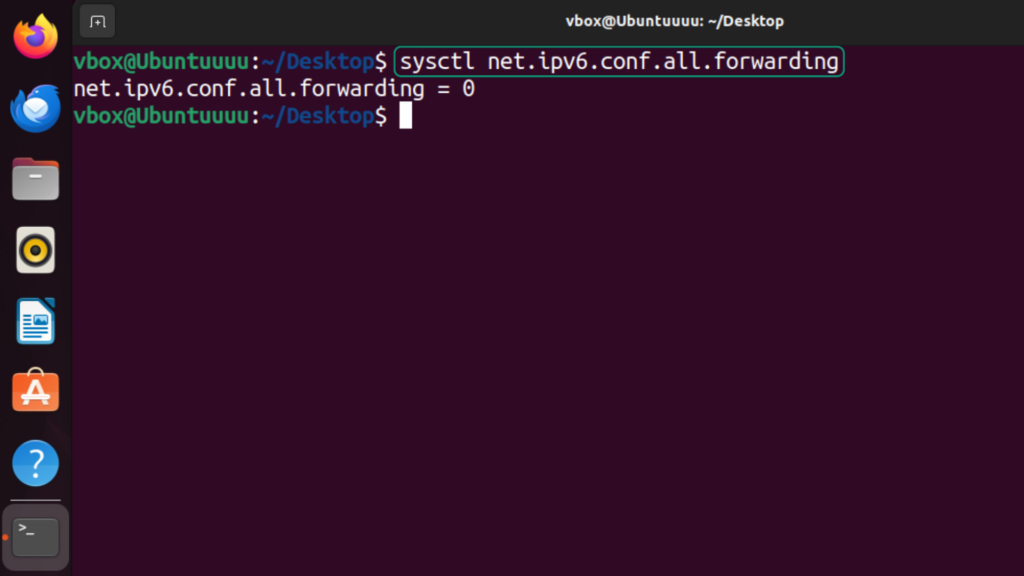
In both cases, a value of 1 in the command output means that IP forwarding is on, and 0 means it’s disabled.
Enable IP Forwarding Temporarily
- Open the Terminal.
- For IPv4, type
sudo sysctl -w net.ipv4.ip_forward=1, press Enter, and enter your password if prompted. (Don’t worry if nothing appears on the screen when you’re typing your password – this is to stop anyone from reading your password over your shoulder.)
- For IPv6, type
sudo sysctl -w net.ipv6.conf.all.forwarding=1, press Enter, and enter your password if prompted.
On setups without systemd or sysctl, you can enable forwarding through the kernel command line instead. Add net.ipv4.ip_forward=1 and net.ipv6.conf.all.forwarding=1 to /etc/default/grub, then rebuild the bootloader with sudo update-grub.
To confirm it worked, run the check command from above and make sure the values now show 1.
Enable IP Forwarding Permanently
- Open the Terminal, run
sudo nano /etc/sysctl.conf, and enter your password if prompted.
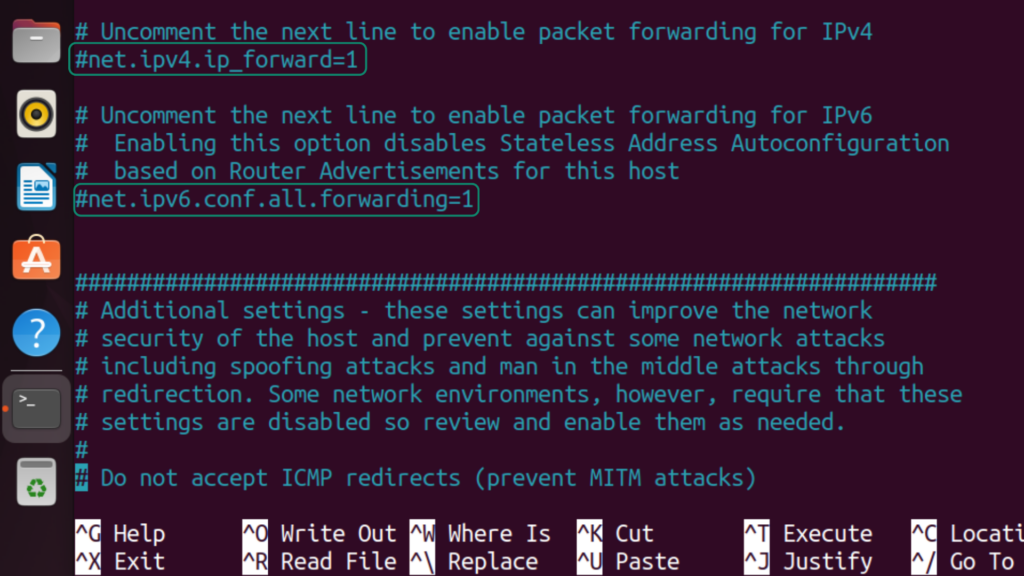
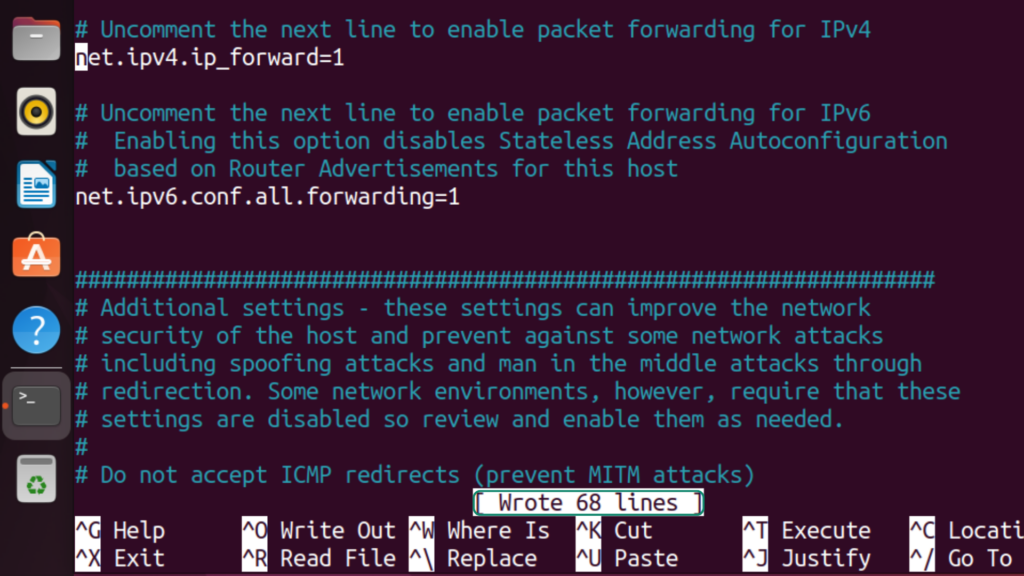
- Scroll through the sysctl.conf file and find the
net.ipv4.ip_forward = 1andnet.ipv6.conf.all.forwarding = 1lines.
- Uncomment
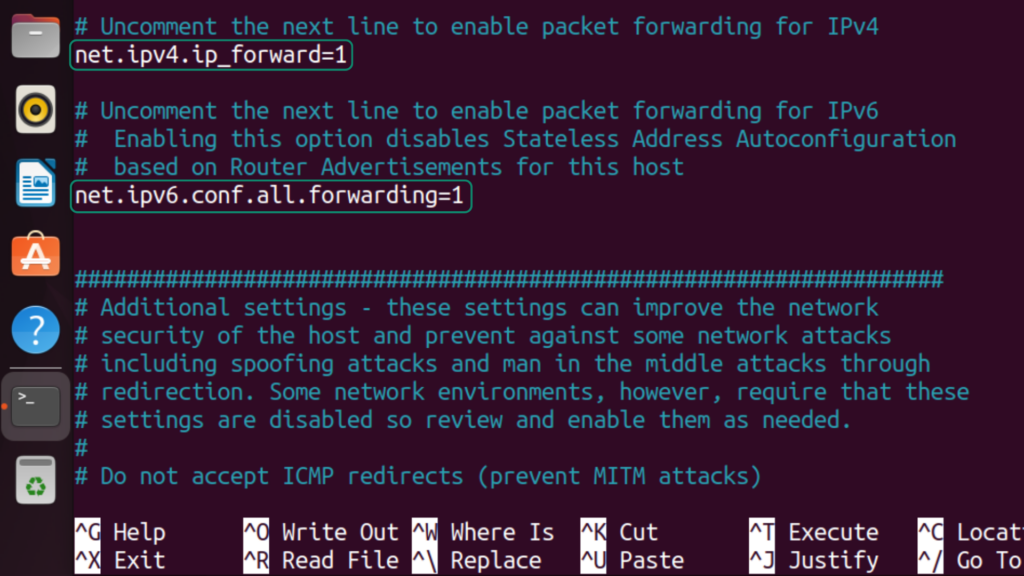
net.ipv4.ip_forward = 1to enable IPv4 forwarding andnet.ipv6.conf.all.forwarding = 1to enable IPv6 forwarding. You can do so by removing the # sign at the start of each line.
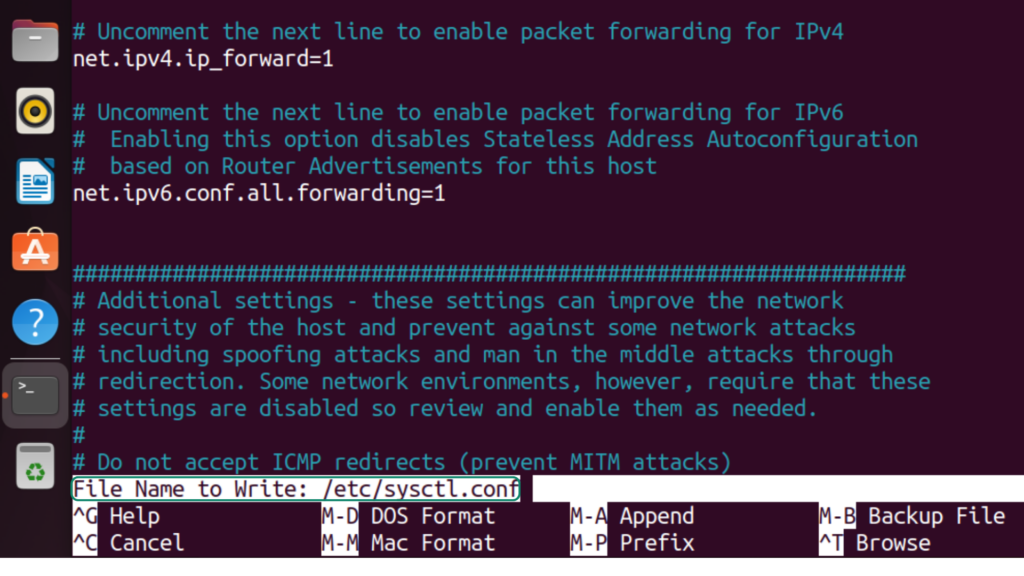
- Press Ctrl + O to write to the file, then press Enter when you see the File name to write: /etc/sysctl.conf prompt.
- Press Ctrl + X to return to the terminal once you see a Wrote [X] lines prompt.
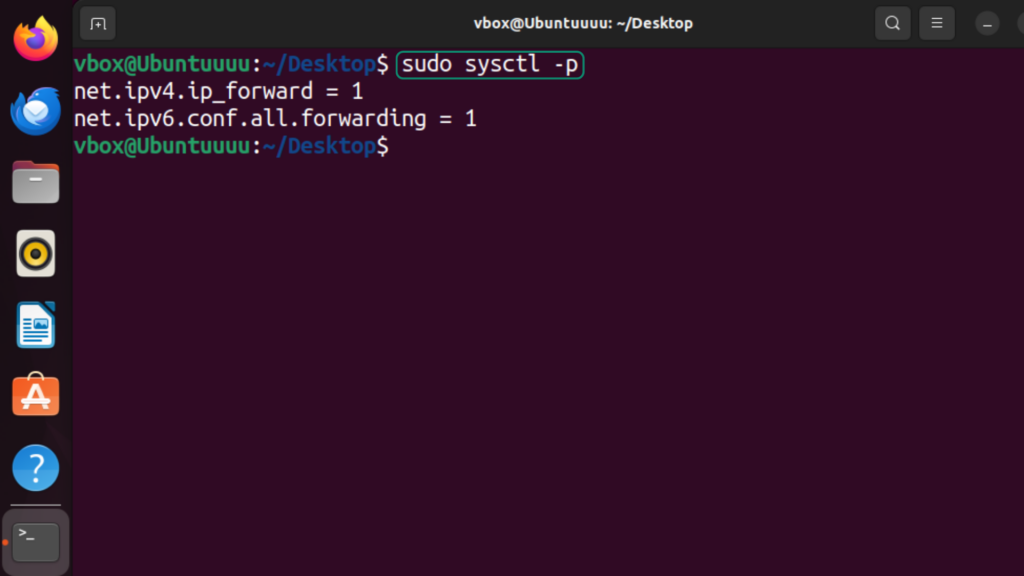
- Run
sudo sysctl -pto apply the changes.
How to Disable IP Forwarding on Linux
Disabling Linux IP forwarding follows the same process as enabling it, just with the values reversed. If you enabled it temporarily, set the value to 0 in the sysctl -w command. If you enabled it permanently, comment out the net.ipv4.ip_forward = 1 and net.ipv6.conf.all.forwarding = 1 lines in the sysctl.conf file by adding # to the start of each line.
Troubleshooting Linux IP Forwarding
Most Linux IP forwarding problems come down to settings that don’t survive a reboot, traffic that won’t route even though you enabled forwarding, or a sysctl service that isn’t running. The steps below help you diagnose and fix each one.
Change Not Persisting After Reboot
If you have to re-enable Linux IP forwarding after every reboot, you’re probably setting it temporarily with the sysctl -w command, which only lasts until the next restart. Follow the steps to permanently enable IP forwarding to resolve the problem. It writes the setting into the sysctl.conf file, and the system reads that file on every boot, so the change sticks.
Traffic Still Not Forwarding Despite Enabling the Setting
If you enabled IP forwarding but traffic still isn’t routing, the problem could be the FORWARD chain in iptables, which filters packets that don’t originate from the host machine and aren’t addressed to it. These steps will help:
- Open the Terminal, run
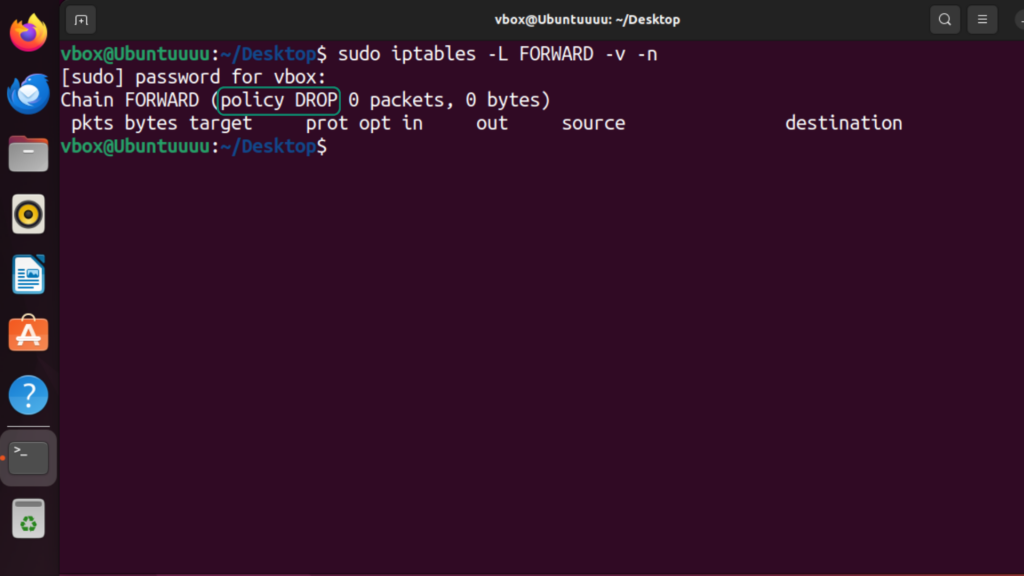
sudo iptables -L FORWARD -v -n, and enter your password if prompted. This shows the FORWARD chain policy.
- Check the policy. If it’s set to DROP and no rules allow your forwarded traffic, the FORWARD chain is blocking it, so continue with the steps below. If it says ACCEPT, the FORWARD chain isn’t the cause and the problem likely lies elsewhere. Check that you’ve applied the forward settings or if another firewall rule is blocking the traffic.
- Run
ip ato find the names of the two interfaces you want to forward between. Then add rules allowing forwarding in that direction, with return traffic limited to established connections. Replaceeth1andeth0in the commands below with your own interface names:sudo iptables -A FORWARD -i eth1 -o eth0 -j ACCEPTsudo iptables -A FORWARD -i eth0 -o eth1 -m state --state RELATED,ESTABLISHED -j ACCEPT.
- Run
sudo iptables -L FORWARD -v -nagain to confirm your new rules now appear in the FORWARD chain. The default policy will still show DROP. The rules you added are what permit your specific traffic.
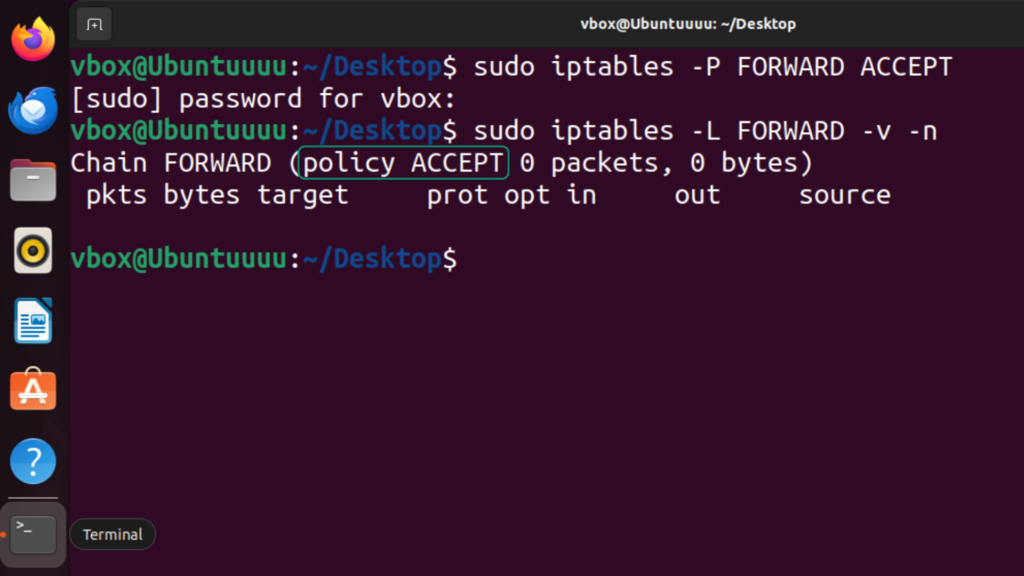
Adding rules for only the interfaces you need is safer than setting the whole FORWARD policy to ACCEPT, which would let all forwarded traffic through. That’s worth avoiding on a production or internet-facing machine.
Sysctl Service Not Running
If neither of the steps above works, Linux may not be applying your settings. These steps will reapply them.
- Open the Terminal.
- Run
sudo sysctl --systemand enter your password if prompted. This reloads your saved sysctl values from their config files without a reboot.
- Confirm forwarding is now on by running
cat /proc/sys/net/ipv4/ip_forward. A value of 1 means it’s enabled, and 0 means it’s still off.
- If your system doesn’t use systemd or sysctl (e.g., WSL), set the value with
echo 1 | sudo tee /proc/sys/net/ipv4/ip_forward.
When Should You Use IP Forwarding on Linux?
You’ll use Linux IP forwarding whenever your machine needs to pass traffic between two or more networks on behalf of other devices. Here are the main cases.
VPN Servers
Running a VPN server requires IP forwarding. The server receives encrypted packets on the VPN tunnel interface and forwards them to the destination network through another interface. Without forwarding, the server drops those packets as they arrive.
There’s an important difference between running a server and using a VPN as a client. If you’re connecting to a VPN on your Linux device with a client app like PIA, you don’t need IP forwarding, since your machine isn’t routing traffic for anyone else. It’s also worth noting that IP forwarding and VPN port forwarding aren’t the same thing. They sound similar but do different jobs.
Router or Network Gateway
If your Linux machine sits between multiple networks and passes traffic between them, it’s effectively acting as a router. It needs IP forwarding enabled so it routes those packets instead of dropping them on arrival.
Container Networking
Containerization uses platforms like Docker to package an application with everything it needs to run. Containers sometimes need to communicate with one another, and they do that over a bridge network, which relies on IP forwarding to work2.
NAT and Internet Sharing
To let several devices on a private network share one internet connection, your Linux system uses IP forwarding to act as a network address translation (NAT) device. It translates the private addresses to a single public-facing IP and forwards the packets accordingly.
Linux IP Forwarding Risks
Linux IP forwarding expands what your system can do on the network, but it also creates exposure if you don’t manage it carefully. The main risks include:
- Internal exposure: A misconfiguration can turn your Linux machine into an unintended bridge, passing traffic between your private network and the public internet. This can allow outsiders to reach systems meant to stay internal, such as private servers or admin tools. Only enable forwarding when needed and ensure it’s backed by firewall rules.
- Distributed Denial of Service (DDoS): Forwarding can make your device a target for DDoS attacks. If your machine is acting as a router or gateway, taking it down can knock every connected device offline. SYN floods and smurf attacks are two common examples of attacks. A well-configured firewall or tools that limit incoming traffic can help fend them off.
FAQ
What is IP forwarding in Linux?
Linux IP forwarding is a kernel feature that allows a Linux system to route packets between network interfaces, even when the machine itself isn’t the destination. This lets it act as a router, VPN server, NAT gateway, or a Docker bridge network.
How do I enable IP forwarding on Linux?
You can enable IP forwarding temporarily by running echo 1 | sudo tee /proc/sys/net/ipv4/ip_forward (for IPv4) or echo 1 | sudo tee /proc/sys/net/ipv6/conf/all/forwarding (for IPv6) commands in the terminal. To make it permanent, you need to edit the sysctl.conf file.
How do I enable IP forwarding on Ubuntu?
You can temporarily enable IP forwarding on Ubuntu and other similar Linux distributions by running sudo sysctl -w net.ipv4.ip_forward=1 (for IPv4) or sudo sysctl -w net.ipv6.conf.all.forwarding=1 (for IPv6). To make it permanent, uncomment the lines containing these commands in the sysctl.conf file.
When should I use IP forwarding on a Linux server?
You should use IP forwarding on Linux whenever your server needs to route traffic for other devices, such as when it acts as a VPN server, network gateway, or NAT device.
Can I use IP forwarding with a VPN setup for routing traffic?
Yes. You’ll need to enable Linux IP forwarding when setting up a Linux machine as a VPN server. Mainstream protocols like WireGuard and OpenVPN rely on the host to forward packets between the VPN tunnel interface and external networks.
References:
