Network Security Key: What It Is and How to Find It on Any Device

A network security key is simply another term for your Wi-Fi password, the key that lets devices connect to your wireless network. Knowing what it is and how to find it can help you secure your home or work network and avoid connection problems.
In this guide, you’ll learn how to locate your Wi-Fi password on any device, plus get practical tips for troubleshooting common connection issues.
What Is a Network Security Key?
A network security key is a code that allows you to connect your device to a locked wireless network. It’s that simple.

The term is often used interchangeably with “Wi-Fi password” and “wireless password.” To fully understand, it helps to differentiate it from related terms that often appear in network settings:
- SSID (Service Set Identifier): The name of the network you see when scanning for Wi-Fi.
- Mobile hotspot password: The password you use to connect another device (like a laptop or tablet) to the internet via a mobile hotspot created on your phone. This password acts as the network security key for that temporary wireless network.
- Router admin password: The username and password you use to access your modem or router’s admin panel, where you can configure the network security key and other settings.
Learn more: What is SSID for Wi-Fi?
What Does a Network Security Key Do?
A network security key keeps your Wi-Fi network safe in several important ways:
- Keeps unwanted users out: It prevents unwanted users from connecting to your network, protecting your data and preserving your internet speed and bandwidth.
- Encrypts your data: It enables encryption protocols (like WPA2 or WPA3) that scramble the data sent between your devices and your router. This makes it much harder for anyone to intercept or read your information.
- Protects your devices: It helps shield things like security cameras, smart thermostats, and phones from being accessed or tampered with by outsiders.
💡 Pro Tip: Many public Wi-Fi networks are open or have weak security, often without any network security key. This makes it easier for cybercriminals to intercept your data. To stay safe, use a VPN on public Wi-Fi to encrypt your internet traffic and keep your data private, even on unsecured networks.
How Does a Network Security Key Work?
To understand how a network security key works, it’s helpful to take a step-by-step look at what happens when you connect to a Wi-Fi network:
- From your device’s settings, you select the Wi-Fi network’s name (SSID) and enter the network security key (password).
- Your device sends a request to the router (or modem) to join the network.
- The router verifies the key and establishes a connection via an encrypted protocol or rejects the connection if an incorrect key is used.
- Once connected, the router and device use a security protocol (like WPA2 or WPA3) to encrypt the data inside the network.
The strength of this protection depends on the type of security protocol, with newer protocols offering stronger security.
Types of Network Security Protocols
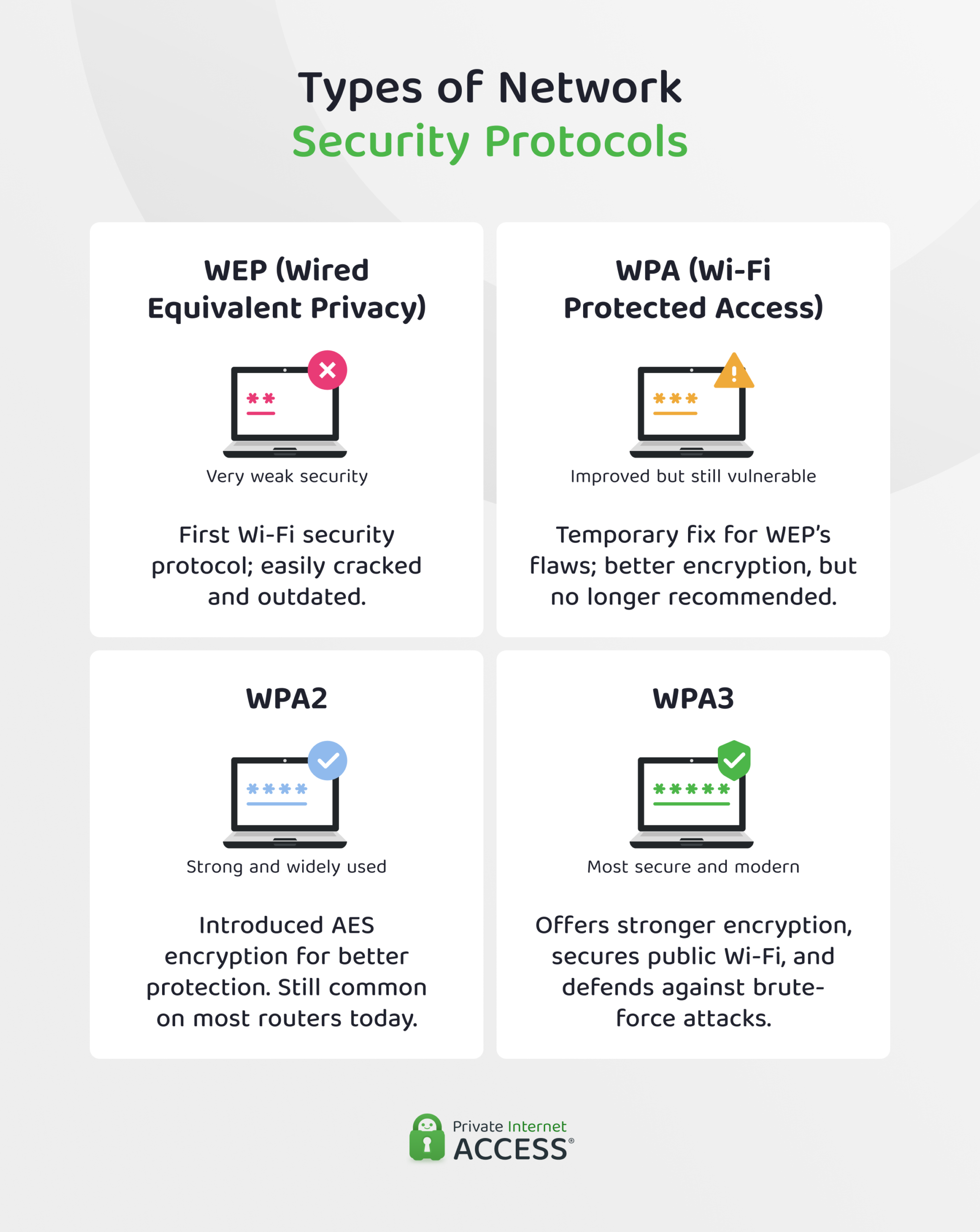
Wireless encryption protocols determine how your network protects data from unauthorized access. Each version described below builds on the previous one, adding progressively stronger safeguards against attackers.
WEP (Wired Equivalent Privacy)
WEP was introduced in 1999 as the original Wi-Fi security protocol. It used static 40-bit or 104-bit RC4 encryption keys combined with a 24-bit initialization vector (IV). This protocol used the same encryption key for every session and data packet, meaning attackers could collect enough data packets and use analytical tools to recover the network security key.
WPA (Wi-Fi Protected Access)
WPA replaced WEP in 2003. Its main improvement was the introduction of the Temporal Key Integrity Protocol (TKIP), which generates a new 128-bit key for every data packet. This made it harder to analyze patterns in collected data.
However, TKIP still relied on the outdated RC4 cipher and has since been found vulnerable to modern attacks. Today, it’s considered insecure, especially in WPA-Personal mode, where weak passwords are susceptible to brute-force (trying every possible combination) and dictionary attacks (trying known or commonly used passwords to find a match).
WPA2 (Wi-Fi Protected Access 2)
WPA2 replaced WPA’s TKIP with AES (Advanced Encryption Standard), a highly secure and widely trusted encryption method. It became mandatory for Wi-Fi certification in 2006 and remains the most common standard for home and enterprise networks.
This protocol’s biggest weakness is a four-way handshake, which handles the exchange of encryption keys. Attackers can capture this handshake and attempt to guess the Wi-Fi password offline by using password-cracking tools. WPA2 is also vulnerable to PMKID dumping, which is a technique that allows attackers to capture authentication data without waiting for a handshake, making password attacks easier.
However, these types of attacks usually target high-value individuals or organizations and require advanced skills and equipment. WPA2 is still safe for most home users when paired with a strong, unique password.
WPA3 (Wi-Fi Protected Access 3)
Instead of WPA2’s four-way handshake, WPA3 uses a more secure method called simultaneous authentication of equals (SAE), or “Dragonfly.” It requires your device to talk directly to the network each time you try to connect, which stops hackers from capturing data and trying to guess your password later.
WPA3 also creates a fresh, unique encryption key for every session. Even if someone figures out your Wi-Fi password later, they won’t be able to unlock any data you sent in a previous session.
ℹ️ While WPA2 and WPA3 protect access to your home network, they don’t encrypt your browsing activity. PIA’s strong VPN encryption adds a powerful layer of protection, shielding your online traffic from hackers, snoops, and anyone else on the same network (even more important on public or shared Wi-Fi).
Where and How to Find Your Network Security Key
On a Router or Modem
Routers come with default network security keys (that you should change at the first opportunity). There are a few ways to find this code:
- Look for a label on the back or bottom of your router that lists the network name (SSID) and security key.
- Check the router’s manual or quick start guide for credentials.
- Log in to the router’s admin panel (commonly at 192.168.0.1 or 192.168.1.1) and look in the Pre-Shared Key, Network Key, or Wi-Fi Password section.
On Windows 11
- Open the Control Panel (type “control panel” in the Windows search bar) and go to Network and Internet.

- Click on Network and Sharing Center.

- Click your Wi-Fi network name next to Connections. If it doesn’t appear, click Change adapter settings on the left.

- In the Wi-Fi status window, click Wireless Properties, then open the Security tab.
- Check Show characters to reveal your network security key.

On Mac
On macOS Sequoia and above
- Open Finder > Applications > Passwords.

- Use your Touch ID or enter your master password to log in.
- Click on Wi-Fi and find your Wi-Fi network.
- Next to Password, hover over the censored password (a line of dots) to view it.

On macOS Sonoma and below
- Open Spotlight Search (magnifying glass in the top-right corner), type “Keychain Access,” and hit enter.
Note: If you’ve previously installed the Passwords app, it may prompt you to open it at this stage, which means you can follow the steps above.

- Search for your Wi-Fi network name in the list.

- Double-click the network, check Show password, and enter your Mac password to reveal the key.

- Alternatively, open System Settings, go to Network, click Wi-Fi, then select Advanced. Find your network and click Copy password to view it.
On Linux
For Linux users, the method varies depending on which distro you’re using. Here’s how to find your Wi-Fi password in Ubuntu Linux:
- In the terminal, run the command cd /etc/NetworkManager/system-connections/
- Type ls and hit Enter to check the files of saved Wi-Fi connections.
- To display the password, run sudo cat [Wi-Fi name] (the sudo cat command followed by the Wi-Fi network name).
On iOS (iPhone and iPad)
- Open Settings and tap Wi-Fi.
- Tap the info icon (i) next to your connected network.
- Click the Password field at the top to see the Wi-Fi password.

On Android
- Open Settings and go to Connections.
- Tap Wi-Fi and select your active network.
- On some versions, tap the eye icon to reveal the password.
- On others, tap Quick Share or QR code to share the credentials

How to Change Your Network Security Key
It’s a good idea to change the default Wi-Fi password when you first set up your router to prevent unauthorized access to your network. Here’s how to do it:
- Connect to your router locally using Wi-Fi or an Ethernet cable.
- Open a browser and enter the router’s local IP address in the address bar (typically 192.168.0.1 or 192.168.1.1).
- Log in with the router’s admin credentials. If you changed and forgot the password, perform a factory reset on your router.
- Navigate to the Wireless or Security Settings section and find the password field.
- Enter a new network security key, save your changes, and restart the router.
You’ll need to reconnect any devices you connected using the previous password.
4 Common Network Security Key Issues: Troubleshooting Guides
Network connection issues can appear even if you enter the right password. Here are some common errors and things you can try to resolve them:
1. Network Security Key Mismatch Error
This error happens when the device can’t authenticate with the Wi-Fi router.
Here’s how to fix it:
- Manually re-enter the Wi-Fi password.
- Check that you’re using the correct keyboard layout and caps lock is off.
- Update your network adapter drivers using system tools (Device Manager on Windows, Software Update on Mac).
- Set the correct system date and time.
2. Device Compatibility and Protocol Conflicts
Some devices may fail to connect due to encryption protocol mismatches or hardware limitations.
Here’s how to fix it:
- Establish a test connection using another network or a mobile hotspot to rule out device-side issues.
- Change the router encryption mode via the admin panel (preferably to WPA2 or WPA2/WPA3 mixed mode).
- Check for device restrictions (usually only applies on enterprise networks).
- Download the latest router firmware from the manufacturer’s website (be careful, as incorrect firmware may cause the device to stop working or void the warranty).
3. Wireless Network Connection Doesn’t Have a Valid IP Configuration
This error occurs when the router fails to assign a valid IP address, despite the device being connected to Wi-Fi.
Here’s how to fix it:
- Release and renew the IP address:
- Reset the router’s DHCP lease settings: In the admin panel, go to the LAN or DHCP section and restart the DHCP server.
- Clear the device’s network configuration:
- Windows: Use Network Reset in Advanced Network Settings.
- Mac: Remove and re-add a Wi-Fi service in System Settings > Network.
- Linux: Try the sudo systemctl restart NetworkManager command in Terminal.
- iOS: In General settings, go to Reset and tap Reset Network Settings.
- Android: In Settings, search for and select Reset network settings.
- Set a static IP address:
- Windows: In Windows Network Settings, open TCP/IPv4 settings and assign an unused IP in your network’s range (for example, 192.168.1.200).
- Mac: In the TCP/IP section of the Wi-Fi settings, switch to Manual and assign.
- Linux: Open the settings page for your current connection and change Automatic (DHCP) to Manual. Then enter your static IP. These steps will vary by Linux distro.
- iOS: In the Wi-Fi connection settings, tap Configure IP and select Manual.
- Android: In the Wi-Fi connection settings, tap Manage network settings (or View more) and set IP settings to Static.
4. Router-Side Failures and Firmware Instability
Connection issues can originate from router malfunction, misconfiguration, or failed firmware updates.
Here’s how to fix it:
- Reboot the router. Unplug the power cable for at least 30 seconds, then plug it back in.
- Reset the router to factory defaults. (Back up your settings before performing a full reset.)
- Contact your ISP, which can troubleshoot any problems that may come from your provider’s side.
Tips for Keeping Your Network Secure

Simply having a network security key isn’t enough to protect your network. The following best practices can help secure your Wi-Fi network and the devices connected to it:
- Change your network security key regularly: Updating the key reduces the risk of long-term exposure and disconnects unauthorized or forgotten devices.
- Set strong, complex passwords: Create passwords that are at least 12 characters long and include a mix of uppercase and lowercase letters, numbers, and special symbols to make them harder to crack.
- Create an original network name: Avoid using default names that reveal your router’s brand or model. A unique SSID (Wi-Fi network name) makes it harder for attackers to identify and target your network.
- Enable MAC address filtering: This allows only approved devices to connect based on their unique hardware ID. Since your device broadcasts its MAC address to the network, potential hackers can intercept and spoof this to gain access.
- Configure an isolated guest network: Isolate guest devices from your main network to prevent unwanted access to shared resources like printers, file servers, or smart home devices.
- Update the router firmware: Regular updates fix known vulnerabilities, improve compatibility with security protocols, and strengthen overall protection.
- Protect your data with a VPN: You can set up a VPN on your router to encrypt and reroute your internet traffic via secure third-party servers, making your online activities harder to trace by your ISP, network admins, and third parties with access to your network. Note that while your ISP can’t see the content of your traffic, it can still see how much data you transfer.
PIA VPN supports unlimited simultaneous connections and is easy to set up on compatible routers. It helps keep your online activity private on every device in your home or office.
FAQ
What is a network security key, and why is it important?
A network security key is a password that protects a Wi-Fi network or a mobile device’s shared internet connection (hotspot). It protects your network and connected devices from unauthorized access.
Is a network security key the same as a Wi-Fi password?
Yes, “network security key” is another term for a Wi-Fi password (also called “network code,” “WPA key,” or “wireless password”). This password grants access to your wireless network and works with a protocol to encrypt data between your device and your router.
How can I find the network security key on my router?
Look for a label on the back or bottom of your router showing the network name (SSID) and default key. Alternatively, you can search online for the default login credentials for your router’s admin panel, log in, and check for the network security key in the Wireless or Security Settings section.
How do I find my network security key if I can’t access my router?
The easiest way to find your network security key if you can’t access your router is via the network settings on a device already connected to the network. The steps vary depending on the device, but you can find instructions for the most popular devices here.
Where do I locate my network security key on Windows or Mac?
You can find your network security key on desktop devices that are already connected to your Wi-Fi network. On Windows, open the Control Panel and view your Wi-Fi network’s Security tab under Wireless Properties. On Mac, use Keychain Access to search your network and reveal the password by verifying your device credentials.
Can I change my network security key for better protection?
Yes, you should change your key every 3–6 months or after resetting the router. Additionally, you can improve your network’s security by creating separate guest Wi-Fi channels, filtering devices by MAC address, and updating the router firmware regularly.
