Personal Firewall: A Guide to Device and Network Security
Imagine working on a coffee shop’s Wi-Fi network and another device on that same network tries to connect to your laptop. A properly configured personal firewall can block that attempt, without you even noticing it happened.
In this guide, you’ll learn how personal firewalls work and how to set one up. We’ll also show you how they compare to network and hardware firewalls and how to troubleshoot common issues.
Table of Contents
What Is a Personal Firewall?Types of Personal Firewall
Personal Firewall vs. Network Firewall
How to Choose a Personal Firewall Application
How to Set Up and Customize a Personal Firewall
Common Personal Firewall Problems and Troubleshooting Tips
FAQ
What Is a Personal Firewall?
A personal firewall is a piece of hardware or software that filters network traffic to and from a device or home network. It looks at things like where a connection is coming from, where it’s going, and which application is asking to send or receive data. The firewall compares the requests against a set of rules (either set by the firewall or customized by the user) to work out whether the connection looks legitimate or risky.
If a connection matches a rule that says “block” or “deny,” it gets dropped. If it matches “allow,” it goes through as normal. Anything that doesn’t fit a known pattern is usually treated with suspicion by default, which is why a new app trying to access the internet for the first time often triggers a prompt asking for your permission.
This system enables a personal firewall to stop malware from communicating with a threat actor, block unfamiliar apps from accessing the internet without permission, and limit potential damage if a device ever connects to an unsecured network.
How Does a Personal Firewall Work?
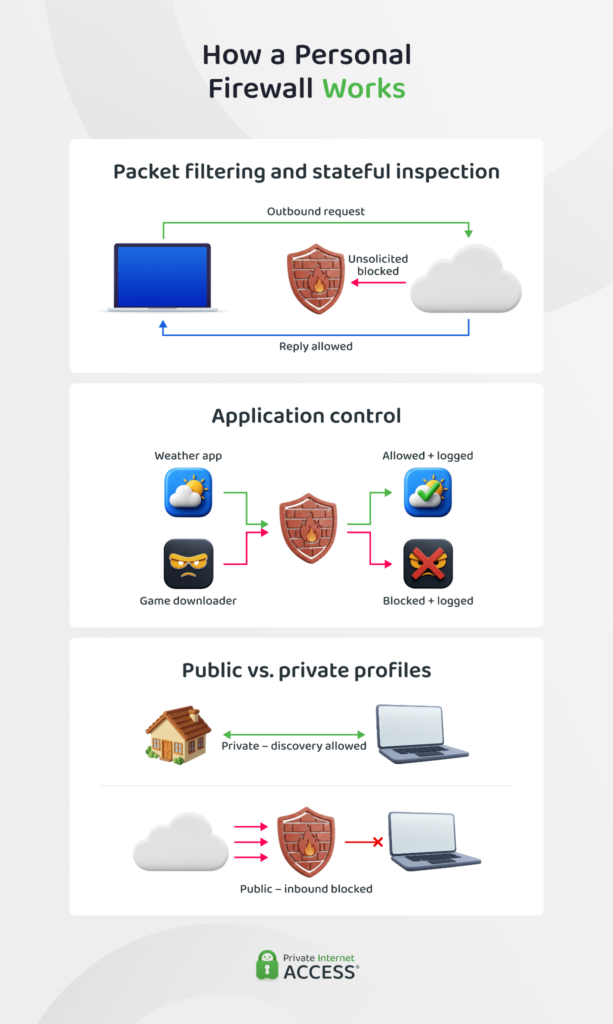
A personal firewall increases the security of a private device or network by controlling exactly which connections it allows. It does this through a handful of core functions:
- Monitoring: Continuously tracking the traffic moving in and out of your device, so the firewall flags unusual activity as it happens.
- Blocking: Stopping connections that match a “block” or “deny” rule before they reach your device, such as traffic from a known malicious IP address.
- Application control: Deciding which apps and programs can send or receive data over the internet and flagging new ones for your approval.
- Intrusion detection: Watching for patterns that suggest someone is trying to break in, like repeated connection attempts on the same port.
- Packet filtering: Checking individual data packets against your rules based on details like source, destination, and protocol, then allowing or rejecting them accordingly.
Benefits of Using a Personal Firewall
A personal firewall shapes what’s allowed to reach your device and what’s allowed to leave it, which brings a few benefits:
- Increased security: Helps prevent malware, hackers, and other threats from reaching your device before they can do any damage.
- Privacy protection: Limits what data leaves your device without your knowledge, making it harder for spyware or compromised apps to send your information elsewhere.
- Controlling applications: Gives you the final say over which programs can connect to the internet, rather than leaving that decision entirely to the software itself.
- Monitoring: Shows you a clear picture of what’s connecting to and from your device, so unusual activity doesn’t go unnoticed.
- Preventing unauthorized network access: Makes it much harder for an outsider to remotely access your device or use it as an entry point into your wider home network.
Types of Personal Firewall
There are a variety of personal firewalls and each works in a unique way. The filtering method that a certain type of personal firewall uses affects how much protection it provides.
Packet filters check each piece of data against its source, destination, and port, then allow or block it based on those details alone. They are the most basic of these methods and don’t consider whether the data is part of a wider, legitimate conversation between a device or application and the internet.
Stateful inspection builds on this by tracking the state of a connection over time, so it can spot data that doesn’t fit the pattern of an established session, even if the individual packets look fine on their own.
Sitting somewhere in between, circuit-level filtering verifies that a connection session is legitimate without inspecting the actual content passing through it, which makes it faster but less thorough than packet inspection.
Finally, proxy-based firewalls act as a go-between for your device and the internet so your traffic never connects directly to an external server. The proxy receives the request on your behalf, allowing it to inspect the content of the traffic before deciding whether to pass it on.
Personal Firewall: Software vs. Hardware
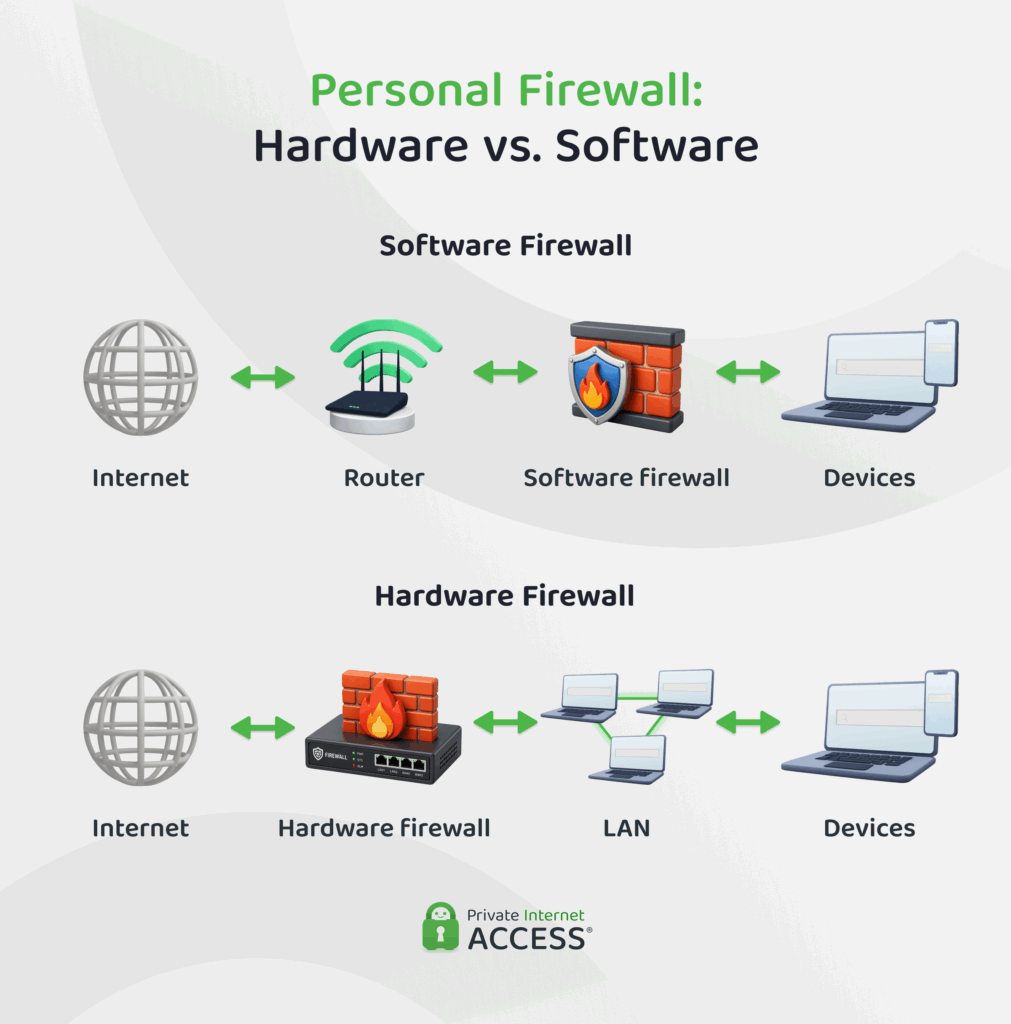
You can add personal firewalls to your network as software or hardware (also known as perimeter) firewalls.
A software firewall is an application installed on a computer or phone, monitoring only the traffic going to and from that specific device. A software firewall only covers the device it’s installed on. That said, it can apply much more granular, application-level rules.
On the other hand, a hardware firewall is a physical device that sits between your network and the internet, inspecting traffic before it reaches any connected device. As it sits in front of the whole network, a hardware firewall protects every connected device at once.
Some advantages of a hardware firewall include:
- Network-wide protection: One device secures every other device connected to the network, rather than requiring separate installation on each.
- Reduced device load: Traffic filtering happens before it reaches your computer, so it doesn’t draw on that device’s processing power.
- Centralized updates: Apply security settings across every connected device at the same time.
Despite these benefits, most home users end up choosing a software firewall instead. Hardware firewalls cost more upfront, require physical setup like cabling and positioning, and add another device to manage on top of your router.
Software firewalls are usually free or low-cost, installed in a few clicks, and need no extra hardware or wiring. For a single device or a small home network, that convenience tends to outweigh the network-wide protection a hardware firewall offers.
Personal Firewall vs. Network Firewall
The main difference between a personal firewall and a network firewall comes down to the scope of what they protect.
Since a network firewall enforces one set of rules across everything behind it, it’s efficient for protecting many devices at once, but less precise about any single device’s specific activity. That’s where a personal firewall comes in. Since it works on a single device, you can customize it for that device’s specific purpose or user, including which individual apps can access the internet.
This is why many home and business setups use both, with a network firewall (often built into a router) as the first line of defense and a personal firewall on individual devices for an extra layer of protection.
How to Choose a Personal Firewall Application
Most home routers include a basic firewall that filters out unsolicited incoming traffic, which is enough for casual browsing on a low-risk network. It won’t, however, catch malicious requests triggered by your own actions, like clicking a phishing link, or give you control over which apps on your device can connect to the internet.
For that level of protection, you’ll want device-level software. Built-in options like Windows Defender Firewall cover the basics for most users, while a dedicated third-party application can offer more granular controls and features.
When choosing one, it’s important to consider:
- Compatibility with your operating system and other security software you already use
- How much control it gives you over individual app permissions
- Whether it includes intrusion detection, not just basic packet filtering
- How clear and manageable its alerts and configuration settings are
- Whether it’s actively maintained, with regular updates against new threats
How to Set Up and Customize a Personal Firewall
How you set up a personal firewall depends on the device and operating system you’re using. Both Mac and Windows security controls include built-in firewalls, but it’s worth checking the settings rather than assume it’s configured correctly.
Deploying a Personal Firewall on Windows 10 or 11
1. Open your Windows Privacy & security settings and navigate to Firewall & network protection.
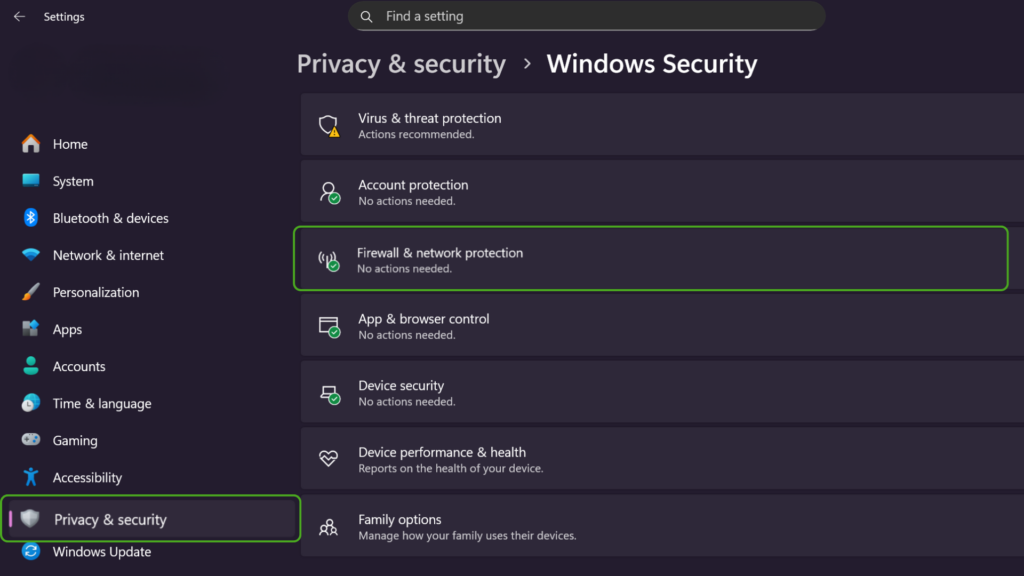
2. Check which active profile you’re on (Domain, Private, or Public). Click on Allow an app through firewall to change your settings.
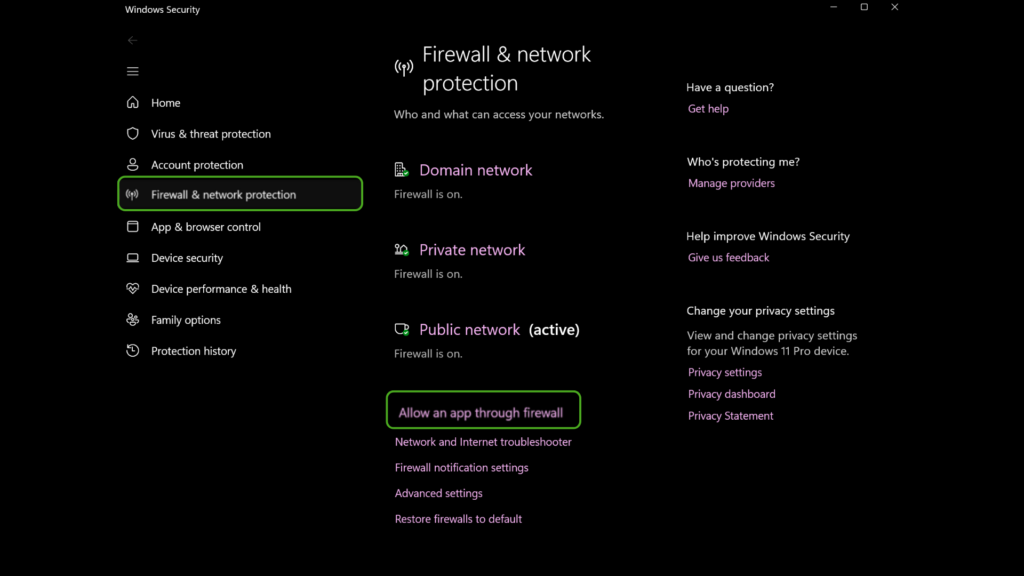
3. To allow an app through the firewall when it’s legitimate and needs network access, go to Change settings. Select both Private and Public settings to ensure you can use the app over both home and café Wi-Fi.
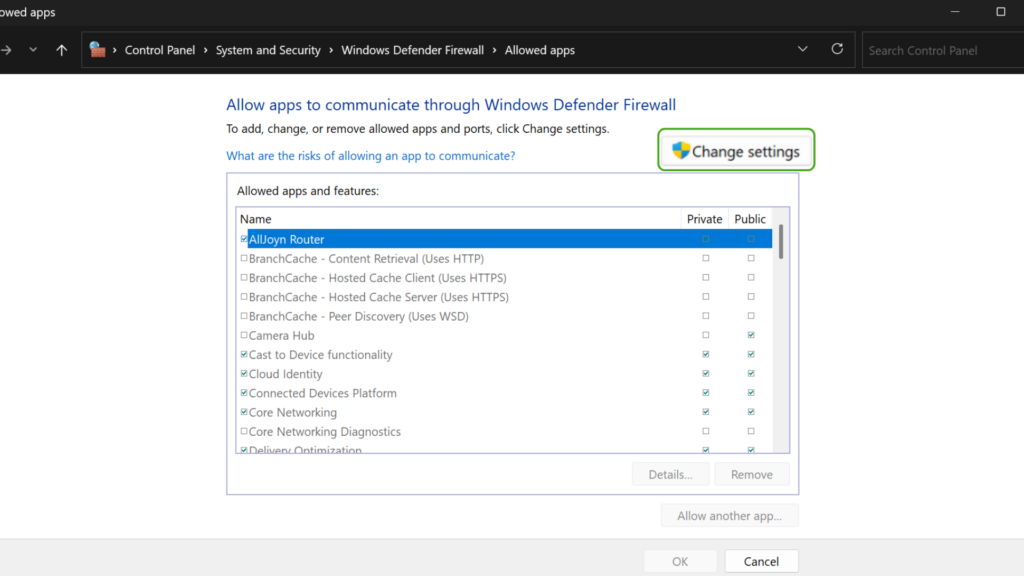
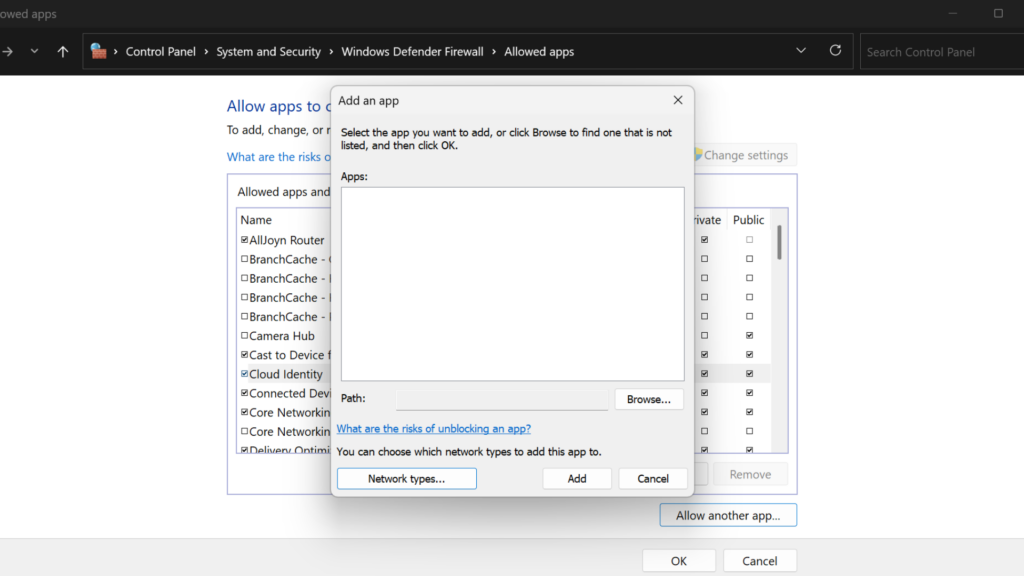
4. If your app isn’t on the list, click on the Allow another app… button at the bottom of the screen and browse your computer files to find it.
5. For finer control, open Advanced settings and create custom inbound/outbound rules (e.g. a specific port or app path). Keep other defaults as-is to avoid breakage.
6. Click OK to save your changes.
Setting Up a Personal Firewall on macOS
1. Open System Settings and click Network in the sidebar, then select Firewall.
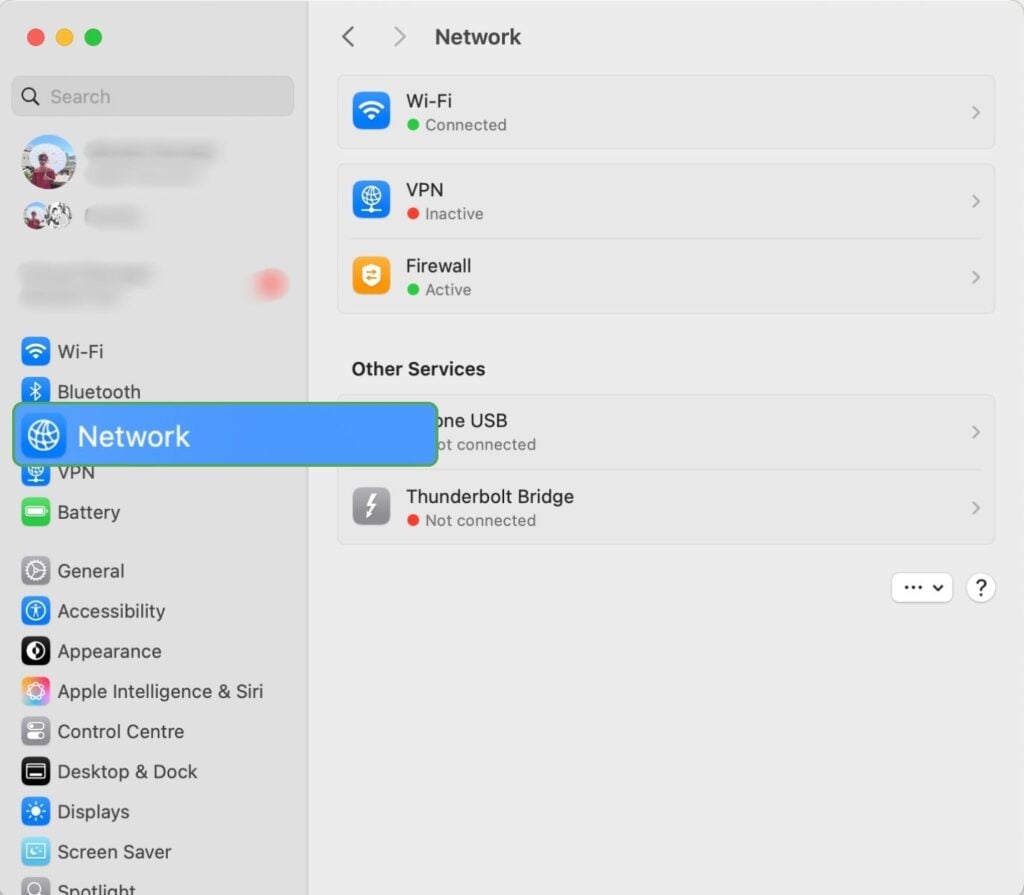
2. Toggle the switch to turn the firewall on.
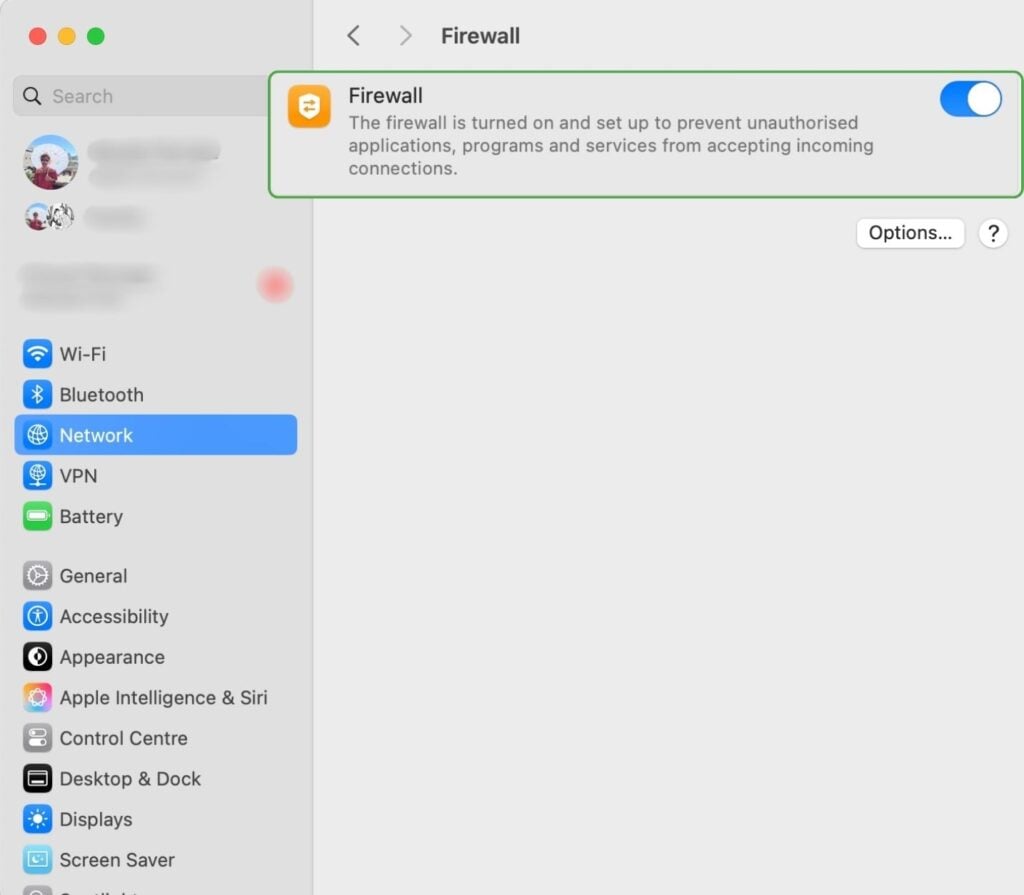
3. Click the Options button to set additional preferences, such as allowing signed software to receive incoming connections automatically. To allow a specific app, click the “+” sign under the list of applications, select the app, then click Open.
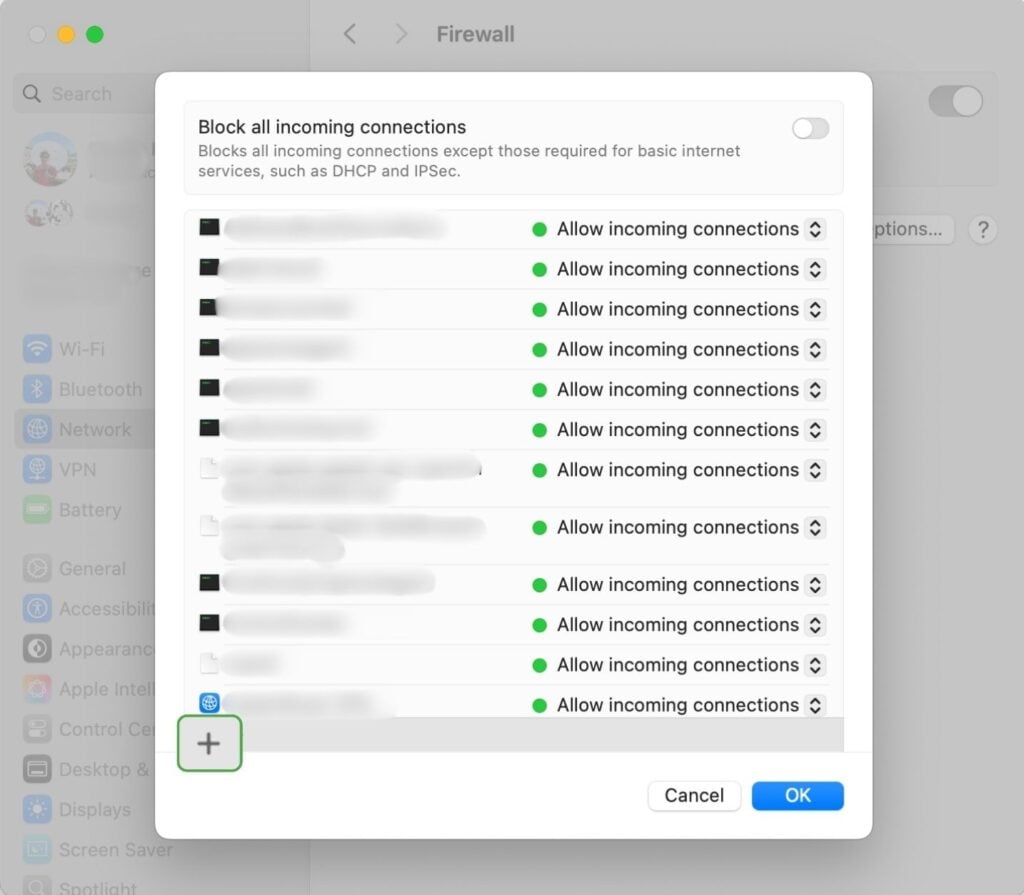
4. Click OK to save your changes.
Adding a Personal Firewall to a Router
Most routers ship with a firewall on by default, but it’s worth checking whether it’s active on your device. Keep in mind that the names and locations of settings will vary depending on the manufacturer, so these instructions are general steps.
1. Open your router’s settings by typing your router’s IP address into a web browser and logging in with your credentials. You can usually find this information on a sticker on the back or bottom of your device.
2. Look for a section labeled “Firewall,” “Security,” or “Advanced Settings.”
3. Confirm the firewall is on. If your router offers a security level setting, start with a medium setting and adjust later if it blocks something you need.
4. Save your changes and restart the router.
Common Personal Firewall Problems and Troubleshooting Tips
Most personal firewall issues come down to a handful of recurring causes and most are pretty easy to fix. Here’s what to check:
- Blocking a legitimate app: An overly strict rule can stop a safe program, like a VPN, from connecting. Open your firewall’s allowed apps list and add the program manually, or allow it the next time you’re prompted.
- No internet access despite connection: This is more often a firewall problem than a network problem. You can disable your firewall to confirm, then re-enable it and adjust the relevant rule.
- Conflicts between multiple firewalls: Running a third-party firewall alongside your built-in firewall on a single device can cause both to interfere with each other. Disable one firewall and leave only one active to resolve this issue.
- Slow internet speeds: An outdated firewall or an overly large rule set can affect performance. Update the software and remove rules you no longer need.
- Firewall settings reset unexpectedly: This can happen after an update or a malware infection. Check your settings after any update and run a malware scan if any strange changes seem to take place.
- Difficulty accessing firewall settings: This is sometimes caused by corrupted software. Restarting your device often resolves it, and reinstalling the firewall software is a reliable next step if it doesn’t.
FAQ
What is the definition of a personal firewall?
A personal firewall is software – or, less commonly, a dedicated device – that monitors and controls the network traffic going to and from a single device, allowing or blocking connections according to a set of security rules.
What is a personal firewall appliance?
A personal firewall appliance is a standalone physical device that filters traffic for a connected device or small network, rather than running as software on the machine itself. It offers protection that operates independently of the device’s own operating system.
What is personal firewall hardware?
Personal firewall hardware is the dedicated physical equipment, often built into a router, that filters traffic before it reaches your devices. Unlike software firewalls, it doesn’t run on the device it’s protecting, which means it isn’t affected by malware already present on that device.
How does a VPN work together with a personal firewall?
A personal firewall and a VPN do different jobs. The firewall filters which connections can reach your device, while a VPN encrypts data travelling between your device and a VPN server. Used together, they help secure your internet connection.
Do I still need a VPN if I use a personal firewall?
Yes. A personal firewall doesn’t encrypt your traffic or hide your IP address, so your data and location can still be visible to your internet provider or anyone monitoring the network. A VPN covers that gap.
