Private IP Addresses: What They Are and How They Work
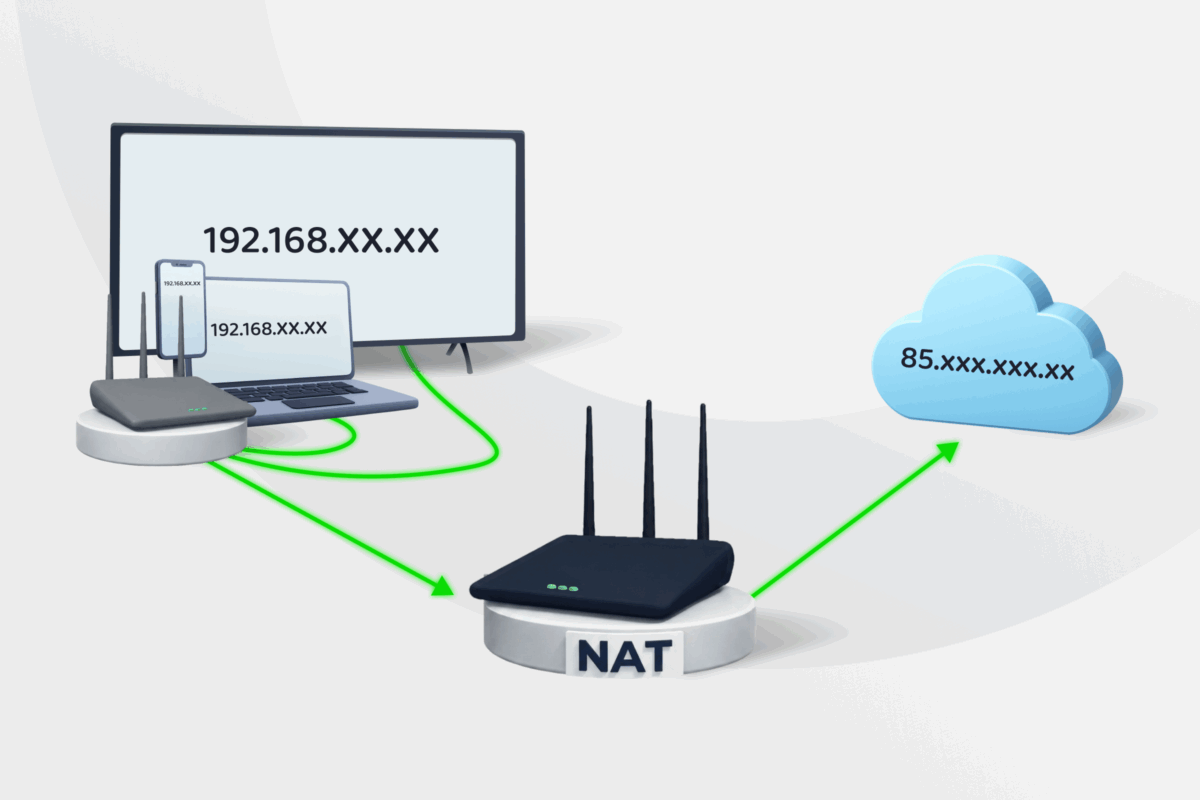
Your home network likely connects a variety of devices, including phones, laptops, and smart TVs, and yet they all share a single public IP address. That’s because behind the scenes, your router assigns each device a private IP address that only works inside your local network.
In this guide, we’ll explain what private IP addresses are, why they’re essential in home and office networks, and how they connect to the internet through your router.
Table of Contents
Private IP Addresses ExplainedWhat Do Private IP Addresses Look Like?
How To Find Your Private IP Address
Public vs. Private IP Addresses
Why the Internet Needs Private IP Addresses
How Public and Private IP Addresses Work Together: The Role of NAT
How To Keep Your Local Network More Secure
FAQs
Private IP Addresses Explained
A private IP address is a type of non-routable IP address that only works inside a local network. These addresses aren’t routed across the public internet. Every device that joins your network (a phone, laptop, or printer) gets its own private IP, which is how devices on the same network find each other and communicate. This means you can’t reach them directly from outside the local network.
For example, when you stream a video from your phone to your smart TV, your phone uses its private IP to connect to the TV’s private IP. Since both devices are on the same local network, the connection doesn’t need to go through the internet.
What Do Private IP Addresses Look Like?
Private IPs come from a limited set of address blocks reserved for private networks. The Internet Engineering Task Force established these blocks in RFC 1918 (for IPv4)1 and RFC 4193 (for IPv6)2. They are exactly the same across all networks worldwide, meaning any home, office, or enterprise can use them without registration.
IPv4 Private Address Ranges
There are three IPv4 private address ranges:
- 10.0.0.0 to 10.255.255.255: This is the largest private range, offering over 16 million addresses. Large businesses and enterprise networks often use this block to support a massive number of internal devices.
- 172.16.0.0 to 172.31.255.255: This range includes over 1 million addresses. It works exceptionally well for medium-sized corporate networks or advanced home setups.
- 192.168.0.0 to 192.168.255.255: This is the most common range for home Wi-Fi routers and small offices. It provides around 65,000 addresses, which covers typical everyday use.
IPv6 Private Address Range
IPv6 uses a different approach to private addressing called unique local addresses (ULAs).
IPv6 provides a massive public address space, but private addressing still matters. It keeps internal devices isolated and maintains stable network configurations. It also lets your devices communicate without exposing them directly to the public internet.
- fc00::/7: Reserved strictly for ULA space.
- fd00::/8: Used in practice to build locally assigned networks.
Unlike IPv4 private addresses, ULAs include a randomly generated component. This smart design choice helps reduce the chance of address conflicts if two different private networks ever need to connect.
How To Find Your Private IP Address
The steps depend on your operating system, but the address you find will fall inside one of the three RFC 1918 ranges, most often 192.168.x.x for home networks.
On Windows
- Open the Start menu and type
cmd, then press Enter to open Command Prompt. - Type
ipconfigand press Enter. - Look for the line labeled IPv4 Address under your active network adapter. That’s your private IP.
You can also find it through Settings > Network & Internet > Properties of your active connection.
On macOS
- Click on the Apple menu and open System Settings (or System Preferences on older versions).
- Go to Network, then select your active connection (Wi-Fi or Ethernet).
- Click Details. Your private IP appears next to the IP address label.
On iOS
- Open Settings > Wi-Fi.
- Tap the small i icon next to the network you’re connected to.
- You’ll see your private IP under IPv4 Address.
On Android
- Open Settings > Network & internet (or Connections on Samsung devices).
- Tap Wi-Fi, then select the network you’re connected to.
- Look for the IP address in the network details. Some devices list it under the Advanced settings.
From Your Router
If you want to see the private IPs of every device on your network, log into your router’s admin panel. Open a browser and enter your router’s gateway address (usually 192.168.0.1 or 192.168.1.1.) After signing in, look for a section labeled Connected Devices, DHCP Clients, or Device List. You’ll see a list of every device on your network and the private IP assigned to each.
Public vs. Private IP Addresses
| Public IP Address | Private IP Address | |
| Scope | Works across the internet | Works only within local/private networks |
| Uniqueness | Must be globally unique | Can be reused across different networks |
| Assigned By | ISP or internet registry | Router or local network admin |
| Main Use | Connecting to websites, services, the cloud | Local device-to-device communication |
To understand private IPs, it’s helpful to see how they compare to public IP addresses – the kind that identify devices or networks on the internet.
Any device with a public IP can be reached from anywhere on the internet. Private IPs, on the other hand, can’t be reached from outside the local network.
But the biggest and most important difference between a private and public IP lies in their uniqueness.
A public IP address must be globally unique because it’s how the internet identifies devices. When you visit a website or send data online, your public IP tells other systems where to send responses, like a return address. If two devices shared the same public IP, internet services wouldn’t know which one to reach, and communication would break down.
A private IP address, on the other hand, matters inside your local network. Your phone can have the same private IP address as your neighbor’s laptop. Since those addresses stay inside separate networks and never appear on the internet, they don’t conflict. Unlike public IP addresses, which must be globally unique, anyone can use private address ranges within their own network.
Why the Internet Needs Private IP Addresses
Private IP addresses exist for 3 main reasons:
There Aren’t Enough IP Addresses To Go Around
The internet was built on the IPv4 protocol, which supports around 4.3 billion unique IP addresses. That may sound like a lot, but with billions of people and countless internet-connected devices, unique IP addresses quickly run short.
So instead of every device having its own public IP to go online, each gets a private IP to talk to other devices inside the local network, while the router uses a single public IP to handle all internet traffic on their behalf.
They Help Reduce Exposure to External Threats
Private IP addresses aren’t directly reachable from the public internet. This makes it much harder for external threats, like attackers, bots, or malware, to reach them. It’s not a full security system, but it does help reduce risk by keeping devices off the public internet.
They Make Networks Easier to Manage
Private IP addresses simplify network administration because any local network can reuse them without requiring external systems coordination. Network operators can assign addresses internally without worrying about conflicts on the wider internet.
This makes it easier to separate parts of a network (like setting up a guest Wi-Fi that’s isolated from your main devices) and allows more control over how your network groups and manages devices.
How Public and Private IP Addresses Work Together: The Role of NAT
Network address translation (NAT) is a technology your router uses to connect your private network to the public internet.
When a device with a private IP sends a request (like loading a website), the router rewrites the request using the network’s public IP address. Then it tracks the response and sends it back to the correct device that asked for it on your local network.
NAT lets all your devices share one public IP while still accessing the internet individually.
How NAT Works
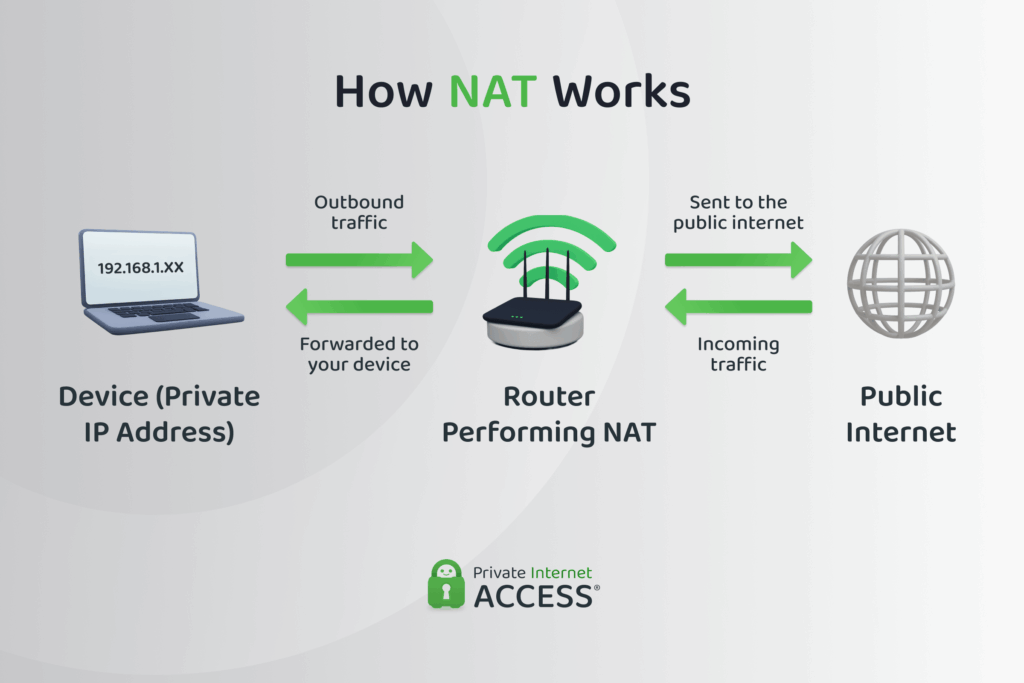
Let’s say your laptop has a private IP like 192.168.1.10 and you want to visit a website. Here’s what happens step by step:
- Your laptop sends a request to the router: This request includes your private IP address and asks to connect to a website.
- The router applies NAT: Since your private IP isn’t valid on the internet, the router replaces it with its own public IP address. To keep track of your request, the router also adds a port number, a small tag that helps it remember which device made the request.
- The request goes out to the internet: The website sees the request as coming from your router’s public IP (with that port number attached).
- The website sends a response back to your router’s public IP: The router uses the port number to figure out which device inside the network made the original request. It then sends the response back to your laptop’s private IP.
- Your laptop receives the response: The process is complete.
How To Keep Your Local Network More Secure
Since private IPs aren’t reachable from the public internet, external attackers can’t connect to them directly. This isolation provides a basic level of protection, but only from external threats. Inside your network, they behave like any other IP address, so if someone gains access to your LAN (physically or through malware), they can still move laterally between devices on your network.
1. Lock Down Your Router
In your router’s settings, change the default admin password so no one can mess with your network settings. If you see a setting called “Remote Management” or “Remote Access,” turn it off unless you know you need it. It’s also a good idea to regularly check for firmware updates and install them: this helps keep your router safe from known security bugs.
2. Secure Your Wi-Fi
Make sure your Wi-Fi is using WPA2 or WPA3 encryption. This is the standard for locking down your wireless connection. You’ll find this in your router’s Wi-Fi settings. If guests need Wi-Fi, set up a separate guest network to keep their devices isolated from yours.
3. Limit What Devices Can Do
Not all devices need to talk to each other. If your router supports “Guest Mode” or “Device Isolation,” turn it on for things like TVs, cameras, and smart speakers. If you’re using a more advanced setup, group devices using VLANs or basic firewall rules to keep work devices separate from everything else.
4. Turn off What You Don’t Use
If you don’t use features like Universal Plug and Play (UPnP) for automatic port forwarding, or Wi-Fi Protected Setup (WPS) for one-button Wi-Fi access, it’s best to turn them off. These make network setup easier, but they often create security holes. Also, check if your router has any open ports or services enabled. If you don’t know what they’re for, it’s safer to disable them.
5. Protect Individual Devices
If a device has a login screen, like a printer, camera, or storage drive, make sure it has a strong password. Don’t leave anything open with no login required. Keep everything updated: phones, laptops, smart home devices, even TVs. Updates often fix security flaws that attackers can exploit.
6. Check What’s on Your Network
Open your router’s admin panel and look for a list of connected devices. If you see anything you don’t recognize, like an unfamiliar device name or something connected when you’re not home, look into it. It might be time to change your Wi-Fi password.
FAQs
Are all 172 IP addresses private?
No, they aren’t. Only a specific segment of the 172 block is for private networks: the range from 172.16.0.0 to 172.31.255.255. The rest of the 172 block contains public IP addresses. These belong to registered organizations and route traffic across the open internet.
How can I find a private IP address?
You can find your private IP address in your device’s network or Wi-Fi settings. Desktops usually list this under active connection details or network properties. On a mobile device, tapping the information icon next to your connected Wi-Fi network usually displays your IP address. You can also view the private IPs of every connected device by logging into your router’s admin panel.
Why use 172 instead of 192?
The choice comes down to network size. The 192.168.0.0/16 range provides about 65,000 addresses. This is more than enough to cover standard home and small office setups. Medium-to-large organizations often outgrow that limit. They switch to the 172.16.0.0/12 range because it offers over a million unique internal addresses, which allows for much larger network configurations.
Is 192.168.1.1 a private IP address?
Yes, it falls inside the 192.168.0.0/16 range defined by the RFC 1918 standard. It’s also one of the most common default gateway addresses for home routers, which is why most people see it when they log into their router’s admin panel.
Can you trace a private IP address?
You can only trace private IP addresses inside the local network they belong to. Outside of the network, they are invisible. Every request your device makes to the internet uses your router’s public IP, so the websites and services you use can’t see your private IP. A network administrator can trace a private IP address within their LAN and determine which device it belongs to, but no one outside the network can.
Can two devices have the same private IP address?
Yes, but only if they’re on different networks. Your phone and your neighbor’s laptop could both use the same private IP address because each address only exists inside its own local network. However, two devices can’t share the same private IP on the same local network. If this happens, it creates an IP conflict, resulting in connection errors.
References:
