What Is a VPN Kill Switch? Uses, Benefits & Setup Guide

A VPN kill switch is a safety feature that helps to ensure that your data never travels outside the VPN’s encrypted tunnel, leaving it exposed to your ISP, network administrators, and potential snoops or crooks.
Using a kill switch helps to ensure your internet traffic stays more secure as it travels across the internet. Learn how it works and how to set one up to keep your online browsing safer.
VPN Kill Switch Explained
A VPN kill switch cuts off your internet traffic when your VPN connection drops unexpectedly or disconnects for any reason. Without a kill switch, a dropped VPN connection can expose your real IP address, browsing activity, and approximate location to anyone monitoring your network, including your ISP and third parties on the network.
The kill switch waits until the VPN restores the connection before allowing traffic to flow again, rather than letting your device revert to an exposed connection.
Why Do You Need a VPN Kill Switch?
Although premium VPNs are usually trustworthy, connections can drop for all sorts of reasons (think weak Wi-Fi signal, overloaded servers, or network changes) and most operating systems reconnect to the internet right away, kill switch or not.
While the setup is convenient because it prevents unexpected interruptions in your streams or downloads, it also means your device can revert to an unprotected connection the moment the VPN drops – and it won’t necessarily notify you that it’s doing so.
The most immediate risk is exposing your real IP address. This tells anyone who’s interested your approximate physical location and could give them the opportunity to track or profile you.
Then there’s the possibility of a DNS leak. When you visit a website, your device performs a DNS query to figure out where to route your traffic. A VPN routes those queries through its own servers, encrypting the data so nobody outside the tunnel can see which domains you’ve requested. A dropped connection means those same queries go straight to your ISP’s default DNS servers where every request can be logged and stored.
On top of that, a dropped VPN connection means no encryption for your traffic, which could give bad actors on your network a glimpse into your browsing activity.
A kill switch closes that gap, restoring your VPN protection without your intervention.
When Should You Use An Internet Kill Switch?
No VPN or ISP can guarantee 100% uptime. Even the most reliable services occasionally experience drops in connectivity that can result in data exposure, which is why it’s recommended to have your kill switch enabled at all times.
If you’re not keen on the thought of losing connectivity, even momentarily, there are some specific scenarios where you should definitely activate your VPN kill switch:
- Using public Wi-Fi: Open networks in cafés, airports, and hotels can have weak security and may not encrypt traffic, making a dropped VPN connection an easy opening for anyone else on the network to intercept your data.
- Handling sensitive information: A dropped connection is riskiest when you’re logging into banking, healthcare, or other accounts that store personal data cybercriminals might want to get their hands on.
- Remote work: Accessing company systems, client files, or internal tools over an unfamiliar network raises the stakes of a leak beyond your own data, since a dropped connection could expose employer or client information you’re responsible for protecting.
- Traveling: Unfamiliar networks, foreign ISPs and, in some regions, stricter monitoring make consistent protection more important, particularly if you’re connecting to accounts or services that store sensitive information.
- Open source P2P sharing: Peer-to-peer activity broadcasts your IP address to everyone else in the swarm, so a kill switch prevents a brief disconnect from revealing your real IP to strangers.
How Does a VPN Kill Switch Work?
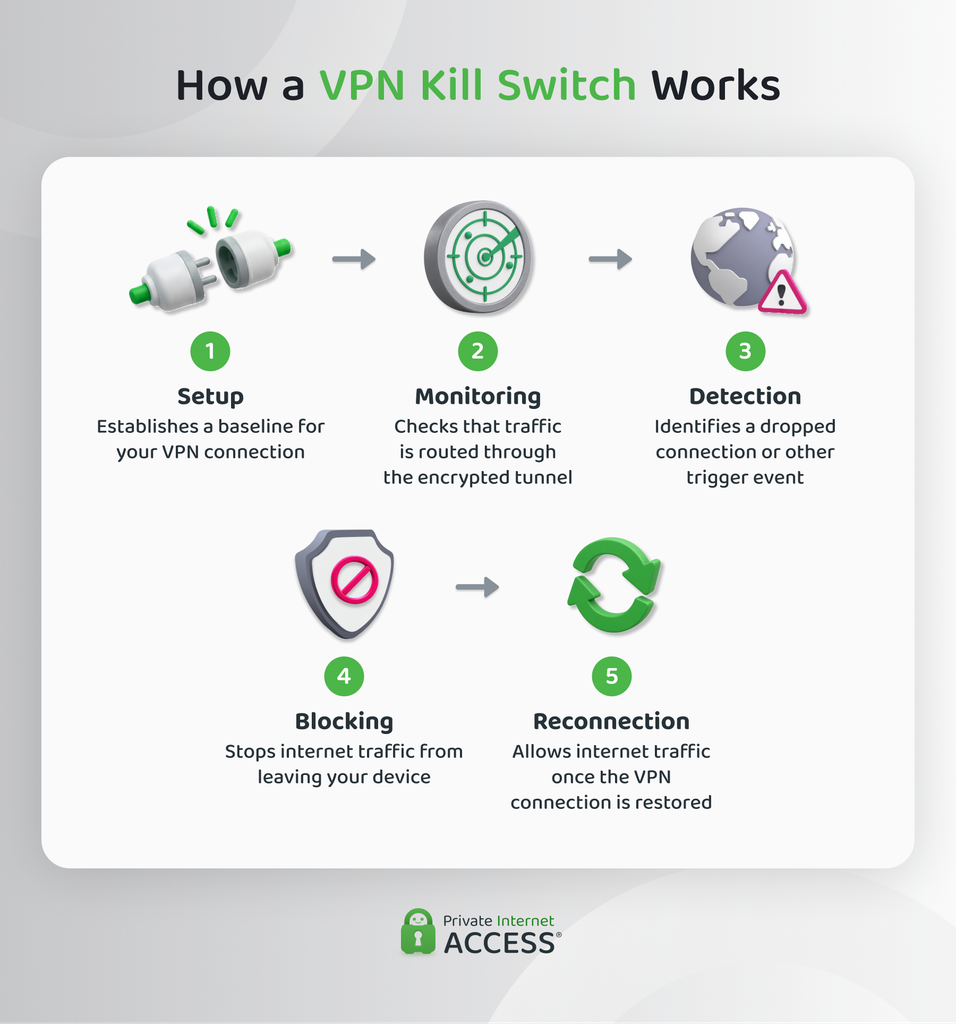
A kill switch can work in one of two ways. Active kill switches work by monitoring your VPN connection and reacting when it drops, while passive kill switches block non-VPN traffic by default.
Most standard kill switches use the active implementation and follow more or less the same five-stage process to keep your connection secure.
1. Setup
When you connect to the VPN, the kill switch arms itself alongside the connection. How it’s enabled and monitors the connection depends on the VPN app’s configuration.
2. Monitoring
Once armed, the kill switch continuously checks that it’s still routing your device’s traffic through your VPN’s encrypted tunnel. This might be done by checking the VPN server’s connection status or by watching for changes to your device’s network interface.
The more frequent and direct the checks are, the less time exists between a disconnection and the kill switch activating.
3. Detection
The kill switch identifies a trigger event, such as a dropped VPN server connection, network change, or app crash.
4. Blocking
Once the VPN detects a disconnection, the kill switch blocks some or all the internet traffic leaving your device. Blocked traffic can’t reach the internet while this hold is in place, which is what keeps your data safe until your VPN restores the connection.
5. Reconnection
Once the kill switch detects that the VPN connection re-established the connection and it’s routing your data through the encrypted tunnel, the block lifts and you can browse, stream, and download as usual.
What Causes VPN Disconnections?
Most VPN disconnections can be traced back to one of a handful of causes. Some might be on your end and some that might be on your provider’s end:
- Weak or unstable internet connections: A shaky Wi-Fi signal, spotty mobile data connection, or basic network congestion can interrupt the constant stream of data a VPN needs to keep its tunnel open.
- VPN server congestion: A server handling more traffic than it’s built for can slow your connection down or cause it to time out, forcing your device to disconnect while it searches for a new one.
- Network security settings: Some routers, corporate wi-fi, and other networks restrict the ports VPNs typically use, preventing you from establishing an encrypted connection when you connect.
- Software interference: Firewalls, antivirus programs, and even your operating system itself can flag VPN traffic as suspicious and interrupt it. For example, Apple’s macOS, iOS and other operating systems route certain traffic outside of VPN tunnels by design.1
- ISP throttling: Some ISPs may slow down or deprioritize encrypted VPN traffic, which can cause timeouts that look like a dropped connection even when the underlying internet connection is fine.
- VPN outages: Server maintenance, software updates, or unplanned outages can disconnect you regardless of how stable your own internet connection is. A reliable provider keeps this to a minimum, but no VPN can promise 100% uptime.
Types of VPN Kill Switch
Beyond how they trigger a block, kill switches also differ in what they protect. Some target specific apps, while others lock down your entire device.
| Feature | Application-Level | System-Level | Advanced |
| Blocks | Selected apps only | Entire device | Entire device, even before VPN connects |
| Active | When VPN drops | When VPN drops | Before VPN connects, drops, or disconnects |
| Best for | Protecting a few high-risk apps without disrupting everything else | Comprehensive, low-maintenance protection | Devices left unattended or auto-connecting on startup |
| Drawback | Anything outside the selected apps stays exposed | Everything online stops, not only sensitive traffic | No internet access at all until the VPN connects |
Application-Level Kill Switch
An application-level kill switch lets you choose specific apps to cut off if the VPN connection drops.
For instance, you might want to block your P2P client and banking app if you lose connectivity, while lower-stakes software like your music streaming app can fall back to your regular connection.
This setup works well if you want protection for specific high-risk activities without disrupting everything else you’re doing online. If you’re only concerned about one or two apps leaking data, an application-level kill switch avoids the disruption of losing your whole connection over something unrelated.
The trade-off is coverage. Anything outside the apps you’ve selected, including background processes, other applications, and general browsing, stays potentially exposed if the VPN drops. This can create vulnerabilities if you’re uncertain which of your device’s processes could leak identifying information.
System-Level Kill Switch
A system-level kill switch, sometimes called a network-level kill switch, blocks your device’s entire internet connection if your VPN fails. From your browser to background system processes, nothing can send or receive data outside the VPN tunnel until it restores the connection.
This is the more consistent setup if you want more comprehensive protection and less risk that unmonitored apps or background processes could leak data.
The downside is that an interruption takes down your whole connection, which means video calls, downloads, and anything else running at the time drops since the kill switch treats all connections equally.
For most users, that’s a reasonable exchange for not having to configure or maintain a list of protected apps.
Advanced Kill Switch
An advanced kill switch goes a step further than the standard system-level implementation. Rather than reacting only to a VPN connection that drops after it’s already established, it blocks internet access until the VPN connection is active.
This matters most for anyone whose device connects to the internet before they may have had a chance to open their VPN app. It’s a common setup for people who leave devices unattended for periods or want a guarantee that no traffic leaves their device unprotected (even briefly) at startup.
The drawback is that you won’t have any internet access until the VPN connects, which can sometimes be inconvenient.
How to Enable Your VPN Kill Switch
Enabling PIA’s kill switch takes a couple of steps on the mobile and desktop apps.
Setting Up a Kill Switch on Desktop
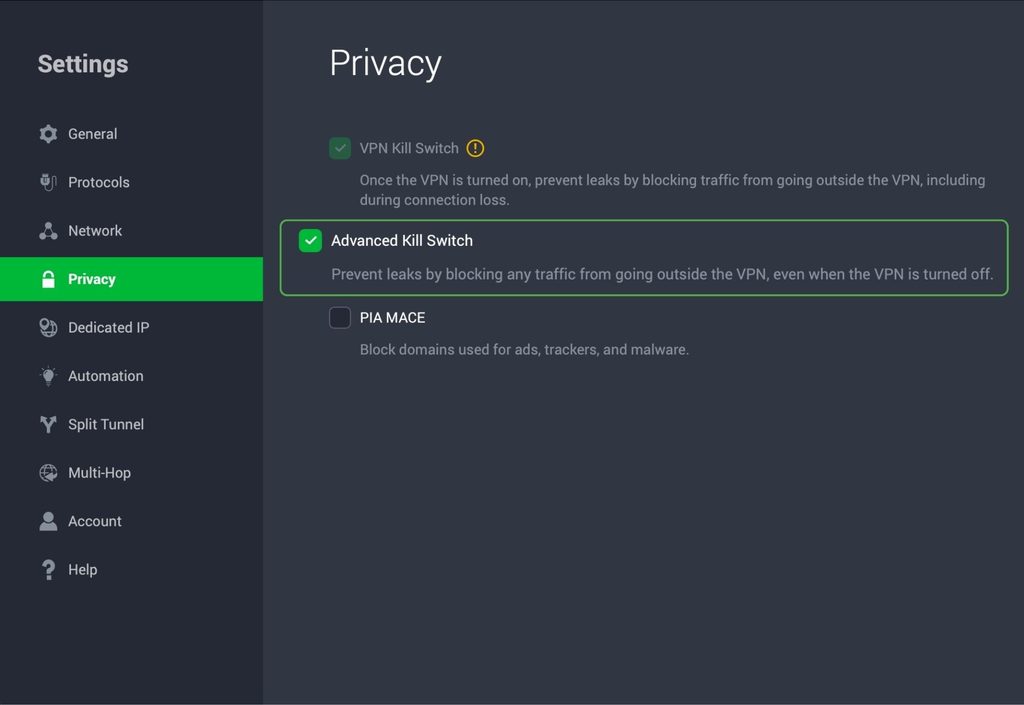
PIA’s standard VPN Kill Switch is on by default across Windows, macOS, and Linux, but it’s easy to check, turn off, or upgrade to the Advanced Kill Switch from within the app.
1. Open the PIA VPN app and click the three-dot menu icon (⋮).
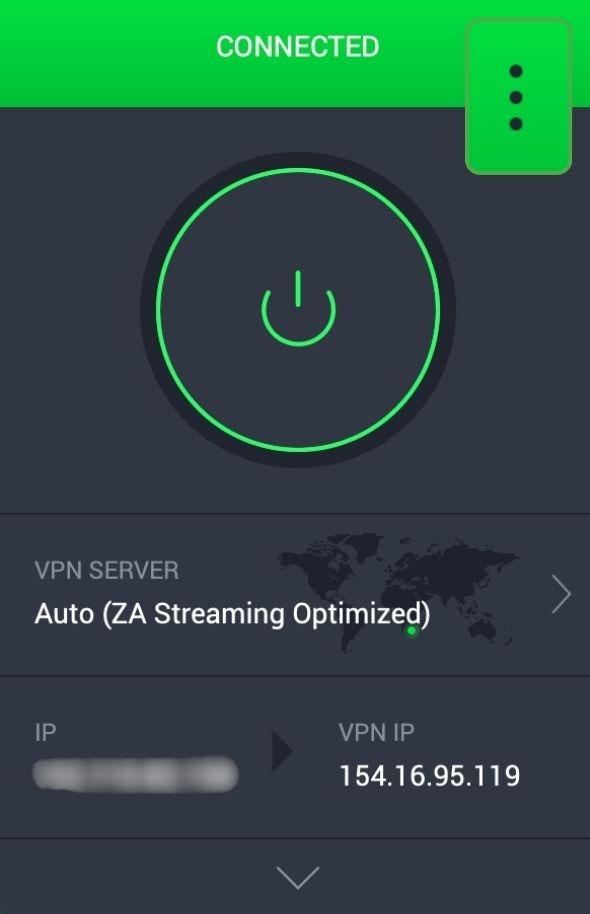
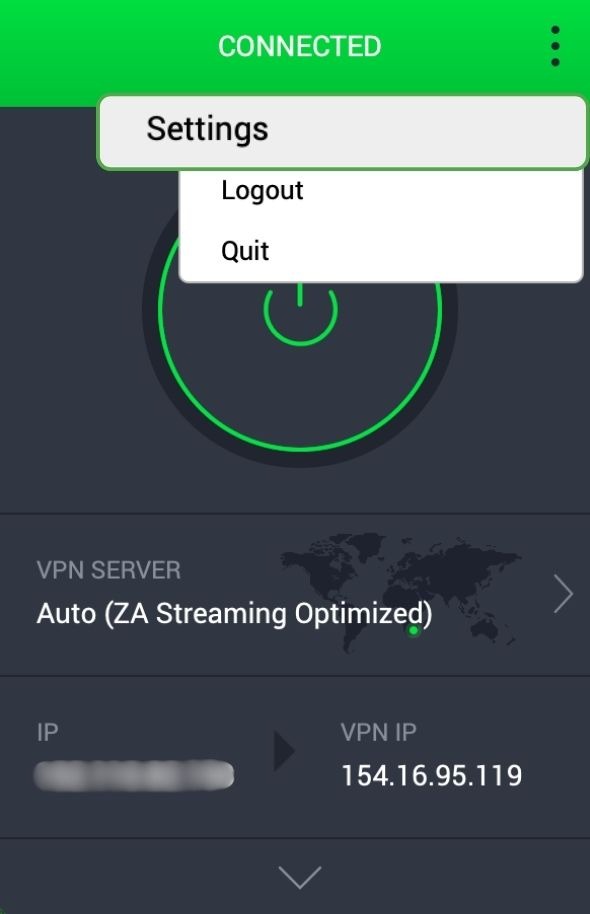
2. Click Settings from the dropdown menu.
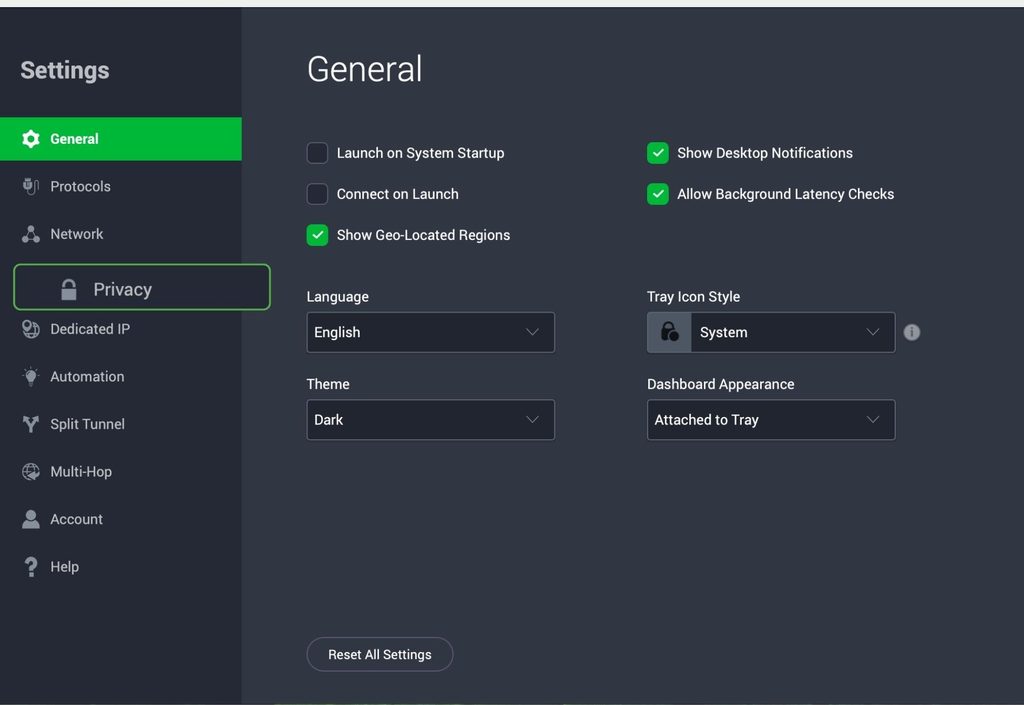
3. In the left-hand menu of the Settings window, click Privacy.
4. Ensure that you check the box beside Kill Switch.
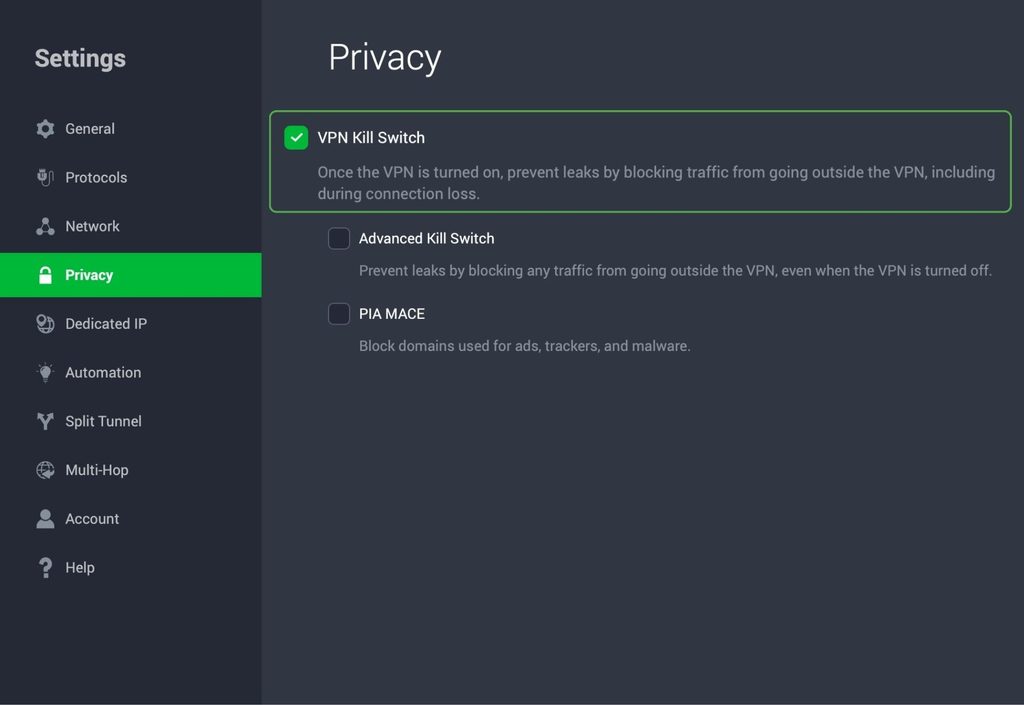
5. To enable the Advanced Kill Switch, check the box next to the label.
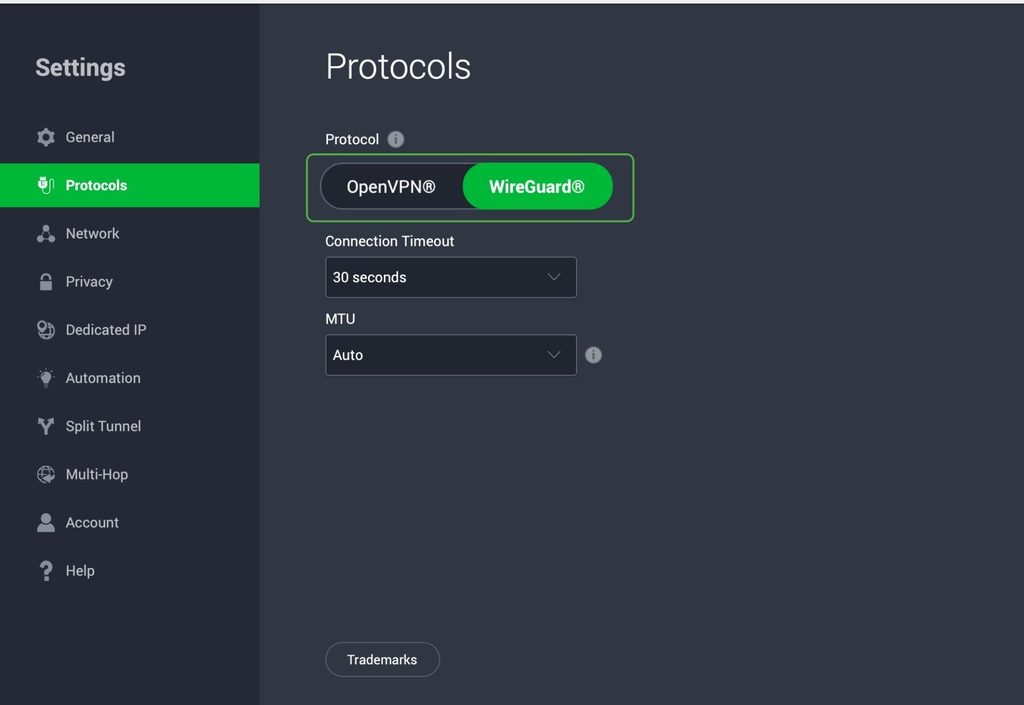
You can check your protocol under Settings, too. Go to the Protocols tab and select WireGuard if it isn’t already active. WireGuard’s lighter handshake usually reconnects faster than OpenVPN after a drop, which can shorten the window the kill switch needs to remain active.
Activating Your Kill Switch on Mobile
On iPhone and iPad:
- Open the PIA app and tap the menu icon (☰) in the top-left corner and select Settings.
- Go to the Privacy Features tab.
- Toggle on the VPN Kill Switch.
- For protocol selection, go back to the Settings menu and tap Protocols.
- Tap Protocol Selection and choose WireGuard from the list.
Note that PIA’s iOS kill switch only applies if your VPN connection drops without intervention. It won’t block your connection if you disconnect.
On Android:
- Open the PIA app and tap the menu icon (☰) in the top-left corner.
- Select Settings.
- Go to the Privacy tab.
- Toggle on the VPN Kill Switch.
- To change your protocol selection, go to the Protocols tab and choose WireGuard.
Android also has its own OS-level kill switch protection, which you can access through your device’s network settings. Some users layer this on top of PIA’s in-app toggle for extra assurance.
Test Your VPN Kill Switch Setup
No piece of software is infallible, so it’s best to test that your kill switch is working before you start surfing the web.
Basic Disconnection Test
- Connect to a PIA server.
- Force a network switch. On a phone, turn off Wi-Fi so it switches to mobile data. On a laptop, connect to a different Wi-Fi network.
You should have no internet access on the new network until the VPN reconnects.
Leak Detection Test
- With your VPN connected, check your IP address and note the address shown.
- Switch to a different Wi-Fi network or mobile data.
The IP address checking page shouldn’t load until your VPN reconnects. If it does and displays your real IP address, there’s a leak.
Reboot Test
This test is only relevant if you’ve enabled PIA’s Advanced Kill Switch.
- Restart your device.
- Open your browser and try to navigate to a website before launching the PIA app.
You shouldn’t be able to access the internet until you open the PIA app and the VPN connects.
Should You Ever Turn Your Kill Switch Off?
There are a few legitimate reasons for disabling your kill switch temporarily. For example, troubleshooting a connection issue, using an application that needs a non-VPN connection to function, or working on a network that blocks VPN traffic.
Whatever the reason, this should be a temporary measure. It’s best to turn it back on as soon as you’ve resolved the issue and the VPN connection didn’t interfere.
VPN Kill Switch Pros and Cons
As with any digital privacy tool, a kill switch has benefits and drawbacks. Knowing both sides can help you decide how to configure it to best suit your online life.
| Benefits | Drawbacks |
| ✅ Keeps traffic inside the VPN tunnel: Blocks any data from leaving your device outside your VPN’s encrypted connection. | ❌ Connectivity loss: Cuts off internet access or for the affected apps until the VPN reconnects. |
| ✅ Protects your identity: Avoids exposure of your real IP address and location if the VPN fails. | ❌ Task interruptions: Downloads, video calls, and other active tasks stop abruptly. |
| ✅ Shields your data: Stops your browsing activity, streaming, and other traffic from being visible to your ISP, network operators, or anyone else monitoring the connection. | ❌ Requires manual activation: Some kill switches and advanced kill switch features need to be turned on manually. |
| ✅ Boosts overall security: Adds a safety net on top of your VPN’s encryption, reducing the window in which someone on the same network can intercept your traffic. | ❌ Platform-specific settings: Different operating systems and devices sometimes need separate configuration, so protection on one device doesn’t carry over to another. |
| ✅ Defends file exchanges: Prevents P2P networks from broadcasting your real IP address if the VPN drops. | ❌ Not available everywhere: Kill switch protection isn’t available for every operating system. |
Most of these drawbacks are manageable. Keeping your VPN app updated ensures you’re running the most stable version of the kill switch, and connecting to servers with strong, nearby infrastructure reduces how often you’ll need the kill switch to step in at all.
FAQ
Should you turn on a VPN kill switch?
Yes, you should turn on a VPN kill switch to prevent your traffic from going outside the VPN tunnel if your connection drops without warning. This helps to keep information like your real IP address, browsing activity, and other sensitive details safe under all circumstances.
Is a VPN kill switch safe?
Yes, a kill switch is safe and it helps to secure your online data by preventing traffic from leaving your device unencrypted. It doesn’t collect, transmit, or expose any additional data itself.
How reliable is a VPN kill switch?
How reliable your kill switch is will depend on the implementation. System-level kill switches, which use firewall rules, tend to be more dependable than ones that monitor and react to a drop. It’s also important to test your setup rather than assume it works.
How do I turn off a VPN kill switch?
Although it’s not recommended to turn off your kill switch, in the PIA app you can go to Settings > Privacy or Privacy Features tab and disable VPN Kill Switch or Advanced Kill Switch. You may also need to disable any always-on or automatic reconnection settings in your device’s network settings.
Does a kill switch work on macOS?
Yes, a kill switch works on macOS, but macOS is known to route certain background traffic, like push notifications and some system services, outside the VPN tunnel by design. A standard kill switch may not catch it since that traffic isn’t a part of the monitored connection. It’s helpful to verify this in your macOS VPN settings.
References:
