Network Connection: Definition, Types, and How to Fix Common Issues
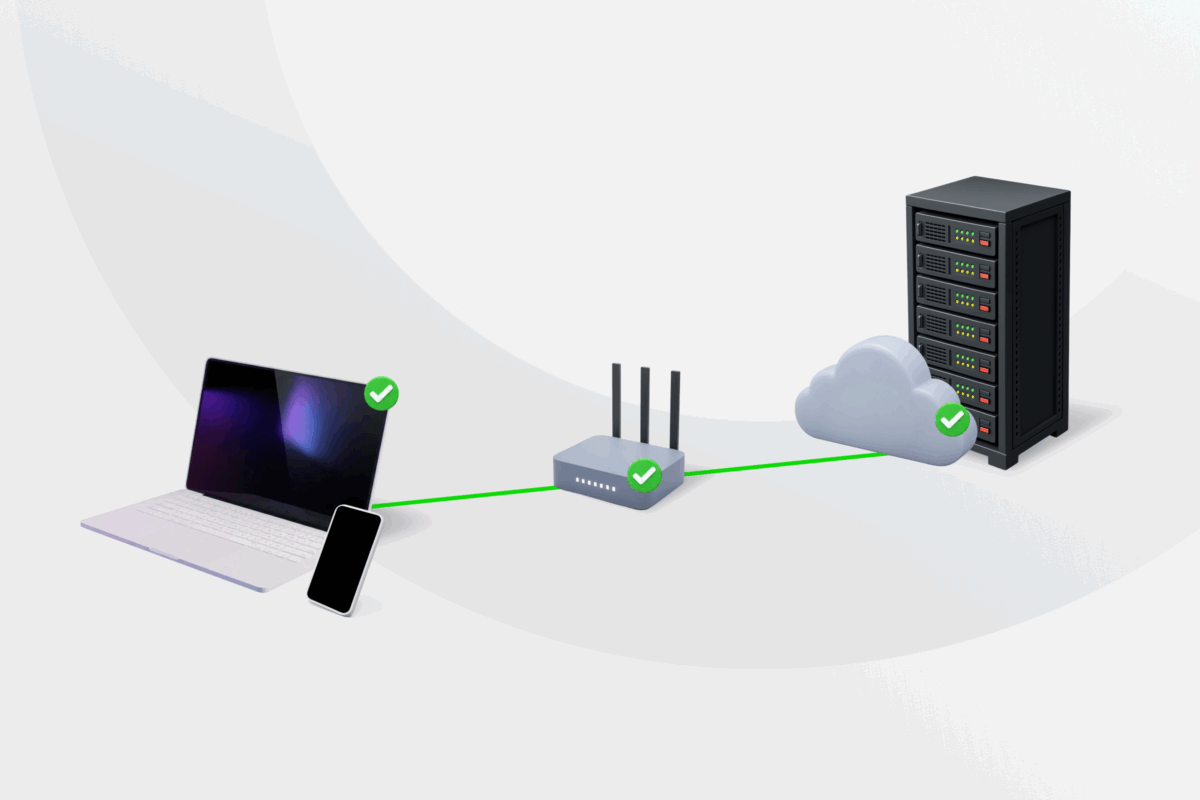
Network connections usually work in the background, whether you’re browsing the web, streaming a video, or joining a call. But when a connection slows down, drops unexpectedly, or disappears altogether, figuring out the cause isn’t always straightforward.
This guide explains the different types of network connections, what can affect their performance, how to check your connection settings, and how to troubleshoot common problems.
What Is a Network Connection?
A network connection is a communication link that allows devices to exchange data over a local network or the internet. It can be wired (Ethernet) or wireless (Wi-Fi) and enables access to websites, online services, shared files, and other connected devices.
How Does a Network Connection Work?
When you access something online:
- Your device sends data through your router to your internet service provider (ISP), the company that connects your home network to the internet.
- From there, the data travels over the internet to the server that hosts the website or service you want to access.
Before your device can reach that server, it needs to know its address. This is where the Domain Name System (DNS) comes in. Every website has a numerical IP address, but since these are hard to remember, you typically use a domain name instead, such as privateinternetaccess.com. DNS acts like a phonebook for the internet, translating domain names into the correct IP addresses so your device knows where to send its request.
Each part of the connection can work or fail independently. For example, your laptop can remain connected to your router over Wi-Fi even if your router loses its connection to your ISP. In this case, your device is still connected to your local network, but it can’t access the internet. DNS problems can behave the same way, stopping a specific site from loading, even though your internet connection works.
Related:
- What is Network Topology? Diagrams, Types, and Key Concepts
- Understanding DNS Server Types and How They Work
Types of Network Connections
Network connections can be local or to the internet, wired, using physical cables, or wireless, using radio signals. Each method has different advantages for speed, reliability, range, and mobility.
Local Network Connection
A local network connection links your device to other devices on the same network, such as your home or office network. This lets devices communicate with each other, share files, access printers, or stream locally stored media, even if the internet is unavailable.
Internet Connection
An internet connection links your local network to the wider internet through your internet service provider (ISP). This allows you to browse websites, use cloud services, stream videos, and access online applications.
Wired Connections
Ethernet is the most common wired connection for home and office networks. It connects a device directly to a router via a cable and typically provides a reliable connection without the wireless interference that can affect Wi-Fi.
Wireless Connections
Wi-Fi connects devices to a local network through a wireless router. It allows devices such as phones and laptops to move around while staying connected, although its performance can be affected by distance, physical obstacles, and interference.
Related: Ethernet vs Wi-Fi: Speed, Gaming, and Security Comparison
Internet Connection Types
Wired and wireless connections describe how your device connects to a network, while the type of internet connection describes how internet service reaches that network.
For example, your ISP might provide fiber internet to your home while your laptop connects to the router over Wi-Fi.
Common internet connection types include:
- Fiber: Transmits data as pulses of light through fiber-optic cables. It typically offers high speeds and reliability, but availability varies by location.
- Cable: Uses the same type of infrastructure traditionally used for cable TV. It can support high speeds, though performance may vary under high demand.
- Digital subscriber line (DSL): Uses existing copper telephone lines to carry data. Speeds can vary depending on the DSL service and the distance the signal travels.
- Fixed wireless: Transmits data wirelessly between a provider and a fixed location, sometimes using 4G or 5G technology. Coverage and signal quality can affect reliability.
- Satellite: Sends data between equipment on the ground and satellites orbiting Earth. Its wide coverage makes it useful where wired or cellular connections aren’t available.
What Affects Network Connection Performance?
Several factors can affect the speed and reliability of your network connection. The main ones include:
- Bandwidth: The maximum amount of data a connection can carry within a given period, typically measured in Mbps or Gbps. Limited bandwidth can cause slower speeds or buffering when multiple devices or activities compete for the available capacity.
- Latency: The delay as data travels across a network, typically measured in milliseconds. High latency can cause noticeable delays during activities such as online gaming and video calls.
- Packet loss: Occurs when some data fails to reach its destination. This can result from network congestion, wireless interference, or faulty equipment and may cause lag or other connection interruptions.
- Congestion: Occurs when more data is traveling through part of a network than it can efficiently handle. This can slow the connection, increase latency, and contribute to packet loss.
How to Check Your Network Connection Is Active
Your device’s network connection page can show whether you’re connected and which network or connection you’re using. This can help you pinpoint where to start if you’re having connection problems.
Note that the exact steps and menu names may vary depending on your device, operating system, and software version.
Windows
- Open Start > Settings > Network & internet, and check the connection status shown at the top of the page.
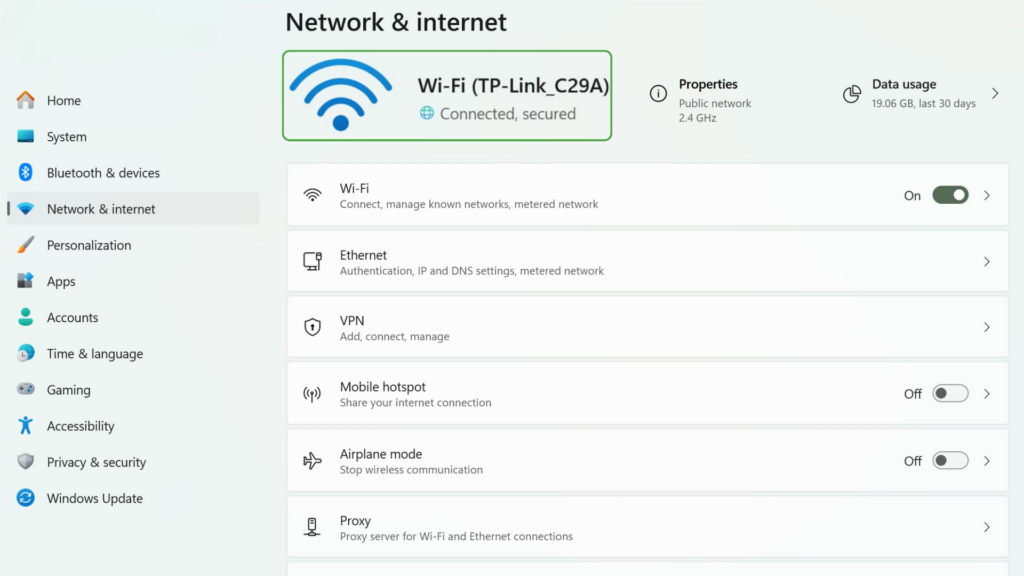
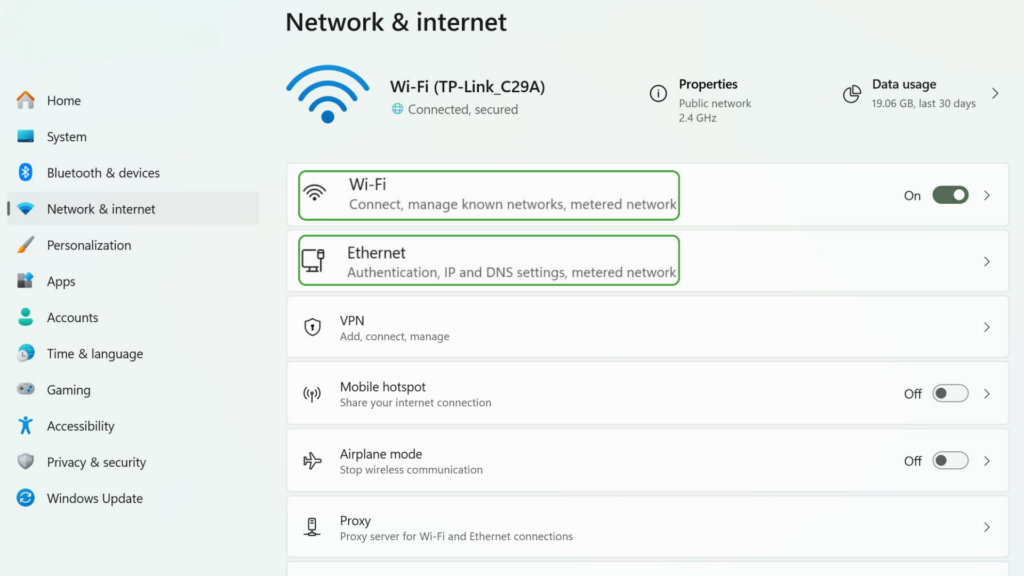
- Select Wi-Fi to view your wireless connection details or Ethernet if you’re using a wired connection.
macOS
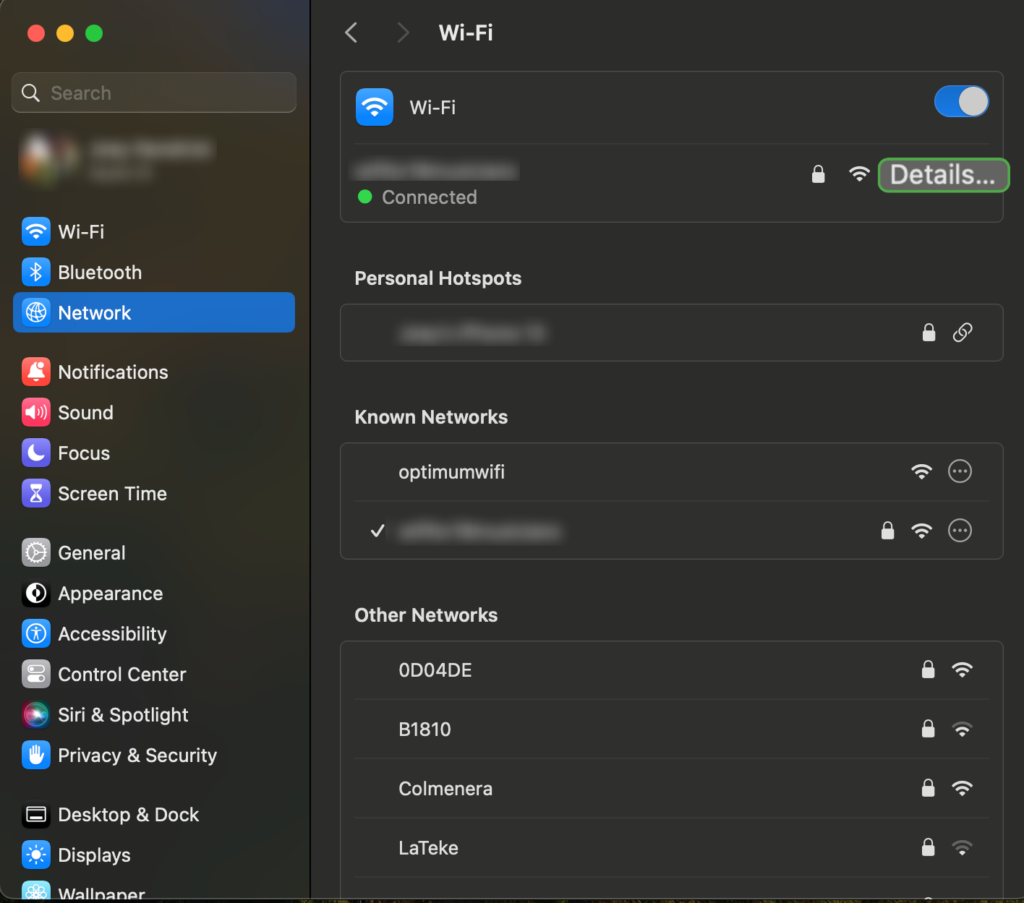
- Open the Apple menu > System Settings, and select Network to view your network connections and their status.
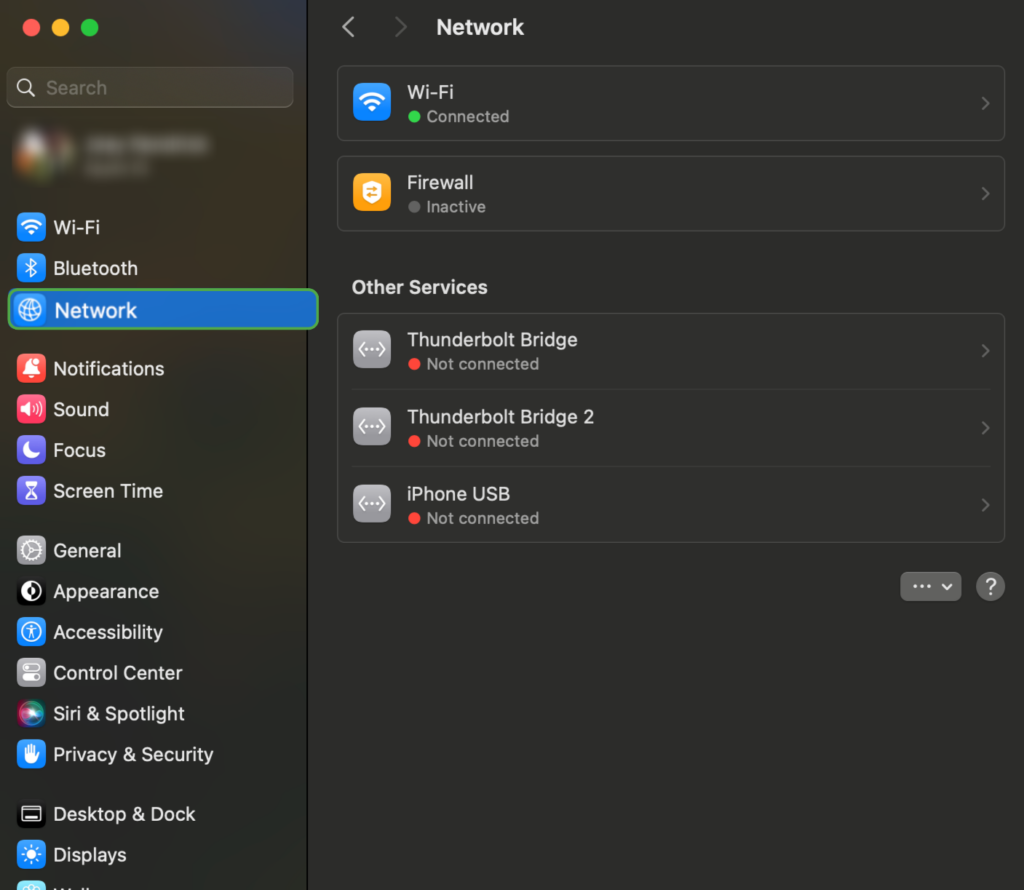
- Select your Wi-Fi or Ethernet connection and click Details for more information.
Android
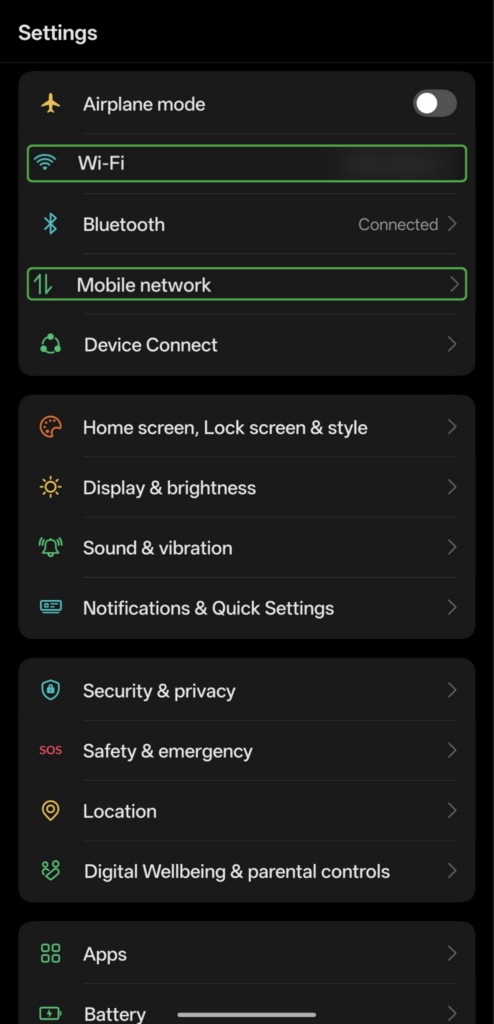
- Open Settings (or swipe down on your screen) and select Wi-Fi or Mobile network.
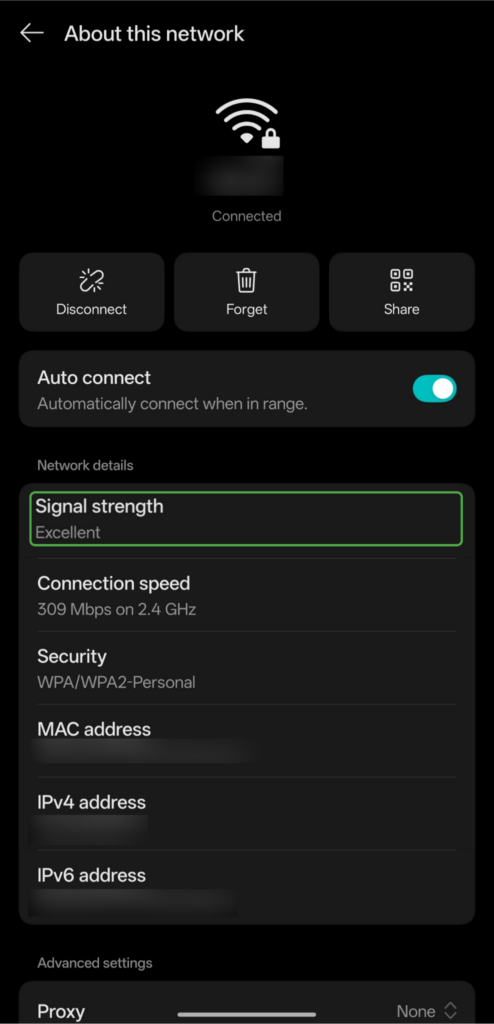
- Check which Wi-Fi network you’re connected to and its signal strength.
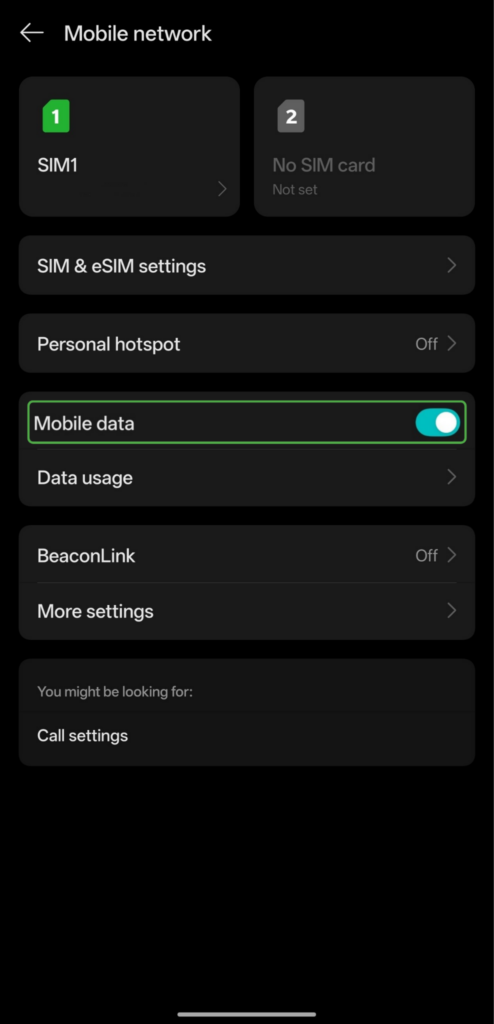
- If you’re using mobile data instead, check your mobile network settings and confirm mobile data is enabled.
iPhone
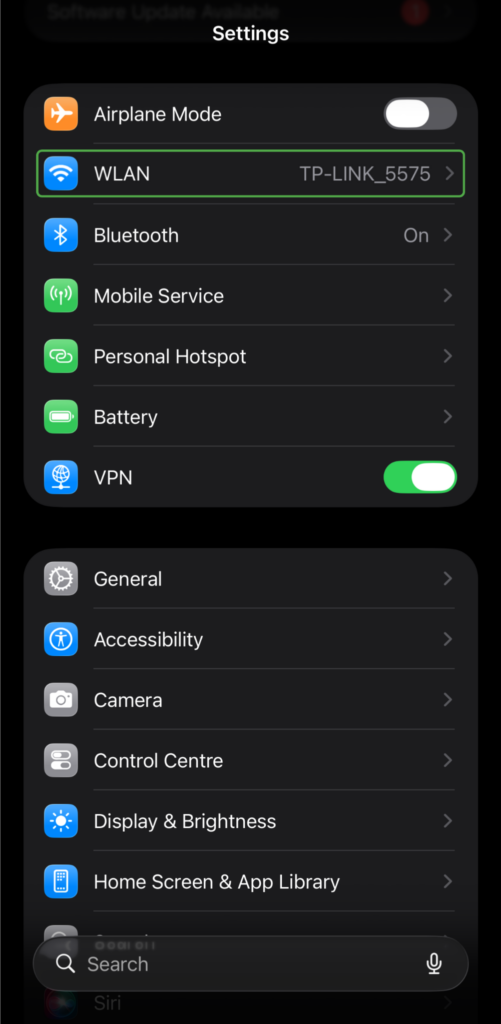
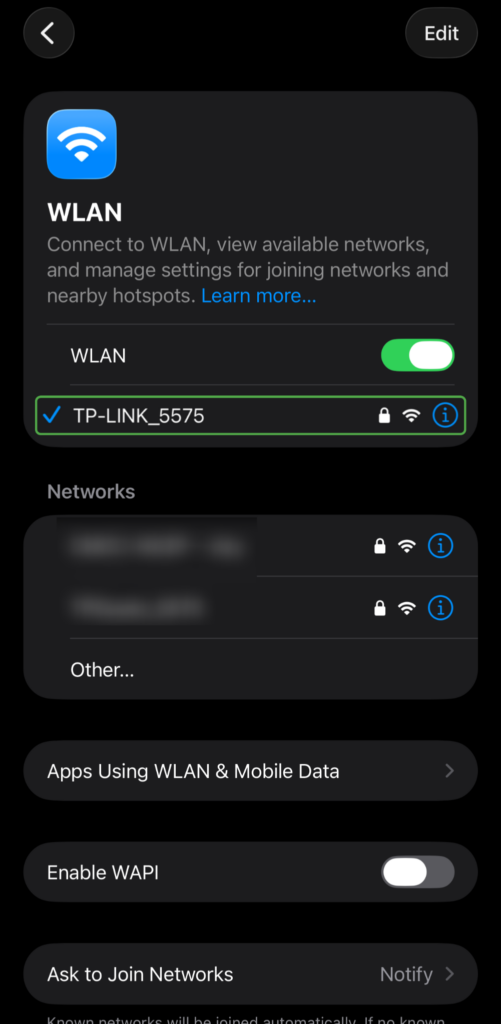
- Open Settings > Wi-Fi/WLAN.
- Tap the Info button next to the connected network if you need to view its settings.
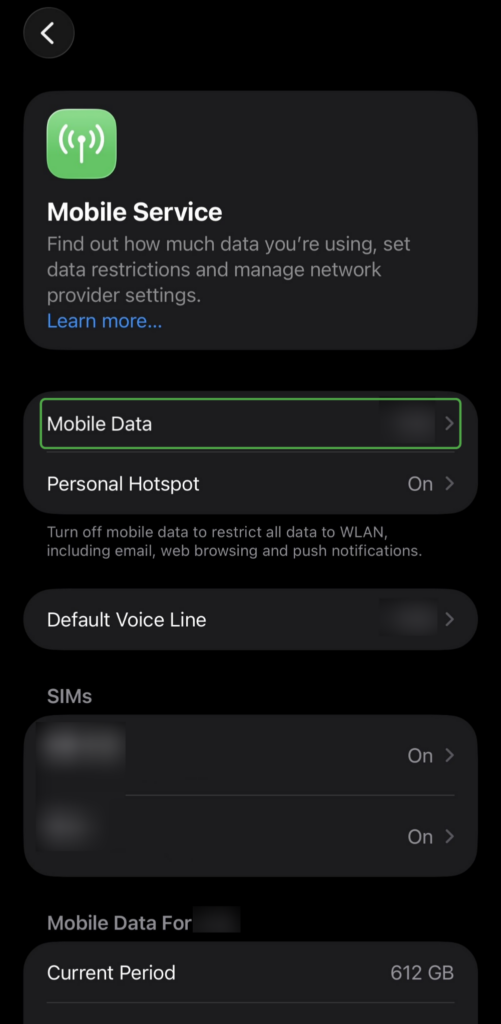
- To check a cellular connection, open Settings > Mobile Service and confirm Mobile Data is enabled.
How to Fix “No Network Connection”
Network connection problems can originate with your device, local network, or ISP. The best way to troubleshoot these is to start with your device and work through the steps below until you identify or fix the problem.
Step 1: Check Your Device
First, check whether the problem affects one device or several. If another device can connect to the same network and access the internet, the problem is likely specific to the affected device.
Start with these basic checks:
- Restart the affected device.
- Make sure Wi-Fi is turned on and you’re connected to the correct network.
- Turn Wi-Fi off and back on, then test the connection again.
- If you’re using a computer connected via Ethernet, check that the cable is securely connected to your computer and router.
- If you’re using a phone or tablet with mobile data, turn Wi-Fi off and test the connection using mobile data. If this works, the problem is likely specific to your Wi-Fi connection.
- If Wi-Fi still isn’t working, forget the network, then reconnect and enter the password again.
- If possible, connect the affected device to another trusted Wi-Fi network. If it works there, the problem is likely specific to your usual network.
If you’re using Windows, you can also fix connection problems through the Get Help app. Open the Start menu > search for Get Help > select Network and internet, then follow the troubleshooting steps.
If multiple devices have the same problem, move on to step 2.
Step 2: Check Your Local Network
If several devices can’t access the internet through the same network, check your router and Wi-Fi connection:
- Unplug the router, wait about 30 seconds, then plug it back in. Give it time to reconnect before testing your devices again.
- Check whether your device is within range of the router and move closer if the Wi-Fi signal is weak.
- If possible, connect a laptop directly to the router using Ethernet. If this works but Wi-Fi doesn’t, the problem is likely with the wireless connection rather than your internet service.
- Check for router firmware updates.
If your devices still can’t get online, see step 3 below.
Step 3: Check Your ISP
An ISP outage can prevent you from accessing the internet even when your devices and local network are working correctly.
Using mobile data or another available connection, check your ISP’s service-status page for reported outages. If no outage is reported and multiple devices still can’t connect, contact your ISP for help.
Still Having Problems? Try These Additional Fixes
If the steps above haven’t resolved the problem, other software or network settings may be interfering with your connection:
- Check your VPN: If you’re connected to a private network you trust, such as your home network, temporarily disconnect your VPN and test the connection again. If the connection works without the VPN, check the VPN’s settings or troubleshooting guidance before reconnecting.
- Check proxy settings: If your device is configured to use a proxy server, make sure the settings are correct. Disable any manually configured proxy you don’t need.
- Install updates: Check for operating system and network driver updates (if you have connectivity via another network), restart your device, and test the connection again.
- Reset your network settings: As a last resort, consider resetting your device’s network settings. This can remove saved Wi-Fi networks, passwords, VPN settings, and other network configurations, depending on the device, so check what will be removed first.
How to Secure Your Network Connection
A reliable network connection isn’t the only consideration. On networks you control, such as your home Wi-Fi, good security settings can help protect the network and connected devices. On public or other networks you don’t control, you can take other steps to protect your own connection and data.
For networks you control:
- Secure your Wi-Fi network: Enable WPA3 if your router and devices support it, or use WPA2 if they don’t. Protect the network with a strong, unique Wi-Fi password.
- Secure your router: Change any default administrator credentials and keep the router’s firmware up to date to receive security fixes.
- Disable features you don’t use: Turn off unnecessary router features that could increase exposure, such as remote administration.
- Keep connected devices updated: Install operating system and security updates on computers, phones, tablets, and other devices connected to your network.
When you connect to public Wi-Fi or another network you don’t control, you can’t change how that network is secured. A VPN can add protection by encrypting traffic between your device and the VPN server, helping prevent others on the local network from intercepting or inspecting your data.
Related: The Pros and Cons of Using a VPN
Network Connection FAQ
What is a network connection?
A network connection is the link that lets your device communicate with other devices or access online services. For example, connecting to your home Wi-Fi gives your device access to your local network and, if that network is online, the internet.
Why does my device say “no network connection”?
Your device may show a connection error if it can’t connect to a network or if the network itself can’t reach the internet. Common causes include weak Wi-Fi, incorrect network settings, router problems, or an outage with your internet service provider.
How do I fix network connection issues?
Start by checking whether the problem affects one device or several. Restart the affected device and check its Wi-Fi or wired connection, then restart your router if other devices are also offline. If the problem affects your whole network and basic troubleshooting doesn’t help, check for an ISP outage or contact your provider.
What causes a network connection to drop suddenly?
A connection can drop for several reasons, including a weak Wi-Fi signal, wireless interference, network congestion, faulty equipment, or an issue with your ISP. If the problem happens repeatedly, check whether it affects one device or your entire network to help narrow down the cause.
How do VPNs affect network connections?
A VPN encrypts traffic between your device and the VPN server and masks your IP address, improving privacy and security online. This extra encryption and routing can also increase latency or reduce connection speeds, so it’s best to use a VPN optimized for fast speeds and high performance, like PIA.
Can a VPN fix or protect an unstable network connection?
A VPN generally can’t fix an unstable connection caused by weak Wi-Fi, faulty equipment, or an ISP problem. However, it can protect your traffic by encrypting it between your device and the VPN server, which is particularly useful on public Wi-Fi networks you don’t control.
