Your IP Has Been Temporarily Blocked: Fixes and Prevention
You’re just about to catch up on social media, browse the web, or get some work done when you’re faced with a “Your IP has been temporarily blocked” message. Temporary IP blocks can interrupt access to websites and online services, often without any obvious explanation.
This guide will walk you through how to restore access so you can get back online. We’ll also cover why websites and services block IP addresses in the first place and ways to prevent future blocks.
What Does “Your IP Has Been Temporarily Blocked” Mean?
This message means a website or online service blocked traffic from your public IP address, so you may be unable to access it until the block ends.
An IP block is a security measure some websites use to limit potentially harmful traffic. The website or service determines how long the block lasts based on what triggered it and how it handles these restrictions.
How to Fix the “Your IP Has Been Temporarily Blocked” Error
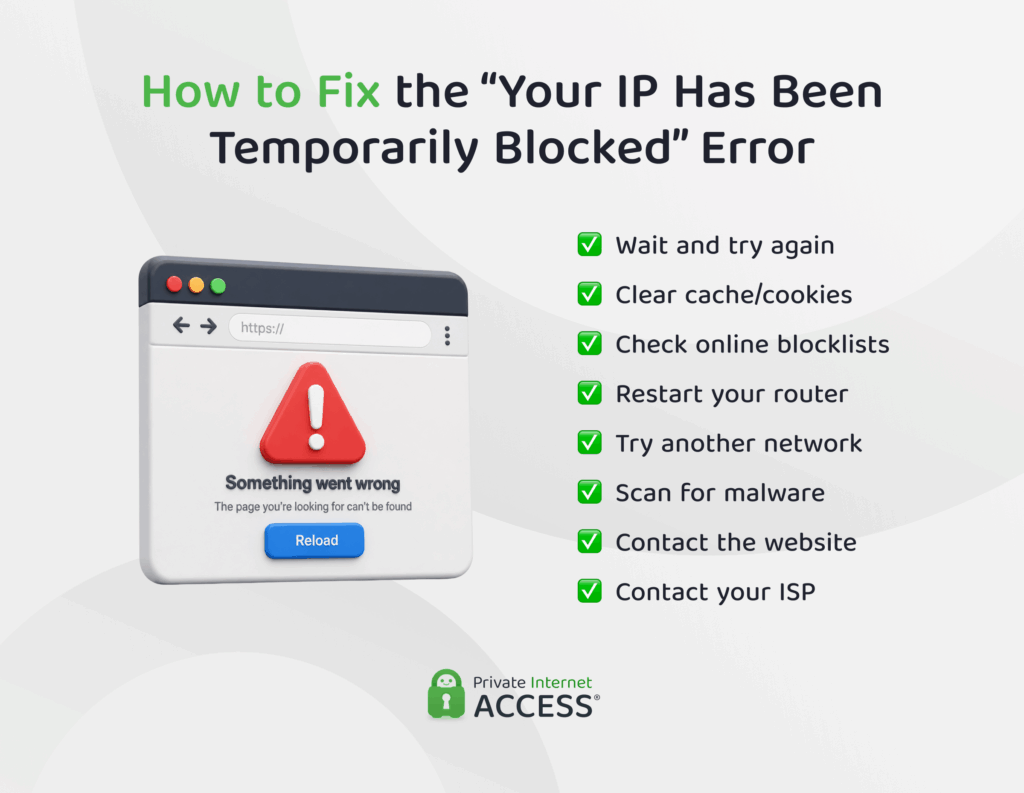
While some blocks expire on their own after a short period, others require you to take action. If multiple failed login attempts triggered the block, you may need to wait before accessing the site again. Otherwise, try the following:
Clear Your Cache and Cookies
Some websites may display an IP block error message when the problem is actually your browser. Cached files or cookies can cause a website to load incorrectly or retain an outdated session, which is usually easy to solve by clearing your cache and cookies. But before you do that, you can test for this issue by opening the site in an incognito or private window. If it works there, go ahead and clear your cache and cookies.
Check Your IP Address on Blocklists
If you continue seeing access errors, your IP address may be on a blocklist. IP blocklists track addresses associated with spam, malicious activity, or other suspicious behavior. Checking your IP against public blocklists can help identify broader reputation problems, but it won’t explain a block on a particular website.
Some options include:
- Spamhaus: Checks your IP against Spamhaus’s blocklists and provides information about any listing and possible next steps.
- MXToolbox: Checks your IP against more than 100 DNS-based blocklists for a broad overview.
- DNS Checker: Checks your IP against 50+ blocklists and shows the results in an easy-to-read table.
If your IP appears on a blocklist, check the listing details and follow the provider’s delisting process where appropriate.
Restart Your Router
If your ISP uses dynamic IP addresses, restarting your router may assign you a different public IP address. Turn off your router, wait for about 60 seconds, then turn it back on. This should give you a new IP address and if it’s not also blocked, should restore access. Note that this method won’t help if you have a static IP address.
Slow Down Repeated Requests
If you’ve been refreshing a page rapidly, running a script, or making frequent API calls, pause and space out your requests. Many rate-limit blocks lift once your traffic returns to a normal pattern, so waiting and slowing down is often enough to resolve them.
Switch Networks
Switching networks can also help you tell an IP-related block apart from a problem with the website, browser, or device. Try switching from Wi-Fi to mobile data (or vice versa), or use a phone hotspot for a laptop. If the site works on the other network, that suggests the problem originates with your original network or public IP address.
Scan for Malware
Malware on a device can generate unusual or malicious traffic without your knowledge. If a website detects malicious activity coming from your public IP address, it could contribute to your IP block. Run a full malware scan using a trusted security software and remove any threats it finds. If multiple devices share the same network, consider checking them as well.
Contact the Website Admin
If you’ve waited for the block to expire and still can’t access the site, contact the website or service. Explain what happened and include the exact error message, when the block occurred, and your public IP address. The support team may be able to explain what triggered the block or remove it if they applied it incorrectly.
Contact Your ISP
If the problem persists across multiple websites or you suspect your network is responsible, your internet service provider (ISP) may be able to help troubleshoot your connection. If your IP shows a history of suspicious activity you can’t explain, your ISP can also advise on next steps.
Types of IP Blocks
The website or its security infrastructure generates “Your IP has been temporarily blocked” messages. Network-level restrictions are different: in those cases, your ISP, employer, school, or another network operator may be preventing access.
- Server-side blocks: A website, online service, firewall, or web application firewall applies these, blocking a single IP address or a wider range of addresses when traffic appears suspicious, exceeds usage limits, or violates the service’s rules.
- Network-level blocks: An ISP, organization, or other network operator applies these, restricting access to particular websites, services, or IP ranges for reasons such as security, censorship, or legal requirements.
IP blocks can be temporary or permanent. Temporary blocks may expire after a set period, while permanent blocks may require the website or network operator to review and remove them.
Why Do IP Addresses Get Blocked?
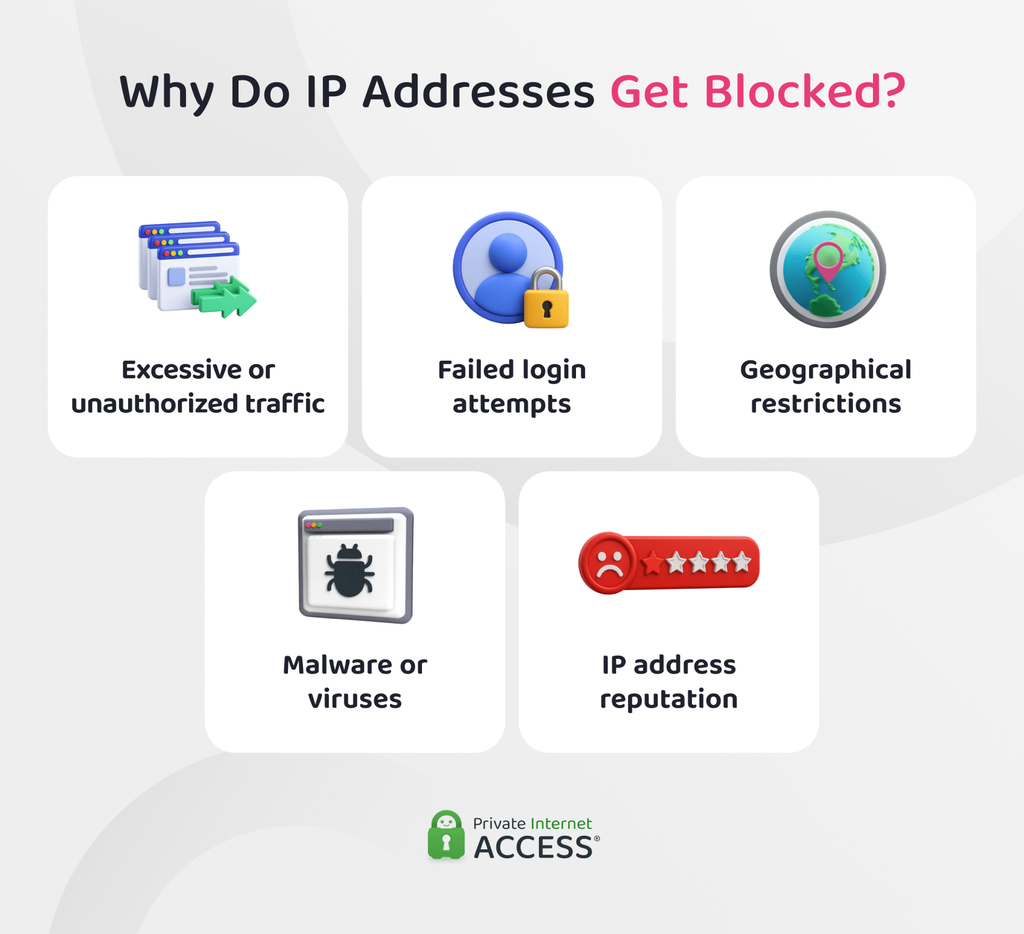
Here are some common causes of IP address blocks.
Excessive or Unauthorized Traffic
Excessive traffic, or traffic that violates a website or service’s terms and usage policies, can cause a temporary IP block. Services may flag traffic when it exceeds expected levels or appears to break their rules.
For example, repeatedly refreshing a page, sending too many requests, using automated tools or bots, or exceeding web scraping and API limits can trigger a block. Sending spam, using unauthorized automation, or attempting to bypass restrictions may also violate a service’s rules.
Failed Login Attempts
Repeated failed login attempts can trigger a temporary IP block. This security measure helps protect accounts from brute-force attacks, where an attacker systematically tries different passwords or credentials to gain unauthorized access.
If you enter the wrong password several times, a website may temporarily restrict further login attempts from your IP address. If you’re having trouble signing in, check your credentials or use the service’s password-reset process instead of trying to log in again and again.
Geographical Restrictions
Some websites and online services use your IP address to determine your approximate location. They may restrict access from certain countries or regions because of licensing requirements, local laws, or other business rules.
This is different from a security-related IP block. Here, your apparent location determines the restriction, not any suspicious activity the service detected.
Malware or Viruses
Malware on your device can generate suspicious traffic without your knowledge. For example, an infected device could send spam, make repeated requests, or redirect traffic via malicious servers. If a website detects this kind of activity, it may block the address to protect its systems and users.
IP Address Reputation
Websites and security services may consider the reputation of an IP address when deciding whether to allow its traffic. They’re more likely to block an address that’s associated with spam, malware, attacks, or other suspicious activity.
Shared IP addresses can also affect your IP reputation. If several users share the same public IP address, activity from one user can affect how online services view that address. In some cases, an IP address may also be targeted in an IP reputation attack, causing it to become associated with malicious or unwanted activity.
In some cases, using a dedicated IP address can mitigate some of these issues because the IP address is for your exclusive use only.
How to Help Prevent Your IP Address from Being Blocked
You can’t always prevent an IP block, particularly when you use a shared IP address or a service decides to restrict an entire IP range. However, the following habits can reduce your chances of triggering one:
- Browse responsibly: Don’t visit unsecured websites, click suspicious links, make excessive requests, send spam, or engage in other activity that could appear malicious.
- Keep your devices and software updated: Install security updates and use reputable antivirus and firewall tools to help protect your system against malware and other threats.
- Scan for malware: Check your devices for infections that could generate suspicious traffic without your knowledge.
- Follow website and service policies: Follow the terms of service and usage rules for the websites, apps, and platforms you use.
- Secure your accounts: Use strong, unique passwords and enable multi-factor authentication (MFA) to help prevent unauthorized access and repeated failed login attempts.
Can a VPN Help Prevent IP Blocks?
If you’re already using a VPN and a site blocks your IP address, try changing your IP address by reconnecting or changing servers. This may restore your access, although a VPN on its own probably won’t prevent IP blocks since you’re sharing your IP with other users, whose behaviour could be flagged as suspicious.
PIA VPN offers a Dedicated IP add-on that can help reduce the likelihood of IP address blocks, but access will still depend on what triggered the block.
FAQ
How do I fix an IP address block?
If a website temporarily blocks your IP address, wait for the restriction to expire before trying again. If you can’t access a site after waiting, restart your router, try a different network, check whether your IP appears on a blocklist, and scan your devices for malware. You can also contact the website or service that blocked your address.
Why do IP addresses get blocked?
IP addresses can be blocked when a website or service detects activity that appears suspicious, excessive, or unauthorized. Common triggers for IP blocks include too many requests, repeated failed login attempts, automated traffic, malicious activity, or an IP address with a poor reputation.
How long does a temporary IP block usually last?
It depends on the website or service, and there’s no fixed timeframe. Some blocks lift after a few minutes, particularly after failed login attempts, while others can last hours or longer if a broader reputation or traffic issue caused them. If a block doesn’t clear after a reasonable wait, the steps in this guide can help you identify and resolve the cause.
Can using a VPN get my IP blocked?
Sometimes. VPN servers often handle traffic from many users at once, so if others using the same IP address trigger a website’s security system, you may see blocks or CAPTCHAs even though your own activity was acceptable. A dedicated VPN IP address can help reduce this risk since it’s only assigned to you.
