Can iPhones Get Viruses? Everything You Need to Know
It’s extremely rare for an iPhone to get a virus, but not impossible. Apple has very high security standards, but risks can still appear, especially when devices are jailbroken or apps are installed from unofficial sources.
Read on to find out how to spot an iPhone malware infection, how to get rid of it, and how to prevent further infections.
Do iPhones Get Viruses? Why Viruses on iPhone Are Rare
The Apple iPhone operating system (iOS) is designed to make it difficult for a virus to spread throughout your device. A key part of this protection comes from iOS sandboxing, where each app runs in its own virtual space, entirely independent of other apps. Because apps have limited interaction with one another, malicious software has a much harder time moving across your device or interfering with other applications.
Apple also puts all App Store apps through a strict vetting process before they become available for download. In most regions, iPhone users are largely limited to installing apps from the official App Store, though some areas, such as the EU and Japan, now allow alternative app marketplaces and direct downloads from approved developers. Together, these safeguards help reduce the risk of malicious software ending up on your device.
How to Check for Viruses on an iPhone
1. Use Antivirus Software
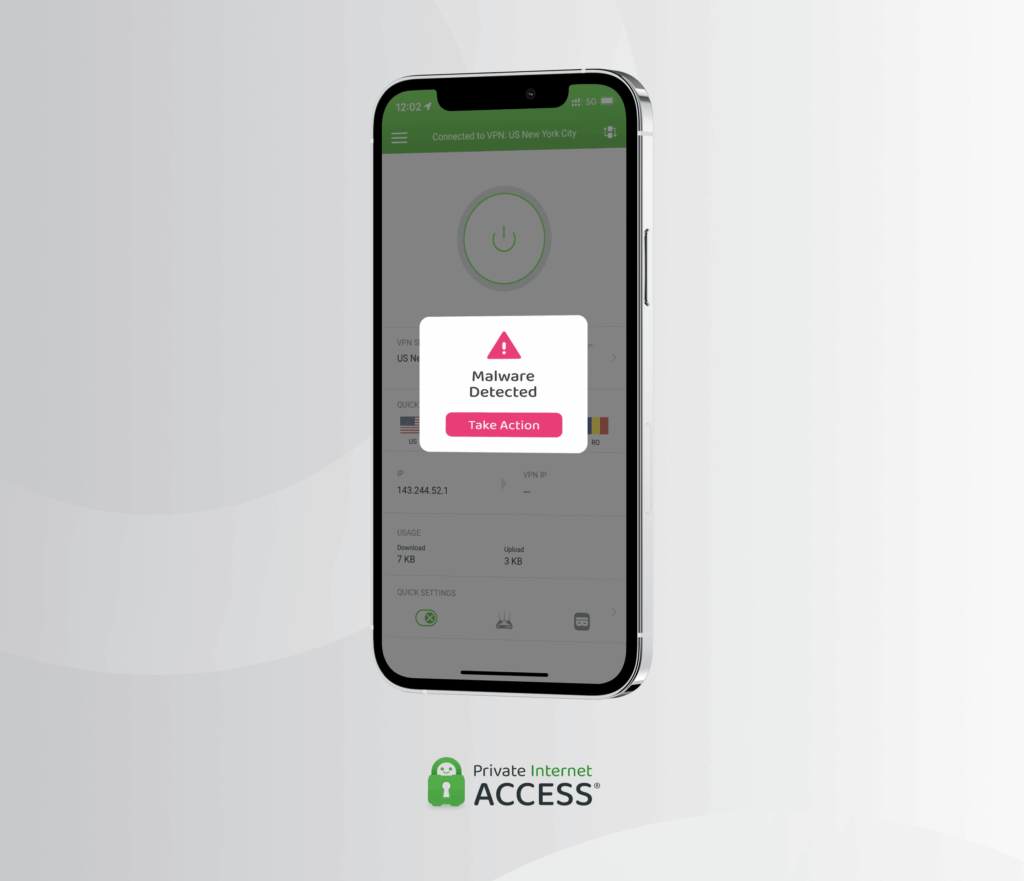
The fastest way to tell if your iPhone has a virus or malware is to scan your device using antivirus software for iOS. While Apple’s sandboxing system prevents these apps from fully scanning your entire device or inspecting other apps directly, they can still help detect and warn you about risks such as phishing attempts, unsafe websites, malicious links, suspicious network activity, and data breaches.
2. Check for Unfamiliar Apps
Look for unfamiliar apps on your phone. If you spot one, check its legitimacy by searching for it in the Apple App Store. Apps that don’t appear in the store could be suspicious and may be worth removing.
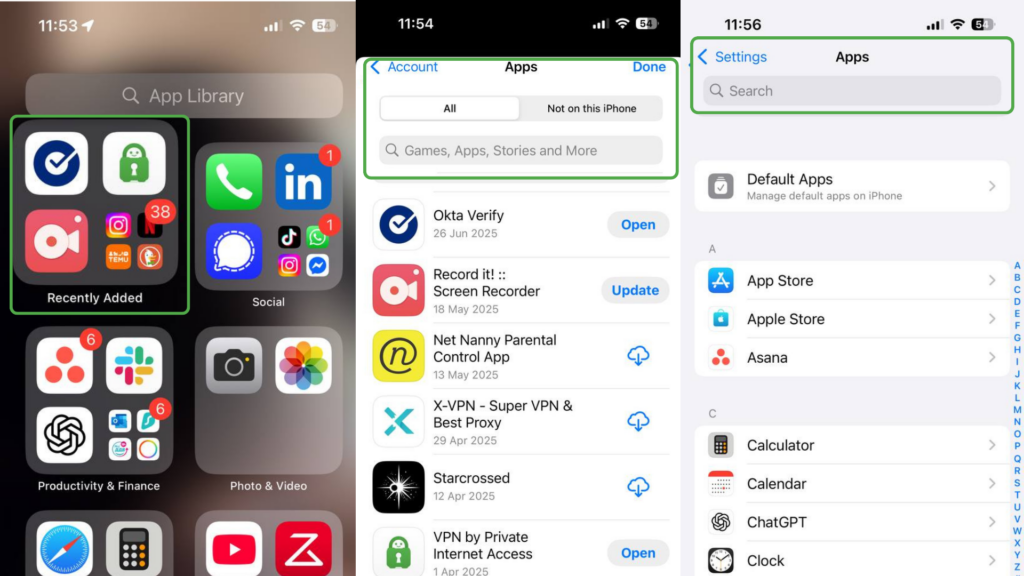
Some areas to check for unfamiliar apps on your iPhone include:
- On your home screen and the App Library: Swipe left past your last home screen to see the App Library and check the “Recently Added” section for new apps.
- Recent downloads in the App Store: Open the App Store, tap your profile icon, and select Apps to view recently downloaded or reinstalled apps.
- Your app list in Settings: Go to Settings, scroll down, and view the list of installed apps to check what’s currently on your device.
3. Keep an Eye Out for Pop-Ups
Downloading free games or browsing ad-heavy websites and social media platforms can increase exposure to suspicious pop-ups and scam alerts. One of the most common examples is a warning claiming that your iPhone has a virus and urging you to download a specific app to fix the problem.
Ironically, these so-called “cleaner” or “security” apps can sometimes contain malicious software themselves or trick you into giving away sensitive information. If a pop-up creates urgency or pressures you to install something immediately, it’s best to close the page and avoid interacting with it.
4. Monitor Device Performance
Keeping an eye on your iPhone’s overall performance can help you spot potential threats earlier.
Start by checking your data consumption. A sudden spike in mobile data activity, especially when using a specific app or service, could point to suspicious background activity or malicious software.
- Go to Settings > Mobile Service.
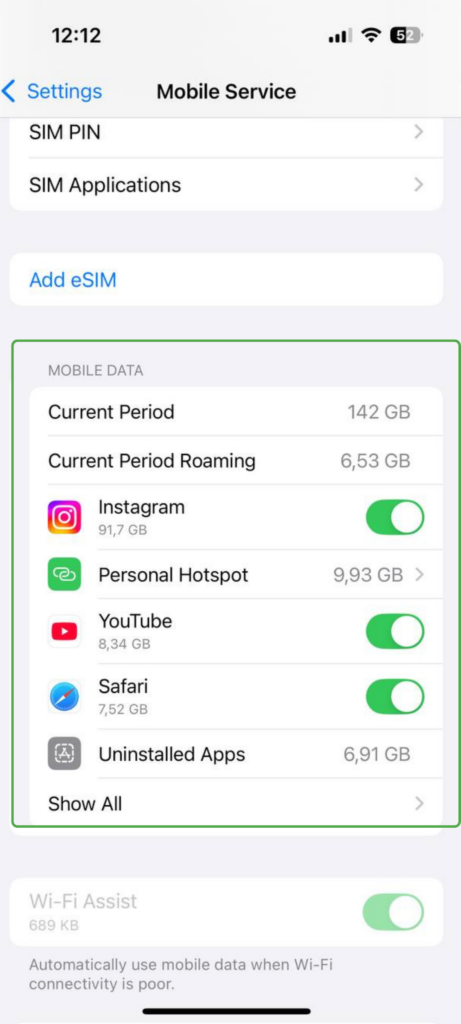
- Scroll down to view data usage by app.
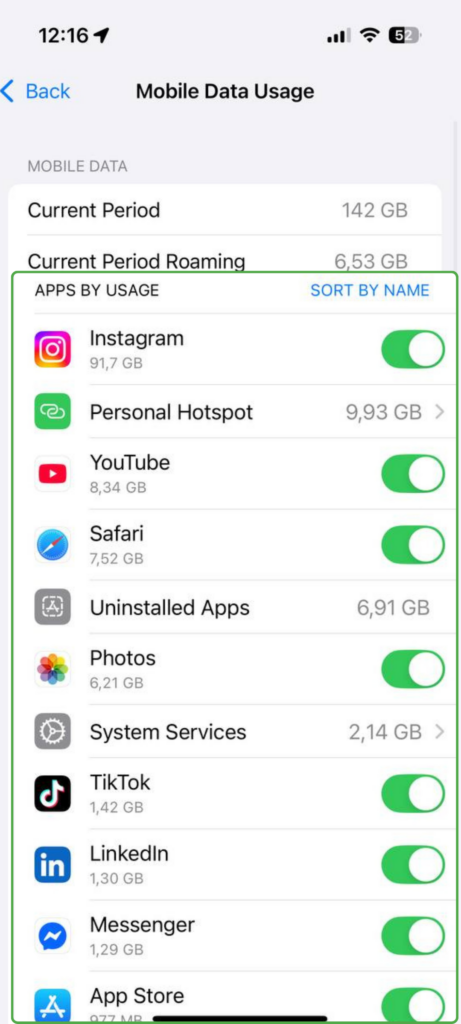
Next, check your power consumption.
- Go to Settings > Battery to see which apps are using the most power over the last 24 hours or 10 days.
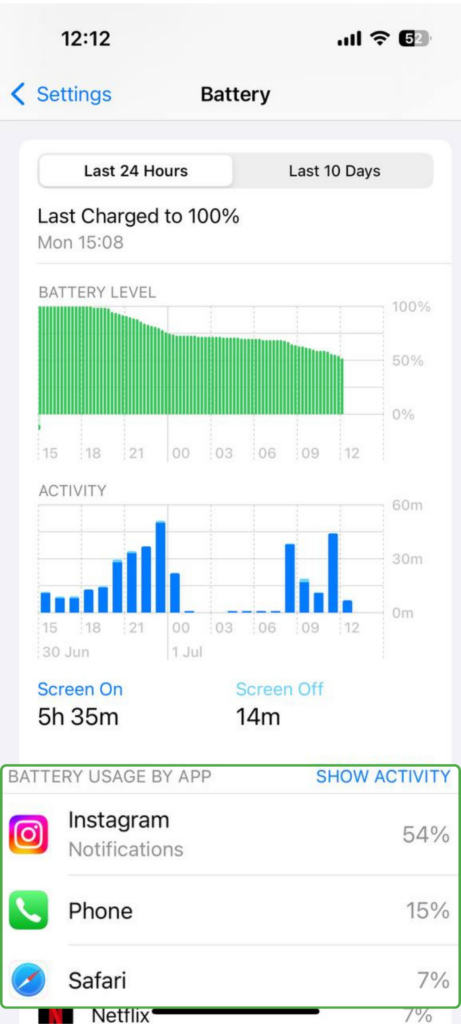
- Review which apps are using the most power – both on-screen and background activity.
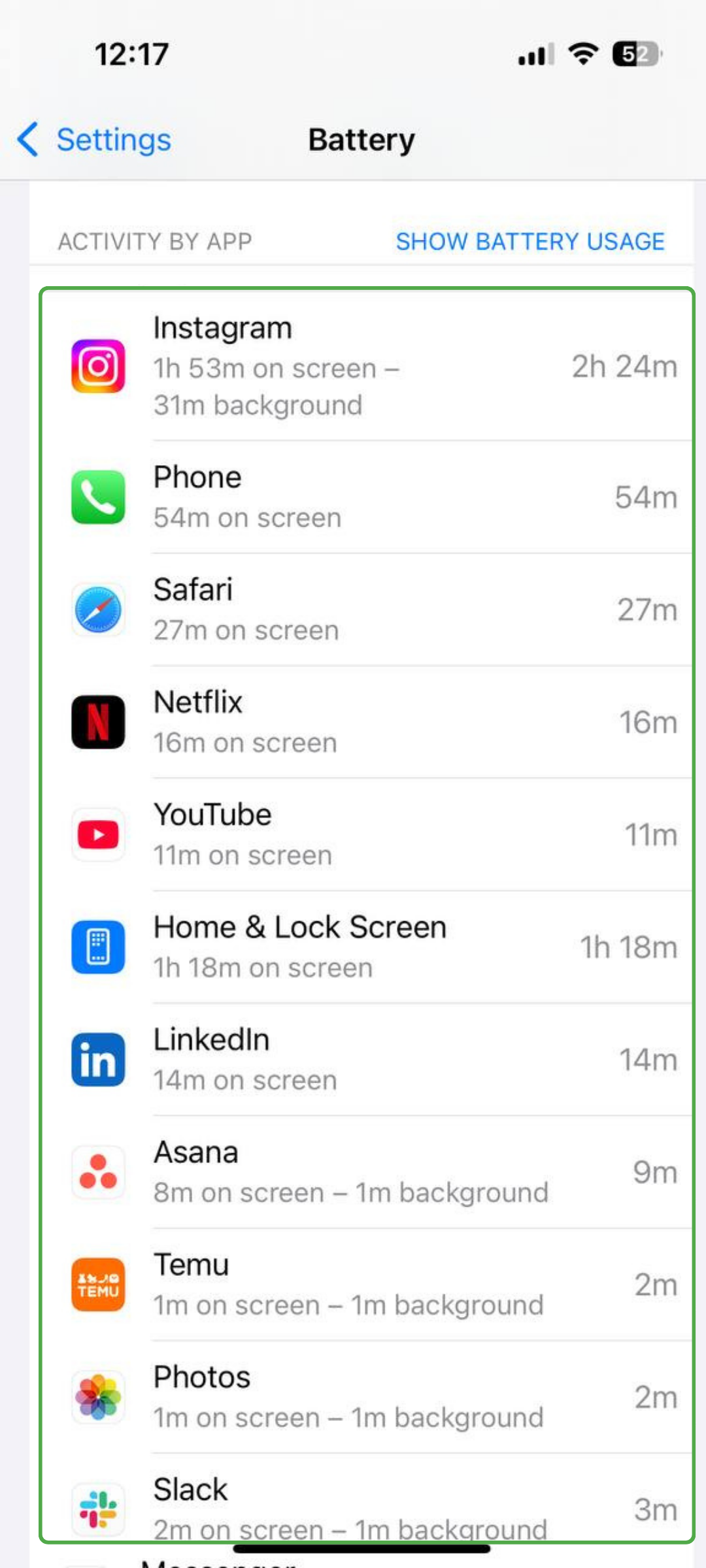
It’s normal for a battery to drain faster as it ages or when multiple apps and background services are running. However, if your battery suddenly starts depleting unusually quickly, especially on a relatively new device, it could point to malicious software or another underlying issue.
5. Check to See If Your iPhone Is Jailbroken
If you purchased your iPhone brand new from Apple, your mobile carrier, or a reputable retailer, jailbreaking is unlikely to be a concern. However, if you bought the device secondhand or from an unofficial seller, it’s a good idea to verify that the operating system hasn’t been modified before signing into personal accounts or storing sensitive information on it.
Jailbreaking removes some of Apple’s built-in security restrictions, which can increase exposure to malicious apps and other security risks. One of the clearest signs of a jailbroken iPhone is the presence of apps like Cydia, Sileo, or Zebra. These apps are not available through the official App Store and are typically only found on devices that have been jailbroken.
You may also notice unusual system behavior, missing built-in apps, or settings that appear altered. For example, if apps like Safari, Mail, or Podcasts are missing even though you didn’t intentionally remove or restrict them through Screen Time or app management settings, your iPhone may have been modified.
How to Remove Viruses from Your iPhone
If your iPhone has been infected with malicious software, there are several steps you can take to help clean up the device and reduce further risks.
1. Use an Antivirus Removal Tool
A reputable antivirus program for iOS devices can help contain and remove any viruses you might have on your iPhone, or, at the very least, guide you through safe cleanup steps. It’s a smart layer of defense if you suspect your phone has been compromised.
2. Clear Your Browser History
Malicious pop-ups, scam pages, and harmful scripts can sometimes linger in your browser cache even after you leave a website. Clearing your Safari history and website data can help remove cached content and reduce the chances of repeatedly loading harmful pages.
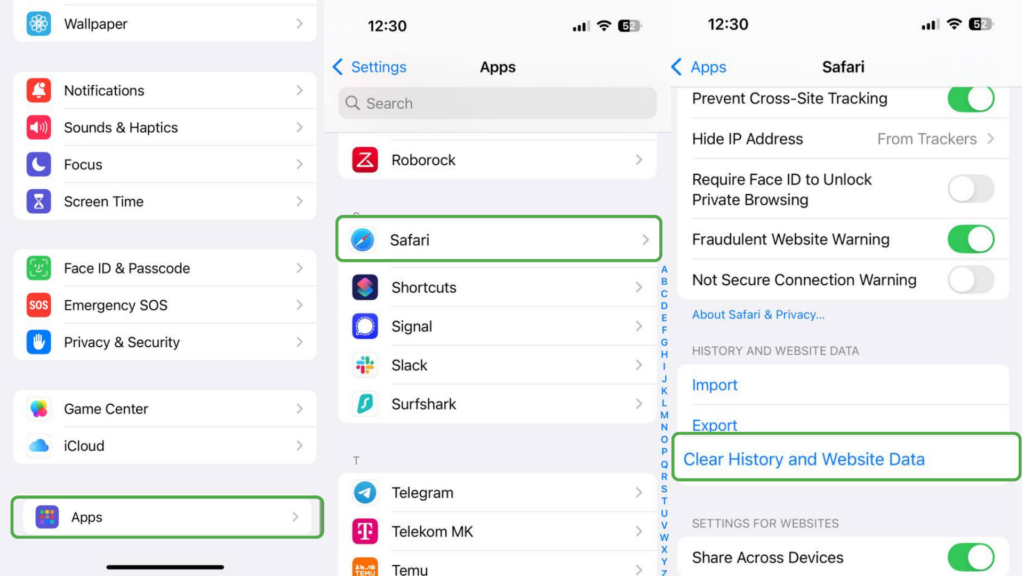
To clear your Safari data:
- Open Settings.
- Scroll down and tap Safari.
- Select Clear History and Website Data.
These steps may vary depending on your iOS version.
3. Uninstall Any Offending Apps
Any app that appears unfamiliar, behaves strangely, or wasn’t intentionally installed by you should be removed right away.
- Press and hold your finger on the app icon.
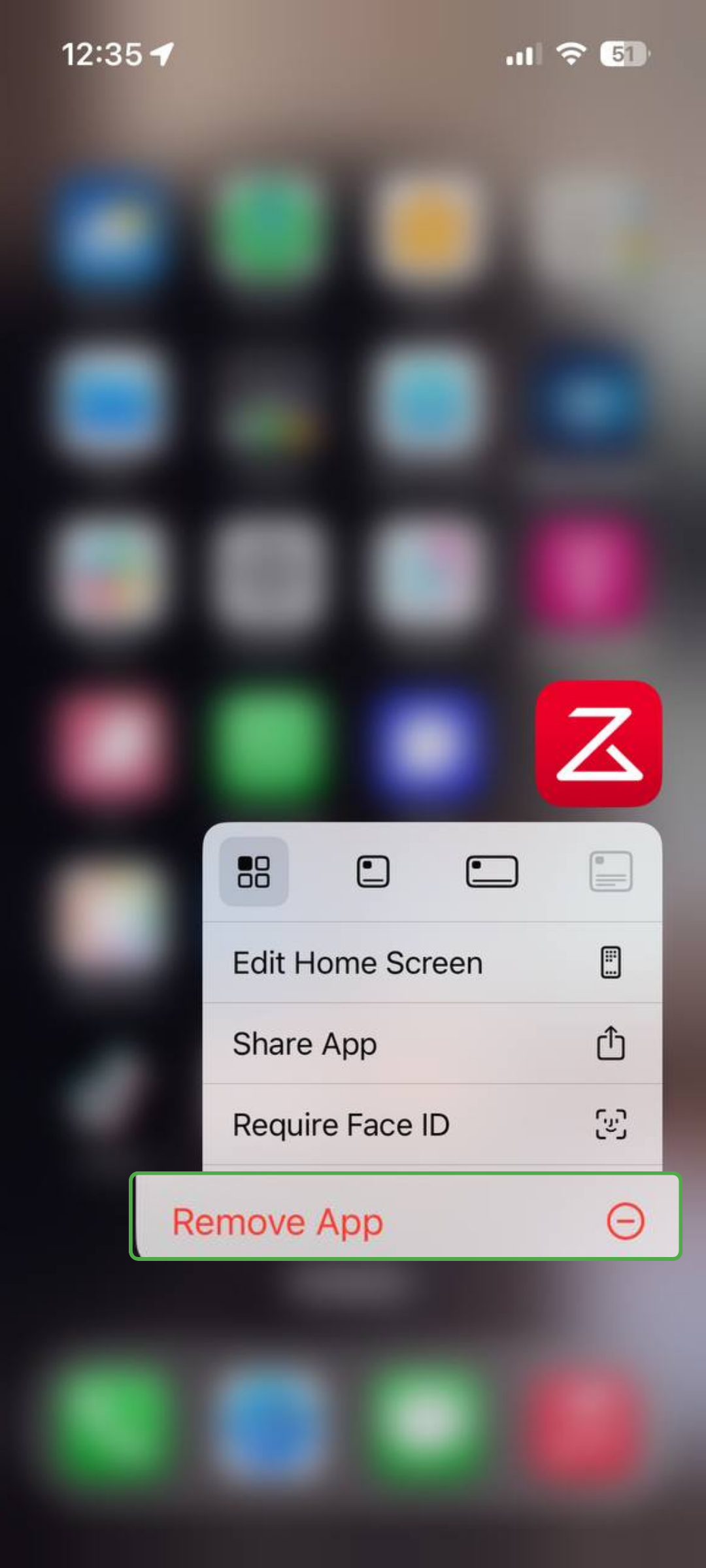
- When the prompt shows, tap Delete App.
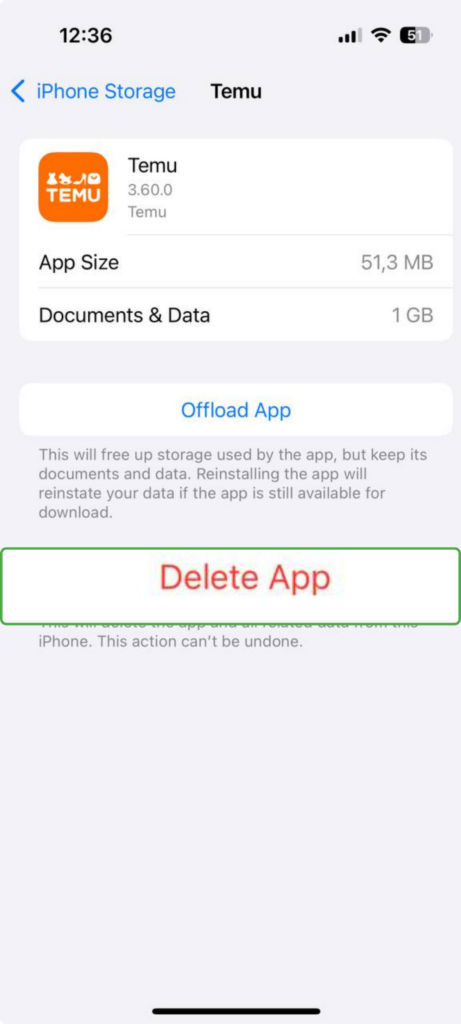
You can also remove suspicious apps through your iPhone settings. Open Settings, tap General, select iPhone Storage, and scroll through your installed apps. Tap the app you want to delete, choose Delete App, and confirm your choice. Afterward, restart your iPhone.
4. Restore Your iPhone to Factory Defaults
In the event you’ve jailbroken your phone or you purchased a secondhand device that may have been modified, restoring it to factory defaults can help remove malicious software and undo unauthorized system changes. A factory reset reinstalls a clean version of iOS and removes apps, settings, and files that could be causing suspicious behavior.
Even if your iPhone hasn’t been jailbroken, a factory reset may still help if you continue noticing unusual pop-ups, excessive battery drain, persistent redirects, or apps behaving strangely after troubleshooting. Before proceeding, make sure you back up any important photos, files, or account data you want to keep.
To restore your iPhone to factory defaults:
- Open the Settings app on your device and tap on General.
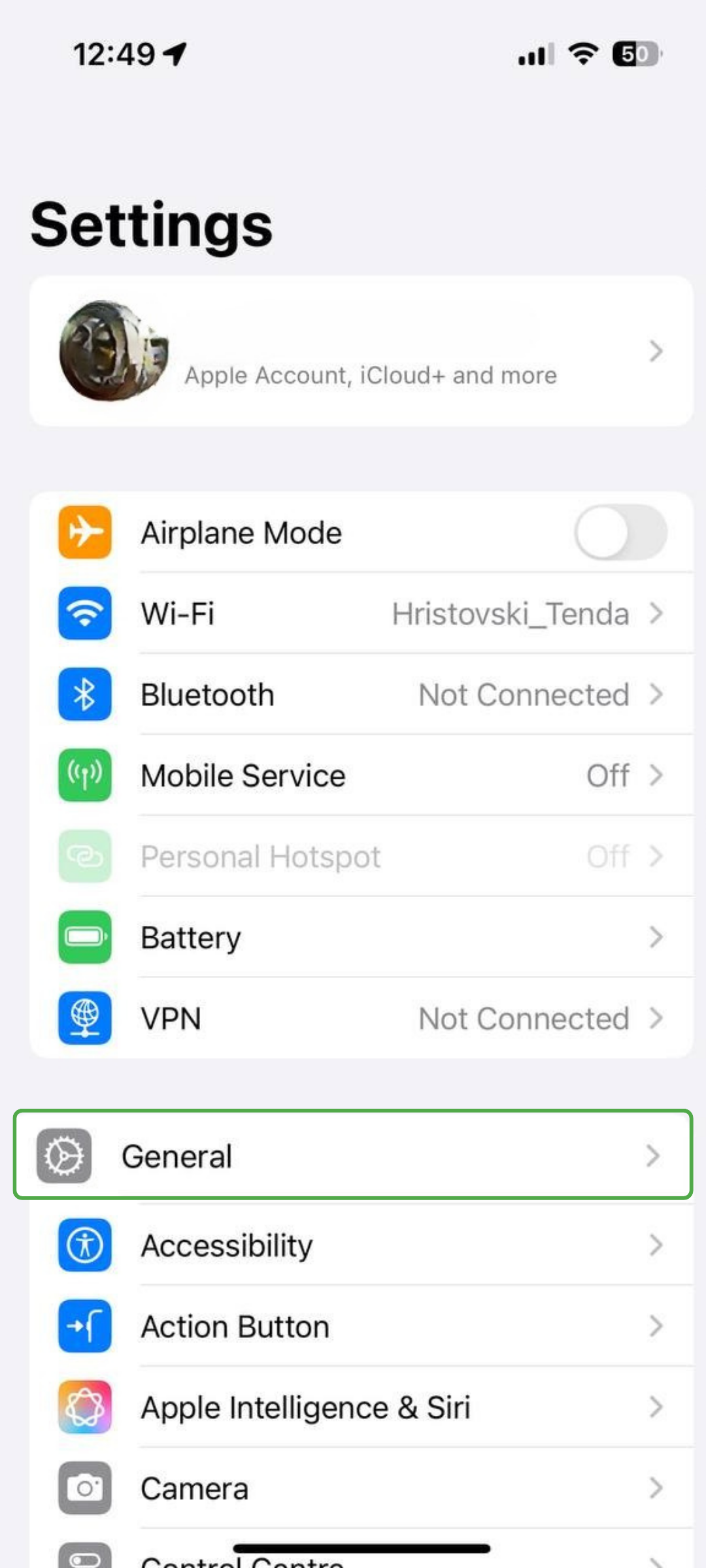
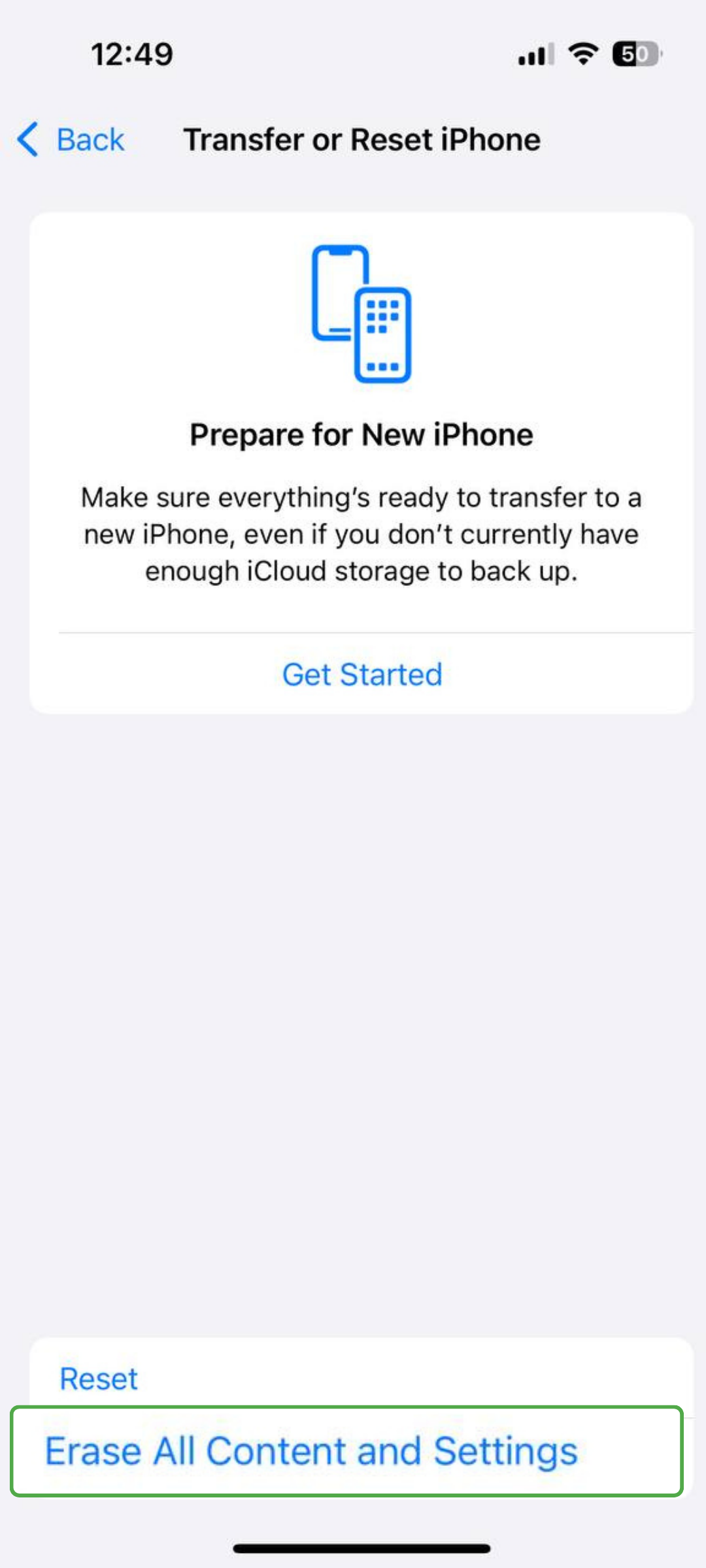
- Select Transfer or Reset iPhone (may also be under Reset).
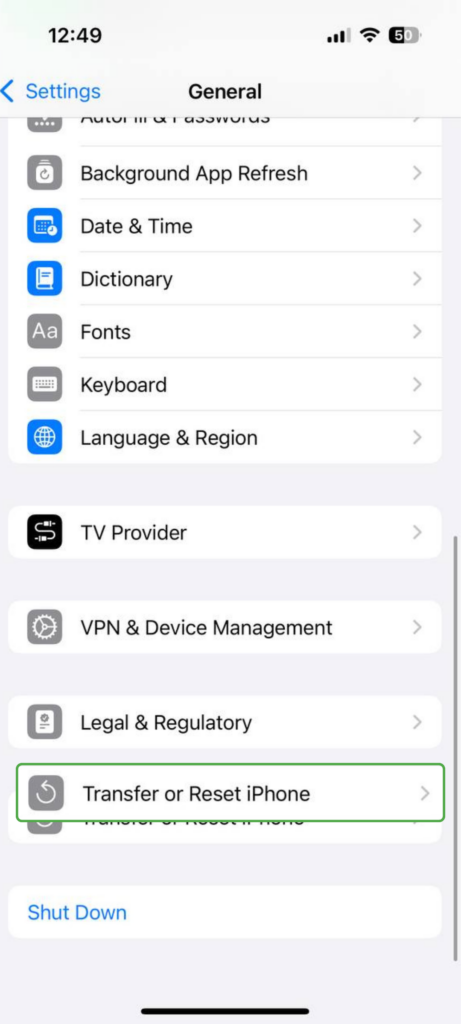
- Tap on Erase All Content and Settings. Enter your passcode or Apple ID password to confirm you want to erase all data and settings from your iPhone.
Once your phone restarts, go through the setup process as you would with a new device.
How to Protect Your iPhone from Malware
Most iPhone security issues stem from risky behavior rather than flaws in iOS itself. Classic examples are jailbreaking your device, clicking on suspicious links, connecting to unsafe networks, or downloading unvetted apps.
Fortunately, a few smart security habits can go a long way toward helping protect your iPhone and personal data:
- Avoid connecting your iPhone to unfamiliar or untrusted computers and devices.
- Perform a factory restore if you purchase a used iPhone from a private seller.
- Use strong passwords that have a mix of upper and lowercase letters, numbers, and symbols.
- Enable two-factor authentication (2FA) on your accounts whenever possible.
- Download apps only from trusted sources like Apple’s official App Store.
- Don’t jailbreak your phone.
- Keep iOS and installed apps updated to benefit from the latest security patches and bug fixes.
- Install antivirus software and an ad and malware blocker.
- Be cautious with links in text messages, emails, pop-ups, and social media ads, especially if they create urgency or ask for sensitive information.
- Delete any apps that make your device sluggish or glitchy.
- Use a high-quality VPN for iOS on public Wi-Fi to help protect your device from cyber attacks.
- Enable Block Pop-ups and Fraudulent Website Warnings in your Safari settings.
- Back up your iPhone regularly so you can restore important files if something goes wrong.
Expert Tip: Many cyberattacks rely more on manipulation than technical exploits. Fake virus warnings, phishing texts, malicious QR codes, and scam pop-ups are often designed to create panic and push you into acting quickly. Taking a few extra seconds to verify suspicious messages, websites, or download prompts can significantly reduce your risk of infection or data theft.
The Most Common Cases of Viruses and Malware on iPhone
Although rare, several real-world malware strains have targeted iPhones over the years, typically through jailbreaking, sideloaded apps, or developer tool exploits.
AceDeceiver
AceDeceiver was capable of infecting non-jailbroken devices. It exploited weaknesses in Apple’s FairPlay DRM system using a man-in-the-middle (MITM) technique. By capturing and reusing valid app authorization codes, attackers could make malicious apps appear as though they had been legitimately purchased and approved for installation.
The campaign relied on Windows-based helper applications (such as Aisi Helper) that mimicked iTunes to facilitate app installation. In most reported cases, the attack chain began with a compromised PC, often infected through bundled software or deceptive installers. Once the iPhone was connected, malicious apps could be installed silently by abusing trusted computer relationships.
AdThief
AdThief, also known as Spad, focused less on stealing passwords and more on generating fraudulent advertising revenue. The malware commonly spread through pirated iPhone apps and unofficial software downloads distributed outside Apple’s App Store.
Once installed, AdThief hijacked advertising frameworks by replacing legitimate developer advertising IDs with IDs controlled by attackers. This redirected ad revenue to cybercriminals whenever users viewed or clicked injected ads, including accidental clicks.
While less destructive than spyware or ransomware, AdThief demonstrated how malicious iPhone apps could still manipulate devices for financial gain.
KeyRaider
KeyRaider was a large-scale iOS malware campaign that specifically targeted jailbroken iPhones. The malware stole Apple ID usernames, passwords, certificates, private keys, and purchasing information from infected devices.
Cybercriminals primarily used the stolen credentials to make unauthorized App Store purchases and distribute paid apps for free through unofficial app repositories. In some cases, compromised accounts were also linked to extortion attempts and broader account abuse.
Researchers estimated that KeyRaider compromised more than 225,000 Apple accounts at its peak, making it one of the largest known credential-theft campaigns targeting iPhone users.
Pegasus
Pegasus is a highly sophisticated iPhone spyware tool capable of monitoring device activity and collecting sensitive information such as your messages, passwords, microphone recordings, camera access, location data, and keystrokes. Because the spyware compromises the device itself, even encrypted apps like WhatsApp, Signal, and Messenger may not fully protect your data once an infection occurs.
Earlier Pegasus campaigns often relied on phishing texts and malicious links designed to trick you into opening infected webpages. Over time, however, the spyware evolved to use advanced “zero-click” exploits that require no user interaction at all. Some documented attacks exploited vulnerabilities in iMessage to silently infect iPhones in the background without the victim noticing.
Pegasus drew global attention after investigations linked it to targeted surveillance campaigns involving journalists, activists, government officials, and political figures.
WireLurker
This malware is known to infect iPhones through multiple channels, including USB connections to compromised macOS devices and third-party app stores installed after jailbreaking.
Once installed, WireLurker can collect sensitive information, install malicious apps, and interfere with certain device functions. The malware was first discovered in China before spreading to other regions through infected applications and file-sharing platforms.
XcodeGhost
XcodeGhost was a large-scale iOS software supply-chain attack that targeted Apple’s app development ecosystem rather than iPhones directly. Attackers distributed trojanized versions of Apple’s Xcode development tool through unofficial download mirrors, primarily in China, where slow Apple CDN speeds made third-party sources more appealing to some developers.
Developers who unknowingly used these modified Xcode packages during app development unintentionally injected malicious code into their apps. Some of those infected apps later passed Apple’s App Store review process and were downloaded by end users.
Because the malicious code was embedded during development, users didn’t need to install suspicious software directly to be affected. Depending on the app’s permissions, XcodeGhost could collect limited device and app information, communicate with remote servers, display phishing prompts, or open malicious URLs.
While the original outbreak was largely contained, the incident remains one of the most notable examples of a software supply-chain attack affecting the iOS ecosystem.
YiSpecter
Malicious links, apps, and configuration files are all fair game for Yispecter; it doesn’t rely on just one method to infect an iPhone. If you thought ad bombing was a thing of the past, think again. Once Yispecter infects a device, it can flood it with unwanted ads, redirect users to malicious websites, and steal personal and device data.
While Yispecter has been more prominent in China and Taiwan, reports suggest it has spread beyond those regions over time. Typical users are less likely to encounter it, as it primarily targets enterprise environments, such as businesses that deploy Apple devices at scale.
FAQs
Can iPhones really get viruses or malware?
Yes. Jailbreaking your iPhone is the most common way to get viruses and malware, but unaltered phones can become infected if you click on a suspicious link in a text or email. Ultimately, any device that connects to the internet can get a virus, so it’s important to take preventative measures.
How do I check if my iPhone has been infected with a virus?
If an iPhone starts behaving unusually, there are several warning signs worth paying attention to. Frequent pop-ups, unexpected Safari redirects, rapid battery drain, and apps crashing repeatedly are some of the signs that can point to suspicious activity. Unfamiliar apps, strange settings changes, or login alerts for accounts may also be red flags.
How can I safely remove a virus from my iPhone?
Start by removing any unfamiliar or suspicious apps. Clearing Safari data can also help get rid of malicious redirects, trackers, or harmful website data. iPhones don’t support traditional antivirus scans in the same way PCs do, but a trusted antivirus can still help detect suspicious files. The most reliable way to remove a virus from your iPhone is to perform a factory reset.
What are the warning signs of malware on an iPhone?
Frequent app crashes, unexpected Safari redirects, unusually high data usage, overheating, and rapid battery drain are some signs of malware or suspicious activity on an iPhone. If these issues appear suddenly, review recently installed apps, check for unknown profiles, and consider using a trusted security tool to help identify potentially harmful activity.
Do iPhones need antivirus apps to stay protected?
Any device that connects to the internet can benefit from antivirus protection and other privacy and security apps like a VPN or ad and malware blocker. These apps can enhance the already strong security and privacy provided by iOS.
Are suspicious apps and links the main cause of infections on iPhones?
Jailbreaking is one of the main reasons iPhones become vulnerable to malware because it weakens Apple’s built-in security protections and allows unofficial apps to be installed. Phishing and smishing attacks are also common causes of iPhone infections.
