How to Secure Home Wi-Fi: A Complete Guide

Your router controls every device on your home network, so a few weak settings can expose your whole household to unauthorized access. Securing it comes down to three things: controlling who connects, locking down the router itself, and keeping its security settings up to date.
This guide covers common home network vulnerabilities, the router settings that fix them, and how to tell when a device on your network doesn’t belong there.
How to Secure Your Home Wi-Fi: Before You Start
While the concepts are the same across all routers, the steps differ from brand to brand. You may manage your router through a browser-based admin page, a manufacturer app, or an internet service provider (ISP) app, so the names of individual settings can vary. If you can’t find an option mentioned below, check the official instructions for your router model.
If your router is working normally and you trust its current configuration, you may want to save a settings backup before making major changes. That gives you a known starting point if you accidentally change something you didn’t mean to.
Secure Your Router Admin Account and Wi-Fi Credentials
Your router normally has two separate types of credentials: the admin account and the Wi-Fi password. The admin account controls access to the router’s settings, while the Wi-Fi password controls which devices can join the wireless network. These should use different, strong passwords, so if someone learns one, the other stays safe.
Some older routers use generic admin credentials that are easy to guess, while newer models may come with a unique password printed on the device. If your router lets you change a generic admin username, change it along with your password.
For routers managed through a manufacturer account, enable multi-factor authentication (MFA) if the service supports it. When you finish changing router settings, sign out of the admin panel, especially if you’re using a shared computer.
Physical placement matters too. Keep the router somewhere visitors can’t casually reach its controls or wired ports, without enclosing it so heat builds up or the Wi-Fi signal suffers.
Use WPA3 Personal if Your Devices Support It
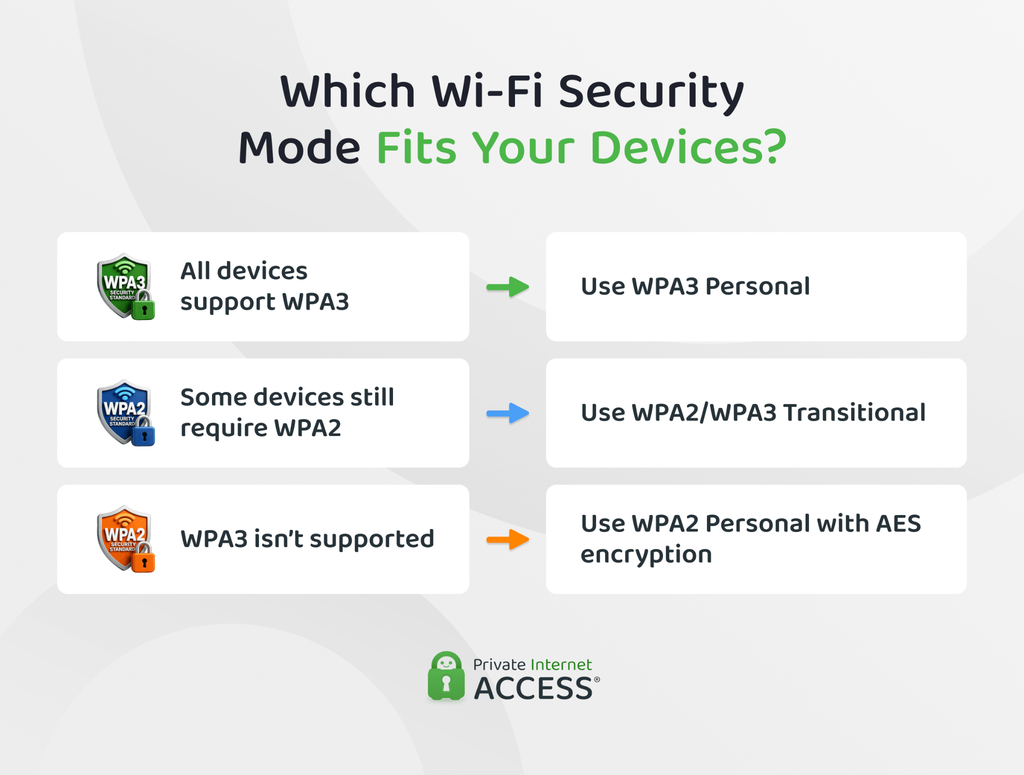
The Wi-Fi security mode determines how devices prove they’re allowed to connect and how it protects traffic over the wireless link. Wi-Fi Protected Access 3 (WPA3) is the strongest current option for a typical home network when both the router and your devices support it.
If some older devices can’t use WPA3, WPA2/WPA3 Transitional mode lets compatible devices use WPA3 while still allowing Wi-Fi Protected Access 2 (WPA2) connections. If WPA3 isn’t available at all, WPA2 Personal with Advanced Encryption Standard (AES) remains the fallback.1
Avoid Wired Equivalent Privacy (WEP), original WPA, and Temporal Key Integrity Protocol (TKIP)-based security. These are older standards that no longer provide the protection a modern home network needs.
Keep Your Router Firmware Updated
Routers run their own software, known as firmware, which manufacturers update periodically to fix security flaws. Staying up to date with them ensures those fixes reach your router.2
Many newer routers can install updates automatically. If yours offers that option, enabling it removes the need to check manually. Otherwise, look for firmware or software updates in the official router interface or on the manufacturer’s support page.
ISP-provided routers work a little differently. Your provider may install updates remotely without giving you a manual update option, so check its documentation if you’re unsure how your provider handles updates.
Tech tip: Update firmware through an official manufacturer or ISP channel. Files from third-party download sites may be outdated, modified, or intended for a different hardware revision.
Turn off Unnecessary Features and Reduce Internet-Facing Exposure
Some router features make networking more convenient by opening access or changing network settings automatically. That can be useful, but there’s little benefit in leaving such a feature active when none of your devices use it. These include:
- Remote management: This lets you reach the router’s admin interface from outside your home network. If you only manage the router while you’re at home, you probably don’t need it enabled.
- Wi-Fi Protected Setup (WPS): WPS lets devices connect without manually entering the usual Wi-Fi password. Some implementations, especially PIN-based WPS, have known weaknesses, so disable it when you don’t use it.3
- Universal Plug and Play (UPnP): UPnP allows compatible apps or devices to request changes such as port mappings automatically. Some games, consoles, or media apps may depend on it, so check before switching it off.
- Router firewall: Most home routers include a firewall that controls unsolicited inbound connections. It should normally stay enabled, but it isn’t a substitute for security on the devices themselves.
- Port forwarding: A forwarding rule deliberately makes a service on your network reachable from outside. If you see old rules you no longer recognize or use, remove them to avoid unnecessary exposure.
- Demilitarized zone (DMZ) host: This setting can expose one device much more broadly to incoming traffic. Most home users don’t need it and should leave it disabled unless a specific setup requires it.
Separate Visitors and Smart Devices From Your Main Network
Not every device that needs internet access also needs access to the rest of your home network. A guest or isolated network can give less-trusted devices internet connectivity while limiting their ability to reach computers, shared storage, or other local resources.
For visitors, this means you don’t have to give out the password for your primary network. A separate network can also make sense for smart-home devices that only need to communicate with an online service.
That doesn’t mean every smart device belongs on an isolated network. A smart speaker, hub, or media device may need to communicate directly with your phone or another device at home. Moving it to a separate network can break those local features.
Guest networks also don’t work identically on every router. Look for options such as local network access, intranet access, or client isolation. These settings determine whether devices on the guest network can communicate with your main local area network (LAN).
Check Which Devices Are Connected to Your Wi-Fi
Your router’s interface shows which devices are connected now or have connected recently. This can vary by router, but you may see a device name, private IP address, Media Access control (MAC) address, or manufacturer.
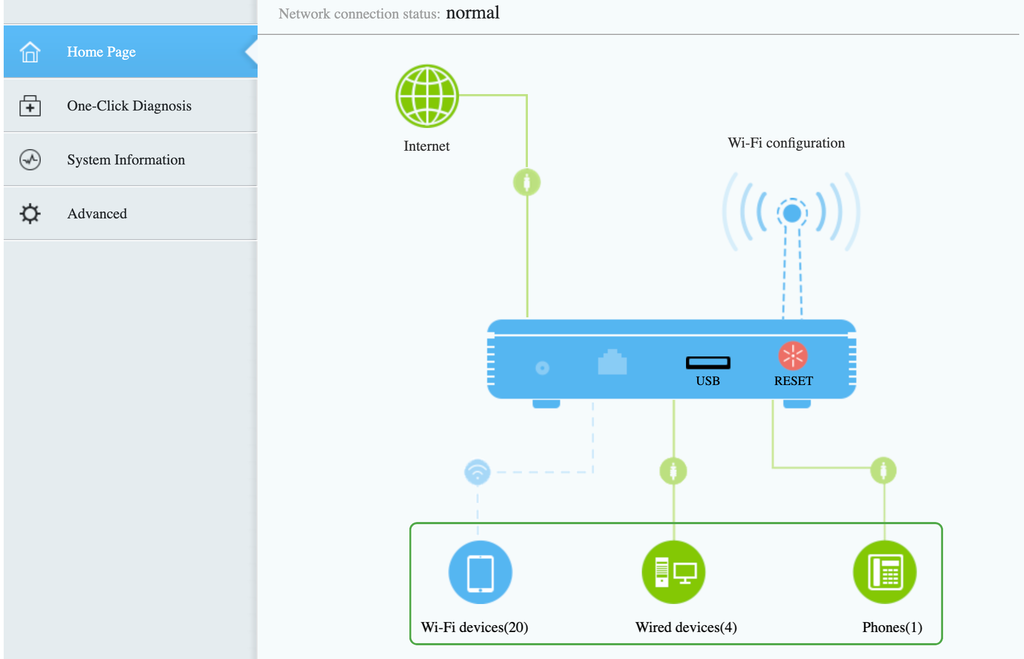
You might see an unfamiliar entry, but don’t immediately flag it as an intruder. Phones and smart devices often appear under generic names, while private MAC addresses can make familiar devices look different. If you’re unsure what an entry belongs to:
- Compare the list with the devices currently in your home.
- Disconnect one suspected device from Wi-Fi.
- Refresh the router’s device list and see which entry disappears.
That simple check can help distinguish an unfamiliar label from a genuinely unknown device. Many routers also let you allow or block devices using their MAC addresses. This can be useful for basic administration, but don’t treat it as strong access security because MAC addresses can be changed or spoofed.
Secure Mesh Nodes, Wi-Fi Extenders, and Additional Access Points
In many homes, the main router isn’t the only device providing Wi-Fi. Mesh nodes, extenders, standalone access points, or secondary routers may all broadcast or extend the network, which means they also become part of its security boundary.
Start by identifying every device that provides wireless access in your home. Most mesh systems let you manage every node centrally through one app, so changes can apply automatically across the network. An older extender or secondary router may instead have its own admin interface and separate settings.
Independently managed equipment should follow the same security baseline as the primary router. If you find an old extender or access point you no longer use, disable or remove it instead of leaving a forgotten wireless entry point active.
Replace a Router That No Longer Receives Security Support
A router doesn’t stop working when its manufacturer ends support, but newly discovered security flaws may remain unpatched.4
Consider replacing it when security support officially ends or a serious vulnerability affects the model without an available fix. If your ISP owns the equipment, contact the provider about a replacement.
There’s no fixed age at which every router becomes insecure. Support status matters more than age – an older router that still receives security updates may be safer than newer hardware that’s no longer supported.
What Can Put Your Home Wi-Fi at Risk?
Home Wi-Fi security can fail at several points, such as:
- Unauthorized network access: Someone may get onto your Wi-Fi if the password is weak, exposed, or someone who should no longer have access still knows it. They can then use your connection and may reach shared local resources.
- Weak or obsolete Wi-Fi security: Even a strong password can’t fully protect your network if it still runs on an outdated wireless security standard like Wired Equivalent Privacy (WEP) or Wi-Fi Protected Access (WPA), which attackers can crack far more easily than current protocols.
- Router compromise: An attacker may gain control through a software flaw or exposed management feature. They can then change settings that affect connections or redirect network traffic.
- Compromised connected devices: A vulnerable laptop, phone, or smart device can create risk from inside the network. This can happen even when you’ve properly secured the Wi-Fi connection.
- Physical access: Someone who can physically reach the router may be able to interfere with it or connect directly to the local network, depending on the hardware.
What to Do If You Think Your Home Wi-Fi Has Been Hacked
Slow Wi-Fi, dropped connections, or an unfamiliar device name don’t prove someone has compromised your network. Stronger evidence includes a device you’ve confirmed is unauthorized, router settings changing without your input, or known admin credentials suddenly failing.
If you find signs like these, focus on restoring control and checking whether you can still trust the router’s configuration.
- Use a trusted device: Access the router from a computer or phone you have no reason to suspect is compromised. Otherwise, a problem on that device could interfere with your recovery efforts.
- Check security-sensitive settings: Review administrator accounts, Domain Name System (DNS) settings, remote management, and port-forwarding rules for changes you didn’t make. You don’t need to inspect every router option — focus on settings that can affect access or traffic handling.
- Factory-reset the router: A reset makes sense when you can’t confidently identify or remove unauthorized changes. It erases custom settings, so you’ll need to configure the router again afterward.
- Be careful with configuration backups: Don’t restore a backup you made after the suspicious activity began, since it may contain unwanted changes too. When you can’t trust the backup, configure the router from a known-clean state instead.
- Reset exposed credentials: Change any admin or Wi-Fi credentials that you know, or reasonably suspect, someone else obtained. There’s no need to replace unrelated passwords without evidence they were affected.
- Reconnect trusted devices gradually: Add devices back one at a time. If suspicious behavior returns after a particular device reconnects, isolate and investigate that device before putting it back on the network.
- Contact your ISP if necessary: Your provider may need to help if it controls the router’s firmware or configuration, or if you can’t regain admin access to provider-managed equipment.
Can a VPN Make Your Home Wi-Fi More Secure?
A VPN can protect your internet traffic, but it doesn’t secure the Wi-Fi network itself. It encrypts traffic between your device and the VPN server, including while that traffic crosses your home network and ISP connection.
Some compatible routers can also run a VPN directly, extending this protection to devices that can’t use a VPN app, such as certain smart TVs or consoles.
A VPN can’t control Wi-Fi access, change router security settings, update the router, or separate devices on the LAN, so it complements those protections rather than replacing them.
FAQ
How can I tell if my home Wi-Fi is secure?
A secure home Wi-Fi network should use a up-to-date WPA security mode and a router that still receives security updates. Router settings should also be protected from unauthorized changes, with no confirmed unknown devices connected to the network.
How do I restrict access to my home Wi-Fi?
WPA3 or WPA2 authentication restricts access by requiring the correct Wi-Fi password before a device can join. In addition, a separate guest network can give visitors internet access without giving them the same access to your main local network or sharing your main password.
How can you protect your home Wi-Fi from being hacked?
Start with strong Wi-Fi authentication and secure access to your router’s administration settings. Keep the router’s firmware up to date to address known security vulnerabilities, and disable unnecessary features that expose your network or devices to the internet.
What is the most secure Wi-Fi option to use?
WPA3 Personal is currently the preferred security mode for a typical home Wi-Fi network. WPA2/WPA3 Transitional can help when older devices still need WPA2, while WPA2 Personal with AES is a suitable fallback when WPA3 isn’t available.
Should I hide my Wi-Fi network name (SSID)?
No, hiding your SSID doesn’t meaningfully improve Wi-Fi security, as your network can still be detected. It can also cause connectivity problems on some devices, and may cause devices to reveal the name of a hidden network when searching for it. If you want to control access to your network, WPA authentication is probably the best solution.
How often should I change my Wi-Fi password?
A strong, unique Wi-Fi password doesn’t need to change on a fixed schedule. A change makes sense if the password may have been exposed, someone who should no longer have access still knows it, or unauthorized access has been confirmed.
Resources:
