What’s a Good Connection Speed for PS5? Tips for Better Speeds
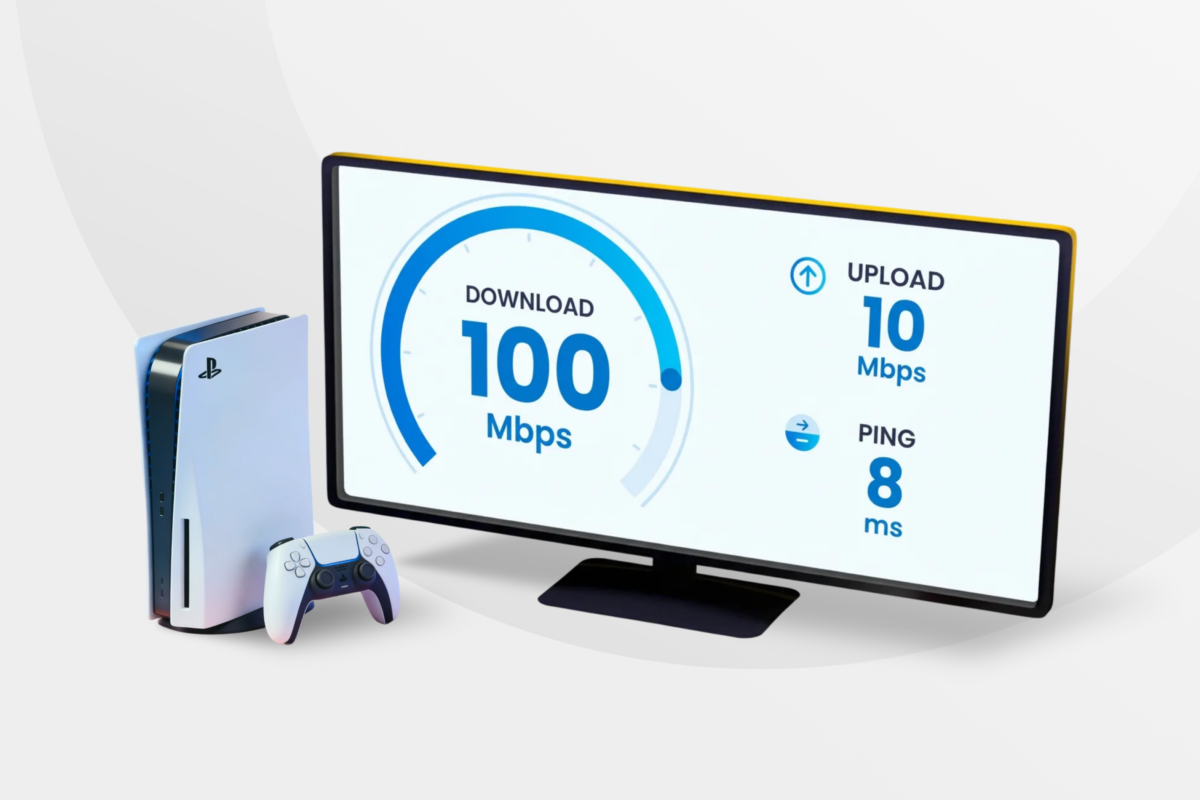
A fast and reliable internet connection is essential for getting the most out of your PlayStation 5 – whether you’re playing online multiplayer games, downloading large titles, or streaming in 4K. But what exactly qualifies as a “good” connection on a PS5?
In this guide, we break down recommended download and upload speeds, latency benchmarks, and tips to keep your PS5 connection stable.
Before We Get Into It: Understanding Internet Speed Terms for PS5
To make sense of the speed recommendations, it helps to know what each term means and why it matters for different activities on your PS5.
- Download speed: Determines how quickly your PS5 can receive data from the internet. It affects how fast you can download games and in-game updates, and how smoothly you can stream, especially in higher resolutions.
- Upload speed: Controls how fast your PS5 sends data to game servers and other services. It impacts real-time multiplayer performance, voice chat quality, game hosting, and livestreaming.
- Ping (latency): Measures how long it takes (in milliseconds) for data to travel from your PS5 to a server and back. Lower ping means faster response times and more responsive gameplay.
What’s a Good Internet Speed for PS5?
For a smooth PS5 experience, aim for at least 50 Mbps download, 10 Mbps upload, and latency under 50 ms.
Sony recommends at least 5 Mbps download and upload speeds to use online features on the PS5 and PlayStation Portal Remote1.
In reality, these speeds are just the technical baseline that’ll allow you to get online, join matches, and use the PlayStation Store. Connections at this level can still lead to lag spikes, slow downloads, and occasional disconnects.
PS5 Internet Speed Requirements by Activity
The internet speed you need also depends on how you use the console. Playing Call of Duty online requires different bandwidth and latency than downloading a 90 GB patch or streaming an UHD movie.
| Use Case | Download (Mbps) | Upload (Mbps) | Ping (ms) |
| Single-player Gaming | 1+ | 1+ | – |
| Casual Online Gaming | 5–15 | 5 | < 100 ms |
| Competitive Online Play | 30–50 | 10–15 | < 60 ms (ideally <50 ms) |
| Game Downloads and Updates | 50–100+ | – | – |
| HD Streaming | 5 | – | – |
| 4K/UHD Streaming | 25+ | – | – |
| Audio Streaming | 1–2 | – | – |
| Cloud Gaming (PlayStation Plus) | 15–30 | 5–10 | < 50–70 ms |
| Remote Play / PS Portal | 15–25 | 5–10 | < 60 ms |
Below, we break down the optimal internet speeds for the most common use cases on PS5.
Good Internet Speed for Gaming on PS5
⚠️ Minimum: 15 Mbps download / 5 Mbps upload
✅ Ideal: 30+ Mbps download / 10+ Mbps upload
A download speed of 15 Mbps and an upload of 5 Mbps is often enough to play online without constant lag, rubberbanding, or disconnects. But it really depends on what you’re playing:
Casual Online Gaming
⚠️ Minimum: 5 Mbps download / 3–5 Mbps upload / ping < 100 ms
✅ Ideal: 15–25 Mbps download / 5+ Mbps upload / ping < 80 ms
You don’t need ultra-fast speeds to enjoy games like Minecraft, FIFA, or Rocket League. However, latency (ping) is crucial. Even a 100 Mbps connection can perform poorly if Wi-Fi interference or network congestion cause ping spikes. A stable connection with low jitter is what really matters here.
Competitive Multiplayer Games
⚠️ Minimum: 30 Mbps download / 10 Mbps upload / ping < 60 ms
✅ Ideal: 50+ Mbps download / 15+ Mbps upload / ping < 40 ms
Fast-paced shooters like Call of Duty: Warzone, Fortnite, or Apex Legends require fast, stable, and responsive connections. Split-second lag can ruin a match. If you’re hosting lobbies, streaming, or voice-chatting with teammates, you’ll want headroom in your bandwidth.
Single-Player Games
⚠️ Minimum: 1 Mbps download / 1 Mbps upload
✅ Ideal: 5–10 Mbps download for background services
Most single-player games work offline once installed. However, you’ll still need the internet for some games like Hogwarts Legacy or Spider-Man: Miles Morales for patches and updates, syncing trophies and cloud saves, and checking for ownership (DRM).
Good Internet Speed for Downloads and Updates
⚠️ Minimum: 5 Mbps download
✅ Ideal: 50+ Mbps download
PS5 games are big, often 80–120 GB, and updates can be 3–10 GB or more. At 100 Mbps, you can download a 100 GB game in about 2 hours. At 1 Gbps, the same download takes 10–15 minutes. Latency and upload speeds don’t matter here.
Good Internet Speed for Streaming on PS5
⚠️ Minimum: 5 Mbps download for HD (1080p) / 25 Mbps for 4K UHD and HDR
✅ Ideal: 10–15 Mbps for HD / 30+ Mbps for 4K UHD and HDR
The PS5 supports major streaming apps, which use adaptive bitrate streaming to automatically adjust video quality based on your connection.
If you want to maintain a smooth 4K HDR experience, especially when others are using your network, aim for at least 30 Mbps to prevent buffering.
Music streaming requires far less bandwidth. Even a basic internet connection can handle high-quality audio streaming without noticeable issues.
Cloud Gaming and Remote Play
⚠️ Minimum: 15 Mbps download / 5 Mbps upload / ping < 70 ms
✅ Ideal: 25–30+ Mbps download / 10+ Mbps upload / ping < 50 ms
Both cloud gaming and Remote Play rely on fast, stable connections. You’re sending real-time inputs and receiving high-quality video at the same time. That means you need low latency, stable speeds, and minimal packet loss or jitter for consistent play.
Sony says 13 Mbps is the minimum for 1080p streaming on the PS Portal2, but in real-world use, you’ll want closer to 30 Mbps or more to cut input delay and maintain consistent quality – especially if you’re using Wi-Fi or sharing the connection.
PlayStation Portal
⚠️ Minimum: 15 Mbps download / 5 Mbps upload / ping < 60 ms
✅ Ideal: 25+ Mbps download / 10+ Mbps upload
Sony recommends at least 5 Mbps download and upload for Remote Play3, but in practice, 15–25 Mbps with a ping under 60 ms delivers much smoother performance for both single-player and casual online play.
Note that the PlayStation Portal streams your PS5 over your home Wi-Fi or LAN, so it depends entirely on your local network quality. If your home network is busy (for example, if someone else on your network is streaming or downloading files), you’ll feel it. So if you’re serious about using the Portal, consider a wired LAN connection to your PS5.
How to Test Your Connection on Your PS5
To see your general connection quality on PS5:
- Go to the Settings (gear icon).
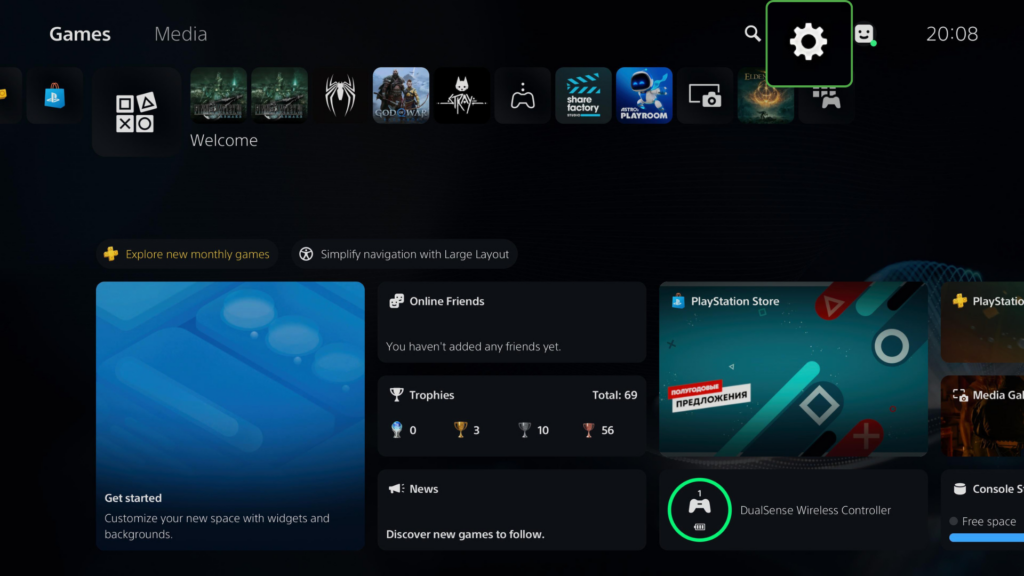
- Click Network.
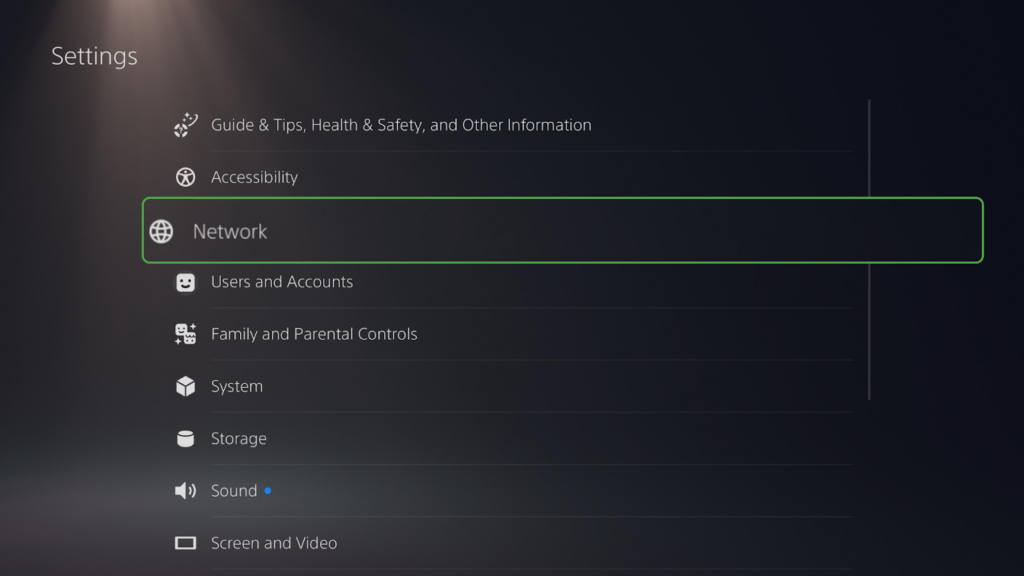
- Select Test Internet Connection.
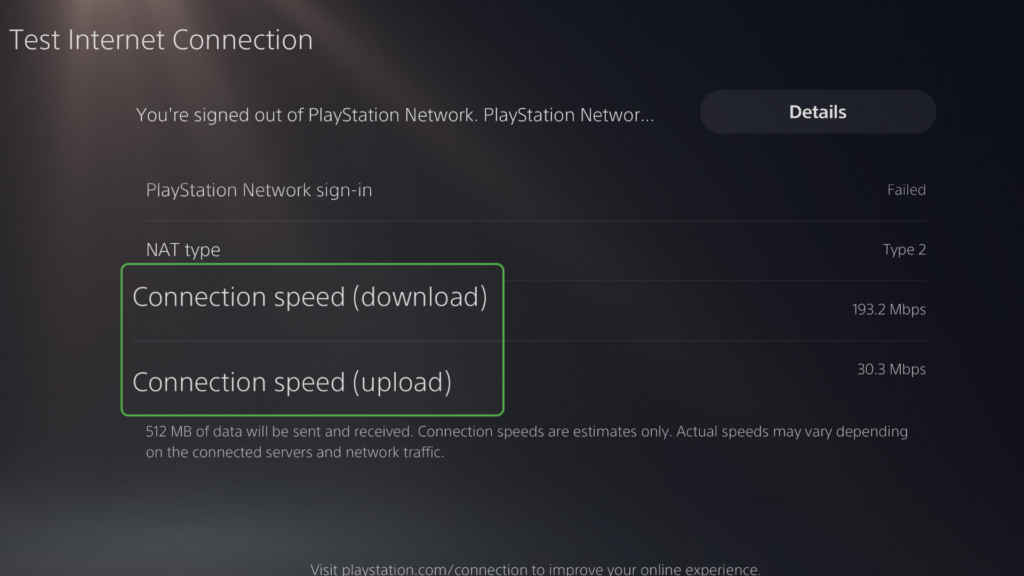
This will show you estimated download and upload speeds.
What Kind of Internet Setup Do You Need for Your PS5?
A high-speed plan helps, but for smooth gaming, downloads, and streaming on your PS5, your connection setup at home is just as important.
The PS5’s network card supports speeds up to 1 Gbps (1000 Mbps) over Ethernet or fast Wi-Fi. But you won’t hit that ceiling unless your internet connection and in-home setup can keep up.
Here are the best internet types for a PS5:
1. Fiber Optic: The Gold Standard
This is the best possible option for PS5 gaming. It offers ultra-fast speeds, low latency, and excellent stability. Fiber handles online multiplayer gaming, large game downloads, 4K streaming, and cloud or Remote Play with minimal lag. If fiber is available in your area, it’s worth considering.
2. Cable Internet (Coaxial): The Next Best Thing
Cable internet usually offers fast speeds (often 300 Mbps or higher), which is more than enough for PS5 gaming and streaming. However, it can slow down during peak hours when lots of people in your neighborhood are online. Still, it’s a solid option for most users.
3. 5G / Mobile Data / Fixed Wireless: Good Backup Options
A strong 5G connection can handle most PS5 tasks, like streaming video, downloading patches, syncing cloud saves, or even playing casual online games. If your main internet goes out, mobile data can be a lifesaver for finishing a mission or updating your game. Just watch for data caps and signal drops, especially indoors.
4. DSL and Satellite: Last Resorts
If you’re in a rural area, these might be your only choices, but they’re not ideal. DSL can offer enough speed for downloads or single-player gaming, but it struggles with latency and consistency. Satellite is the worst for PS5, with high lag and data limits making it a poor choice for multiplayer, streaming, or Remote Play.
Wired vs. Wi-Fi: What’s Better for PS5 Online Gaming?
If you’re serious about online gaming, a wired Ethernet connection is your best bet.
Ethernet delivers lower latency, loses fewer packets, and supports higher bandwidth. Even with modern routers and optimal placement, Wi-Fi usually can’t match the low latency and consistency of a wired Ethernet connection. That said, Wi-Fi is still a viable option if you can’t run cables through your space.
Tips to Make Your PS5 Internet Connection Faster
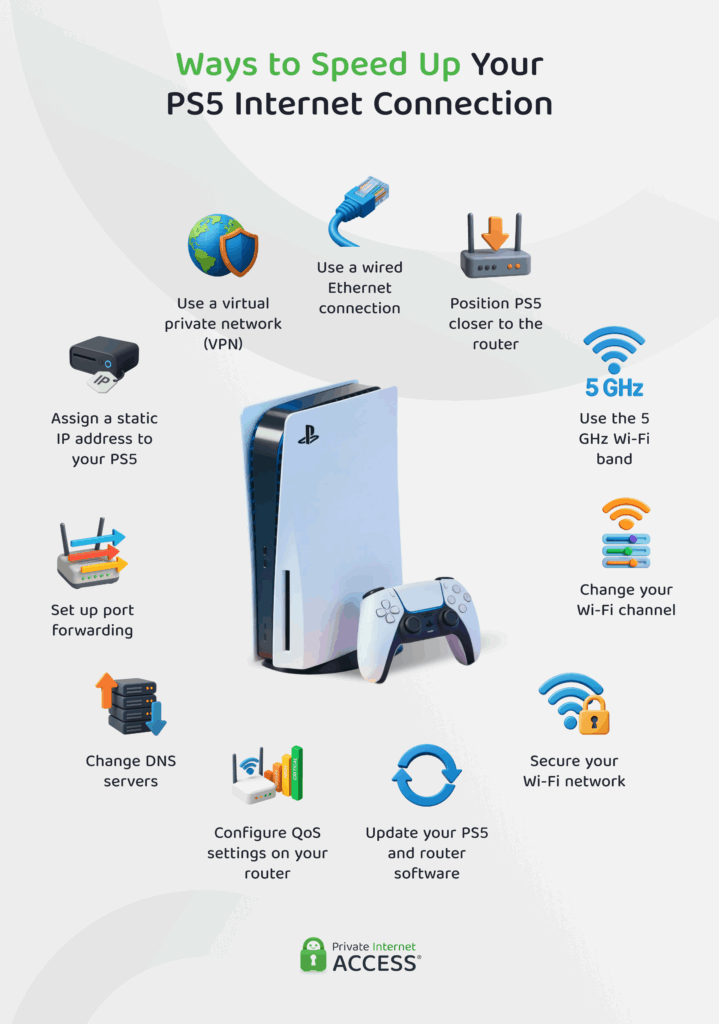
1. Use a Wired Ethernet Connection
If possible, plug an Ethernet cable directly into your PS5 to maximize signal quality and prevent interference.
If you’re already on a wired connection and you’re still experiencing issues, you should check if your Ethernet cables are too old. For optimal speeds, consider using Cat5e or higher. Cat5e supports speeds up to 1 Gbps (1000 Mbps) and bandwidth up to 100 MHz, with reduced crosstalk (less signal interference).
2. Position Your PS5 Closer to the Router
If you’re playing via Wi-Fi, you should place your PS5 and router in a way that minimizes distance and physical obstacles (walls, floors, metal, and electronic objects). If moving the console or router isn’t realistic, consider switching to a mesh Wi-Fi system.
3. Use the 5 GHz Wi-Fi Band
The 5 GHz Wi-Fi band gives your PS5 faster speeds, lower latency, and less interference compared to the older 2.4 GHz band. Several Wi-Fi standards operate on this frequency, including Wi-Fi 6 (802.11ax), which the PS5 supports. With a compatible router, Wi-Fi 6 can provide better stability and overall performance on busy networks.
Note: PS5 Pro supports Wi-Fi 7 (802.11be).
To switch to the 5 GHz band:
- Log in to your router’s admin interface.
- Open the Wireless Settings (or Wi‑Fi section).
- Enable the 5 GHz band (frequency).
- Assign different network names (SSIDs) for each band.
- Save the changes and reconnect your PS5 to the 5 GHz network.
The downside is that the 5 GHz band has a shorter range and doesn’t go through walls as well. You’ll get the best results if your PS5 is relatively close to your router. Also, you’ll have to make sure your router actually supports dual-band Wi-Fi (2.4 GHz + 5 GHz), as some older models don’t.
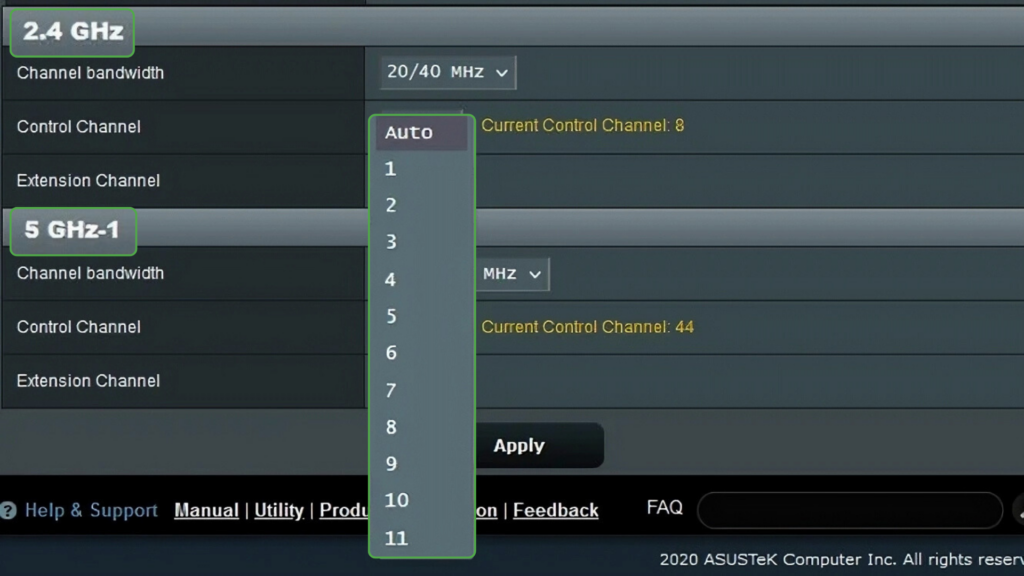
4. Change Your Wi‑Fi Channel
If you live in an apartment, dorm, or neighborhood with lots of Wi‑Fi networks, your signal is likely competing for spectrum. Wi-Fi routers broadcast over channels (like lanes on a road), and if too many neighbors are on the same one, your signal can slow down or become unstable.
By switching to a less crowded channel, you can reduce interference, which often leads to lower ping and fewer connection drops on your PS5.
To change your Wi-Fi channel:
- Navigate to the Wireless Settings (or Wi‑Fi section) in your router’s admin panel.
- Select another channel under the 2.4 GHz and 5 GHz bands.
- Save settings and reboot your router.
Expert Tip: You can analyze the channel’s effectiveness on mobile apps, such as Wifi Analyzer Network Analyzer on iOS and WiFi Analyzer on Android.
5. Secure Your Wi-Fi Network
If your Wi-Fi isn’t locked down, neighbors or background devices can hog bandwidth and slow down your PS5.
Set a strong network security password with WPA3 (or WPA2) encryption for your Wi-Fi network to block unauthorized access. While gaming on PS5, it’s also a good idea to pause downloads, shut off streaming apps, and disable cloud sync to avoid overloading your network and slowing it down.
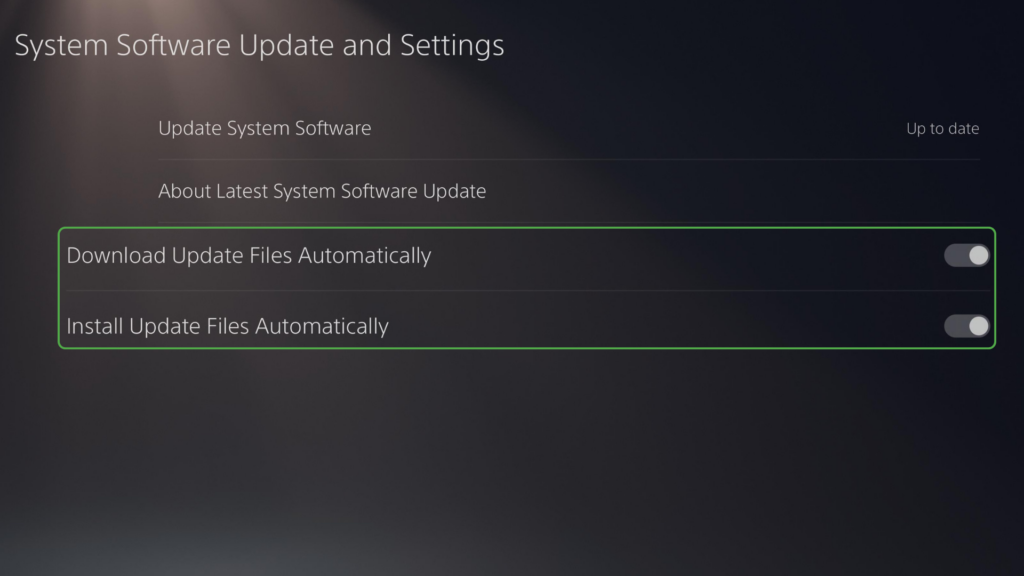
6. Update PS5 System Software and Router Firmware
Keeping your PS5 and router firmware updated fixes bugs, improves performance, and ensures compatibility with online features and new games.
To make sure it’s up to date, go to System Software Update in the System settings. You can set your console to update automatically, too.
Similarly, update your router firmware to address performance issues and enable new networking features (like QoS).
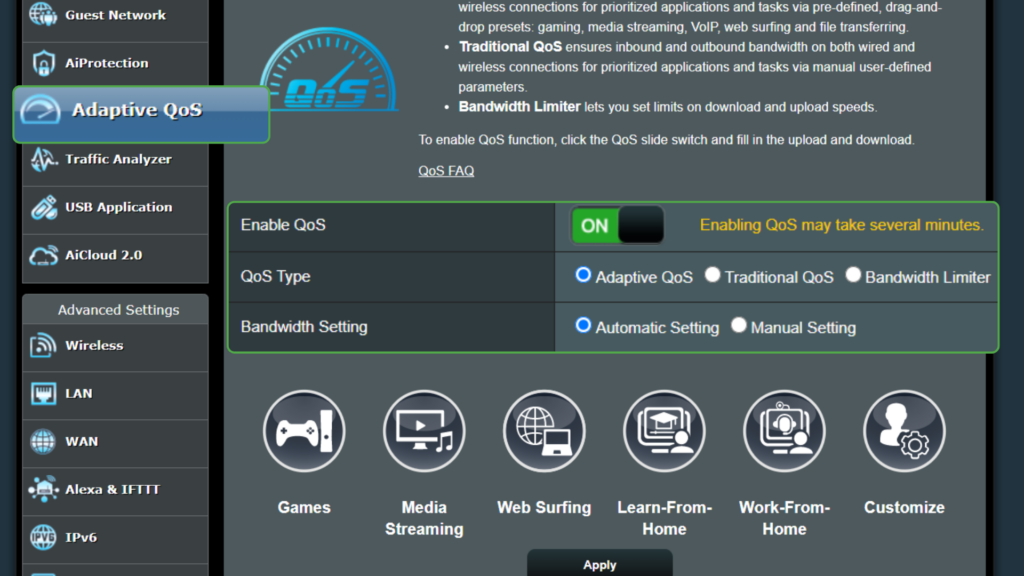
7. Configure QoS Settings on Your Router
If your PS5 lags because someone’s streaming or downloading in the background, you can set up Quality of Service (QoS) to allow your router to prioritize bandwidth for the PS5 traffic over other devices or types of traffic.
Here’s how to do it:
- Find your PS5’s MAC address under Connection Status.
- Access your router’s admin panel (most routers use 192.168.0.1 and have default login credentials printed on them).
- Look for the QoS settings on your router (varies based on the model and firmware).
- Either prioritize gaming traffic or add your PS5 using its MAC address.
- Change the priority to High or Maximum.
8. Change DNS Servers
The default DNS from your ISP can be slow or unreliable. Switching to a popular public DNS can reduce loading times, improve download reliability, and even help with certain connection errors.
To change your DNS on your PS5:
- Go to Settings, then Network, and Set Up Internet Connection.
- Choose your current connection, then select Advanced Settings.
- Set DNS Settings to Manual.
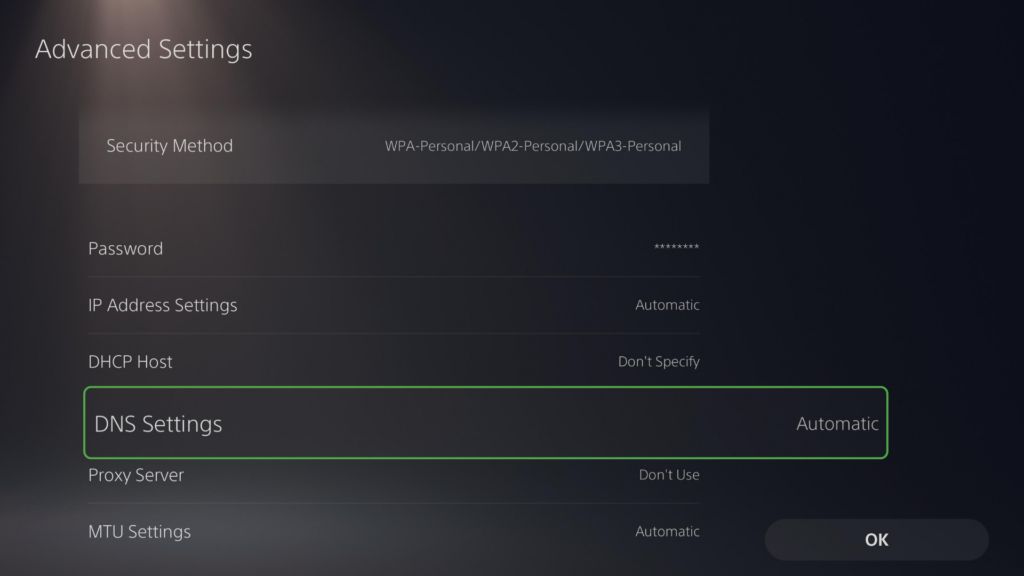
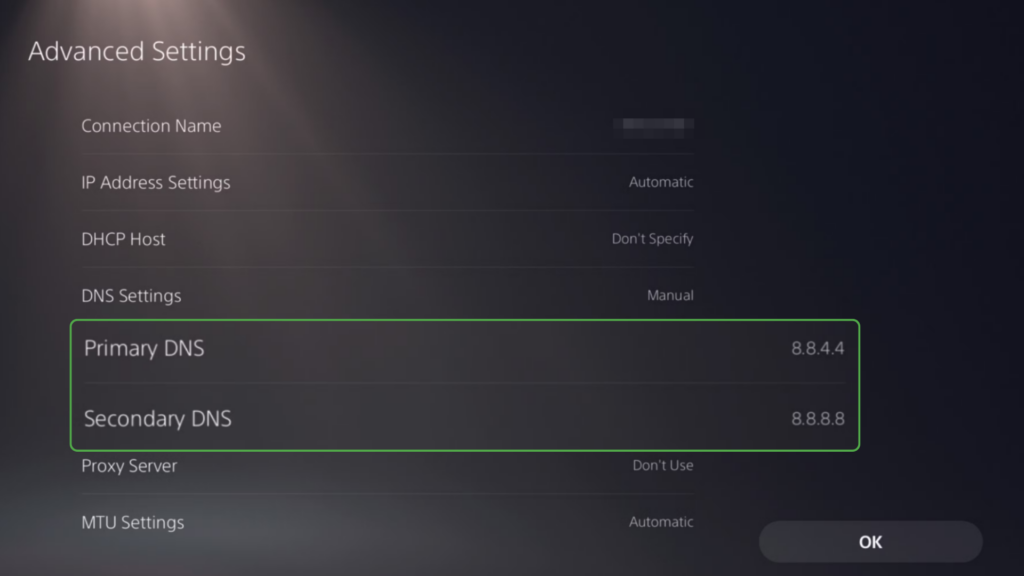
- Enter public DNS servers, for example:
- For Google: 8.8.8.8 (Primary), 8.8.4.4 (Secondary)
- For Cloudflare: 1.1.1.1 (Primary), 1.0.0.1 (Secondary)
9. Assign a Static IP Address to Your PS5
If you host lobbies in multiplayer games or use PS Remote Play or PlayStation Portal when you’re away from home, a static IP address can improve stability and reduce connection errors.
To assign a static IP on your console:
- Go to Settings, Network, and click View Connection Status. Note your current IP address, subnet mask, gateway, and DNS.
- Select Set Up Internet Connection and click Manually. Then choose Manual in IP Address Settings.
- Enter a fixed IP within your network range (for example, 192.168.1.51).
- Input your router’s subnet mask, gateway information, and DNS information.
- Leave MTU set to Automatic and Proxy Server to Do Not Use.
Alternatively, you can set up a DHCP reservation in your router’s admin interface using your PS5’s MAC address. Assign a fixed IP address there instead of setting it up manually on the console.
10. Set Up Port Forwarding
If you’re running into issues like strict NAT type, lag in multiplayer, voice chat not working, or random disconnects from lobbies or Remote Play – port forwarding can help.
Port forwarding tells your router to send game-related traffic directly to your PS5, instead of making it fight through firewall rules or network filters. This can improve connection quality, reduce latency, and make online features work more smoothly.
To start, you need to set up a static IP address on your PS5. Then, follow these steps:
- Access your router’s admin panel.
- Navigate to Port Forwarding (Virtual Servers, Apps and Gaming, or a similar section). You might find it under the Firewall, Security, or LAN sections.
- Create new port forwarding rules for your PS5’s static IP.
- Add these TCP and UDP ports: 987, 1935, 3478–3480, 8572, 9295–9308
- Save settings and restart your router.
11. Use a Virtual Private Network (VPN)
A VPN hides your online activity by encrypting your traffic and masking your IP address. If your internet provider slows down gaming, downloads, or streaming, a VPN can help avoid that throttling.
It can also improve speeds in some cases by routing your traffic through cleaner paths. If your ISP routes gaming traffic via longer, throttled, or inefficient routes to game servers, a VPN optimized for modern gaming like PIA can help.
The minor downside is you can’t install a VPN directly on your PS5. So, you have to either configure a VPN on your router or install the VPN on your desktop and connect your PS5 to that network.
Private Internet Access allows manual configuration on many top routers: ASUS, TP-Link, NETGEAR, as well as models running DD-WRT, OpenWRT, and Tomato firmware. It also has a high-speed network of reliable servers that’s great for gaming on your PS5.
FAQs
What is considered a good internet speed for PS5 gaming?
A good internet speed for PS5 gaming is at least 50 Mbps download and 10 Mbps upload, with ping under 100 ms; ideally closer to 50 ms or less for competitive online play, Remote Play, or 4K streaming to avoid lag, buffering, or disconnects.
How much download and upload speed do I need for smooth PS5 gameplay?
For smooth PS5 gameplay, casual online gaming typically needs around 15 Mbps download and 5–10 Mbps upload. If you’re playing competitive games like Call of Duty, you’ll want 50+ Mbps download and 15+ Mbps upload, plus latency under 50 ms for responsive controls and stable matchmaking.
Does PS5 require faster internet than PS4 for online gaming?
PS5 games with higher-resolution content require faster speeds than PS4 titles capped at Full HD (1080p). For consistent 4K performance, aim for at least 100 Mbps. However, you may need a higher connection speed if you’re using cloud gaming or Remote Play for 4K online gameplay.
Can a slow connection affect multiplayer performance on PS5?
Yes. A slow or unstable connection can cause lag, rubberbanding, delayed inputs, disconnects, and may prevent you from joining matches or voice chats. Even with decent download speeds, high ping, packet loss, or poor upload speeds can still disrupt your multiplayer experience. For smooth online play, aim for low latency (under 50 ms) and a stable connection, not just high speed.
How do I test and improve my internet speed on a PS5?
You can check your internet speed by going to Settings > Network > Test Internet Connection on your PS5. It’ll show your current download speed and upload speed. To improve your connection, try using a wired Ethernet connection for better stability or placing your PS5 near the router if you’re on Wi-Fi.
References:
