How to Turn Off a VPN on an iPhone: An Easy Guide

Maybe you’re troubleshooting a slow connection, trying to access content that’s blocked while using a VPN, or just taking a break from it. Whatever the reason, turning off a VPN on your iPhone should be simple, but sometimes it’s not.
You might disconnect in the app, only to find it mysteriously turns itself back on. This usually happens because of a setting in iOS called “Connect On Demand,” which can automatically reconnect your VPN anytime your phone connects to the internet.
This guide will walk you through how to turn off your VPN completely (and keep it off), whether you’re using a third-party app or a system-installed VPN profile.
How to Turn Off a VPN on Your iPhone via the iPhone Settings
You can turn off your VPN directly through your iPhone’s settings. This method works for both manually added VPN configurations and those installed by apps.
- Go to Settings > VPN.
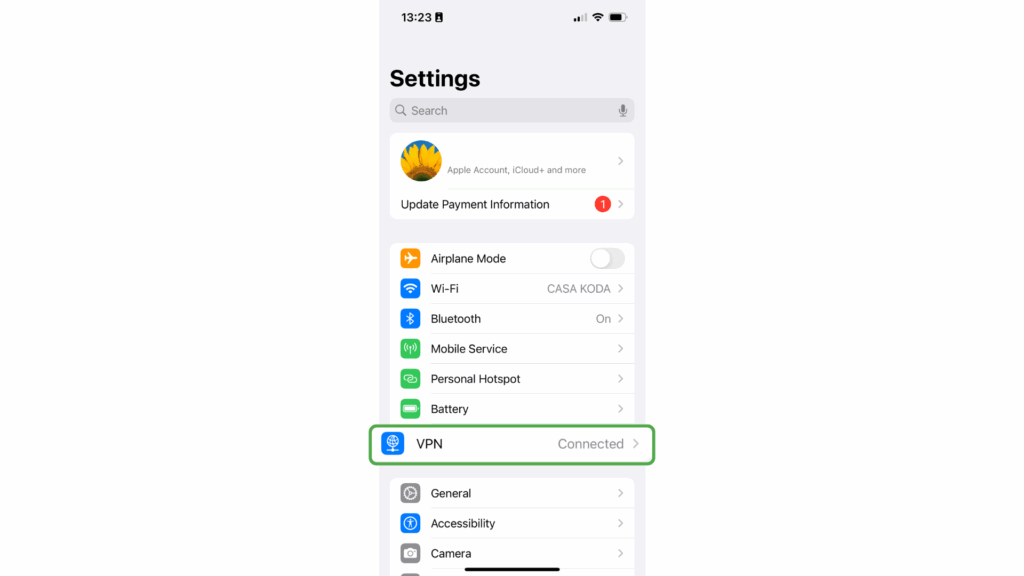
- Toggle the VPN Status switch next to your active VPN to Not connected.

How to Prevent the VPN Reconnecting in iPhone Settings
Some iOS versions (like iOS 14 and later) may automatically reconnect your VPN, even after you’ve manually turned it off. This behavior is due to the “Connect On Demand” feature in iOS settings, not the VPN app itself.
To disable Connect On Demand:
- Go to Settings > VPN.
- Under DEVICE VPN, tap the information symbol next to your VPN.

- Look for Connect On Demand, and toggle it off.

If the VPN was installed via a third-party app or Mobile Device Management (MDM), this option may be grayed out or hidden. In that case, you’ll need to open the VPN app itself and disable auto-connect or remove the configuration within its settings.
How to Turn Off a VPN on Your iPhone via the VPN App
Most VPNs make it easy to disconnect from their servers. While the process may vary slightly among apps, it’s very simple on the Private Internet Access (PIA) iOS app.
- Open the PIA VPN app on your iPhone.

- Tap the power button in the center of the screen to disconnect.
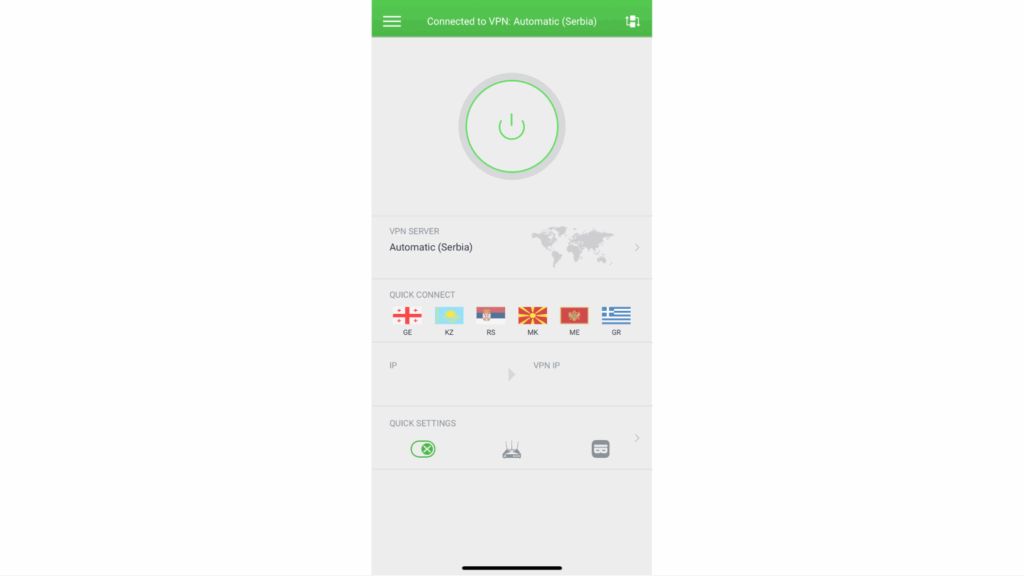
- That’s it. You’re now disconnected. To reconnect, just tap the power button again to turn it back on.
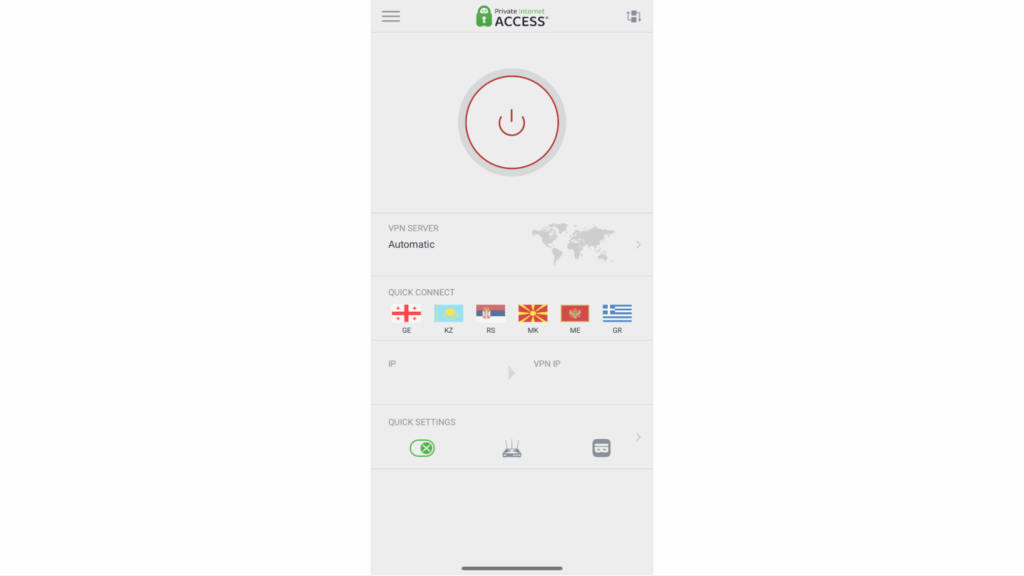
💡 Pro Tip: The PIA VPN app for iOS allows you to set rules to automatically connect or disconnect the VPN on a per-network basis. This means you don’t have to worry about losing protection on unsecured networks or remember to turn your VPN off when you get home.
Why Turn Off the VPN on Your iPhone?
There are several reasons to disable a VPN on your iPhone:
- Access local content: Some VPNs may not work properly with some services, especially those that require an IP address from your real location (like an online banking service). PIA is compatible with major sites and services around the world, so you won’t need to turn it off in most cases.
- Improve speed: VPNs can slow down your connection, especially if the server is far away or overloaded. However, you probably won’t even notice the drop in speed if you use a high-quality VPN. PIA has a large network of 10-Gbps servers, so you can easily switch to a closer or faster location if your connection seems slow. You can also use the WireGuard or IKEv2 protocols or lower your OpenVPN encryption level to AES 128-bit.
- Reduce battery drain: VPNs run in the background and can use more battery. To minimize battery usage without turning off your VPN, you can use a lightweight protocol that uses fewer system resources, like WireGuard.
- Using trusted networks: On secure, private networks (like your home Wi-Fi), you might not need a VPN constantly. PIA’s Automation feature lets you create rules to automatically connect or disconnect the VPN when you connect to a certain Wi-Fi network.
- Troubleshooting: Disabling the VPN can help diagnose connection issues or rule out VPN-related problems.
What Happens When You Turn Off a VPN on iPhone?
Turning off a VPN on your iPhone means your device stops routing traffic through a protected, private server. From that point on, your browsing, streaming, and app data travel over your regular internet connection. This makes it easier for your internet provider, apps, or even network filters to track what you’re doing or limit what you can access.
Here’s what happens when you turn off a VPN:
- Traffic stops being encrypted: Your data is no longer routed through the secure VPN server and encrypted. Instead, it goes directly through your normal internet connection (your ISP or mobile provider).
- Real IP address becomes visible: Websites, apps, and services will now see your actual location and IP address, not the one assigned by the VPN server.
- You may lose access to location-restricted content: If you were using a VPN to access certain services, those may no longer be available.
- Apps and services may behave differently: Some apps might load faster or reconnect to your regular network. On some networks, like at work or school, some services may stop working if they were configured to only work with a VPN.
- Privacy and security decrease on public Wi-Fi: Without VPN encryption, your data is more exposed on unsecured networks like coffee shops, airports, or hotels.
Why Use a VPN on Your iPhone?
iPhones are generally considered secure and less vulnerable to online threats than other devices, so you may think you don’t need extra protection. However, although your phone may be less vulnerable to malware, your browsing activity is still visible to anyone with access to your network, including your ISP and, sometimes, cybercriminals.
Here are just some of the reasons to use a VPN on your iPhone:
- Protect your data on public Wi-Fi: Unsecured public Wi-Fi networks, such as those in cafes and airports, are vulnerable to hackers. A VPN encrypts your data and makes it unreadable to third parties on your network.
- Keep your IP address private: Websites and apps determine your location via your IP address. A VPN masks your IP address to prevent tracking.
- Bypass censorship: A high-quality VPN makes it possible to access blocked sites and services on restricted networks.
- Prevent bandwidth throttling: Some ISPs slow down your connection when you stream or download. A VPN hides your activity, eliminating this kind of throttling.
- Enable safer online transactions: When banking or shopping online, a VPN adds an extra layer of security to help protect your payment data from interception.
FAQ
How do I remove a VPN from my iPhone?
If you’ve installed a VPN app, you can simply delete it from your iPhone like any other app. Just press and hold the app icon on your home screen, tap Remove App, then Delete App. You can also remove a VPN from your iPhone’s settings by going to VPN & Device Management, tapping the “i” next to the VPN, then selecting Delete VPN.
Should a VPN be on or off on an iPhone?
It’s generally recommended to keep your VPN on to secure your online data and protect your privacy. However, there are situations where you might need to disable your VPN temporarily, such as when accessing services that require your real IP address, like work portals or banking apps.
Where is the VPN on my iPhone?
You can find your VPN configurations in the iPhone Settings menu under VPN. You can also swipe down on the home screen and search “VPN” to jump directly to the VPN settings. If you use a VPN app, you can find it by searching “VPN” in your app library.
How do I block a VPN on an iPhone?
The best way to block a VPN on your iPhone is to delete the app or software from your device. If you simply want to disconnect, you can do so from your iPhone’s VPN settings. If it keeps reconnecting, follow our guide to disable Connect on Demand.
Do iPhones have a built-in VPN?
No, iPhone doesn’t have a built-in VPN exactly, but it does include support for iCloud Private Relay (requires iCloud subscription) which is similar to a VPN. Alternatively, you can download PIA’s user-friendly iOS VPN app that can connect you to a server in one click, with no manual setup or tech knowledge required.
Is it OK to leave a VPN on all the time on my iPhone?
It’s generally a good idea to keep a VPN connection active on your iPhone. A VPN protects your data on public Wi-Fi, keeps your IP and location private, and helps avoid tracking and some forms of censorship. However, some apps or networks may only allow access to specific IP addresses, so you’d need to turn off your VPN to access them.
Can a VPN damage my iPhone?
VPN apps are generally safe. However, a poorly made VPN downloaded from an unreliable source is another story, as it could contain malware that may compromise your privacy or security. As long as you stick with trustworthy providers, your iPhone is safe. For example, PIA has open-source VPN apps anyone can inspect for themselves, so you know they’re completely safe for your device.
Does a VPN use a lot of battery on my iPhone?
Using a VPN on your iPhone can increase battery drain by about 5-15% compared to normal usage. That’s because a VPN encrypts your data and routes it through a remote server, which requires extra CPU work. You can minimize battery drain by using more efficient VPN protocols like WireGuard and turning off the VPN when you don’t need it.
