What Is PPPoE? Setup and Authentication Explained
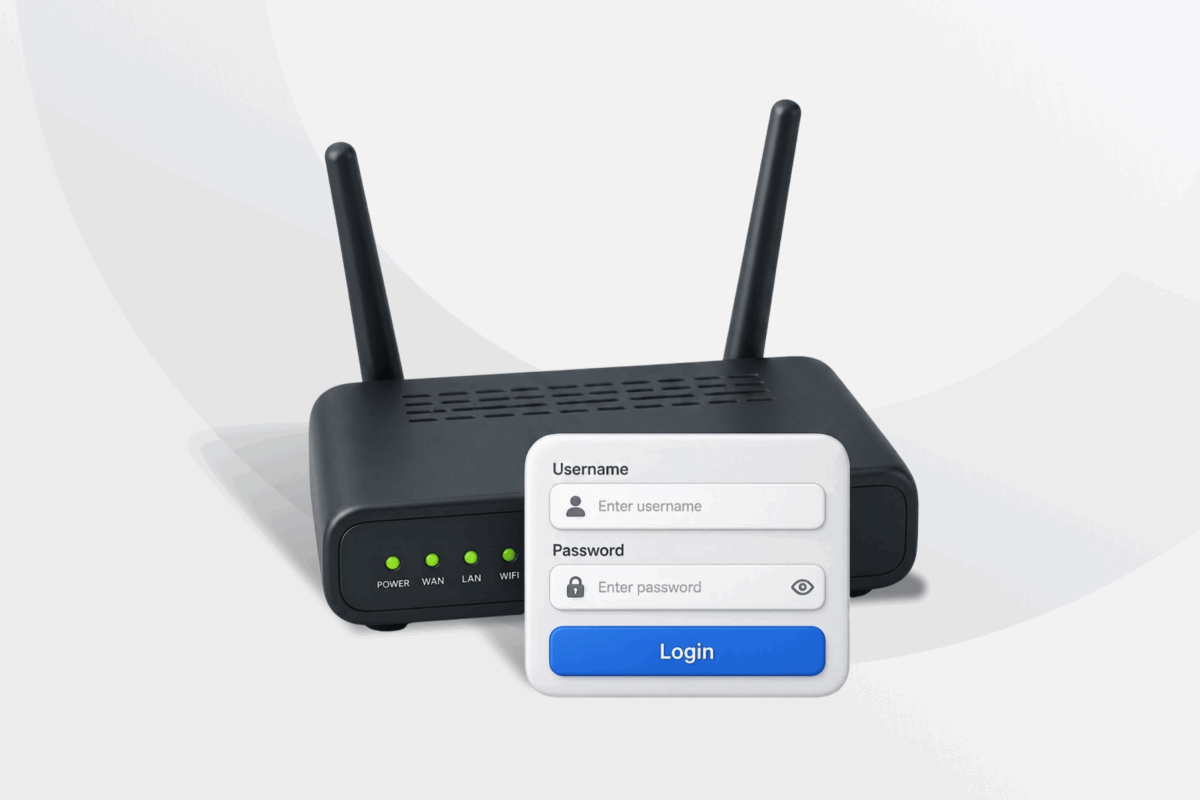
Imagine the internet as a big apartment building. Your internet service provider (ISP) is the landlord and your router is a tenant trying to get inside. PPPoE is like the keycard system at the front door. Before you can enter, you need to swipe your card (your username and password) so the system knows who you are and lets you access your apartment.
That’s the basic idea behind the Point-to-Point Protocol over Ethernet (PPPoE). It creates a direct, secure link between your router and your ISP using login details.
In this article, we’ll explain what PPPoE is in more detail, how it works, how to find your ISP credentials, and how to set up your connection the right way so everything runs without issues.
Table of Contents
PPPoE: Understanding the BasicsHow Does PPPoE Work?
How to Find Your PPPoE Username and Password
How to Set Up PPPoE
Common PPPoE Problems and Solutions
PPPoE Pros and Cons at a Glance
PPPoE vs. Other Connection Types
Why You Should Use a VPN With PPPoE
FAQ
PPPoE: Understanding the Basics
PPPoE is a network protocol that lets your ISP assign and manage your internet connection over Ethernet1. It sends data in a way that allows your provider to authenticate users, track sessions, and control access using a username and password.
Once the connection is set up, PPPoE creates a dedicated session between your router and your ISP, which helps with network management, security, and billing.
Historically, PPPoE comes from an older protocol called the Point-to-Point Protocol (PPP), which dates back to the dial-up internet era. Back then, PPP connected computers over phone lines. As broadband replaced dial-up, PPPoE adapted that same login-based approach for modern networks.
Today, PPPoE is still used on DSL and some fiber networks, especially by ISPs that want tighter control over user sessions. However, simpler methods that assign IP addresses without requiring users to enter credentials are slowly taking over.
How Does PPPoE Work?
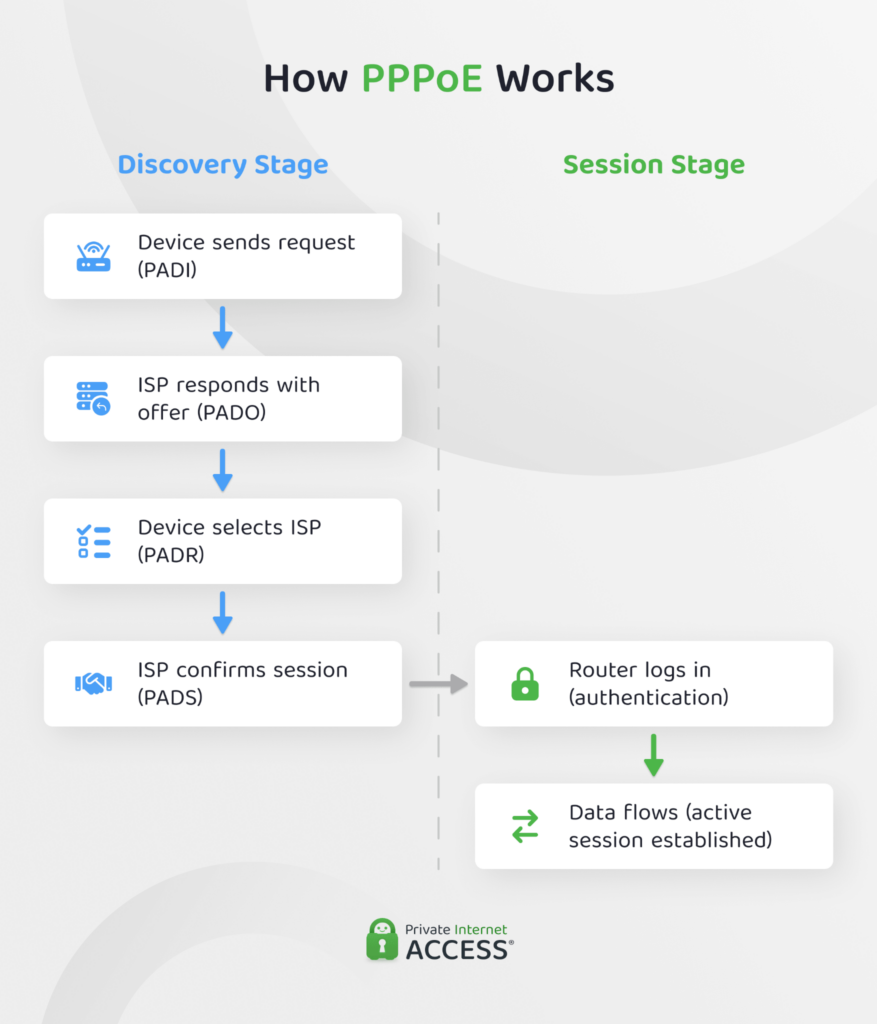
PPPoE works in two main stages: discovery and session. First, your device and your ISP find each other and agree to connect. Then, they open a private line for data to travel back and forth.
It’s a bit like making a phone call. Before you talk, you have to dial, wait for the other side to answer, and confirm the connection. Once the call starts, the line stays open just for you, which adds a layer of privacy compared to a shared connection.
Discovery Stage
In the discovery stage, your router sends out a message called PPPoE Active Discovery Initiation (PADI) to find available ISPs. The ISP replies with PADO (Offer), saying it’s ready to connect. Your router then sends PADR (Request) to choose that provider, and the ISP finishes with PADS (Session-confirmation), which sets up a unique session for your connection.
At this point, the PPPoE client assigns a session ID so both sides know exactly where to send data.
Session Stage
Once the session starts, your router logs in using your username and password. After that, data begins to flow between your network and your ISP through this dedicated link. The connection stays active as long as the session is valid, and your ISP can monitor or manage it if needed.
How to Find Your PPPoE Username and Password
Depending on your ISP, you may or may not have access to your PPPoE username and password. Some providers give these credentials to customers, while others configure them on the equipment they supply.
If you need your PPPoE credentials, try checking:
- A welcome email or contract: Check the email you received when you first signed up. ISPs sometimes send login details along with setup instructions.
- ISP account portal: Log in to your provider’s website or app. Look for sections like Internet Settings, Connection Details, or Broadband Setup.
- Router settings page: If your connection is already working, log in to your router’s admin panel (you can sometimes find the address, username, and password on a sticker on the back of your router). Note that your PPPoE username may be visible using this method, but the admin panel may hide the password.
- Contact your ISP: If you can’t find the credentials, your ISP can resend or reset them. This is common so don’t worry — it’s a quick fix.
How to Set Up PPPoE
Setting up PPPoE usually takes a few minutes. In most cases, it’s best to configure it on your router so all your devices can share the connection. You can also set it up on your computer if needed.
How to Set Up PPPoE on Your Router
Before you start, check your modem connection to your router’s WAN (internet) port using an Ethernet cable.
- Open your browser and enter your router’s IP address (often
192.168.1.1or192.168.0.1). - Log in to the admin panel using your router credentials.
- Go to WAN or Internet settings and select PPPoE as the connection type.
- Enter the username and password provided by your ISP and click Apply.
If your connection doesn’t work with the correct credentials, check if your ISP requires a VLAN ID in the WAN settings.
Also, if you’re using your own router with ISP-provided equipment, you may need to enable bridge mode first.
Note that on some routers, especially Linksys models, you can access your router via a local address, such as “myrouter.local.” You may find the PPPoE username listed there, though the password is often hidden.
How to Set Up PPPoE on Windows
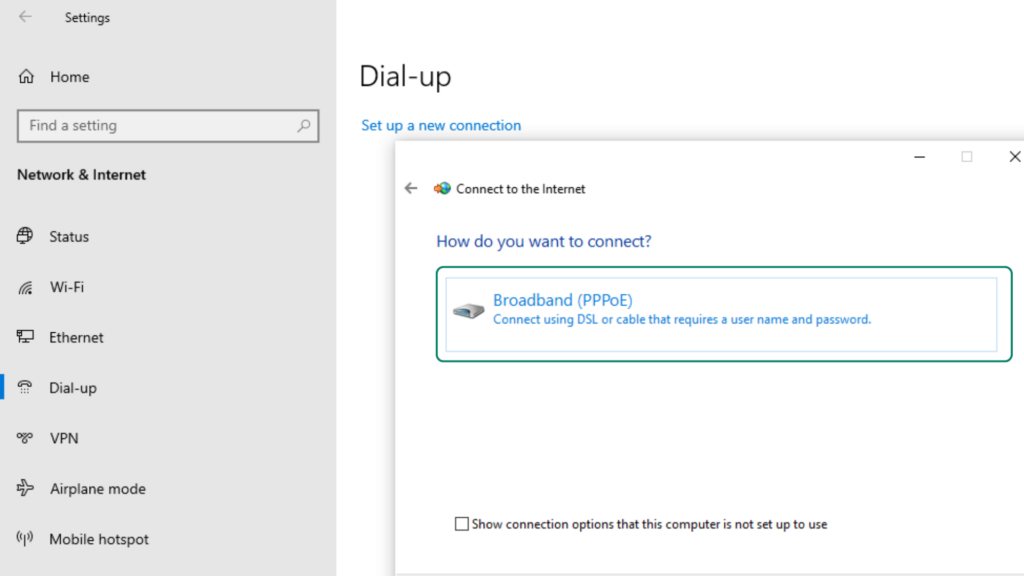
On Windows, you can create a PPPoE connection directly:
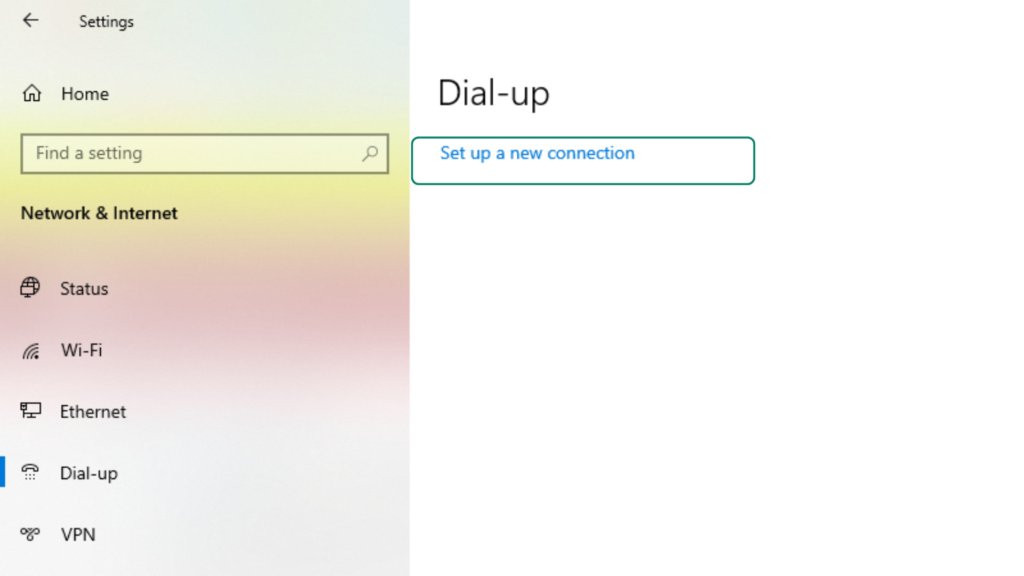
- Open Settings and click Network & Internet.
- Go to Dial-up and select Set up a new connection.
- Choose Connect to the Internet.
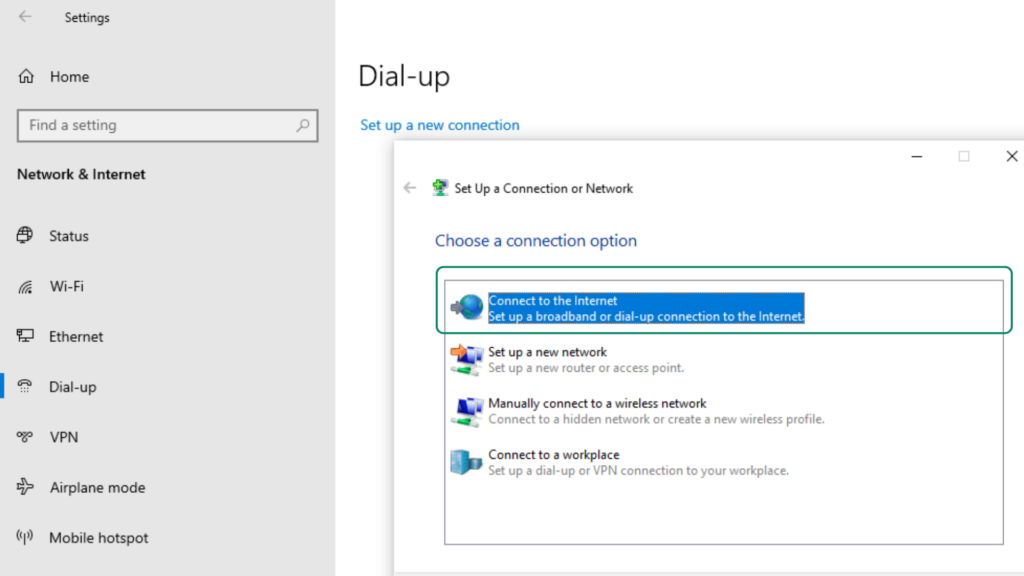
- When asked how you want to connect, choose Broadband (PPPoE).
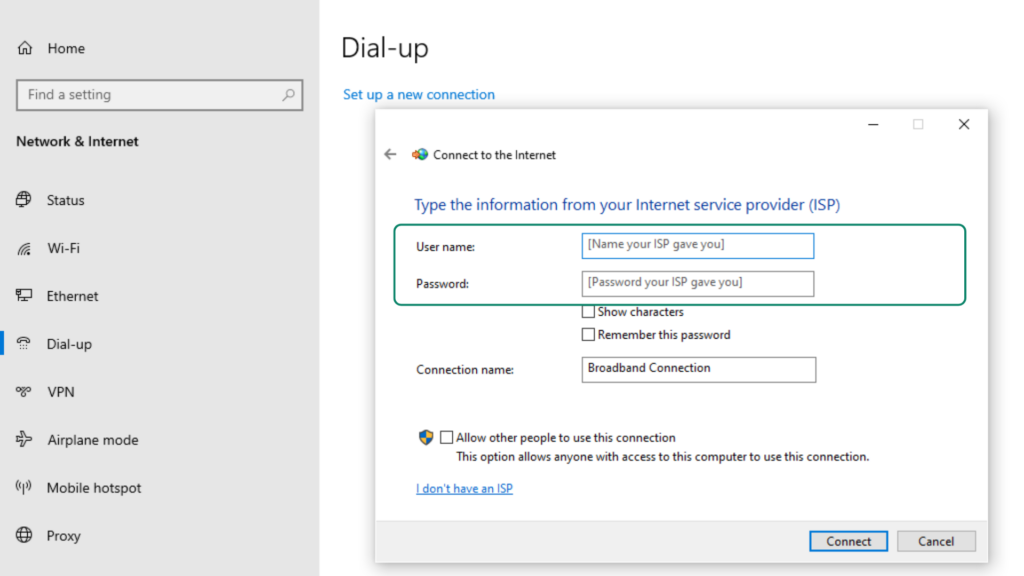
- Enter your PPPoE username and password and click Connect.
How to Set Up PPPoE on a Mac
On macOS, the steps are a bit different:
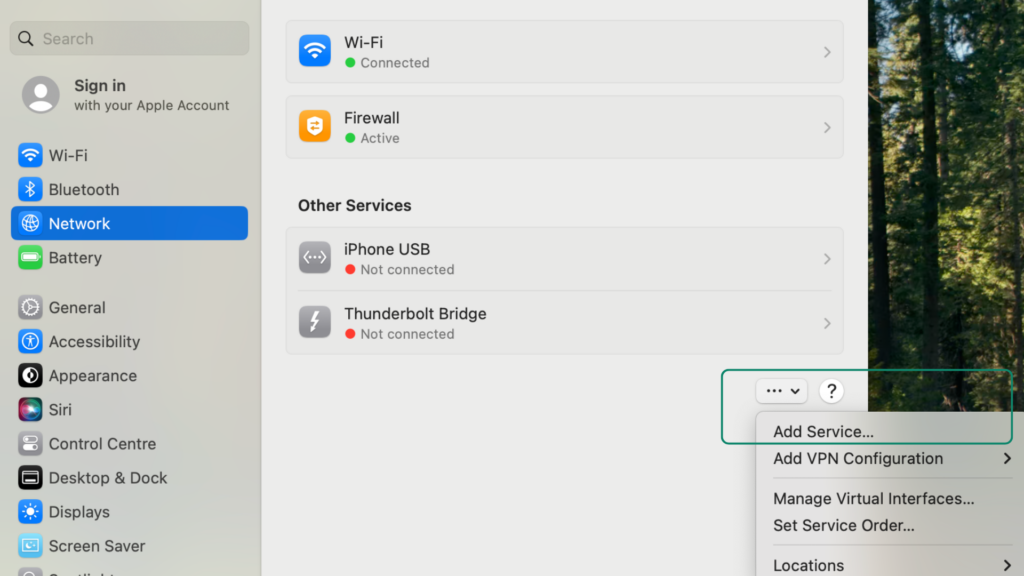
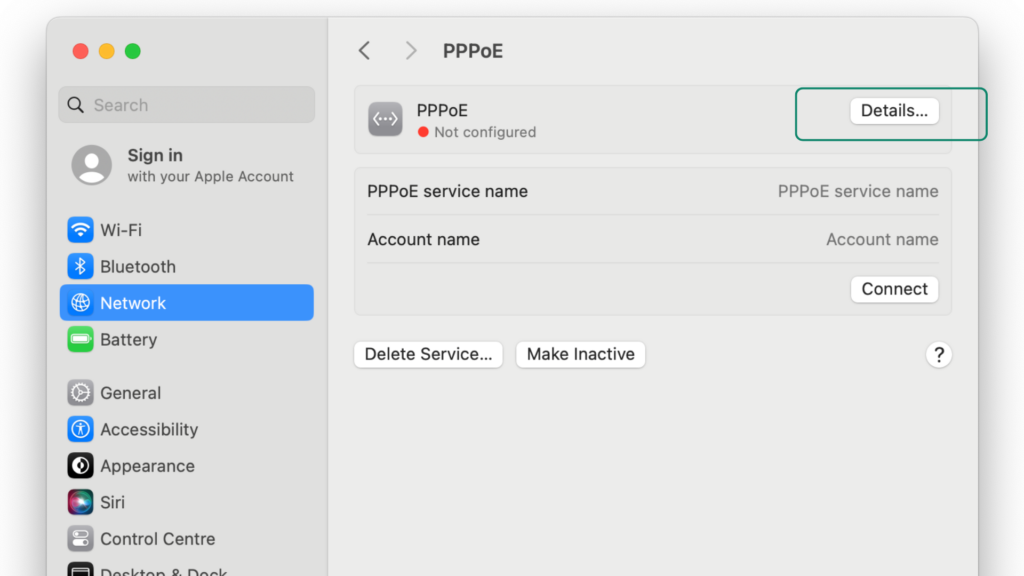
- Open System Settings and go to Network. Click on the 3 dots and choose Add Service from the drop-down menu.
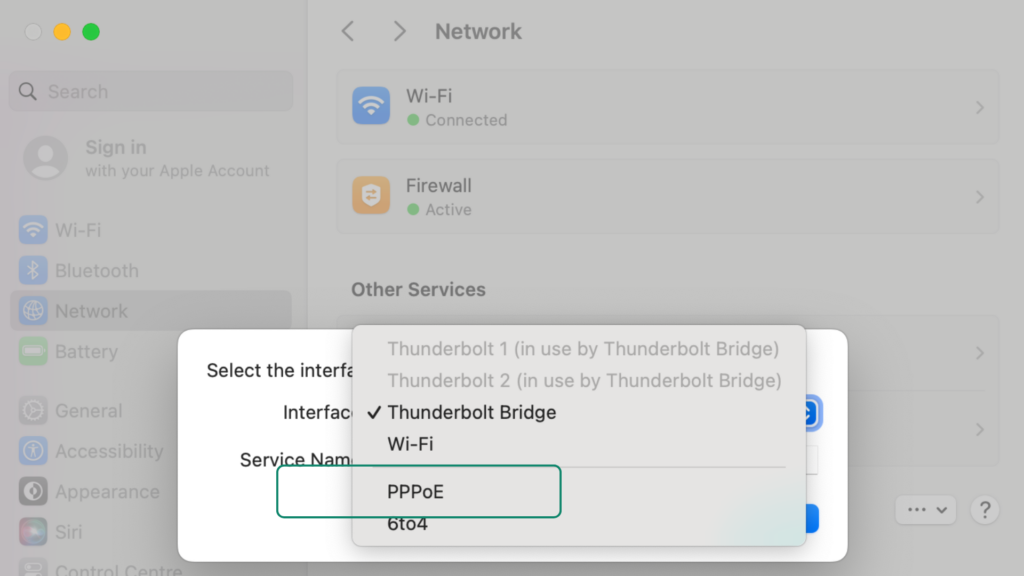
- Choose PPPoE as the interface type and click Create. Then select PPPoE Network from the list.
- Now click on Details.
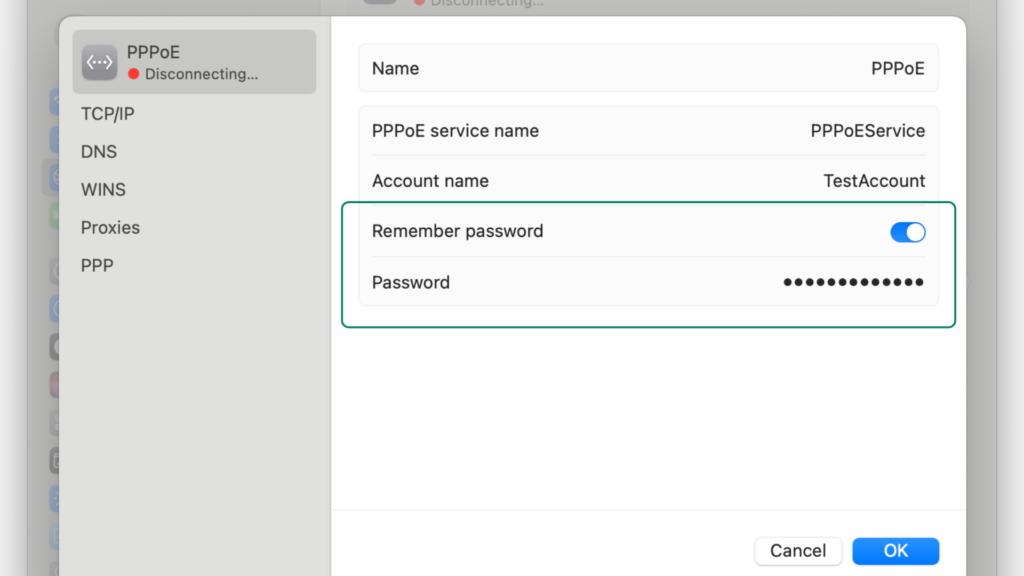
- After this, toggle the Remember password switch, and type in your password (it won’t let you do this if you don’t toggle the switch first). Hit OK to save your choice and connect.
Common PPPoE Problems and Solutions
PPPoE is reliable, but a few common setup issues can come up. Most of them are easy to fix once you know what to check.
Authentication Failures
⚠️ If your connection won’t start, the most common cause is incorrect login details.
✅ Double-check your username and password, including case sensitivity. If everything looks correct, contact your ISP to confirm or reset your credentials.
Connection Drops
⚠️ Frequent disconnections are often caused by unstable sessions or line issues.
✅ Restart your modem and router and make sure the firmware is up to date. If the problem continues, your ISP may need to check the line or session stability on their end.
Connection Timeout
⚠️ A timeout usually means your router can’t reach the ISP’s PPPoE server.
✅ Check that your WAN cable connects properly and that you selected PPPoE as the connection type in your router settings. If required by your ISP, confirm that VLAN settings are also entered right.
MTU Issues
⚠️ PPPoE reduces the Maximum Transmission Unit (MTU) from 1500 to 1492 bytes and incorrect settings can cause slow loading or broken pages.
✅ Set your router’s MTU to 1492 (or slightly lower) if it isn’t already. This small change often fixes partial loading or connection issues.
Slow Speeds and Gaming Lag
⚠️ Some users notice higher latency or slower speeds when using PPPoE. Because PPPoE requires extra processing, your router’s CPU can become a bottleneck, especially on older or lower-end devices.
✅ Check your router’s CPU usage, and if it’s consistently high, upgrading to a more powerful router can improve performance.
PPPoE Pros and Cons at a Glance
PPPoE is still useful in ISP environments that need user-level control, but it also shows its age when compared to newer, simpler connection types.
Advantages of PPPoE
- User authentication and control: PPPoE’s username and password requirement before connecting lets ISPs identify users and manage access on an individual level. It also supports more precise billing and account-based support.
- Session-based management: Since each PPPoE connection creates a separate session between your router and the ISP, your provider can track and control active connections. It also helps ISPs manage per-user IP address assignments.
- Wide compatibility: PPPoE works on most routers and operating systems without extra software. It’s still widely used in DSL and some fiber networks. This makes it dependable in environments where you need legacy support.
Disadvantages of PPPoE
- Extra setup required: You must enter ISP credentials before the connection works. This adds an extra step compared to automatic systems like the Dynamic Host Configuration Protocol (DHCP). Incorrect credentials can also prevent the connection from establishing.
- Performance overhead: PPPoE adds extra data to each packet, which somewhat reduces efficiency. It also lowers the maximum MTU to 1492 bytes, which may require manual adjustment in some cases.
- Outdated technology: PPPoE is an older method designed for earlier broadband networks. Many modern systems now prefer simpler approaches like DHCP or IP over Ethernet (IPoE) because they require less configuration.
- Weaker security model: PPPoE only handles authentication and doesn’t encrypt your internet traffic. This means it doesn’t protect data in transit across the network. For real security, most users rely on other security layers like HTTPS or a reliable VPN.
PPPoE and Privacy: What Your ISP Can See
PPPoE requires you to log in, which makes it particularly easy for your ISP to tie your internet activity to your account. Because PPPoE creates a persistent session, your provider can see when you connect, how long you stay online, and your assigned IP address.
Like most connection methods, it doesn’t encrypt your traffic, so your ISP can see the domains you visit and the amount of data you use.
PPPoE vs. Other Connection Types
Here’s how other connection types compare at a glance:
| Feature | PPPoE | DHCP | IPoE |
| Authentication | Required (username and password) | Not required | Not required |
| Connection Process | Must log in and create a session | Connect automatically | Connect automatically |
| Setup | Manual (enter credentials in router) | Automatic (plug and play) | Automatic (plug and play) |
| Connection Type | Session-based | Always-on | Stateless (no session) |
| Overhead | Slightly higher | No PPP overhead | No PPP overhead |
| Common Use | DSL, some fiber providers, and legacy broadband | Cable, fiber, home networks | Modern fiber networks |
PPPoE vs. DHCP
DHCP assigns an IP address when your router connects to the network. There’s no login step2. Think of it like a receptionist who assigns you a room the moment you arrive. No forms, no login, no extra steps. Your router asks for an IP address, the ISP responds, and you’re online within seconds. This is why DHCP is now more common. It’s easier to set up and requires less effort from the user.
PPPoE vs. IPoE
While PPPoE delivers internet access through a PPP session, IPoE sends IP traffic over an Ethernet connection. Instead of establishing a separate PPP session, IPoE typically relies on DHCP to assign an IP address automatically3.
Because IPoE eliminates the extra PPP layer, it generally has lower protocol overhead and requires less connection management. This makes it a popular choice for modern fiber and cable networks where performance often matters more than strict session control.
Why You Should Use a VPN With PPPoE
PPPoE handles access and a VPN helps protect your data after you’re connected. A VPN can boost privacy for your PPPoE connection. It also encrypts your traffic so your ISP has a harder time reading your online activity, even though the PPPoE session is still active.
A reputable VPN like PIA can add a layer of protection for PPPoE setups because it offers strong AES encryption, DNS leak protection, and a strict No-Logs policy, which helps reduce tracking from your ISP.
PIA is easy to configure on compatible routers, which is useful if you manage your PPPoE connection at the router level. PIA’s low-latency servers can help maintain stable speeds for gaming or streaming. Moreover, features like a built-in Kill Switch protects your traffic if the connection drops and port forwarding helps manage NAT-related issues.
FAQ
What is PPPoE?
PPPoE is a protocol ISPs use to authenticate and manage internet connections using a username and password. It creates a session between your router and the ISP before assigning an IP address. This way, the provider can control access and manage each user connection individually.
What is a PPPoE connection?
A PPoE connection is an internet connection that requires login credentials before you can access the internet. Your router uses a username and password provided by your ISP to create a session. Once authenticated, the ISP assigns an IP address, and the connection becomes active.
What is PPPoE in networking?
In networking, PPoE is a protocol for establishing controlled internet access over Ethernet networks. It combines authentication with session-based connectivity to identify each user. This helps ISPs manage billing, access, and network usage per connection.
What is PPPoE in a router and when is it used?
On a router, PPPoE is a connection mode where you enter your ISP login details to access the internet. It’s used in DSL and some fiber networks where ISPs require user authentication. The router then handles the login process and maintains the connection.
What is a PPPoE username and password and where do I find it?
A PPPoE username and password are the login credentials your ISP sets up for you to access the internet. You can usually find them in your welcome email, ISP documentation, router label, or account portal. If they’re missing, your ISP can resend or reset them for you.
Can I use a VPN on a PPPoE internet connection?
Yes, you can use a VPN for a PPPoE connection to add an extra layer of privacy. PPPoE handles authentication and access but it doesn’t encrypt your traffic. A VPN encrypts your data after the PPPoE establishes the connection, adding an extra security layer for your data in transit. It can protect your traffic when the connection drops (thanks to the built-in Kill Switch).
References:
