Double NAT: What It Is and How to Fix It

If you’ve ever set up a VPN, tried to host an online game, or struggled to connect to devices at home, you may have come across the term “double NAT” in a forum post or router setting. But is it actually the reason things aren’t working as expected?
In this guide, we break down what double NAT is, how it occurs, why it can interfere with VPNs and other services, and how to tell if it’s what’s tripping you up – along with practical ways to fix it.
What Is Double NAT?
Double NAT happens when two devices on your network, like a modem and a router, both handle Network Address Translation (NAT) instead of just one.
NAT is the process routers use to connect devices on a private network (like laptops, phones, or consoles) to the public internet. When a device sends data, the router replaces its private IP with the network’s public IP address. It also keeps track of that connection, so when a response comes back, it knows exactly which device to send it to.
With double NAT, this translation happens twice – once by each device.
How Does Double NAT Happen?
Double NAT isn’t usually something you set up on purpose. It’s more often an accidental side effect of how your network is arranged, and it’s surprisingly easy to create this situation without realizing it.
Here are some common scenarios that can lead to double NAT in your network:
1. ISP Modem/Router + Your Own Router
Many ISPs give customers a modem/router combo that already performs NAT. If you plug your own router into it without switching the ISP device to bridge mode (which turns off its routing and NAT functions, making it act like a simple modem) or passthrough mode (which forwards the public IP directly to your router), both devices will translate your traffic.
Pro Tip: To check if your ISP device is a modem/router combo, look at the number of Ethernet ports. If it only has one port and no Wi-Fi, it’s likely just a modem. But if it has multiple Ethernet ports or provides Wi-Fi, it’s probably a modem/router combo and could be contributing to double NAT.
2. CGNAT + Home NAT
Some ISPs, especially mobile, satellite, and rural providers, don’t give customers a unique public IP address. Instead, they use CGNAT (Carrier-Grade NAT) to share one public IP among many customers, translating your traffic at the ISP’s equipment before it even reaches the internet. If your home router also does NAT, you’re effectively behind two NAT layers.
3. Chained Routers in Your Home
If you connect a second router to your main router, maybe for IoT devices or a guest Wi-Fi network, that second router will likely perform NAT as well.
4. Virtualization NAT Layer
When you run a virtual machine in “NAT mode,” the virtualization software creates its own NAT network inside your computer. If your computer is already connected to the internet through a home router with NAT, you now have two translations: one in the VM software and one at the router.
5. VPN Gateways Performing NAT
Some VPN routers or servers are set to use NAT for their connected clients so they appear to come from the VPN’s local network. This means that instead of sending traffic to the internet using each client’s individual VPN-assigned IP, the VPN device changes all client traffic to appear as if it’s coming from the VPN gateway’s own IP address.
If that VPN gateway sits behind another device that’s also doing NAT, such as your home router or an ISP modem/router, your traffic is translated twice.
How Does Double NAT Impact VPN Performance?
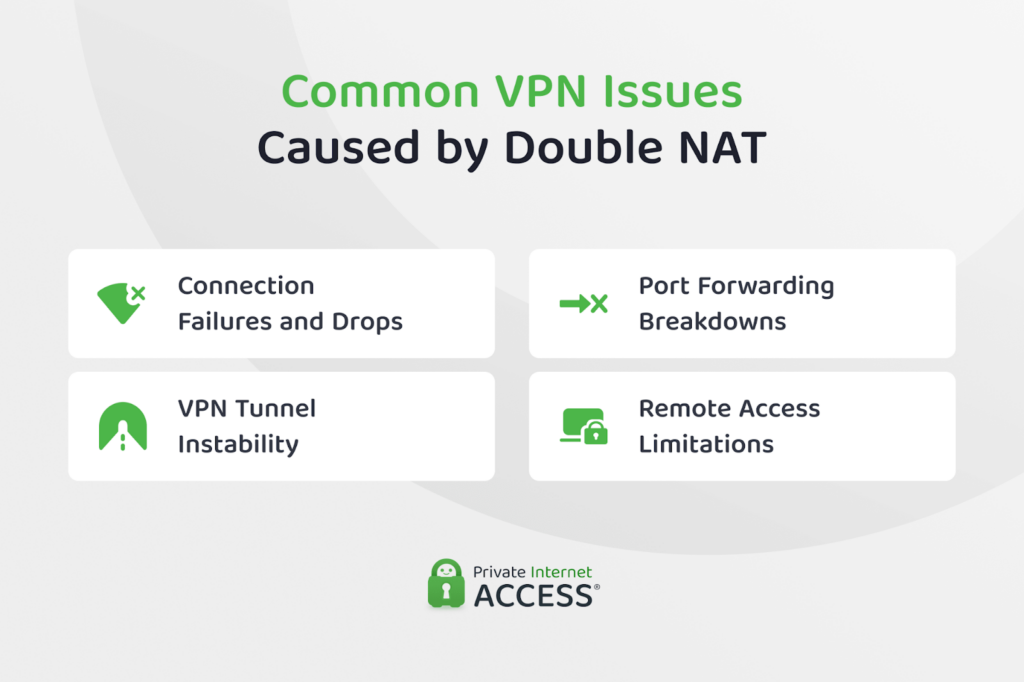
Double NAT doesn’t always interfere with VPN connections. Client-based VPNs, like Private Internet Access, usually work fine with double NAT because the connection is outbound: your device starts the connection, and both NAT devices automatically remember where to send the replies.
But if you’re hosting a VPN server at home and expect other devices to connect in from the internet, double NAT can block or misdirect that traffic.
Here are some of the ways double NAT can impact VPN performance:
Connectivity Issues
With double NAT in place, incoming connections often fail to reach your device because traffic has to pass through two devices performing NAT, and the outer device usually doesn’t know how to forward requests to the inner network.
This becomes a problem for VPNs, especially self-hosted VPN servers or site-to-site VPN setups, because they rely on incoming connections from the internet to establish or maintain a secure tunnel. If packets can’t traverse both NAT layers correctly, the VPN server may never receive them, causing failed connections.
The extra NAT layer also degrades VPN performance by adding latency and increasing the risk of packet loss. You’ll notice this most often when using applications that require real-time communication, like video calls or gaming.
Port Forwarding Challenges
Double NAT can interfere with port forwarding when using a VPN because it creates two layers of private networks.
When both your home router and your ISP’s router are performing NAT, any ports needed for a VPN connection must be forwarded twice: first from the ISP’s router to your home router, and then from your home router to the VPN server device. This chain of forwarding is easy to break and can either prevent the VPN from connecting properly or block incoming connections entirely.
You may have trouble with port forwarding if:
- You can’t access the outer NAT router (such as in dorms or apartments).
- The VPN protocol isn’t NAT-friendly (for example, IPsec or L2TP).
- Dynamic IPs change frequently and break forwarding rules.
- Firewalls or CGNAT (Carrier-Grade NAT) block incoming requests.
Note: Port forwarding can also be a solution to double NAT in certain situations. We’ll discuss that further down on this page.
Tunneling Problems
When a VPN creates a tunnel, it encapsulates your data and relies on protocols to pass through the network. But some VPN protocols, such as IPsec or L2TP, were built back in a time when the internet expected your device to have a direct, public IP address. While these protocols can still work in modern networks thanks to NAT Traversal (NAT-T), they remain more fragile in NAT environments than newer VPN technologies.
With double NAT, that fragility is amplified. If the outer NAT device (typically your ISP’s router) blocks or fails to recognize the encapsulated VPN traffic coming from your inner router, the tunnel may never connect, or it might drop frequently due to mismatched connection tracking.
These extra layers can also obscure the original source and destination information needed for VPN handshake processes. This makes NAT-T more difficult and may cause reliability issues with remote access or site-to-site VPN setups.
Remote Access and Routing Issues
When you’re using a VPN for remote access, the incoming request must be correctly routed through both NAT layers to reach the right device. However, each router in a double NAT setup maintains its own private IP scheme and routing rules, so unless both are configured with precise port forwarding or DMZ settings, the traffic often gets blocked or misrouted.
This becomes especially problematic for site-to-site VPNs or self-hosted VPN servers that rely on inbound connections from external networks. Additionally, routing tables can become confused or incomplete, which may result in traffic getting stuck in one NAT layer or failing to reach the VPN tunnel entirely.
3 Ways to Verify Double NAT
It’s always a good idea to check that double NAT is actually happening before you spend time fixing the issue. Since VPN issues can arise for a number of reasons, you should use one or more of these approaches to identify a double NAT setup:
1. Check Your IP Address in Two Places
To check for double NAT, compare your router’s WAN IP address with the public IP address of the device you are using. If they’re different, you most likely have double NAT.
Here’s how you can check:
- Use an IP checking tool to view your public IP address.
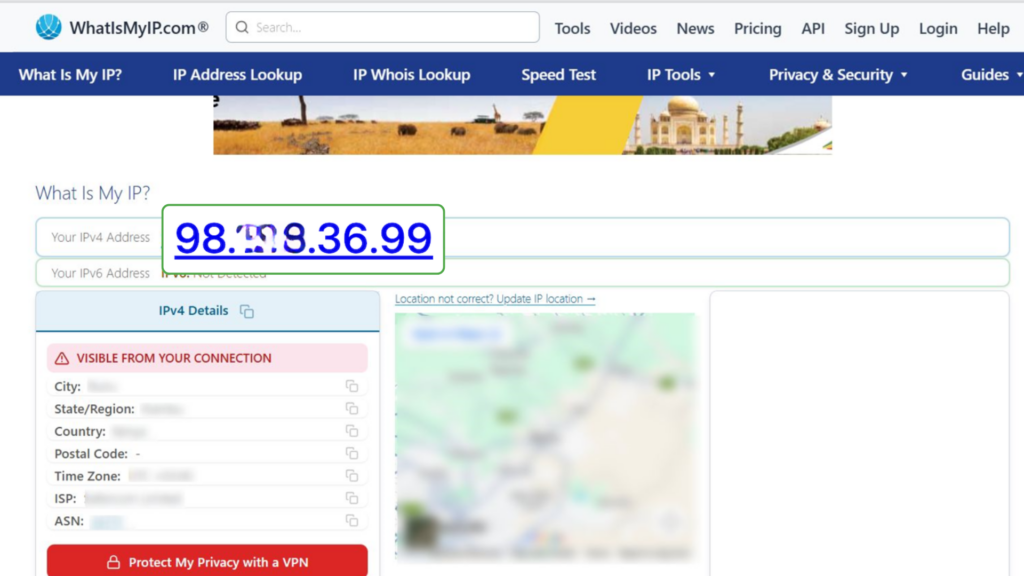
- Log in to your router’s admin interface and find the WAN IP address in the network settings. This is your router’s WAN IP address.
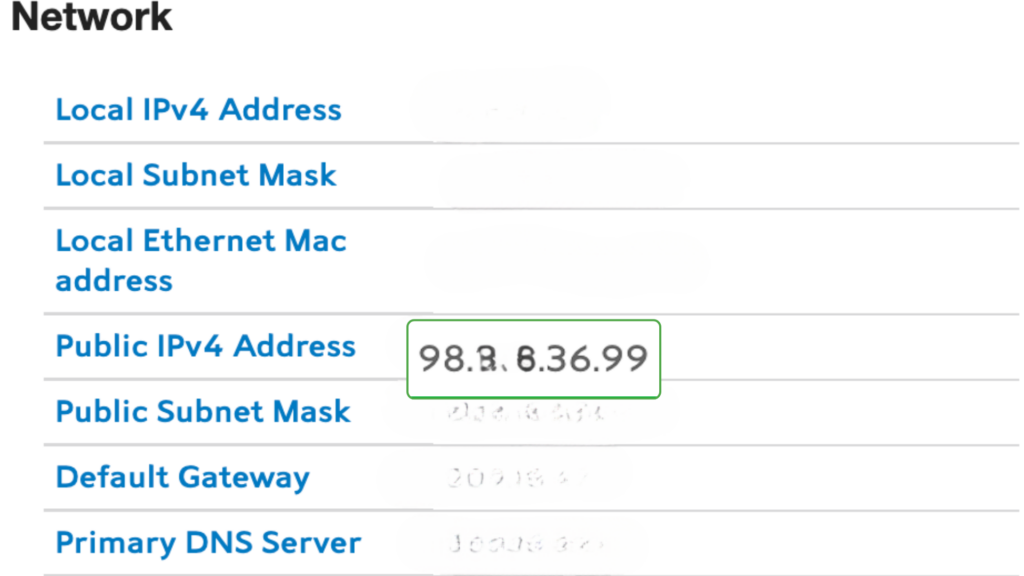
- Compare the two IPs. If they’re different, it is highly likely that you have a double NAT situation.
2. Run Traceroute to a Public IP
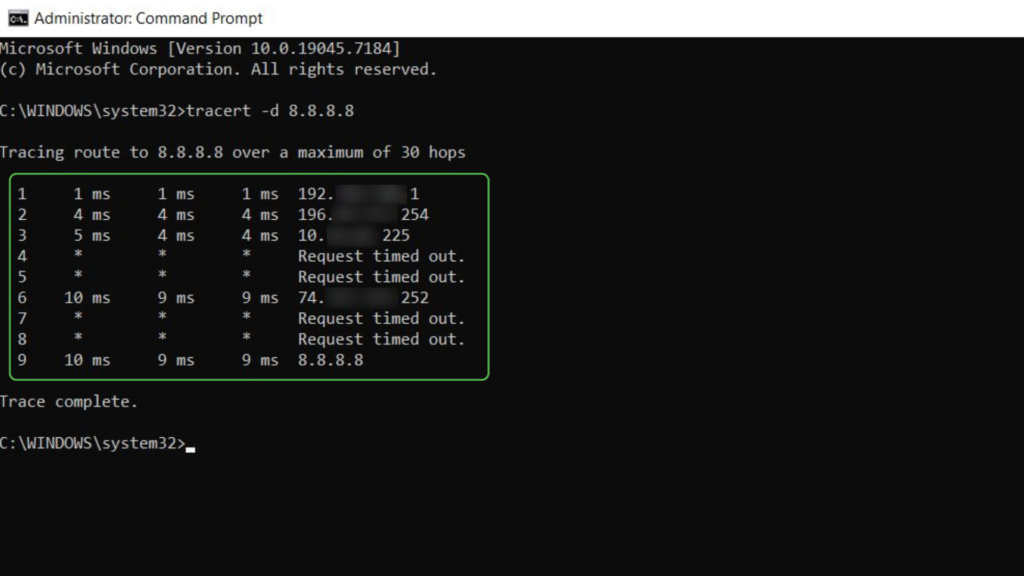
Traceroute is a network diagnostic tool you can use to detect double NAT. It lists each “hop” the data travels through (typically routers) to help identify where delays, failures, or network issues occur. If you see two private IP addresses in a row, it’s a strong indication of a double NAT situation.
Follow these steps to check for double NAT using Traceroute:
- Go to a website like whatismyip.com to view your public IP address.
- Open Command Prompt (Windows) or Terminal (macOS):
- Windows: Press the Windows key, type “cmd,” and press Enter.
- Mac: Open the Terminal application.
- Execute the Traceroute command:
- Windows: Type “tracert -d 8.8.8.8” and press Enter.
- macOS/Linux: Type “traceroute 8.8.8.8” and press Enter.
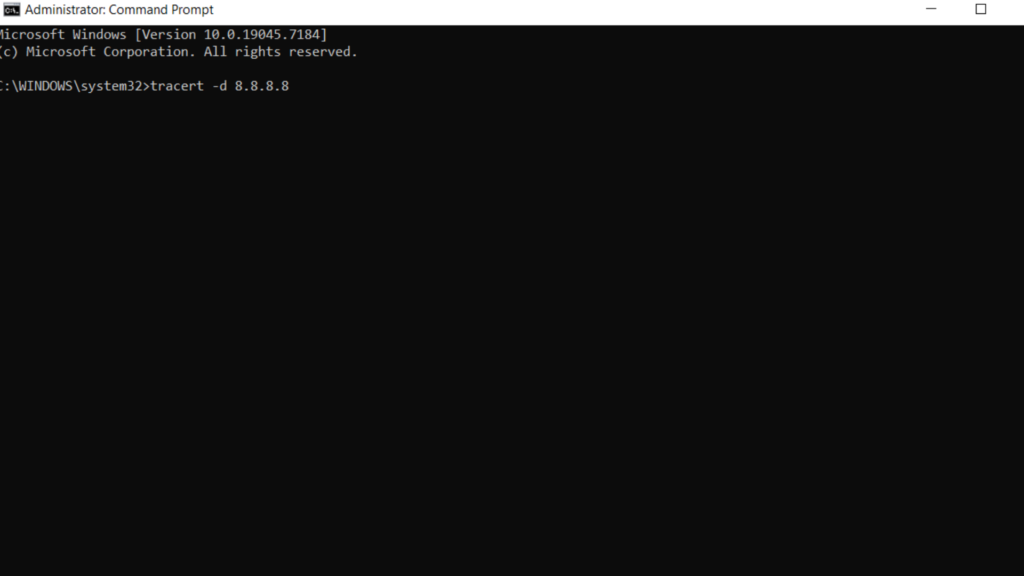
- Examine the IP addresses listed in the hops:
- Double NAT indicated: If you observe two or more consecutive hops with private IP addresses at the beginning of the trace, it suggests a double NAT configuration.
- Single NAT indicated: If the first hop displays a private IP address and subsequent hops immediately show public IP addresses, you are likely under a single NAT.
3. Use Xbox or PlayStation
Double NAT can cause game console issues, like dropped voice chats or frequent disconnections. That’s why consoles have built-in network settings to verify your NAT type.
To check for double NAT on Xbox, follow these steps:
- Go to Settings > General.
- Select Network Settings and look for the NAT Type field. You’ll see one of the following options:
- NAT Type: Open. This means no issues.
- NAT Type: Moderate or Strict. This means possible issues.
- Message: “Double NAT detected.” This means you have double NAT.
If you are using PlayStation, you can follow these steps to check for double NAT:
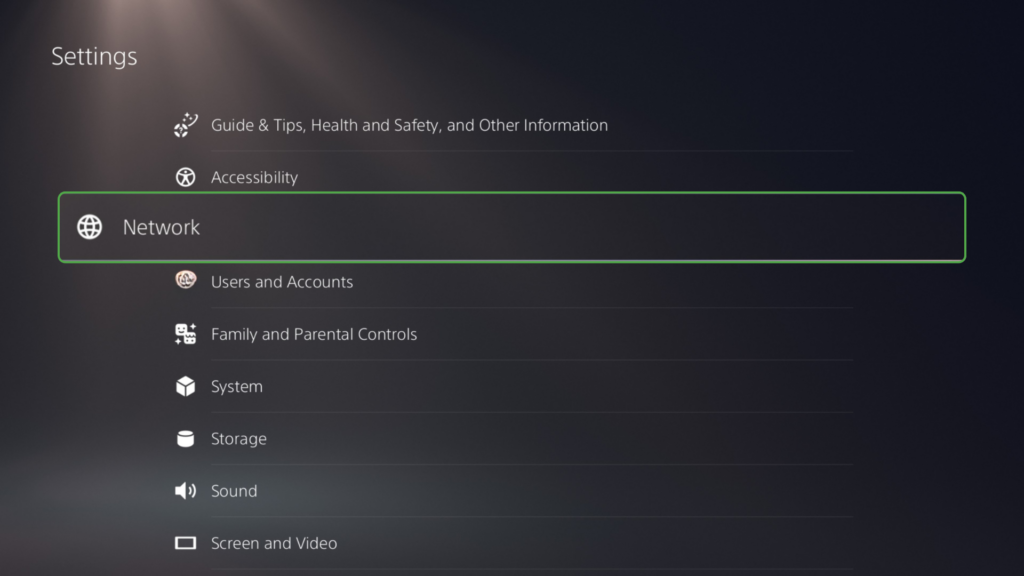
- Go to Settings.

- From there, select Network.
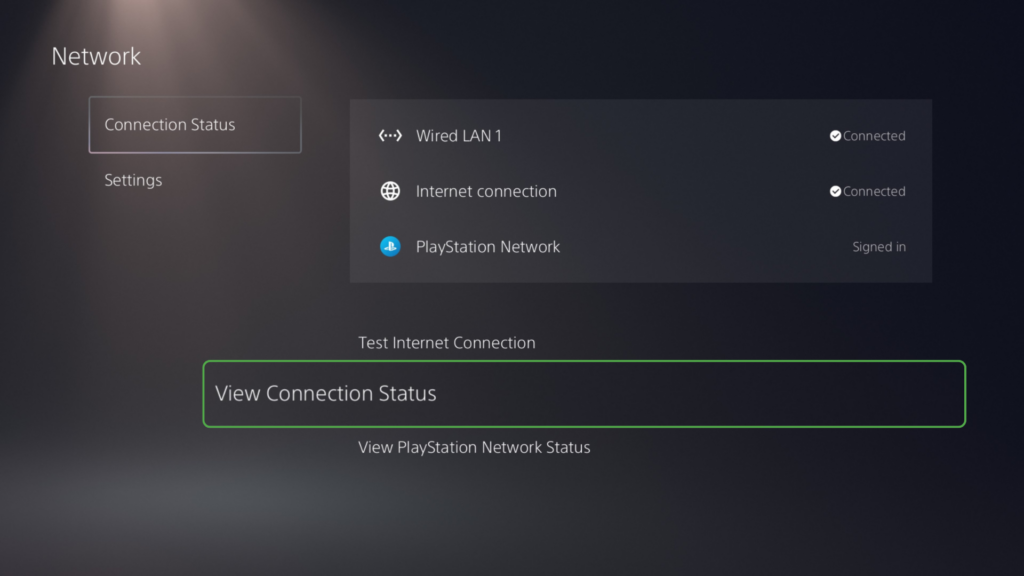
- Go to View Connection Status.
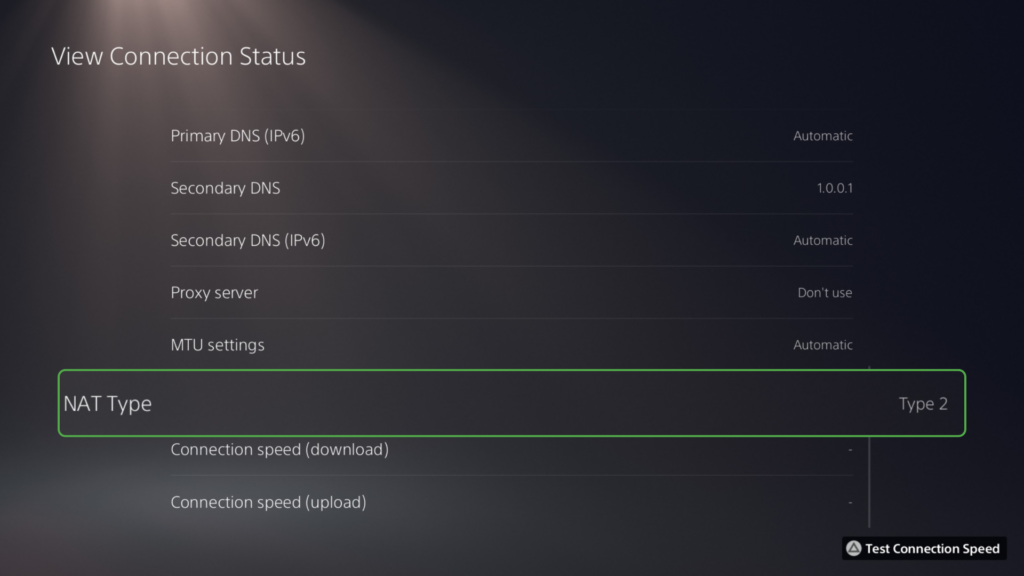
- Check the displayed NAT Type. You’ll see one of the following options:
- Type 1: Direct connection (best)
- Type 2: Behind a router (OK)
- Type 3: Strict (likely NAT issues)
How to Fix Double NAT
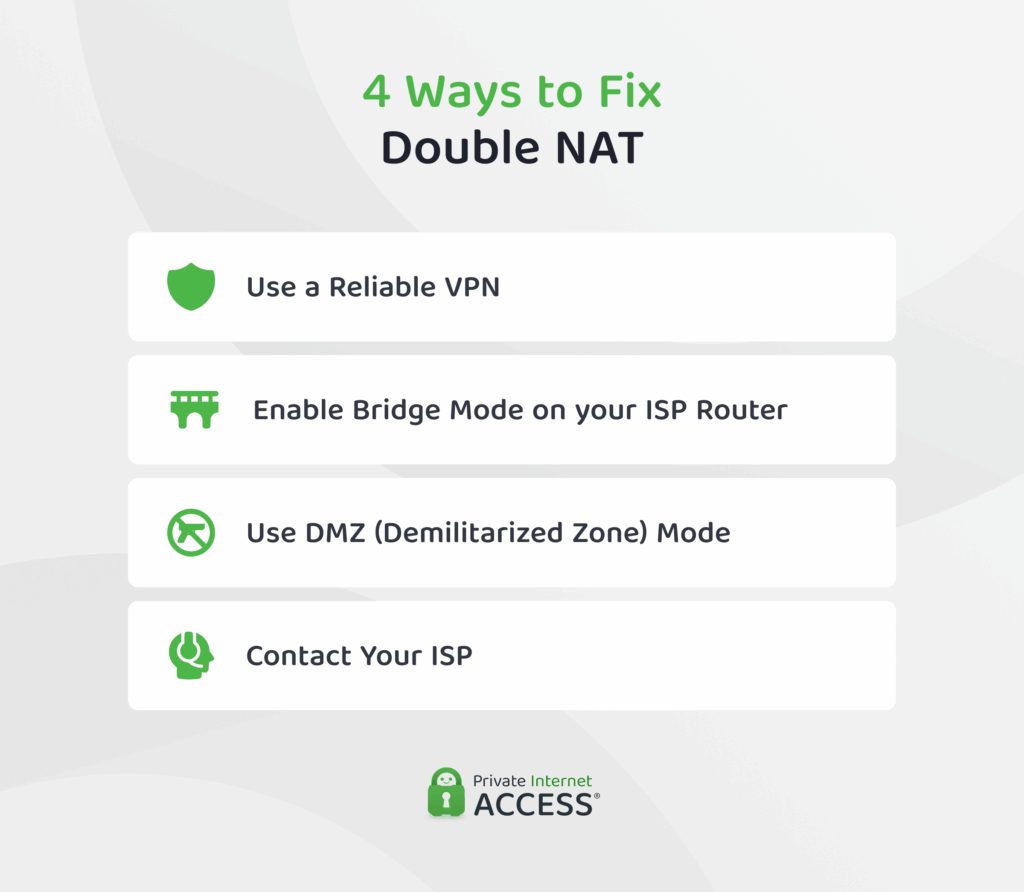
1. Use a Reliable VPN
In some situations, you can use a VPN to work around double NAT issues, especially when you can’t change network settings yourself, such as in apartments, dorms, or shared housing. A VPN won’t actually remove double NAT, but it can encapsulate your traffic and pass it through both NAT layers so outbound connections work normally.
Here’s when a VPN works:
The VPN Is Active Only on Individual Devices
If you install the VPN directly on your PC or phone, your device will create an encrypted tunnel to the VPN server over the existing double NAT path, allowing outbound connections to work normally even though you’re still behind two NAT layers.
This can help work around the limitations imposed by double NAT, because the VPN handles all traffic routing externally. This can significantly improve compatibility with online services like multiplayer games or video calls.
You Set Up VPN Port Forwarding
While double NAT makes local port forwarding hard or impossible, port forwarding at the VPN server can sidestep the whole issue.
Normally when you’re behind a complex network, like two routers or a shared network, outside devices can’t reach your device directly. But a VPN with port forwarding gives your device a stable public IP address that allows outside traffic to reach your device.
That means you can avoid having to forward ports through both NAT layers and host services, such as a game server or remote desktop connection, as if you were on a regular, open internet connection.
Some VPN setups, especially those using NAT-friendly protocols like OpenVPN or WireGuard, work well with this approach. But not all VPN providers support this feature. Some may even limit it to specific plans or server locations, so it’s important to check first.
Note: This approach is especially handy when the outer NAT (like your ISP’s router or CGNAT) is outside your control and you can’t change its settings. Just note that even with VPN port forwarding, some apps and games still won’t function correctly because of how they handle networking.
A VPN can help minimize some double NAT issues, but it can’t fix double NAT completely. If you’re hosting servers, need reliable port forwarding, or are experiencing persistent issues with gaming, video calls, or VPN connections, you’ll need to reduce your network to a single NAT layer.
Here are the most common ways you can fix double NAT and restore reliable connectivity for all your devices:
2. Enable Bridge Mode on Your ISP Router
Enabling bridge mode on your ISP router changes it into a basic modem. It sends the public IP straight to your own router, eliminating the second layer of NAT. This will fix many connection and port-forwarding problems.
Here’s how to do it:
- Log into your ISP router’s admin page.
- Find and enable the Bridge Mode option.
- Connect your personal router.
- Restart both devices.
Not all ISP routers support bridge mode, so contact your ISP if you don’t see the option or use the DMZ workaround described below.
3. Use DMZ (Demilitarized Zone) Mode
DMZ (Demilitarized Zone) mode forwards all incoming traffic from the ISP router directly to your router. This helps reduce the problems caused by double NAT because your router receives all external traffic without needing individual port forwarding rules.
Here’s how to set it up:
- Connect your personal router to the ISP router.
- Find the IP address of your personal router.
- Log into the ISP router’s admin panel.
- Enable DMZ and enter your router’s IP address.
- Save the changes and reboot.
This doesn’t actually remove the second NAT layer. Instead, it acts like automatic port forwarding for every port, which allows your router to handle incoming connections more easily. Also, note that if you change routers or reset your ISP router, you may need to update the DMZ IP address.
4. Contact Your ISP
If you’re not comfortable making network changes by yourself, or you tried but it didn’t work, you can always contact your ISP for assistance. Tell them you need help to modify or simplify your network setup so there’s only one device performing NAT. If you know exactly what you need help with (enabling bridge mode, port forwarding, etc.), provide them with as much detail as possible to expedite the process.
FAQs
What is double NAT, and how does it affect VPN connections?
Double NAT (Network Address Translation) occurs when two routers on a network are both performing NAT, placing devices behind two layers of private IP addresses. This setup can interfere with VPN connections by blocking or misrouting incoming traffic. It can also introduce latency and packet loss, which degrades VPN performance.
Why does my Xbox say “Double NAT detected,” and can a VPN fix it?
Your Xbox says “Double NAT detected” because it’s connected behind two routers that both perform network address translation. A VPN alone usually can’t resolve double NAT at the network level because it doesn’t change how your local network routes traffic between devices. To resolve it, you typically need to adjust your network setup.
Can a VPN help with double NAT problems?
A VPN generally doesn’t solve double NAT problems because it doesn’t change the underlying network routing. However, some VPN setups can help mitigate the impact of double NAT by routing all traffic through a single network layer. Still, the best solution is usually fixing the network configuration itself rather than relying on a VPN.
How do I fix double NAT when using a VPN?
To fix double NAT when using a VPN, start by simplifying your network setup so that only one device is performing NAT. You can enable bridge mode or passthrough mode on your ISP’s router to let your VPN router handle all NAT duties. Alternatively, place your VPN router in the DMZ of the ISP router, or contact your ISP to get a modem-only setup.
What causes “Double NAT detected” errors on home networks?
“Double NAT detected” errors happen when two devices on your home network both perform network address translation (NAT). It often occurs when you connect a personal router to an ISP modem/router without configuring one to operate in bridge mode or passthrough.
Is it safe to use a VPN if I have double NAT?
Yes, it’s safe to use a VPN even if you have double NAT. It can make it harder for some VPN protocols to establish a stable tunnel or accept incoming connections, but it won’t compromise your security or privacy.
