How to Lower Latency on Xbox (Series X, S and One)
If your Xbox Series X, S, or One is lagging even though your internet speed seems fine, high latency could be the problem.
Latency is the time it takes for your console to send data to a game server and receive a response. When that delay becomes too long, you’ll notice lag and interruptions during gameplay.
This guide covers how to lower latency on your Xbox and improve responsiveness to enjoy smoother online sessions, whether you’re streaming, chatting, or competing.
Why Is My Xbox Lagging?
Lag on Xbox usually means your connection isn’t keeping up. It’s often due to high latency (slow communication with the game server) or packet loss (pieces of game data disappearing mid-transit). This is usually caused by:
- Weak Wi-Fi signal: Distance from the router or interference can make your connection unstable.
- Network congestion: Other people streaming, gaming, or downloading can slow your connection.
- Distant game server: If the game connects you to a server far from your region, ping goes up.
- Bad routing or DNS: Your ISP routing your data through a congested or indirect path to the game servers takes more time.
- Activity-based throttling: Some internet providers slow down gaming traffic, especially at peak times.
- Wireless vs. wired: Wi-Fi is less stable than Ethernet and more prone to interference.
- NAT type or firewall settings: A “Strict” NAT type can block or delay connections to other players.
The good news is there are ways to fix high latency on your Xbox, no matter which series you have.
How to Check Your Ping on Xbox (And What It Means)
Ping is a measurement of latency – the time it takes data from your device to reach the gaming server and return to your device.
Knowing your ping is a helpful first step when trying to understand lag on Xbox. It can indicate whether connection delays may be contributing to gameplay lag.
Some games like Call of Duty, Fortnite, or Apex Legends show your ping during matches or in the lobby and scoreboard screens.
You can also check it directly in your Xbox settings:
1. Press the Xbox button on your controller.
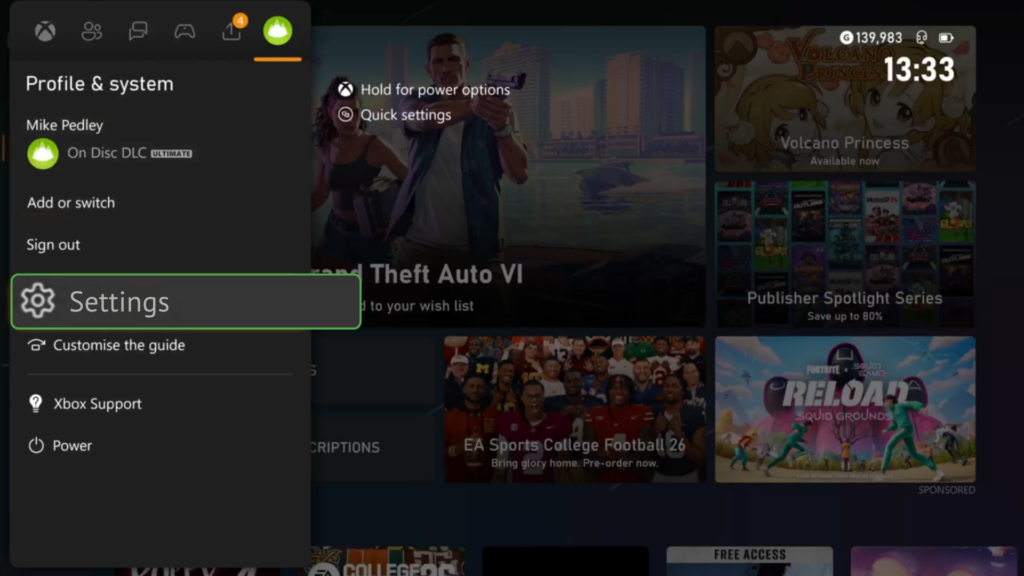
2. Go to Settings → General → Network Settings.

3. Select Test network speed & statistics.
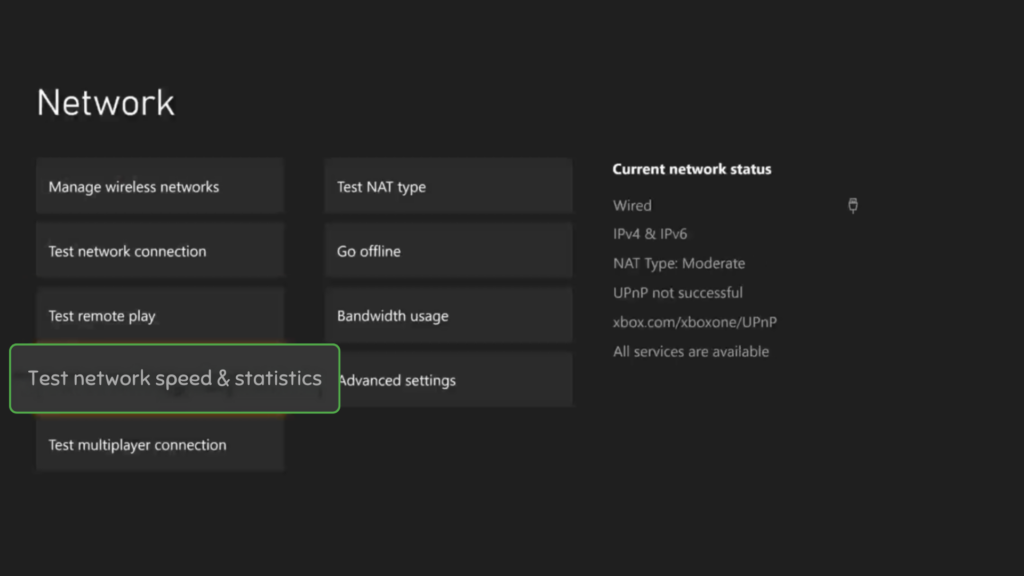
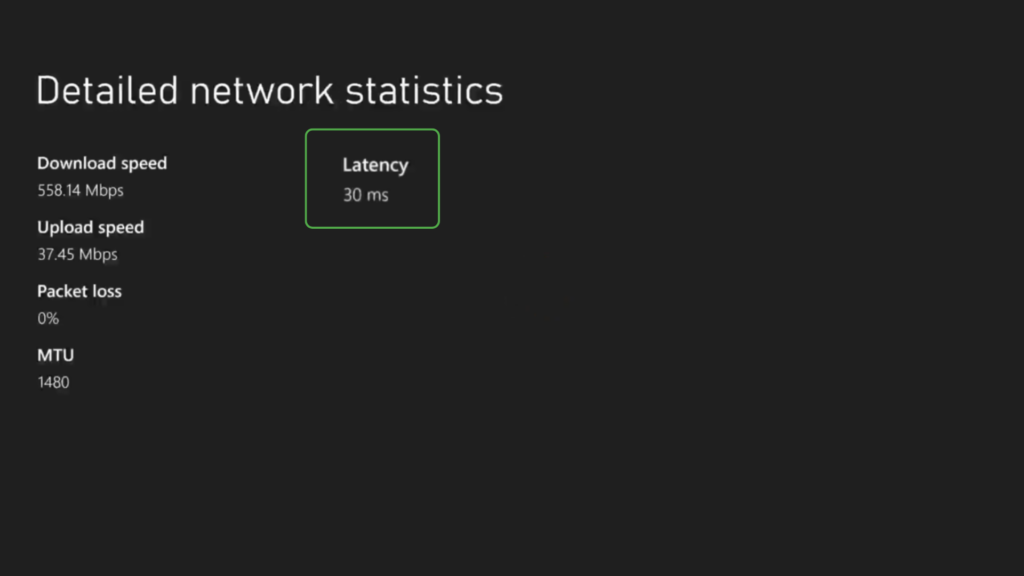
4. Here, you’ll see:
- Download speed
- Upload speed
- Latency (ms) → This is your ping
- Packet loss (if any)
Is Your Ping Too High?
The lower your ping, the more responsive your game feels. High ping means high latency, which leads to annoying lag on your Xbox – shots not landing, delayed actions, and rubberbanding.
Here’s a breakdown of ping ranges and their impact on gameplay:
- 0–20 ms: Ultra-fast. Inputs feel instant. Best-case scenario.
- 20–40 ms: Smooth and responsive. Great for competitive play.
- 40–60 ms: Still solid. Small delay, but most players won’t notice.
- 60–80 ms: Noticeable delay in fast-paced action. Timing gets trickier.
- 80–100 ms: Lag starts to affect movement and hit detection.
- 100+ ms: Input feels delayed, and online performance may suffer.
10 Ways to Lower Latency on Your Xbox
Latency (high ping) and packet loss can come from many different sources, and the steps you take to lower them depend on what’s causing the issue in your setup.
The tips below cover the most common sources of lag and how to reduce both lag and packet loss on your Xbox.
1. Use a High-Quality VPN
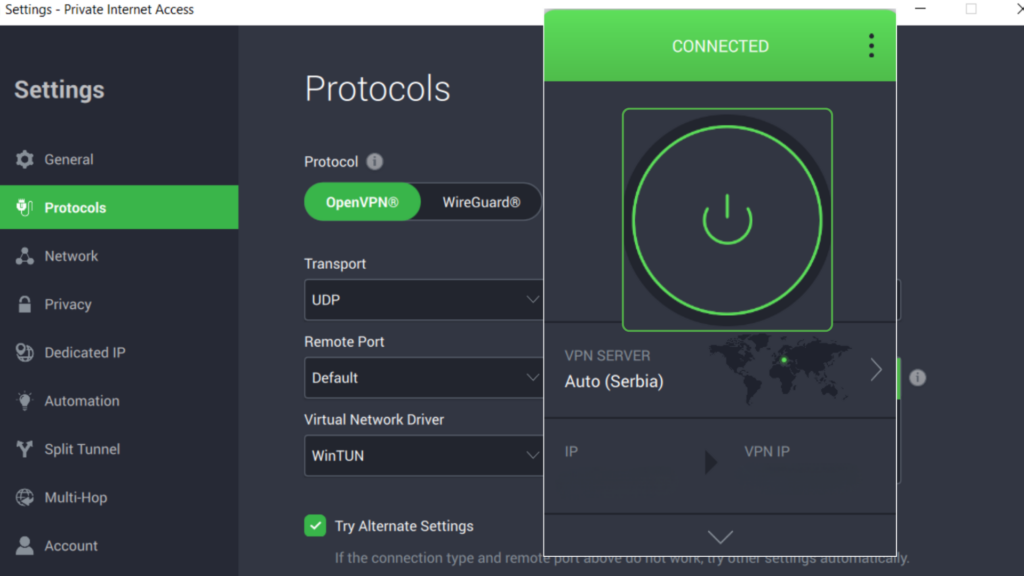
When: Your ISP throttles gaming traffic or uses inefficient routing.
Some internet providers slow down certain types of traffic, like gaming, during peak hours. A VPN encrypts your data, which helps prevent your ISP from seeing exactly what you’re doing. This can speed up your connection so actions register when you expect them rather than seconds later.
A VPN can also route your traffic through different network paths. In some cases, this can avoid congested or indirect routes between your Xbox and the game server, potentially lowering latency.
Expert Tip: Xbox doesn’t support VPN apps directly, but you can manually set up a VPN on a compatible router. Private Internet Access offers low-latency servers, delivers excellent speeds, and supports manual router configuration.
PIA is also available preconfigured on FlashRouters if you’d rather skip the technical setup. Within the app, you can switch encryption levels, alternate between protocols, and adjust MTU settings to improve connection stability.
2. Use a Wired Connection
When: Physical obstacles between your Xbox and router cause a poor connection, your Xbox and router are too far apart, or there are too many devices in your home network.
Connecting your Xbox directly to your router or modem with an Ethernet cable provides a more stable connection that’s far less likely to spike or drop mid-game.
If running a cable isn’t practical, consider these alternatives:
- A mesh Wi-Fi system: This creates a more consistent wireless signal by splitting the traffic among several mini Wi-Fi routers in the home – great for large or multi-story spaces.
- A powerline adapter: This is a small device that uses your home’s electrical wiring to transmit internet data, letting you plug your Xbox into an Ethernet port in another room without running long cables.
3. Change Your DNS Settings
When: Matchmaking takes unusually long, games hang on loading screens, or connections to game servers feel slow to start.
The Domain Name System (DNS) can indirectly affect latency by determining how quickly your Xbox finds and connects to gaming servers. Most of us use our ISP’s default DNS servers, but they’re not always the fastest or most reliable.
Switching to a reliable DNS service can help. Here’s how to do it:
1. From the Home screen, press the Xbox button on your controller, then navigate to
Settings > General > Network settings.
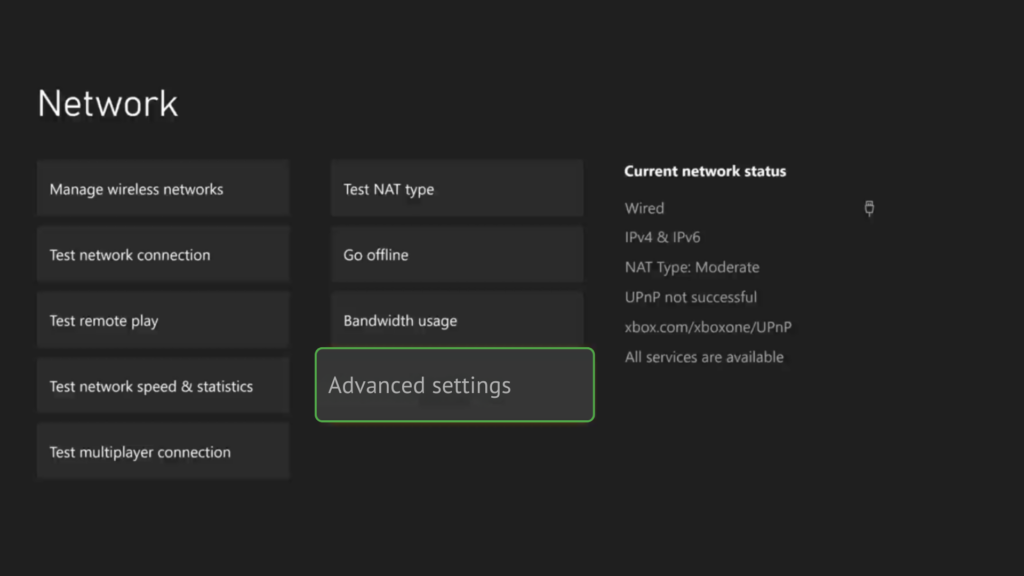
2. In the Network screen, choose Advanced settings to access IP, DNS, and MAC address configurations.
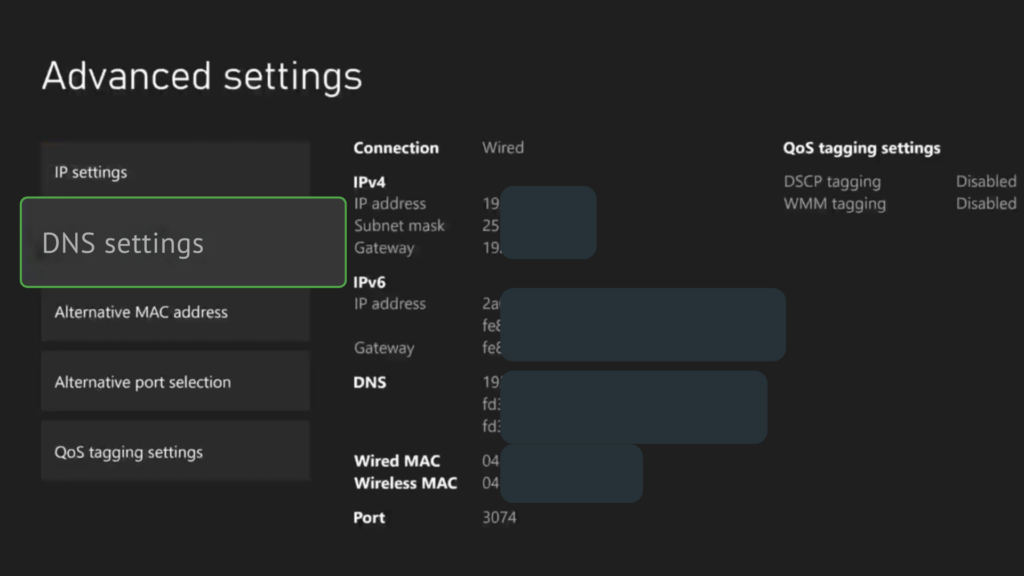
3. In the Advanced settings menu, select DNS settings to modify how your Xbox connects to the internet’s name servers.
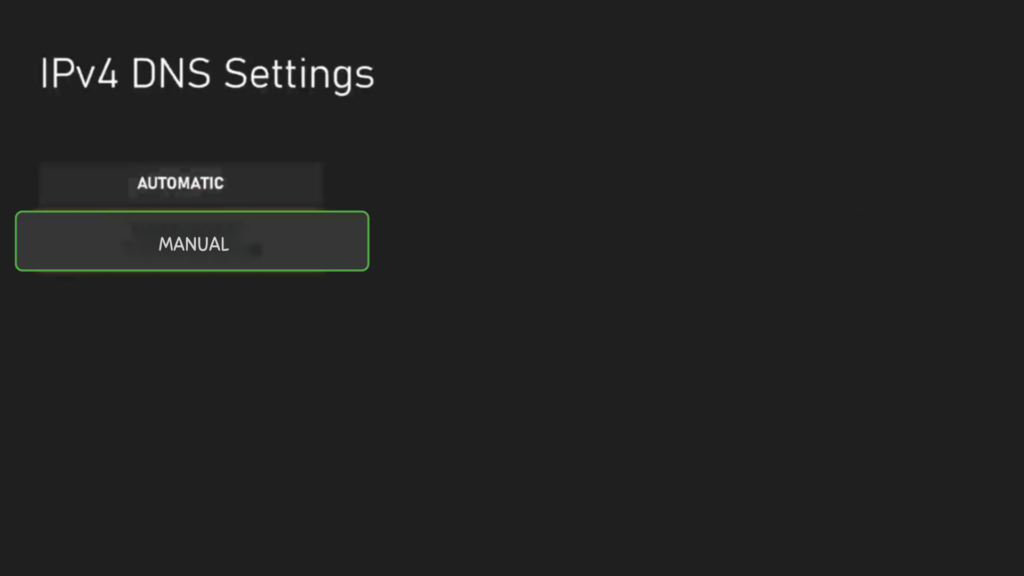
4. Select Manual when prompted so you can enter custom DNS servers.
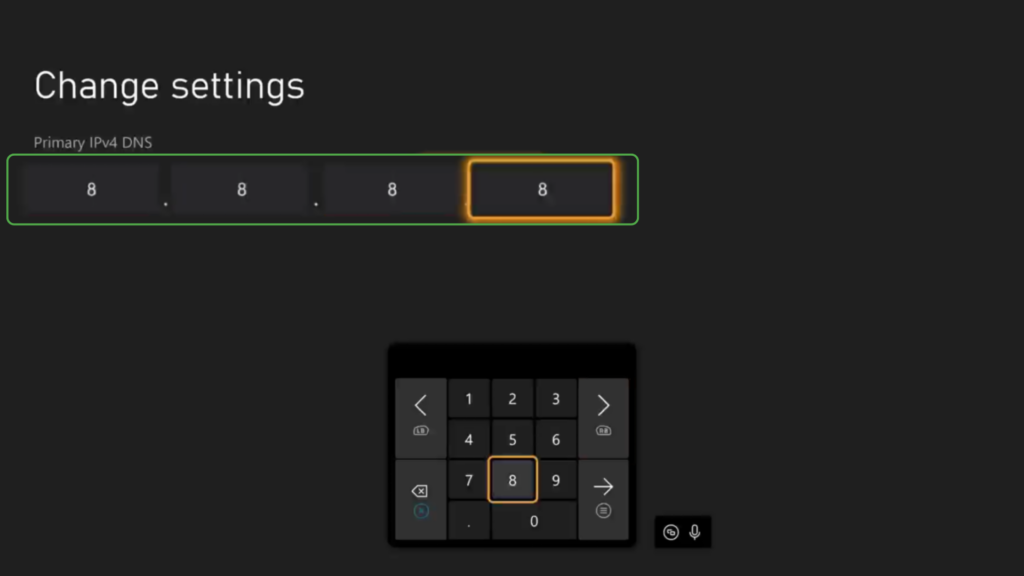
5. Next, you’ll be prompted to enter a primary DNS and a secondary DNS. Examples:
- Primary DNS: 8.8.8.8 (Google)
- Secondary DNS: 1.1.1.1 (Cloudflare)
4. Enable QoS on Your Router
When: Multiple people are streaming, downloading, or gaming at the same time, and your connection slows down or spikes during matches.
QoS (Quality of Service) lets your router prioritize certain types of traffic, such as your Xbox gaming traffic, over other internet activities like streaming or large downloads.
Most modern routers let you do this, and it can significantly reduce Xbox latency, especially if a lot of other devices on the same network are engaged in bandwidth-heavy activities.
To enable it:
- Log in to your router’s admin panel (usually at 192.168.0.1 or 192.168.1.1).
- Look for a section called QoS, Device Prioritization, or Traffic Management.
- Add your Xbox by name, MAC address, or IP address.
- Set it as a high-priority device.
- While you’re there, assign your Xbox a static IP address. This helps keep your NAT type stable and prevents random disconnects during matches.
5. Move Your Console (If Using Wi-Fi)
When: You’re stuck on Wi-Fi and experiencing an unstable signal, random disconnects, or spikes in latency during gameplay.
Placing your Xbox as close to the router as possible helps you get the strongest Wi-Fi signal.
Here’s what helps:
- Use the 5 GHz band (faster, less crowded).
- Keep the console in the same room as the router if possible.
- Avoid placing it behind the TV or in a closed cabinet.
If your space doesn’t allow for ideal placement (e.g., your router is in another room and can’t be moved), consider using a mesh Wi-Fi system.
6. Limit Devices on the Network
When: You have lots of devices connected while gaming during busy hours and notice lag, stuttering, or higher ping.
Your network has a limited amount of bandwidth, and every connected device uses a portion of it. If someone’s downloading a game, streaming 4K, or syncing files to the cloud, you’ll feel it.
Before gaming, do this:
- Disconnect devices you’re not using, like your phones, smart TV, tablets, etc.
- Turn off Wi-Fi on idle devices to stop background updates or syncing.
- Use a guest network to keep non-gaming devices off your main connection.
7. Manually Select the Nearest Game Servers
When: Your ping seems high even with a stable connection, or you notice you’re getting matched on servers far from your region.
Some multiplayer games (like Call of Duty, Apex Legends, or Fortnite) let you choose your server region manually. Others assign one automatically based on ping or availability.
If the option is available, choose the region closest to your location. For example:
- Players in North America: stick with NA East or West, depending on your location.
- Gamers in Australia/New Zealand: You’ll often get better results by avoiding Southeast Asia servers in favor of local Oceania ones.
Keep in mind that not all games support server selection. But when they do, a simple change can drop your ping significantly, especially if the auto-selected server routes you through a high-traffic path.
8. Update Your Firmware
When: You’ve ruled out network issues but still experience random lag, disconnects, or inconsistent performance.
Microsoft regularly releases firmware updates that improve performance and fix bugs that may cause lag, latency spikes, or connection issues. It’s not just your console; your controller and router need updates, too.
Make sure to:
- Update your Xbox: Go to Settings > System > Updates and install any available system updates.
- Update your controller: Go to Devices & connections > Accessories, select your controller, and follow the prompts.
- Update your router: Log into your router’s admin panel (usually 192.168.0.1 or 192.168.1.1) and check for firmware updates.
Set a reminder to check every few months. Outdated firmware is a common cause of avoidable lag.
9. Regularly Reboot and Clear Your Cache
When: Your Xbox feels sluggish, menus lag, or you’re dealing with random connection hiccups – even with a strong network.
Over time, your Xbox and network equipment accumulate temporary data and background processes that can slow things down.
To clear the cache and refresh the system:
- Power off your Xbox completely (hold the Xbox button for 10 seconds).
- Unplug it and your router/modem from power for about 2 minutes.
- Reconnect and power on both devices.
10. Activate Game Mode on Your TV or Monitor
When: Your gameplay feels delayed even with a strong connection and low ping, especially in fast-paced shooters or competitive games.
Game Mode disables unnecessary image processing features like motion smoothing, post-processing filters, and interpolation that can add up to 50 ms of input lag.
To enable:
- On most TVs: Settings > Picture > Picture Mode > Game.
- On monitors: Use the on-screen menu to switch to Gaming or Low Latency mode.
Pairing this with a display that supports 120 Hz and low input lag (especially for Xbox Series X|S) can improve responsiveness.
Why Use PIA with Your Xbox
PIA can give you more control over your Xbox online experience, especially when it comes to server regions, performance, and privacy.
Here’s what you get with PIA VPN:
- High-speed, low-latency servers: PIA’s servers in 112 countries are built to handle the demands of competitive play. Connecting to servers that match your region can provide alternative routes that help keep latency lower if your ISP relies on a long or congested route to the game servers.
- Reduce DDoS risk in competitive play: If you play in competitive lobbies or host sessions, hiding your real IP with PIA makes it harder for malicious players to target you with DDoS attacks or griefing attempts.
- Stay private on shared or public Wi-Fi networks: If you game on a shared home network, university dorm, or public connection, PIA encrypts your traffic and helps prevent tracking or interference.
FAQ
How can I get a lower ping on Xbox?
There are several things you can do to lower ping on your Xbox. Using a wired connection and restarting your console and router can often improve stability. Choosing the game server closest to your location can also reduce the distance your data has to travel. If routing issues are affecting your connection, a fast VPN may also help improve stability and lower latency.
Why is my ping so high on Xbox?
A high ping usually means a network issue. It could be related to your ISP, congestion between your connection and the game server, a hardware problem, or simply bad luck. Many of these issues can be improved by rebooting devices, clearing caches, changing servers, or using a reputable gaming VPN.
Is 20 ms ping good?
It’s an excellent ping – it’s the kind of speed that pro gamers dream of. Getting your ping down to 20 milliseconds means that the time between committing to an action and seeing its effects will be close to instantaneous, so you’ll almost certainly have an advantage over other players in PVP games. If you’re not sure what your ping means, you can see the effects of different ping ranges here.
Is 0 ping possible?
Not really. Even if a game server were running on a computer right next to your console on the same LAN, ping still wouldn’t be 0 milliseconds. Distance is only one factor – the data also needs time to be processed as it travels from your console to the server and back. While ping can’t truly reach zero, anything around 20 ms is pretty good.
Is a ping of 50 bad?
Not at all. A ping of 50 ms is a solid baseline for almost any online game, including shooters. While lower ping is always better, most gamers can have a pretty fun time at 50 ms, or even just a tiny bit higher. However, if you’re experiencing issues, there are several things you can do to reduce your latency.
What’s the best VPN for Xbox?
PIA VPN checks all the right boxes. Support for VPN-enabled routers makes it possible to play console games through a VPN connection. It also runs a global network of 10-Gbps servers built to handle the demands of online gaming while providing protection against DDoS attacks and targeted griefing. Strong encryption also helps keep your connection more private, even when playing on shared networks.
Why do gamers use VPNs?
There are three main considerations: speed, location, and security. VPNs can help you bypass a lot of network issues to reduce lag and even lower your ping. They also add an extra layer of security by masking your IP address, which can help prevent DDoS attacks. PIA’s servers also have DDoS mitigation built in to reduce disruptions during gameplay.
How do I check my ping on Xbox?
To check your ping on your Xbox, go to Settings > General > Network Settings > Test Network Speed & Statistics. Your ping will show up under Latency. It’s listed in milliseconds, and lower numbers are better. Under 60 ms is great. If you’re hitting triple digits, you’ll definitely feel it in fast-paced games.
Can changing DNS settings improve my Xbox latency?
Sometimes, yes. If your Xbox is using your ISP’s default DNS, switching to a public DNS server like Google (8.8.8.8) or Cloudflare (1.1.1.1) can help. It doesn’t speed up the entire connection, just the part where your console finds and connects to servers. It’s not a miracle fix, but it can shave off some delay.
What NAT type is best for online gaming?
Open NAT is what you want. It gives your Xbox the most freedom to connect to other players. Less matchmaking weirdness and fewer party chat errors. If you’re stuck on moderate or strict NAT, try turning on UPnP in your router. Worst case, you’ll need to port forward or set a static IP.
Does Xbox Game Mode on routers really reduce lag?
If your router supports it, yes – it can help. Game Mode or QoS presets prioritize Xbox traffic, which means less lag when the rest of the house is hogging the internet. It won’t fix a bad connection, but it does make a difference during big downloads or peak hours.
