Bridge Mode: What It Is, How It Prevents Double NAT, and When to Use It
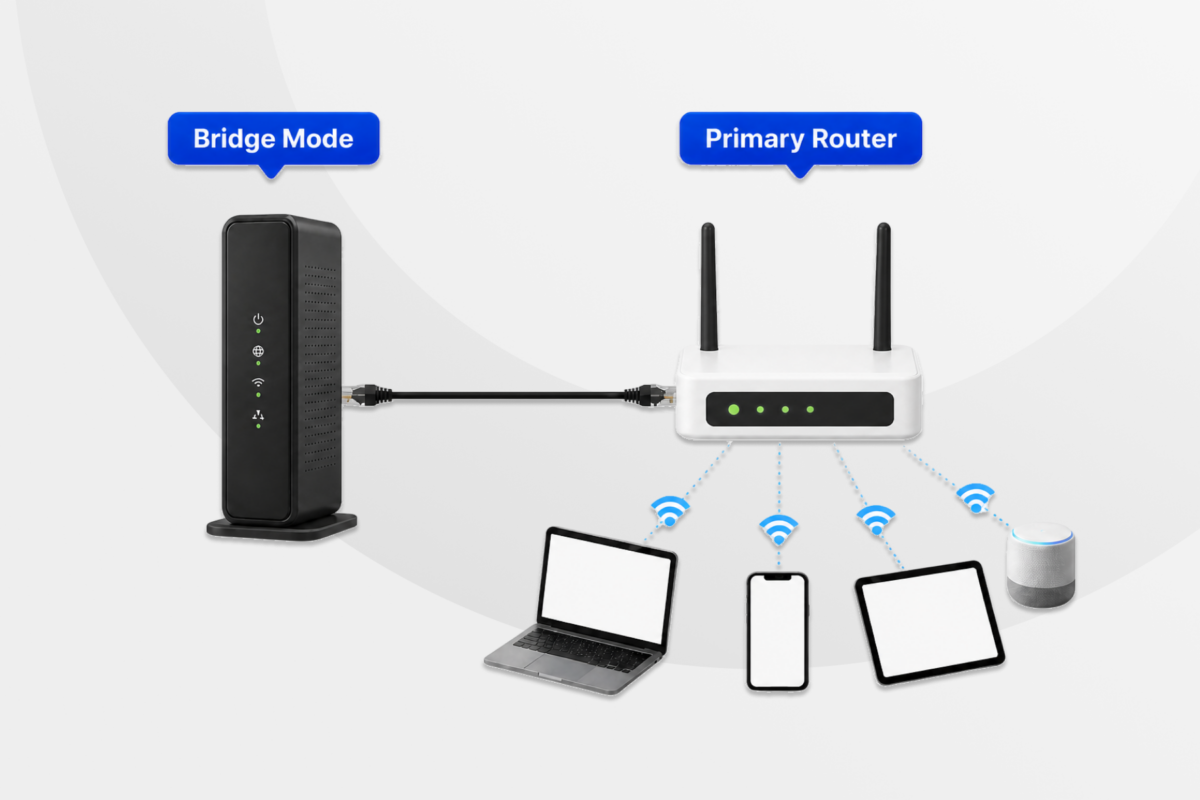
Adding a second router or mesh Wi-Fi system can sometimes create network conflicts, particularly if both devices try to act as routers. Bridge mode can resolve these issues by allowing one device to take over routing while the other passes the connection through.
This guide explains what bridge mode is, when to use it, how to enable it safely, and what changes after it’s enabled.
What Is Bridge Mode?
Bridge mode is a setting that disables router functions, such as managing network traffic and connections, on a combined modem and router.
While many consumer devices combine both modem and router functions in a single piece of hardware, these devices perform different jobs:
- Modem: Provides the connection between your home network and your internet service provider (ISP).
- Router: Creates and manages your home network and directs traffic between your devices and the internet.
When you enable bridge mode on a combined modem and router, the modem continues to provide the connection to your ISP while a separate router manages the network.
Bridge Mode vs. Wireless Bridge Mode
The term “bridge mode” can refer to different network configurations depending on the device.
For instance, wireless bridge mode is different from the bridge mode discussed in this guide. It uses a wireless connection to link one network or network device to another, allowing devices on the two networks to communicate without a wired connection.
If you want a combined modem/router to stop routing so that a separate router can take over, you need the bridge mode described in this guide, not wireless bridge mode.
How Does Bridge Mode Solve Double NAT?
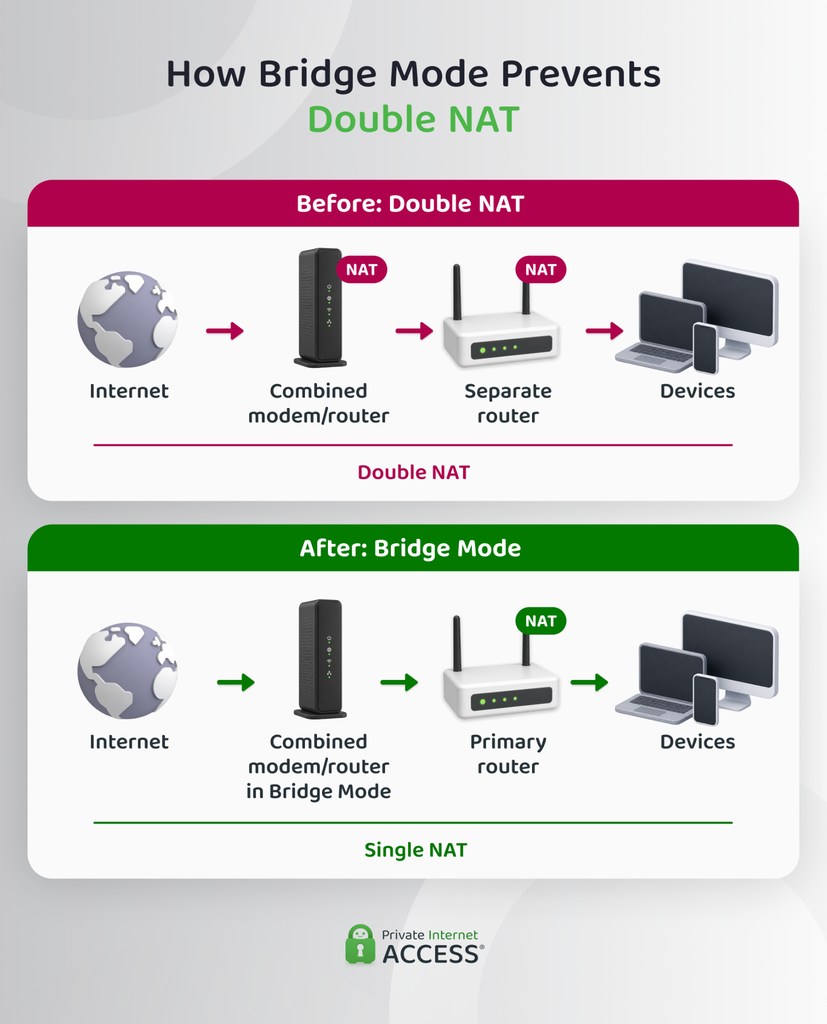
Double NAT can cause problems with some connections and network functions, but bridge mode prevents this by allowing only one device to handle these functions, leaving a single layer of NAT between your devices and the internet.
What Is NAT?
Network Address Translation (NAT) allows multiple devices on your home network to share a single public IP address. An IP address is a number that identifies a device or network so data can be sent to the right destination.
Devices on your home network typically use private IP addresses, while your internet connection has a public IP address. Your router uses NAT to translate between these addresses when devices communicate over the internet.
What Causes Double NAT?
Double NAT occurs when two devices on the same network both perform NAT, causing traffic to pass through two layers of NAT instead of one. This often happens when you connect a separate router to a combined modem and router that’s still operating as a router.
In this setup, the first device creates one network, while the second router creates another behind it. Double NAT doesn’t necessarily cause problems with everyday activities such as browsing, but it can make some network features harder to use.
Bridge Mode vs. Access Point Mode
Bridge mode and access point mode can both avoid double NAT, but they assign different roles to the devices on your network.
Unlike bridge mode, access point mode keeps the first device as the router, while the second device extends the existing network without taking over routing.
Here’s an overview of the differences:
| Function | Bridge Mode | Access Point Mode |
| First device | Stops routing | Continues routing |
| Second device | Becomes the primary router | Extends the existing network |
| Device that manages the network | Second device | First device |
| Best for | When you want your own router to manage the network | When you want to keep the existing router in charge while adding Wi-Fi coverage |
When Should You Use Bridge Mode?
You don’t always need bridge mode because you have two routers, especially if both devices are working together without causing problems. If you’re experiencing issues as a result of double NAT, then bridge mode can be particularly useful if you need to:
- Play multiplayer games: Connect your console or PC to other players or game servers.
- Use remote access: Connect to a device or service on your network while you’re away from home.
- Set up port forwarding or UPnP: Direct incoming connections to devices on your network, either manually with port forwarding or automatically with UPnP.
- Connect devices on your network: Access a printer or other device connected to another router.
- Use peer-to-peer (P2P) applications: Connect to other users’ devices for activities such as file sharing, gaming, or communication.
What If You’re Using a Mesh Wi-Fi System?
A mesh Wi-Fi system uses multiple connected devices to provide Wi-Fi coverage throughout your home. One device acts as the primary router, while additional devices extend the network’s coverage.
If you want the mesh system to serve as the primary router and manage your network, you can put the combined modem and router into bridge mode.
If you put the mesh system into bridge mode instead, the combined modem and router remains the primary router. The mesh system then operates as an access point, providing Wi-Fi access without handling routing.
What Changes After You Enable Bridge Mode?
Enabling bridge mode can affect some features on the device you put into bridge mode. Which features it disables depends on the device but may include the following:
- Firewall: Filtering and blocking unwanted network traffic.
- Port forwarding and UPnP: Managing which incoming connections can reach devices on your network.
- Quality of Service (QoS): Prioritizing certain types of network traffic when your connection is busy.
- Guest network: Providing a separate network for visitors to access the internet without giving them the same access to your main network.
Where supported, the primary router will handle these functions instead. Depending on the system, mesh Wi-Fi systems can also lose features, such as parental controls, when placed in bridge mode.
How to Enable Bridge Mode Safely
Here’s a breakdown of the steps to take when enabling bridge mode.
Before You Enable Bridge Mode
Changing your network configuration can affect your connection and other network settings, so it’s worth doing a few simple checks before you begin:
- Identify the primary router: Decide which router will manage your network after enabling bridge mode.
- Record your current settings: Note your Wi-Fi network name and password, as well as any other settings you may want to restore if you need to undo the change.
- Create a backup: Save a copy of your current settings if your device supports configuration backups.
- Check for software updates: Ensure the devices involved are running up-to-date firmware.
Steps to Enable Bridge Mode
Although the exact menus and terminology vary by device, this is the basic process:
- Log in to the device you want to bridge: Connect to the router using a computer or mobile device, then open its administration page in a web browser. You may need to enter a local IP address, such as
192.168.1.1, to access the settings. - Enable bridge mode: Select the bridge mode option and wait for the device to apply it. It may restart or temporarily disconnect your internet connection.
- Connect the separate router: Connect the bridged device to the separate router, usually with an Ethernet cable.
Where to Find Bridge Mode on Different Routers
The location and name of the bridge mode setting vary by model. Here’s where to start looking on some common routers and ISP-provided devices:
| Brand/ISP | Where to Look |
| NETGEAR | Advanced or Advanced Setup settings |
| TP-Link | Internet, WAN, or advanced network settings |
| ASUS | Operation Mode settings |
| Xfinity | Gateway > At a Glance |
| AT&T | Firewall > IP Passthrough |
| Spectrum | Advanced or network settings |
| CenturyLink | WAN or advanced settings; some devices use Transparent Bridging |
If you don’t see the options described here, check the documentation for your specific device.
How to Check If Bridge Mode Is Working
After enabling bridge mode, connect a device to the separate router and make sure you can access the internet.
You can then log in to the separate router and check its WAN or Internet IP address. This is the address assigned to the router’s internet connection. If it has a:
- Public IP address: This generally indicates that the separate router is receiving its internet connection from the ISP rather than from another router.
- Private IP address: This can indicate that another router is still performing routing and NAT, meaning double NAT could still be present.
Troubleshooting Bridge Mode
If you run into issues after configuring bridge mode, this table offers several likely causes and potential fixes:
| Issue | Likely Cause | Solution |
| No internet connection | The separate router isn’t receiving a connection | Check the Ethernet connection and confirm you enabled bridge mode. |
| Port forwarding isn’t working | Double NAT may still be active | Check that the first router is in bridge mode and the separate router is handling routing. |
| Devices on your network can’t communicate | The devices are on separate networks | Make sure the devices are connected through the primary router. |
| Some mesh features are missing | The mesh system is in bridge mode | Put the mesh system back in router mode and bridge the combined modem/router instead. |
Can I Use a VPN With Bridge Mode?
Yes, you can use a VPN while on bridge mode. If double NAT is contributing to VPN connection problems, enabling bridge mode can remove the additional NAT layer that may be causing the issue.
Using a VPN With Your Primary Router
If you want to protect all the devices on your network with a VPN, you can set up PIA on your compatible router. This routes traffic from connected devices through the encrypted VPN tunnel without having to install the PIA app on each one. This includes devices that don’t natively support VPN apps, such as gaming consoles.
Alternatively, you can install the PIA app on your phones, laptops, tablets, and more. PIA supports unlimited simultaneous connections, so one subscription can cover all your devices.
Related: The Key Pros and Cons of Using a VPN
FAQ
What is bridge mode on a router?
Bridge mode disables a router’s routing and NAT functions so a separate router can handle them instead. This can prevent double NAT, which occurs when two devices on the same network both perform NAT.
How does bridge mode work?
When bridge mode is active, the bridged device stops performing routing and passes traffic to the primary router, which handles the network’s routing and NAT.
When should I use bridge mode on my router?
Bridge mode can be useful when a combined modem and router is connected to a separate router or mesh Wi-Fi system and double NAT is causing problems with features such as port forwarding, UPnP, or communication between devices.
Does enabling bridge mode affect my Wi-Fi or connected devices?
It can. Depending on the device, its Wi-Fi may be disabled when you enable bridge mode, while mesh systems can lose some of their functions. Your connected devices can still access the network through the primary router, but some network features may change.
Can I use a VPN when my router is in bridge mode?
Yes. Bridge mode and VPNs can work together, and can actually help resolve VPN connection problems caused by double NAT.
