Should Your VPN Be On or Off? How to Decide When to Flip the Switch

Wondering whether your Virtual Private Network (VPN) should be on or off? The short and simple answer is that your VPN should be on. If privacy and security are part of why you use a VPN in the first place, keeping it running by default gets you more protection than switching it on when you remember to.
A VPN encrypts your traffic and hides your IP address, so your ISP, network administrator, or anyone else who might be snooping on your connection can’t easily see what you’re doing online. That protection only works while the VPN is actually connected, which is the main argument for leaving it on rather than using it sporadically.
Still, there are situations where turning your VPN off makes sense. This guide covers when to keep your VPN on, when turning it off is the right call (and when a smaller fix solves the problem instead), and how to set your VPN up so it stays connected without you having to think about it.
Table of Contents
9 Situations When You Should Always Keep Your VPN On3 Instances When You Should Turn Your VPN Off
4 VPN-Related Problems You Can Fix Without Turning Your VPN Off
How to Keep Your VPN on All the Time
FAQ
9 Situations When You Should Always Keep Your VPN On
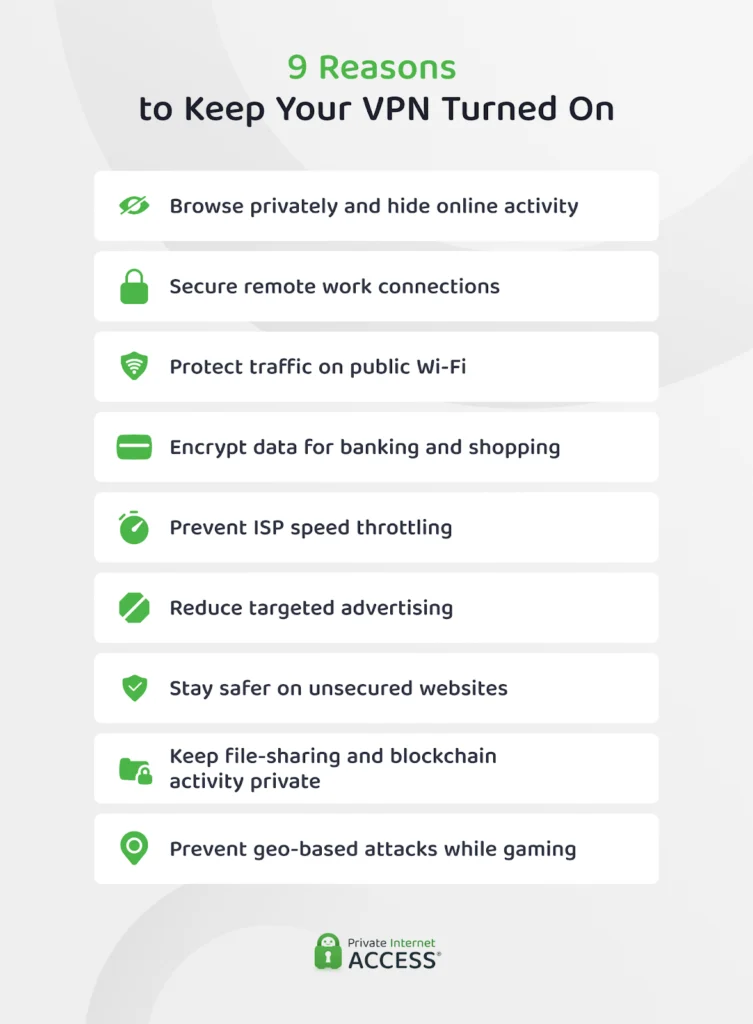
1. Casual Browsing
Browsing sessions unfortunately aren’t private by default. Cookies and trackers can follow you across the web, linking activity to your accounts and IP address. Plus, your ISP can see which domains you visit even when the websites use HTTPS encryption.
Turning your VPN on masks your real IP address, replacing it with one from a VPN server. This makes it much more difficult for websites, apps, and other third parties online to see where you’re connecting from or link your activity back to you.
2. Working Remotely
Working outside the office often means logging into internal systems remotely. These systems might contain client files, financial records, or other data the law requires your employer to protect.
Industries with strict data rules (think healthcare1 or finance2), often require data collectors and handlers to encrypt their internet and intranet connections for better security. They usually accomplish this with remote access or site-to-site VPNs.
Even without a specific requirement, it’s usually best to use a VPN. Routing your work traffic through a VPN adds a layer of protection to the files you’re sending across the network you happen to be connected to.
3. Using Public Wi-Fi
Public Wi-Fi networks in cafés, hotels, and airports rarely have your home network’s level of protection. This makes it easier for others on the same network to monitor unprotected traffic or exploit weak network settings to access sensitive information.
A VPN encrypts your traffic before it leaves your device, so you’re less likely to expose the data that you’re sending and receiving, even if you connect to a compromised network.
4. Banking and Shopping Online
As shopping and banking online becomes the norm, cybercriminals have started to steal credit card numbers, social security details, and logins through phishing, data breaches, and by intercepting traffic on unsecured networks.
Unsecured networks are one of the easier points for these bad actors to target. Which is where a VPN comes in handy. If you’re using a VPN and a cybercriminal intercepts your data – even on an unencrypted connection – whoever is trying to access it will only see unreadable ciphertext.
It’s worth understanding the limits, too: A VPN encrypts your connection, but it won’t stop scammers from trying to trick you into handing your details over. So it’s important to know how to spot phishing attacks and avoid falling victim to them.
5. Avoiding Bandwidth Throttling
Some ISPs might slow down specific kinds of traffic – usually streaming, gaming, or P2P file sharing – to manage network load during busy periods.
Depending on the situation, your ISP may reduce speeds for all users during congested hours or only target users that stream, game, and file share. They typically do this by looking at packet headers of your traffic to identify traffic types.
In instances where your ISP is slowing your connection because of the types of online activities you’re involved in, VPN encryption can make it much harder to identify a specific activity and throttle it accordingly.
6. Reducing Targeted Ads
Advertisers link your activity across different sites to serve you ads that are most likely to encourage a sale. That’s why you might see adverts for a jacket you looked at once on a clothing website following you around the internet for weeks.
The most common way advertisers do this is by tracking your IP address. When you use a VPN, it replaces your real IP with a shared one. This gives trackers one less reliable identifier to use, making it far more difficult to link your browsing activity across sites and serve you personalized ads.
7. Visiting Unsecured Websites
Some websites still default to HTTP connections, which lack any type of encryption. This makes it easier for attackers to intercept information you send or receive (e.g., passwords or personal information), or redirect you toward a fake version of a webpage.
If you must access an HTTP site (which we don’t recommend), having your VPN on adds a layer of encryption that makes data interception and theft much more challenging to pull off. It can’t protect you from handing over your personal information so it’s still best to proceed with caution.
8. Accessing Peer-to-Peer and Blockchain Services
File sharing and blockchain networks work by connecting you to other users, which means your IP address is often visible to everyone else on that network. This puts you at risk of having your location – and potentially your identity – exposed to the open internet.
A VPN hides your real IP address, so the people you’re connecting with see the VPN server’s address instead of yours. This reduces the chances that you’ll attract unwanted attention from malicious users.
9. Online Gaming
Malicious gaming opponents and trolls often use distributed denial of service (DDoS) attacks and other denial-of-service tactics to knock other players offline by flooding their connection with traffic.
Fortunately, this only usually works if someone exposes your real IP address. Since a VPN assigns you a new IP address and the infrastructure is robust, it’s usually able to absorb these kinds of attacks. It becomes extremely difficult for anyone to zero in on your connection and target you mid-match.
3 Instances When You Should Turn Your VPN Off
Keeping your VPN on is the right default, but there are some situations where it gets in the way and turning it off is the best option.
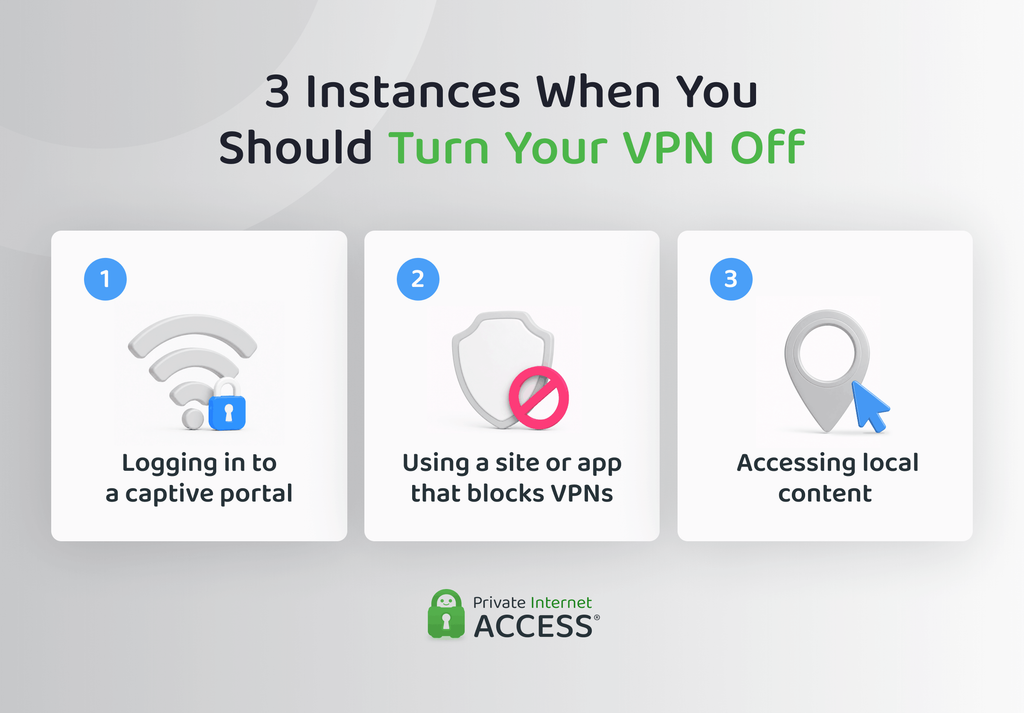
1. Logging In To a Captive Portal
Some school, hotel, airport, and other public Wi-Fi networks might require you to click through a login page and enter your details before you can access the internet.
If your VPN connects the moment you join the network, it will start encrypting your traffic before the login page has a chance to load. This might prevent the network from redirecting you to it, which can block your internet access altogether.
💡 Solution: Turn off your VPN, complete the portal login, then reconnect once you have internet access.
2. Using a Site or App That Blocks VPNs
Certain apps and websites, including some streaming services and banking applications, use VPN detection technology that actively blocks VPN connections. When they detect an IP address associated with a VPN, these platforms may prevent sign-ins, trigger additional verification steps, or block access altogether.
💡 Solution: Turning your VPN off for that specific site is the only way through, but you can do this either by turning your VPN off or use a split tunnel rather than a full tunnel.
3. Accessing Local Content
Streaming websites, news outlets, and weather apps often rely on your IP address to work out where you are and therefore what content to show you.
One of the main reasons to use a VPN is because it masks your real location by changing your IP address. While this can help you in a variety of situations, it can work against you in this case. Adjusting your virtual location could mean missing out on relevant, helpful content.
💡 Solution: Turn off your VPN when you need results tied to where you actually are.
4 VPN-Related Problems You Can Fix Without Turning Your VPN Off
The server you connect to, whether you share your IP address with other users, and how much of your traffic routes through the tunnel can all affect whether you can access certain websites, apps, or services.
In some instances, adjusting some of your VPN’s settings can solve the problem without needing to turn it off.
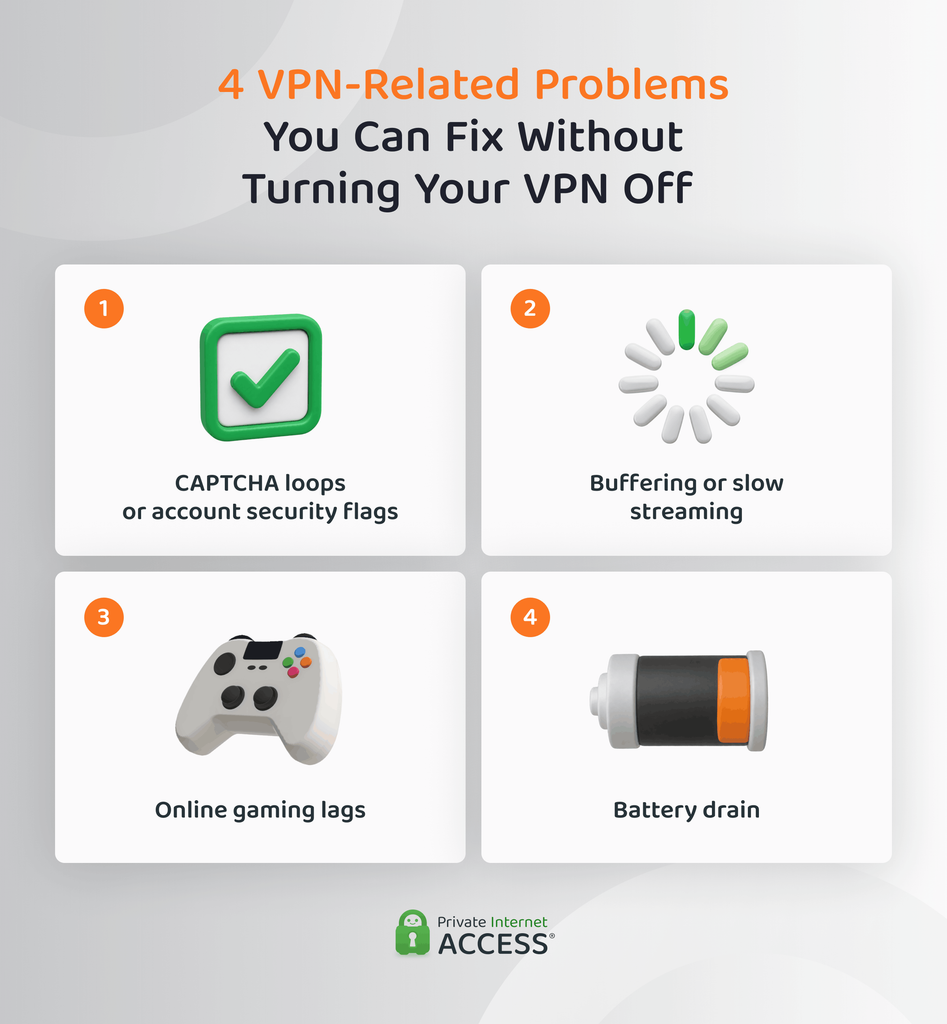
1. CAPTCHA Loops and Account Security Flags
If your most-used accounts start displaying lots more CAPTCHA requests or flag your activity as “unusual” right after you connect to your VPN, it’s usually because of the IP address change.
The problem comes from the fact that many users share one VPN server. Many people connect through the same address at once and, because security systems like reCAPTCHA track IP reputation, everyone sharing that address might be considered suspicious if a few users misbehave while using it.
Switching to a different server can help because this gives you a different address with a potentially cleaner history. You can also get a dedicated IP, an IP address that only you use. This is more reliable, as the IP’s reputation is based only on your activity.
PIA offers dedicated IP addresses in several countries, which can help to minimize CAPTCHAs and other security checks caused by the shared IP reputation problem.
2. Slow Streaming Speeds or Buffering
When you’re connected to a VPN, your traffic doesn’t travel straight from your device to the streaming service. Instead, the VPN client encrypts your request and directs it to the VPN server, which decrypts it before it continues on to its destination.
That detour adds time and, which might show up as buffering during a streaming session on already slow connections.
Rather than switching your VPN off and losing the layer of security that connection provides, picking a server closer to your actual location can improve your speeds by shortening the detour your traffic has to take for encryption.
If you stream often, picking a VPN with streaming-optimized servers can help to ensure that you get the optimal balance of speed, security, and platform compatibility. PIA offers dedicated streaming servers in 30+ countries worldwide.
3. Laggy Gaming Sessions
The same distance-and-encryption trade-off that can work against smooth streaming also applies to gaming. When you’re gaming online, a few hundred extra milliseconds of latency can make the difference between a clean shot and a missed one.
Again, it’s worth trying to connect through a server that’s physically nearer to you, preferably using a VPN that’s optimized for gaming, before disconnecting your VPN and potentially exposing yourself to DDoS attacks.
4. Excessive Battery Drain
A VPN puts more demand on your devices because it uses additional CPU power to continuously encrypt outgoing data and decrypt incoming data. This means that you might see your battery draining faster than usual – especially if you’re on mobile.
Independent device testing generally puts the added drain in the low-to-mid single digits as a percentage of battery per hour of active use.3 That said, older phones, weak signal, and connecting to distant servers can all push that number higher.
Split tunneling can be helpful as cutting down the amount of traffic the VPN encrypts at once can reduce the drain. That said, if your battery is low and you don’t have a charger on hand, turning your VPN off might be a better option.
How to Keep Your VPN on All the Time
A VPN that’s supposed to be running constantly is only useful if it actually stays connected. There are a few settings you can activate to ensure that your VPN is on as often as possible, even through restarts, network switches, and the odd app crash.
Use Auto-Connect
Most VPN apps can be set to connect the moment you open the app or turn on your device.
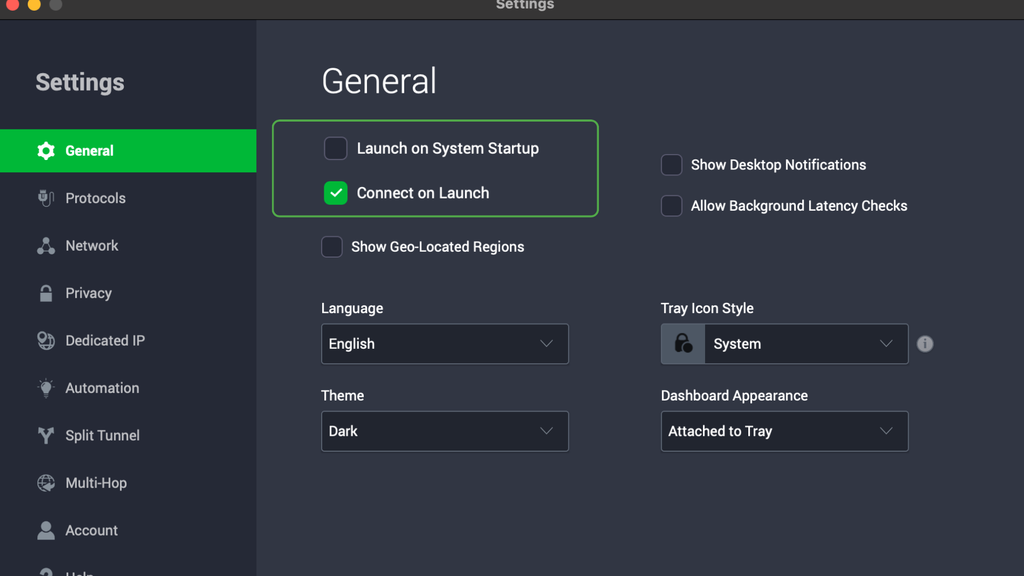
To enable auto connect in the PIA app on Windows, Linux, and Mac:
1. Open the PIA app and go to Settings.
2. Navigate to the General or Automation tab.
3. Enable Connect on Launch (starts the VPN when you open the app) or Launch on System Startup (starts it when your device powers on).
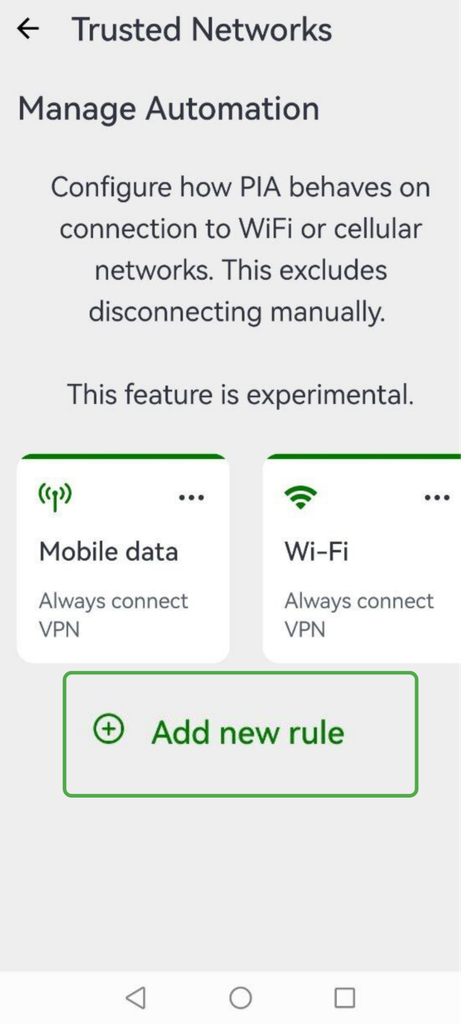
On mobile devices, PIA also lets you enable automatic VPN connections based on the networks you join. This is useful when switching between home, work, and public networks.
To set this up:
- Go to Settings > Automation > Networks.
- Configure it depending on your preferences.
Turn on the Kill Switch
A kill switch blocks all internet traffic if your connection drops unexpectedly. This helps to ensure that there’s no data exposure while the app reconnects.
To enable the Kill Switch in the PIA VPN desktop app:
1. Open PIA and navigate to Settings > Privacy or Advanced.
2. Tick the box next to VPN Kill Switch. If you’re already connected to the VPN, you might have to disconnect and reconnect.
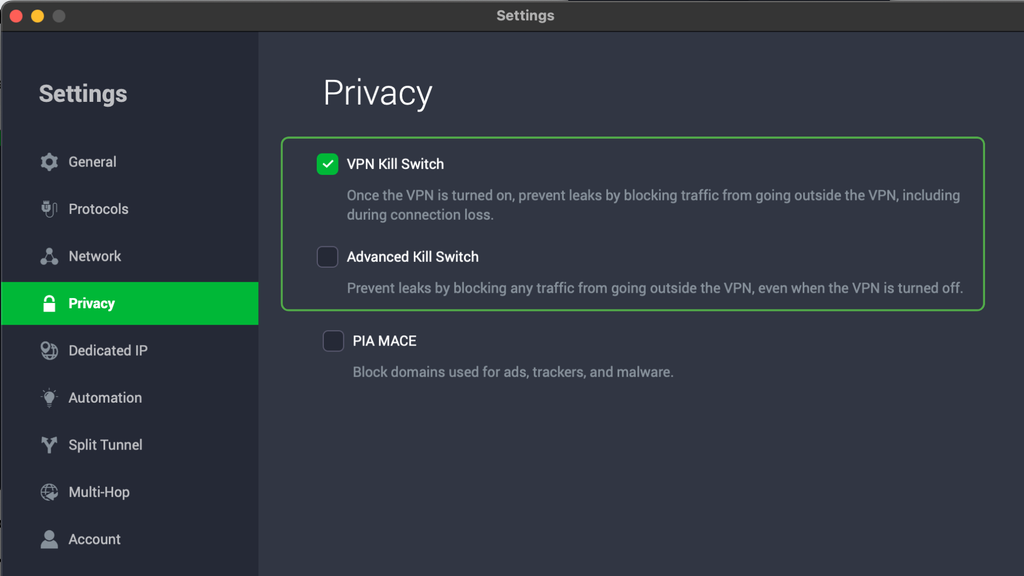
The Advanced Kill Switch option on desktop stops you from going online if PIA VPN isn’t connected. It adds an extra layer of privacy if you’re not using the auto-connect feature.
Activate Split Tunneling
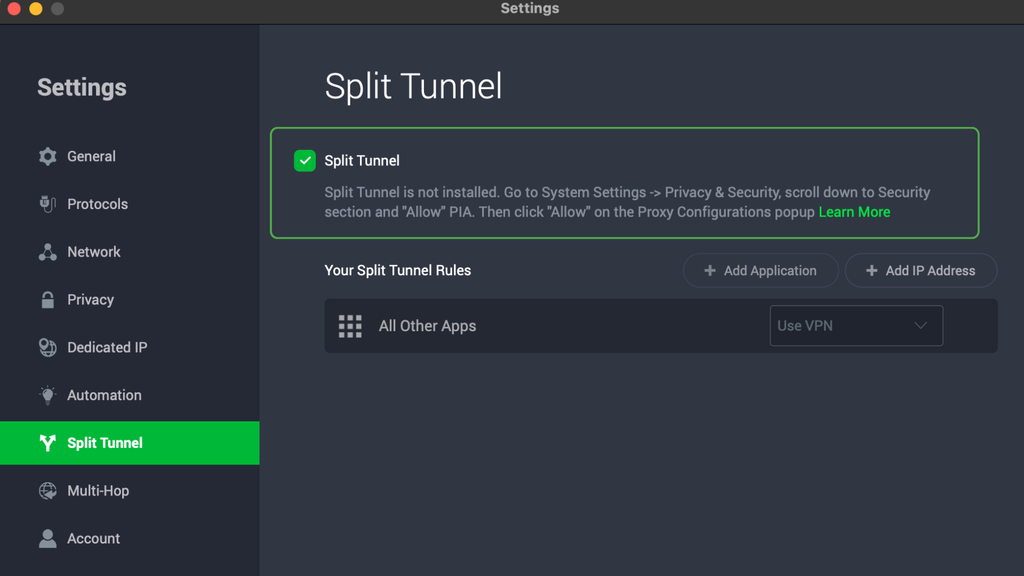
Split tunneling lets you choose which apps use the VPN and which connect without encryption. That lets you keep your VPN connection for sensitive activities like work-related tasks while allowing other content to bypass the VPN.
Follow these steps to enable split tunneling on the PIA desktop apps:
1. Open the PIA app and go to Settings > Split Tunnel.
2. Check the box alongside Split Tunnel.
3. Choose which apps to exclude or include.
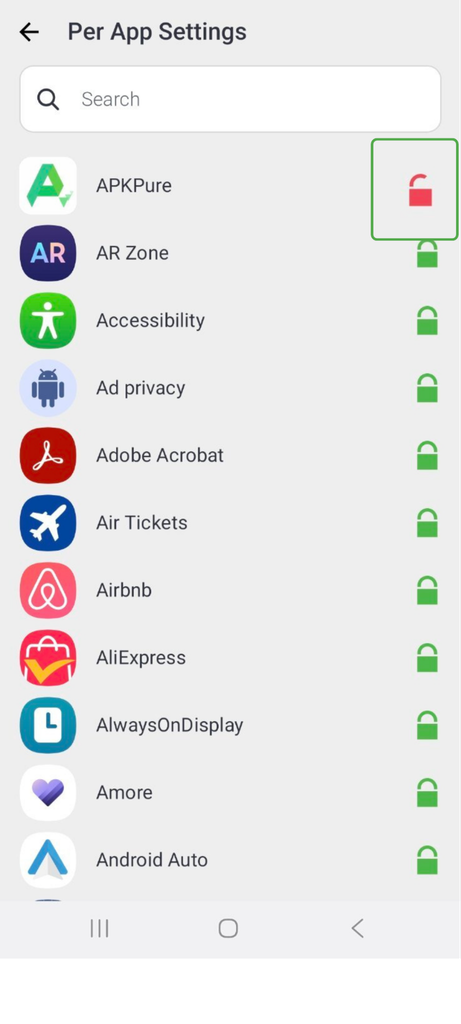
You can also split tunnel apps on PIA’s mobile app. On your Android or iOS device:
- Go to Settings > Privacy Features > Per App Settings.
- Tap the lock icon alongside the app name to switch the VPN on or off for that specific app.
Choose a Nearby Server
A server that’s geographically close to you will generally give you a faster, more stable connection than one on the other side of the world.
When you use the quick connect option on any of the PIA VPN apps (by tapping the power icon to connect), you’ll connect to the fastest nearby server. This gives you optimal speeds without having to choose where to connect.
Check for DNS Leaks
A DNS leak happens when your device’s DNS requests slip outside the VPN tunnel and go through your regular ISP’s servers instead. This leaves your browsing activity exposed and out in the open for anyone on your network to potentially see.
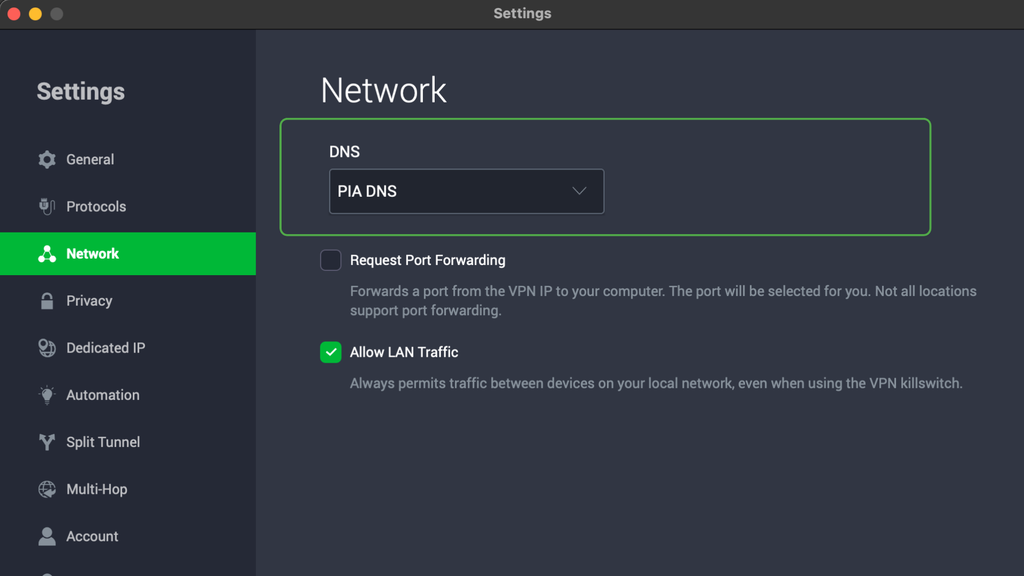
When you’re connected to PIA, it uses its own DNS servers and routes your DNS traffic through a secure tunnel. This prevents your DNS requests from leaking to your internet provider or any third parties.
Follow these steps on your desktop app to make sure you’re connecting to PIA’s secure DNS servers:
1. Open the PIA app.
2. Go to Settings > Network.
3. Make sure you select PIA DNS (this should be on by default).
Use Your Device’s Built-In Always-On Setting
Beyond what your VPN app itself offers, both Android and iOS devices have system-level settings that can help you to keep your VPN on at all times by default.
Android
On Android 8 and later, you can enable Always-on VPN, which turns on the VPN automatically and keeps it running in the background, or block your device’s internet connection if it’s not connected to a VPN:
1. Go to Settings > Network & internet > VPN.
2. Tap the gear icon next to your VPN app. This will reveal two toggles: Always-on VPN and Block connections without VPN. Select whichever option you prefer for your device.
iOS
iOS also has an always-on VPN capability, but it’s usually activated through Apple’s device management tools for supervised, business-managed devices.
For most people on iOS, PIA’s own auto-connect feature and Kill Switch settings are the more practical way to get the always-on result.
FAQ
When should I keep my VPN turned on?
Keep it on by default, especially when you’re connected to public Wi-Fi, handling sensitive accounts, or visiting unsecured websites. Since your VPN protects you in the background, there’s little downside to leaving it running the rest of the time too.
Is it safe to turn off my VPN temporarily?
Yes, as long as you’re on a network you trust. Turning your VPN off exposes information about your browsing activity to your ISP, network admins, and anyone else who might be monitoring your connection, so it’s worth reconnecting as soon as you’re done with whatever required you to disconnect.
Should I use a VPN all the time on public Wi-Fi?
Yes. Public Wi-Fi networks rarely carry the same protections as your home one. VPN encryption might be the only thing that stands between your data and anyone else on that network who might be looking for it.
Does leaving a VPN on affect internet speed?
It can. Encrypting and routing your traffic through a remote server adds a step that a direct connection doesn’t have. Plus, servers that are far away from your actual location or crowded with many users can also slow things down. Using a fast VPN with a large network of high-capacity servers can help to minimize these effects.
What happens if I forget to turn my VPN on?
If you don’t turn your VPN on, your traffic will travel unencrypted and anyone who wants to snoop on your connection may be able to see what you’re doing online. Your real IP address will also be visible to every site you visit. It’s usually always best to turn your VPN on unless it’s causing any specific performance issues.
What does it mean if my phone shows a VPN is on?
It means an app on your phone has an active VPN connection, which could be one you set up yourself, an ad blocker or parental control app using VPN technology in the background, or an app you didn’t expect. You can usually navigate to Settings > VPN to see which app it is.
Does using a VPN cause CAPTCHAs or account lockouts?
It can, though it will usually be the VPN’s shared IP address causing these requests or lockouts, not anything about your account. As other users on a shared IP address can affect its reputation with security systems, using a VPN might trigger additional verification steps on some websites. Using a dedicated IP can reduce how often this happens.
Does an always-on VPN drain phone battery?
A little. A VPN is encrypting and decrypting data, which uses extra processing power and battery life. Independent testing generally shows the difference amounts to a few percentage points of battery per hour of active use. That said, the security benefits of having a VPN on usually outweigh the battery life cons.
References:
